Story time
The YouTube video player exposed a hidden controls bar that allowed a user to manipulate the ad timeline and skip ads before the official skip button appeared. An attacker could use this to bypass ad playback, though the report frames it as a client-side bypass rather than a security vulnerability.

Hello there! I hope everything is going well with you; today I will talk about my YouTube Ads bypass.
The full write-up lives on its author's site
It belongs to its author, so we link to it rather than copy it. The other two tabs are our own rewrites, checked against it.
Context
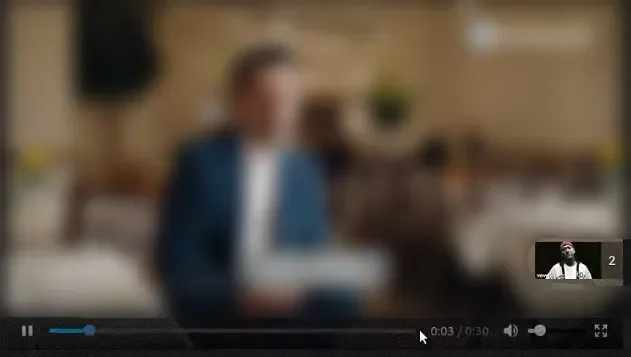
YouTube plays pre-roll and mid-roll ads in the same video element as the main content, and the player normally hides its native controls while an ad is running. The only user-facing way to get past an ad early is the "Skip" button, which appears after a countdown (the report refers to "the five seconds"). The main timeline bar at the bottom of the player is the element with class ytp-chrome-bottom.
The researcher found that a second, native HTML5 controls bar could be made visible on top of the ad, and that this bar allowed seeking through the ad before the skip countdown had finished. The report was filed with Google, triaged and accepted at priority P2 and severity S2, and closed on 7 October 2021.
Setup
No accounts, roles or special tooling were needed beyond a normal browser. The researcher used:
- A desktop browser with YouTube open and a random video that served an ad.
- The browser's Inspector to delete DOM elements.
- A self-written browser extension for Firefox and Chrome/Chromium to automate the process.
Finding it
On 10 September 2021, while watching videos, the researcher accidentally double-clicked the right mouse button. The context menu that appeared contained a "Show Controls" option.
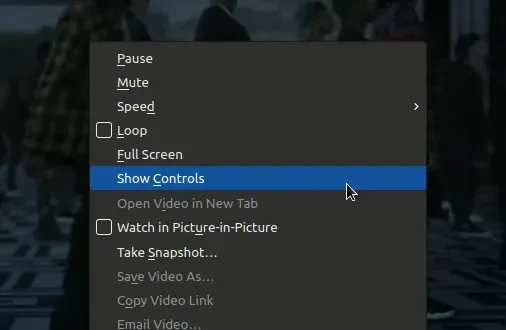
Selecting it made a second timeline bar appear. That bar sat underneath the main YouTube timeline bar, so it could not be used directly. The researcher opened the Inspector and removed the main timeline bar to expose it.

The exposed bar is described as a basic HTML5 timeline bar with its basic functions and nothing more. Before refreshing the page to restore the normal player, the researcher tested it against an ad: picking a random video that served an ad, choosing "Show Controls", and then controlling the ad timeline like a normal video, before the five seconds needed to skip had elapsed. That is the flaw: the native controls were reachable during ad playback and allowed controlling the ad timeline.
Two practical problems remained:
- It was hard to exploit by hand.
- The "Show Controls" bar disappears after every use.
To make the bypass repeatable, the researcher wrote a browser extension.
Exploitation
Step 1: create the extension skeleton
A directory was created with two files. The first, manifest.json, holds the extension configuration:
{

"manifest_version": 2,
 "name": "Manual Ad Skip",
 "version": "1.0",

"content_scripts": [
 {
 "matches": ["https://www.youtube.com/*"],
 "js": ["poc.js"]
 }
 ]

}
The first three keys, manifest_version, name and version, are mandatory metadata. content_scripts tells the browser to load a script into pages whose URL matches a pattern; here the pattern is the YouTube URL, and when it matches the browser runs poc.js.
Step 2: remove the main timeline and keep the native controls visible
The second file, poc.js, does two things: it removes YouTube's main timeline bar, and it shows the "Show Controls" bar and re-applies it so that it does not disappear after use.
#To remove the YouTube barvar el = document.getElementsByClassName("ytp-chrome-bottom");el[0].remove();# To show the "show controls" bar and repeat this every 100 millisecondssetInterval(function(){ document.getElementsByClassName("video-stream html5-main-video")[0].setAttribute("controls","true");}, 100);
The main timeline bar has the class name ytp-chrome-bottom, so remove() deletes it together with all its components. The "Show Controls" bar belongs to the element with class video-stream html5-main-video, and enabling it requires the controls attribute to be true, which is set with setAttribute(). Because the bar disappears after each use, setInterval re-applies the attribute every 100 milliseconds.
Step 3: load and test the extension
- Firefox:
Add-ons and items > Tools for all add-ons > Debug add-ons > Load Temporary add-ons, then select themanifest.jsonfile. - Chrome/Chromium:
More Tools > Extensions > Enable the developer mode > Load unpacked, then select the extension directory.
The extension worked as intended.
Step 4: automate the skip button
To avoid using the mouse, the researcher wrote another extension to automate the whole bypass process. While doing so, the researcher noticed that the skip button can be clicked to skip an ad before the five seconds are up, and used that to skip all ads.
# remove the YouTube's main timeline barvar el=document.getElementsByClassName("ytp-chrome-bottom");el[0].remove();### Since the "Skip" button is only available when the Ad is played, I am checking if the button is found on the source code. var text="ytp-ad-skip-button ytp-button"; setInterval(function(){if (document.body.innerHTML.includes(text)){### if the button is found, click it to skip the addocument.getElementsByClassName("ytp-ad-skip-button ytp-button")[0].click();document.getElementsByClassName("video-stream html5-main-video")[0].setAttribute("controls","true"); }else{### If not, Show our second timeline bar to skip any Ads in the middle of the video document.getElementsByClassName("video-stream html5-main-video")[0].setAttribute("controls","true"); }},100);
The script removes the main timeline bar as before. Because the skip button only exists while an ad is playing, it checks whether the string ytp-ad-skip-button ytp-button appears in the page source. If it does, the script clicks the button to skip the ad and enables the native controls. If it does not, it enables the native controls anyway, so that ads in the middle of a video can be skipped with the second timeline bar. The whole check runs every 100 milliseconds.
With that, the bypass was complete. The report was triaged and accepted after a few days at priority P2 and severity S2.
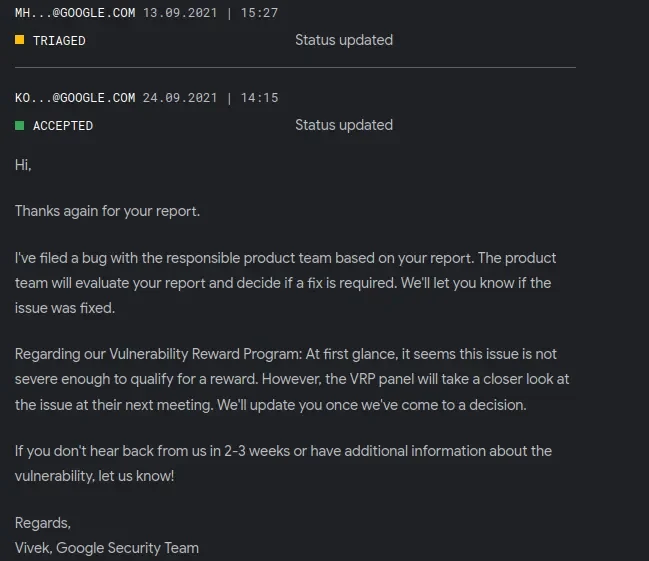
Google closed the report on 7 October 2021.
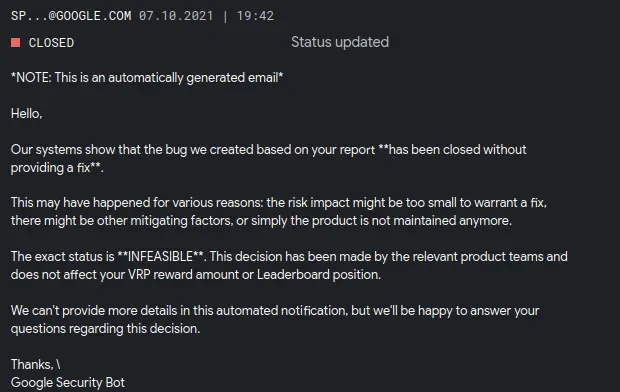
After some questions:

Root cause
The underlying HTML5 video element still exposes native controls through the controls attribute, and those controls operate on the ad timeline. Removing the overlay element ytp-chrome-bottom and setting controls="true" on video-stream html5-main-video gives a timeline that operates on the ad itself. The skip button is likewise clickable before its countdown has finished. Both are client-side: the controls and the skip button are handled in the page. The report does not describe any server-side check that was bypassed.
Impact
A user who manipulates the page, or installs an extension that does so, can skip ads without waiting for the skip countdown. The researcher demonstrated this on their own browser against random videos that served ads. The report does not describe any effect on other users, on advertiser billing, or on accounts, and it does not state what Google changed in response.
Fix
It only records that the issue was triaged, accepted at P2/S2, and that the report was closed on 7 October 2021. The researcher notes at the end that they still have YouTube without ads.
Variants to test
- Other players with native controls. Look for a video element whose native
controlsattribute can be enabled during an ad or during restricted playback. A positive result is a working seek bar over the ad or restricted content. - Overlay removal. Find the class of the player's overlay bar (here
ytp-chrome-bottom) and remove it in the Inspector to see whether a hidden control surface underneath becomes usable. A positive result is an interactive element that was not meant to be reachable. - Early clicks on gated buttons. Check whether buttons that appear after a countdown (skip, continue, accept) are present in the DOM and clickable before the countdown ends. A positive result is the action firing early.
- Context-menu options. Right-click menus on media elements sometimes expose options such as "Show Controls". A positive result is a control surface appearing that the normal UI hides.
- Attribute polling. Re-apply an attribute on an interval, as the researcher did every 100 milliseconds, to defeat UI code that resets it after each use. A positive result is the control staying available across repeated interactions.
What happened, in plain words
YouTube shows adverts before and during videos. Normally, while an advert is playing, YouTube hides its own playback controls (the bar at the bottom with play, pause and the timeline you can drag). The only way a viewer is meant to get past an advert early is the "Skip" button, which appears after a short countdown (the report calls it "the five seconds").
A researcher found that a second, built-in set of video controls could be made to appear on top of the advert, and that this second bar let you drag through the advert before the countdown had finished. In other words, the restriction was only visual: the page hid the controls, but the underlying video player still offered them to anyone who knew how to ask.
This kind of bug is a logic flaw: nothing crashes and no password is stolen, but the program's own rules ("you may not skip until the countdown ends") can be worked around because the rule is enforced only in the part of the page you can see and change, not on Google's servers.
The researcher reported it to Google. It was triaged (checked and confirmed as a real issue) and accepted at priority P2 and severity S2, and the report was closed on 7 October 2021.
The setup
Nothing special was needed: no account, no special role, no paid tool. Just:
- A desktop browser with YouTube open, playing a random video that served an advert.
- The browser's Inspector, a panel built into every modern browser (usually opened with F12 or right-click then "Inspect") that shows the page's structure and lets you change or delete parts of it live.
- A small browser extension the researcher wrote for Firefox and Chrome/Chromium to repeat the trick automatically. An extension is a little add-on program you install in your browser; here it is a few lines of code that run on YouTube pages.
How it was found
On 10 September 2021, while watching videos, the researcher accidentally double-clicked the right mouse button. The menu that popped up contained an option called "Show Controls".
Choosing it made a second timeline bar appear. That bar sat underneath YouTube's main timeline bar, so it could not be used directly: the normal bar was covering it. The researcher opened the Inspector and deleted the main timeline bar to expose the second one.
This exposed bar is described as a basic HTML5 timeline bar with its basic functions and nothing more. HTML5 is simply the current standard for building web pages, and a video element in HTML5 can carry its own built-in controls; the controls attribute is the switch that turns them on.
Before refreshing the page to bring the normal player back, the researcher tested the bar against an advert: picking a random video that served one, choosing "Show Controls", and then dragging through the advert's timeline like a normal video, before the five seconds needed to skip had passed. That is the flaw: the built-in controls could be reached during advert playback and allowed controlling the advert timeline.
Two practical problems remained:
- Doing it by hand was awkward and slow.
- The "Show Controls" bar disappears after every use, so you would have to repeat the whole thing each time.
To make the bypass repeatable, the researcher wrote a browser extension.
Building the exploit
Step 1: create the extension skeleton
A folder was created containing two files. The first, manifest.json, is the extension's settings file. Think of it as the label on a jar: it tells the browser the extension's name, version, and what it is allowed to do.
{

"manifest_version": 2,
 "name": "Manual Ad Skip",
 "version": "1.0",

"content_scripts": [
 {
 "matches": ["https://www.youtube.com/*"],
 "js": ["poc.js"]
 }
 ]

}
Line by line:
- The outer
{and}wrap the whole settings object. "manifest_version": 2says which version of the extension format is being used. The browser needs this to know how to read the file."name": "Manual Ad Skip"is the name shown in the browser's extension list."version": "1.0"is the extension's own version number."content_scripts"is a list of scripts the browser should inject into web pages. A content script is code that runs inside a page you visit, as if it were part of that page."matches": ["https://www.youtube.com/*"]is the pattern of addresses where the script should run. The*means "anything after this point", so every YouTube page qualifies."js": ["poc.js"]names the file to run when the pattern matches.
The first three keys, manifest_version, name and version, are mandatory metadata. content_scripts tells the browser to load a script into pages whose address matches a pattern; here the pattern is the YouTube address, and when it matches, the browser runs poc.js.
Step 2: remove the main timeline and keep the built-in controls visible
The second file, poc.js, does two things: it removes YouTube's main timeline bar, and it shows the "Show Controls" bar and re-applies it so that it does not disappear after use.
#To remove the YouTube barvar el = document.getElementsByClassName("ytp-chrome-bottom");el[0].remove();# To show the "show controls" bar and repeat this every 100 millisecondssetInterval(function(){ document.getElementsByClassName("video-stream html5-main-video")[0].setAttribute("controls","true");}, 100);
Line by line, in plain words:
document.getElementsByClassName("ytp-chrome-bottom")asks the page for every element whose class name isytp-chrome-bottom. A class name is a label attached to a piece of a web page so that styling and scripts can find it; here it marks YouTube's main timeline bar.el[0]picks the first match from that list..remove()deletes that element, and with it everything inside the bar.setInterval(function(){ ... }, 100)runs the code inside the braces again and again, every 100 milliseconds (a tenth of a second). This is the answer to the bar disappearing after each use: instead of setting it once, the script keeps setting it.- Inside,
document.getElementsByClassName("video-stream html5-main-video")[0]finds the actual video element on the page. .setAttribute("controls","true")switches on the video element's built-in controls, which is the same as choosing "Show Controls" from the menu.
So the main timeline bar has the class name ytp-chrome-bottom, and remove() deletes it together with all its components. The "Show Controls" bar belongs to the element with class video-stream html5-main-video, and enabling it requires the controls attribute to be true, which is set with setAttribute(). Because the bar disappears after each use, setInterval re-applies the attribute every 100 milliseconds.
Step 3: load and test the extension
Browsers do not run extensions straight from a folder by default, so you load them temporarily for testing:
- Firefox:
Add-ons and items > Tools for all add-ons > Debug add-ons > Load Temporary add-ons, then select themanifest.jsonfile. - Chrome/Chromium:
More Tools > Extensions > Enable the developer mode > Load unpacked, then select the extension directory.
The extension worked as intended.
Step 4: automate the skip button
To avoid using the mouse, the researcher wrote another extension to automate the whole bypass process. While doing so, the researcher noticed that the skip button can be clicked to skip an advert before the five seconds are up, and used that to skip all adverts.
# remove the YouTube's main timeline barvar el=document.getElementsByClassName("ytp-chrome-bottom");el[0].remove();### Since the "Skip" button is only available when the Ad is played, I am checking if the button is found on the source code. var text="ytp-ad-skip-button ytp-button"; setInterval(function(){if (document.body.innerHTML.includes(text)){### if the button is found, click it to skip the addocument.getElementsByClassName("ytp-ad-skip-button ytp-button")[0].click();document.getElementsByClassName("video-stream html5-main-video")[0].setAttribute("controls","true"); }else{### If not, Show our second timeline bar to skip any Ads in the middle of the video document.getElementsByClassName("video-stream html5-main-video")[0].setAttribute("controls","true"); }},100);
Line by line:
document.getElementsByClassName("ytp-chrome-bottom")finds the main timeline bar,el[0]takes the first one, and.remove()deletes it, exactly as before.var text="ytp-ad-skip-button ytp-button"stores the class name of the skip button in a variable calledtext. A variable is just a named box holding a value so you can use it later.setInterval(function(){ ... }, 100)runs the block every 100 milliseconds, so the check keeps happening while you watch.document.body.innerHTML.includes(text)asks: does the page's HTML source contain that class name anywhere? If the skip button is present, the answer is yes. The skip button only exists while an advert is playing, so its presence is a signal that an advert is on screen.- If it is found,
document.getElementsByClassName("ytp-ad-skip-button ytp-button")[0].click()clicks the skip button, and the next line switches on the built-in controls. - If it is not found, the
elsebranch switches on the built-in controls anyway, so that adverts in the middle of a video can be skipped with the second timeline bar.
The script removes the main timeline bar as before. Because the skip button only exists while an advert is playing, it checks whether the string ytp-ad-skip-button ytp-button appears in the page source. If it does, the script clicks the button to skip the advert and enables the built-in controls. If it does not, it enables the built-in controls anyway, so that adverts in the middle of a video can be skipped with the second timeline bar. The whole check runs every 100 milliseconds.
With that, the bypass was complete. The report was triaged and accepted after a few days at priority P2 and severity S2. Priority and severity are the labels a bug bounty programme uses to say how urgent and how serious an issue is; P2 and S2 are the labels Google gave this issue.
Google closed the report on 7 October 2021.
After some questions:
Why it worked
The underlying HTML5 video element still exposes built-in controls through the controls attribute, and those controls operate on the advert timeline. Removing the overlay element ytp-chrome-bottom and setting controls="true" on video-stream html5-main-video gives a timeline that operates on the advert itself. The skip button is likewise clickable before its countdown has finished.
Both are client-side: the controls and the skip button are handled in the page running on your own computer. The report does not describe any server-side check that was bypassed.
What it means in practice
A user who manipulates the page, or installs an extension that does so, can skip adverts without waiting for the skip countdown. The researcher demonstrated this on their own browser against random videos that served adverts. The report does not describe any effect on other users, on advertiser billing, or on accounts, and it does not state what Google changed in response.
Was it fixed?
It only records that the issue was triaged, accepted at P2/S2, and that the report was closed on 7 October 2021. The researcher notes at the end that they still have YouTube without adverts.
Similar things to look for
These are starting points for testing other sites, not instructions to break anything:
- Other players with built-in controls. Look for a video element whose native
controlsattribute can be enabled during an advert or during restricted playback. A positive result is a working seek bar over the advert or restricted content. - Removing overlays. Find the class of the player's overlay bar (here
ytp-chrome-bottom) and remove it in the Inspector to see whether a hidden control surface underneath becomes usable. A positive result is an interactive element that was not meant to be reachable. - Early clicks on gated buttons. Check whether buttons that appear after a countdown (skip, continue, accept) are present in the page and clickable before the countdown ends. A positive result is the action firing early.
- Context-menu options. Right-click menus on media elements sometimes expose options such as "Show Controls". A positive result is a control surface appearing that the normal interface hides.
- Re-applying an attribute on a timer. Set an attribute again and again on an interval, as the researcher did every 100 milliseconds, to defeat interface code that resets it after each use. A positive result is the control staying available across repeated interactions.
Glossary
- Advert (ad): a promotional video YouTube plays before or during the video you chose.
- Attribute: a setting written inside an HTML tag, such as
controls="true", that changes how an element behaves. - Browser extension: a small add-on program installed in a browser that can run code on the pages you visit.
- Class name: a label attached to an element in a web page so that styling and scripts can find it.
- Client-side: happening in the browser on your own computer, as opposed to on the company's servers.
- Content script: code from an extension that the browser injects into a matching web page.
- DOM (Document Object Model): the live tree of elements that makes up a web page, which scripts and the Inspector can read and change.
- HTML5: the current standard for building web pages, including a video element with built-in controls.
- Inspector: a panel in the browser's developer tools that shows the page's structure and lets you edit or delete parts of it.
- Logic flaw: a bug where the program's own rules can be worked around, even though nothing crashes and no data is stolen.
- Manifest (
manifest.json): the settings file of a browser extension, describing its name, version and what it does. - Priority (P2): a bug bounty programme's label for how urgently an issue should be handled.
- Severity (S2): a bug bounty programme's label for how serious an issue is.
- Skip button: the button that lets a viewer end an advert early, normally after a countdown.
- Timeline bar: the strip at the bottom of a video player showing progress, which you can drag to jump forwards or backwards.
- Triaged: reviewed by the programme and confirmed as a valid issue.
- Variable: a named box in code that holds a value for later use.