A phishing document signed by Microsoft – part 1
Microsoft Excel's Analysis ToolPak add-in (ATPVBAEN.XLAM) loads an XLL file whose path is stored in an unprotected worksheet cell, allowing an attacker to supply a malicious XLL that executes unsigned code under a Microsoft-signed context. An attacker could use this for phishing to execute arbitrary code, potentially without a warning if the Microsoft certificate is a trusted publisher.
 Published on outflank.nl
This blog post is part of series of two posts that describe weaknesses in Microsoft Excel that could be leveraged to create malicious phishing documents signed by Microsoft that load arbitrary code.
The full write-up lives on its author's site
It belongs to its author, so we link to it rather than copy it. The other two tabs are our own rewrites, checked against it.
Context
Microsoft Office ships with a component called the Microsoft Analysis ToolPak add-in. It is implemented as an Excel Add-in, an .XLAM file, typically named ATPVBAEN.XLAM and located in the Office installation directory. In the same directory sits an XLL called analys32.xll, which the XLAM loads. An XLL is a DLL based Excel add-in.
The XLAM implements its functionality through VBA code that is signed by Microsoft. The weakness described here is that signing the VBA code does not imply integrity control over the document contents or the resources it loads. An attacker can embed malicious code without invalidating the signature, producing phishing documents that are signed by Microsoft and load arbitrary code.
Microsoft addressed these weaknesses in CVE-2021-28449. The methods described are no longer applicable to an up-to-date and securely configured MS Office install. The resulting exploit supports roughly all versions of Office (x86 and x64) for any Windows version against unprivileged and privileged users, without prior knowledge of the target environment. At the authors' clients they have seen situations where the specific Microsoft certificate is added as a Trusted Publisher, meaning code execution without a popup after opening the maldoc. In other situations the user gets a popup showing a legitimate Microsoft signature.
This is part one of a two-part series. Part two covers other vulnerabilities in the same code, alternative weaponization methods and why the patch was complex.
Setup
The research started by looking in the MS Office installation directory for example documents to understand the Office Open XML (OpenXML) format. The relevant path is C:\program files\Microsoft Office\. The Analysis ToolPak files are present in the same directory across versions, and the folder and file structure is the same for all versions:
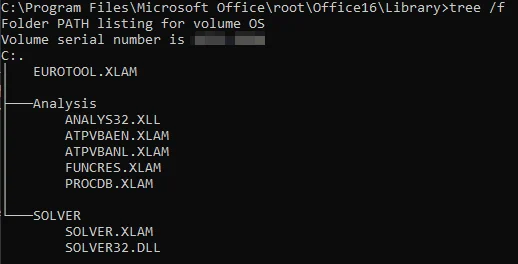
The XLAM file format is relatively similar to a regular macro enabled Excel file (XLSM). An XLAM usually contains specific extensions to Excel so new functionality and functions can be used in a workbook. ATPVBAEN.XLAM implements this via VBA code signed by Microsoft.
The tooling used to analyse the VBA is olevba. The authors also published a copy of the file as ATPVBAEN.XLAM.base64 for download.
Finding it
During a research night, while strolling through C:\program files\Microsoft Office\, the author found an interesting file that was doing something weird. Copying ATPVBAEN.XLAM to the desktop together with a malicious XLL renamed to analys32.xll showed that the signed XLAM loaded the unsigned malicious XLL.
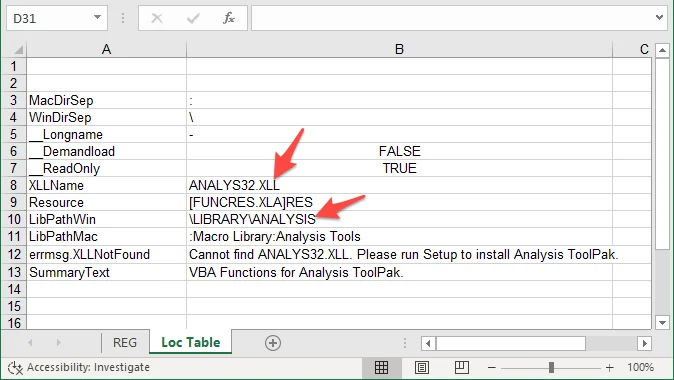
Normally, the signed VBA code in ATPVBAEN.XLAM loads an XLL in the same directory via a call to RegisterXLL. The exact path of this XLL is provided inside an Excel cell in the XLAM file. Cells in a worksheet are not signed or validated and can be manipulated by an attacker. There is no integrity check upon loading the XLL, and no warning is given, even if the XLL is unsigned or loaded from a remote location.
Exploitation
Step 1: Understand how the XLAM loads the XLL
ATPVBAEN.XLAM loads ANALYS32.XLL and uses its exported functions to provide functionality to the user. An XLL is essentially a DLL with the function xlAutoOpen exported. Running olevba against the file shows the declarations and the cell references used by the VBA:
> olevba ATPVBAEN.XLAM
olevba 0.55.1 on Python 3.7.3 - http://decalage.info/python/oletools
=================================================================
VBA MACRO VBA Functions and Subs.bas
in file: xl/vbaProject.bin - OLE stream: 'VBA/VBA Functions and Subs'
- - - - - - - - - - - - - - - - - - - - - - - - - - - - - - - - -
' ANALYSIS TOOLPAK  -  Excel AddIn
' The following function declarations provide interface between VBA and ATP XLL.

' These variables point to the corresponding cell in the Loc Table sheet.
Const XLLNameCell = "B8"
Const MacDirSepCell = "B3"
Const WinDirSepCell = "B4"
Const LibPathWinCell = "B10"
Const LibPathMacCell = "B11"

Dim DirSep As String
Dim LibPath As String
Dim AnalysisPath As String
Unhiding the worksheet shows the values:
Step 2: Trace the auto_open path
The auto_open() function is called when the file is opened and the macros are enabled or trusted:
' Setup & Registering functions

Sub auto_open()
    Application.EnableCancelKey = xlDisabled
    SetupFunctionIDs
    PickPlatform
    VerifyOpen
    RegisterFunctionIDs
End Sub
First, PickPlatform sets the variables. LibPath is set to the value of LibPathWinCell (which is under the attacker's control) when the workbook is opened on Windows:
Private Sub PickPlatform()
    Dim Platform

    ThisWorkbook.Sheets("REG").Activate
    Range("C3").Select
    Platform = Application.ExecuteExcel4Macro("LEFT(GET.WORKSPACE(1),3)")
    If (Platform = "Mac") Then
        DirSep = ThisWorkbook.Sheets("Loc Table").Range(MacDirSepCell).Value
        LibPath = ThisWorkbook.Sheets("Loc Table").Range(LibPathMacCell).Value
    Else
        DirSep = ThisWorkbook.Sheets("Loc Table").Range(WinDirSepCell).Value
        LibPath = ThisWorkbook.Sheets("Loc Table").Range(LibPathWinCell).Value
    End If
End Sub
Step 3: See how VerifyOpen resolves and registers the XLL
VerifyOpen looks for the XLL named in XLLNameCell = "B8", then searches the entire PATH of the system, and finally looks in the path defined by LibPath. All highlighted variables are under the attacker's control; the authors focus on attacking the red highlighted code:
Private Sub VerifyOpen()
    XLLName = ThisWorkbook.Sheets("Loc Table").Range(XLLNameCell).Value

    theArray = Application.RegisteredFunctions
    If Not (IsNull(theArray)) Then
        For i = LBound(theArray) To UBound(theArray)
            If (InStr(theArray(i, 1), XLLName)) Then
                Exit Sub
            End If
        Next i
    End If

    Quote = String(1, 34)
    ThisWorkbook.Sheets("REG").Activate
    WorkbookName = "[" & ThisWorkbook.Name & "]" & Sheet1.Name
    AnalysisPath = ThisWorkbook.Path

    AnalysisPath = AnalysisPath & DirSep
    XLLFound = Application.RegisterXLL(AnalysisPath & XLLName)
    If (XLLFound) Then
        Exit Sub
    End If

    AnalysisPath = ""
    XLLFound = Application.RegisterXLL(AnalysisPath & XLLName)
    If (XLLFound) Then
        Exit Sub
    End If

    AnalysisPath = LibPath
    XLLFound = Application.RegisterXLL(AnalysisPath & XLLName)
    If (XLLFound) Then
        Exit Sub
    End If

    XLLNotFoundErr = ThisWorkbook.Sheets("Loc Table").Range("B12").Value
    MsgBox (XLLNotFoundErr)
    ThisWorkbook.Close (False)
End Sub
RegisterXLL loads any XLL without warning or user validation. Copying the XLAM to another folder and adding a malicious XLL named ANALYS32.XLL in the same folder allows unsigned code execution from a signed context. There are no integrity checks on loading additional unsigned resources from a user-accepted signed context.
Step 4: Simple weaponization
The simplest version requires the attacker to deliver multiple files: an Excel file and the XLL payload. This can be done through multiple vectors, for example offering multiple files for download, or container formats such as .zip, .cab or .iso. The attacker copies ATPVBAEN.XLAM from the Office directory and serves a malicious XLL named ANALYS32.XLL next to it. The XLAM can be renamed according to the phishing scenario. By changing the XLLName cell in the XLAM, the XLL name can be changed to an arbitrary value as well.
Step 5: Handle x86 and x64 bitness (PoC 1)
A full weaponization requires knowing whether the victim runs 64-bit or 32-bit Office, because an XLL payload (DLL) works for either x64 or x86. The Office bitness can be obtained using =INFO("OSVERSION"), since the function is executed when the worksheet is opened, before the VBA macro code runs. The resulting version string includes the version of Windows and the bitness of Office, for example "Windows (32-bit) NT 10.00". An attacker can provide both 32- and 64-bit XLLs and use Excel formulas to load the correct one.
The final bundle to be delivered to the target would contain:
PoC-1-local.zip
├ Loader.xlam
├ demo64.dat
├ demo32.dat
A 64-bit XLL is renamed to demo64.dat and is loaded from the same folder. It can be served as zip, iso, cab, double download, etc. The payload is a changed XLLName cell B8:
= "demo" & IF(ISERROR(SEARCH("64";INFO("OSVERSION"))); "32"; "64") & ".dat"
Step 6: Load the XLL over WebDAV
With various Office tricks, the authors also created a version where the XLAM/XLSM could be sent directly via email and would load the XLL via WebDAV. Details are beyond the scope of this post; there are quite a few tricks to enable the WebDAV client on a target's machine via MS Office, covered in part two.
Step 7: Transpose the signed macro to other formats
By copying the vbaproject.bin, signed VBA code can be copied or transposed into other file formats and extensions (for example from XLAM to XLSM to XLS). Changing the file extension from XLAM to XLSM can be done by changing one word inside the document in [Content_Types].xml from addin to sheet. The Save As menu option can be used to convert the XLSM (Open XML) to XLS (compound file).
Step 8: Understand the signature
Some noteworthy aspects of the signature applied on the VBA code:
- The VBA code in the XLAM files is signed by Microsoft using timestamp signing, which causes the certificate and signature to remain valid even after certificate expiration. As far as the authors know, timestamp signed documents for MS Office cannot be revoked.
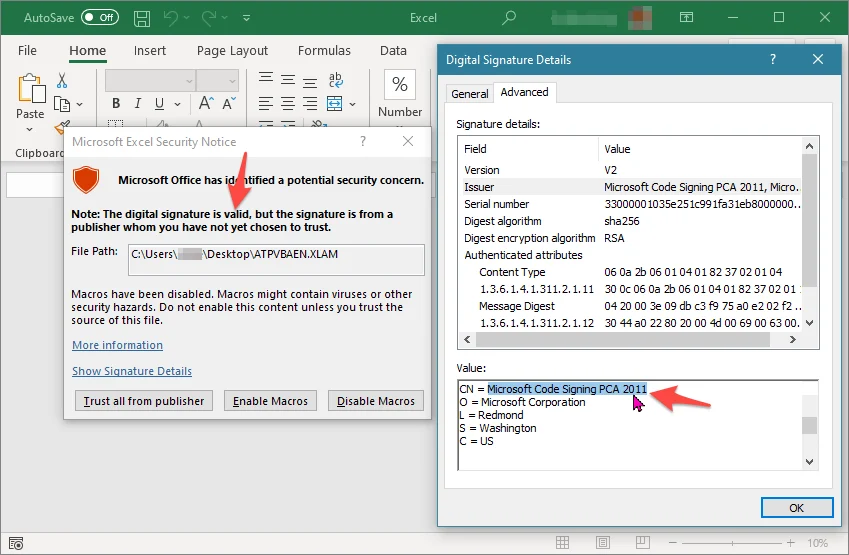
- The XLAMs located in the Office installer are signed by
CN = Microsoft Code Signing PCA 2011with varying validity start and end dates. Microsoft appears to use a new certificate every half year, so multiple versions of this certificate are in use. - In various real-world implementations at the authors' clients, the Microsoft Code Signing PCA 2011 is installed as a Trusted Publisher. Some online resources hint towards adding this Microsoft root as a trusted publisher. This means code execution without a popup after opening the maldoc.
- If an environment does not have the Microsoft certificate as trusted publisher, the user is presented with a macro warning. The user can inspect the signature details and will observe that this is a genuine Microsoft signed file.
Root cause
The signed VBA code in ATPVBAEN.XLAM reads the XLL name and path from worksheet cells and passes them to Application.RegisterXLL. Worksheet cells are not signed or validated, so an attacker can change them without invalidating the VBA signature. RegisterXLL then loads the referenced XLL without an integrity check and without a warning, even when the XLL is unsigned or loaded from a remote location. The signature covers the VBA code only, not the document contents or the resources it loads.
Impact
An attacker can transpose the signed code into various other formats (for example XLS, XLSM) and use it as a phishing vector. If a victim system has marked the Microsoft certificate as trusted publisher and the attacker targets the correct certificate version, the victim gets no notification and attacker code is executed. If the certificate is not trusted, the user gets a notification and might enable the macro because it is legitimately signed by Microsoft.
The exploit was confirmed on all recent versions of Microsoft Excel (2013, 2016, 2019), for both x86 and x64 architectures. The authors found signed and vulnerable ATPVBAEN.XLAM files dating back to 2009, while the file contains references to "Copyright 1991,1993 Microsoft Corporation", hinting the vulnerability could be present for a very long time.
The XLAM add-in supports both paths for Windows and for MacOS and launches the correct XLL payload accordingly. Although MacOS is likely affected, it has not been explicitly tested by the authors. Theoretically, the sandbox should mitigate part of the impact.
Fix
Microsoft acknowledged the vulnerability, assigned CVE-2021-28449 and patched it 5 months later. Mitigation was not trivial because of other weaknesses in these files, covered in part two. The weakness described in this post was mitigated by signing the XLL and adding a new check that prevents downgrading and loading of an unsigned XLL. By default, downgrading is not allowed, but this behaviour can be manipulated or influenced via the registry value SkipSignatureCheckForUnsafeXLL, as described in Microsoft's support article on add-ins and VBA macros being disabled.
Disclosure timeline:
| Event | Date |
|---|---|
| Submitted to MSRC | 30 November 2020 |
| Patch release | April 2021 |
| Public disclosure | December 2021 |
Acknowledgement: Pieter Ceelen & Dima van de Wouw (Outflank).
Variants to test
- Look for other signed Office add-ins that load companion binaries from a path stored in a worksheet cell. A positive result is a signed add-in whose VBA passes a cell value to a loader such as
RegisterXLLwithout validating the target. - Check whether the Microsoft Code Signing PCA 2011 certificate is installed as a Trusted Publisher in the target environment. A positive result is a signed document that executes without a macro warning popup.
- Test whether signed VBA can be transposed between formats by copying
vbaproject.binand editing[Content_Types].xmlfromaddintosheet. A positive result is a working XLSM that still shows the Microsoft signature. - Test whether
=INFO("OSVERSION")can be used to select between 32-bit and 64-bit payloads before the VBA runs. A positive result is the correct payload being loaded on both bitnesses from a single bundle. - Test whether the XLL can be loaded from a remote location such as WebDAV. A positive result is code execution from a signed document with the payload fetched over the network.
What happened, in plain words
Microsoft Office, the suite of programs that includes Word, Excel and PowerPoint, ships with a small helper component called the Microsoft Analysis ToolPak. It is an Excel add-in: a file that adds extra features to Excel. This add-in is stored as a file with the extension .XLAM, typically named ATPVBAEN.XLAM, and it lives in the folder where Office is installed. Next to it sits another file, analys32.xll, which the add-in loads to do part of its work.
Here is the problem in one sentence: the add-in's own instructions are signed by Microsoft, but the add-in reads the name and location of the file it loads from ordinary cells inside a spreadsheet, and those cells are not protected by the signature. Anyone who can edit the spreadsheet can point it at a different file, and the add-in will load and run that file without warning, even though it is not signed by Microsoft.
Because the add-in itself still carries a genuine Microsoft signature, a victim who opens the document sees a reassuring "signed by Microsoft" message. If the victim's computer has been configured to trust that Microsoft certificate, the code runs with no popup at all. This makes the technique well suited to phishing: tricking someone into opening an attachment that looks legitimate.
Microsoft fixed the weakness in a security update tracked as CVE-2021-28449. The methods described here no longer work against an up-to-date Office installation that is also configured securely. The authors note that the exploit worked on roughly all versions of Office, both 32-bit and 64-bit, on any Windows version, against ordinary users and administrators alike, without needing to know anything about the target's computer beforehand.
This is part one of a two-part series. Part two covers other weaknesses in the same code, other ways to deliver the attack, and why the fix was complicated.
Background concepts you need first
Before walking through the research, here are the ideas that come up again and again. Each one is explained from scratch.
- Excel add-in (.XLAM): a file that plugs extra features into Excel. Think of it like a browser extension: Excel on its own does certain things, and the add-in teaches it new tricks. The
.XLAMextension is specific to Excel add-ins. - DLL and XLL: a DLL is a file full of ready-made functions that other programs can call, a bit like a toolbox that a program opens when it needs a particular tool. An XLL is simply a DLL built specifically for Excel, so Excel knows how to open it and use its tools.
- VBA: Visual Basic for Applications, the small programming language built into Office. Macros, the little scripts people write to automate Excel, are written in VBA.
- Macro: a script that runs inside an Office document. When you open a document with macros, Office usually asks whether you want to enable them, because macros can do almost anything on your computer.
- Digital signature: a cryptographic stamp that proves a file came from a particular publisher and has not been altered since it was signed. It is like a wax seal on an envelope: it shows who sent it and that nobody opened it on the way. In Office, a signed macro shows the publisher's name in a warning dialog.
- Certificate: the digital identity document behind a signature. It says "this signature belongs to Microsoft" and carries dates during which it is valid.
- Trusted Publisher: a setting in Office that says "I trust documents signed by this publisher, so stop warning me about them". Once a publisher is trusted, its signed macros run without a popup.
- Phishing: an attack that disguises itself as something trustworthy, usually an email or document, to get a person to run malicious code or hand over information.
- Maldoc: short for malicious document, a document crafted to run attacker code when opened.
- Integrity check: a check that confirms a file or value has not been changed. A signature is one kind of integrity check; here the signature covers only the VBA code, not the spreadsheet cells or the files the code loads.
- OpenXML: the modern file format behind
.xlsx,.xlsmand.xlamfiles. Such a file is really a zip archive containing several XML files, which are plain text files full of tags describing the document's contents. - WebDAV: a way of accessing files over the internet that behaves like a shared folder. If a document points at a WebDAV address, Office can fetch a file from a remote server as if it were local.
- Registry: a database inside Windows where settings are stored. Programs read values from it to decide how to behave.
- CVE: a public catalogue number for a known security vulnerability, so people can refer to the same flaw unambiguously.
- MSRC: the Microsoft Security Response Center, the team that receives reports of vulnerabilities in Microsoft products.
- olevba: a free tool that extracts and displays the VBA macros hidden inside an Office file, so a researcher can read them.
The setup: where the files live
The research began with a simple idea: look through the folder where Office is installed for example documents, to understand how the OpenXML format works. The relevant path is C:\program files\Microsoft Office\. The Analysis ToolPak files sit in the same directory across versions, and the folder and file structure looks the same for every version:
The .XLAM format is fairly similar to a regular macro-enabled Excel file, the .XLSM type. An .XLAM usually contains extra features so that new functions become available inside a workbook. ATPVBAEN.XLAM provides those features through VBA code that is signed by Microsoft.
The tool used to read the VBA is olevba. The authors also published a copy of the file as ATPVBAEN.XLAM.base64 so others could download and examine it.
Finding it
One night, while browsing through C:\program files\Microsoft Office\, the author came across a file that was doing something odd. The test was simple: copy ATPVBAEN.XLAM to the desktop, put a malicious XLL next to it renamed to analys32.xll, and open the add-in. The signed add-in loaded the unsigned malicious XLL. That was the moment the research became interesting.
Normally, the signed VBA code in ATPVBAEN.XLAM loads an XLL from the same folder by calling a function called RegisterXLL. The exact path of that XLL is read from an ordinary cell in the spreadsheet. Cells are not signed and not validated, so an attacker can change them freely. There is no integrity check when the XLL is loaded, and no warning is shown, even if the XLL is unsigned or is fetched from a remote location.
Exploitation, step by step
Step 1: Understand how the XLAM loads the XLL
ATPVBAEN.XLAM loads ANALYS32.XLL and uses the functions that file provides to give the user its features. An XLL is essentially a DLL with a function called xlAutoOpen exported, meaning that function is made available for Excel to call when the file is loaded. Running olevba against the file shows the declarations and the cell references the VBA uses:
> olevba ATPVBAEN.XLAM
olevba 0.55.1 on Python 3.7.3 - http://decalage.info/python/oletools
=================================================================
VBA MACRO VBA Functions and Subs.bas
in file: xl/vbaProject.bin - OLE stream: 'VBA/VBA Functions and Subs'
- - - - - - - - - - - - - - - - - - - - - - - - - - - - - - - - -
' ANALYSIS TOOLPAK  -  Excel AddIn
' The following function declarations provide interface between VBA and ATP XLL.

' These variables point to the corresponding cell in the Loc Table sheet.
Const XLLNameCell = "B8"
Const MacDirSepCell = "B3"
Const WinDirSepCell = "B4"
Const LibPathWinCell = "B10"
Const LibPathMacCell = "B11"

Dim DirSep As String
Dim LibPath As String
Dim AnalysisPath As String
Line by line:
> olevba ATPVBAEN.XLAMis the command typed at the prompt. It asks theolevbatool to open the add-in and print its macros.- The next two lines are the tool's banner: its version, the Python version it runs on, and its website. They are just informational output.
VBA MACRO VBA Functions and Subs.basnames the macro module found inside the file.in file: xl/vbaProject.bin - OLE stream: ...says where inside the file the macros are stored. An Office file is a container, andvbaProject.binis the part that holds the code.- The lines starting with
'are comments written by Microsoft's own developers. They explain that this is the Analysis ToolPak add-in and that the declarations below form the bridge between VBA and the XLL. Const XLLNameCell = "B8"and the followingConstlines are named constants. Each one stores the address of a spreadsheet cell: Using named constants makes the code easier to read, but it also tells a researcher exactly which cells matter.Dim DirSep As String,Dim LibPath As StringandDim AnalysisPath As Stringdeclare three text variables the code will fill in later: the folder separator, the library path, and the path being analysed.
Unhiding the worksheet shows the values:
Step 2: Trace the auto_open path
The auto_open() function is called automatically when the file is opened and the macros are enabled or trusted. This is the entry point of the whole chain:
' Setup & Registering functions

Sub auto_open()
    Application.EnableCancelKey = xlDisabled
    SetupFunctionIDs
    PickPlatform
    VerifyOpen
    RegisterFunctionIDs
End Sub
Line by line:
Sub auto_open()starts the subroutine. Excel calls a subroutine with this exact name by itself when the workbook opens, so the attacker does not need the user to click anything beyond opening the file and allowing macros.PickPlatformworks out whether the machine is a Mac or Windows and sets the path variables accordingly. This is the step examined next.VerifyOpenfinds and loads the XLL. This is where the attacker's file gets loaded.End Subcloses the subroutine.
First, PickPlatform sets the variables. LibPath is set to the value of LibPathWinCell, which is under the attacker's control, when the workbook is opened on Windows:
Private Sub PickPlatform()
    Dim Platform

    ThisWorkbook.Sheets("REG").Activate
    Range("C3").Select
    Platform = Application.ExecuteExcel4Macro("LEFT(GET.WORKSPACE(1),3)")
    If (Platform = "Mac") Then
        DirSep = ThisWorkbook.Sheets("Loc Table").Range(MacDirSepCell).Value
        LibPath = ThisWorkbook.Sheets("Loc Table").Range(LibPathMacCell).Value
    Else
        DirSep = ThisWorkbook.Sheets("Loc Table").Range(WinDirSepCell).Value
        LibPath = ThisWorkbook.Sheets("Loc Table").Range(LibPathWinCell).Value
    End If
End Sub
Line by line:
Private Sub PickPlatform()starts a private subroutine, meaning it is only used inside this module.Dim Platformdeclares a variable to hold the platform name.ThisWorkbook.Sheets("REG").Activateswitches to the sheet namedREG.Range("C3").Selectselects cell C3 on that sheet.Platform = Application.ExecuteExcel4Macro("LEFT(GET.WORKSPACE(1),3)")asks Excel for information about the operating system and takes the first three characters. On a Mac those characters areMac, which is how the code tells the platforms apart.If (Platform = "Mac") Thenchecks the result.- On a Mac,
DirSepis read from the cell named byMacDirSepCellandLibPathfrom the cell named byLibPathMacCell. Elsecovers everything else, meaning Windows.- On Windows,
DirSepis read fromWinDirSepCellandLibPathfromLibPathWinCell. Both values come straight from spreadsheet cells, which the attacker can edit. End IfandEnd Subclose the block and the subroutine.
Step 3: See how VerifyOpen resolves and registers the XLL
VerifyOpen looks for the XLL named in XLLNameCell = "B8", then searches the entire PATH of the system, and finally looks in the path defined by LibPath. All highlighted variables are under the attacker's control; the authors focus on attacking the red highlighted code:
Private Sub VerifyOpen()
    XLLName = ThisWorkbook.Sheets("Loc Table").Range(XLLNameCell).Value

    theArray = Application.RegisteredFunctions
    If Not (IsNull(theArray)) Then
        For i = LBound(theArray) To UBound(theArray)
            If (InStr(theArray(i, 1), XLLName)) Then
                Exit Sub
            End If
        Next i
    End If

    Quote = String(1, 34)
    ThisWorkbook.Sheets("REG").Activate
    WorkbookName = "[" & ThisWorkbook.Name & "]" & Sheet1.Name
    AnalysisPath = ThisWorkbook.Path

    AnalysisPath = AnalysisPath & DirSep
    XLLFound = Application.RegisterXLL(AnalysisPath & XLLName)
    If (XLLFound) Then
        Exit Sub
    End If

    AnalysisPath = ""
    XLLFound = Application.RegisterXLL(AnalysisPath & XLLName)
    If (XLLFound) Then
        Exit Sub
    End If

    AnalysisPath = LibPath
    XLLFound = Application.RegisterXLL(AnalysisPath & XLLName)
    If (XLLFound) Then
        Exit Sub
    End If

    XLLNotFoundErr = ThisWorkbook.Sheets("Loc Table").Range("B12").Value
    MsgBox (XLLNotFoundErr)
    ThisWorkbook.Close (False)
End Sub
Line by line:
Private Sub VerifyOpen()starts the subroutine that finds and loads the XLL.XLLName = ThisWorkbook.Sheets("Loc Table").Range(XLLNameCell).Valuereads the XLL's name from the cell named by the constant, which is B8. This value is fully attacker-controlled.theArray = Application.RegisteredFunctionsasks Excel for the list of functions already registered by add-ins.If Not (IsNull(theArray)) Thenchecks whether that list exists.- The
Forloop walks through every entry in the list. If (InStr(theArray(i, 1), XLLName)) Thenchecks whether the XLL's name already appears in an entry. If it does, the XLL is already loaded.Exit Substops the subroutine in that case, so the code does not load it twice.Next iand the twoEndlines close the loop and the check.ThisWorkbook.Sheets("REG").Activateswitches to theREGsheet.AnalysisPath = ThisWorkbook.Pathstarts with the folder the document was opened from.AnalysisPath = AnalysisPath & DirSepappends the folder separator.XLLFound = Application.RegisterXLL(AnalysisPath & XLLName)is the key line. It asks Excel to load the XLL found in the document's own folder, using the name from the cell. This is the first place the attacker's file can be loaded.If (XLLFound) Thenchecks whether loading succeeded, andExit Substops if it did.- This is the second loading attempt.
AnalysisPath = LibPathsets the path to the value read from the spreadsheet cell, and the thirdRegisterXLLcall tries that location. This is the third loading attempt, and again the path is attacker-controlled.- If none of the three attempts worked,
XLLNotFoundErrreads an error message from cell B12,MsgBoxshows it to the user, andThisWorkbook.Close (False)closes the document without saving. End Subcloses the subroutine.
RegisterXLL loads any XLL without warning or user validation. Copying the XLAM to another folder and adding a malicious XLL named ANALYS32.XLL in the same folder allows unsigned code execution from a signed context. There are no integrity checks on loading additional unsigned resources from a user-accepted signed context.
Step 4: Simple weaponization
The simplest version requires the attacker to deliver two files: an Excel file and the XLL payload. This can be done in several ways, for example offering both files for download, or packing them into a container format such as .zip, .cab or .iso. The attacker copies ATPVBAEN.XLAM from the Office directory and serves a malicious XLL named ANALYS32.XLL next to it. The XLAM can be renamed to suit the phishing story. By changing the XLLName cell in the XLAM, the XLL name can be changed to any value as well.
Step 5: Handle x86 and x64 bitness (PoC 1)
A full weaponization requires knowing whether the victim runs 64-bit or 32-bit Office, because an XLL payload is a DLL and a DLL works for either x64 or x86, not both. The Office bitness can be obtained using =INFO("OSVERSION"), because that function runs when the worksheet is opened, before the VBA macro code runs. The resulting version string includes the version of Windows and the bitness of Office, for example "Windows (32-bit) NT 10.00". An attacker can provide both 32- and 64-bit XLLs and use Excel formulas to load the correct one.
The final bundle delivered to the target would contain:
PoC-1-local.zip
├ Loader.xlam
├ demo64.dat
├ demo32.dat
The 64-bit XLL is renamed to demo64.dat and is loaded from the same folder. The bundle can be served as zip, iso, cab, double download, or similar. The payload is a changed XLLName cell B8:
= "demo" & IF(ISERROR(SEARCH("64";INFO("OSVERSION"))); "32"; "64") & ".dat"
Line by line:
= "demo"starts building a file name with the textdemo.& IF(...)joins the result of a conditional expression to it.SEARCH("64";INFO("OSVERSION"))looks for the text64inside the operating system version string. If Office is 64-bit, the string contains64and the search succeeds.ISERROR(...)turns that into a simple yes or no: an error means64was not found, so Office is 32-bit."32"is returned when the search failed, and"64"when it succeeded. So the formula picks the matching payload name.& ".dat"appends the file extension, giving eitherdemo32.datordemo64.dat.
The formula runs when the worksheet is opened, before the VBA macro code runs.
Step 6: Load the XLL over WebDAV
With various Office tricks, the authors also created a version where the XLAM or XLSM could be sent directly by email and would load the XLL over WebDAV. Details are beyond the scope of this post; there are quite a few tricks to enable the WebDAV client on a target's machine through MS Office, covered in part two.
Step 7: Transpose the signed macro to other formats
By copying the vbaproject.bin, signed VBA code can be copied or transposed into other file formats and extensions, for example from XLAM to XLSM to XLS. Changing the file extension from XLAM to XLSM can be done by changing one word inside the document in [Content_Types].xml from addin to sheet. The Save As menu option can then convert the XLSM (OpenXML) to XLS (compound file).
Step 8: Understand the signature
Some noteworthy aspects of the signature applied to the VBA code:
- The VBA code in the XLAM files is signed by Microsoft using timestamp signing, which keeps the certificate and signature valid even after the certificate expires. As far as the authors know, timestamp-signed documents for MS Office cannot be revoked.
- The XLAMs in the Office installer are signed by
CN = Microsoft Code Signing PCA 2011with varying validity start and end dates. Microsoft appears to use a new certificate every half year, so several versions of this certificate are in use. - In various real-world implementations at the authors' clients, the Microsoft Code Signing PCA 2011 is installed as a Trusted Publisher. Some online resources hint at adding this Microsoft root as a trusted publisher. This means code execution without a popup after opening the maldoc.
- If an environment does not have the Microsoft certificate as a trusted publisher, the user is shown a macro warning. The user can inspect the signature details and will see that this is a genuine Microsoft-signed file.
Root cause
The signed VBA code in ATPVBAEN.XLAM reads the XLL name and path from worksheet cells and passes them to Application.RegisterXLL. Worksheet cells are not signed or validated, so an attacker can change them without invalidating the VBA signature. RegisterXLL then loads the referenced XLL without an integrity check and without a warning, even when the XLL is unsigned or loaded from a remote location. The signature covers the VBA code only, not the document contents or the resources it loads.
A useful comparison: imagine a signed letter from a bank that says "pay the person named in the attached note". The letter is genuinely signed, but the note is not, and anyone can swap the note. The signature proves the letter is real, not that the note is.
Impact
An attacker can transpose the signed code into various other formats, for example XLS or XLSM, and use it as a phishing vector. If a victim system has marked the Microsoft certificate as trusted publisher and the attacker targets the correct certificate version, the victim gets no notification and attacker code is executed. If the certificate is not trusted, the user gets a notification and might enable the macro because it is legitimately signed by Microsoft.
The exploit was confirmed on all recent versions of Microsoft Excel (2013, 2016, 2019), for both x86 and x64 architectures. The authors found signed and vulnerable ATPVBAEN.XLAM files dating back to 2009, while the file contains references to "Copyright 1991,1993 Microsoft Corporation", hinting the vulnerability could have been present for a very long time.
The XLAM add-in supports both paths for Windows and for MacOS and launches the correct XLL payload accordingly. Although MacOS is likely affected, it has not been explicitly tested by the authors. Theoretically, the sandbox should mitigate part of the impact.
Fix
Microsoft acknowledged the vulnerability, assigned CVE-2021-28449 and patched it 5 months later. Mitigation was not trivial because of other weaknesses in these files, covered in part two. The weakness described in this post was mitigated by signing the XLL and adding a new check that prevents downgrading and loading of an unsigned XLL. By default, downgrading is not allowed, but this behaviour can be manipulated or influenced through the registry value SkipSignatureCheckForUnsafeXLL, as described in Microsoft's support article on add-ins and VBA macros being disabled.
Disclosure timeline:
| Event | Date |
|---|---|
| Submitted to MSRC | 30 November 2020 |
| Patch release | April 2021 |
| Public disclosure | December 2021 |
Acknowledgement: Pieter Ceelen & Dima van de Wouw (Outflank).
Variants to test
- Look for other signed Office add-ins that load companion binaries from a path stored in a worksheet cell. A positive result is a signed add-in whose VBA passes a cell value to a loader such as
RegisterXLLwithout validating the target. - Check whether the Microsoft Code Signing PCA 2011 certificate is installed as a Trusted Publisher in the target environment. A positive result is a signed document that executes without a macro warning popup.
- Test whether signed VBA can be transposed between formats by copying
vbaproject.binand editing[Content_Types].xmlfromaddintosheet. A positive result is a working XLSM that still shows the Microsoft signature. - Test whether
=INFO("OSVERSION")can be used to select between 32-bit and 64-bit payloads before the VBA runs. A positive result is the correct payload being loaded on both bitnesses from a single bundle. - Test whether the XLL can be loaded from a remote location such as WebDAV. A positive result is code execution from a signed document with the payload fetched over the network.
Glossary
- Add-in: a file that adds extra features to a program, like a browser extension.
- API: an interface that lets one piece of software ask another to do something, without needing to know how it works inside.
- auto_open: a VBA subroutine that Excel runs automatically when a workbook is opened and macros are enabled.
- Bitness (x86 / x64): whether a program is built for 32-bit or 64-bit processors. A payload built for one will not run on the other.
- Certificate: a digital identity document that ties a signature to a publisher and carries validity dates.
- CVE: a public catalogue number for a known vulnerability.
- DLL: a file full of ready-made functions that other programs can call.
- Digital signature: a cryptographic stamp proving who produced a file and that it has not been altered.
- Maldoc: a malicious document crafted to run attacker code when opened.
- MSRC: the Microsoft Security Response Center, which receives vulnerability reports.
- olevba: a free tool that extracts and displays VBA macros from Office files.
- OpenXML: the zip-based file format behind modern Office files such as
.xlsx,.xlsmand.xlam. - Phishing: an attack that disguises itself as something trustworthy to get a person to run code or reveal information.
- Registry: a Windows database of settings that programs read to decide how to behave.
- RegisterXLL: an Excel function that loads an XLL add-in.
- Trusted Publisher: an Office setting that suppresses warnings for documents signed by a particular publisher.
- VBA: Visual Basic for Applications, the programming language built into Office.
- XLL: a DLL built specifically for Excel, which Excel can load as an add-in.
- XLAM: the file extension for an Excel add-in.
- XLSM: the file extension for a macro-enabled Excel workbook.
- XLS: the older Excel file format, based on a compound file rather than OpenXML.