Embedding Payloads and Bypassing Controls in Microsoft InfoPath
The researcher found that by editing the manifest inside a Microsoft InfoPath form template, managed code could run without the usual warning dialog, and that custom taskpanes could load arbitrary local files or remote content. An attacker could deliver a form that executes code or opens executables with fewer prompts, though some actions still require user interaction.

spaceraccoon.dev
Published on spaceraccoon.dev
While browsing a SharePoint instance recently, I came across an interesting URL in the form https://<server>/layouts/FormServer.aspx?XsnLocation=https://<server>/resource/Forms/template.xsn. The page itself displayed a web form that submitted data to SharePoint.
The full write-up lives on its author's site
It belongs to its author, so we link to it rather than copy it. The other two tabs are our own rewrites, checked against it.
Context
While browsing a SharePoint instance, I came across a URL of the form https://<server>/_layouts/FormServer.aspx?XsnLocation=https://<server>/resource/Forms/template.xsn. The page displayed a web form that submitted data to SharePoint. The .xsn extension caught my attention, so I downloaded the file and started investigating what turned out to be Microsoft InfoPath's template format.
InfoPath was last bundled in Microsoft Office 2013, but it remains available for Office 365 subscribers and is embedded into SharePoint as a service. It has been deprecated in favour of PowerApps, yet thanks to Microsoft's backward compatibility it continues to enjoy extended support up until 2026. Expect to keep seeing it, especially in large enterprise environments.
InfoPath lets users design forms (saved as .xsn files) and fill them. Its feature list is broad:
- Rules for event handlers
- Data validation
- Conditional formatting
- ActiveX Controls
- XPath expressions and functions
- External datasources such as SQL, Microsoft Access, and SharePoint
- JScript, VBScript, Visual Basic, C#, and other languages
- Custom HTML taskpanes
- SharePoint integration
- User roles
All of that functionality creates plenty of places to hide, but InfoPath implements a three-tier security level model: Restricted, Domain, and Full Trust. Restricted forms cannot execute any managed code (C#, VBA), while Full Trust can execute any code. Domain-level forms are limited to a defined publication domain for that form (for example a form published to a specific SharePoint URL) and to security zones defined by Microsoft Internet Explorer.
Typical workarounds such as P/Invoke and loading unmanaged code are blocked. Dangerous ActiveX controls and managed code assemblies without the AllowPartiallyTrustedCallersAttribute require either fully-trusted forms or cannot be loaded at all. That is a problem for red teamers, because Full Trust forms need to be signed and create a warning prompt. Obscurity Labs' InfoPath phishing article did not bypass this and instead relied on spoofing the self-signed certificate's author name.
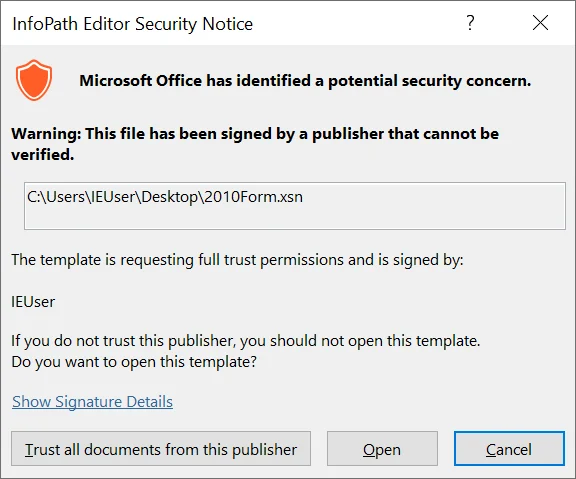
The more interesting goal was finding bypasses to the security model itself.
Setup
The work was done against a downloaded .xsn template. The report does not describe accounts, roles or special tooling. The manifest examples reference a project path of C:\Users\IEUser\Documents\InfoPath Projects\Form-Calc1\Form-Calc.csproj and a publish location of C:\Users\IEUser\Desktop\Form-Calc.xsn.
Finding it
Unlike other Microsoft Office formats such as .docx, which are essentially ZIP files containing XML manifests and resources, .xsn files are CAB compressed files. Extracting the CAB gives:
manifest.xsf: Manifest file describing the form.myschema.xsd: Data sources and fields schematemplate.xml: Sample of form templatesampledata.xml: Sample of form data- Resource files: Other resource files included in the form
When managed code is added to the form, manifest.xsf refers to the compiled DLL as a rootAssembly file type:
			<xsf:file name="Form_Calc.dll">
				<xsf:fileProperties>
					<xsf:property name="fileType" type="string" value="rootAssembly"></xsf:property>
				</xsf:fileProperties>
			</xsf:file>
In turn, Form_Calc.dll is bundled into the CAB as-is. The manifest also explicitly declares the existence of managed code in the form:
		<xsf:extension name="SolutionDefinitionExtensions">
			<xsf2:solutionDefinition runtimeCompatibility="client server" allowClientOnlyCode="no">
				<xsf2:offline openIfQueryFails="yes" cacheQueries="yes"></xsf2:offline>
				<xsf2:managedCode projectPath="C:\Users\IEUser\Documents\InfoPath Projects\Form-Calc1\Form-Calc.csproj" language="CSharp" version="15.0" enabled="yes"></xsf2:managedCode>
				<xsf2:server formLocale="en-US" isPreSubmitPostBackEnabled="no" isMobileEnabled="no"></xsf2:server>
			</xsf2:solutionDefinition>
		</xsf:extension>
The manifest is plain XML inside the CAB, and that is where the interesting behaviour showed up.
Exploitation
Step 1: Bypassing the managed code warning
Whenever a form includes managed code (C#, VBA), a dialog pops up and must be accepted before the code executes:
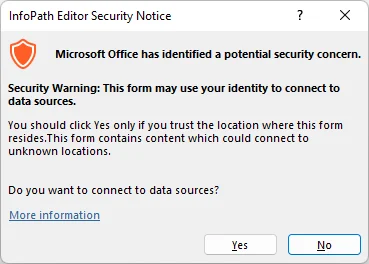
Domain-level forms can still execute managed code without dangerous assemblies like System.Diagnostics.Process, but they can still leak information such as the username and computer name through the Microsoft.Office.InfoPath.LoginName property. Doing that without triggering the dialog is therefore worthwhile.
By flipping the enabled property in the xsf2:managedCode node to no, the code executes without having to click through the warning dialog. The researcher was not sure whether this is a business logic error or a delayed popup.
Step 2: Removing the publish location
When creating Domain-level form templates, InfoPath specifies the publishUrl property in the manifest:
<xsf:xDocumentClass solutionFormatVersion="[redacted]" solutionVersion="[redacted]" productVersion="15.0.0" requireFullTrust="yes" publishUrl="C:\Users\IEUser\Desktop\Form-Calc.xsn" name="urn:schemas-microsoft-com:office:infopath:Form-Calc:-myXSD-2022-05-25T14-32-18" ...>
This is used as part of the Domain security control, which restricts the form to the location specified at publishUrl. If a Domain-level form is opened outside of the specified location, an error occurs:
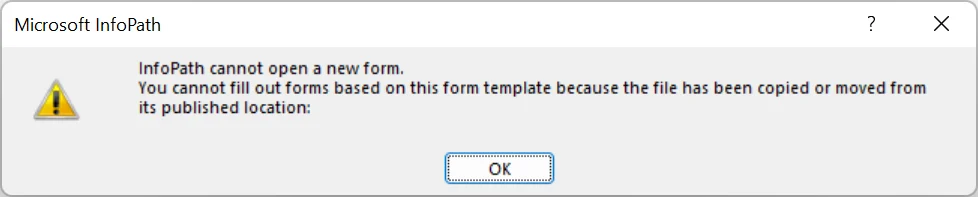
For certain classes of forms (for example without managed code but with included scripts like JScript), simply removing the entire publishUrl property in the manifest allows Domain-level forms to still be opened without triggering this error. That makes it easier to deliver higher-privileged Domain-level forms without falling back to the low-privileged Restricted forms.
Step 3: Opening arbitrary files in custom taskpanes
InfoPath filler-mode forms (those meant to be filled on desktops rather than published to SharePoint or the web) support custom task panes. These are ostensibly custom HTML files that users can embed into a side panel in InfoPath that opens automatically with the form. Both remote and embedded URLs can be used. Setting the task pane location to https://evil.com:
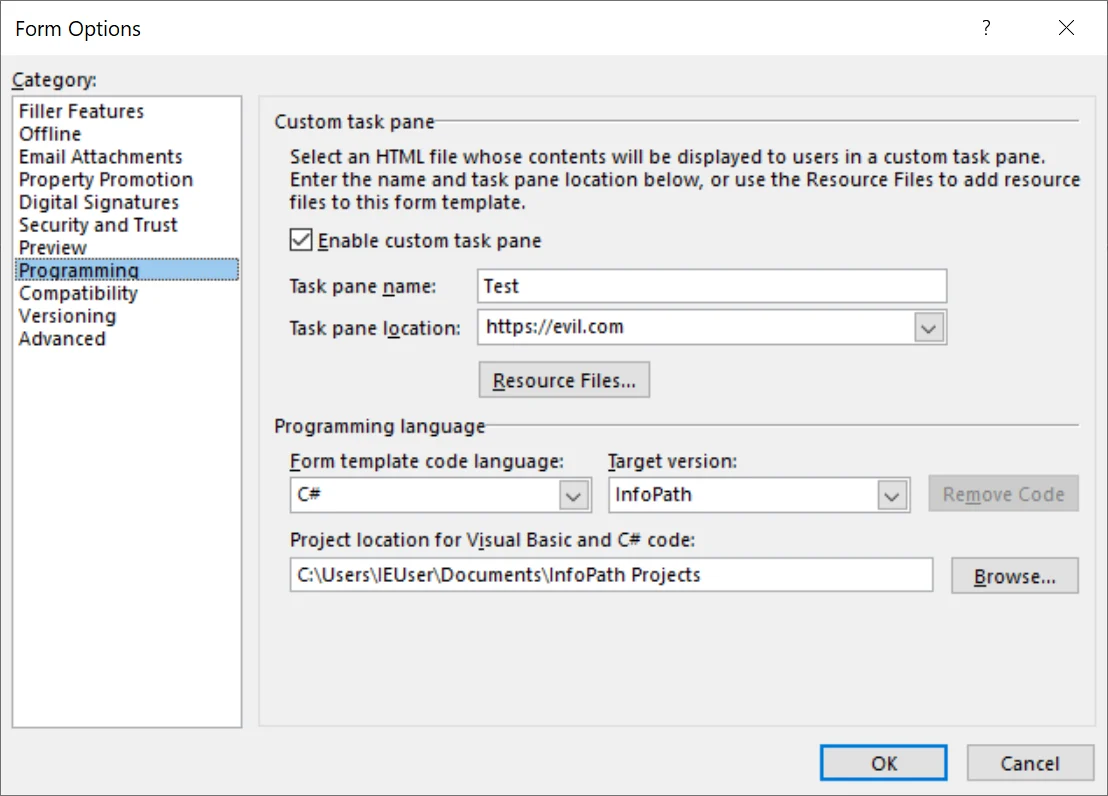
will display the site as-is in the Filler view:
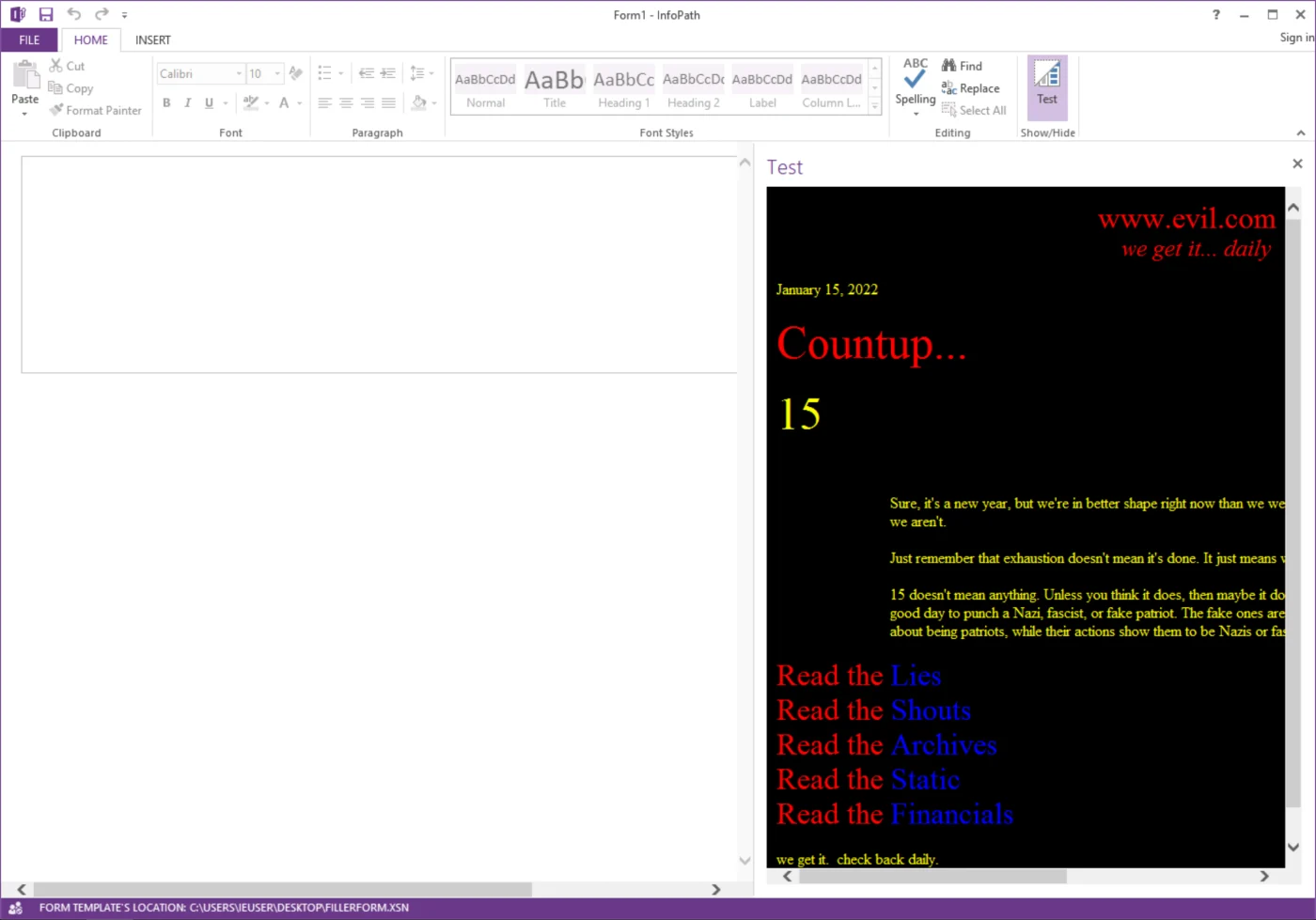
For remote URLs, this also triggers a remote connection warning:
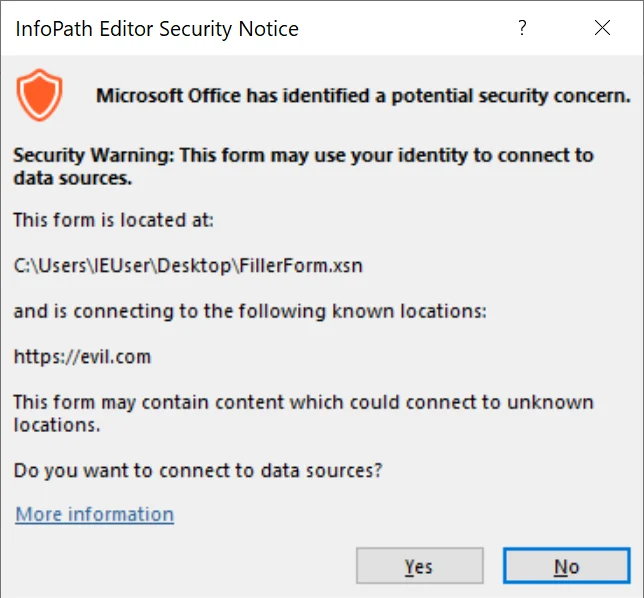
That warning can be easily avoided by referencing an embedded resource file instead.
Even though the GUI and documentation only allow embedding .html files, the href value of the xsf:taskpane node in the manifest can be edited directly to reference non-HTML files. Custom URIs were also supported:
<xsf:taskpane caption="test" href="calc.exe"></xsf:taskpane>
Since the taskpane is opened in the Internet Explorer engine, .hta files and JScript could also be run, as well as executables. For non-default IE files, this prompts a typical Run/Save dialog. This works even on Windows 11 because the taskpane uses the Internet Explorer engine rather than the browser itself, which is still retained for exactly such compatibility scenarios. As Internet Explorer rides into the sunset, this increases the likelihood of old-school memory corruption bugs in the JScript engine or similar cropping up. Beyond serving as a convenient way to deliver executable payloads, there is the potential to deliver a no-click exploit.
Step 4: Follina
Given all the talk about embedding custom URLs and HTML files, the obvious question is whether the ms-msdt custom URI/Follina vulnerability could be used here. By the time it was tested, it no longer worked, perhaps because InfoPath does not bake in the same custom URI whitelist for ms-msdt as other Office applications like Word. The door remains open for similar attacks given the ability to embed custom URIs and HTML files using custom taskpanes.
Root cause
The three-tier security model resisted naive attacks, but tweaking the manifest directly triggered interesting behaviour. Setting enabled="no" on xsf2:managedCode lets the code run without the warning dialog; the researcher was unsure whether this is a business logic error or a delayed popup. Removing publishUrl allows certain Domain-level forms, such as those without managed code but with scripts like JScript, to open without the location error. The href of the xsf:taskpane node can be edited to reference non-HTML files, and custom URIs were also supported; the taskpane is opened in the Internet Explorer engine. The report does not state which component performs these checks.
Impact
An attacker who can deliver a crafted .xsn can run managed code without the warning dialog, leak information such as the username and computer name through Microsoft.Office.InfoPath.LoginName from a Domain-level form, and deliver higher-privileged Domain-level forms without falling back to Restricted forms. Custom taskpanes allow embedding executables, .hta files, JScript and custom URIs that open automatically with the form; for non-default IE files a Run/Save dialog is shown, so that path is not silent. The potential for a no-click exploit exists as Internet Explorer's engine ages.
Fix
Variants to test
- Flip
enabledtonoonxsf2:managedCodein a form with a benign managed assembly and observe whether the warning dialog appears and whether the code still runs. A positive result is code execution with no dialog. - Remove
publishUrlfrom a Domain-level form that includes JScript but no managed code, then open it outside the original location. A positive result is the form opening without the location error. - Set
xsf:taskpanehrefto a local executable, an.htafile and a custom URI, and open the form in Filler view. A positive result is the taskpane launching the target, with a Run/Save dialog for non-default IE file types. - Point the taskpane at a remote URL and then at an embedded resource, comparing the remote connection warning. A positive result is the embedded resource loading with no warning.
What happened, in plain words
A security researcher was browsing a SharePoint site (a Microsoft product that companies use to share documents and web pages internally) when they noticed a link that ended in .xsn. That file turned out to be a template for Microsoft InfoPath, an old Microsoft program for building and filling in forms. By investigating the template, the researcher found several ways to make InfoPath do things it is not supposed to do: run code without showing the usual warning, open a form from a location it was not published to, and make a side panel inside the form load files and web addresses of the attacker's choosing.
This article walks through each of those findings from scratch. You do not need to know anything about security to follow it, only what a browser and a computer are. Every technical word is explained the first time it appears, and there is a glossary at the end.
Background: what SharePoint and InfoPath are
SharePoint is a Microsoft server product. Companies use it as an intranet: a private website where staff store documents, fill in forms and collaborate. When you open a page on a SharePoint site, your browser asks the server for that page, and the server sends back HTML (the language web pages are written in) plus any files the page needs.
While browsing a SharePoint instance, the researcher came across a URL of this shape:
https://<server>/_layouts/FormServer.aspx?XsnLocation=https://<server>/resource/Forms/template.xsn
A URL is just an address. The part after the ? is called a query string: it carries extra information to the page. Here the page is FormServer.aspx, and it is being told, through the parameter XsnLocation, where to find a file called template.xsn. The page displayed a web form that submitted data back to SharePoint. The .xsn extension (the part of a filename after the dot, which hints at the file type) caught the researcher's attention, so they downloaded the file and started investigating.
That file is a Microsoft InfoPath template. InfoPath was last bundled with Microsoft Office 2013, but it is still available to Office 365 subscribers and is built into SharePoint as a service. Microsoft has deprecated it (declared it end-of-life in favour of a newer product called PowerApps), but because Microsoft keeps old software working for a long time, InfoPath has extended support until 2026. In practice, it keeps appearing, especially in large companies.
InfoPath lets people design forms (saved as .xsn files) and fill them in. Its feature list is long:
- Rules for event handlers (automatic actions when something happens in the form)
- Data validation (checking that what was typed makes sense)
- Conditional formatting (changing how things look based on values)
- ActiveX Controls (small reusable software components that older Windows programs can embed)
- XPath expressions and functions (a language for picking pieces out of structured data)
- External datasources such as SQL, Microsoft Access, and SharePoint (databases and services the form can read from)
- JScript, VBScript, Visual Basic, C#, and other languages (programming languages the form can run)
- Custom HTML taskpanes (a side panel inside the form, described later)
- SharePoint integration
- User roles
All of that functionality gives an attacker many places to hide. To keep things under control, InfoPath uses a three-tier security level model. Think of it like the permission levels on a shared office printer: some people can only print, some can also change settings, and some can reconfigure the whole machine.
- Restricted: the form cannot run any managed code. Managed code means programs written in languages like C# or VBA that run on top of a runtime (a helper program that manages them), as opposed to raw machine code.
- Domain: the form is limited to a defined publication domain (for example, a specific SharePoint URL) and to security zones defined by Microsoft Internet Explorer (IE groups websites into zones such as Internet, Intranet and Trusted, each with its own rules).
- Full Trust: the form can run any code at all.
Typical workarounds such as P/Invoke (a way for managed code to call into the operating system directly) and loading unmanaged code are blocked. Dangerous ActiveX controls, and managed code assemblies (compiled program files) that lack a marker called AllowPartiallyTrustedCallersAttribute, either need a fully-trusted form or cannot be loaded at all. That is a problem for red teamers (security professionals who simulate attackers to test defences), because Full Trust forms have to be digitally signed and they show a warning prompt. A digital signature is like a wax seal: it proves who made the file, but only if you trust the sealer. A self-signed certificate is a seal the author made for themselves, which anyone can also make.
Obscurity Labs' InfoPath phishing article did not bypass this. Instead it relied on spoofing the author name shown on the self-signed certificate, which is like writing a famous company's name on your own homemade seal.
The image shows the warning that appears for a self-signed certificate. The researcher was more interested in finding bypasses to the security model itself.
Setup: how the researcher worked
The work was done against a downloaded .xsn template and its extracted contents. The researcher downloaded the template from the SharePoint URL above. The examples reference a project path of C:\Users\IEUser\Documents\InfoPath Projects\Form-Calc1\Form-Calc.csproj and a publish location of C:\Users\IEUser\Desktop\Form-Calc.xsn. No special accounts or tools are mentioned.
Finding it: what is inside an .xsn file
Unlike other Microsoft Office formats such as .docx, which are essentially ZIP files (a common way of packing many files into one) containing XML manifests and resources, .xsn files are CAB compressed files. CAB is an older Microsoft archive format, like a box you pack several files into. XML is a text format for structured data: it uses tags in angle brackets, like <name>value</name>, to label pieces of information. A manifest is a file that describes the other files in a package: what they are and how they should be used.
Extracting the CAB gives:
manifest.xsf: the manifest file describing the form.myschema.xsd: the schema (a description of the shape of the data) for data sources and fields.template.xml: a sample of the form template.sampledata.xml: a sample of form data.- Resource files: any other files included in the form.
When managed code is added to the form, manifest.xsf refers to the compiled DLL as a rootAssembly file type. A DLL is a library file containing compiled code that other programs can load and run.
			<xsf:file name="Form_Calc.dll">
				<xsf:fileProperties>
					<xsf:property name="fileType" type="string" value="rootAssembly"></xsf:property>
				</xsf:fileProperties>
			</xsf:file>
Line by line:
<xsf:file name="Form_Calc.dll">opens an entry for a file calledForm_Calc.dll. Thexsf:prefix is a namespace label, a way of saying which vocabulary of tags this belongs to.<xsf:fileProperties>opens a block of properties (settings) for that file.<xsf:property name="fileType" type="string" value="rootAssembly">says the file's type isrootAssembly, meaning it is the main compiled code of the form.- The closing tags
</xsf:fileProperties>and</xsf:file>end the blocks.
In turn, Form_Calc.dll is bundled into the CAB as-is. The manifest also explicitly declares that the form contains managed code:
		<xsf:extension name="SolutionDefinitionExtensions">
			<xsf2:solutionDefinition runtimeCompatibility="client server" allowClientOnlyCode="no">
				<xsf2:offline openIfQueryFails="yes" cacheQueries="yes"></xsf2:offline>
				<xsf2:managedCode projectPath="C:\Users\IEUser\Documents\InfoPath Projects\Form-Calc1\Form-Calc.csproj" language="CSharp" version="15.0" enabled="yes"></xsf2:managedCode>
				<xsf2:server formLocale="en-US" isPreSubmitPostBackEnabled="no" isMobileEnabled="no"></xsf2:server>
			</xsf2:solutionDefinition>
		</xsf:extension>
Line by line:
<xsf:extension name="SolutionDefinitionExtensions">opens an extension block, a place for extra settings beyond the basics.<xsf2:solutionDefinition ...>describes the solution (the form package).runtimeCompatibility="client server"says it can run on both a desktop client and a server;allowClientOnlyCode="no"says client-only code is not allowed.<xsf2:offline ...>holds settings for working offline:openIfQueryFails="yes"means open even if a data query fails, andcacheQueries="yes"means keep query results cached.<xsf2:managedCode ...>is the important one.projectPathpoints at the original project file on the developer's machine,language="CSharp"says the code is C#,version="15.0"is a version number, andenabled="yes"says the managed code is switched on.<xsf2:server ...>holds server-side settings such as the form's locale (en-US) and whether mobile is enabled (no).- The closing tags end each block.
The manifest is plain XML inside the CAB, and that is where the interesting behaviour showed up.
Exploitation
Step 1: Bypassing the managed code warning
Whenever a form includes managed code (C#, VBA), a dialog pops up and must be accepted before the code executes. A dialog is a small pop-up window asking you to click OK or Cancel. This is a safety prompt: it tells the user that the form wants to run a program.
The image shows that managed code warning dialog.
Domain-level forms can still execute managed code, as long as it does not use dangerous assemblies like System.Diagnostics.Process. An assembly here means a compiled code library, and System.Diagnostics.Process is the part of the .NET runtime that lets a program start other programs. Even without that, a Domain-level form can still leak information such as the username and computer name through the Microsoft.Office.InfoPath.LoginName property. A property is a named value that code can read; LoginName returns the name of the logged-in user. Doing that without triggering the dialog is therefore worthwhile, because the user never sees a prompt to refuse.
By flipping the enabled property in the xsf2:managedCode node to no, the code executes without having to click through the warning dialog. The researcher was not sure whether this is a business logic error or a delayed popup. The researcher was not sure whether this is a business logic error (a flaw in how the program's rules are implemented) or a delayed popup.
Step 2: Removing the publish location
When creating Domain-level form templates, InfoPath specifies the publishUrl property in the manifest:
<xsf:xDocumentClass solutionFormatVersion="[redacted]" solutionVersion="[redacted]" productVersion="15.0.0" requireFullTrust="yes" publishUrl="C:\Users\IEUser\Desktop\Form-Calc.xsn" name="urn:schemas-microsoft-com:office:infopath:Form-Calc:-myXSD-2022-05-25T14-32-18" ...>
Line by line:
<xsf:xDocumentClass ...>opens the description of the form's main document class, the top-level definition of the form.solutionFormatVersion,solutionVersionandproductVersionare version numbers for the file format, the solution and the product.requireFullTrust="yes"says the form requires the Full Trust security level.publishUrl="C:\Users\IEUser\Desktop\Form-Calc.xsn"records where the form was published from. This is the location the Domain security control checks against.name="urn:schemas-microsoft-com:office:infopath:..."is a unique identifier for the form. A URN is a name in a standard format, like an ID number.- The
...at the end indicates the line continues with more attributes that are not shown.
This publishUrl is used as part of the Domain security control, which restricts the form to the location specified there. If a Domain-level form is opened outside of the specified location, an error occurs:
The image shows that error message.
For certain classes of forms (for example, forms without managed code but with included scripts like JScript), simply removing the entire publishUrl property in the manifest allows Domain-level forms to still be opened without triggering this error. JScript is Microsoft's version of JavaScript, a scripting language for making things happen inside a page. That makes it easier to deliver higher-privileged Domain-level forms without falling back to the low-privileged Restricted forms.
Step 3: Opening arbitrary files in custom taskpanes
InfoPath filler-mode forms are the ones meant to be filled in on a desktop rather than published to SharePoint or the web. They support custom task panes: a side panel inside InfoPath that opens automatically with the form. Think of it as a small browser window docked next to the form. Both remote and embedded URLs can be used. A remote URL points at a website on the internet; an embedded resource is a file packed inside the .xsn itself.
Setting the task pane location to https://evil.com:
The image shows the taskpane options with that address filled in.
will display the site as-is in the Filler view:
The image shows the remote site rendered inside the form's side panel.
For remote URLs, this also triggers a remote connection warning:
The image shows that warning. It exists because loading content from the internet is a risk, so InfoPath asks first.
That warning can be easily avoided by referencing an embedded resource file instead, because a file that is already inside the package is not a remote connection.
Even though the GUI (graphical user interface, the clickable windows and menus) and the documentation only allow embedding .html files, the href value of the xsf:taskpane node in the manifest can be edited directly to reference non-HTML files. href means hyperlink reference: the address of whatever the panel should load. Custom URIs were also supported. A URI is a general address; a custom URI is one that uses a scheme other than http or https, and that some program on the computer has registered to handle.
<xsf:taskpane caption="test" href="calc.exe"></xsf:taskpane>
Line by line:
<xsf:taskpane ...>opens the definition of the task pane.caption="test"sets the title shown on the panel.href="calc.exe"tells the panel to loadcalc.exe, the Windows calculator program, instead of a web page.</xsf:taskpane>closes the definition.
Since the taskpane is opened in the Internet Explorer engine, .hta files and JScript could also be run, as well as executables. An engine here means the software component that reads and renders web content. An .hta file (HTML Application) is a file that runs like a normal program on Windows but is written with web technology. For non-default IE files, this prompts a typical Run/Save dialog, the same kind of prompt you see when downloading a file in a browser. This works even on Windows 11 because the taskpane uses the Internet Explorer engine rather than the browser itself, which is still retained for exactly such compatibility scenarios. As Internet Explorer rides into the sunset, this increases the likelihood of old-school memory corruption bugs in the JScript engine or similar cropping up. Memory corruption is a class of bug where a program writes data in the wrong place in its memory, which an attacker can sometimes turn into running their own code. Beyond serving as a convenient way to deliver executable payloads, there is the potential to deliver a no-click exploit: an attack that needs no click from the user at all.
Step 4: Follina
Given all the talk about embedding custom URLs and HTML files, the obvious question is whether the ms-msdt custom URI/Follina vulnerability could be used here. Follina was a widely reported flaw in which a specially crafted document could make Windows launch its Support Diagnostic Tool (msdt) through a custom URI. By the time the researcher tested it, it no longer worked, perhaps because InfoPath does not bake in the same custom URI whitelist for ms-msdt as other Office applications like Word. A whitelist is a list of things that are explicitly allowed. The door remains open for similar attacks, given the ability to embed custom URIs and HTML files using custom taskpanes.
Root cause
The three-tier security model resisted naive attacks, but tweaking the manifest directly triggered interesting behaviour. In plain terms: the form is allowed to describe itself, and InfoPath believes the description.
- Setting
enabled="no"onxsf2:managedCodelets the code run without the warning dialog; the researcher was unsure whether this is a business logic error or a delayed popup. - Removing
publishUrlallows certain Domain-level forms, such as those without managed code but with scripts like JScript, to open without the location error. - The
hrefof thexsf:taskpanenode can be edited to reference non-HTML files, and custom URIs were also supported; the taskpane is opened in the Internet Explorer engine.
The report does not state which component performs these checks.
Impact
An attacker who can deliver a crafted .xsn can run managed code without the warning dialog, leak information such as the username and computer name through Microsoft.Office.InfoPath.LoginName from a Domain-level form, and deliver higher-privileged Domain-level forms without falling back to Restricted forms. Custom taskpanes allow embedding executables, .hta files, JScript and custom URIs that open automatically with the form; for non-default IE files a Run/Save dialog is shown, so that path is not silent. The potential for a no-click exploit exists as Internet Explorer's engine ages. The report does not describe a specific target, victim population or bounty outcome.
Fix
Variants to test
- Flip
enabledtonoonxsf2:managedCodein a form with a benign managed assembly and observe whether the warning dialog appears and whether the code still runs. A positive result is code execution with no dialog. - Remove
publishUrlfrom a Domain-level form that includes JScript but no managed code, then open it outside the original location. A positive result is the form opening without the location error. - Set
xsf:taskpanehrefto a local executable, an.htafile and a custom URI, and open the form in Filler view. A positive result is the taskpane launching the target, with a Run/Save dialog for non-default IE file types. - Point the taskpane at a remote URL and then at an embedded resource, comparing the remote connection warning. A positive result is the embedded resource loading with no warning.
Glossary
- ActiveX control: a small reusable software component that older Windows programs can embed to add features.
- Assembly: a compiled code library, usually for the .NET runtime.
- CAB: an older Microsoft archive format that packs several files into one.
- Custom URI: an address that uses a scheme other than
httporhttps, handled by a program registered on the computer. - Deprecated: declared end-of-life in favour of a newer product, though it may still work.
- Dialog: a small pop-up window asking the user to confirm or choose something.
- Digital signature: a cryptographic seal that proves who made a file.
- DLL: a library file containing compiled code that other programs can load and run.
- Domain security level: an InfoPath permission level that limits a form to a defined publication location and to Internet Explorer security zones.
- Embedded resource: a file packed inside the
.xsnpackage itself. - Engine: the software component that reads and renders web content.
- Filler mode: InfoPath's mode for filling in a form on a desktop, as opposed to publishing it to SharePoint or the web.
- Follina: a widely reported flaw in which a crafted document could make Windows launch its Support Diagnostic Tool through a custom URI.
- Full Trust: the highest InfoPath permission level, allowing any code to run, but requiring a signature and showing a warning.
- GUI: graphical user interface, the clickable windows and menus.
- href: hyperlink reference, the address of whatever a link or panel should load.
- HTML: the language web pages are written in.
- .hta: HTML Application, a file that runs like a normal program on Windows but is written with web technology.
- InfoPath: a Microsoft program for designing and filling in forms, saved as
.xsnfiles. - JScript: Microsoft's version of JavaScript, a scripting language for making things happen inside a page.
- Managed code: programs written in languages like C# or VBA that run on top of a runtime.
- Manifest: a file that describes the other files in a package and how they should be used.
- Memory corruption: a class of bug where a program writes data in the wrong place in its memory, which an attacker can sometimes turn into running their own code.
- No-click exploit: an attack that needs no click from the user at all.
- P/Invoke: a way for managed code to call into the operating system directly.
- Parameter: a named value passed to a page or program, usually in a URL after the
?. - Phishing: tricking someone into opening a file or link that looks trustworthy.
- Property: a named value that code can read.
- Query string: the part of a URL after the
?that carries extra information. - Red teamer: a security professional who simulates attackers to test defences.
- Remote URL: an address pointing at a website on the internet, as opposed to a file inside the package.
- Restricted: the lowest InfoPath permission level, which cannot run managed code.
- Root cause: the underlying reason a flaw exists.
- Runtime: a helper program that manages and runs other programs.
- Schema: a description of the shape of data.
- Self-signed certificate: a digital seal the author made for themselves, which anyone can also make.
- SharePoint: a Microsoft server product used as a company intranet for documents, forms and collaboration.
- Taskpane: a side panel inside a form that opens automatically with it.
- Three-tier security model: InfoPath's three permission levels: Restricted, Domain and Full Trust.
- URI: a general address for a resource.
- URL: an address, such as the location of a web page or file.
- URN: a name in a standard format, like an ID number.
- Whitelist: a list of things that are explicitly allowed.
- XML: a text format for structured data using tags in angle brackets.
- XPath: a language for picking pieces out of structured data.
- .xsn: the file extension for an InfoPath form template.
- ZIP: a common way of packing many files into one archive.