How I bypassed the registration validation and logged-in with the company email
The registration form only allowed WUR email addresses, but the validation could be bypassed by appending an attacker-controlled domain to a valid WUR email address. This allowed the attacker to log in with a fake account and potentially receive activation emails.
 Published on khaledyassen.medium.com
Many websites feature sign-up pages that are only accessible to employees, but sometimes you may bypass the security and log in as an anonymous user. In this article, I’ll discuss different techniques that may be useful to you and a real-life scenario.
The full write-up lives on its author's site
It belongs to its author, so we link to it rather than copy it. The other two tabs are our own rewrites, checked against it.
Context
Wageningen University runs a public bug bounty program on wur.nl. The researcher picked the target after enumerating subdomains and taking screenshots with Aquatone, then chose one host that looked interesting.
The feature in question is a registration page that is meant to be usable only by people holding a WUR email address. In normal operation the form accepts an email, and the address is expected to belong to the university's own domain. After registering, the account still has to be activated before all features become available; the site provides a button for that.
Setup
The work needed no special accounts or roles. The researcher signed up for a fake account, as is usual when starting on a target, to browse the application and understand which functionality could be attacked. The only precondition was the registration form itself, which rejected addresses outside the WUR domain.
Finding it
On the first pass the registration form refused anything that was not a WUR address. That restriction is the whole security control on the page, so the question became whether the check could be satisfied with an address that the researcher did not actually own.
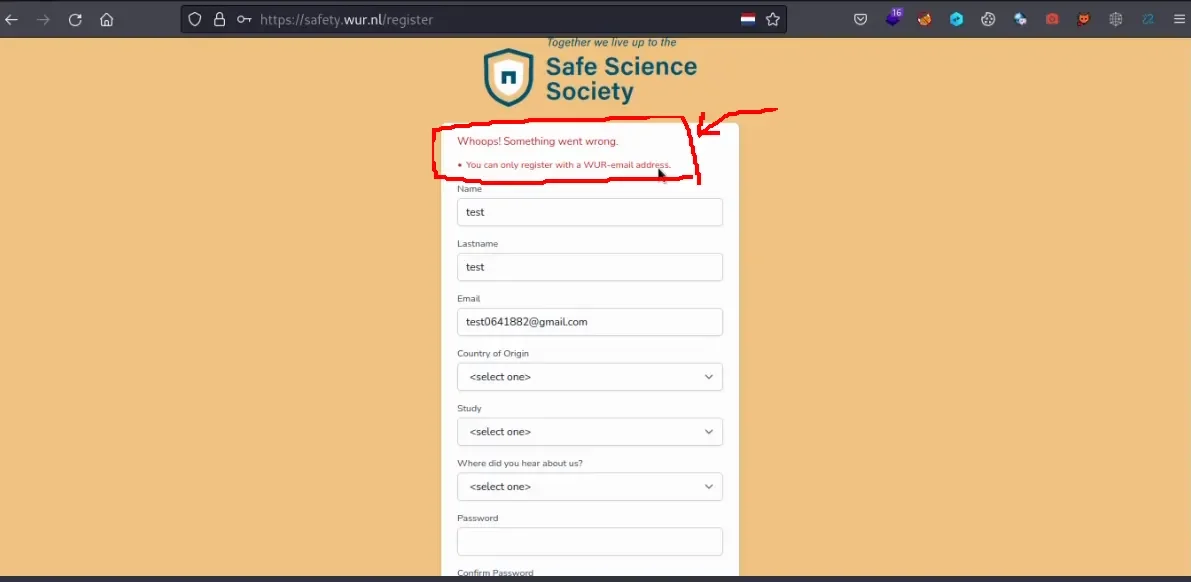
The report places a screenshot here, without describing it.
Exploitation
Before touching the live form the researcher listed the techniques worth trying against an email allow-list. They are worth reproducing because the successful payload is one of them.
- Register with a target-domain address and see whether an activation code is ever sent:
email=[redacted]
- Manipulate the response during registration. Response manipulation makes the application display UI elements it should not, and can expose new endpoints and buttons or trigger new requests; it is also sometimes used against password restrictions or OTPs. If a response contains something like:
status:false
change it to status:true and so on.
- Parameter pollution, either by repeating the key:
email=[redacted]&email=[redacted]
or by adding an incremental key:
email=[redacted]&email2=[redacted]
- Supplying a list of values for the email parameter:
email=['[redacted]', '[redacted]']
HTTP Parameter Pollution is an evasion technique that lets an attacker craft a request to manipulate or retrieve hidden information. It applies in many places, such as password change, 2FA, comments, profile photo upload, parameters carrying an API key, and OTPs. How a manipulation behaves depends on how each web technology parses its parameters.
- Playing with the value itself. Developers sometimes write weak regular expressions that can be bypassed in several ways. A regex is a sequence of characters that specifies a search pattern, commonly used for find, find-and-replace and input validation, including email validation. Two shapes to try:
email=[redacted]@attacker.com
or
email=[redacted]@target.com
Other variants in the same family:
email=[redacted]
or
email=[redacted]
Step 1: submit a crafted address
The researcher started with the last family of payloads, appending the attacker domain to the allowed one:
email=[redacted]
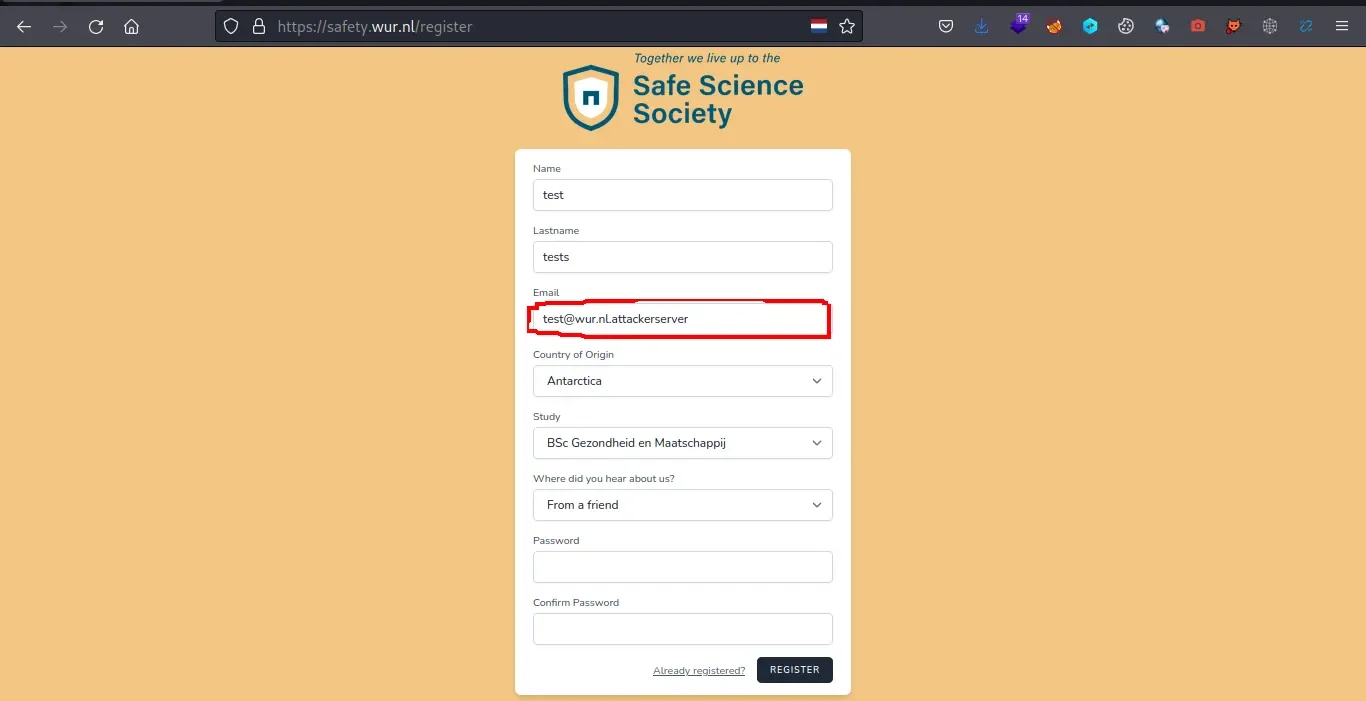
The report places an image here, without describing it.
Step 2: log in
The registration accepted the address and the researcher was able to log in.
Step 3: activation and out-of-band check
After logging in, the account still had to be activated to use all features. The site offers a button for this, so the researcher used a Burp Collaborator payload as the domain part of the address to see whether any interaction would arrive, which is why this step belongs to the registration process:
[redacted]
The Collaborator interaction came back.
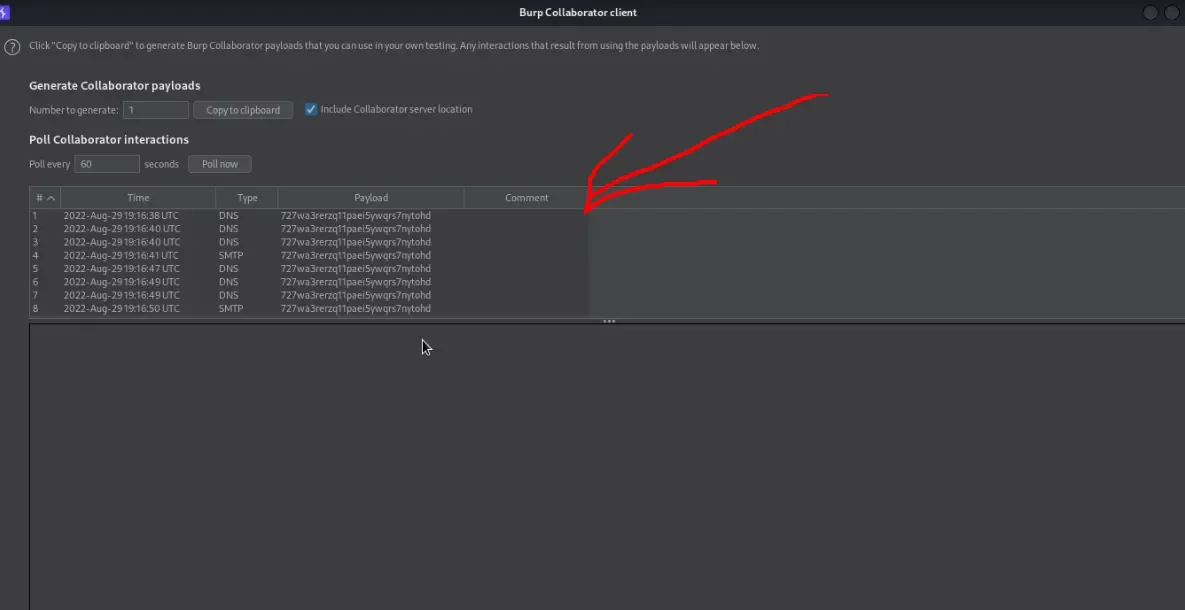
A proof-of-concept video is available at https://youtu.be/q3I4ERKDD0U.
Root cause
The form accepted an address whose domain merely starts with the allowed value, though the report does not show the validation code. [redacted] is a valid address at the domain wur.nl.atatcker.com, which the researcher controls, but a check that only looks for wur.nl somewhere in the string accepts it. The report does not show the validation code, so the exact pattern is not known; the behaviour is consistent with a substring or prefix match rather than a comparison of the domain after the @.
Impact
An unauthenticated person can create an account on a registration page that is meant to be restricted to university staff, and can log in with it. Because the account is tied to an address the attacker controls, messages the application sends to that address, including the activation message, reach the attacker.
Fix
The control that should be in place is to extract the domain after the final @ and compare it exactly against the allowed domain, rather than searching for the allowed string inside the address. The same exact comparison should be applied wherever the address is used to decide who receives a message.
Variants to test
Each of these is worth trying on other registration forms that restrict sign-up by email domain. A positive result is the form accepting the address and the account being usable, or a message arriving at the attacker-controlled destination.
- Append your own domain to the allowed one:
[redacted]. Positive result: registration succeeds and login works. - Put the allowed domain in the local part:
[redacted]. Positive result: the same. - Put the allowed domain before the
@:[redacted]@attacker.comand[redacted]@target.com. Positive result: the form accepts the value, and mail or activation traffic goes to the address you control. - Repeat or add the parameter:
email=[redacted]&email=[redacted]andemail=[redacted]&email2=[redacted]. Positive result: the server uses the second value for the domain check or for delivery. - Send a list:
email=['[redacted]', '[redacted]']. Positive result: the parser accepts the list and one element passes validation. - Register with a plain target-domain address and watch for a missing activation code. Positive result: the account is usable without activation.
- Manipulate the registration response, for example flipping
status:falsetostatus:true. Positive result: UI or endpoints appear that are normally hidden, or a restriction such as a password rule or OTP is skipped. - Replace the domain with a Burp Collaborator payload, as in
[redacted]. Positive result: an interaction arrives, showing that the application will send to an address you control.
What happened, in plain words
A university website had a sign-up page that was supposed to be open only to people with a university email address. The researcher found a way to sign up with an address that looked like a university address but actually belonged to a domain he controlled. He then logged in, and later showed that the site would even send messages to that address.
This article walks through the same steps for someone who has never done security testing before. You only need a browser and a computer to follow the ideas. Some steps use a tool called Burp Suite, which is a program that sits between your browser and a website so you can see and change what is sent. You do not need to install it to understand the story.
Background: what the site does
Wageningen University runs a public bug bounty program on wur.nl. A bug bounty program is an arrangement where an organisation invites outside people to look for security problems and report them, sometimes for a reward. The researcher first collected a list of the university's subdomains (smaller sites under the main domain, like something.wur.nl) and took screenshots of them with a tool called Aquatone. Aquatone is a program that visits many subdomains and saves a picture of each page, so you can flick through them and spot one that looks interesting. He picked one host from that list.
The feature he focused on is a registration page. Registration means creating an account: you type an email address and usually a password, and the site makes an account for you. This particular page was meant to be usable only by people who hold a WUR email address, that is, an address ending in the university's own domain. In normal use the form accepts an email, checks that it belongs to the university, and creates the account. After registering, the account still has to be activated before all features become available; the site provides a button for that. Activation is a common step where the site sends you a message (often an email with a link or a code) and you click or type it to prove the address is really yours.
Setting up
The work needed no special accounts or roles. The researcher signed up for a fake account, which is the usual first move when starting on a target: you create an ordinary account so you can browse the application and understand which functionality could be attacked. The only obstacle was the registration form itself, which rejected addresses outside the WUR domain.
Finding it
On the first pass the registration form refused anything that was not a WUR address. That restriction is the whole security control on the page. A security control is simply a rule the site enforces to keep something protected; here the rule is "only university people may register". So the question became whether the check could be satisfied with an address that the researcher did not actually own.
The report places a screenshot here, without describing it.
Trying to get around the check
Before touching the live form the researcher listed the techniques worth trying against an email allow-list. An allow-list (sometimes called a whitelist) is a list of things that are permitted, and anything not on the list is refused. Here the allow-list is "addresses at the WUR domain". Each technique below is a different idea for making the form believe an address is on the list when it is not.
- Register with a target-domain address and see whether an activation code is ever sent. The idea: maybe the site trusts any address at its own domain so much that it skips the activation step entirely. If no code is needed, the account may be usable straight away.
email=[redacted]
This is a single form field named email with the value [redacted]. In a web form, each box you fill in has a name, and the value is what you typed. When you press submit, the browser sends these name and value pairs to the server. The server is the computer that runs the website and decides whether to create the account.
- Manipulate the response during registration. The response is what the server sends back to your browser after you submit: it might be a page, or a short block of data saying whether the action worked. Response manipulation means intercepting that reply and changing it before your browser sees it. It makes the application display UI elements it should not, and can expose new endpoints and buttons or trigger new requests. An endpoint is a specific address on the server that does a particular job, like
/registeror/activate. It is also sometimes used against password restrictions or OTPs. An OTP is a one-time password, a short code that is valid once, often sent by text or email. If a response contains something like:
status:false
change it to status:true and so on. In plain words: the server said "this did not work" (false), and you rewrite the message to say "this worked" (true) before your browser reads it. If the page only hides things based on that word, the hidden parts may now appear.
- Parameter pollution, either by repeating the key:
email=[redacted]&email=[redacted]
or by adding an incremental key:
email=[redacted]&email2=[redacted]
A parameter is one of those name and value pairs sent to the server. The & symbol separates two parameters in the same request. In the first line the name email appears twice, once with a university-looking address and once with the attacker's own address. Different server technologies handle a repeated name differently: some take the first, some take the last, some combine them. If the check reads the first value but the account is created with the second, you win. The second line uses a slightly different name, email2, in case the server treats it as a separate field.
- Supplying a list of values for the email parameter:
email=['[redacted]', '[redacted]']
Here the value is written as a list with square brackets and commas, a format that some programming languages use. If the server happens to read the value as a list and checks only one element, an element that passes the check can let the whole thing through.
HTTP Parameter Pollution is an evasion technique that lets an attacker craft a request to manipulate or retrieve hidden information. Evasion means getting past a check without breaking it outright. It applies in many places, such as password change, 2FA, comments, profile photo upload, parameters carrying an API key, and OTPs. 2FA means two-factor authentication, a second proof of identity such as a code from your phone. An API key is a secret string that identifies a program to a service, like a password for software. How a manipulation behaves depends on how each web technology parses its parameters. Parsing means reading the raw text of a request and deciding what each part means; two systems can read the same text differently, and that difference is what this technique exploits.
- Playing with the value itself. Developers sometimes write weak regular expressions that can be bypassed in several ways. A regex (regular expression) is a sequence of characters that specifies a search pattern, commonly used for find, find-and-replace and input validation, including email validation. A simple comparison would be "does this text end with
@wur.nl?". A regex might instead be written as "does this text containwur.nlsomewhere?", and those two questions give different answers for a cleverly built address. Two shapes to try:
email=[redacted]@attacker.com
or
email=[redacted]@target.com
In the first line the address has two @ signs. A real email address has exactly one @, so this is not a normal address, but a loose check might still see the allowed domain in the text and accept it. The second line puts the allowed domain at the end, after the attacker's domain, which can fool a check that only looks at the last part of the string.
Other variants in the same family:
email=[redacted]
or
email=[redacted]
The first line is an address at the domain target.com.atatcker.com, which the attacker controls, but it starts with the allowed domain. The second is an address at atatcker.com.target.com, which ends with the allowed domain. Both are designed to slip past a check that looks for the allowed text rather than comparing the whole domain exactly.
Step 1: submit a crafted address
The researcher started with the last family of payloads, appending the attacker domain to the allowed one. A payload is the piece of text you send to try to trigger the behaviour you want.
email=[redacted]
Read this as: the name is email, and the value is [redacted]. The part after the @ is wur.nl.atatcker.com. That is a domain the researcher controls, because he owns atatcker.com and can create the subdomain wur.nl under it. But the text also begins with wur.nl, so a check that merely looks for wur.nl inside the address is satisfied.
The report places an image here, without describing it.
Step 2: log in
The registration accepted the address and the researcher was able to log in. Logging in means proving you know the account's password so the site gives you a session. A session is the site remembering who you are between page loads, usually by giving your browser a cookie, which is a small piece of data the browser stores and sends back with each request. Think of it like a wristband at an event: you show it once at the door, and after that staff recognise you without asking again.
Step 3: activation and out-of-band check
After logging in, the account still had to be activated to use all features. The site offers a button for this, so the researcher used a Burp Collaborator payload as the domain part of the address to see whether any interaction would arrive, which is why this step belongs to the registration process. Burp Collaborator is a service that gives you a unique, made-up domain name and records any traffic that reaches it. If the site sends an email or makes a request to that domain, the Collaborator sees it and reports back. This is called an out-of-band check: you are not watching the normal reply from the server, you are watching a separate channel (the made-up domain) for a sign that something happened.
[redacted]
This is the name email with the value [redacted]. The domain part is wur.nl.burpcollaboratorpayload, which is a subdomain of the Collaborator domain. If the site accepts this address and sends the activation message to it, the message will arrive at the Collaborator, and the researcher will know the site delivered to an address he controls.
The Collaborator interaction came back, showing that something reached the made-up domain.
A proof-of-concept video is available at https://youtu.be/q3I4ERKDD0U. A proof of concept is a demonstration that the problem is real, usually a short recording of the steps.
Why it worked
The form accepted an address whose domain merely starts with the allowed value, though the report does not show the validation code. [redacted] is a valid address at the domain wur.nl.atatcker.com, which the researcher controls, but a check that only looks for wur.nl somewhere in the string accepts it. The report does not show the validation code, so the exact pattern is not known; the behaviour is consistent with a substring or prefix match rather than a comparison of the domain after the @. A substring match means "does the text contain this piece anywhere?", and a prefix match means "does the text start with this piece?". Neither is the same as "is the part after the @ exactly wur.nl?".
What it means
An unauthenticated person can create an account on a registration page that is meant to be restricted to university staff, and can log in with it. Unauthenticated means not logged in and with no special access; anyone with a browser could do this. Because the account is tied to an address the attacker controls, messages the application sends to that address, including the activation message, reach the attacker.
How to fix it
The control that should be in place is to extract the domain after the final @ and compare it exactly against the allowed domain, rather than searching for the allowed string inside the address. The same exact comparison should be applied wherever the address is used to decide who receives a message. In everyday terms: instead of asking "does this text contain wur.nl?", ask "is the part after the @ exactly wur.nl?".
Other things to try
Each of these is worth trying on other registration forms that restrict sign-up by email domain. A positive result is the form accepting the address and the account being usable, or a message arriving at the attacker-controlled destination.
- Append your own domain to the allowed one:
[redacted]. Positive result: registration succeeds and login works. - Put the allowed domain in the local part:
[redacted]. Positive result: the same. The local part is the bit before the@. - Put the allowed domain before the
@:[redacted]@attacker.comand[redacted]@target.com. Positive result: the form accepts the value, and mail or activation traffic goes to the address you control. - Repeat or add the parameter:
email=[redacted]&email=[redacted]andemail=[redacted]&email2=[redacted]. Positive result: the server uses the second value for the domain check or for delivery. - Send a list:
email=['[redacted]', '[redacted]']. Positive result: the parser accepts the list and one element passes validation. - Register with a plain target-domain address and watch for a missing activation code. Positive result: the account is usable without activation.
- Manipulate the registration response, for example flipping
status:falsetostatus:true. Positive result: UI or endpoints appear that are normally hidden, or a restriction such as a password rule or OTP is skipped. - Replace the domain with a Burp Collaborator payload, as in
[redacted]. Positive result: an interaction arrives, showing that the application will send to an address you control.
Glossary
- Allow-list: a list of things that are permitted; anything not on the list is refused.
- API key: a secret string that identifies a program to a service, like a password for software.
- Aquatone: a tool that visits many subdomains and saves a screenshot of each page.
- Bug bounty program: an arrangement where an organisation invites outside people to find and report security problems, sometimes for a reward.
- Burp Collaborator: a service that gives you a unique made-up domain and records any traffic that reaches it.
- Cookie: a small piece of data a website asks your browser to store and send back with each request, often used to remember who you are.
- Domain: the part of an address after the
@, such aswur.nl; it names the organisation or service. - Endpoint: a specific address on a server that does a particular job, like
/registeror/activate. - Evasion: getting past a security check without breaking it outright.
- Local part: the part of an email address before the
@. - Out-of-band check: watching a separate channel (such as a made-up domain) for a sign that something happened, instead of the normal reply.
- Parameter: a name and value pair sent to a server, like
email=[redacted]. - Parsing: reading the raw text of a request and deciding what each part means.
- Payload: the piece of text you send to try to trigger the behaviour you want.
- Prefix match: a check that asks whether text starts with a given piece.
- Proof of concept: a demonstration that a problem is real, usually a short recording of the steps.
- Regex (regular expression): a sequence of characters that specifies a search pattern, used for find, find-and-replace and input validation.
- Registration: creating an account on a site by supplying details such as an email and password.
- Response: what the server sends back to your browser after a request.
- Response manipulation: intercepting the server's reply and changing it before your browser sees it.
- Security control: a rule or mechanism a site uses to keep something protected.
- Server: the computer that runs a website and decides how to answer requests.
- Session: the site remembering who you are between page loads, usually via a cookie.
- Subdomain: a smaller site under a main domain, like
something.wur.nl. - Substring match: a check that asks whether text contains a given piece anywhere.
- 2FA (two-factor authentication): a second proof of identity, such as a code from your phone.
- OTP (one-time password): a short code valid once, often sent by text or email.
- Unauthenticated: not logged in and with no special access.
- UI: user interface, the buttons, boxes and text you see on a page.
- Validation: checking that input meets the rules before using it.
- HTTP Parameter Pollution: an evasion technique that sends repeated or extra parameters so different parts of a system read different values.