LOLBINed — Finding “LOLBINs” In AV Uninstallers
Several antivirus uninstaller tools load configuration or script files from relative paths or user-writable locations, allowing an attacker to execute arbitrary commands. The author demonstrated this against Kaspersky, F-Secure, Trend Micro, and McAfee tools, achieving code execution in the context of the signed binaries.
Nasreddine Bencherchali Follow
 Published on nasbench.medium.com
Usually when people think of LOLBINs they tend to think of built-in OS only binaries. But If we think of a typical enterprise system we find that there are additional software bundled with the OS which include third-party software.
The full write-up lives on its author's site
It belongs to its author, so we link to it rather than copy it. The other two tabs are our own rewrites, checked against it.
Context
LOLBINs are usually thought of as binaries that ship with the operating system. This research looks at a different class: third-party software that is present on almost every enterprise image, namely antivirus products. Because the AV is bundled with the image, its own tooling becomes effectively "built-in" and can be abused in the same way as a native LOLBIN.
The target of the research is the uninstallers and diagnostic tooling shipped by several AV vendors: Kaspersky, F-Secure/WithSecure, Trend Micro and McAfee/Trellix. These tools exist to remove broken installations, clean up remnants, detect incompatible security software or collect diagnostics. Several of them load scripts or configuration from disk, or execute helper binaries from a path relative to their own location, which is what makes them interesting.

The author notes that all of the issues described were reported to the respective vendors at the start of 2022 and that enough time was given to produce fixes. The blog was originally written in February 2022 and updated throughout the year as vendors responded.
Setup
The methodology is deliberately simple: "Following the Breadcrumbs" plus Process Monitor to observe what a tool executes and from where. No special accounts or roles are involved; the abuse cases rely on a local user being able to run the vendor tool and to place files in a directory the tool trusts.
Finding it
The common thread across the tools is that they resolve something at runtime from a location the user can influence:
- a Lua script directory passed on the command line (F-Secure, Trend Micro Deep Security Agent);
- batch files and helper executables called from a relative path (Trend Micro SupportTool);
- XML files describing incompatible software and the action to take (Trend Micro setup.exe);
.inifiles that name services and commands to run (McAfee MCPR, McUICnt).
Process Monitor output is what exposes the relative-path execution, and reading the shipped configuration files is what exposes the command injection points.
Exploitation
Kaspersky (Kavremover)
Kaspersky's un-installation tool, Kavremover, can remove more than 30 Kaspersky products. The author documented this finding in a separate blog post rather than repeating it here. The issue has been fixed, per Kaspersky's advisory list.
F-Secure/WithSecure (FsUninstallationTool)
F-Secure offers an uninstallation tool for supposedly broken installations of their products. The tool uses Lua scripts under the hood to remove the corresponding product. The product to remove is specified on the command line, as shown by the help output.

Debugging reveals an additional flag that the help command does not show: --script. With it, the binary can be tricked into loading a custom Lua script. The steps are:
- Create a script directory and a Lua script named after one of the available products, for example
mdr. - Run the tool pointing at that directory:
FsUninstallationTool.exe -s -p mdr --scripts [ScriptFolderLocation]
- The supplied Lua script runs, giving arbitrary execution.
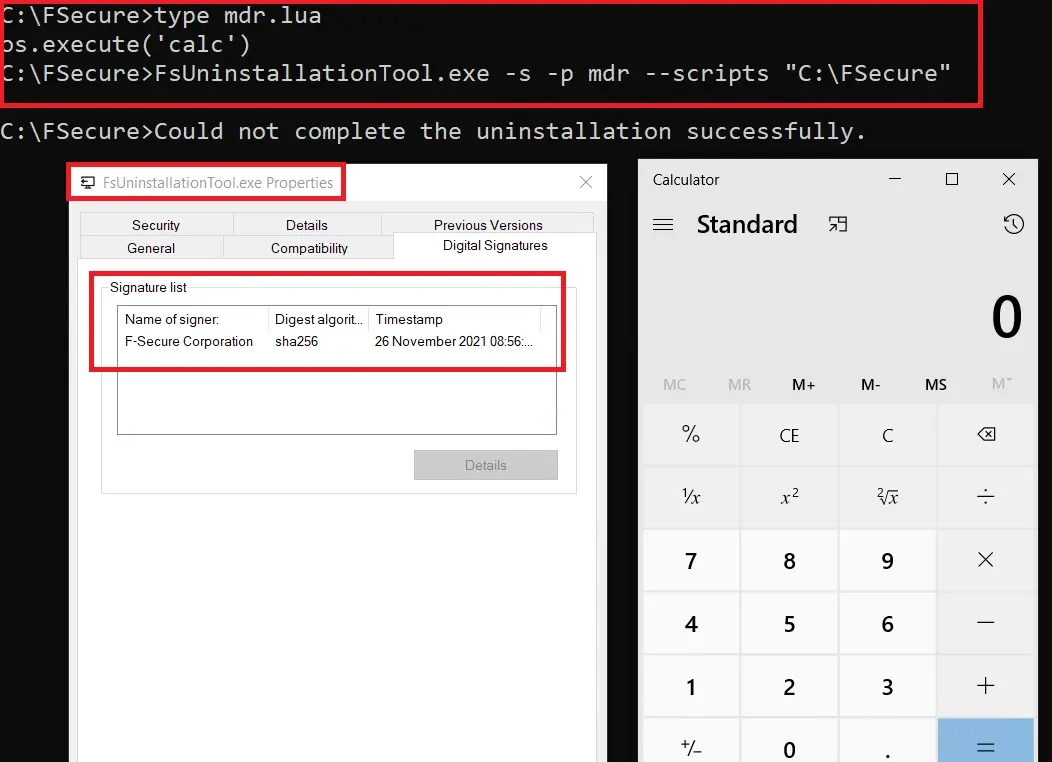
The issue was reported and fixed by F-Secure in version 18.7.13, tracked as CVE-2021-44750.
Trend Micro (SupportTool)
Trend Micro AV (Maximum Security, Internet Security and others) embeds a tool called SupportTool as part of the Trend Micro Diagnostic Toolkit. SupportTool can uninstall Trend Micro products through a graphical interface with prompts confirming the uninstall.
The uninstallation process executes, among other things, a couple of .bat files stored inside the directory. Process Monitor shows that these files are called from a relative path to the execution.
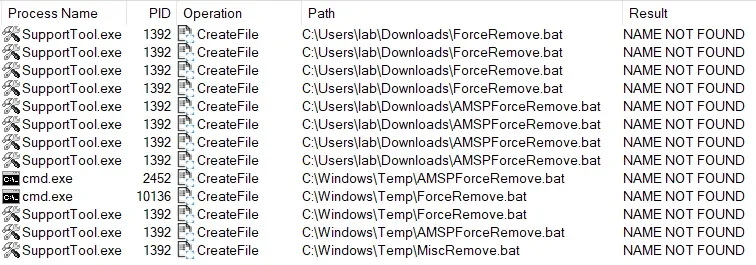
Knowing this, the researcher simulated the file by creating one with a similar name. The remaining problem was running SupportTool without the GUI. Digging into the code shows the tool can run without a GUI using a special flag, /SILENTUNINST.
- Place a
ForceRemove.batorAMSPForceRemove.batin the same location as the tool, containing the commands to run. - Execute:
SupportTool.exe /SILENTUNINST="TME"
- The batch script runs with the tool's context.
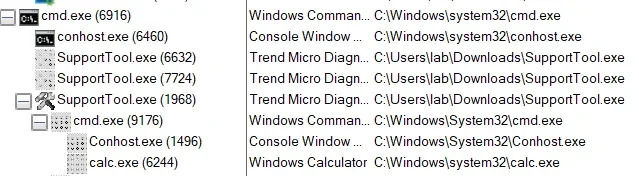
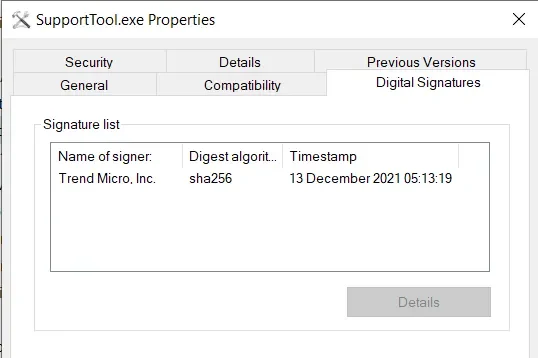
SupportTool also calls another process during its execution from a relative path. Placing an executable named TMSToolEx.exe in the same directory and running the same command causes it to be called. The SupportTool binary is signed.
The binary is also available in the Trend Micro Remnant File Remover Tool. The issue was reported and should be fixed in the latest versions of Trend Micro AV; an unknown CVE was assigned at the time of writing.
Trend Micro (Setup.exe)
Trend Micro AV also offers a feature, similar to the one covered in the Kaspersky post, that detects and removes "incompatible" security software. The detections and remediations are based on files named IncompatibilityAction.xml and IncompatibilityDetection.xml, located in the Common folder inside the decompressed installation folder.
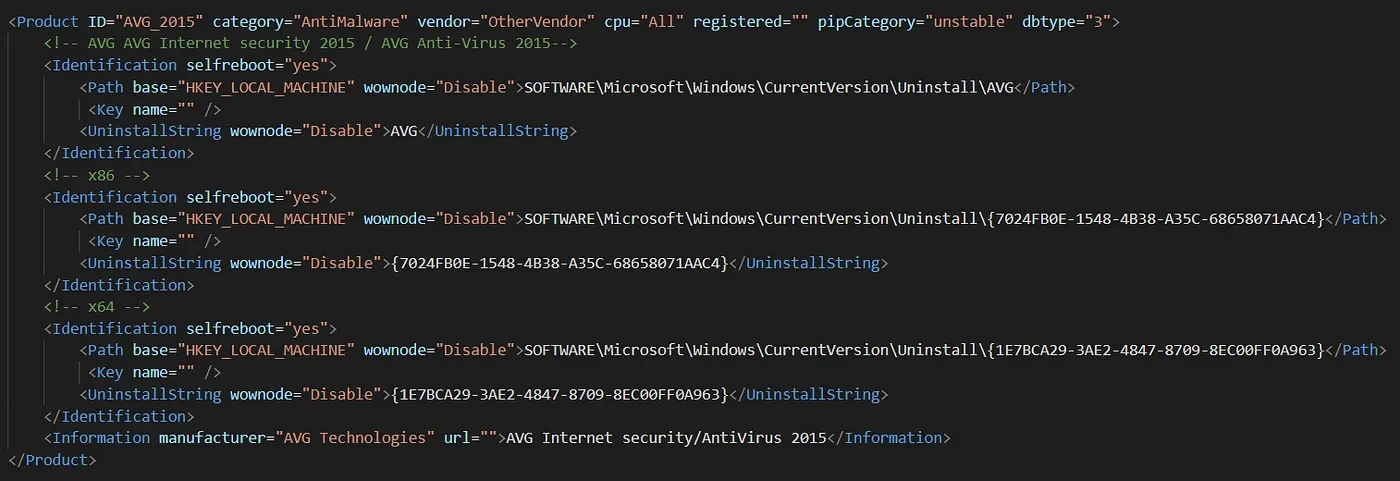

The logic can be inferred by reading the XML. The next step is to simulate an AV through the registry, using AVG 2015 as the example:
- Create the following key:
HKLM\SOFTWARE\Microsoft\Windows\CurrentVersion\Uninstall\AVG
- Add an
UninstallStringvalue pointing at a payload:
C:\Windows\System32\notepad.exe
- Launch the
setup.exeprocess as one normally would.
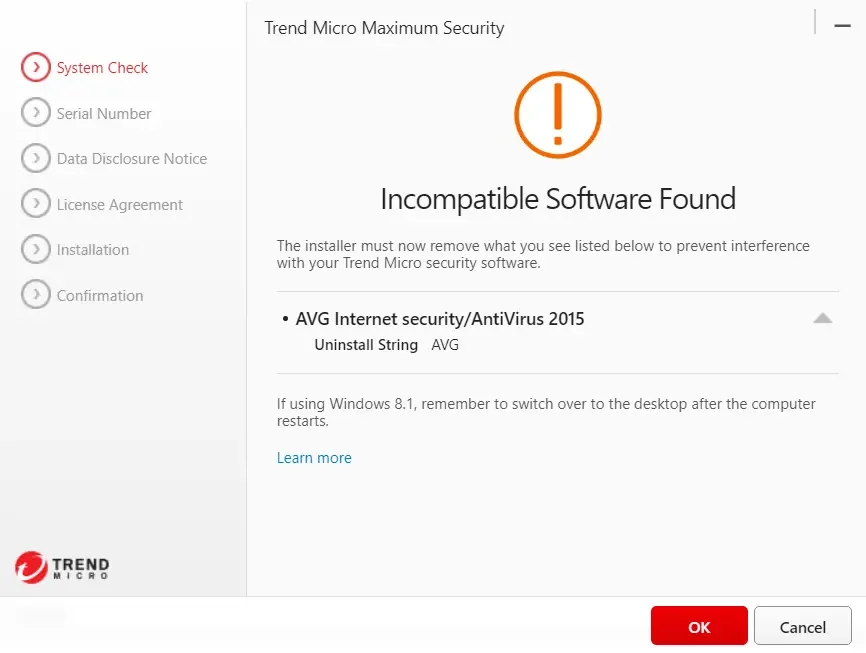
Pressing OK causes the payload stored in UninstallString to be executed as a child of the setup.exe process.
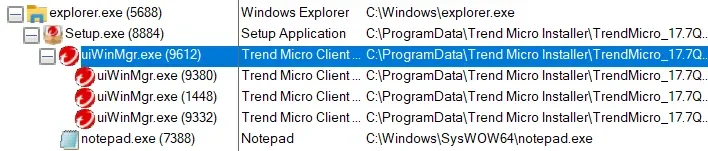
The fix state for this one is "Unknown" but it should in theory be fixed.
Trend Micro (dsa.com)
This is not an uninstaller. The dsa.com executable, part of the Trend Micro Deep Security Agent, was vulnerable to Lua script side loading and can be abused as a LOLBIN.
- Create a Lua script for testing,
lolbin.lua:
os.execute('calc')
-
Put it in a ZIP file,
lolbin.zip, and place it anywhere, for exampleC:\users\test\downloads\lolbin.zip. -
Pass the ZIP to the binary:
dsa.com -a lolbin -z C:\users\test\downloads\lolbin.zip
The binary unzips the file and reads and executes the content of the Lua script.
This was fixed in Agent build 20.0.0.4959. The fix only covered loading Lua scripts from outside the installation directory; scripts can still be loaded from within it if the user has permission. Trend Micro's position is that this should be avoided by enabling the agent self-protection.
McAfee/Trellix Consumer Product Removal tool (MCPR)
MCPR uses .ini files to read its configuration and to determine what needs to be deleted for which product. The author notes it contains a wealth of information about McAfee products (registry keys, services, names, folders) and is worth checking.
The utility runs another binary named McClnUI.exe, which in turn runs mccleanup.exe, the binary responsible for deleting the files. The command line during execution looks like this:
mccleanup.exe -p [NameOfService] -silent -uipipe McAfeeCleanupUIMessagePipe[RandomeNumner] -s -silent
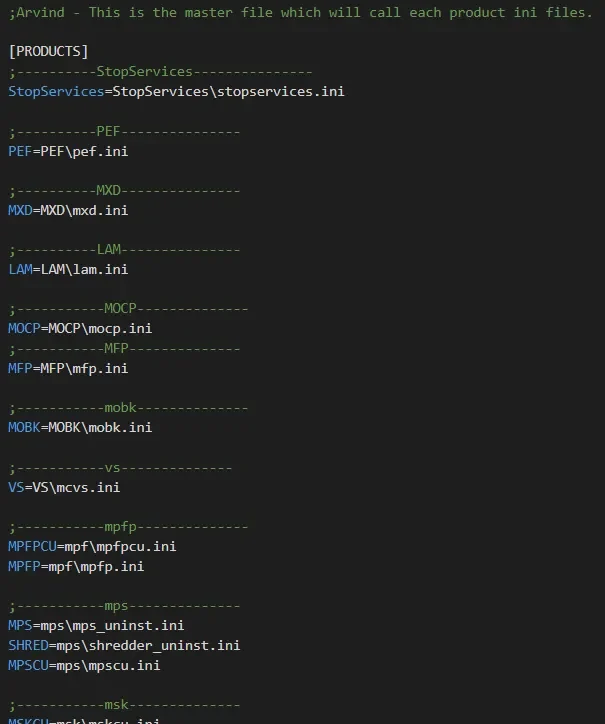
The NameOfService is read from master.ini, which contains a reference to each product-specific .ini file.
- Download the MCPR tool and extract it with a tool such as 7Z.
- Navigate to the newly created folders and copy
mccleanup.exeto any location. - Create a fake
master.inito simulate a product:
[PRODUCTS]Lolbin=lolbin.ini
- Create
lolbin.ini, using an existing.inifor inspiration:
[UNINSTALL]10:64bit=uninstall_list_64_wss[uninstall_list_64_wss]malware[malware]type=cmd cmd=calc
- Execute the command, where
-pis the product:
mccleanup.exe -p Lolbin -silent -uipipe anything -s -silent
- A calculator pops up.
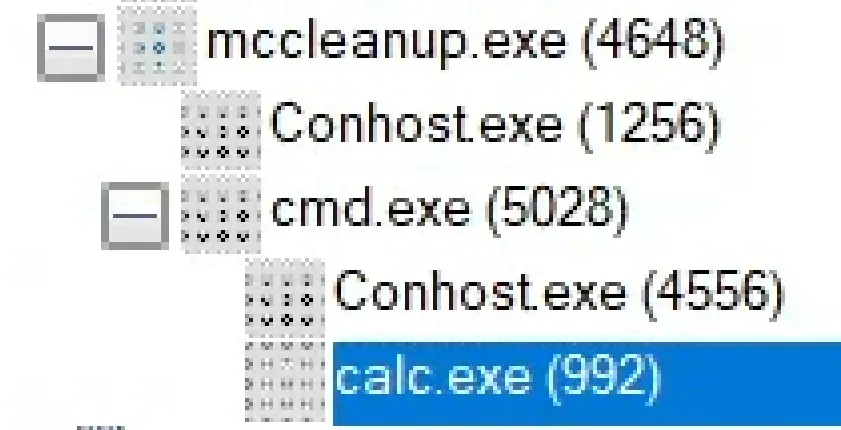
As a side note, mccleanup.exe was also vulnerable to an executable side-load: it has McClnUI hardcoded, so every time it is called it calls a binary with that name. Copying any binary, renaming it to McClnUI and launching mccleanup causes it to be executed as a child process. The mccleanup.exe binary is also signed.
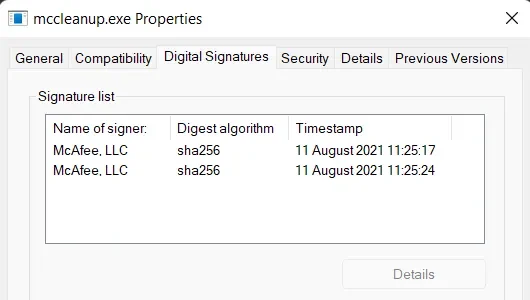
These issues were fixed and assigned CVE-2022-1823 and CVE-2022-1824.
McAfee/Trellix McUICnt.EXE
The McUICnt binary is bundled with McAfee Security Scan Plus. It allows any user to execute arbitrary commands from its context using a simple .ini file at C:\uninstaller.ini:
[CONFIG]WIDTH = 0HEIGHT = 0HTMLRESDLL = .\McInstallerRes.dllL10NDLL = .\McInstallerRes_LD.dllPAGE_VISIBILITY_TIME = 0[UIFLOW]default = Uninstall.htm[Install] ORDER = MSS[MSS] LOCATION_TYPE = 1 LOCATION =C:\Windows\System32AGENT = cmd.exe
Running the binary with the following flags yields a command prompt:
McUICnt.exe McInstallerStartup.dll config:..\..\..\..\..\..\uninstaller.ini mode:/l
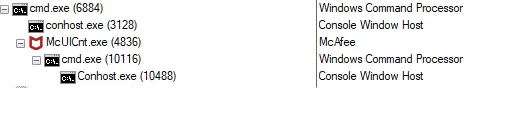
This issue was reported and assigned CVE-2022-37025.
Root cause
The pattern is consistent: the tools trust content that a local user can supply. In the Lua cases, a script path or archive is accepted from the command line and executed without restricting it to a trusted location. In the SupportTool and mccleanup cases, helper files are resolved from a relative path, so a file placed next to the tool is picked up instead of the intended one. In the setup.exe and .ini cases, configuration files drive command execution, and the configuration is read from a location the user can write to or influence.
Code signing does not help here: SupportTool and mccleanup are both signed, but the signature only attests to the binary, not to the files it loads or executes. In the dsa.com case the vendor's own fix note shows the limit of the remediation: only loading from outside the installation directory was blocked, and the vendor's stated mitigation is agent self-protection.
Impact
Each of these gives a local user arbitrary command execution through the vendor tool. The practical effect depends on the privileges of the process that runs the tool; the report does not quantify the resulting privilege level for each product. The issues were reported to the vendors at the start of 2022, and enough time was given to create a fix.
Fix
- Kaspersky: fixed, per the vendor advisory list.
- F-Secure/WithSecure: fixed in version 18.7.13, CVE-2021-44750.
- Trend Micro SupportTool: reported, should be fixed in the latest versions; CVE unknown at the time of writing.
- Trend Micro setup.exe: fix state unknown, should in theory be fixed.
- Trend Micro dsa.com: fixed in Agent build 20.0.0.4959, but only for scripts outside the installation directory; the vendor recommends enabling agent self-protection.
- McAfee/Trellix MCPR: fixed, CVE-2022-1823 and CVE-2022-1824.
- McAfee/Trellix McUICnt: reported, CVE-2022-37025.
Variants to test
- Run the help output of any AV uninstaller and then debug it for undocumented flags. A positive result is a flag that accepts a script, archive or configuration path.
- Watch the tool in Process Monitor for child processes and file reads resolved from a relative path. A positive result is a
.bat,.exeor.iniopened from the tool's own directory. - Read the shipped XML and
.iniconfiguration for command fields. A positive result is a field such astype=cmdwith acmd=value that is executed. - Simulate an installed product through the registry
UninstallStringand launch the vendor's setup. A positive result is your payload running as a child of the setup process. - Check whether the tool loads a hardcoded helper binary name. A positive result is a renamed copy of any executable being launched as a child process.
What happened, in plain words
Imagine you buy a flat and the previous owner leaves a toolbox behind. The toolbox is meant for the building's caretaker, but it sits in your flat, so you can open it. Now imagine the toolbox has a slot labelled "put your own screwdriver here" and the caretaker will happily use whatever screwdriver is in that slot. That is the shape of every issue in this article: antivirus vendors ship small helper programs (uninstallers, diagnostic tools, cleanup utilities) that are supposed to be used by the vendor's own software, but they accept instructions from files or folders that an ordinary user on the machine can write to. If you can write the file, you can make the tool run your commands.
A quick word on the jargon before we start, because the rest of the article leans on it.
- Antivirus (AV): software that watches for malicious programs and blocks or removes them. Examples named in this article are Kaspersky, F-Secure/WithSecure, Trend Micro and McAfee/Trellix.
- Binary / executable: a program file, usually ending in
.exe(or.comon Windows). When you double-click it, Windows loads it and runs it. - LOLBIN ("Living Off the Land Binary"): a program that already exists on a machine and is trusted, but can be bent into doing something it was not meant to do. The classic examples are Windows' own tools. This article extends the idea to software that ships with the machine image, like the antivirus.
- Privilege escalation: getting a program to run with more rights than you have. If a trusted tool runs your command, your command runs with the tool's rights.
- Code signing / signed binary: a cryptographic stamp a vendor puts on a program so Windows can check it really came from them and was not tampered with. It says nothing about the files the program later loads.
- Relative path: a file location written relative to where the program is running from, e.g.
ForceRemove.batmeaning "the file next to me", rather than an absolute path likeC:\Program Files\Vendor\ForceRemove.bat. If an attacker can drop a file next to the program, a relative path picks up the attacker's file. - Process Monitor: a free Microsoft tool that records every file, registry and process action on Windows. Researchers use it to watch what a program touches.
- Registry: Windows' built-in database of settings. Installers write entries there so Windows knows a program exists and how to uninstall it.
- Lua: a small scripting language. Some tools use Lua scripts as recipes for what to do.
.inifile: a plain text configuration file with sections in square brackets andkey=valuelines.- XML: a text format for structured data, using tags like
<item>...</item>. - CVE: a public identifier for a known vulnerability, like a catalogue number.
The author's opening image, captioned "Funny Picture".
Introduction
When people hear "LOLBIN" they usually think of programs that come with Windows itself. The author's point is different. On a typical company laptop, the operating system is not the only thing pre-installed: there is also third-party software, and the antivirus is the one piece almost every machine has. Because it is baked into the image, its own helper tools are effectively "built-in" too, and can be abused the same way as a native Windows tool.
The author spent time looking at one corner of these products: their uninstallers and diagnostic tooling. An uninstaller is the program that removes the product when it is broken or when you want it gone. It has to be powerful, because it needs to delete services, registry keys and files. That power is exactly what makes it interesting.
The blog was originally written in February 2022 and updated through the year as vendors responded. By the time you read it, the author says, all of these issues had been reported and hopefully fixed by their respective vendors.
Methodology
The approach is deliberately simple: "Following the Breadcrumbs" plus Process Monitor. "Following the breadcrumbs" means you run the tool, watch what it does, and follow each thing it touches to the next. You do not need special accounts or roles. The abuse cases all rely on two ordinary abilities: a local user can run the vendor's tool, and a local user can place a file in a folder the tool trusts.
Kaspersky (Kavremover)
Kaspersky offers an uninstallation tool called Kavremover that can remove more than 30 Kaspersky products. The author documented this finding in a separate blog post rather than repeating it here. The issue has been fixed, according to Kaspersky's advisory list.
F-Secure/WithSecure (FsUninstallationTool)
F-Secure offers an uninstallation tool for supposedly "broken installations" of their products. Under the hood, the tool uses Lua scripts to remove the corresponding product. Think of the Lua script as a recipe card: the tool reads the card and follows the steps. The product to remove is chosen on the command line, as the help output shows.
The help output of the tool, listing the products it can remove.
A little debugging reveals a flag the help output does not mention: --script. A flag is an option you add after a program's name on the command line, like -s or -p. This hidden flag lets you point the tool at your own folder of Lua scripts. The steps are:
- Create a script directory and a Lua script named after one of the available products, for example
mdr. - Run the tool pointing at that directory:
FsUninstallationTool.exe -s -p mdr --scripts [ScriptFolderLocation]
Line by line:
FsUninstallationTool.exeis the vendor's uninstaller program.-sis a flag the tool accepts.-p mdrtells the tool which product to remove;mdris one of the product names.--scripts [ScriptFolderLocation]is the undocumented flag.[ScriptFolderLocation]is a placeholder for the folder you created in step 1. The tool will load Lua scripts from there instead of its own trusted folder.
- The supplied Lua script runs, giving arbitrary execution. "Arbitrary execution" means the tool runs whatever commands you put in the script, with the tool's own rights.
The tool running the researcher's Lua script.
The issue was reported and fixed by F-Secure in version 18.7.13, tracked as CVE-2021-44750.
Trend Micro (SupportTool)
Trend Micro AV (Maximum Security, Internet Security and others) embeds a tool called SupportTool as part of the Trend Micro Diagnostic Toolkit. SupportTool can uninstall Trend Micro products through a graphical interface, with prompts confirming the uninstall. A graphical interface is the normal window with buttons; the prompts are there to make sure you really mean it.
The uninstallation process executes, among other things, a couple of .bat files stored inside the directory. A .bat file is a batch script: a plain text file of Windows commands that Windows runs one after another. Process Monitor shows that these files are called from a relative path to the execution, meaning the tool looks for them next to itself rather than at a fixed absolute location.
Process Monitor output showing the batch files being read from a relative path.
Knowing this, the researcher simulated the file by creating one with a similar name. The remaining problem was running SupportTool without the GUI. Digging into the code shows the tool can run without a GUI using a special flag, /SILENTUNINST.
- Place a
ForceRemove.batorAMSPForceRemove.batin the same location as the tool, containing the commands to run. - Execute:
SupportTool.exe /SILENTUNINST="TME"
Line by line:
SupportTool.exeis the vendor's diagnostic tool./SILENTUNINST="TME"is the silent-uninstall flag.TMEis the value passed to the silent-uninstall flag. Because the tool runs silently, no window appears and no confirmation is asked.
- The batch script runs with the tool's context. "Context" means the rights and identity the tool itself runs under.
The process tree after the abuse: the batch script running as a child of the tool.
SupportTool also calls another process during its execution from a relative path. Placing an executable named TMSToolEx.exe in the same directory and running the same command causes it to be called. The SupportTool binary is signed, which means it carries the vendor's cryptographic stamp. That stamp only vouches for SupportTool itself, not for the TMSToolEx.exe sitting next to it.
The signature on the SupportTool binary.
The binary is also available in the Trend Micro Remnant File Remover Tool. The issue was reported and should be fixed in the latest versions of Trend Micro AV; an unknown CVE was assigned at the time of writing.
Trend Micro (Setup.exe)
Trend Micro AV also offers a feature, similar to the one covered in the Kaspersky post, that detects and removes "incompatible" security software. In plain terms: if you install Trend Micro and another AV is already there, Trend Micro's installer can spot the other one and remove it. The detections and remediations are based on files named IncompatibilityAction.xml and IncompatibilityDetection.xml, located in the Common folder inside the decompressed installation folder. "Decompressed" means the installer package was unpacked so you can read its files.
The incompatibility detection file for AVG 2015.
The incompatibility action file for AVG 2015.
The logic can be inferred by reading the XML. The next step is to simulate an AV through the registry, using AVG 2015 as the example. The idea: simulate an installed AV through the registry, then launch the setup.
- Create the following key:
HKLM\SOFTWARE\Microsoft\Windows\CurrentVersion\Uninstall\AVG
Line by line:
HKLMis short for HKEY_LOCAL_MACHINE, the part of the Windows registry that holds settings for the whole machine.SOFTWARE\Microsoft\Windows\CurrentVersion\Uninstallis the standard place where installed programs register themselves so Windows can list them and uninstall them.AVGis the name of the fake product entry being created.
- Add an
UninstallStringvalue pointing at a payload:
C:\Windows\System32\notepad.exe
Line by line:
UninstallStringis the registry value Windows reads when it wants to uninstall a program. It holds the command to run.C:\Windows\System32\notepad.exeis the payload here: the built-in Notepad program.
- Launch the
setup.exeprocess as one normally would.
Trend Micro Maximum Security's setup running.
Pressing OK causes the payload stored in UninstallString to be executed as a child of the setup.exe process. A child process is a program started by another program; here, Notepad is started by the Trend Micro setup.
The process tree showing Notepad running as a child of the setup.
The fix state for this one is "Unknown" but it should in theory be fixed.
Trend Micro (dsa.com)
This is not an uninstaller. The dsa.com executable, part of the Trend Micro Deep Security Agent, was vulnerable to Lua script side loading and can be abused as a LOLBIN. "Side loading" means the program loads a file from somewhere other than its own trusted location, and an attacker can supply that file.
- Create a Lua script for testing,
lolbin.lua:
os.execute('calc')
Line by line:
os.executeis a Lua function that runs a command on the operating system.'calc'is the command being run: the Windows calculator. It is a harmless proof that code executed.
-
Put it in a ZIP file,
lolbin.zip, and place it anywhere, for exampleC:\users\test\downloads\lolbin.zip. A ZIP file is a compressed archive, like a folder packed into a single file. -
Pass the ZIP to the binary:
lolbin.zip
Line by line:
dsa.comis the Trend Micro Deep Security Agent executable.-a lolbinpasses the namelolbin.-z C:\users\test\downloads\lolbin.zippoints the tool at the ZIP file.
The binary unzips the file and reads and executes the content of the Lua script.
This was fixed in Agent build 20.0.0.4959. The fix only covered loading Lua scripts from outside the installation directory; scripts can still be loaded from within it if the user has permission. Trend Micro's position is that this should be avoided by enabling the agent self-protection. Self-protection is a feature where the AV guards its own files and processes against tampering.
McAfee/Trellix Consumer Product Removal tool (MCPR)
MCPR uses .ini files to read its configuration and to determine what needs to be deleted for which product. The author notes it contains a wealth of information about McAfee products (registry keys, services, names, folders) and is worth checking.
The utility runs another binary named McClnUI.exe, which in turn runs mccleanup.exe, the binary responsible for deleting the files. The command line during execution looks like this:
mccleanup.exe -p [NameOfService] -silent -uipipe McAfeeCleanupUIMessagePipe[RandomeNumner] -s -silent
Line by line:
mccleanup.exeis the cleanup binary.-p [NameOfService]selects the product by its service name.[NameOfService]is a placeholder for whatever name is read from the configuration.-silentis a flag passed to the cleanup binary.-uipipe McAfeeCleanupUIMessagePipe[RandomeNumner]passes a pipe name.-s -silentare further flags passed to the binary.
The NameOfService is read from master.ini, which contains a reference to each product-specific .ini file.
The contents of master.ini, listing product-specific .ini files.
- Download the MCPR tool and extract it with a tool such as 7Z. 7Z is a file archiver, like the ZIP tool but for more formats.
- Navigate to the newly created folders and copy
mccleanup.exeto any location. - Create a fake
master.inito simulate a product:
[PRODUCTS]Lolbin=lolbin.ini
Line by line:
[PRODUCTS]is a section header. Everything under it belongs to that section.Lolbin=lolbin.inisays: there is a product calledLolbin, and its configuration lives inlolbin.ini.
- Create
lolbin.ini, using an existing.inifor inspiration:
[UNINSTALL]10:64bit=uninstall_list_64_wss[uninstall_list_64_wss]malware[malware]type=cmd cmd=calc
Line by line:
[UNINSTALL]is the section that describes what to do when uninstalling.10:64bit=uninstall_list_64_wsspoints at a list nameduninstall_list_64_wssfor 64-bit systems.[uninstall_list_64_wss]opens that list.malwareis an entry in the list.[malware]opens the section for that entry.type=cmd cmd=calcis the important part: it says the entry is a command, and the command iscalc, the calculator. This is the injection point: the tool reads this and runs it.
- Execute the command, where
-pis the product:
mccleanup.exe -p Lolbin -silent -uipipe anything -s -silent
Line by line:
mccleanup.exeis the cleanup binary, now copied to your own folder.-p Lolbinselects the fake product you just defined inmaster.ini.-silentruns without prompts.-uipipe anythingpasses a pipe name.-s -silentrepeats the silent setting.
- A calculator pops up.
The calculator running, proof of execution.
As a side note, mccleanup.exe was also vulnerable to an executable side-load: it has McClnUI hardcoded, so every time it is called it calls a binary with that name. Copying any binary, renaming it to McClnUI and launching mccleanup causes it to be executed as a child process. The mccleanup.exe binary is also signed.
The signature on mccleanup.exe.
These issues were fixed and assigned CVE-2022-1823 and CVE-2022-1824.
McAfee/Trellix McUICnt.EXE
The McUICnt binary is bundled with McAfee Security Scan Plus. It allows any user to execute arbitrary commands from its context using a simple .ini file at C:\uninstaller.ini:
[CONFIG]WIDTH = 0HEIGHT = 0HTMLRESDLL = .\McInstallerRes.dllL10NDLL = .\McInstallerRes_LD.dllPAGE_VISIBILITY_TIME = 0[UIFLOW]default = Uninstall.htm[Install] ORDER = MSS[MSS] LOCATION_TYPE = 1 LOCATION =C:\Windows\System32AGENT = cmd.exe
Line by line:
[CONFIG]is the general settings section.WIDTH = 0andHEIGHT = 0are settings in the config section.HTMLRESDLLandL10NDLLpoint at DLLs in the current folder.PAGE_VISIBILITY_TIME = 0is a setting in the config section.[UIFLOW]is a section of the ini file.default = Uninstall.htmis a setting in the UIFLOW section.[Install]andORDER = MSSare sections and settings in the ini file.[MSS]is a section of the ini file.LOCATION_TYPE = 1andLOCATION =C:\Windows\System32are settings in the MSS section.AGENT = cmd.exesets the agent to the Windows command prompt.
Running the binary with the following flags yields a command prompt:
McUICnt.exe McInstallerStartup.dll config:..\..\..\..\..\..\uninstaller.ini mode:/l
Line by line:
McUICnt.exeis the bundled binary.McInstallerStartup.dllis passed as an argument.config:..\..\..\..\..\..\uninstaller.inipoints at the configuration file.mode:/lis passed as an argument.
The process tree showing the command prompt running as a child of McUICnt.
This issue was reported and assigned CVE-2022-37025.
Conclusion
The author closes by saying this was just a taste of what is out there in terms of LOLBINs from third-party AVs, and that there are many more. All of these issues were reported to their respective vendors at the start of 2022, and enough time was given to create a fix.
Glossary
- Antivirus (AV): software that detects and removes malicious programs.
- Binary / executable: a program file, usually
.exeor.comon Windows. - LOLBIN: a trusted program already on a machine that can be abused to do something it was not designed for.
- Privilege escalation: getting code to run with more rights than you have.
- Code signing / signed binary: a cryptographic stamp from the vendor proving the program is genuine and untampered.
- Relative path: a file location written relative to where the program runs, e.g. "the file next to me".
- Absolute path: a full file location starting from the drive, e.g.
C:\Windows\System32\notepad.exe. - Process Monitor: a Microsoft tool that records file, registry and process activity on Windows.
- Process tree: a view of which program started which other program.
- Child process: a program started by another program.
- Registry: Windows' database of system and program settings.
- HKLM: HKEY_LOCAL_MACHINE, the registry section for machine-wide settings.
- UninstallString: the registry value holding the command Windows runs to uninstall a program.
- Lua: a small scripting language used by some tools as a recipe format.
- Side loading: a program loading a file from outside its trusted location, where an attacker can supply it.
.inifile: a plain text configuration file with[sections]andkey=valuelines.- XML: a text format for structured data using tags.
.batfile: a batch script, a text file of Windows commands run in sequence.- Flag: an option added after a program's name on the command line, like
-sor--script. - GUI: graphical user interface, the normal window with buttons.
- Silent mode: running a program without showing a window or asking for confirmation.
- Pipe: a named communication channel between two programs on Windows.
- ZIP file: a compressed archive containing one or more files.
- 7Z: a file archiver tool that can extract compressed packages.
- CVE: a public catalogue number for a known vulnerability.
- Self-protection: an AV feature that guards its own files and processes against tampering.
- Payload: the command or program an attacker wants to run.
- Arbitrary execution: running whatever commands you choose, with the rights of the program that runs them.
- Context: the identity and rights a program runs under.
- Debugging: inspecting a running program to see what it does, including options it does not advertise.
- Following the breadcrumbs: a research method of running a tool and following each file, process or setting it touches to the next.