Size Matters — CVE-2021–0485 (High)
Android's Picture-in-Picture (PiP) mode did not enforce a minimum window size, allowing an app to create a 1dp by 1dp PiP window that is invisible to the user. This let an unprivileged app maintain a foreground state and bypass background execution and sensor restrictions introduced in Android Oreo and later.
 Published on valsamaras.medium.com
Don’t get me wrong but I couldn’t find more appropriate title in order to describe the specific vulnerability.
The full write-up lives on its author's site
It belongs to its author, so we link to it rather than copy it. The other two tabs are our own rewrites, checked against it.
Context
Android has progressively tightened what an application may do while it is not in the foreground. The report walks through that history: Android Oreo (2017) introduced background execution limitations, including limits on the frequency of location updates, for system health and performance; Android Pie (2018) disabled access to sensors for idle UIDs, so an application that had been in the background for more than a certain amount of time should not be able to use the camera, microphone or other sensors; and Android Q added restrictions that prevent an application from starting an activity from the background, with notifications suggested as the alternative to popping windows up out of nowhere.
The feature at the centre of the report is Picture in Picture (PIP), described on the Android Developers page as a special type of multi window mode mostly used for video playback. It lets the user watch a video in a small window pinned to a corner of the screen while navigating between apps or browsing content on the main screen. Google Maps uses it extensively while navigating, both in real life and on the mobile screen.
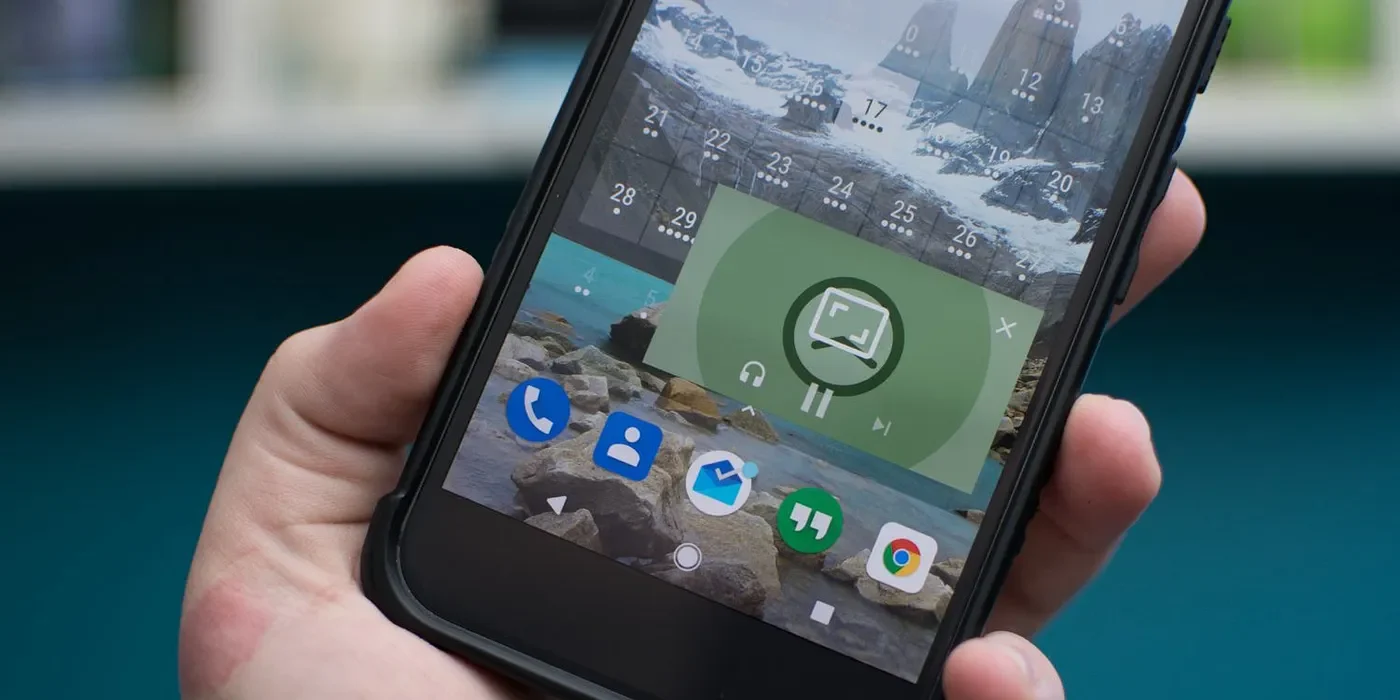
The argument of the article is that a feature which had no security impact in the past needs to be re-evaluated once it is placed in a stricter environment. PIP gives an application a way to stay in the foreground, and the report shows that the window it produces can be made small enough to be effectively invisible.
Setup
The proof of concept needs nothing beyond a new Android Studio project. The PIP implementation is straightforward and, as the author stresses, requires no special permission.
First, PIP support is declared in the manifest:
<activity android:name="VideoActivity" android:supportsPictureInPicture="true" android:configChanges= "screenSize|smallestScreenSize|screenLayout|orientation" ...
Then a single function call puts the activity into PIP mode:
enterPictureInPictureMode()
Finding it
The starting observation is that there is no control of the minimum allowed window size while in PIP mode. Because of that, an application can create an arbitrarily small window that the user will not see. That window then acts as a foothold: it lets an unprivileged application keep its foreground stage and bypass the restrictions introduced in Android Oreo and later.
The author's first idea was a transparent activity, invisible to the user but still enough to hold a foreground state. That idea runs into a problem: a shadow is dropped in the window frame, which distinguishes the PIP window from the rest of the UI, so a transparent window is still noticeable. The remaining question was size.
Two ways of changing the PIP size were considered. The first, the setAspectRatio function of PictureInPictureParams.Builder, does not work in this case. The second uses the <layout> manifest element, which supports attributes that affect how an activity behaves in multi-window mode. Since PIP is just a special type of multi-window mode, those attributes apply. The documented attributes are:
| Attribute | Meaning |
|---|---|
android:defaultWidth |
Default width of the activity when launched in freeform mode. |
android:defaultHeight |
Default height of the activity when launched in freeform mode. |
android:gravity |
Initial placement of the activity when launched in freeform mode. |
android:minHeight, android:minWidth |
Minimum height and width for the activity in both split-screen and freeform modes. If the user moves the divider in split-screen mode to make an activity smaller than the specified minimum, the system crops the activity to the size the user requests. |
The documentation example for setting default size, location and minimum size in freeform mode is:
<activity android:name=".MyActivity"> <layout android:defaultHeight="500dp" android:defaultWidth="600dp" android:gravity="top|end" android:minHeight="450dp" android:minWidth="300dp" /></activity>
Exploitation
Step 1: create a basic PIP window
- Create a new Android Studio project.
- Add the following entry in the manifest file:
<activity android:name=".MainActivity" android:supportsPictureInPicture="true"> <intent-filter> <action android:name="android.intent.action.MAIN" /> <category android:name="android.intent.category.LAUNCHER" /> </intent-filter>
- Add the following call in
MainActivity'sonCreate:
enterPictureInPictureMode();
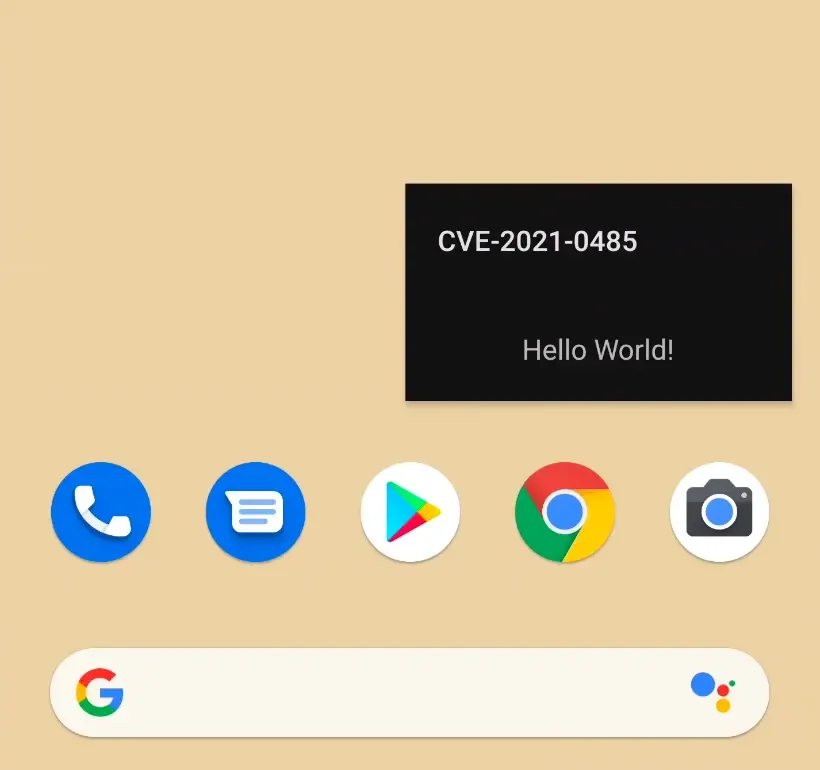
Running the app produces a small floating window:
The result is familiar to anyone who has used chat heads:
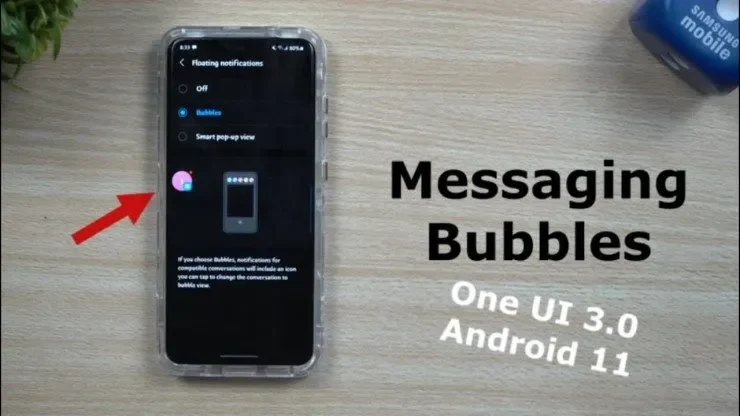
By default, clicking the created window expands it and shows UI controls that can be used to close or maximise it.
Step 2: shrink the window to nothing
Using the <layout> element, the activity is given a default and minimum size of 1dp in each dimension, with gravity placing it at the top end of the screen:
<activity android:name=".MainActivity" android:supportsPictureInPicture="true" android:theme="@style/Theme.AppCompat"><layout android:defaultHeight="1dp" android:defaultWidth="1dp" android:gravity="top|end" android:minHeight="1dp" android:minWidth="1dp" />
The result is a PIP window that is not visible or touchable:
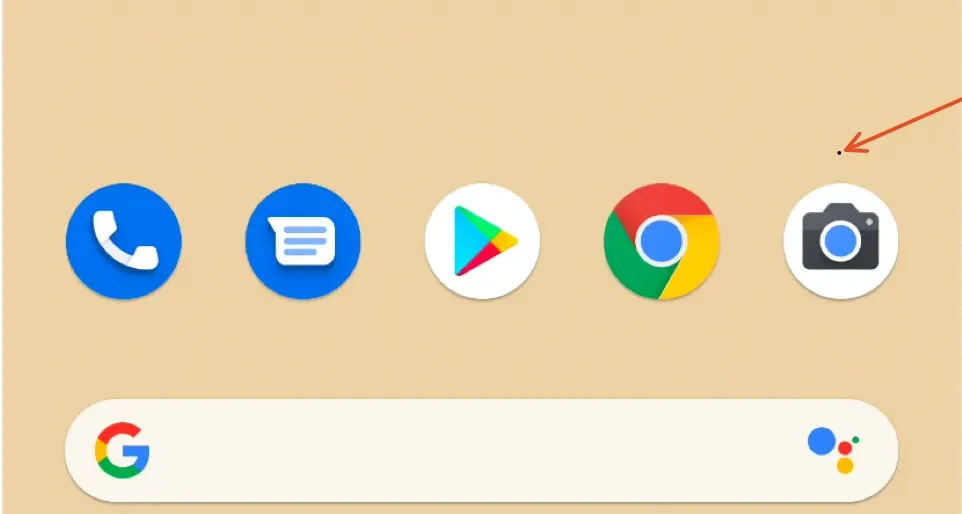
This little dot keeps the application in the foreground, bypassing the restrictions described at the start of the article.
Root cause
PIP mode does not enforce a minimum allowed window size. The <layout> manifest attributes that govern multi-window sizing, including android:minWidth and android:minHeight, are honoured for PIP because PIP is a special type of multi-window mode, and there is no control of the minimum allowed window size while in PIP mode. A window that is technically in the foreground but visually and interactively absent breaks that assumption, so the background execution, sensor and activity-start restrictions never come into play.
Impact
An unprivileged application can hold a foreground state without the user perceiving it. According to the report, an application that maintains its foreground state is able to bypass the restrictions introduced since Android Oreo, with consequences that may affect the user's privacy. The report notes that spyware developers and ad-fraudsters were knocked down by the original restrictions, since applications could no longer spy on the user without being visible or display ads out of the blue while an activity was not in the foreground. The report does not enumerate specific APIs or data sources that were successfully accessed in the proof of concept.
Fix
The report points to the Android security bulletin of 2021-05-01 for details of the fix, and does not describe the code change itself.
- Other window types that can be made very small or fully transparent, such as freeform or split-screen activities configured through
<layout>. A positive result is a window that keeps the app in the foreground while being invisible or untouchable to the user. setAspectRatioonPictureInPictureParams.Builderwith extreme ratios. The report says this route did not work for its case, so a positive result would be a PIP window that becomes invisible through aspect ratio alone.- Transparent themes combined with PIP. The report notes the frame shadow makes a transparent window noticeable; a positive result is a theme or configuration that removes the shadow while keeping the foreground state.
- Sensor and activity-start behaviour from the tiny PIP window. A positive result is camera, microphone or other sensor access, or a background activity start, succeeding while the window is in the invisible state.
- Behaviour across Android versions from Oreo onward. A positive result is the same foreground bypass on versions where the corresponding restriction is enforced.
What happened, in plain words
Android is the operating system that runs on most phones that are not made by Apple. Over the years, Google has added rules that stop apps from doing certain things when they are not on screen. The idea is simple: if you cannot see an app, it should not be able to watch you through the camera, listen through the microphone, read your location, or suddenly throw a window in your face.
This report shows a way around those rules. Android has a feature called Picture in Picture (PIP), the small floating video window you see when you watch a video and then switch to another app. The window stays pinned in a corner while you do something else. The author found that an app can make that window so small (1dp) that you cannot see it or tap it, and yet the app keeps its foreground state. Because the app keeps its foreground state, the background restrictions described in the report do not come into play, while the user has no idea it is there.
The report is titled CVE-2021-0485. A CVE is a public catalogue number given to a security flaw so that people can refer to it unambiguously.
Restrictions, restrictions, restrictions
To understand why this matters, you need the history. Android has been tightening what an app may do while it is not in the foreground. "Foreground" means the app is the one the user is currently looking at and interacting with. "Background" means it is still running but not visible.
- Android Oreo (2017) introduced limits on background execution, including how often an app can ask for location updates. The stated reasons were system health and performance: too many apps doing too much in the background drains the battery and slows the phone.
- Android Pie (2018) went further and disabled access to sensors for idle UIDs. A UID is the unique number Android gives to each app; "idle" means the app has been in the background for more than a certain amount of time. Such an app should not be able to use the camera, the microphone or other sensors.
- Android Q added a restriction that prevents an app from starting an activity from the background. An activity is a single screen in an app, for example a login screen or a map view. Instead of letting apps pop windows up out of nowhere, Android suggested showing a notification, which the user can choose to open.
The report notes that these changes hit spyware developers and ad-fraudsters hard. Spyware is software that secretly watches the user; ad-fraudsters are people who make money by showing ads or faking ad views. With the new rules, an app could no longer spy on you without being visible, and it could not display ads out of the blue while its activity was not in the foreground.
The author's point is that security measures have to be reviewed as the environment changes. When new restrictions are added, features that never had a security impact before need to be looked at again, because the same feature may behave differently in a stricter world. Backward compatibility (keeping old apps working) is the first thing developers think about, but it is not the only thing.
Picture in Picture
The Android Developers documentation describes Picture in Picture, or PIP, as a special type of multi-window mode mostly used for video playback. Multi-window mode means more than one app can share the screen at once. PIP lets the user watch a video in a small window pinned to a corner of the screen while navigating between apps or browsing content on the main screen.
PIP is handy for more than video. Google Maps uses it extensively while navigating, both in real life and on the mobile screen: the map stays in a small window while you use another app.
The implementation is straightforward. First you declare PIP support in your manifest file. The manifest is a file inside every Android app that tells the operating system what the app contains and what it is allowed to do, a bit like the table of contents and the permissions list of a building.
<activity android:name="VideoActivity" android:supportsPictureInPicture="true" android:configChanges= "screenSize|smallestScreenSize|screenLayout|orientation" ...
Line by line:
<activity android:name="VideoActivity"starts the declaration of one screen of the app, namedVideoActivity.android:supportsPictureInPicture="true"tells Android that this screen is allowed to enter PIP mode.android:configChanges="screenSize|smallestScreenSize|screenLayout|orientation"tells Android that the app will handle certain changes itself instead of being restarted. The changes listed are the screen size, the smallest screen size, the screen layout and the orientation (portrait or landscape). This matters because a PIP window changes size and position, and the app should not be torn down and rebuilt every time that happens.- The
...means the declaration continues with other attributes that the report does not show.
Then a single function call puts the activity into PIP mode:
enterPictureInPictureMode()
A function call is an instruction to the operating system: "do this thing now". enterPictureInPictureMode() means "switch this screen into the small floating window". The author stresses that no special permission is required. A permission is the prompt you see when an app asks to use the camera or your location; PIP needs none of that.
Finding it
The starting observation is that there is no control over the minimum allowed window size while in PIP mode. In other words, Android does not say "a PIP window may never be smaller than X". Because of that, an app can create an arbitrarily small window that the user will not see. That tiny window then acts as a foothold: a place from which an unprivileged app (one with no special permissions) can keep its foreground stage and bypass the restrictions introduced in Android Oreo and later.
The author's first idea was a transparent activity: a screen that is invisible to the user but still counts as being in the foreground. That idea runs into a problem. Android draws a shadow around the PIP window frame, and that shadow distinguishes the PIP window from the rest of the UI. So a transparent window is still noticeable, and a user might touch it by accident. The remaining question was size: could the window be made small enough that neither the shadow nor the window itself is noticeable?
Two ways of changing the PIP size were considered:
- The
setAspectRatiofunction ofPictureInPictureParams.Builder.PictureInPictureParams.Builderis a helper object used to configure PIP windows, andsetAspectRatiosets the width-to-height ratio. This route does not work in this case. - The
<layout>manifest element. This element supports attributes that affect how an activity behaves in multi-window mode. Since PIP is just a special type of multi-window mode, those attributes apply to it as well.
The documented attributes are:
| Attribute | Meaning |
|---|---|
android:defaultWidth |
Default width of the activity when launched in freeform mode. |
android:defaultHeight |
Default height of the activity when launched in freeform mode. |
android:gravity |
Initial placement of the activity when launched in freeform mode. |
android:minHeight, android:minWidth |
Minimum height and width for the activity in both split-screen and freeform modes. If the user moves the divider in split-screen mode to make an activity smaller than the specified minimum, the system crops the activity to the size the user requests. |
Freeform mode is a multi-window mode where windows can be moved and resized freely, like windows on a desktop computer. Split-screen mode divides the screen between two apps. Gravity, in this context, means where on the screen the window is placed, for example top end.
The documentation example for setting default size, location and minimum size in freeform mode is:
<activity android:name=".MyActivity"> <layout android:defaultHeight="500dp" android:defaultWidth="600dp" android:gravity="top|end" android:minHeight="450dp" android:minWidth="300dp" /></activity>
Line by line:
<activity android:name=".MyActivity">declares a screen calledMyActivity.<layout android:defaultHeight="500dp"sets the starting height to 500dp. A dp (density-independent pixel) is a unit of screen size that stays roughly the same physical size across phones with different screen resolutions.android:defaultWidth="600dp"sets the starting width to 600dp.android:gravity="top|end"places the window at the top and at the end of the screen. "End" means the right side in left-to-right languages and the left side in right-to-left languages.android:minHeight="450dp"andandroid:minWidth="300dp"set the smallest size the window may be reduced to.- The closing
</activity>ends the declaration.
Exploitation
Step 1: create a basic PIP window
- Create a new Android Studio project. Android Studio is the official program for writing Android apps.
- Add the following entry in the manifest file:
<activity android:name=".MainActivity" android:supportsPictureInPicture="true"> <intent-filter> <action android:name="android.intent.action.MAIN" /> <category android:name="android.intent.category.LAUNCHER" /> </intent-filter>
Line by line:
<activity android:name=".MainActivity"declares the app's main screen,MainActivity.android:supportsPictureInPicture="true"allows that screen to enter PIP mode.<intent-filter>starts a block that tells Android how this screen can be launched. An intent is a message asking Android to do something, such as open a screen.<action android:name="android.intent.action.MAIN" />marks this screen as the app's entry point, the first thing that opens when the app starts.<category android:name="android.intent.category.LAUNCHER" />makes the app appear in the phone's launcher, the list of installed apps.- The closing tags end the block and the activity declaration.
- Add the following call in
MainActivity'sonCreate:
enterPictureInPictureMode();
onCreate is the function that runs when a screen is first created, so this line asks for PIP mode as soon as the app opens. Running the app produces a small floating window:
The result is familiar to anyone who has used chat heads, the round floating bubbles that messaging apps use to keep a conversation on screen:
By default, clicking the created window expands it and shows UI controls that can be used to close or maximise it. UI means user interface, the buttons and elements you see and touch.
Step 2: shrink the window to nothing
Using the <layout> element, the activity is given a default and minimum size of 1dp in each dimension, with gravity placing it at the top end of the screen:
<activity android:name=".MainActivity" android:supportsPictureInPicture="true" android:theme="@style/Theme.AppCompat"><layout android:defaultHeight="1dp" android:defaultWidth="1dp" android:gravity="top|end" android:minHeight="1dp" android:minWidth="1dp" />
Line by line:
<activity android:name=".MainActivity"declares the main screen again.android:supportsPictureInPicture="true"keeps PIP enabled.android:theme="@style/Theme.AppCompat"applies a visual theme to the screen. A theme is a set of colours and styles;Theme.AppCompatis a standard Android theme.<layout android:defaultHeight="1dp"sets the starting height to 1dp, which is essentially a single dot.android:defaultWidth="1dp"sets the starting width to 1dp.android:gravity="top|end"puts the dot at the top end of the screen, out of the way.android:minHeight="1dp"andandroid:minWidth="1dp"tell Android that the window may be reduced to 1dp, so nothing stops it from staying that small.- The closing
/>ends the layout element.
The result is a PIP window that is not visible or touchable:
This little dot keeps the application in the foreground, bypassing the restrictions described at the start of the article. The app is technically on screen, so Android never applies the background rules to it.
Root cause
The root cause is that PIP mode does not enforce a minimum allowed window size. The <layout> manifest attributes that govern multi-window sizing, including android:minWidth and android:minHeight, are honoured for PIP because PIP is a special type of multi-window mode, and there is no control of the minimum allowed window size while in PIP mode.
A window that is technically in the foreground but visually and interactively absent breaks that assumption. The background execution, sensor and activity-start restrictions never come into play, because from Android's point of view the app is not in the background at all.
Impact
An unprivileged app can hold a foreground state without the user perceiving it. According to the report, an app that maintains its foreground state is able to bypass the restrictions introduced since Android Oreo, with consequences that may affect the user's privacy.
The report notes that spyware developers and ad-fraudsters were knocked down by the original restrictions, since apps could no longer spy on the user without being visible or display ads out of the blue while an activity was not in the foreground. The report does not enumerate specific APIs or data sources that were successfully accessed in the proof of concept. An API, in this context, is a programming interface through which an app asks the operating system for something, such as a sensor reading.
Fix
The report points to the Android security bulletin of 2021-05-01 for details of the fix, and does not describe the code change itself.
Variants to test
- Other window types that can be made very small or fully transparent, such as freeform or split-screen activities configured through
<layout>. A positive result is a window that keeps the app in the foreground while being invisible or untouchable to the user. setAspectRatioonPictureInPictureParams.Builderwith extreme ratios. The report says this route did not work for its case, so a positive result would be a PIP window that becomes invisible through aspect ratio alone.- Transparent themes combined with PIP. The report notes the frame shadow makes a transparent window noticeable; a positive result is a theme or configuration that removes the shadow while keeping the foreground state.
- Sensor and activity-start behaviour from the tiny PIP window. A positive result is camera, microphone or other sensor access, or a background activity start, succeeding while the window is in the invisible state.
- Behaviour across Android versions from Oreo onward. A positive result is the same foreground bypass on versions where the corresponding restriction is enforced.
Glossary
- Activity: a single screen in an Android app, such as a login screen or a map view.
- Android Studio: the official program for writing Android apps.
- API: a programming interface through which an app asks the operating system or another program for something.
- AppCompat: a standard Android theme that gives apps a consistent look across versions.
- Background: the state of an app that is running but not visible to the user.
- Backward compatibility: keeping older apps working when the system changes.
- CVE: a public catalogue number given to a security flaw so people can refer to it unambiguously.
- dp (density-independent pixel): a unit of screen size that stays roughly the same physical size across phones with different screen resolutions.
- Foreground: the state of an app that the user is currently looking at and interacting with.
- Freeform mode: a multi-window mode where windows can be moved and resized freely, like on a desktop computer.
- Function call: an instruction in code telling the system to perform an action.
- Gravity: in this context, where on the screen a window is placed, for example top end.
- Idle UID: an app that has been in the background for more than a certain amount of time.
- Intent: a message asking Android to do something, such as open a screen.
- Launcher: the list of installed apps on the phone.
- Manifest: a file inside every Android app that tells the operating system what the app contains and what it is allowed to do.
- Multi-window mode: a mode where more than one app can share the screen at once.
- onCreate: the function that runs when a screen is first created.
- Permission: a prompt or declaration that lets an app use something sensitive, such as the camera or location.
- Picture in Picture (PIP): a special type of multi-window mode that shows an app in a small window pinned to a corner of the screen.
- Root cause: the underlying reason a vulnerability exists.
- Sensor: a hardware component that measures something, such as the camera, microphone or location.
- Spyware: software that secretly watches the user.
- Split-screen mode: a multi-window mode that divides the screen between two apps.
- Theme: a set of colours and styles applied to a screen.
- UID: the unique number Android gives to each app.
- UI (user interface): the buttons and elements you see and touch.
- Unprivileged app: an app with no special permissions.
- Vulnerability: a weakness in software that can be used to break its intended rules.