My Second CVE (CVE-2022-31855)
The Shiny R web console exposed an R interpreter that trusted the system() function, so an attacker who could reach the console could run arbitrary operating system commands on the server. The author also found a stored self-XSS in the command history and used a password found in a shell script to escalate to root.

I am happy to share that my second 0-day disclosure has been designated a CVE, CVE-2022-31855 is an access control issue in Shiny RStudio v1.5.9. allows attackers to getshell and in some cases escalate privileges.
The full write-up lives on its author's site
It belongs to its author, so we link to it rather than copy it. The other two tabs are our own rewrites, checked against it.
Context
CVE-2022-31855 is an access control issue in Shiny RStudio v1.5.9.* that allows attackers to get a shell and, in some cases, escalate privileges. The affected package is vulnerable to OS command injection: the Shiny R web console trusts the system function by default, so an attacker who can reach or manipulate the shell can trigger a stored command injection vulnerability and potentially gain further access to the system.
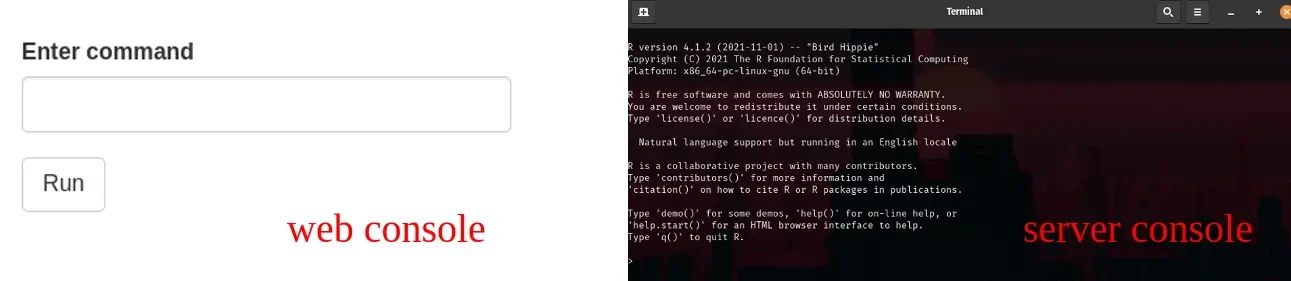
The Shiny R console is an R interpreter delivered as a web app. It was created to make life easier for data analysts, R developers and ordinary users who need to run R code from a browser.
The researcher came across this console on a friend's university exam web page, initially while trying to help. The university accepts bug reports; the write-up stresses that nobody should look for bugs without permission.
Setup
The target was a Shiny R console embedded in a university exam web page. The work started by reading articles about how an embedded console works on a web page, and by reading the source code of the console the university uses, to understand how it works.

Finding it
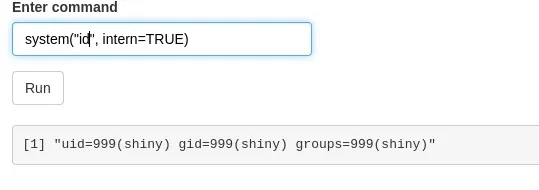
After understanding how an embedded console works on a website, the researcher started researching what kinds of vulnerabilities could be found through it. The first idea was to try to run bash commands on the server. A single Google search for how to invoke a system command led to the R documentation for system(), and calling that function from the console ran arbitrary bash commands.
Exploitation
Step 1: run a system command from the R console
The console accepts R expressions. The system() function executes an operating system command, so entering a call to it in the console runs the command on the server hosting the Shiny app. The write-up does not reproduce the exact expression used, only that system() was the function that made command execution possible.
Step 2: act as the shiny user
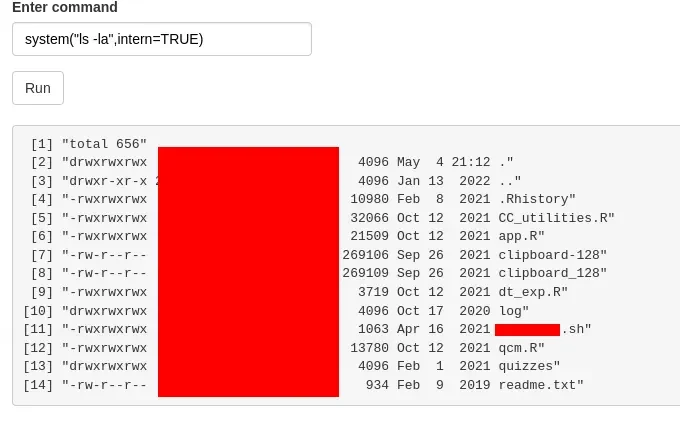
With the shiny user the researcher could do a lot on the server: cat, touch and rm on the majority of files, read the answers, and read sensitive data such as students' and teachers' passwords.
Step 3: privilege escalation from a password in a .sh file
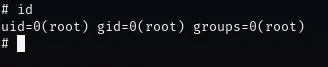
A .sh file contained the password of a user. The researcher SSHed into that account and, after a short reconnaissance session on the machine, found that the user had all permissions, (ALL : ALL) ALL. A single sudo su then produced root.
sudo su
Step 4: self XSS in the command history
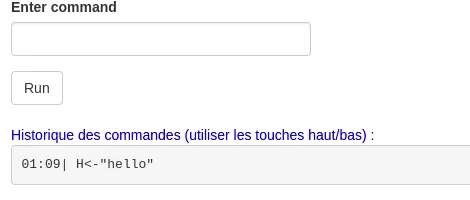
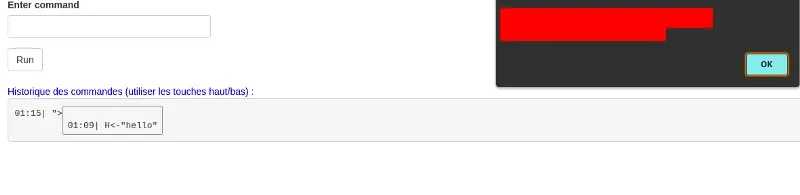
The menu of the main web page rewrites the commands that were written in the form of history. Because that history is rendered back into the page, a command containing HTML is interpreted by the browser.
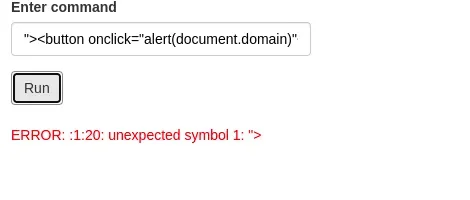
"><button onclick="alert(document.domain)"</button>
The write-up gives the payload without explaining how it breaks out of the history view. The write-up labels this as self XSS.
Root cause
The Shiny R web console trusts the system function by default. Because the console is an R interpreter exposed as a web app, any user who can submit R code can call system() and have the server execute the corresponding operating system command. The access control issue is that this capability is reachable by the console user rather than restricted, so the boundary between running R and running shell commands on the host does not exist. The write-up does not describe any input filtering or sandboxing that would have stopped the call.
The console ran as the shiny user, which could read many files, and a .sh file held another user's password. That user had full sudo rights, so the shell obtained through the console was enough to reach root.
Impact
An attacker who can reach the console can run arbitrary bash commands on the server as the shiny user. In the reported case that meant reading and modifying most files, reading exam answers, and reading sensitive data including students' and teachers' passwords. Where a credential found on the host belongs to an account with full sudo rights, the attacker can escalate to root. The write-up hedges the escalation: it happens in some cases, depending on what the console user can read and what rights the discovered account holds.
The self XSS is limited to the person entering the payload into the history view.
Fix
The write-up does not describe the vendor's fix.
Variants to test
- Other R entry points: try
system(),system2(),shell()and similar process-spawning functions in any R-backed web console. A positive result is command output from the host appearing in the console response. - Other embedded consoles: look for interpreters exposed as web apps (R, Python, Julia) on exam, training or analytics pages. A positive result is any expression that reads a host file or runs a host binary.
- Credential files readable by the service account: search the host for
.shfiles and configuration files containing passwords. A positive result is a credential that authenticates to another account on the machine. - Sudo rights of discovered accounts: after logging in with a found credential, check
sudo -l. A positive result is(ALL : ALL) ALLor any command the account may run as root. - History rendering: enter HTML into any console history or command log and reload the page. A positive result is the markup being interpreted rather than displayed as text.
What happened, in plain words
A security researcher found a bug in a piece of software called Shiny RStudio, specifically version 1.5.9.*. The bug was given an official identifier, CVE-2022-31855. A CVE is a public catalogue number for a known security flaw, so that everyone (vendors, defenders, other researchers) can talk about the same bug unambiguously.
The bug is an access control issue: the software lets someone do something they should not be allowed to do. In this case, the Shiny R web console lets a user run operating system commands on the server that hosts it. The researcher could therefore get a shell (a way to type commands that the server executes) and, in some situations, escalate privileges (go from a low-powered account to a much more powerful one, up to the all-powerful root account).
The technical name for this class of bug is OS command injection: the application takes something a user supplies and ends up passing it to the operating system as a command to run. The Shiny R web console trusts the R function called system by default. Because of that, anyone who can reach the console, or somehow manipulate the shell it gives them, can trigger a stored command injection and potentially get further into the system.
To understand the rest, you need to know what the Shiny R console is. R is a programming language popular with people who analyse data (statisticians, data analysts, researchers). A console is an interactive prompt: you type an instruction, press enter, and the program runs it and shows you the result. The Shiny R console is an R interpreter delivered as a web app, meaning you use it through a normal web browser instead of installing R on your own computer. It was built to make life easier for data analysts, R developers and ordinary users who need to run R code from a browser.
A useful everyday comparison: think of a web app as a restaurant. You (the browser) look at a menu and place an order; the kitchen (the server) does the actual cooking and sends back a plate. You never enter the kitchen yourself. A web console is unusual because the menu lets you write your own recipe, and the kitchen will cook whatever you write. That is convenient, but it means the kitchen has to be very careful about what it agrees to cook.
The researcher came across this console on a friend's university exam web page, at first while simply trying to help. The university accepts bug reports, and the write-up stresses an important point: nobody should go looking for bugs without permission. Testing someone else's system without authorisation is not research, it is unauthorised access.
Setup
The target was a Shiny R console embedded in a university exam web page. The work started by reading articles about how an embedded console works on a web page, and by reading the source code of the console the university uses. Source code is the human-readable text that a program is built from; reading it is like reading the recipe before you try to cook, and it tells you what the program is capable of.
Why start here? Because you cannot sensibly test a feature you do not understand. If you know that the console takes text from the browser, sends it to a server, runs it, and sends the output back, you immediately have a question worth asking: what exactly will the server agree to run?
Finding it
After understanding how an embedded console works on a website, the researcher started researching what kinds of vulnerabilities could be found through it. The first idea was to try to run bash commands on the server. Bash is the standard command language on Linux and similar systems: it is the thing behind a terminal window, where you type commands like listing files or reading a file's contents.
A single Google search for how to invoke a system command led to the official R documentation for a function called system(). In R, system() is the function that executes an operating system command. Calling it from the console therefore runs that command on the server hosting the Shiny app, not on the visitor's own computer. That is the whole bug in one sentence: the console is supposed to run R, but R includes a function that runs anything the operating system can run.
The console trusts the system function by default, so calling it ran the command on the server. A sandbox is a restricted play area: a program is allowed to do only certain things, so even if it is tricked, the damage is contained. Here, there was no such fence.
Exploitation
Step 1: run a system command from the R console
The console accepts R expressions. The system() function executes an operating system command, so entering a call to it in the console runs the command on the server hosting the Shiny app. The write-up does not reproduce the exact expression used, only that system() was the function that made command execution possible.
Why is that enough? Because once you can run one command, you can run any command the server's user account is allowed to run. The console has become a remote terminal, with the browser as the keyboard.
Step 2: act as the shiny user
With the shiny user the researcher could do a lot on the server: cat, touch and rm on the majority of files, read the answers, and read sensitive data such as students' and teachers' passwords.
A quick word on those three commands, since they appear throughout:
catprints the contents of a file to the screen. It is how you read something without opening an editor.touchcreates an empty file, or updates the timestamp of an existing one.rmdeletes a file.
So "cat, touch and rm on the majority of files" means the researcher could read, create and delete most of what was on the machine. Reading the answers means reading the exam answer files. Reading sensitive data means reading files that contained passwords belonging to students and teachers. The account the console ran under was called shiny, which is simply the name of the user account the web application was configured to run as.
Why does the account name matter? Because every program on a server runs as some user, and that user's permissions decide what the program can touch. The console was running as shiny, so everything the console could be tricked into doing, it did with shiny's rights.
Step 3: privilege escalation from a password in a .sh file
A .sh file contained the password of a user. A .sh file is a shell script: a plain text file full of commands that someone can run, a bit like a recipe card for the computer. People often put credentials in such files so that automated tasks can log in without a human typing a password.
The researcher used that password to SSH into the account. SSH is the standard way to open a secure remote terminal on another machine: you give a username and password (or a key), and you get a command prompt on that machine as if you were sitting in front of it.
After a short reconnaissance session on the machine (recon means looking around to see what is there: who you are, what files exist, what you are allowed to do), the researcher found that the user had all permissions, written as (ALL : ALL) ALL. That notation comes from the sudoers configuration, the list of rules saying which users may run which commands as which other users. (ALL : ALL) ALL means: this account may run any command, as any user, on any host. In practice, it can become root, the administrator account that can do absolutely anything on a Linux system.
A single sudo su then produced root. sudo means "run this command with elevated rights", and su means "switch user". Together, sudo su asks to switch to the superuser, and because the account had full rights, the request was granted.
sudo su
Line by line: sudo runs the rest of the command with administrator privileges, after checking the sudoers rules. su switches the current session to another user; with no name given, it defaults to root. The result is a shell prompt with unlimited power on that machine.
Why does this step matter so much? Because the first bug gave the researcher a low-powered account, and the second weakness (a password sitting in a readable file, belonging to an account with full rights) turned that into complete control of the server. Neither weakness alone is as serious as the two together.
Step 4: self XSS in the command history
The menu of the main web page rewrites the commands that were written in the form of history. In other words, the console remembers what you typed and shows it back to you, like the up-arrow history in a terminal. Because that history is rendered back into the page, a command containing HTML is interpreted by the browser instead of being shown as harmless text.
HTML is the language web pages are written in; tags like <button> tell the browser to draw a button. Normally XSS is dangerous because it runs in other people's browsers. Here the write-up calls it self XSS, because the researcher's own input is reflected back into the researcher's own view of the history. The impact is therefore limited compared with the command injection: you are mostly attacking yourself.
"><button onclick="alert(document.domain)"</button>
The write-up gives the payload without explaining how it breaks out of the history view. Then <button ...> opens a button element. The attribute onclick="alert(document.domain)" tells the browser: when someone clicks this button, run the JavaScript alert(document.domain). alert pops up a dialog box, and document.domain is the current site's domain name, so the dialog proves which site the code is running on. Finally </button> closes the button element.
The history view rewrites the commands that were written, and the payload was interpreted by the browser. Encoding means converting special characters like < and > into harmless representations so the browser shows them as text rather than treating them as instructions.
Root cause
The Shiny R web console trusts the system function by default. Because the console is an R interpreter exposed as a web app, any user who can submit R code can call system() and have the server execute the corresponding operating system command. The access control issue is that this capability is reachable by the console user rather than restricted, so the boundary between running R and running shell commands on the host does not exist. The write-up does not describe any input filtering or sandboxing that would have stopped the call.
The console ran as the shiny user, which could read many files, and a .sh file held another user's password. That user had full sudo rights, so the shell obtained through the console was enough to reach root.
A comparison may help: imagine a hotel where the room key also opens the staff entrance, the manager's office and the safe. The key was not stolen; it was simply cut too generously. Here, the console's account was cut too generously, and a password lying in a readable file made the problem worse.
Impact
An attacker who can reach the console can run arbitrary bash commands on the server as the shiny user. In the reported case that meant reading and modifying most files, reading exam answers, and reading sensitive data including students' and teachers' passwords. Where a credential found on the host belongs to an account with full sudo rights, the attacker can escalate to root. The write-up hedges the escalation: it happens in some cases, depending on what the console user can read and what rights the discovered account holds.
The self XSS is limited to the person entering the payload into the history view.
Fix
The write-up does not describe the vendor's fix.
In everyday terms: do not give the kitchen permission to cook anything anyone writes on a napkin, do not leave the safe combination on the kitchen counter, and do not give the kitchen staff a key that opens every door in the building.
Variants to test
- Other R entry points: try
system(),system2(),shell()and similar process-spawning functions in any R-backed web console. A positive result is command output from the host appearing in the console response. - Other embedded consoles: look for interpreters exposed as web apps (R, Python, Julia) on exam, training or analytics pages. A positive result is any expression that reads a host file or runs a host binary.
- Credential files readable by the service account: search the host for
.shfiles and configuration files containing passwords. A positive result is a credential that authenticates to another account on the machine. - Sudo rights of discovered accounts: after logging in with a found credential, check
sudo -l. A positive result is(ALL : ALL) ALLor any command the account may run as root. - History rendering: enter HTML into any console history or command log and reload the page. A positive result is the markup being interpreted rather than displayed as text.
Glossary
- Access control issue: a bug where the software lets someone do something they should not be permitted to do.
- Bash: the standard command language and shell on Linux and similar systems; what you type into a terminal.
- Browser: the program you use to view web pages; it turns HTML and JavaScript into what you see.
- CVE: a public catalogue number for a known security vulnerability, so people can refer to the same bug unambiguously.
- Command injection: a bug where user-supplied input ends up being executed by the operating system as a command.
- Console: an interactive prompt where you type instructions and see the results.
- Credential: a username and password (or key) used to prove who you are.
- Encoding (HTML encoding): converting special characters into harmless representations so a browser displays them as text instead of running them.
- Escalate privileges: move from a low-powered account to a more powerful one, ultimately
root. - HTML: the language web pages are written in, made of tags like
<button>. - JavaScript: the programming language browsers run inside web pages;
alert()is a simple example. - OS command: an instruction for the operating system itself, such as listing files or reading a file.
- Privilege: a permission to do something on a system.
- Reconnaissance (recon): looking around a system to learn what exists and what you are allowed to do.
- Root: the administrator account on Linux, which can do anything.
- R: a programming language used for statistics and data analysis.
- Sandbox: a restricted environment where a program may only do a limited set of things, so mistakes are contained.
- Shell: a program that reads commands you type and asks the operating system to run them.
- Shell script (.sh file): a plain text file containing a list of shell commands, often run automatically.
- Shiny R console: an R interpreter delivered as a web app, used through a browser.
- Source code: the human-readable text a program is built from.
- SSH: a secure way to open a remote terminal on another machine using a username and password or key.
- Sudo: a command that runs another command with elevated rights, subject to rules in the sudoers file.
- Sudoers: the configuration listing which users may run which commands as which other users;
(ALL : ALL) ALLmeans full rights. su: a command that switches the current session to another user,rootby default.- Web app: a program you use through a browser rather than installing it locally.
- Self XSS: XSS where your own input is reflected back only into your own view, so the impact is mostly limited to yourself.