Silent HMAC Key **Contamination**: Uncovering a Logic Flaw in Burp’s JWT Editor Extension
The JWT Editor Burp extension on Windows produced PEM keys with carriage return line endings, causing HMAC key confusion attacks to fail because the secret bytes differed from the expected key. An attacker using the extension on Windows could not forge valid tokens, while the same attack worked on Linux or macOS.

Infosec
The full write-up lives on its author's site
It belongs to its author, so we link to it rather than copy it. The other two tabs are our own rewrites, checked against it.
Context
JWT Editor is a Burp Suite extension, ranked #1 in popularity in the BApp Store at the time of writing, and shortlisted for "Best Auth & Access Control" in PortSwigger's 2026 Burp Suite Extension Awards. Among other things it converts RSA keys to PEM, and it offers an HMAC Key Confusion attack feature for forging tokens.
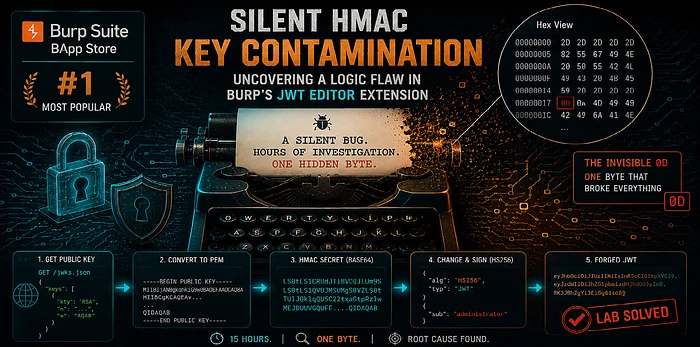
The target of the investigation was not a live application but PortSwigger's Web Security Academy lab JWT authentication bypass via algorithm confusion. The lab exposes a public key at /jwks.json. The intended solution is to take that key, convert it to PEM, Base64-encode it, use the result as the HMAC secret, change the header's alg from RS256 to HS256, change the payload's sub from wiener to administrator, sign the forged token, log in and delete carlos's account.
The vulnerability class behind the lab is JWT algorithm confusion. Some backend libraries implement verification roughly like this:
publicKey = <public-key-of-server>;
token = request.getCookie("session");
verify(token, publicKey);
If the server receives a token signed with a symmetric algorithm such as HS256 instead of the expected RS256, a generic verify() may treat the public key, which is by definition public, as an HMAC secret. Anyone holding the public key can then sign their own token with HS256 and have it trusted.
Setup
The environment in which the bug was found was:
| Component | Version |
|---|---|
| OS | Windows 11 Pro, Version 25H2 (OS Build 26200.8875) |
| Burp Suite | Community Edition v2026.7.2 |
| JWT Editor | 2.6.1 (updated 23 Apr 2026) |
Both Burp and its extensions update regularly, so these versions describe the state at the time the bug was found. The researcher was 83 days into cybersecurity when the investigation started.
Tools used along the way: Burp Decoder (Hex view), Burp Comparer (Hex view), the rsa_sign2n Docker image, Recaf for editing compiled Java bytecode, and Kali Linux for cross-platform testing of the patched build.
Finding it
Following the official steps exactly, the forged token was never accepted: no administrator access, no matter how many times the process was repeated. After about 50 minutes the official walkthrough was opened and it matched what had already been done, word for word. Three or four community solution videos showed the same steps in the same order, and the comments confirmed that the approach worked for other people.
The first variable ruled out was the lab instance. The lab was closed and left for about 15 minutes to disconnect, since Academy lab state, including the public key at /jwks.json, regenerates on a fresh instance and previously used credentials stop working. A brand-new instance was opened and every step repeated carefully. It still failed, so the instance was not the problem.
The second variable was the exposed key itself: perhaps the lab had changed how it serves /jwks.json and the official approach was outdated. To test that, the lab was solved a completely different way with an independent tool, rsa_sign2n, a simplified fork of jwt_forgery.py, run via Docker:
docker run --rm -it portswigger/sig2n <token1> <token2>
The tool takes two JWTs signed with the same RSA key and derives key material from them, outputting a Base64-encoded PEM key in both X.509 and PKCS1 format, plus a forged JWT signed with each derived key. The lab uses an X.509-format key, so that public key was copied into JWT Editor as a New Symmetric Key, pasted into the k parameter, saved, with wiener changed to administrator, the header's alg switched to HS256, the token signed and the request sent. It worked: no unauthorized response, the forged token was accepted, carlos was deleted and the lab was solved.
Now there were two keys: one that worked (from rsa_sign2n) and one that did not (from the official steps). Re-running the original method failed again as expected. Side by side, the two Base64-encoded strings looked different, which suggested the lab's /jwks.json was serving a broken key. But Base64-decoding both back into PEM produced identical text:
-----BEGIN PUBLIC KEY-----[redacted]..
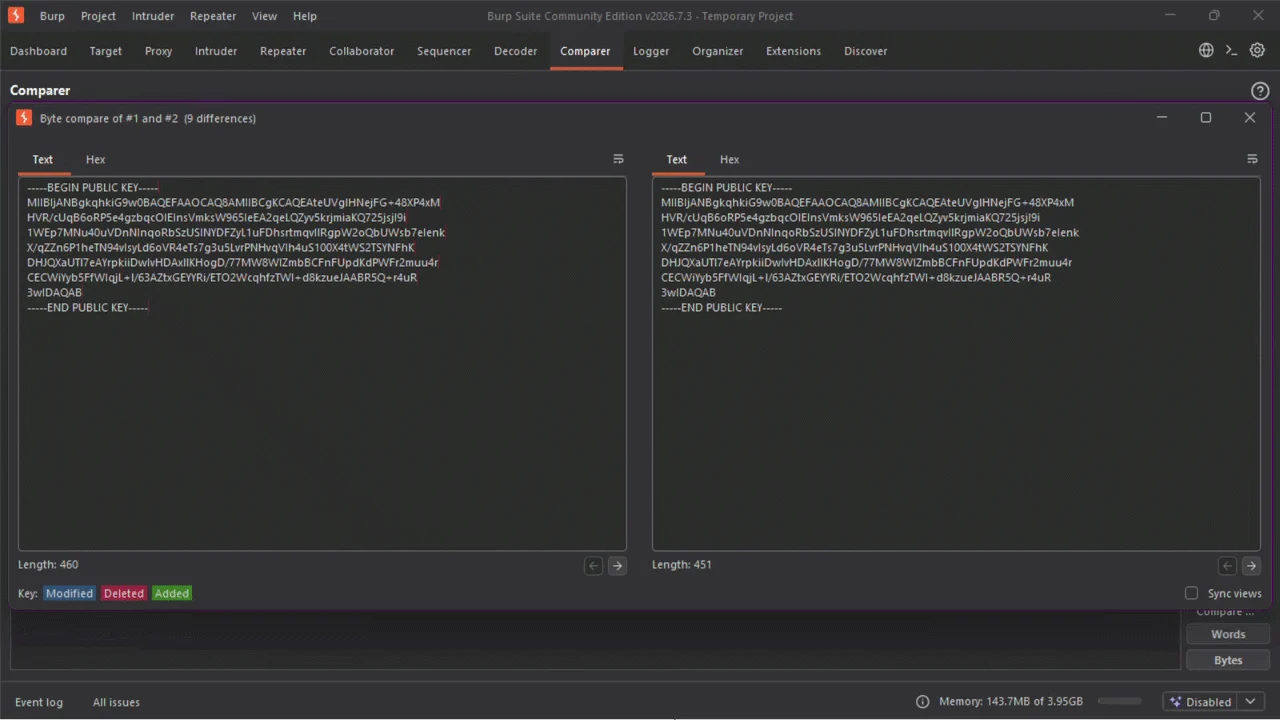
Same characters, same order, no difference. The difference was invisible in Burp's UI. Both PEM versions, before any Base64 encoding, were pasted into Burp Comparer and switched to Hex view. About four hours in, the difference appeared: one of the two was full of extra 0D bytes, appearing exactly once at the end of every single line. 0D is the hex value of a Carriage Return (\r); 0A is a Line Feed (\n).
Exploitation
The line-ending difference is what breaks the attack on Windows. The PEM string exported by JWT Editor contains \r\n line endings, and that string is Base64-encoded and used as the HMAC secret, so the secret bytes differ from what the server expects and the signature does not verify. The steps below reproduce the failure and then the working paths.
Step 1: Reproduce the failing official solution
- Fetch the public key from the lab's
/jwks.jsonendpoint. - Convert it to PEM with JWT Editor.
- Base64-encode the PEM and use it as the HMAC secret.
- Change the header's
algfromRS256toHS256and the payload'ssubfromwienertoadministrator. - Sign the token and send it.
On Windows with JWT Editor 2.6.1, the forged token is rejected. The same steps succeed with a key produced by rsa_sign2n.
Step 2: Locate where the bytes are introduced
- Copy the key directly from
/jwks.jsonand paste it into Decoder's Hex view. No extra bytes appear. - Convert the same key to PEM using JWT Editor and paste that into Decoder's Hex view. The extra bytes appear.
The culprit is JWT Editor. The corruption is not caused by copying or pasting: generating a brand-new, random RSA key inside JWT Editor and converting it to PEM already produces the bytes. A simple confirmation is to place the cursor at the end of any line and press Backspace: the visible character is not deleted on the first press, only on the second. The first, invisible deletion removes the hidden \r.
Every available copy method was tested: Ctrl+C, right-click copy, and the extension's own "Copy Public Key as PEM" button. All of them produced the same result once pasted into Decoder: the extra 0D bytes were always there.
Step 3: Solve the lab with the updated HMAC Key Confusion feature
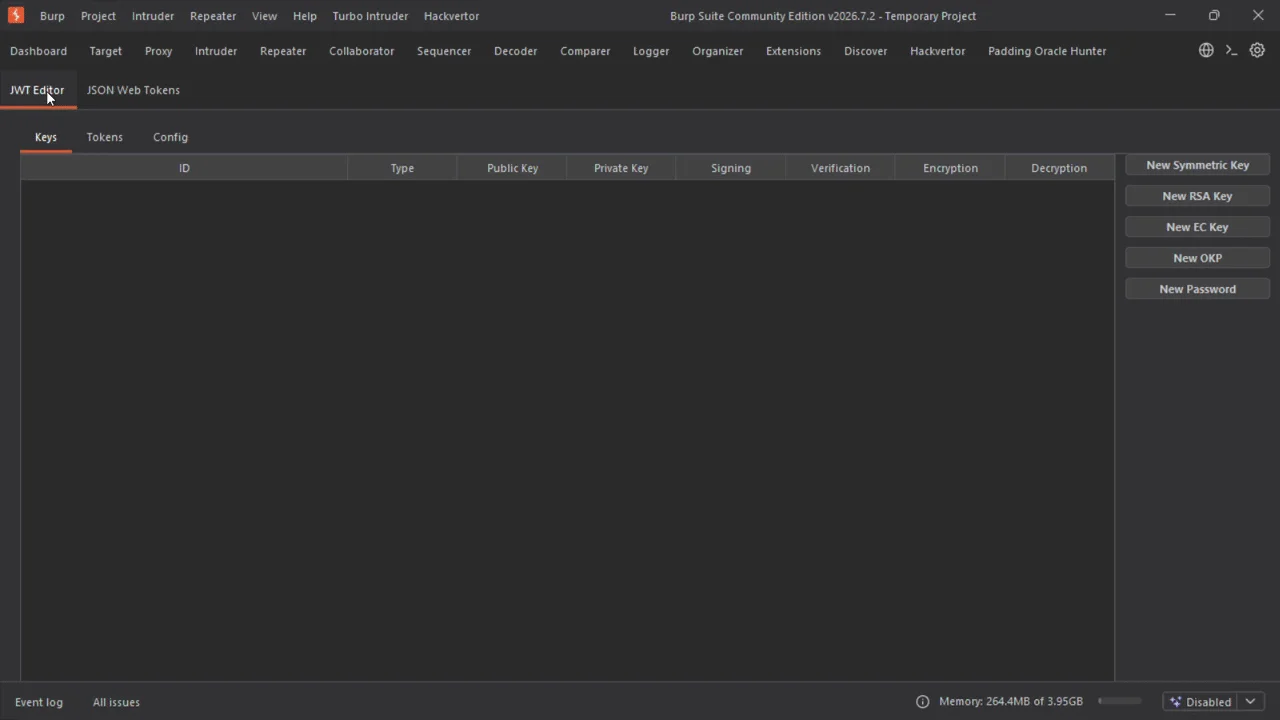
JWT Editor 2.6.2, released on September 04, 2026, added proper support for this scenario to the HMAC Key Confusion attack feature. The workflow is:
- Visit the
/jwks.jsonendpoint and copy the JSON. - In JWT Editor, click "Import JWK Set" (bottom right).
- Paste the JSON and click Import.
- Get a valid JWT in Repeater, then edit the
subfield. - Click Attack, then select "HMAC Key Confusion."
- Pick the key you just imported.
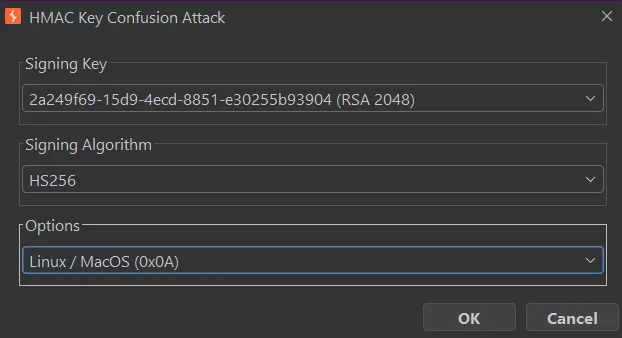
- Choose one of the four line-ending options depending on the backend server's platform and how it stores its PEM key:
- Linux/macOS (
0x0A) - Linux/macOS (
0x0A), no trailing newline - Windows (
0x0D0A) - Windows (
0x0D0A), no trailing newline
- Linux/macOS (
- Click OK. The forged token now has a valid signature.
Most real-world backends are Linux-hosted, as in the PortSwigger lab, so the first option is usually the right starting point. Even on a Linux backend it is worth trying the other Linux/macOS option if the first one does not work, since not every server handles the PEM key identically.
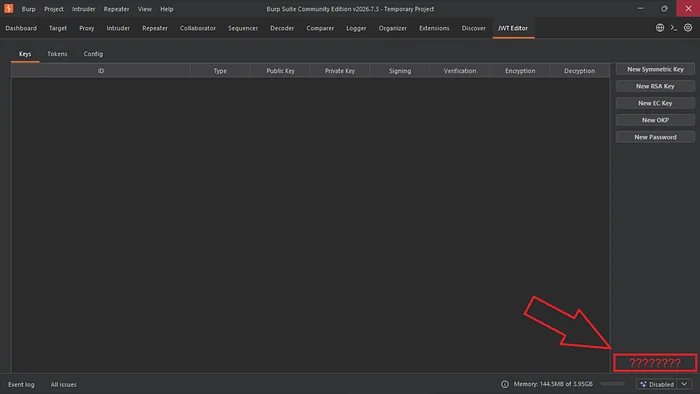
If the "Import JWK Set" button cannot be found in the bottom right, the Scaling option must be enabled in Burp Suite and Burp's display font size kept under 18.
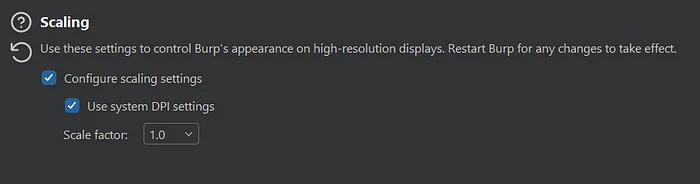
Using too large a font size, or a Windows display scale setting above 100%, causes the "Import JWK Set" button to be cut off in Burp Suite's UI.
Root cause
The responsible file is PEMUtils.java in the maintainer's repository. The relevant method:
public static String pemObjectToString(PemObject pemObject) throws IOException {
    StringWriter stringWriter = new StringWriter();
    PemWriter pemWriter = new PemWriter(stringWriter);
    pemWriter.writeObject(pemObject);
    pemWriter.close();
    stringWriter.close();
    return stringWriter.toString();
}
PemWriter comes from BouncyCastle (org.bouncycastle.util.io.pem.PemWriter) and directly extends java.io.BufferedWriter. It does not define its own line-break logic: when writeObject() inserts line breaks, every 64 Base64 characters per RFC 1421 plus around the header and footer, it relies on the inherited BufferedWriter.newLine() method. Per the JDK documentation, that method writes a line separator defined by the system property line.separator, which defaults to \r\n on Windows. pemObjectToString() returns the raw string with no normalisation step, so the host OS's line separator is baked into every PEM string the tool produces.
The bug is silent because the difference is invisible in Burp's UI. It also does not exist on Linux or macOS, where the line separator is already \n, which is why the solution videos and the comments confirming that the walkthrough "just worked" almost certainly originated from those platforms. Anyone failing on Windows would likely assume a lab error or a personal mistake, and would not spend hours on a simple lab over such a silent issue.
A manual workaround exists: pasting the exported PEM into an external text editor and copying it back out strips the \r, since most standard text applications do not preserve it on that round trip. There is no logical reason to do this unless the bug is already suspected.
Impact
The bug affects Windows users of JWT Editor 2.6.1 who follow the official lab solution exactly as written. The forged token is rejected, so the lab cannot be solved that way. The maintainer and the researcher ultimately agreed this is not really a bug in the extension itself: "Copy as PEM" is a general export feature, so platform-specific line endings make sense there. It was not designed for a workflow that treats the exported text as raw secret bytes, which is what this attack does.
Fix
The one-line fix proposed in the report normalises the output:
public static String pemObjectToString(PemObject pemObject) throws IOException {
    StringWriter stringWriter = new StringWriter();
    PemWriter pemWriter = new PemWriter(stringWriter);
    pemWriter.writeObject(pemObject);
    pemWriter.close();
    stringWriter.close();

    return stringWriter.toString().replace("\r\n", "\n");
}
The line is safe on every platform: .replace() only acts when it finds a match, and on Linux and macOS, where the output is already \n-only, the string comes back untouched.
On August 07, 2026, the original extension's JAR was loaded into Recaf, a tool for editing compiled Java bytecode directly, and the one-line fix was applied to the compiled class. The JAR was exported as a separate test build, renamed "JWT Editor (Test Build)", and loaded into Burp as a new extension. Generating a fresh RSA key and converting it to PEM no longer produced the extra 0D bytes, and the rest of the extension behaved as expected. The patched build was also tested on Kali Linux, confirming that the LF normalisation does not break the extension for macOS or Linux users.
Pull request #249 was opened against the maintainer's repository with the same one-line change. The maintainer declined the pull request, and the researcher now agrees with the reasoning. Beyond the design-intent argument, the fix normalised every PEM output to Linux-style \n line endings. That solves this lab, since Linux-hosted backends are the common case, but it does not generalise: if the backend were Windows-based, the same key-confusion mismatch could resurface in the opposite direction, with the PEM export \n-only while the server's stored key material used \r\n. Hardcoding one platform's convention solves the common case only.
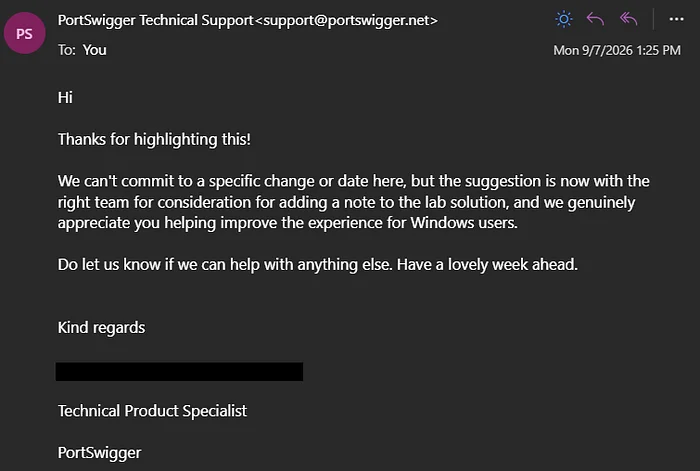
Instead, the maintainer built proper support for this scenario into the HMAC Key Confusion attack feature, released in version 2.6.2 on September 04, 2026, with the four line-ending options described above. The official lab solution and the theoretical explanation on PortSwigger's site still contain the bug for Windows users if followed exactly as written. PortSwigger was contacted at [redacted] and pointed the researcher to the maintainer's repository, where issue #248 had already been opened the day before. A follow-up email was sent after the extension update, noting that the lab solution and docs still were not updated, and PortSwigger replied on September 07, 2026.
Variants to test
- Other tools that export PEM on Windows. Generate a key in any Burp extension or script that writes PEM through a platform-default line separator, then paste the output into Decoder's Hex view. A positive result is a
0Dbyte at the end of every line, and a Backspace that needs two presses to delete a visible character. - Any attack that uses exported text as raw secret bytes. Wherever a tool's export is fed into an HMAC secret, a signature input or a hash, compare the exported bytes with the bytes the server holds. A positive result is a signature that fails only on one platform and succeeds when the line endings are normalised.
- The reverse direction. If a backend stores its PEM with
\r\n, try the Windows (0x0D0A) options in the HMAC Key Confusion dialog, with and without the trailing newline. A positive result is a forged token that is accepted where the Linux-style options were rejected. - Trailing-newline sensitivity. Try both the with-newline and no-trailing-newline variants for the same platform. A positive result is that one variant verifies and the other does not, which shows the server includes or excludes the final newline in its key material.
- Other Academy labs and official solutions on Windows. Follow the published steps exactly on a Windows host and compare the result with the same steps on Linux. A positive result is a lab that solves on Linux and fails on Windows with no other difference.
Timeline
- Aug 03, 2026: Initial email to PortSwigger about the bug.
- Aug 03, 2026: Root cause identified after isolating variables in the lab.
- Aug 03, 2026: GitHub issue #248 submitted to the maintainer's repository with a detailed PoC.
- Aug 04, 2026: PortSwigger replied, pointing to the maintainer's repository, where issue #248 had already been opened the day before.
- Aug 07, 2026: Bytecode patched locally via Recaf to verify the fix on a custom test build.
- Aug 07, 2026: Pull request #249 submitted with the cross-platform line-ending normalisation fix.
- Aug 21, 2026: First response from the maintainer.
- Aug 21 to Sep 01, 2026: Discussion with the maintainer.
- Sep 04, 2026: JWT Editor 2.6.2 released.
- Sep 04, 2026: Follow-up email to PortSwigger after the extension update, noting the lab solution and docs still were not updated.
- Sep 07, 2026: PortSwigger's reply to the follow-up email.
From the first attempt at the lab to submitting the issue took roughly ten hours of focused work, not counting short breaks. Bytecode editing in Recaf, testing the build and preparing the pull request took an additional five hours.
"Silent bugs don't raise flags; you have to look under the hood."
What happened, in plain words
A security learner was working through a free online training exercise. The exercise is designed to teach a specific attack on login tokens, and it comes with step-by-step instructions. The learner followed those instructions exactly, again and again, and the attack never worked. The exercise kept saying no.
After about 50 minutes of assuming the mistake was theirs, they started testing the pieces one by one. They ruled out the training site itself. They solved the same exercise a different way, with a separate tool, and it worked. That gave them two versions of the same key: one that worked and one that did not. The two looked identical on screen. Only when they compared the raw bytes behind the text did the difference appear: one version had an invisible extra character at the end of every line.
The extra character came from a security testing tool called Burp Suite, specifically a plugin called JWT Editor, running on Windows. The plugin writes text files with Windows-style line endings. The attack needs those exact bytes to be used as a secret, so the secret did not match what the server expected and the forged token was rejected.
The learner reported it, proposed a one-line fix, tested the fix themselves, and opened a pull request. The plugin's maintainer declined the pull request, and later built proper support for this scenario into the plugin's attack feature, released as version 2.6.2. The training site's official written solution still has the problem for Windows users. The whole investigation took roughly ten hours of focused work, plus five more hours to patch and test the fix.
The tool at the centre of it
Burp Suite is a program that security testers use to watch and change the traffic between a browser and a website. Think of it as a transparent proxy: you put it between your browser and the internet, and it lets you read every request and edit it before it is sent. It is widely used in penetration testing, which is the practice of attacking a system with permission in order to find its weaknesses before criminals do.
Burp Suite has an app store, the BApp Store, where people publish add-ons called extensions. JWT Editor is one of those extensions. At the time of writing it was ranked number one in popularity in the BApp Store, and it was shortlisted for "Best Auth & Access Control" in PortSwigger's 2026 Burp Suite Extension Awards. PortSwigger is the company behind Burp Suite and behind the training site used here.
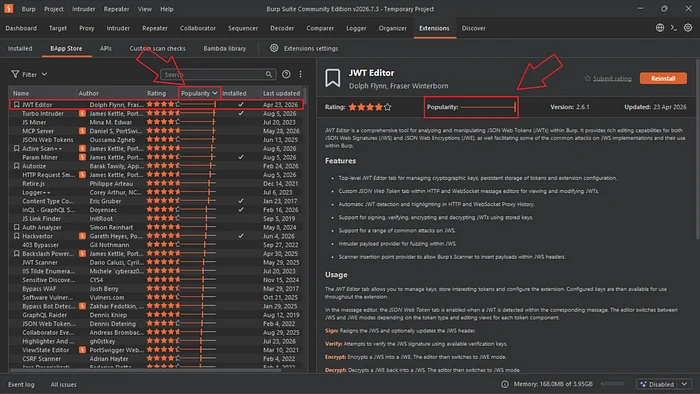
JWT Editor does several jobs. Two matter for this story:
- It converts RSA keys into PEM text. An RSA key is a cryptographic key pair: one half is public and can be shared, the other half is private and must stay secret. PEM is just a text format for storing such a key, with a header line, a footer line, and the key data in between, wrapped across several lines.
- It offers an HMAC Key Confusion attack feature, which automates the token forgery described below.
Background: what a token is, and what algorithm confusion means
When you log in to a website, the server needs a way to remember that you are logged in on the next request. Browsers and servers are stateless: each request arrives on its own, with no memory of the previous one. So the server hands your browser a small piece of data, usually stored in a cookie, and the browser sends it back with every request. A token is that piece of data in a structured form. A JWT (JSON Web Token) is a popular token format made of three parts separated by dots: a header, a payload, and a signature.
- The header says which algorithm was used to sign the token, for example
RS256orHS256. - The payload carries claims, which are statements such as "this user is
wiener" or "this user isadministrator". - The signature is what stops you from editing the payload. It is produced with a secret, and the server recomputes it to check the token has not been tampered with.
The two algorithm families in play:
- Asymmetric algorithms such as
RS256use a key pair. The server signs with its private key and anyone can verify with the public key. The public key is, by design, public. - Symmetric algorithms such as
HS256use one shared secret for both signing and verifying. If you know the secret, you can sign anything.
JWT algorithm confusion is the vulnerability class where a server mixes the two up. Some backend libraries verify tokens with code shaped roughly like this:
publicKey = <public-key-of-server>;
token = request.getCookie("session");
verify(token, publicKey);
Line by line:
publicKey = <public-key-of-server>;loads the server's public key into a variable. This is the key the server normally uses to checkRS256signatures.token = request.getCookie("session");reads the token from the cookie namedsession, which is what the browser sent.verify(token, publicKey);checks the token's signature using that key.
The flaw is in the third line. The verify() function is generic: it looks at the algorithm named in the token's header and picks the matching check. If an attacker changes the header to say HS256, the function treats the second argument, the public key, as the shared HMAC secret. But the public key is public. Anyone who can read it can sign their own token with it, and the server will accept the result as genuine. It is like a nightclub that checks IDs by asking "does this card say you are over 18?" without checking who issued the card: you can print your own.
PortSwigger's own write-up on algorithm confusion covers the full technical detail; this summary is here because it is the reason the investigation happened at all.
The lab, and the first 50 minutes of denial
The practical exercise is PortSwigger's Web Security Academy lab, JWT authentication bypass via algorithm confusion. An Academy lab is a deliberately vulnerable website you can attack legally, with a task to complete. Here the task is to log in as the administrator and delete another user's account.
The intended solution, in plain terms:
- Fetch the server's public key from the lab's
/jwks.jsonendpoint. An endpoint is a specific URL on a server that returns data or performs an action. JWKS stands for JSON Web Key Set: a standard JSON document listing a server's public keys. - Convert that key to PEM text.
- Base64-encode the PEM. Base64 is a way of turning arbitrary bytes into plain letters and digits so they can travel safely inside text. It is not encryption; anyone can reverse it.
- Use the encoded text as the HMAC secret.
- Change the token header's
algfromRS256toHS256. - Change the payload's
subfromwienertoadministrator.submeans subject, the user the token is about. - Sign the forged token, send it, log in, and delete
carlos's account.
The learner followed every step exactly. The forged token was never accepted. No administrator access, no matter how many times the process was repeated. After about 50 minutes they opened the official walkthrough and found it matched what they had already done, word for word. They then watched three or four community solution videos: same steps, same order, no hidden tricks, and comments underneath from people confirming it worked.
At that point the easy option is to close the lab, mark it as watched, and move on. The learner did not move on, on the principle that if something is not working there is a reason, and the reason has not been found yet.
Ruling out the obvious: isolating variables
Instead of guessing, the learner isolated one variable at a time. This is the same idea as a scientist changing one thing per experiment so you know what caused the result.
First variable: is this particular lab instance broken?
Academy labs are not static. Each fresh instance regenerates its internal state, including the public key at /jwks.json, and credentials you used earlier stop working after a while, so you have to redo the earlier steps. The learner closed the lab, waited about 15 minutes for it to disconnect, opened a brand-new instance, and repeated everything carefully. It still failed. So the instance was not the problem.
Second variable: is the exposed key itself wrong?
Perhaps the lab had changed how it serves /jwks.json and the official approach was out of date. To test that, the learner solved the lab a completely different way, with an independent tool called rsa_sign2n, a simplified fork of jwt_forgery.py, run through Docker. Docker is a tool that runs pre-packaged software in an isolated container, so you do not have to install it yourself.
docker run --rm -it portswigger/sig2n <token1> <token2>
Line by line:
docker runtells Docker to start a container from an image.--rmdeletes the container automatically when it finishes, so nothing is left behind.-itgives you an interactive terminal inside the container, so you can see output and type input.portswigger/sig2nis the name of the image to run.<token1> <token2>are placeholders for two JWTs signed with the same RSA key. The angle brackets are not typed literally; you replace them with your two tokens.
What the tool does: it takes two tokens signed with the same RSA key and works out the key material from them. It outputs a Base64-encoded PEM key in both X.509 and PKCS1 format, plus a forged JWT signed with each derived key. X.509 and PKCS1 are two common ways of laying out the same key in PEM text.
The lab uses an X.509-format key, so the learner copied that public key into JWT Editor as a New Symmetric Key, pasted the value into the k parameter, saved it, changed wiener to administrator, switched the header's alg to HS256, signed the token, and sent the request. It worked. No unauthorized response, the forged token was accepted, carlos was deleted, and the lab was solved.
The comparison that changed everything
Now there were two keys: one that worked, from rsa_sign2n, and one that did not, from the official steps. Re-running the original method failed again, as expected.
Side by side, the two Base64-encoded strings looked different. The first theory was that the lab's /jwks.json was serving a broken key. But when both were Base64-decoded back into PEM, the text was identical:
-----BEGIN PUBLIC KEY-----[redacted]..
Line by line:
-----BEGIN PUBLIC KEY-----is the PEM header. It marks the start of a public key.[redacted]..is the start of the key data, Base64-encoded. The..at the end is the report's shorthand for "the rest continues here".
Same characters, same order, no difference. The first theory was wrong. But something was still different, and it was invisible in Burp's normal text view.
With a slight smile forming, the learner opened Burp Comparer, pasted both PEM versions in before any Base64 encoding, and switched to Hex view. Comparer is a Burp tool that shows two pieces of data side by side and highlights the differences. Hex view shows the raw bytes of the text as hexadecimal numbers, which is how computers actually store it. About four hours in, the difference appeared: one of the two was full of extra 0D bytes, appearing exactly once at the end of every single line.
0D is the hexadecimal value of a Carriage Return (\r). 0A is the hexadecimal value of a Line Feed (\n). Hexadecimal is just a way of writing byte values using digits and the letters A to F.
A quick detour: why line endings differ between operating systems
This goes back to mechanical teletypewriters, decades before any of today's operating systems existed. A teletypewriter needed two separate physical actions to start a new line: a Carriage Return (CR) to send the print head back to the start of the line, and a Line Feed (LF) to advance the paper by one line. Early computer systems inherited this literally and sent both characters, \r\n, to mean a new line.
When Unix was designed, Ken Thompson made a deliberate simplification: use \n alone, since a single character is enough on a screen with no physical print head to return. Classic Mac OS went the opposite way and used \r alone. Microsoft's MS-DOS, and later Windows, kept the original \r\n pair for compatibility with older systems and printers, and that convention has stuck around ever since, all the way to the Windows 11 used in 2026.
Modern macOS, being Unix-based since OS X, switched to \n like Linux. So today, in practice: Windows uses \r\n; Linux and macOS use \n. A bug appearing in 2026 because of a decision made decades ago, for hardware that stopped existing before most of us were born.
Reverse-engineering backwards
After the discovery the learner took about half an hour outside to clear their head, then went back into the lab with a narrower question: not what is wrong, but exactly where the extra bytes are introduced. The starting point was pasting the public key into Burp Decoder, before any Base64 encoding. Decoder is a Burp tool for encoding, decoding and inspecting data.
- Copy the key directly from
/jwks.jsonand paste it into Decoder's Hex view. Result: no extra bytes. - Convert that same key to PEM using JWT Editor, then paste that into Decoder's Hex view. Result: the extra bytes appear.
The culprit was JWT Editor. But was the corruption happening during copying or during pasting? Neither. It happens before any copy-paste at all. Generating a brand-new, random RSA key inside JWT Editor and converting it to PEM already produced the bytes, automatically.
A simple confirmation: place the cursor at the end of any line and press Backspace. The visible character is not deleted on the first press, only on the second. That first, invisible deletion removes the hidden \r.
To check that no copy method was stripping the \r, the learner tested every one: Ctrl+C, right-click copy, and the extension's own "Copy Public Key as PEM" button. All of them produced the same result once pasted into Decoder: the extra 0D bytes were always there.
Into the source code
The learner went to the extension's page on the BApp Store, found its link to PortSwigger's GitHub repository, and traced it to the maintainer's repository. GitHub is a website where source code is stored and shared. A repository is a project's folder of code and history. A maintainer is the person who looks after it.
Eventually they landed on the exact file responsible: PEMUtils.java. The relevant method:
public static String pemObjectToString(PemObject pemObject) throws IOException {
    StringWriter stringWriter = new StringWriter();
    PemWriter pemWriter = new PemWriter(stringWriter);
    pemWriter.writeObject(pemObject);
    pemWriter.close();
    stringWriter.close();
    return stringWriter.toString();
}
Line by line:
public static String pemObjectToString(PemObject pemObject) throws IOException {declares a method that takes a key object and returns text.throws IOExceptionmeans it can fail with an input/output error, which the caller must handle.StringWriter stringWriter = new StringWriter();creates an in-memory buffer that collects text, like an empty notepad.PemWriter pemWriter = new PemWriter(stringWriter);creates a writer that knows how to format a key as PEM, and points it at that notepad.pemWriter.writeObject(pemObject);writes the key into the notepad in PEM format, inserting line breaks as it goes.pemWriter.close();andstringWriter.close();finish and close both writers.return stringWriter.toString();hands back the collected text as a plain string, with no further processing.
PemWriter comes from a library called BouncyCastle (org.bouncycastle.util.io.pem.PemWriter) and directly extends java.io.BufferedWriter, a standard Java class for writing text. It does not define its own line-break logic. When writeObject() inserts line breaks, every 64 Base64 characters per RFC 1421 plus around the header and footer, it relies on the inherited BufferedWriter.newLine() method. Per the JDK documentation, that method writes a line separator defined by the system property line.separator, which defaults to \r\n on Windows. Since pemObjectToString() returns the raw string with no normalisation step, whatever the host operating system's line separator is gets baked directly into every PEM string the tool produces.
The exact environment in which the bug was found:
| Component | Version |
|---|---|
| OS | Windows 11 Pro, Version 25H2 (OS Build 26200.8875) |
| Burp Suite | Community Edition v2026.7.2 |
| JWT Editor | 2.6.1 (updated 23 Apr 2026) |
Both Burp and its extensions update regularly, so these versions describe the state at the time the bug was found, not necessarily whatever version you are reading this on. The researcher was 83 days into cybersecurity when the investigation started.
Why this went unnoticed
Most people working in web security and bug bounty hunting use Linux or macOS, not native Windows, whether that is a pentesting distribution, WSL (Windows Subsystem for Linux), or a Mac. On both, the bug simply does not exist, because their line separator is already \n. The solution videos the learner watched, and the comments thanking the authors for a walkthrough that "just worked", almost certainly all originated from Linux or macOS. Even if someone failed to solve this on Windows, they would probably assume a lab error or a mistake on their own side. If they did realise it was a bug, they would not spend hours on a simple lab over something so silent, so they would probably just move on.
A manual workaround exists: pasting the exported PEM into an external text editor and copying it back out strips the \r, since most standard text applications do not preserve it on that round trip. But there is no logical reason to bounce your key through an external editor unless you already suspect the bug exists.
Reporting it
Once there was a confirmed root cause, a working fix, and a reproducible demonstration, the learner put together a full report and opened issue #248 directly on the maintainer's repository. A proof of concept (PoC) is a minimal demonstration that a bug is real. From the first attempt at the lab to submitting that issue took roughly ten hours of actual focused work, not counting short breaks.
Testing the fix yourself
While waiting for a response, the learner did not leave the fix as theory. On August 07, 2026, they loaded the original extension's JAR file into Recaf, a tool for editing compiled Java bytecode directly, and applied the exact one-line fix from the report to the compiled class. A JAR is a packaged Java application file. Bytecode is the intermediate form Java code is compiled into before it runs.
With the patch in place, they exported the JAR as a separate test build, renamed "JWT Editor (Test Build)" to avoid confusion with the original, and loaded it into Burp as a new extension. It worked: generating a fresh RSA key and converting it to PEM no longer produced the extra 0D bytes, and the rest of the extension behaved exactly as expected.
The patched build was also tested on Kali Linux, a Linux distribution popular in security work, confirming that the LF normalisation works across environments and does not break the extension for macOS or Linux users. Between bytecode editing in Recaf, testing the build, and putting together the pull request, this took an additional five hours.
First response and discussion with the maintainer
On August 21, 2026, the first response arrived from the maintainer. After a long and detailed discussion, here is where things stand:
- A) The official lab solution is still broken for Windows users if followed exactly as written. The maintainer declined to merge pull request #249, and the researcher now agrees with the reasoning.
- B) The HMAC Key Confusion attack feature in the tool has since been improved and now handles this scenario correctly, including for Windows users, which gives a more reliable path through the lab.
The maintainer and researcher ultimately agreed this is not really a bug in the extension itself. "Copy as PEM" is meant as a general export feature, so platform-specific line endings make sense there. It was not designed for a workflow that treats the exported text as raw secret bytes, which is what this attack does. That is why the pull request was declined.
There is also a more practical reason the fix was not ideal, even setting the design-intent argument aside: it normalised every PEM output to Linux-style (\n) line endings. That works for this specific lab, since Linux-hosted backends are the common case, and it does solve it. But it is not the most robust fix, because if the backend server happened to be Windows-based, the exact same key-confusion mismatch could resurface in the opposite direction: the PEM export would be \n-only while the server's stored key material used \r\n. Hardcoding one platform's convention solves the common case but does not fully generalise to every backend.
The better, updated way to solve the lab and perform the attack
The maintainer has since built proper support for this scenario into the HMAC Key Confusion attack feature, released in version 2.6.2 on September 04, 2026.
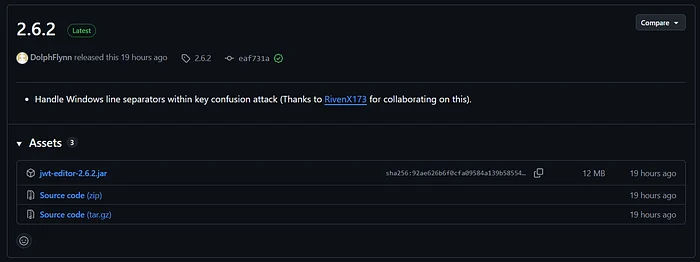
The updated, more reliable workflow:
- Visit the
/jwks.jsonendpoint and copy the JSON. - In JWT Editor, click "Import JWK Set" (bottom right).
- Paste the JSON and click Import.
- Get a valid JWT in Repeater, then edit the
subfield. Repeater is the Burp tool that lets you send the same request over and over with changes. - Click Attack, then select "HMAC Key Confusion."
- Pick the key you just imported.
- Choose one of the four line-ending options depending on the backend server's platform and how it stores its PEM key:
- Linux/macOS (
0x0A) - Linux/macOS (
0x0A), no trailing newline - Windows (
0x0D0A) - Windows (
0x0D0A), no trailing newline
- Linux/macOS (
- Click OK. The forged token now has a valid signature.
Most real-world backends are Linux-hosted, as in the PortSwigger lab, so the first option is usually the right starting point. Even on a Linux backend it is worth trying the other Linux/macOS option if the first one does not work, since not every server handles the PEM key identically.
Important note: if you cannot find the "Import JWK Set" button in the bottom right, make sure the Scaling option is enabled in Burp Suite, and keep Burp's display font size under 18.
This matters because using too large a font size, or a Windows display scale setting above 100% (under Windows display settings), causes the "Import JWK Set" button to get cut off in Burp Suite's UI, as shown below.
One last thing worth mentioning: when this investigation started, the researcher was only 83 days into cybersecurity. It only happened because "it happens because it happens" never satisfies them.
Reaching out to PortSwigger
As soon as the bug was hit, an email went to PortSwigger at [redacted] They responded and pointed to the maintainer's repository, where issue #248 had already been opened the day before. But even after everything was resolved, the bug still exists in the lab's official solution and in the theoretical explanation on PortSwigger's site for Windows users, so a second email followed. Here is their reply:
If they make any changes on their end, whether in the theoretical write-up, the lab's official solution, or in a follow-up email, this write-up will be updated accordingly.
Variants to test
These are the same ideas applied more widely, for anyone who wants to look for similar problems:
- Other tools that export PEM on Windows. Generate a key in any Burp extension or script that writes PEM through a platform-default line separator, then paste the output into Decoder's Hex view. A positive result is a
0Dbyte at the end of every line, and a Backspace that needs two presses to delete a visible character. - Any attack that uses exported text as raw secret bytes. Wherever a tool's export is fed into an HMAC secret, a signature input or a hash, compare the exported bytes with the bytes the server holds. A positive result is a signature that fails only on one platform and succeeds when the line endings are normalised.
- The reverse direction. If a backend stores its PEM with
\r\n, try the Windows (0x0D0A) options in the HMAC Key Confusion dialog, with and without the trailing newline. A positive result is a forged token that is accepted where the Linux-style options were rejected. - Trailing-newline sensitivity. Try both the with-newline and no-trailing-newline variants for the same platform. A positive result is that one variant verifies and the other does not, which shows the server includes or excludes the final newline in its key material.
- Other Academy labs and official solutions on Windows. Follow the published steps exactly on a Windows host and compare the result with the same steps on Linux. A positive result is a lab that solves on Linux and fails on Windows with no other difference.
Timeline
- Aug 03, 2026: Initial email to PortSwigger about the bug.
- Aug 03, 2026: Root cause identified after isolating variables in the lab.
- Aug 03, 2026: GitHub issue #248 submitted to the maintainer's repository with a detailed PoC.
- Aug 04, 2026: PortSwigger replied, pointing to the maintainer's repository, where issue #248 had already been opened the day before.
- Aug 07, 2026: Bytecode patched locally via Recaf to verify the fix on a custom test build.
- Aug 07, 2026: Pull request #249 submitted with the cross-platform line-ending normalisation fix.
- Aug 21, 2026: First response from the maintainer.
- Aug 21 to Sep 01, 2026: Discussion with the maintainer.
- Sep 04, 2026: JWT Editor 2.6.2 released.
- Sep 04, 2026: Follow-up email to PortSwigger after the extension update, noting the lab solution and docs still were not updated.
- Sep 07, 2026: PortSwigger's reply to the follow-up email.
"Silent bugs don't raise flags; you have to look under the hood."
Glossary
- API: a defined way for one program to talk to another, usually over the web, with agreed URLs and data formats.
- Asymmetric algorithm: a signing or encryption method that uses a key pair, one public and one private.
- BApp Store: the app store inside Burp Suite where extensions are published and installed.
- Base64: an encoding that turns arbitrary bytes into plain letters and digits so they can travel inside text. Not encryption.
- BouncyCastle: a widely used Java library of cryptographic functions.
- Burp Comparer: a Burp Suite tool that shows two pieces of data side by side and highlights the differences.
- Burp Decoder: a Burp Suite tool for encoding, decoding and inspecting data, including a Hex view.
- Burp Repeater: a Burp Suite tool that lets you resend a request repeatedly with changes.
- Burp Suite: a program that sits between a browser and a website so a tester can read and edit the traffic.
- Bytecode: the intermediate form Java source code is compiled into before it runs.
- Carriage Return (CR,
\r,0D): a control character that moves the cursor back to the start of the line. - Cookie: a small piece of data a website stores in your browser and your browser sends back with each request.
- Docker: a tool that runs pre-packaged software in isolated containers.
- Endpoint: a specific URL on a server that returns data or performs an action.
- Extension: an add-on that adds features to a larger program such as Burp Suite.
- HMAC: a way of signing data with a single shared secret, used by symmetric algorithms such as HS256.
- HMAC Key Confusion: the attack that abuses a server treating a public key as an HMAC secret.
- HS256: a symmetric JWT signing algorithm that uses one shared secret.
- Hexadecimal (hex): a way of writing byte values using digits and the letters A to F.
- JAR: a packaged Java application file.
- JSON: a plain-text data format made of keys and values, widely used by web services.
- JWT (JSON Web Token): a token format with a header, a payload and a signature, separated by dots.
- JWT algorithm confusion: a vulnerability where a server accepts a token signed with a different algorithm family than expected, letting a public key be used as a secret.
- JWKS (JSON Web Key Set): a standard JSON document listing a server's public keys.
- Line Feed (LF,
\n,0A): a control character that moves the cursor down one line. - Maintainer: the person who looks after a software project and its repository.
- PEM: a text format for storing keys, with a header line, a footer line and the key data in between.
- Penetration testing: attacking a system with permission in order to find its weaknesses before criminals do.
- Proof of concept (PoC): a minimal demonstration that a bug is real.
- Pull request: a proposed change to a code repository, submitted for review before it is merged.
- Recaf: a tool for viewing and editing compiled Java bytecode directly.
- Repository: a project's folder of source code and its history, often hosted on GitHub.
- RFC 1421: the standard that defines PEM formatting, including line breaks every 64 Base64 characters.
- RSA: a public-key cryptography system that uses a public and a private key.
- RS256: an asymmetric JWT signing algorithm that uses an RSA key pair.
- Signature: data attached to a token that lets the server check it has not been tampered with.
- Symmetric algorithm: a signing or encryption method that uses one shared secret for both sides.
- Token: a structured piece of data a server gives a client to represent a session or identity.
- WSL (Windows Subsystem for Linux): a way to run Linux inside Windows.
- X.509 and PKCS1: two common ways of laying out the same key in PEM text.