When Client-Side Limits Are Not Enough: Bypassing File Upload Restrictions
The application returned its file upload limits (maximum file size and maximum number of files) from an API and the frontend relied on those values, while the backend did not enforce the same limits. An attacker could tamper with the returned configuration and upload files larger than, or more numerous than, the intended restrictions.

File Upload
The full write-up lives on its author's site
It belongs to its author, so we link to it rather than copy it. The other two tabs are our own rewrites, checked against it.
Context
File upload restrictions are common in web applications. They help control file sizes and the number of files users can upload. This write-up is about a security test in which those restrictions turned out to be enforced only in the browser.
The application exposed an API endpoint that returned the file upload configuration values to the frontend. Two of those values were:
maxFileSizeLimit: the maximum allowed file size.maxFilesPerEntity: the maximum number of files allowed.
The frontend used these values to control the upload process. The question the researcher asked was whether the backend enforced the same limits independently.
Setup
The only tool named in the report is Burp Suite, used to monitor the application's requests and to modify responses. The report does not describe accounts, roles, versions or any other preconditions beyond access to the upload feature.
Finding it
While monitoring the application's traffic, the researcher found the API response responsible for returning the upload configuration. At first everything looked normal: the frontend received the limits and behaved accordingly. The frontend used these values to control the upload process, which raised the question of whether the backend would still reject an upload that exceeded them.
Exploitation
Step 1: Locate the configuration response
The researcher monitored the application's requests using Burp Suite and identified the API response that returns the upload configuration, including maxFileSizeLimit and maxFilesPerEntity.
Step 2: Rewrite the values in transit
Using Burp Suite's Match and Replace feature, the researcher modified the returned values to increase the allowed file size and the number of files. After refreshing the page, the frontend accepted the modified configuration.
Step 3: Upload beyond the original limits
With the frontend now showing the larger limits, the researcher tried uploading files that exceeded the original restrictions. The upload was successful.
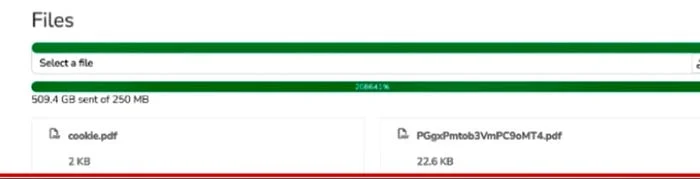
The screenshot accompanies the successful upload of files that exceeded the original restrictions, which showed that the backend was not properly enforcing the original limits.
Root cause
The frontend used the configuration values returned by the API to control the upload process, and the backend did not independently validate the same restrictions. Because the values travelled to the client and were trusted there, anyone able to intercept and modify the response could raise the limits, and the server would accept uploads that broke the intended policy. Client-side validation was being relied on as a security control, and it is not one: users can modify client-side behaviour using browser developer tools or intercepting proxies.
Impact
If the backend does not independently validate these restrictions, users may bypass the intended limits. Depending on the application's implementation, this could lead to:
- Uncontrolled storage consumption.
- Increased infrastructure costs.
- Bypassing business restrictions.
- Potential service availability issues.
The report does not state which of these applied to this specific application, nor does it give figures for the size or number of files that were accepted.
Fix
The solution is to enforce all important restrictions on the server side. The backend should independently check:
- Maximum file size.
- Maximum number of uploaded files.
- Allowed file types.
- User permissions.
The server must never rely on client-side values to make security decisions.
Variants to test
- Other limit values in configuration responses. Look for API responses that carry limits or permissions to the frontend, such as upload caps, quota values or feature flags, and raise them with an intercepting proxy. A positive result is the frontend accepting the modified value and the backend honouring it.
- Direct uploads that skip the frontend. Send an upload request that exceeds the advertised limits without touching the configuration response. A positive result is the server accepting a file larger than
maxFileSizeLimitor more files thanmaxFilesPerEntity. - File type restrictions. Change the allowed file types in the same configuration response, or upload a disallowed type directly. A positive result is the server storing a type it should have rejected.
- Permission-related values. Modify configuration values related to permissions and check whether the backend re-checks them. A positive result is an action succeeding that the server should have refused on its own.
A restriction is only effective when the server actually enforces it. Never trust the client; always verify on the server.
What happened, in plain words
Many websites let you upload files: a profile picture, a document, a spreadsheet, a video. To keep things tidy and cheap, the site usually puts limits on this. Maybe each file can be at most a few megabytes, and maybe you can only have a handful of files at once. Those limits are there for a reason: storage costs money, and a site that lets anyone fill its disks can slow down or break for everyone else.
The interesting question in this write-up is a simple one: when the website tells your browser "the limit is X", does the server behind the website actually check that limit itself, or does it just trust whatever your browser sends?
In this test, the answer was the second one. The limits were only enforced in the browser. By changing the numbers that the server sent to the browser, the researcher made the browser believe the limits were bigger, and then uploaded files that broke the original rules. The server accepted them. Nothing on the server side stopped it.
This is a classic case of a security control that lives in the wrong place. The browser belongs to the user, so anything that happens only in the browser can be changed by the user. A limit is only real when the server enforces it.
The pieces involved, explained from zero
Before walking through the test, here are the concepts you need. If you already know some of them, skim.
What a web application is
A web application is a website with behaviour: you log in, fill in forms, upload files, and the site remembers things about you. It is made of two halves that talk to each other:
- The frontend: everything that runs in your browser. The pages, the buttons, the JavaScript code that makes things interactive. You can see it and, importantly, you can change it, because it runs on your computer.
- The backend: the software on the company's servers. It stores data, checks who you are, and decides what actually happens. You cannot see it directly; you only see its answers.
A useful comparison: the frontend is the counter of a shop, and the backend is the stockroom and the accountant. The counter can show you a sign that says "maximum 5 items per customer", but if the stockroom never counts, the sign is just decoration.
What an API is
An API (Application Programming Interface) is the set of doors through which the frontend asks the backend to do things. When you click a button, the frontend usually sends a request over the network to a specific address on the server, and the server sends back a response, often in a format called JSON (a way of writing data as text, with names and values, like "maxFileSizeLimit": 10).
Think of an API as a waiter. You (the frontend) tell the waiter what you want; the waiter goes to the kitchen (the backend) and comes back with an answer. You never walk into the kitchen yourself.
What a request and a response are
Every time your browser talks to a server, it sends a request: a message saying what it wants (for example, "give me the upload settings"). The server sends back a response: the answer, plus some metadata. Both are just text travelling over the network, which is why a tool sitting in the middle can read them and, if you tell it to, change them.
What Burp Suite is
Burp Suite is a tool used by security testers. It works as a proxy: you configure your browser to send all its traffic through Burp instead of going straight to the internet. Burp then sits in the middle, like a postal worker who opens every letter, reads it, can rewrite it, and then sends it on.
Two features of Burp matter here:
- Monitoring requests: Burp shows you every request and response, so you can see exactly what the site is doing behind the scenes.
- Match and Replace: a feature that automatically finds a piece of text in traffic and swaps it for something else, without you editing each message by hand. It is like a rule at the post office: "whenever a letter contains the word 'five', cross it out and write 'five hundred' instead".
What client-side and server-side mean
- Client-side means it happens in your browser, on your machine. You control that machine, so you can change what happens there, using the browser's developer tools or a proxy like Burp.
- Server-side means it happens on the company's server, which you do not control. Checks made there are the ones that actually protect the application.
A lock on your own front door that you can unscrew from the inside is not much of a lock. That is the essence of this finding.
The setup
The report names only one tool: Burp Suite, used to watch the application's requests and to modify responses. It does not describe accounts, roles, software versions or any other preconditions beyond having access to the upload feature. So the test starts from a normal position: a user with access to a file upload form.
Finding it
While monitoring the application's traffic, the researcher found the API response responsible for returning the upload configuration. At first everything looked normal: the frontend received the limits and behaved accordingly.
What made this interesting is how the limits arrived. They came from the server as plain values, and the frontend simply trusted them. That raised the obvious next question: if the browser is told a bigger number, will the server still refuse an upload that breaks the original limit? There is only one way to find out, and that is to try.
Exploitation
Step 1: Locate the configuration response
The researcher monitored the application's requests using Burp Suite and identified the API response that returns the upload configuration, including maxFileSizeLimit and maxFilesPerEntity.
Why this step: before you can change anything, you need to know which message carries the numbers. Watching the traffic is like reading the post before deciding which letter to rewrite. The two values mean:
maxFileSizeLimit: the maximum allowed file size.maxFilesPerEntity: the maximum number of files allowed.
Step 2: Rewrite the values in transit
Using Burp Suite's Match and Replace feature, the researcher modified the returned values to increase the allowed file size and the number of files. After refreshing the page, the frontend accepted the modified configuration.
Why this step: the goal is to make the browser believe the rules are looser than they really are. Match and Replace does this automatically on every response, so the change survives a page refresh. The refresh matters because it forces the frontend to ask for the configuration again, and this time it receives the altered numbers. The frontend has no way of knowing they were changed; from its point of view, the server said so.
Step 3: Upload beyond the original limits
With the frontend now showing the larger limits, the researcher tried uploading files that exceeded the original restrictions. The upload was successful.
Why this step: this is the actual test. If the server had its own copy of the limits and checked them, the upload would have been rejected no matter what the browser believed. It was not rejected. That single result answers the question from the start: the backend was not properly enforcing the original limits.
The screenshot accompanies the successful upload of files that exceeded the original restrictions.
Why this matters
Client-side validation is useful, but it should never be trusted as a security control. Users can modify client-side behaviour using browser developer tools or intercepting proxies. If the backend does not independently validate these restrictions, users may bypass the intended limits.
Depending on the application's implementation, this could lead to:
- Uncontrolled storage consumption.
- Increased infrastructure costs.
- Bypassing business restrictions.
- Potential service availability issues.
In plain terms: storage on a server is finite and paid for. If anyone can upload files far beyond the intended size or count, the disks fill up, the bill grows, and in the worst case the service becomes unavailable for everyone. The report does not state which of these consequences applied to this particular application, nor does it give figures for the size or number of files that were accepted.
How can this be prevented?
The solution is simple: enforce all important restrictions on the server side. The backend should independently check:
- Maximum file size.
- Maximum number of uploaded files.
- Allowed file types.
- User permissions.
The server must never rely on client-side values to make security decisions.
A comparison: a nightclub bouncer who only reads the guest list printed on your own T-shirt is not doing security. The bouncer needs their own list, kept behind the door, that you cannot edit.
Variants to test
Once you understand the pattern, you can look for it elsewhere. These are the variations worth trying, each with the same logic: change something the browser is told, then see whether the server actually cares.
- Other limit values in configuration responses. Look for API responses that carry limits or permissions to the frontend, such as upload caps, quota values or feature flags, and raise them with an intercepting proxy. A positive result is the frontend accepting the modified value and the backend honouring it.
- Direct uploads that skip the frontend. Send an upload request that exceeds the advertised limits without touching the configuration response. A positive result is the server accepting a file larger than
maxFileSizeLimitor more files thanmaxFilesPerEntity. - File type restrictions. Change the allowed file types in the same configuration response, or upload a disallowed type directly. A positive result is the server storing a type it should have rejected.
- Permission-related values. Modify configuration values related to permissions and check whether the backend re-checks them. A positive result is an action succeeding that the server should have refused on its own.
A restriction is only effective when the server actually enforces it. Never trust the client; always verify on the server.
Glossary
- API: the set of addresses and rules through which the frontend asks the backend to do things, like a waiter carrying orders to the kitchen.
- API endpoint: one specific address in that API, for example the one that returns the upload configuration.
- Backend: the software running on the company's servers that stores data and makes the real decisions.
- Burp Suite: a security testing tool that sits between your browser and the internet, letting you read and modify traffic.
- Client-side: anything that happens in your browser, on your own machine, and can therefore be changed by you.
- Configuration response: the server's answer that carries settings, such as the upload limits, to the frontend.
- Developer tools: the built-in panel in browsers that lets you inspect and change what a page is doing.
- Frontend: the part of a web application that runs in your browser: pages, buttons and JavaScript.
- Intercepting proxy: a tool placed between browser and server that can read and alter the messages passing through.
- JSON: a text format for data, written as names and values, commonly used in API responses.
maxFileSizeLimit: the configuration value stating the maximum allowed file size.maxFilesPerEntity: the configuration value stating the maximum number of files allowed.- Match and Replace: a Burp Suite feature that automatically swaps text in traffic according to rules you define.
- Proxy: an intermediary that forwards traffic between two parties and can inspect it on the way.
- Request: the message your browser sends to a server asking for something.
- Response: the message a server sends back with the answer.
- Server-side: anything that happens on the company's server, which users do not control and therefore cannot tamper with.
- Validation: checking that data meets the rules before acting on it; only meaningful for security when done on the server.