Don’t Reply: A Clever Phishing Method In Apple’s Mail App
An attacker could embed an image tag pointing to a server that responds with a WWW-Authenticate header, causing Apple Mail to show a fake login prompt when the victim replies to or forwards the email. If the victim entered credentials, they were sent to the attacker's server.
 Published on jonbottarini.com
About four or five years ago, friend and fellow bug bounty hunter Sam Curry asked if I had “ever thought about what was possible to load inside an <img> tag, besides an image“. What a peculiar question.
The full write-up lives on its author's site
It belongs to its author, so we link to it rather than copy it. The other two tabs are our own rewrites, checked against it.
Context
Apple Mail on macOS is the target here, and the feature in question is the way the app renders HTML email, specifically the handling of remote resources referenced by an <img> tag. Normally an <img> element loads an image. The trick in this write-up is that the src of the tag can point at a resource that answers with an HTTP authentication challenge instead of image bytes, and the mail client then reacts to that challenge by showing a credential prompt to the user.
The underlying mechanism is WWW-Authenticate. A server can answer a request with a 401 and a WWW-Authenticate header, and the client is expected to ask the user for credentials. When the resource is loaded as an image inside a page or an email, the question is whether the client is willing to surface that prompt at all.
The researcher, Jon Bottarini, had been exploring this idea since a conversation with Sam Curry about what can be loaded inside an <img> tag besides an image. The Apple Mail angle came later, and the report covers the path from the original web-based trick to a working phishing prompt inside the mail app.
Setup
The report does not describe a lab setup, accounts or tooling beyond the payloads themselves. What it does establish is the precondition that matters: the attacker needs a server that answers with a WWW-Authenticate challenge, and a way to get an <img> tag pointing at that server into content the victim will view. In the web case that was an HTML editor on a third-party site; in the Apple Mail case it was the body of an email.
The report says the issue affected versions of Apple Mail from macOS High Sierra 10.13 to macOS Big Sur 11.2. The proof of concept used the researcher's own domain, jonbottarini.com, with a page at /pocs/restricted.php.
Finding it
The starting point was a payload Sam Curry sent, which looks like an ordinary image tag until you read the src:
<img src=https://www.jonbottarini.com/pocs/restricted.php></img>
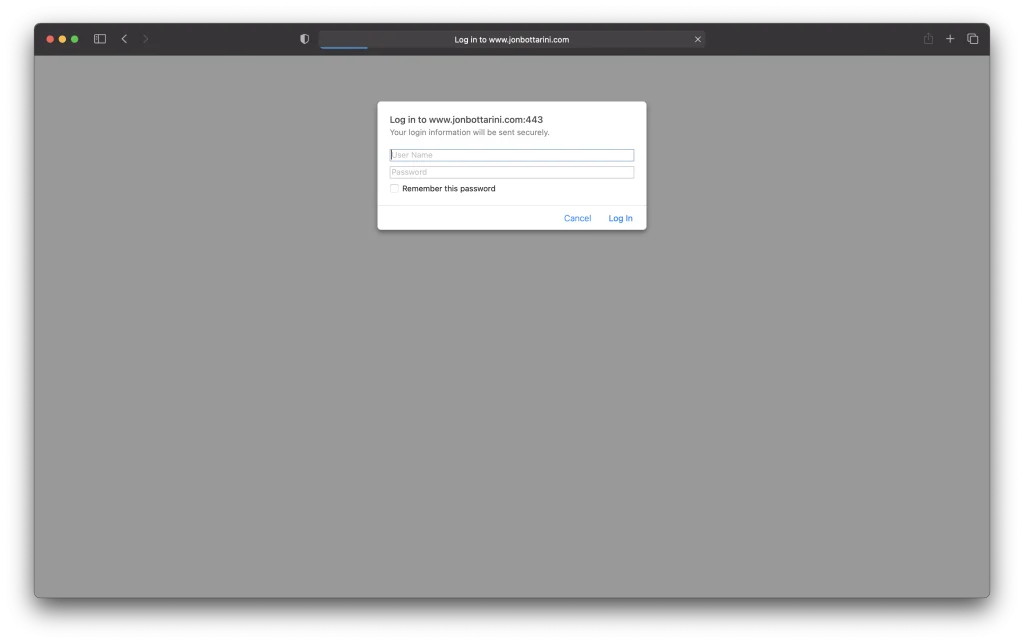
The src= parameter does not point to an image at all. It points to a webpage ending in .php that responds with an authentication challenge. Navigating to that page directly produces a login prompt:
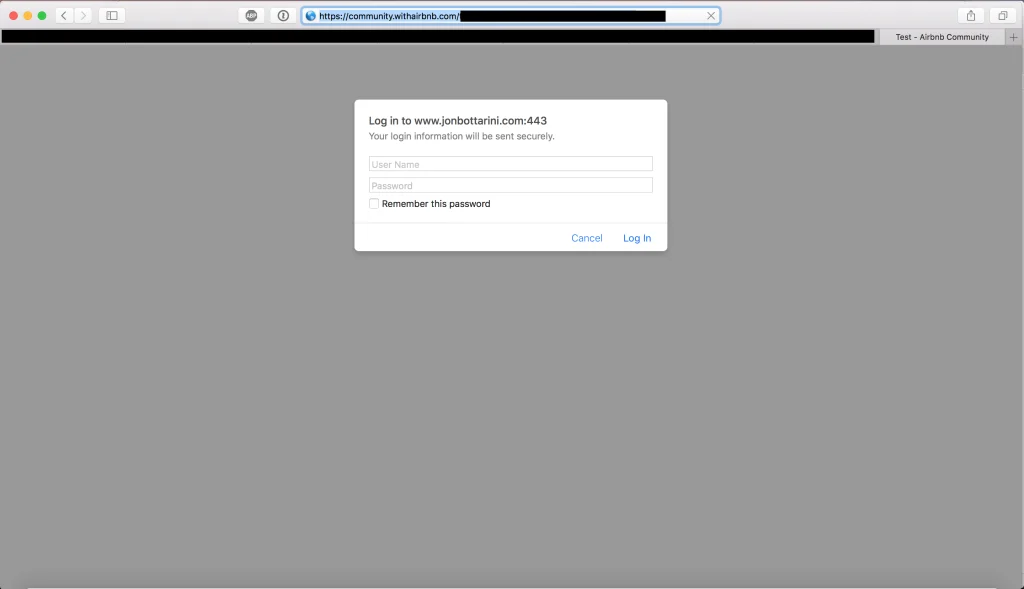
In 2017, embedding that payload in an HTML editor on a third-party website meant that nearly anyone who viewed the page with the rendered <img> tag would see an authentication prompt asking them to sign in to the researcher's site:
The reason this mattered for bug bounty work is the constraint it slipped past. In places where you could insert an <img> tag but could not get an XSS payload to execute, because of CSP or other protections, applications rarely prevented you from loading an external "image" that was really the malicious WWW-Authenticate page. The researcher is explicit that this was the state of things in 2017 and that a lot has changed since.
Reports of the web issue to a few programs were hit or miss. Some programs paid $1,000 for each instance; the researcher recalls Yahoo! before the rebrand to Oath and then Verizon Media, as one that did. Others paid nothing and called it a browser issue. That position is understandable, because in a way the browser could fix it. Chrome had already done so in 2013 by preventing cross-origin authentication prompts to image resources, and Sam Curry petitioned Mozilla in 2017 to do the same, which was implemented somewhere around Firefox version 57. Apple never responded when the two of them reached out to say Safari was the last major browser affected.
Exploitation
Step 1: move the trick from the web into email
Tired of the roughly even odds of a bounty through the web programs, the researcher had an idea prompted by a spam email. The message had evaded the spam filter because it had no content besides a photo, just a large JPG. That raised the question: what if the "photo" were behind a WWW-Authenticate response header in an email? What prompt would the recipient see, if any?
Step 2: test receiving versus replying
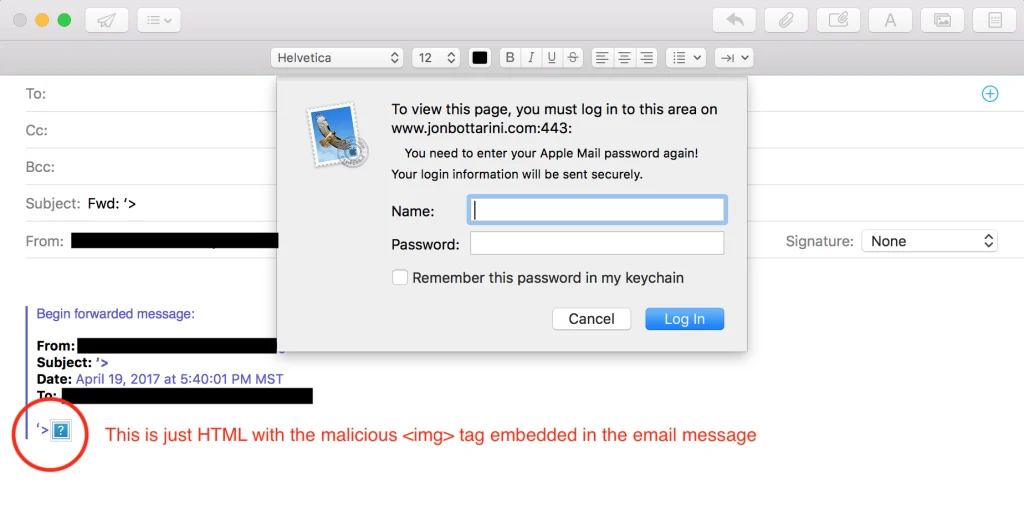
When the recipient receives the email, it does not work. The researcher states plainly that they are not sure why the prompt does not appear on receipt. But the prompt does appear when replying to the email. Replying to a message containing the <img> payload presents the user with a prompt asking for their name and password "to view this page":
Step 3: understand what the prompt actually does
The prompt is a two-fold problem. The first part is familiarity: users are already used to entering a username and password in ambiguous and confusing prompts on Apple devices, with Apple keychain being a major offender. This is not a keychain prompt. When a user enters their username and password in it, the credentials are sent directly to the attacker's server.
Step 4: customise the message with the realm directive
The second part is that the text displayed underneath the URL can be customised. In the example above the researcher put "You need to enter your Apple Mail password again!". That is done through the realm directive:
realm=<realm>
A string describing a protected area. A realm allows a server to partition up the areas it protects (if supported by a scheme that allows such partitioning), and informs users about which particular username/password are required. If no realm is specified, clients often display a formatted hostname instead.
Step 5: make the domain convincing
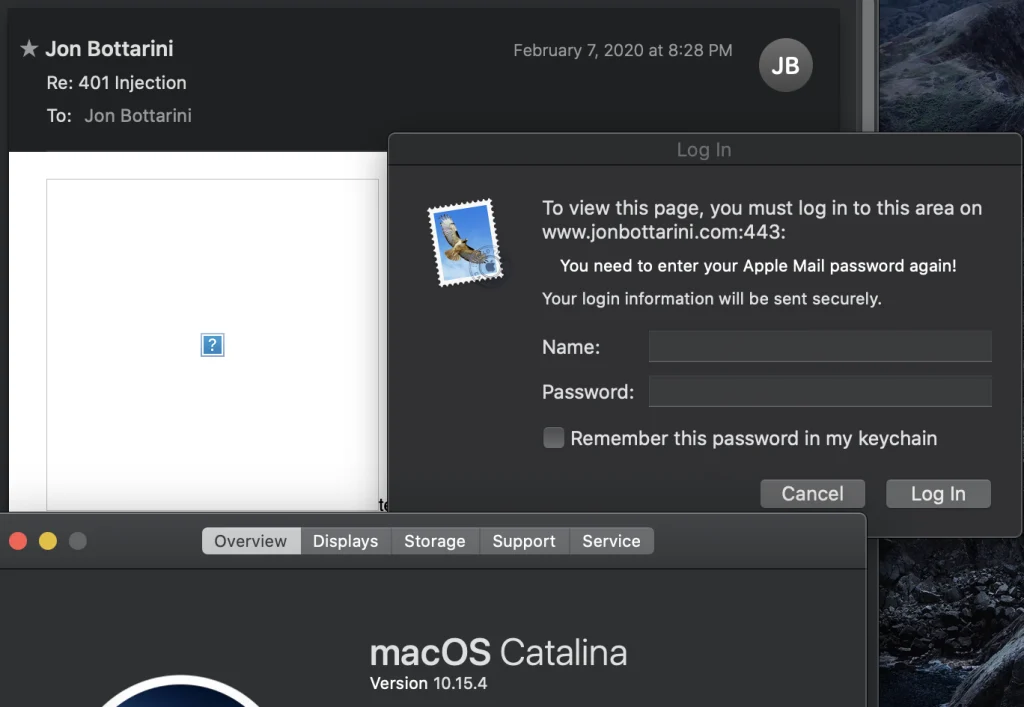
A savvy person would notice that jonbottarini.com has nothing to do with Apple and would probably be sceptical about entering a username and password in the prompt. Official-sounding Apple domain names are cheap, though, and the prompt shows whatever host the image points at:
Step 6: bypass the first fix
The issue was reported as fixed more than once. In May 2020, while starting this blog post, the researcher tested the old proofs of concept and found the payload was not fully fixed on macOS Catalina 10.15.4: the prompt still appeared. Apple was told, with proof. In October 2020 Apple said the issue was fixed again, and the researcher found a bypass fairly quickly by sending an email with an embedded image loaded inside a pre-made Apple Mail feature called "email templates". Apple continued work on the remediation.
Root cause
The design mistake is that Apple Mail was willing to surface a cross-origin authentication prompt for a resource loaded as an image inside an email, at least in the reply flow. The browser vendors had already decided that this behaviour was undesirable for image loads: Chrome blocked it in 2013 and Firefox followed around version 57. Safari was the last major browser affected, and Apple never responded when the researchers reached out.
The realm directive then lets the attacker control the explanatory text under the URL, so the prompt can be dressed up as an Apple request. The URL itself is the only remaining signal, and it is attacker-controlled through the choice of domain.
The report does not explain why the prompt appears on reply but not on receipt; the researcher says they are not sure. It also does not describe the code path inside Apple Mail that decides to show the prompt. There was a two-year period in which both Apple and the researcher thought the issue was fixed when it was not.
Impact
An attacker who can get an email with the <img> payload into a victim's mailbox can cause a credential prompt to appear when the victim replies to that email. The prompt asks for a name and password "to view this page", and anything entered is sent directly to the attacker's server. The realm text can be set to something that sounds like an Apple request, and the domain in the prompt can be an official-sounding one bought cheaply.
The conditions are specific. The prompt does not appear when the email is received, only when it is replied to. The victim has to be running an affected version of Apple Mail; the report says the issue affected versions from macOS High Sierra 10.13 to macOS Big Sur 11.2. The victim also has to ignore or not notice that the domain in the prompt is not Apple's, which the researcher acknowledges a savvy person would do.
Fix
The fix was on Apple's side, in Apple Mail. Apple first stated in July 2018 that the issue was fixed in macOS High Sierra 10.13 and 10.13.2, but the prompt still appeared on macOS Catalina 10.15.4 in May 2020. After the October 2020 bypass through email templates, Apple continued remediation and in April 2021 stated the issue had been resolved in macOS Big Sur 11.2.
Timeline
- Sometime mid to late 2017 (email comms are a bit messy here): reported issue to Apple
- Oct 2017: Apple can't reproduce the issue, researcher replies with additional info
- Nov 2017: more back and forth, explaining that the issue only occurs when replying or forwarding the email
- Sometime in 2018: Apple states the issue is not eligible for a CVE
- July 2018: Apple states they fixed the issue in macOS High Sierra 10.13 and macOS High Sierra 10.13.2
- May 2020: researcher starts to write the blog post, tests the old proofs of concept, finds the payload is not fully fixed on macOS Catalina 10.15.4 and the prompt still appears; replies to Apple with proof
- October 2020: Apple states the issue is fixed again; researcher finds a bypass quickly by sending an email with an embedded image loaded inside a pre-made Apple Mail feature called "email templates"; Apple continues work on the remediation
- April 2021: follow-up for a status update; Apple states the issue has been resolved in macOS Big Sur 11.2
- August 2021: Apple emails out of the blue stating the issue is eligible for a $5,000 bounty
- December 2021: bounty paid and the write-up disclosed
Variants to test
The general pattern is a resource that answers with an authentication challenge, loaded through a tag or field that is supposed to fetch an image. On other targets, try the following.
- Image tags in user-controlled HTML. Insert an
<img>whosesrcpoints at a server that returns a401withWWW-Authenticate. A positive result is a credential prompt appearing in the victim's client when the content is rendered, especially where CSP or other protections block script but not external images. - Email clients and webmail. Send a message containing the same
<img>payload and check both the reading view and the reply and forward flows. A positive result is a prompt on any of those paths, since the report shows the behaviour can differ between receiving and replying. - Compose features and templates. The October 2020 bypass used an embedded image inside Apple Mail's "email templates" feature. Try the same payload through pre-made templates, signatures and other compose-time features. A positive result is a prompt triggered through a path other than a plain reply.
- Realm text. Set the
realmdirective to wording that matches the target product, such as a request to re-enter a mail password. A positive result is that the custom text appears under the URL in the prompt, which makes the phish far more convincing. - Domain choice. Point the payload at a domain that sounds like the impersonated vendor. A positive result is that the prompt displays that host, leaving the domain as the only signal for the user to check.
Closing
The researcher thanks Sam Curry (@samwcyo) and Tanner (@itscachemoney) for reviewing a draft of the post. The bounty was $5,000, paid in December 2021.
What happened, in plain words
A security researcher found a way to make Apple's Mail app on Mac computers show a fake login box to people reading their email. The box looked like a normal Apple request to sign in, but anything typed into it went straight to the researcher's own server, not to Apple. The trick relied on a quirk in how web pages and email apps handle images, and it took years and several attempts before Apple closed it properly. Apple eventually paid a $5,000 bounty for the finding.
This article walks through the whole story from the beginning, assuming you have never looked at a web page's source code or heard of a phishing attack. Every technical idea is explained where it first appears.
The background: what an image tag is
When you look at a web page, your browser is reading a text file written in a language called HTML. HTML describes what should appear on the page: headings, paragraphs, links and pictures. A picture is placed with a small piece of HTML called an image tag, which looks like <img>. The tag has to say where the picture lives, and it does that with an attribute called src (short for "source"), which holds a web address.
So a normal image tag says, in effect: "browser, go to this address, fetch whatever is there, and show it here as a picture." The browser trusts that the address points at an image file, such as a .jpg or .png.
A web address (also called a URL) is the text you type into a browser's address bar, like https://www.example.com/page. The part after the site name, such as /page, is called the path: it tells the server which page or file you want.
The question that started it
About four or five years before writing this up, the researcher's friend and fellow bug hunter Sam Curry asked him whether he had "ever thought about what was possible to load inside an <img> tag, besides an image". The researcher did not understand the question at first, so Sam sent him a short piece of HTML to demonstrate:
<img src=https://www.jonbottarini.com/pocs/restricted.php></img>
Line by line, in plain words:
<imgstarts an image tag, telling the browser a picture is coming.src=https://www.jonbottarini.com/pocs/restricted.phpis the source attribute. It points the browser at a web address on the domainjonbottarini.com, at the path/pocs/restricted.php.>closes the opening part of the tag.</img>is the closing tag. Strictly speaking, HTML does not require a closing tag for images, but browsers tolerate it.
At first glance this looks like an ordinary picture. The catch is in the address. It does not end in .jpg or .png. It ends in .php, which is the file extension for a page written in PHP, a programming language commonly used to build websites. In other words, the src is pointing at a web page, not a picture file.
What happens when you visit that page
If you open that address directly in a browser, you are not shown a picture. You are shown a login box, like this:
The image shows a macOS prompt asking to log in to www.jonbottarini.com. This is not a page the researcher designed by hand with a form. It is the browser's own built-in login dialog, triggered by a standard web mechanism called WWW-Authenticate.
Here is how that mechanism works. Normally, when your browser asks a server for a page, the server replies with the page and a status code of 200, meaning "OK". Sometimes the server replies with a different status code, 401, which means "you are not authorised". Along with the 401, the server can send a header called WWW-Authenticate. A header is a small piece of extra information attached to a web request or response, like a note on an envelope. The WWW-Authenticate header tells the browser: "this area is protected; ask the user for a username and password." The browser then pops up its own login box, and whatever the user types is sent back to the server.
A useful comparison: think of a members-only club with a doorman. You walk up, the doorman says "name and password, please", and you give them. The doorman here is the WWW-Authenticate header, and the login box is the browser asking you for your details on the server's behalf.
From a web page to a third-party site
In 2017, if you pasted that image tag into an HTML editor on a third-party website, something surprising happened. Nearly anyone who viewed the page with the rendered image tag would see an authentication prompt asking them to sign in to the researcher's site. It looked like this:
The image shows a prompt on a third-party community website asking users to log in to the researcher's website. The page was not hacked. The site simply allowed users to insert an image tag, and the browser dutifully fetched the address in the src, got back a 401 with WWW-Authenticate, and showed the login box.
Why did this matter for bug bounty work? A bug bounty is a programme where companies pay independent researchers for reporting security flaws in their products. Researchers often look for a class of bug called XSS, short for cross-site scripting, where an attacker manages to get their own code to run inside someone else's website. Sites defend against XSS with protections such as CSP, short for Content Security Policy, which is a set of rules a site sends to the browser saying which kinds of content are allowed to load.
The interesting part here is the gap. In places where you were allowed to insert an <img> tag but could not get an XSS payload to run, because of CSP or other protections, applications rarely prevented you from loading an external "image" that was really the malicious WWW-Authenticate page. The site blocked scripts but forgot that images can point anywhere. The researcher is explicit that this was the state of things in 2017 and that a lot has changed since.
How the different companies reacted
Reports of the web issue to a few bug bounty programmes were hit or miss. Some programmes paid $1,000 for each instance of the issue. The researcher recalls Yahoo! before it rebranded to Oath and then Verizon Media, as one that did. Other programmes paid nothing and said it was a browser issue.
That position is understandable, because in a way the browser could fix it. The browser is the piece of software deciding whether to show a login box for an image, so it could simply refuse. Chrome had already done so in 2013 by preventing cross-origin authentication prompts to image resources. Cross-origin means the image is hosted on a different website from the one you are viewing; the browser was told not to trust login prompts that came from a different site than the page itself. Sam Curry petitioned Mozilla, the maker of Firefox, in 2017 to do the same, and the change was implemented somewhere around Firefox version 57. Apple never responded when the two of them reached out to say Safari was the last major browser affected.
Moving the trick into email
Tired of the roughly even odds of getting a bounty through the web programmes, the researcher had an idea prompted by a spam email. The message had evaded the spam filter because it had no content besides a photo, just a large JPG. Spam filters often look at the text of an email, so an email that is nothing but a picture can slip through. That raised the question: what if the "photo" were behind a WWW-Authenticate response header in an email? What prompt would the recipient see, if any?
The target here is Apple Mail, the built-in email application on Mac computers. The feature in question is the way the app renders HTML email, meaning emails that contain formatting and images rather than plain text. Specifically, it is how the app handles remote resources referenced by an <img> tag. A remote resource is something stored on another computer (a server) that the app has to go and fetch over the internet, as opposed to something attached to the email itself.
Normally, an <img> element loads an image. The trick in this write-up is that the src of the tag can point at a resource that answers with an HTTP authentication challenge instead of image bytes, and the mail client then reacts to that challenge by showing a credential prompt to the user. Credentials is the general word for the things you use to prove who you are, usually a username and password.
Testing receiving versus replying
When the recipient receives the email, it does not work. The researcher states plainly that they are not sure why the prompt does not appear on receipt. But the prompt does appear when replying to the email. Replying to a message containing the <img> payload presents the user with a prompt asking for their name and password "to view this page":
The image shows an Apple Mail compose window with the login prompt triggered by the malicious image tag in the message. This is the key moment of the whole finding: the user is not on a website, they are inside their email app, replying to a message, and the app is showing them a login box.
Why does this matter? Because the user has no reason to expect a login box while writing a reply. They think they are in a private conversation. The prompt appears in a place where people are used to trusting the software in front of them.
Why the prompt is dangerous
The prompt is a two-fold problem. The first part is familiarity: users are already used to entering a username and password in ambiguous and confusing prompts on Apple devices, with Apple keychain being a major offender. The keychain is Apple's built-in password manager, and it is known for occasionally asking for your login password at odd moments. So a login box appearing unexpectedly on a Mac is not unusual enough to raise alarm.
This is not a keychain prompt. When a user enters their username and password in it, the credentials are sent directly to the attacker's server. That is the essence of phishing: tricking someone into handing over their credentials by pretending to be a trusted party. The attacker does not need to break any encryption or guess any password. They just ask, in a convincing way, and the victim types it in.
Making the message convincing with the realm directive
The second part is that the text displayed underneath the URL can be customised. In the example above the researcher put "You need to enter your Apple Mail password again!". That is done through the realm directive. A directive here simply means an instruction included in the WWW-Authenticate header. The realm directive is documented like this:
realm=<realm>
A string describing a protected area. A realm allows a server to partition up the areas it protects (if supported by a scheme that allows such partitioning), and informs users about which particular username/password are required. If no realm is specified, clients often display a formatted hostname instead.
In plain words: the realm is a label the server attaches to the login request, describing what area is being protected. The browser or mail app is supposed to show that label to the user so they know which password to enter. If no label is given, the app usually just shows the site name. Because the attacker controls the server, the attacker controls the label, and can write anything they like in it, including a sentence that sounds like an official Apple request.
A comparison: imagine a bank teller who hands you a form to sign. The form has a line at the top for "reason for visit", and the teller can write whatever they want there. If they write "routine account check", you sign without thinking. The realm is that line, and the attacker is the teller.
Making the domain convincing
A savvy person would notice that jonbottarini.com has nothing to do with Apple and would probably be sceptical about entering a username and password in the prompt. Official-sounding Apple domain names are cheap, though, and the prompt shows whatever host the image points at:
The image shows Apple Mail on macOS Catalina displaying the credential prompt while replying to the crafted email. The domain shown in the prompt is the only remaining signal for the user to check, and the attacker chooses it. A domain is the part of a web address that identifies the site, like apple.com. Anyone can register a domain for a small yearly fee, so an attacker can pick one that looks close to the real thing.
The first fix and the bypass
The issue was reported as fixed more than once. In May 2020, while starting this blog post, the researcher tested the old proofs of concept and found the payload was not fully fixed on macOS Catalina 10.15.4: the prompt still appeared. A proof of concept is a small demonstration that a bug is real, usually the simplest possible example that triggers it. Apple was told, with proof.
In October 2020 Apple said the issue was fixed again, and the researcher found a bypass fairly quickly by sending an email with an embedded image loaded inside a pre-made Apple Mail feature called "email templates". A bypass is a way around a fix: the original route is blocked, but another route reaches the same result. Email templates are saved layouts that Apple Mail lets you reuse when composing messages. The researcher put the malicious image inside a template, and the prompt appeared through that path instead of a plain reply. Apple continued work on the remediation.
The root cause
The design mistake is that Apple Mail was willing to surface a cross-origin authentication prompt for a resource loaded as an image inside an email, at least in the reply flow. The browser makers had already decided that this behaviour was undesirable for image loads: Chrome blocked it in 2013 and Firefox followed around version 57. Safari was the last major browser affected, and Apple never responded when the researchers reached out.
The realm directive then lets the attacker control the explanatory text under the URL, so the prompt can be dressed up as an Apple request. The URL itself is the only remaining signal, and it is attacker-controlled through the choice of domain.
The report does not explain why the prompt appears on reply but not on receipt; the researcher says they are not sure. It also does not describe the code path inside Apple Mail that decides to show the prompt. There was a two-year period in which both Apple and the researcher thought the issue was fixed when it was not.
The impact
An attacker who can get an email with the <img> payload into a victim's mailbox can cause a credential prompt to appear when the victim replies to that email. The prompt asks for a name and password "to view this page", and anything entered is sent directly to the attacker's server. The realm text can be set to something that sounds like an Apple request, and the domain in the prompt can be an official-sounding one bought cheaply.
The conditions are specific. The prompt does not appear when the email is received, only when it is replied to. The victim has to be running an affected version of Apple Mail; the report says the issue affected versions from macOS High Sierra 10.13 to macOS Big Sur 11.2. macOS is Apple's operating system for Mac computers, and the numbers are version numbers. The victim also has to ignore or not notice that the domain in the prompt is not Apple's, which the researcher acknowledges a savvy person would do.
The fix
The fix was on Apple's side, in Apple Mail. Apple first stated in July 2018 that the issue was fixed in macOS High Sierra 10.13 and 10.13.2, but the prompt still appeared on macOS Catalina 10.15.4 in May 2020. After the October 2020 bypass through email templates, Apple continued remediation and in April 2021 stated the issue had been resolved in macOS Big Sur 11.2. The report does not describe the code change itself.
Timeline
- Sometime mid to late 2017 (email comms are a bit messy here): reported issue to Apple
- Oct 2017: Apple can't reproduce the issue, researcher replies with additional info
- Nov 2017: more back and forth, explaining that the issue only occurs when replying or forwarding the email
- Sometime in 2018: Apple states the issue is not eligible for a CVE. A CVE is a public catalogue number given to a known security flaw, so saying something is not eligible means it will not be officially listed.
- July 2018: Apple states they fixed the issue in macOS High Sierra 10.13 and macOS High Sierra 10.13.2
- May 2020: researcher starts to write the blog post, tests the old proofs of concept, finds the payload is not fully fixed on macOS Catalina 10.15.4 and the prompt still appears; replies to Apple with proof
- October 2020: Apple states the issue is fixed again; researcher finds a bypass quickly by sending an email with an embedded image loaded inside a pre-made Apple Mail feature called "email templates"; Apple continues work on the remediation
- April 2021: follow-up for a status update; Apple states the issue has been resolved in macOS Big Sur 11.2
- August 2021: Apple emails out of the blue stating the issue is eligible for a $5,000 bounty
- December 2021: bounty paid and the write-up disclosed
Variants to test
The general pattern is a resource that answers with an authentication challenge, loaded through a tag or field that is supposed to fetch an image. If you are learning to hunt for bugs, these are the places to look. On other targets, try the following.
- Image tags in user-controlled HTML. Insert an
<img>whosesrcpoints at a server that returns a401withWWW-Authenticate. A positive result is a credential prompt appearing in the victim's client when the content is rendered, especially where CSP or other protections block script but not external images. In other words, look for places where you can post an image but not run code. - Email clients and webmail. Send a message containing the same
<img>payload and check both the reading view and the reply and forward flows. A positive result is a prompt on any of those paths, since the report shows the behaviour can differ between receiving and replying. - Compose features and templates. The October 2020 bypass used an embedded image inside Apple Mail's "email templates" feature. Try the same payload through pre-made templates, signatures and other compose-time features. A positive result is a prompt triggered through a path other than a plain reply.
- Realm text. Set the
realmdirective to wording that matches the target product, such as a request to re-enter a mail password. A positive result is that the custom text appears under the URL in the prompt, which makes the phish far more convincing. - Domain choice. Point the payload at a domain that sounds like the impersonated vendor. A positive result is that the prompt displays that host, leaving the domain as the only signal for the user to check.
Closing
The researcher thanks Sam Curry (@samwcyo) and Tanner (@itscachemoney) for reviewing a draft of the post. The bounty was $5,000, paid in December 2021.
Glossary
- Apple Mail: the built-in email application on Mac computers, made by Apple.
- Attribute: extra information attached to an HTML tag, such as
srcon an image tag. - Bug bounty: a programme where companies pay independent researchers for reporting security flaws.
- Bypass: a way around a fix, reaching the same result through a different route.
- CSP (Content Security Policy): rules a website sends to the browser saying which kinds of content are allowed to load.
- Credentials: the things used to prove identity, usually a username and password.
- Cross-origin: referring to a resource hosted on a different website from the page you are viewing.
- CVE: a public catalogue number given to a known security flaw.
- Directive: an instruction included in a web header, such as
realminsideWWW-Authenticate. - Domain: the part of a web address that identifies the site, like
apple.com. - Header: a small piece of extra information attached to a web request or response, like a note on an envelope.
- HTML: the language used to describe the content of a web page, including text, links and images.
- Image tag (
<img>): the HTML element that tells a browser to fetch and display a picture from a web address. - Keychain: Apple's built-in password manager, which sometimes asks for your login password.
- macOS: Apple's operating system for Mac computers.
- Path: the part of a web address after the site name, telling the server which page or file you want.
- PHP: a programming language commonly used to build websites; files ending in
.phpare pages, not pictures. - Phishing: tricking someone into handing over credentials by pretending to be a trusted party.
- Proof of concept: a small demonstration that a bug is real, usually the simplest example that triggers it.
- Realm: a label a server attaches to a login request, describing what area is being protected; it is shown to the user in the login box.
- Remote resource: something stored on another computer that an app has to fetch over the internet.
- Status code: a number a server sends back with its reply, such as
200for OK or401for not authorised. - URL (web address): the text identifying a resource on the web, like
https://www.example.com/page. - WWW-Authenticate: a web header a server sends with a
401reply to tell the client to ask the user for a username and password. - XSS (cross-site scripting): a bug where an attacker gets their own code to run inside someone else's website.