Google Ads Self-XSS & Html Injection $5000
A stored cross-site scripting (XSS) vulnerability existed in Google Ads dashboards, allowing an attacker to inject malicious HTML and JavaScript into a note. An attacker could execute arbitrary JavaScript in the context of a victim's browser when the victim viewed the dashboard.
 Published on medium.com
The vulnerable domain is: https://ads.google.com/
The full write-up lives on its author's site
It belongs to its author, so we link to it rather than copy it. The other two tabs are our own rewrites, checked against it.
Context
Google Ads is Google's advertising platform, reachable at https://ads.google.com/. The feature involved here is the reporting area: Reports > Dashboard. A dashboard is a user-created container that holds a title, a description and notes, and it is used to organise reporting views. The researcher found that a dashboard note accepted HTML, and that the payload placed there could be made to execute script. The report describes the issue as Stored XSS and HTML Injection.
The vulnerable URL and parameters given in the report are:
https://ads.google.com/aw/reporting/dashboard/view?ocid=314749368&dashboardId=600308&euid=322853027&__u=3449454923&uscid=314749368&__c=6595453432&authuser=0
Setup
The only precondition stated is a logged-in Google Ads account. The proof of concept begins by logging in with "your Account" and then navigating to the dashboard feature. The researcher reports testing on Firefox and Google Chrome under Windows 10 Home. No extensions, proxies or other tooling are mentioned.
Finding it
The researcher spent three days exploring four websites under the *.google.com domain. The first two days produced nothing, and the account of those days is mostly about the search being frustrating. On the third day the search moved to https://ads.google.com/, looking for weaknesses in that application.
The first thing that worked was HTML Injection. The researcher entered HTML into a field on the site and it was rendered rather than shown as text. The report does not name the exact field at this stage; the proof of concept later shows the payload going into a dashboard note.
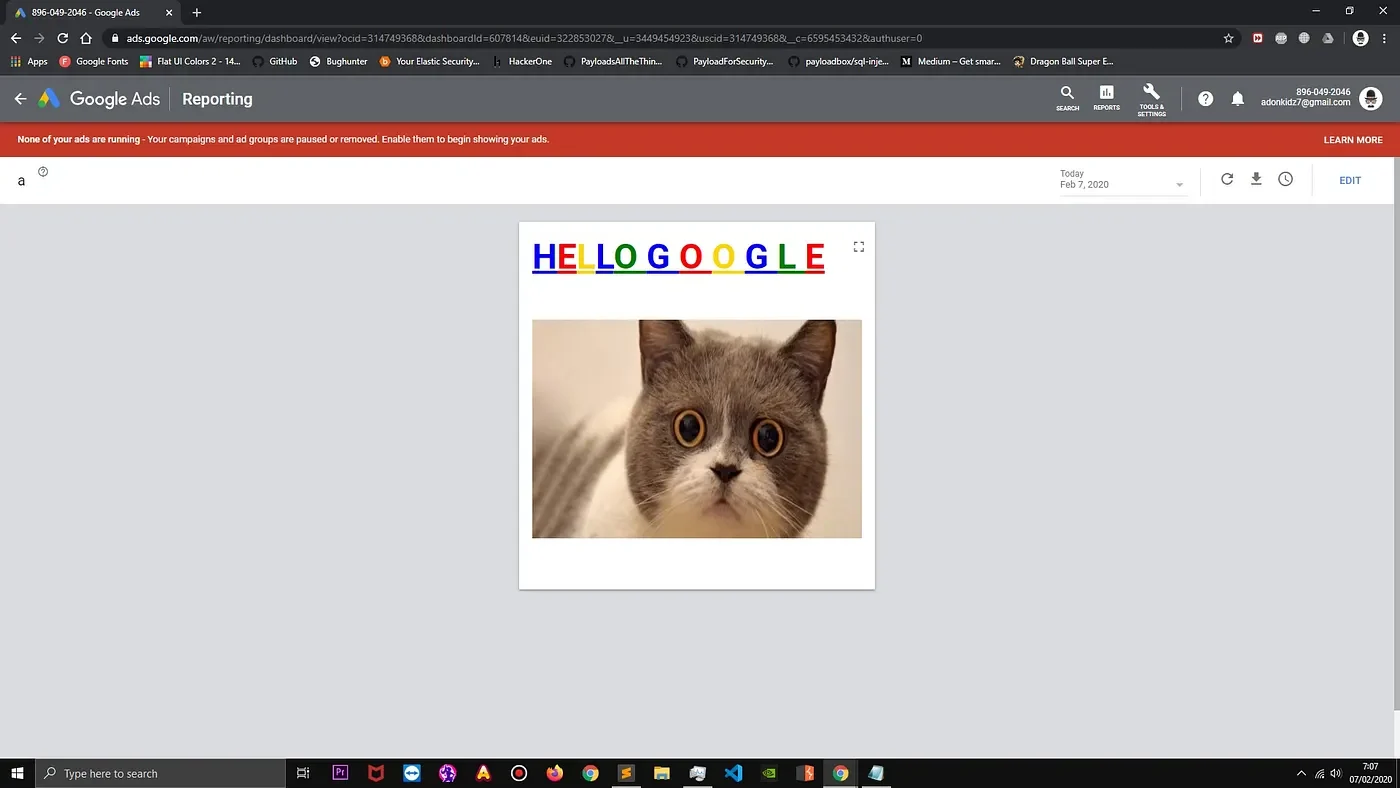
Encouraged by that, the researcher moved on to XSS and tried a standard image error payload:
<img src=x onerror=alert(document.domain)>
That payload did not execute.
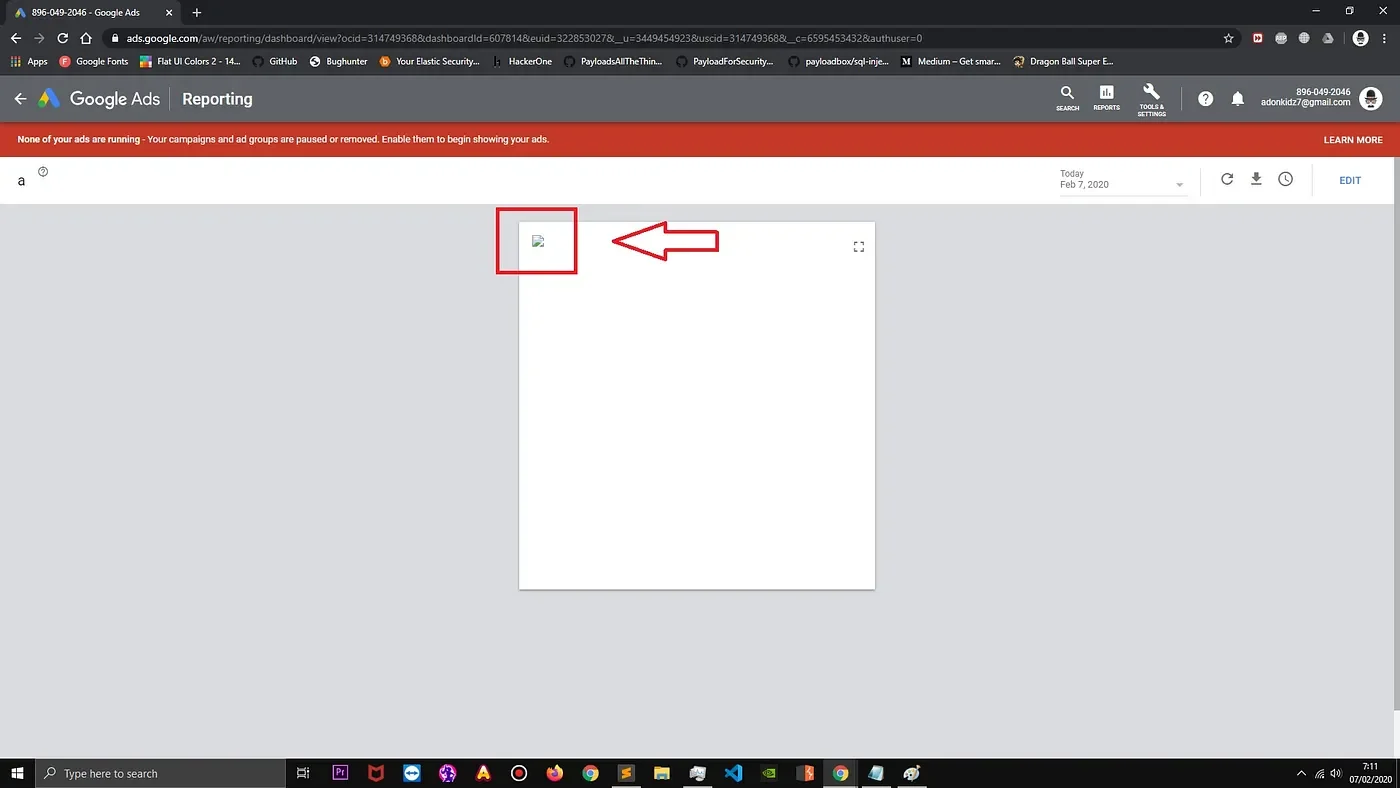
A further payload was tried and also failed. The report does not record what that second payload was.
Exploitation
Step 1: reach the dashboard feature
- Go to
https://ads.google.com/. - Log in using your account.
- Click Reports > Dashboard.
Step 2: create a dashboard
Add a dashboard with the (+) control, then rename it and add a title and description, and save. The report does not say which of these fields was the one that reflected the payload; the next step puts it in a note.
Step 3: add a note containing the payload
Add a note to the dashboard, enter the payload and save. The payload as published is:
<u><strong><font color=”blue” size=”8px”>H<strong><font color=”red” size=”8px”>E<strong><font color=”gold” size=”8px”>L<strong><font color=”blue” size=”8px”>L<strong><font color=”green” size=”8px”>O <strong><font color=”blue” size=”8px”>G <strong><font color=”red” size=”8px”>O <strong><font color=”gold” size=”8px”>O <strong><font color=”blue” size=”8px”>G <strong><font color=”green” size=”8px”>L <strong><font color=”red” size=”8px”>E
<img src=”https://www.sciencealert.com/images/2019-12/processed/[redacted].jpg" width=”600" height=”300">
<test><img src=x onerror=alert(document.domain)>
The payload has three parts. The first is a chain of <u>, <strong> and <font> tags that spell out "HELLO GOOGLE" in alternating colours and sizes, which demonstrates that markup is being rendered. The second is an <img> pointing at an external image with fixed width and height, which shows that remote content can be embedded. The third is the actual XSS: the same <img src=x onerror=alert(document.domain)> that failed on its own, now preceded by an opening <test> tag.
Step 4: the bypass
On its own, the image error payload was blocked or neutralised. Wrapping it after an opening <test> tag made it execute. The report presents this as the step that bypassed the XSS protection, and the researcher describes it as succeeding by "adding the <test> tag".
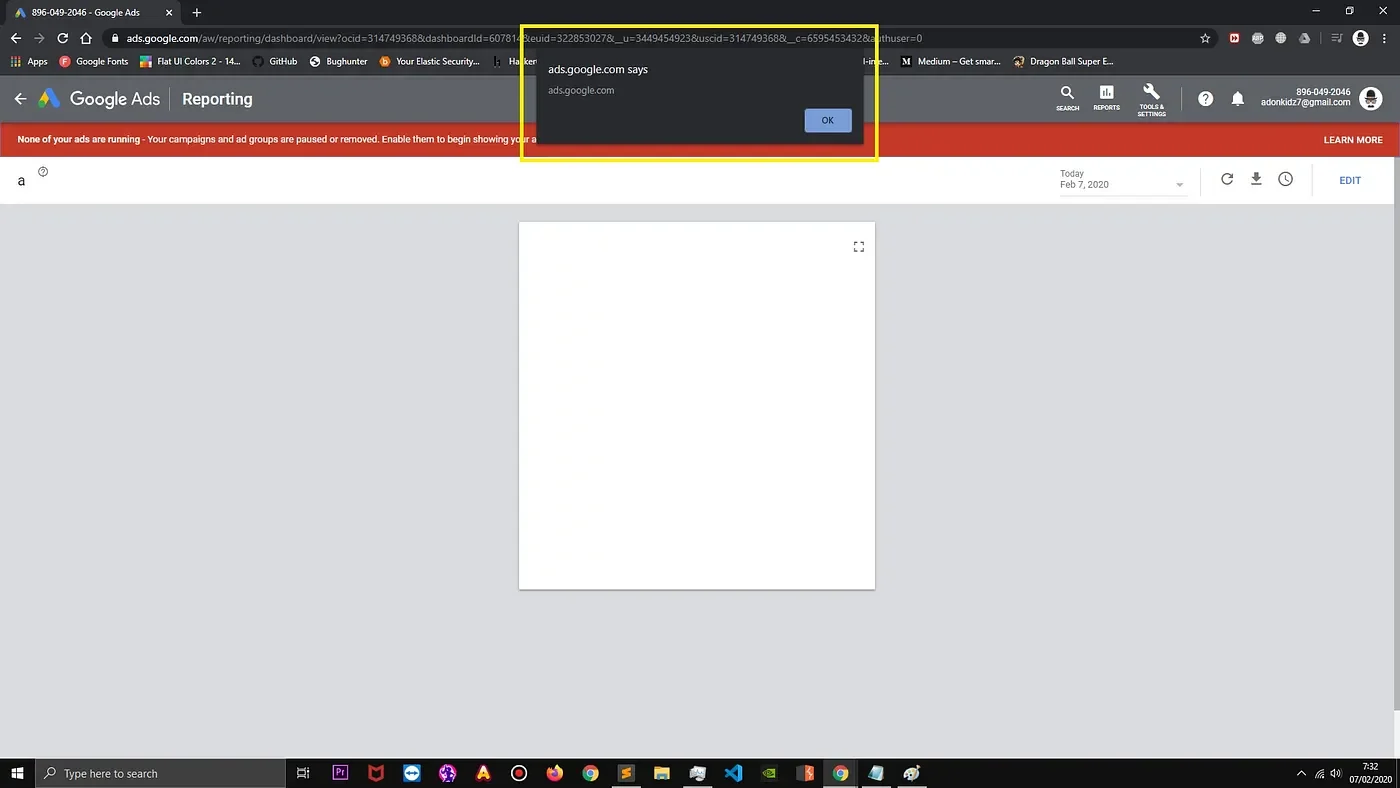
A video of the execution is linked in the report:
https://www.youtube.com/watch?v=QP05znoHz-A
Step 5: disclosure and outcome
The researcher reported the issue to the Google Security Team, who replied "Nice Catch!".
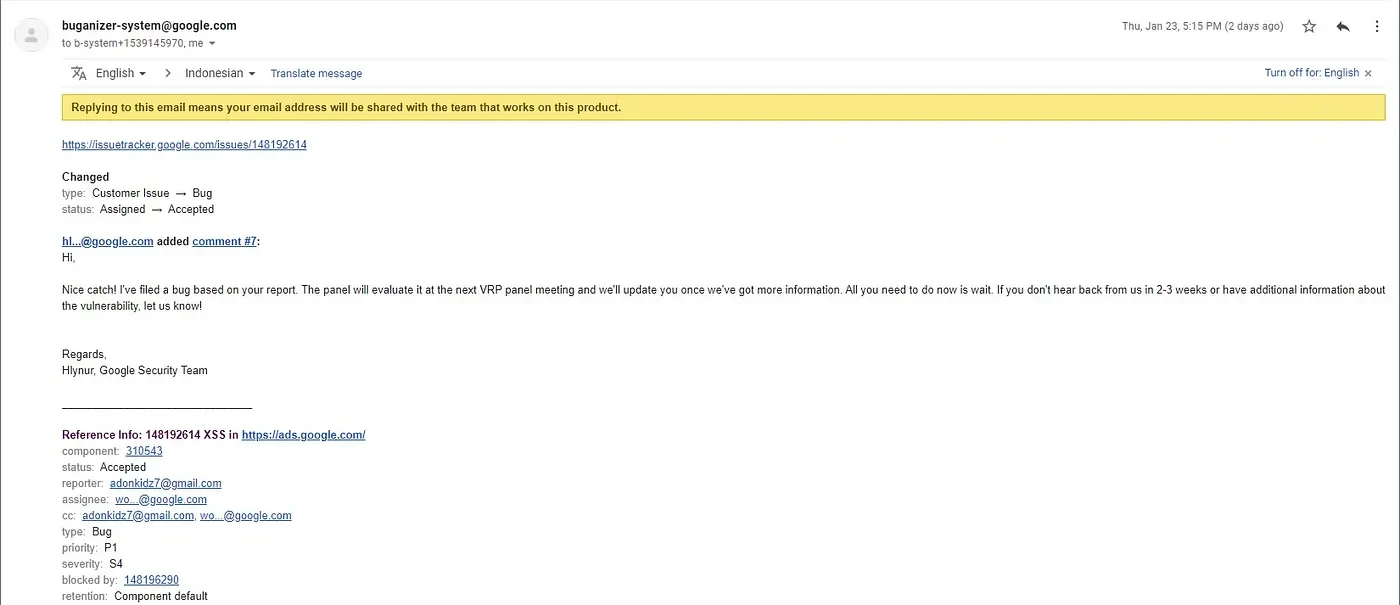
Three weeks later Google paid a reward of $5,000.
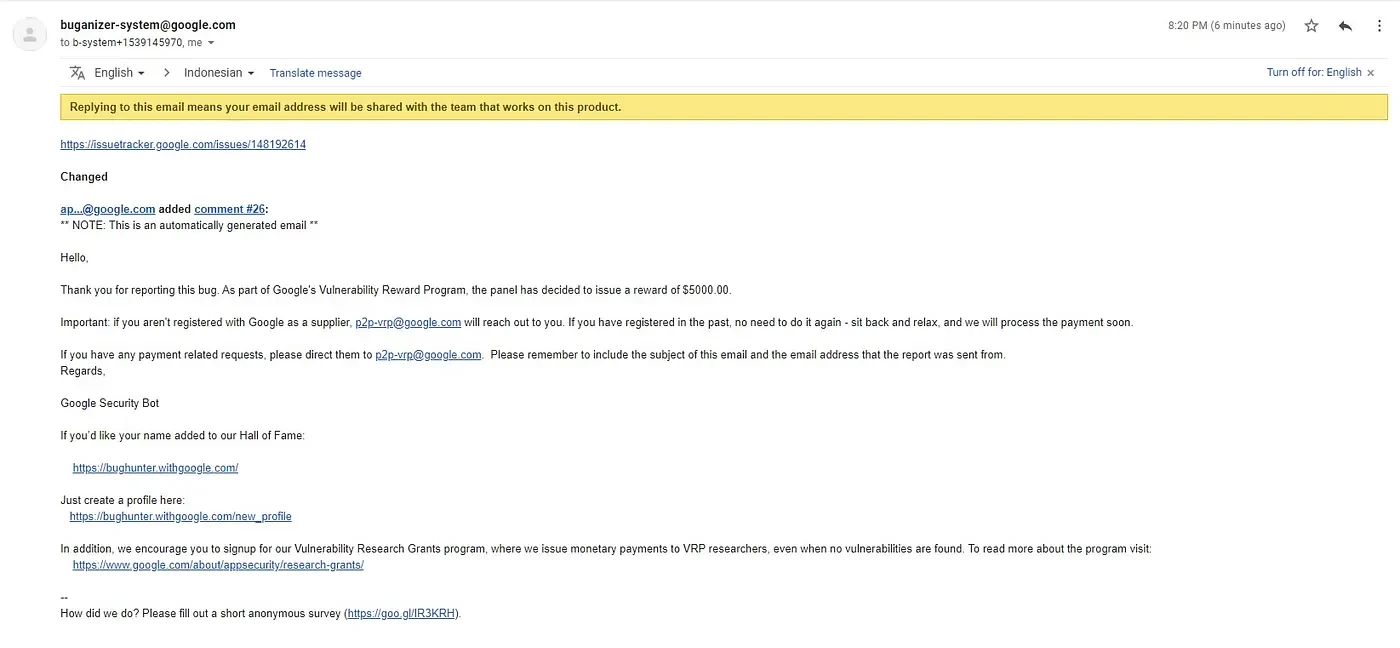
The bug was then fixed by the Google Security Team.
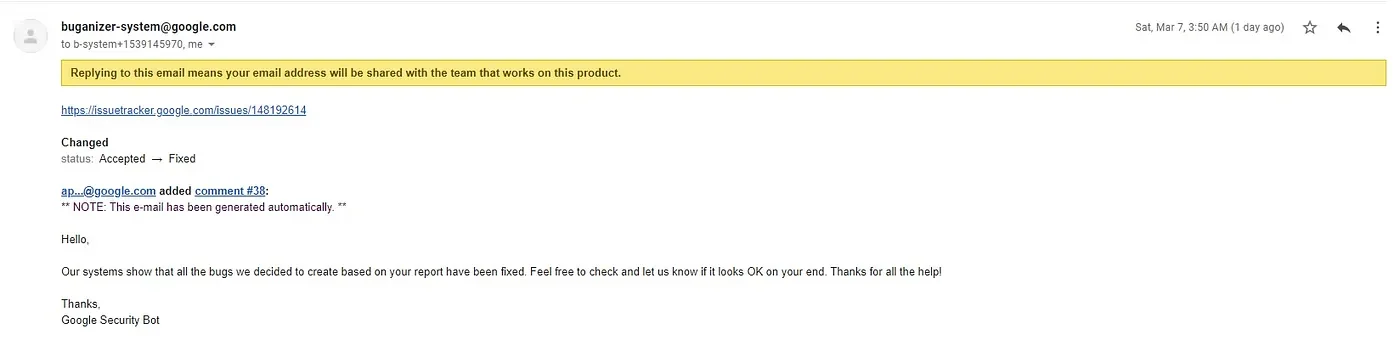
The timeline in the report is:
| Event | Date and time |
|---|---|
| Reporting Date | January 23, 2020 03:22PM |
| Nice Catch | January 23, 2020 05:15PM |
| Reward | Feb 13, 2020 08:20PM |
| Fixed | 7 Mar, 2020 03:49AM |
Root cause
The dashboard note field accepted user-supplied HTML and rendered it, and the payload executed when saved. The HTML injection part is direct: tags such as <u>, <strong>, <font> and <img> were accepted and rendered. For script execution, the application evidently applied some filtering that stopped the plain <img src=x onerror=...> payload, and that filter was bypassed by placing an opening <test> tag before it.
Impact
The issue is stored: the payload is saved in a dashboard note and rendered when the dashboard is viewed. The payload is saved in a dashboard note and executes when the dashboard is viewed. The reward and the fix confirm Google treated it as a real vulnerability.
Fix
The report states only that the bug was fixed by the Google Security Team on 7 March 2020. A correct fix would be to sanitise the dashboard note field with an HTML sanitiser that parses input the same way the browser does, so that event handler attributes cannot survive.
Variants to test
- Every dashboard text field. The report puts the payload in a note; try the same payload in other dashboard fields. Try the same payload in each and check whether the alert fires when the dashboard is viewed.
- Tag-prefix bypasses. The published bypass relies on an opening
<test>tag before the payload. Try other unknown or unclosed tags before a blocked payload and watch for the handler executing, which indicates a parser mismatch in the sanitiser. - Attribute and encoding tricks. Where a plain
onerroris filtered, try alternative handler names, mixed case, HTML entities and unusual quoting, and confirm execution with a harmlessalert(document.domain). - Stored rendering paths. After saving a payload, reload the dashboard, open it from a report list and export or share it if those options exist, to see whether any rendering path skips the sanitiser.
- Remote content embedding. The payload also embedded an external image. Check whether other external resources can be loaded from these fields, which on its own is an information leak even without script execution.
What happened, in plain words
A security researcher spent a few days poking at Google websites looking for mistakes. On the third day he found one on Google Ads, the part of Google where people buy and manage advertising. Inside the reporting area there is a feature called a dashboard: a page you create yourself, with a title, a description and notes, used to keep your reports organised. The researcher discovered that the text you type into those fields is not treated as plain text. The site accepts HTML, the language used to build web pages, and displays it as if it were part of the page itself. That is called HTML injection.
He then tried to go further and make the site run JavaScript, the programming language browsers execute to make pages interactive. Making a site run someone else's JavaScript is called cross-site scripting, or XSS. His first attempts failed. Eventually he found a way to get his script to run by putting an extra tag in front of it. He reported it to Google, Google confirmed it, paid him $5,000 and fixed the bug.
This article walks through the whole story slowly, explaining each idea as it comes up, so you can follow it even if you have never done any security testing before.
The product and the feature
Google Ads is Google's advertising platform. Businesses use it to create adverts, choose who sees them and look at how they perform. You reach it at https://ads.google.com/.
Inside Google Ads there is a reporting area. The report focuses on one part of it: Reports > Dashboard. A dashboard is something you create yourself. It holds a title, a description and one or more notes, and it exists so you can group reporting views together in a way that makes sense to you. Think of it like a pinboard in an office: you decide what goes on it, you write a heading, and you pin notes to it. The difference is that this pinboard is a web page, and everything you write on it is stored on Google's servers and shown back to you when you open it.
The researcher found that a dashboard note accepted HTML, and that the payload placed there could be made to run script. The report describes the issue as Stored XSS and HTML Injection. We will unpack both terms shortly.
The vulnerable URL and parameters given in the report are:
https://ads.google.com/aw/reporting/dashboard/view?ocid=314749368&dashboardId=600308&euid=322853027&__u=3449454923&uscid=314749368&__c=6595453432&authuser=0
A URL is the address of a page, the thing you type into the address bar. Everything after the question mark is called the query string: a list of name and value pairs, separated by &, that tell the page what to show. Here dashboardId=600308 is the identifier of one particular dashboard, and the other pairs are identifiers the application uses to know which account and user is asking. You do not need to understand each one; the point is that this address opens a specific dashboard belonging to a specific account.
What HTML injection and XSS mean
When you type text into a web form, you expect the site to treat it as text. If you type <b>hello</b>, you expect to see those characters on screen, angle brackets and all. HTML injection happens when the site instead treats what you typed as HTML code and renders it: the <b> becomes bold formatting and the brackets disappear. On its own that is mostly a cosmetic problem, but it shows the site is trusting input it should not trust.
XSS is the next step up. HTML can carry JavaScript, for example through an attribute like onerror, which tells the browser what to do when an image fails to load. If an attacker can get their own JavaScript to run inside a page on someone else's site, that script runs with the same permissions as the site itself. It can read what the page can read and act as the logged-in user. That is why XSS is taken seriously.
Stored XSS means the malicious input is saved on the server, not just reflected back once. The payload is saved on the server, and the script runs when the page that displays it is opened. A dashboard note is exactly that kind of saved content.
Setup
The only precondition stated in the report is a logged-in Google Ads account. You need an account so you can reach the dashboard feature and create your own dashboard. The proof of concept begins by logging in with "your Account" and then navigating to the dashboard feature.
The researcher reports testing on Firefox and Google Chrome under Windows 10 Home. No browser extensions, proxies or other tools are mentioned, which is worth noting: this was found with an ordinary browser and nothing else.
Finding it
The researcher spent three days exploring four websites under the *.google.com domain. The *.google.com notation means any subdomain of google.com, such as mail.google.com or ads.google.com. The first two days produced nothing, and the account of those days is mostly about the search being frustrating. On the third day the search moved to https://ads.google.com/, looking for weaknesses in that application.
The first thing that worked was HTML Injection. The researcher entered HTML into a field on the site and it was rendered rather than shown as text. The report does not name the exact field at this stage; the proof of concept later shows the payload going into a dashboard note.
Seeing your own HTML appear as formatted content instead of raw characters is the signal that the site is not escaping your input. Escaping means converting special characters like < and > into harmless codes so the browser displays them as text. When escaping is missing, the door is open to trying script.
Encouraged by that, the researcher moved on to XSS and tried a standard image error payload:
<img src=x onerror=alert(document.domain)>
Line by line, this is what the payload does:
<imgstarts an image element, the HTML tag used to place a picture on a page.src=xsays the image should be loaded from a location calledx. No such image exists, so the load will fail.onerror=alert(document.domain)is an attribute, an extra instruction attached to the tag. It says: when the image fails to load, run this JavaScript.alert(...)opens a small popup box in the browser, anddocument.domainis the address of the current page. So if the script runs, you see a popup showing the site's domain, which proves code executed on that site.>closes the tag.
This is a classic test payload because it is short and its success is unmistakable: either a popup appears or it does not. Here, it did not execute.
A further payload was tried and also failed. The report does not record what that second payload was.
Exploitation
Step 1: reach the dashboard feature
- Go to
https://ads.google.com/. - Log in using your account.
- Click Reports > Dashboard.
Each step exists for a reason. You log in because the dashboard feature belongs to your account; without a session the site does not know who you are. A session is the state of being logged in, usually kept alive by a cookie, a small piece of data the browser stores and sends back with every request so the server can recognise you. You navigate to Reports > Dashboard because that is where the input fields live.
Step 2: create a dashboard
Add a dashboard with the (+) control, then rename it and add a title and description, and save. The report does not say which of these fields was the one that reflected the payload; the next step puts it in a note.
Creating your own dashboard matters because it gives you fields you control. Testing input handling is only possible where you are allowed to supply input.
Step 3: add a note containing the payload
Add a note to the dashboard, enter the payload and save. The payload as published is:
<u><strong><font color=”blue” size=”8px”>H<strong><font color=”red” size=”8px”>E<strong><font color=”gold” size=”8px”>L<strong><font color=”blue” size=”8px”>L<strong><font color=”green” size=”8px”>O <strong><font color=”blue” size=”8px”>G <strong><font color=”red” size=”8px”>O <strong><font color=”gold” size=”8px”>O <strong><font color=”blue” size=”8px”>G <strong><font color=”green” size=”8px”>L <strong><font color=”red” size=”8px”>E
<img src=”https://www.sciencealert.com/images/2019-12/processed/[redacted].jpg" width=”600" height=”300">
<test><img src=x onerror=alert(document.domain)>
The payload has three parts, and each one is there to prove something different.
The first part is a chain of <u>, <strong> and <font> tags that spell out "HELLO GOOGLE" in alternating colours and sizes. <u> underlines text, <strong> makes it bold, and <font> sets colour and size. This part demonstrates that markup is being rendered: if the words appear coloured and bold rather than as literal angle brackets, the site is treating your input as HTML.
The second part is an <img> pointing at an external image with fixed width and height. width=”600" and height=”300" set the size in pixels. This shows that remote content can be embedded: the page will fetch a picture from a completely different website and display it inside Google Ads.
The third part is the actual XSS: the same <img src=x onerror=alert(document.domain)> that failed on its own, now preceded by an opening <test> tag. <test> is not a real HTML tag. It is an invented name, and the fact that it is unrecognised is the whole point, as the next step explains.
Step 4: the bypass
On its own, the image error payload was blocked or neutralised. Wrapping it after an opening <test> tag made it execute. The report presents this as the step that bypassed the XSS protection, and the researcher describes it as succeeding by "adding the <test> tag".
A video of the execution is linked in the report:
https://www.youtube.com/watch?v=QP05znoHz-A
Step 5: disclosure and outcome
The researcher reported the issue to the Google Security Team, who replied "Nice Catch!".
Three weeks later Google paid a reward of $5,000.
The bug was then fixed by the Google Security Team.
The timeline in the report is:
| Event | Date and time |
|---|---|
| Reporting Date | January 23, 2020 03:22PM |
| Nice Catch | January 23, 2020 05:15PM |
| Reward | Feb 13, 2020 08:20PM |
| Fixed | 7 Mar, 2020 03:49AM |
A bug bounty programme is a scheme where a company invites outsiders to report security problems and pays for good ones. The timeline shows the whole cycle: report, acknowledgement the same afternoon, payment about three weeks later, and a fix in early March.
Root cause
The dashboard note field accepted user-supplied HTML and rendered it, and the payload executed when saved. Sanitisation is the process of cleaning input before it is stored or displayed, removing anything dangerous and keeping only what is safe. The HTML injection part is direct: tags such as <u>, <strong>, <font> and <img> were accepted and rendered.
For script execution, the application evidently applied some filtering that stopped the plain <img src=x onerror=...> payload, and that filter was bypassed by placing an opening <test> tag before it. In other words, the cleaning tool read the input one way and the browser read it another, and the gap between the two readings is where the payload slipped through.
Impact
The issue is stored: the payload is saved in a dashboard note and rendered when the dashboard is viewed. The payload is saved in a dashboard note and executes when the dashboard is viewed. Running "in the context of" a site means the script inherits the site's permissions and the user's logged-in state, so it can do what the user could do. The reward and the fix confirm Google treated it as a real vulnerability.
Fix
The report states only that the bug was fixed by the Google Security Team on 7 March 2020. A correct fix would be to sanitise the dashboard note field with an HTML sanitiser that parses input the same way the browser does, so that event handler attributes cannot survive. An allowlist is a list of things that are permitted; anything not on the list is refused. Encoding means turning dangerous characters into harmless equivalents so they display as text instead of acting as code.
Variants to test
If you want to practise this kind of thinking on a site you are allowed to test, here are directions the researcher's findings suggest. Only ever test on systems where you have permission.
- Every dashboard text field. The report puts the payload in a note; try the same payload in other dashboard fields. Try the same payload in each and check whether the alert fires when the dashboard is viewed.
- Tag-prefix bypasses. The published bypass relies on an opening
<test>tag before the payload. Try other unknown or unclosed tags before a blocked payload and watch for the handler executing, which indicates a parser mismatch in the sanitiser. - Attribute and encoding tricks. Where a plain
onerroris filtered, try alternative handler names, mixed case, HTML entities and unusual quoting, and confirm execution with a harmlessalert(document.domain). - Stored rendering paths. After saving a payload, reload the dashboard, open it from a report list and export or share it if those options exist, to see whether any rendering path skips the sanitiser.
- Remote content embedding. The payload also embedded an external image. Check whether other external resources can be loaded from these fields, which on its own is an information leak even without script execution.
Glossary
- HTML: the language used to describe the structure and formatting of a web page, made of tags such as
<b>or<img>. - HTML injection: when a site treats text you typed as HTML code and renders it, instead of showing it as plain text.
- JavaScript: the programming language browsers run to make pages interactive.
- XSS (cross-site scripting): getting your own JavaScript to run inside a page on someone else's website, with that site's permissions.
- Stored XSS: XSS where the malicious input is saved on the server and runs every time the page is viewed.
- Payload: the piece of input an attacker sends to try to trigger a vulnerability.
- Tag: a piece of HTML syntax in angle brackets, such as
<img>, that tells the browser what to create. - Attribute: an extra instruction inside a tag, such as
srcoronerror. onerror: an attribute that tells the browser what to do when an image fails to load.alert(): a JavaScript function that opens a popup box; used in tests because success is obvious.document.domain: a JavaScript value holding the address of the current page.- URL: the address of a page, as typed into the address bar.
- Query string: the part of a URL after the question mark, made of name and value pairs separated by
&. - Parameter: one name and value pair in a query string, such as
dashboardId=600308. - Dashboard: a user-created container in Google Ads reporting that holds a title, description and notes.
- Session: the state of being logged in, usually kept alive by a cookie.
- Cookie: a small piece of data the browser stores and sends back with requests so the server can recognise you.
- Sanitisation: cleaning input before storing or displaying it, removing anything dangerous.
- Escaping / encoding: converting special characters into harmless equivalents so they display as text rather than acting as code.
- Allowlist: a list of permitted items; anything not on it is refused.
- Filter: code that inspects input and blocks or alters what it considers dangerous.
- Bypass: getting past a protection such as a filter.
- Parser: the component that reads text and works out its structure; the browser and the sanitiser each have one.
- Subdomain: a prefix on a domain, such as
adsinads.google.com;*.google.commeans any subdomain. - Bug bounty programme: a scheme where a company invites outsiders to report security problems and pays for good ones.
- Proof of concept (PoC): a set of steps that reliably demonstrates a vulnerability.