Uncovering a crazy privilege escalation from Chrome extensions
A ChromeOS file manager page could be accessed via a filesystem: URL that rendered HTML with the chrome://file-manager origin, allowing an extension to run code with elevated privileges. An attacker could read downloaded files and, after a second bug, execute code in a Linux container.
 Published on 0x44.xyz
bug-huntingchrome
The full write-up lives on its author's site
It belongs to its author, so we link to it rather than copy it. The other two tabs are our own rewrites, checked against it.
Context
Chrome extensions are deliberately limited. They can download files, but opening those downloads requires a special permission and a user gesture. They generally cannot change settings permanently, and they should not be able to read local files unless the user turns on "allow access to file URLs" for the extension. Chrome apps such as the Text app can sometimes edit local files, but only files the user explicitly opens.
The usual definition of a full sandbox escape for an extension is running an executable file without user interaction. On Windows and most other operating systems, the goal is to download and run an executable. The typical route is to abuse a bug that lets the extension run code on a chrome:// URL, a privileged WebUI page that may have permission to open downloads or change settings. Extensions should only be able to run code on http(s) URLs, but bypasses have been found using powerful permissions such as debugger, devtools and input. David Erceg's bug, for example, abused insufficiently validated functions in chrome.debugger to run code on chrome://downloads and open an exe on Windows.
The other route is an XSS in a chrome:// page. These are rare. Rob Wu found one in the downloads page in 2016, where an extension's name was injected as HTML and the page's Content-Security-Policy was bypassed to run JavaScript that opened an exe. The latest Chrome URL XSS before this work was in Chrome 65. In Chrome 102, chrome://settings displayed extension names as HTML, but the result was only a fake phishing link. Real code execution in these pages is largely dead because of strong CSPs and trusted types.
ChromeOS changes the calculus. There are no executable files, but the browser and the operating system are coupled. Device settings live on chrome://os-settings, files on chrome://file-manager, and the terminal on chrome-untrusted://crosh. An extension running code on a chrome:// URL in ChromeOS can therefore do what the user can do: modify network settings, install certificates, edit files, or run code in the terminal.
Setup
The only extension permission needed to abuse the bugs was downloads, which normally only lets an extension download and search for user files, not read or write them. No user interaction is involved in the exploit. The researcher notes that the most severe part of the File Manager bug was only in stable ChromeOS for around 25 days, and that he was not able to find a recovery image for a version in that range, so the only videos of that exploit are the ones from the bug report.
Finding it
In July, while poking around in chrome://file-manager, the researcher saw an interesting URL in localStorage:

Opening that URL in the browser showed the downloads folder. Apparently every downloaded file can be opened this way. The two following URLs have exactly the same content:
file:///home/chronos/u-[redacted]/MyFiles/file.txt
filesystem:chrome://file-manager/external/Downloads-[redacted]/file.txt
file:// URLs have many restrictions, but the second URL is hosted on chrome://file-manager. The researcher tried opening an HTML file containing the following code through that URL:
<script>
    alert(1)
</script>
The expectation was that the CSP would block it, that it would display as text, or that it would not be hosted on the Chrome domain. Instead:
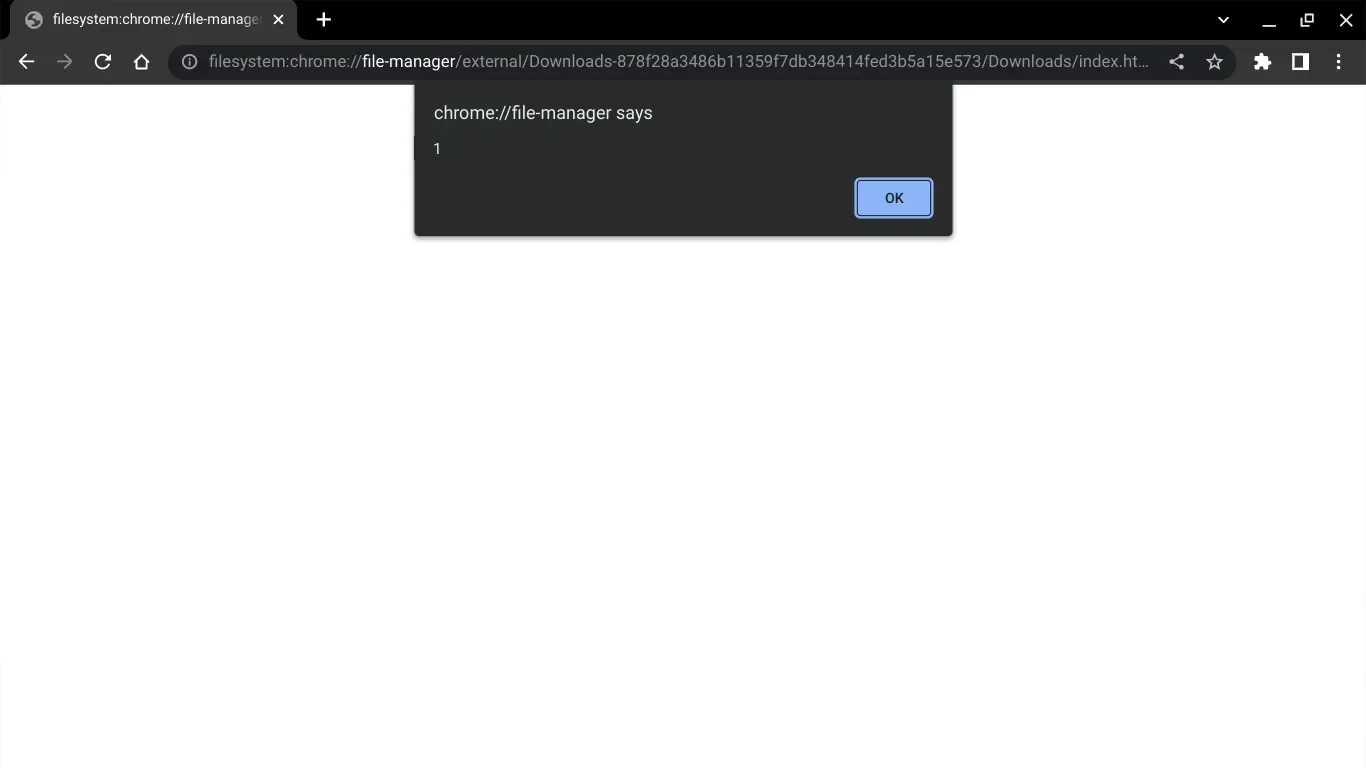
It worked. The page appeared to have no CSP and its origin appeared to be chrome://file-manager. In the devtools console, Mojo existed. Mojo is an inter-process communication library not normally exposed to websites because it can lead to memory corruption in the browser process. chrome.send(), another messaging function, also existed, although it seemed to be unconfigured.
The researcher could also read the source code of other Chrome pages. For example, chrome://prefs-internals could be fetched with XMLHttpRequest to get sensitive information about the device:
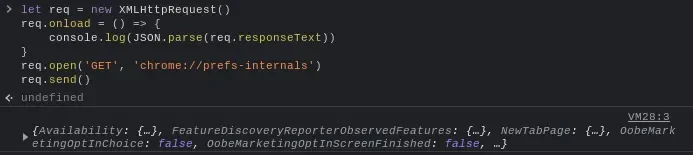
XMLHttpRequest could also read downloaded files with relative paths such as ./file.html.
Exploitation
Step 1: get the user hash
The idea was for a Chrome extension to download a malicious HTML file and open it through the special filesystem:chrome://file-manager path, producing XSS. The obstacle was the seemingly random string in the URL, which in this case was:
[redacted]
This is a ChromeOS user hash, unique per user. The malicious extension has to know it. Several functions in the chrome.downloads extension API return the full path of the file, including the user hash:

Step 2: the full chain
The exploit was built as follows:
- The extension downloads a malicious HTML file.
- The extension gets the user hash from the
filenameproperty. - The extension opens the
filesystem:chrome://file-managerversion of that file. - The code in the HTML file runs on the File Manager origin.
- The code reads other files and sends the data back to the extension.
It worked. The researcher submitted the bug as a severe infoleak.
Step 3: from the filesystem: URL to the real File Manager
The real files app at chrome://file-manager has access to the chrome.fileManagerPrivate API, but the vulnerable filesystem: URL does not. The goal became moving from code execution on:
filesystem:chrome://file-manager/external/Downloads...
to code execution on:
chrome://file-manager
Both URLs have the origin chrome://file-manager, so in theory one should be able to access the other. The problem is that the File Manager opens as an app. Calling window.open() from the filesystem: tab makes the browser close the newly created tab and load the page in an app-like window, leaving a dangling reference to a nonexistent page:

chrome:// pages cannot be embedded, and redirecting a tab with JavaScript does not work either. The researcher initially thought getting a reference to the chrome.fileManagerPrivate API would be impossible.
It is possible, but only with the help of the malicious extension. First, the filesystem: page runs:
let fmWindow = window.open("javascript:0");
A JavaScript URL is used because it creates an uninitialised renderer: the tab has not committed to displaying anything yet. The extension can then use chrome.tabs.update() to redirect the new tab to view-source:chrome://file-manager, a URL that has access to the private API and loads as a tab. The extension has no permission to access this tab, but the filesystem: page still holds a valid, same-origin reference to it:
fmWindow.chrome.fileManagerPrivate
With that reference, the extension can run scripts under the domain of the real File Manager. The bug report was updated with this detail.
Step 4: what the private API allows
Running on an actual chrome:// page gives the first chrome:// URL XSS in 50 versions of Chrome, a gap of seven years. It also allows use of the user's camera and microphone without permission, as described in the Chromium documentation on chrome-untrusted.
The fileManagerPrivate API has 85 functions, including ones that allow:
- Reading downloaded files
- Writing to downloaded files
One possibility is ransomware, given how easy it is for an extension to encrypt a user's files. Access to and modification of local files is a privacy issue in itself.
The API can also interfere with Crostini, the Linux terminal built into ChromeOS. The extension can:
- Set up Crostini
- Put malicious code into the Crostini
.bashrcfile, which runs every time the terminal is loaded - Open
chrome-untrusted://terminal, which extensions are normally forbidden from opening, withfileManagerPrivate.openURL(), thus running the code
This allows running and permanently storing and executing code in a container with access to some Android and networking features, starting from a small browser add-on.
Step 5: the sister bug in Image Loader
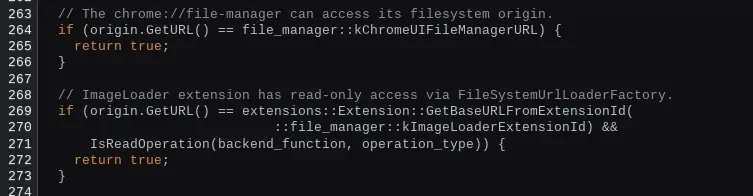
Three days later, the researcher found something else in the File Manager source code:

A filesystem: URL on a built-in Chrome extension. After some poking, the following URL opened:
filesystem:chrome-extension://pmfjbimdmchhbnneeidfognadeopoehp/external/Downloads-[redacted]/Downloads/file.html
It loaded the script again. The URL belongs to the Image Loader extension, a component extension built into the browser and present only on ChromeOS. It also has access to fileManagerPrivate, but its file system access appears to be read-only, so it is less dangerous.
The Image Loader extension is also given access to chrome://resources so it can import its scripts, which inadvertently lets the extension run code on that origin:
chrome.tabs.create({ url: "chrome://resources/js/cr.m.js" }, (tab) => { chrome.tabs.executeScript(tab.id, { code: "alert(origin)" }) })
That is a second Chrome XSS. The main difference is that downloaded files cannot be edited. The researcher submitted it separately.
Proof-of-concept videos
Here is a recording of the File Manager bug in action:
And here is the video for the Image Loader one:
The attack could be modified to take place quicker, and the Chrome window with the XSS could be loaded in the background, hidden from the victim. There is no user interaction. The researcher also published more concise proof-of-concept code.
The issue does not allow extensions to read or write every file on a Chromebook; the browser cannot do that. Only files in the user directory, such as Downloads and Photos, can be accessed.
Root cause
The filesystem: protocol is an old Chrome feature from around 2011 that lets websites permanently store File and Blob objects in a virtual filesystem with directories and folders. It is like blob:, but more stable and organised. Every file is also hosted on a URL such as:
filesystem:https://google.com/temporary/file.html
In 2011 a page could apparently open its files in the filesystem: protocol; that is no longer the case, which is why the URL type is rarely seen.
The path after the origin is a required part of the URL and can be one of four values:
/temporary/persistent(self-explanatory)/isolated(used to temporarily store uploaded files, cannot be rendered)/external
/external is not controlled by the website at all. It is a ChromeOS-only folder identical to the user's MyFiles path. This obscure feature only exists on the File Manager and Image Loader origins.
ChromeOS still uses an outdated JavaScript API to power its primary File Manager app. The developers wanted an easy way for their JavaScript-powered app, really a glorified website, to access files safely, so they extended the legacy File System API with a new /external path on the chrome://file-manager origin. Whenever a file is created, the app uses the undocumented webkitResolveLocalFileSystemURL() function, the longest-named global function in Chrome, to get a FileSystemEntry object from a URL like the following:

It then uses pure JavaScript to create a writer on the directory and write a blank Blob into a new file. fileSystemPrivate has no functions that directly write to files; it only returns entry objects that have to be handled with JavaScript.
When the system was designed, someone apparently forgot that the filesystem: URLs could be rendered in the browser, which meant an extension could simply open them for XSS.
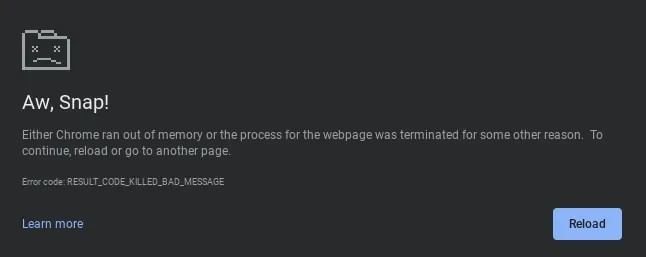
After reporting, the researcher learned that the introduction of WebUIConfig for determining the origins of chrome:// pages partially led to the exploit. Before that change, blob:chrome:// and filesystem:chrome:// URLs were not considered real Chrome URLs: they had no access to chrome.send() or Mojo, and could not get a window reference to a page with those permissions. Trying the window.open() part of the exploit on earlier versions of ChromeOS crashed both pages:
With the new code, this URL case was never handled. The main part of the bug had been undetected for years, and it became more critical only a month or so after the new code landed. That part existed in stable ChromeOS only from 115.0.5790.98 to 115.0.5790.170, a gap of less than one month. The basic XSS and the ability to read downloaded files worked in older versions. The Image Loader bug was not new at all and worked on versions as old as ChromeOS 99.
Impact
An extension with only the downloads permission could download an HTML file, learn the user hash from the filename property, open the file through the filesystem:chrome://file-manager URL, and run code on the File Manager origin. From there it could read other Chrome pages such as chrome://prefs-internals, read downloaded files, and, with the window.open("javascript:0") and chrome.tabs.update() trick, reach the real File Manager and its fileManagerPrivate API. That API allows reading and writing downloaded files, which opens the door to ransomware, and allows setting up Crostini, writing to .bashrc, and opening chrome-untrusted://terminal to run and persist code in a container with access to some Android and networking features. The camera and microphone can be used without permission. The Image Loader variant gives a second Chrome XSS with read-only file access. The attack needs no user interaction and can be hidden in a background window. Only files in the user directory are reachable, not every file on the device.
Fix
Both bug reports were marked fixed on August 8th. The first fix updated WebUIConfig, the new buggy code, to correctly handle filesystem:chrome:// and blob:chrome:// URLs. The second fix blocked /external files from being rendered in the browser, wiping out this type of bug for good. Navigation to filesystem.../external URLs was disabled on July 26, which effectively patched both bugs, and the WebUIController change was reverted on August 8. The File Manager bug was given CVE-2023-4369 (severity 8.8/10) and mentioned in the ChromeOS 116.0.5845.120 release notes. The Image Loader bug report had not been given a CVE number or mentioned in update logs at the time of writing. The researcher received $10,000 in total, $5,000 for each bug.
Variants to test
- Look for other
filesystem:URLs on privileged origins, especially component extensions and built-in apps. A positive result is afilesystem:chrome-extension://...orfilesystem:chrome://...URL that renders an HTML file and executes script. - Check whether
/externalpaths are reachable from origins other than File Manager and Image Loader. A positive result is a rendered HTML file from a user directory on a privileged origin. - Test whether
blob:chrome://andfilesystem:chrome://URLs get access tochrome.send()orMojo. A positive result is a privileged messaging object present in the console. - Try the
window.open("javascript:0")pluschrome.tabs.update()pattern against other app-likechrome://pages. A positive result is a same-origin reference to a privileged page that exposes a private API. - Check component extensions for broad host permissions such as
chrome://resources. A positive result ischrome.tabs.executeScriptrunning on achrome://origin. - Review legacy File System API usage in modern apps for renderable
filesystem:URLs. A positive result is a URL that loads attacker-controlled HTML with the app's origin.
What happened, in plain words
A security researcher found a way for an ordinary Chrome extension, a small add-on designed for tweaking web pages, to run its own code inside Chrome's internal pages on a Chromebook. Those internal pages can change device settings, read and write your files, and open a Linux terminal. From a small add-on, the researcher reached a position where code could be stored and run permanently on the device.
The route was a strange kind of web address, starting with filesystem:, that Chrome uses internally to point at files. One variant of it was hosted on the same origin as ChromeOS's File Manager app, and Chrome would happily render an HTML file from it, running any script inside. A second, similar bug existed in another built-in extension called Image Loader.
The researcher was rewarded $10,000 in total for the two reports, $5,000 each, and the File Manager bug was given the identifier CVE-2023-4369 with a severity of 8.8 out of 10. This article walks through the whole story from zero, explaining each concept as it appears.
A bit of background: what extensions can and cannot do
A Chrome extension is a small program you add to the browser. It is written mostly in JavaScript, the language of web pages, and it runs with a set of permissions that you see when you install it. The design of Chrome assumes extensions are not fully trusted: they get a limited set of abilities, and the browser tries to stop them doing anything permanent or dangerous without your involvement.
What is the worst an extension could do? It could steal your passwords and cookies, or continuously close your tabs. Both are bad and annoying, but there are limits.
- Can extensions run executable files? Not really. They can download files at any time, but opening a download requires a special permission and a user gesture, meaning you have to click something.
- Can they change your settings? Generally no. The design idea is that an extension should not be able to make permanent changes that survive its uninstallation.
- Can they read or write local files? The rules are a little convoluted:
- Extensions should not be able to read local files.
- That is, unless the "allow access to file URLs" switch is turned on in the extension's options.
- Chrome apps, such as the Text app, are sometimes able to edit local files, but only files the user explicitly opens.
These limits have occasional bypasses. Google once awarded $10,000 to a bug report showing that extensions could read local files by screenshotting them. But there are more dangerous things than reading files.
What is a sandbox escape?
A sandbox is the cage the browser puts around code so it cannot touch the rest of your computer. A sandbox escape is when code gets out of that cage.
For an extension, a full sandbox escape is generally agreed to mean the extension runs an executable file without any user interaction. At that point the attack leaves the browser and starts attacking the operating system, often using further bugs.
The way these attacks almost always work, at least in theory, is that the extension abuses a bug to run code on a page more privileged than itself. Specifically, on chrome:// URLs. These are Chrome's internal pages, built with a technology called WebUI. Some of them have permission to open downloads or change settings. Normally an extension should only be able to run code on ordinary web addresses starting with http or https, but every once in a while a bypass is found using powerful but rare permissions such as debugger, devtools and input.
A good example is a bug reported by David Erceg, where insufficiently validated functions in chrome.debugger were abused to run code on chrome://downloads and open an executable on Windows.
By the way, XSS is dead (surely)
The other route to running code inside a privileged page is an XSS bug. XSS stands for cross-site scripting: a page takes some text it was given, treats it as HTML, and that HTML contains a script, so the script runs with the page's own powers. It is like a receptionist reading out a visitor's name and accidentally reading out instructions to open the safe.
XSS is very rare in chrome:// pages, but it has happened. Rob Wu found one in the downloads page in 2016, where an extension's name was unsafely injected as HTML. The page's Content-Security-Policy (CSP) was also bypassed to run JavaScript that opened an executable. A CSP is a rule the page sends to the browser saying which scripts are allowed to run; a strong CSP is like a strict guest list at a door.
But that was in 2016. The latest Chrome URL XSS before this work was in Chrome 65. Nowadays CSPs are much better at stopping JavaScript from running after an HTML injection, and chrome:// pages do not use innerHTML anyway. (innerHTML is a JavaScript property that lets a page insert raw HTML into itself, which is a classic way to create XSS.)
In Chrome 102 there was a very surprising bug where chrome://settings displayed extension names as HTML. But even with that, there was nothing to be done except inject a fake phishing link. Real code execution in these pages is largely dead because of strong CSPs and the introduction of trusted types, a browser feature that forces developers to mark strings as safe before they can be inserted as HTML.
What about ChromeOS?
So far we have been talking about Windows. On Windows, and most other operating systems, the goal is to download and run an executable file. But what about ChromeOS, the all-Google operating system?
- There are no executable files.
- But you can do more things from the browser.
In ChromeOS the browser and the operating system are coupled. The device settings are hosted on chrome://os-settings. All your files are hosted on chrome://file-manager. Your device terminal is hosted on chrome-untrusted://crosh.
Therefore, an extension running code on a chrome:// URL in ChromeOS can do literally everything you can do. Depending on the page, it could modify your network settings, install certificates, edit your files, or run code in your terminal. That is a huge amount of power for a small add-on. But an exploit is needed for that to happen.
CVE-2023-4369
In July, the researcher was poking around in chrome://file-manager, ChromeOS's file manager, when an interesting URL appeared in localStorage:
localStorage is a small storage area that a website can use to keep data in your browser between visits, like a notepad tied to one site. Seeing a URL there is a hint that the app stores addresses of files it has handled.
Absentmindedly, the researcher tried to open that URL in the browser, and, surprisingly, it showed the downloads folder. Apparently every downloaded file can be opened in this way. As it turns out, the two following URLs have exactly the same content:
file:///home/chronos/u-[redacted]/MyFiles/file.txt
filesystem:chrome://file-manager/external/Downloads-[redacted]/file.txt
Line by line:
- The first URL starts with
file://, which means "a file on this computer". The path/home/chronos/u-[redacted]/MyFiles/file.txtis a location in the user's home area on a Chromebook. The long string[redacted]is a per-user identifier, explained later. - The second URL starts with
filesystem:, a special Chrome scheme, followed bychrome://file-manager, the internal File Manager page, then/external/Downloads-..., then the file name. It points at the same file, but through the File Manager's own origin.
Wait a minute. file:// URLs have tons of restrictions, but that second weird-looking URL is hosted on chrome://file-manager. So the researcher decided to try using this new URL to open an HTML file simply containing the following code:
<script>
    alert(1)
</script>
Line by line:
<script>opens a script block. Everything until</script>is JavaScript the browser will run.alert(1)asks the browser to show a pop-up box containing the number 1. It is the simplest possible proof that script is running.</script>closes the block.
The expectation was that it would not work. Either the CSP would block it, or it would just display as a text file, or it would not be hosted on the Chrome domain. But, to the researcher's surprise:
It worked. The page appeared to have no CSP, and its origin appeared to be chrome://file-manager. Origin is the combination of scheme, host and port that the browser uses to decide what a page is allowed to touch; two pages with the same origin can read each other, pages with different origins cannot. So the script was running as if it were the File Manager itself.
So the researcher opened the developer tools console and started to check what would work and what would not. Developer tools are the built-in panel in Chrome (usually opened with F12) where you can inspect a page and type JavaScript to run in it.
The first thing noticed was that Mojo existed. Mojo is an inter-process communication (IPC) library: a way for different parts of the browser, which run as separate processes, to send messages to each other. It is not normally exposed to websites because it can lead to memory corruption in the browser process. chrome.send(), another messaging function, existed too, although it seemed to be unconfigured.
The second thing noticed was that the researcher could read the source code of other Chrome pages. For example, chrome://prefs-internals could be fetched with XMLHttpRequest to get some sensitive information about the device:
XMLHttpRequest is the older JavaScript way of asking the browser to fetch a URL and give you the response, like sending a courier to pick up a document. Normally a page can only fetch from its own origin; here the File Manager origin could fetch other chrome:// pages.
XMLHttpRequest could also read downloaded files with relative paths such as ./file.html. A relative path is a file location written relative to the current one, so ./file.html means "file.html in the same folder".
Going further
After submitting, the researcher realised there might be more to explore. Specifically, the real files app at chrome://file-manager had access to the chrome.fileManagerPrivate API, but the vulnerable filesystem: URL did not.
An API (application programming interface) is a set of functions one program offers to another. Think of a restaurant menu: you can order only the dishes listed, and the kitchen does the rest. chrome.fileManagerPrivate is a private menu of file operations that only the real File Manager page is allowed to order from.
Since that API is extremely powerful, the goal became to go from code execution on this URL:
filesystem:chrome://file-manager/external/Downloads...
to code execution on this URL:
chrome://file-manager
Both URLs have the origin chrome://file-manager, so in theory there should be no problem with one accessing the other. The only thing that throws a wrench in those plans is the fact that the File Manager opens as an app. When we try to open it with window.open() from the filesystem: tab, the browser closes the newly created tab and instead loads the page in an app-like window, leaving us with a dangling reference to a nonexistent page:
window.open() is the JavaScript function that opens a new browser tab or window and returns a handle to it, so the calling page can talk to it. A dangling reference is a handle that points at something that no longer exists, like a phone number for a disconnected line.
chrome:// pages cannot be embedded in any way, so putting one inside an iframe is not an option. Trying to redirect a tab using JavaScript does not work either. That is why the researcher initially thought it would be impossible to get a reference to the chrome.fileManagerPrivate API.
But, as it turns out, it is possible, only with the help of the malicious extension. First, the filesystem: page has to run the following:
let fmWindow = window.open("javascript:0");
Line by line:
let fmWindow =declares a variable namedfmWindowand stores something in it.window.open("javascript:0")opens a new tab whose address is a JavaScript URL. A JavaScript URL is an address starting withjavascript:that, when loaded, runs the code after the colon instead of fetching a page. Here the code is just0, which does nothing.
The reason a JavaScript URL is used is that it creates an uninitialised renderer. A renderer is the browser process that draws a page and runs its scripts. "Uninitialised" means the tab has not committed to displaying anything yet, so it is still flexible about what it will become.
Then the extension can use chrome.tabs.update() to redirect the new tab to view-source:chrome://file-manager, a tricky URL that has access to the private API and loads as a tab. chrome.tabs.update() is an extension function that changes an existing tab, for example its address. view-source: is a prefix that tells Chrome to show the source code of a page rather than the rendered page; it is a different context, and in this case it happened to load as a normal tab with access to the private API.
The extension does not have permission to access this tab, but the filesystem: page still has a valid, same-origin reference to it:
fmWindow.chrome.fileManagerPrivate
Line by line:
fmWindowis the handle saved earlier..chromereaches into that tab'schromeobject, the place where Chrome-specific functions live..fileManagerPrivateis the private file API on that page.
With this reference, the extension can run scripts under the domain of the real File Manager. Of course, the bug report was updated with this new detail.
Doing damage
Now the code is running on an actual chrome:// page, not some weird filesystem: URL. What does this mean?
- First, this is the first
chrome://URL XSS in 50 versions of Chrome, a gap of seven years. - The code can use the user's camera and microphone without permission, as described in the Chromium documentation on
chrome-untrusted.
The fileManagerPrivate API has 85 functions, including ones that allow:
- Reading downloaded files
- Writing to downloaded files
One possibility that came to mind was ransomware: malicious software that encrypts your files and demands payment to unlock them. Given how easy it is for an extension to encrypt a user's files through this API, that is a real concern. Access to and modification of local files is a huge privacy issue in itself.
But there is one other very interesting capability of the fileManagerPrivate API: it can mess with Crostini, a Linux terminal built into ChromeOS. A terminal is a text window where you type commands instead of clicking. In fact, the extension can:
- Set up Crostini
- Put malicious code into the Crostini
.bashrcfile, which runs every time the terminal is loaded..bashrcis a configuration file that the shell reads at startup, so anything in it runs automatically. - Open
chrome-untrusted://terminal, which extensions are normally forbidden from opening, withfileManagerPrivate.openURL(), thus running the code
With this, code can be run, permanently stored and executed in a container, an isolated Linux environment, with access to some Android and networking features. Keep in mind that we got here from a Chrome extension, a small add-on designed for tweaking web pages. That is a remarkable jump in power.
Finding a sister bug
Three days later, the researcher found something else in the File Manager source code:
A filesystem: URL on a built-in Chrome extension. After a bit of poking around, the following URL opened:
filesystem:chrome-extension://pmfjbimdmchhbnneeidfognadeopoehp/external/Downloads-[redacted]/Downloads/file.html
Line by line:
filesystem:is the same special scheme as before.chrome-extension://pmfjbimdmchhbnneeidfognadeopoehpis the origin of a built-in extension, identified by its long ID./external/Downloads-...is the same/externalfolder, pointing at the user's Downloads area./Downloads/file.htmlis the file itself.
And it actually loaded the script, again. But what is this URL? It belongs to the Image Loader extension, a component extension: a privileged Google-made extension built into the browser, only present on ChromeOS.
This extension also has access to fileManagerPrivate. However, its access to the file system seems to be read-only, so it is not as dangerous.
It is worth noting that the Image Loader extension is also given access to chrome://resources for the purpose of importing its scripts, but this inadvertently gives the extension permission to run code on that origin:
chrome.tabs.create({ url: "chrome://resources/js/cr.m.js" }, (tab) => { chrome.tabs.executeScript(tab.id, { code: "alert(origin)" }) })
Line by line:
chrome.tabs.create({ url: "chrome://resources/js/cr.m.js" }, (tab) => { ... })asks the extension API to open a new tab at thatchrome://resourcesaddress, and gives a callback function that receives the new tab.chrome.tabs.executeScript(tab.id, { code: "alert(origin)" })runs the given code inside that tab.alert(origin)shows a pop-up with the page's origin, proving the script ran there.
That gives a second Chrome XSS. The biggest difference with this one is that downloaded files cannot be edited. While somewhat similar to the first bug, the researcher decided to submit it separately.
Proof-of-concept videos
A proof of concept is a small demonstration that a bug is real and exploitable, rather than just theoretical.
The most severe part of the File Manager bug was only in stable ChromeOS for around 25 days. The researcher was not able to find a ChromeOS recovery image for any version within that range, and did not have the resources to build one from scratch, so the only videos of that exploit are the ones from the bug report.
Here is a recording of the File Manager bug in action:
And here is the video for the Image Loader one:
To abuse these bugs, the only permission needed would be downloads, which normally only allows an extension to download and search for user files, not read or write to them. The attack could also be modified to take place quicker, and the Chrome window with the XSS could be loaded in the background, hiding it from the victim. There is no user interaction involved in the exploit.
The researcher also published some more concise proof-of-concept code.
Again, a quick reminder: this issue does not allow extensions to read or write every file on a Chromebook; the browser just cannot do that. Only files in the user directory, such as Downloads and Photos, can be accessed with this vulnerability.
But why?
So far the article has not really gone into why these bugs work. What is the difference between a filesystem: and a file: URL? Why do the Image Loader extension and the File Manager app have these URLs? This section tries to answer some of these questions.
The filesystem: protocol is not something you come across very often on the web. A protocol is the part of a URL before the colon, like http or file, that tells the browser how to interpret the rest. The filesystem: protocol is a very, very old Chrome feature from around 2011 that allows websites to permanently store File and Blob objects in a virtual filesystem with directories and folders. A Blob is a chunk of binary data in JavaScript, like a file held in memory. In short, it is like the blob: protocol, but more stable and organised.
As a side effect, every file is also hosted on a URL like the following:
filesystem:https://google.com/temporary/file.html
Line by line:
filesystem:is the scheme.https://google.comis the origin the file belongs to./temporaryis the storage area./file.htmlis the file name.
Back in 2011, a page could apparently open its files in the filesystem: protocol. That is no longer the case, which is why you might never have seen this type of URL in your life.
You might have noticed that the filesystem: URL above contains the /temporary directory. This path is actually a required part of the URL; it can be one of four possibilities:
/temporary/persistent(self-explanatory: it stays)/isolated(used to temporarily store uploaded files, cannot be rendered)/external
In case you were wondering, /external is not controlled by the website at all. Rather, it is a ChromeOS-only folder identical to the user's MyFiles path. This obscure feature only exists on the File Manager and Image Loader origins.
Which means, of course, that ChromeOS still uses an outdated and obsolete JavaScript API to power its primary File Manager app. Classic.
When you think about it, it makes some sense. The ChromeOS developers wanted an easy way for their JavaScript-powered app, which is really just a glorified website, to access files safely. Therefore they decided to expand the legacy File System API, which was the only good JavaScript option back then, with a new /external path on the chrome://file-manager origin, so that the app could carry out read and write operations with existing APIs.
This is, under the hood, how the File Manager app works on ChromeOS. Whenever you create a file, the app uses the undocumented webkitResolveLocalFileSystemURL() function, which is, fun fact, the longest-named global function in Chrome, to get a FileSystemEntry object from a URL like the following:
A FileSystemEntry is a JavaScript object that represents a file or folder and lets you read or write it.
Then it uses pure JavaScript to create a writer on the directory and write a blank Blob into a new file. In fact, fileSystemPrivate does not actually have any functions that directly write to files: it only returns entry objects which have to be handled with JavaScript.
It is kind of funny that the main files app uses 2011 JavaScript APIs to do literally everything. But hey, this is ChromeOS.
When this system was designed, someone apparently forgot that the filesystem: URLs they were using could be rendered in the browser, which meant that an extension could simply open them for XSS. This type of bug is interesting because it shows that vulnerabilities do not always come from simple mistakes; sometimes decade-long design choices in massive and complex projects like Chrome and ChromeOS can be exploited in creative ways.
What I've learned
After reporting, the researcher found out that this one partially did come from a simple mistake. A Google employee confirmed that the introduction of WebUIConfig for determining the origins of chrome:// pages partially led to the exploit. WebUIConfig is a piece of Chrome code that decides which origins count as real Chrome pages.
Before this change, blob:chrome:// and filesystem:chrome:// URLs would not be considered real Chrome URLs; they would have no access to chrome.send() or Mojo, and they could not get a window reference to a page with those permissions. Indeed, when the researcher tried the window.open() part of the exploit on earlier versions of ChromeOS, the browser crashed both pages.
But with the new code, this URL case was never handled.
It is pure chance that this bug, the main part of which had been lying undetected for years, was found only a month or so after the introduction of new code that made it even more critical. In the end, that part of the bug only existed in stable versions of ChromeOS from 115.0.5790.98 to 115.0.5790.170, a gap of less than one month. The basic XSS and the ability to read downloaded files worked in older versions, though.
The Image Loader bug was not new at all, and the researcher could verify that it worked on versions as old as ChromeOS 99.
Both bug reports were marked as fixed on August 8th. The first fix updated WebUIConfig, the new buggy code, to correctly handle filesystem:chrome:// and blob:chrome:// URLs. The second fix blocked /external files from being rendered in the browser, wiping out this type of bug for good.
The researcher was rewarded a total of $10,000 for the two bugs. The File Manager bug was given the CVE number 2023-4369 (severity 8.8/10) and was mentioned in the ChromeOS 116.0.5845.120 release notes. A CVE is a public catalogue number for a known vulnerability, so people can refer to it unambiguously. Unfortunately, the Image Loader bug report has been dormant since its patch; at the time of writing it had not been given a CVE number or mentioned in any update logs.
Looking back, this is the researcher's favourite find. Chrome extensions have always been interesting attack vectors, and privilege escalation bugs are a favourite, especially ones that do not require memory corruption. Privilege escalation means going from a low level of permission to a higher one, like a visitor finding a way into the staff room.
Timeline (all 2023)
- July 12: the File Manager bug is reported to Google.
- July 13: the File Manager bug is updated with the extended
window.open()capability. - July 14: the File Manager bug is given P1, top priority.
- July 16: the Image Loader bug is reported.
- July 17: the Image Loader bug is also given P1.
- July 26: navigation to
filesystem.../externalURLs is disabled, effectively patching both bugs. - August 8: the
WebUIControllerchange is reverted. - August 8: both bugs are marked as officially fixed.
- September 14: the File Manager bug is rewarded $5,000.
- October 26: the Image Loader bug is rewarded $5,000.
- November 14: both bugs are publicised and the blog post is published.
Glossary
- API: a set of functions one program offers to another, like a menu you can order from.
- Blob: a chunk of binary data in JavaScript, like a file held in memory.
- CSP (Content-Security-Policy): a rule a page sends to the browser saying which scripts are allowed to run.
- CVE: a public catalogue number for a known vulnerability.
- Component extension: a privileged Google-made extension built into the browser.
- Container: an isolated environment, here a Linux environment inside ChromeOS.
- Crostini: the Linux terminal built into ChromeOS.
- Dangling reference: a handle that points at something that no longer exists.
- Developer tools: the built-in Chrome panel where you can inspect a page and run JavaScript in it.
- Extension: a small program added to Chrome, written mostly in JavaScript, with a limited set of permissions.
- FileSystemEntry: a JavaScript object representing a file or folder that can be read or written.
- IPC (inter-process communication): a way for separate processes to send messages to each other.
- JavaScript URL: an address starting with
javascript:that runs the code after the colon instead of fetching a page. - localStorage: a small storage area a website can use to keep data in the browser between visits.
- Mojo: Chrome's IPC library, not normally exposed to websites because it can lead to memory corruption in the browser process.
- Origin: the combination of scheme, host and port that decides what a page is allowed to touch.
- Privilege escalation: going from a low level of permission to a higher one.
- Proof of concept: a small demonstration that a bug is real and exploitable.
- Protocol: the part of a URL before the colon, like
httporfile, that tells the browser how to interpret the rest. - Ransomware: malicious software that encrypts files and demands payment to unlock them.
- Relative path: a file location written relative to the current one, such as
./file.html. - Renderer: the browser process that draws a page and runs its scripts.
- Sandbox: the cage the browser puts around code so it cannot touch the rest of the computer.
- Sandbox escape: code getting out of that cage.
- Terminal: a text window where you type commands instead of clicking.
- Trusted types: a browser feature that forces developers to mark strings as safe before inserting them as HTML.
- WebUIConfig: Chrome code that decides which origins count as real Chrome pages.
- XSS (cross-site scripting): a page treating untrusted text as HTML, so a script inside it runs with the page's powers.
- XMLHttpRequest: the older JavaScript way of fetching a URL and getting the response.
window.open(): the JavaScript function that opens a new tab or window and returns a handle to it.