Let us begin.
The unauthenticated content handler in IBM WebSphere Portal allowed downloading hidden pages and user lists, and the default configuration permitted anonymous users to create backend accounts. An attacker could then log in with these accounts and access administrative functions, potentially leading to data exposure or content manipulation.
 Published on clarkvoss.medium.com
A story about creating backdoors in IBM’s Websphere Portal! This is a feature I’m told…
The full write-up lives on its author's site
It belongs to its author, so we link to it rather than copy it. The other two tabs are our own rewrites, checked against it.
A story about creating backdoors in IBM's WebSphere Portal. This is a feature, I'm told.
Context
WebSphere Portal is enterprise software used to build and manage web portals. WebSphere Portal is used by government, medical and shipping service websites. The product exposes a set of handlers under /wps/ that serve portal content: contenthandler and portal for unauthenticated access, mycontenthandler and myportal for authenticated access. The contenthandler is meant to display or download content elements of the portal, addressed by a URI made of a directory and an object ID.
The feature at the centre of this write-up is the portal's self-service sign-up. On a default install, anonymous portal users are allowed not only to reach the sign-up page but to create backend users. Combined with the unauthenticated content handler, which will hand out hidden pages, user lists, permissions and memberships, that sign-up becomes a way to obtain an account on the backend of a site you were never registered for.
Setup
No special tooling was needed. I started from a browser and the page HTML, and the only artefact I produced along the way was a Nuclei template to find exposed sign-up pages. The precondition is simply a WebSphere Portal site whose sign-up page is reachable, which is the default. Nothing in the report depends on a particular version number.
Finding it
Last year, while working on a Synack target, I noticed a website with a long string in its URLs:
https://example.com/wps/portal/!ut/p/z1/[redacted]-[redacted]!!/dz/d5/L2dBISEvZ0FBIS9nQSEh/
I recognised the string as serialised state, and after some poking around found out the site was an IBM WebSphere Portal. That was all I knew at the time.
I always start by looking at the HTML to see what I am up against. In it I found something interesting:
src="/wps/contenthandler/mac/!ut/p/digest!xbnABNVrRrLQ2pjPx5pxWA/mashup/ra:collection?themeID=ZJ_5Q90G1K0KG7AF0AKJJD75G0004&locale=en&mime-

That is a content handler URL. After reading how it works, I found the URL below downloads the page collection:
https://example.com/wps/contenthandler/mac/?uri=ra:oid:collection
The parts of that URL matter for everything that follows. wps is the main URL prefix. contenthandler is the unauthenticated handler used to display or download things. mac is the friendly path of the main site, and it can differ from site to site. The uri parameter consists of a directory, here ra, and an object ID (oid), here collection. Common directories include nm, ac, um and ra.
The packages below define content elements of the portal and its surrounding infrastructure:
- editLayout:
ibm.portal.Content - MainPage:
wps.content.root - editPageProperties:
ibm.portal.Page Properties - assignRoles:
ibm.portal.Resource Permissions - editAppProperties:
ibm.portal.Template and Application Properties - editAppLayout:
ibm.portal.Template and Application Layout - assignAppRoles:
ibm.portal.Application Roles - assignAppMembers:
ibm.portal.Application Membership - showAppPolicyStatus:
ibm.portal.Policy Status - hiddenPages:
ibm.portal.HiddenPages
The list of packages changes per site, but a few are common, notably wps.content.root and ibm.portal.HiddenPages.
Exploitation
Step 1: download portal content with the unauthenticated handler
Using the package list, you construct URLs against the content handler. For example, to download the root content:
https://example.com/wps/contenthanlder/mac/?uri=nm:oid:wps.content.root
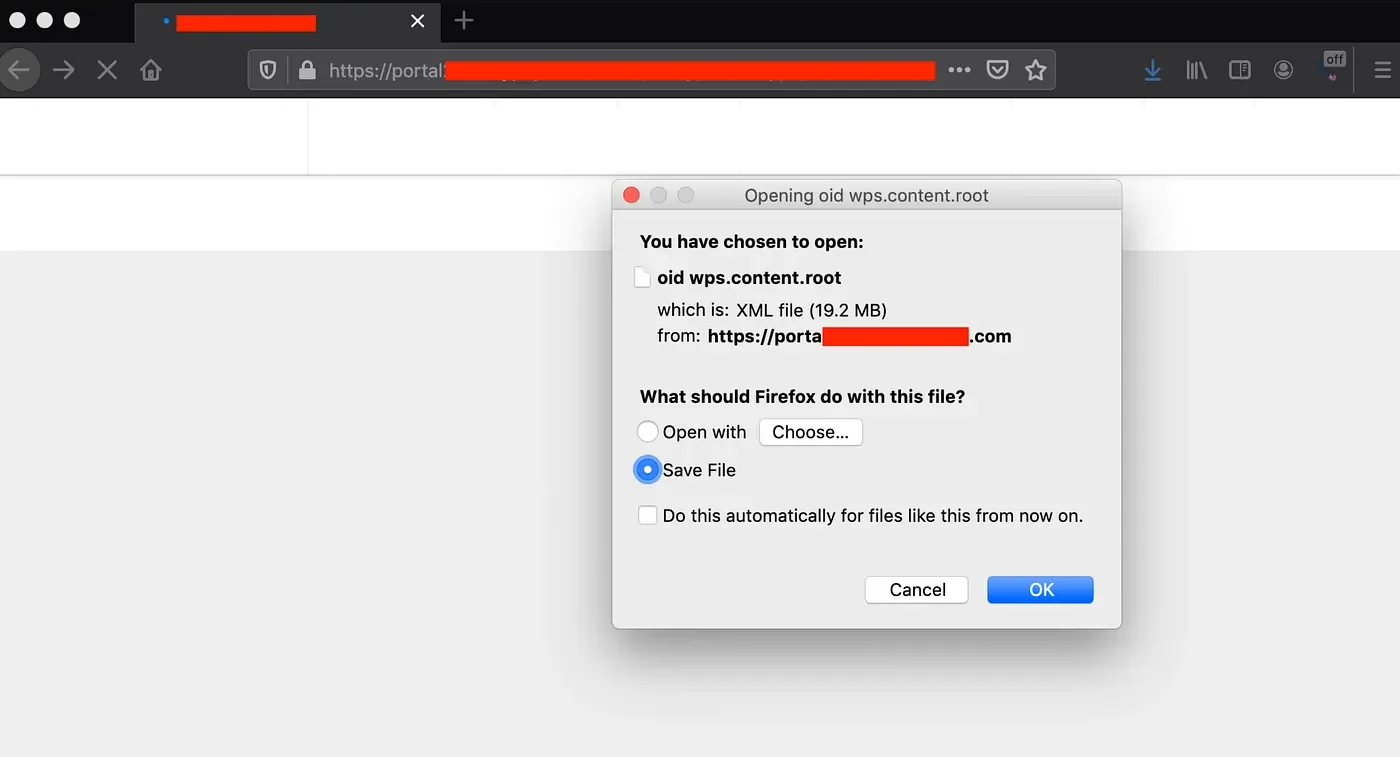
Through this handler I could download pages that reveal hidden parts of the site, users, permissions and memberships that should not be accessible to unauthenticated users. Downloading a list of users:
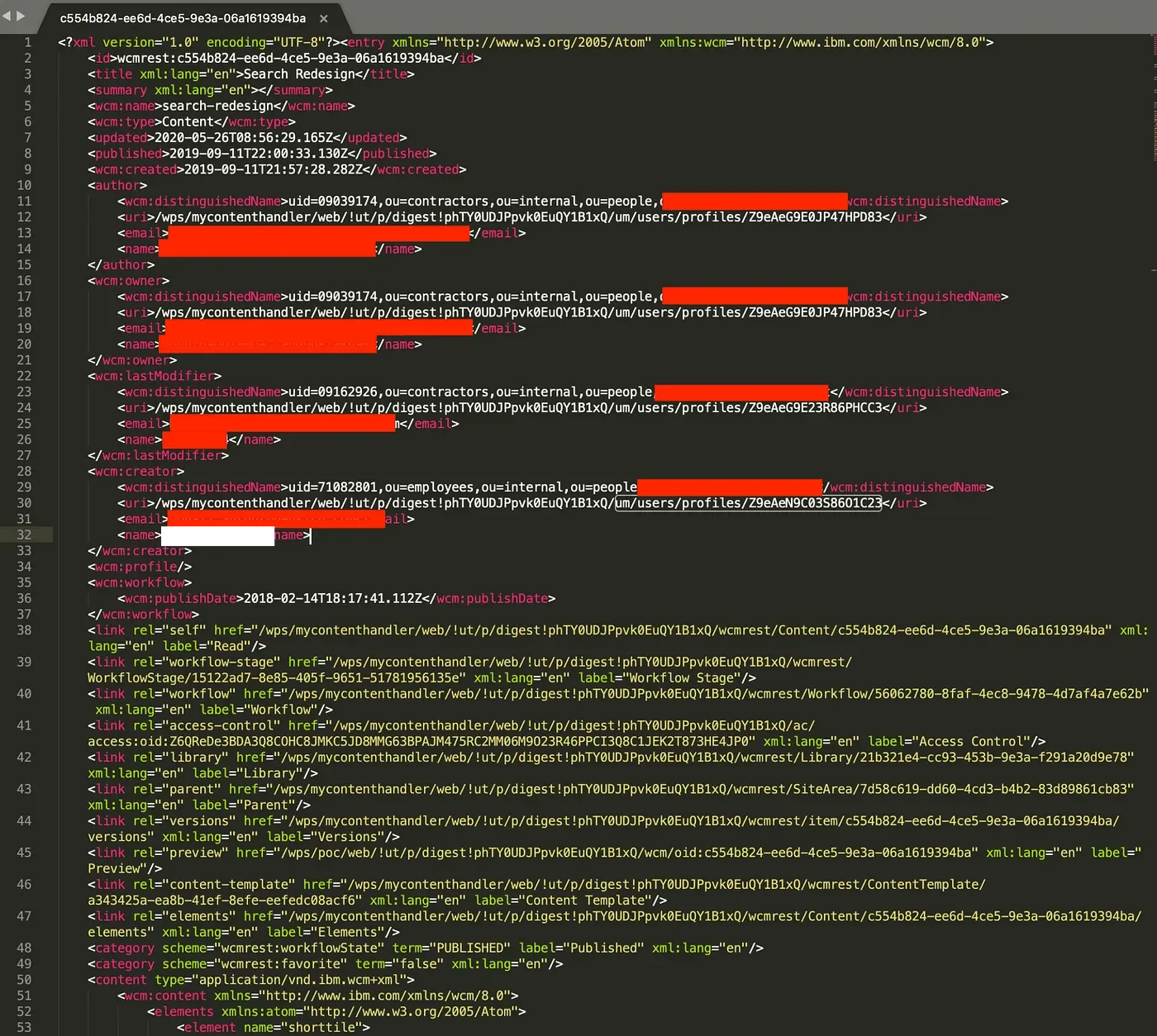
Or the access level those users have:
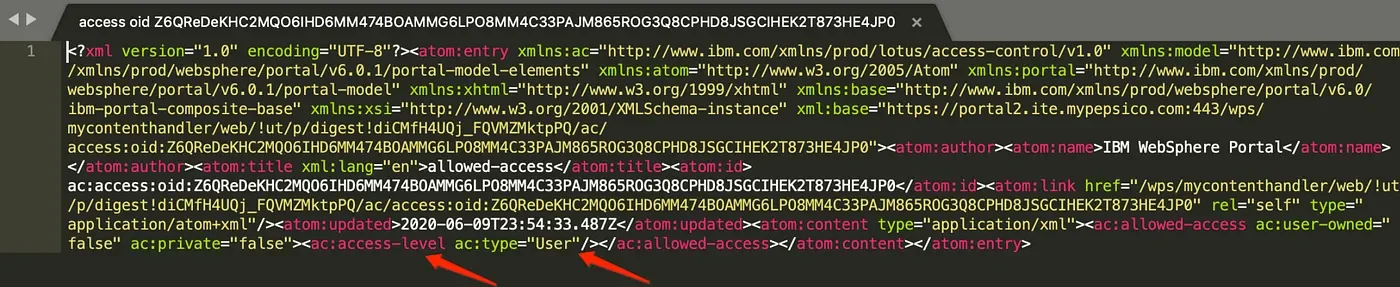
Some parts of the site are restricted, so it is worth remembering which prefixes are authenticated and which are not:
contenthandler = Unauthenticated

mycontenthandler = Authenticated

portal = Unauthenticated

myportal = Authenticated
The first issue is that the unauthenticated content handler will download parts of the site that divulge information it should not. This is a feature.
Step 2: download the hidden pages
Next, download the hidden pages, which expose URLs that lead to the backend:
https://examples/wps/contenthandler/?uri=nm:oid:ibm.portal.HiddenPages

Once ibm.portal.HiddenPages is downloaded, you can find paths such as the friendly path:
https://examples.com/wps/portal/client/welcome/!ut/p/z1/[redacted]-AAjgb6BbmhigBypoQ7/dz/d5/L2dBISEvZ0FBIS9nQSEh/?uri=nm:oid:Z6_00000000000000A0BR2B300GG2
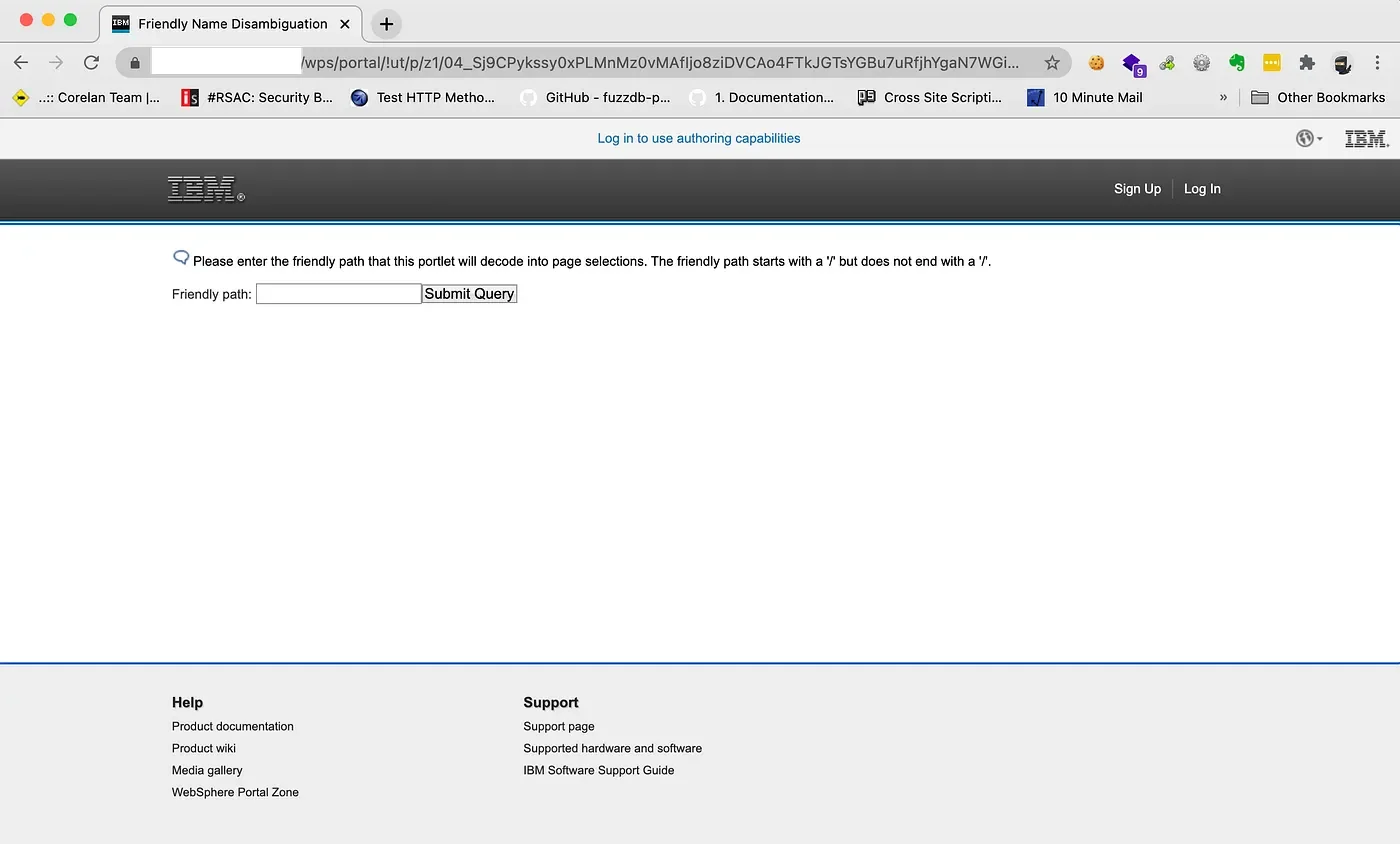
That URL redirects you to the friendly path. If you can reach the friendly path, you can reach the sign-up page. This is a feature.
Step 3: create a backend user through sign-up
Now you can sign up a user. On a default install of WebSphere Portal, the site allows anonymous portal users not only to reach the sign-up page but to create backend users. That is issue number two.
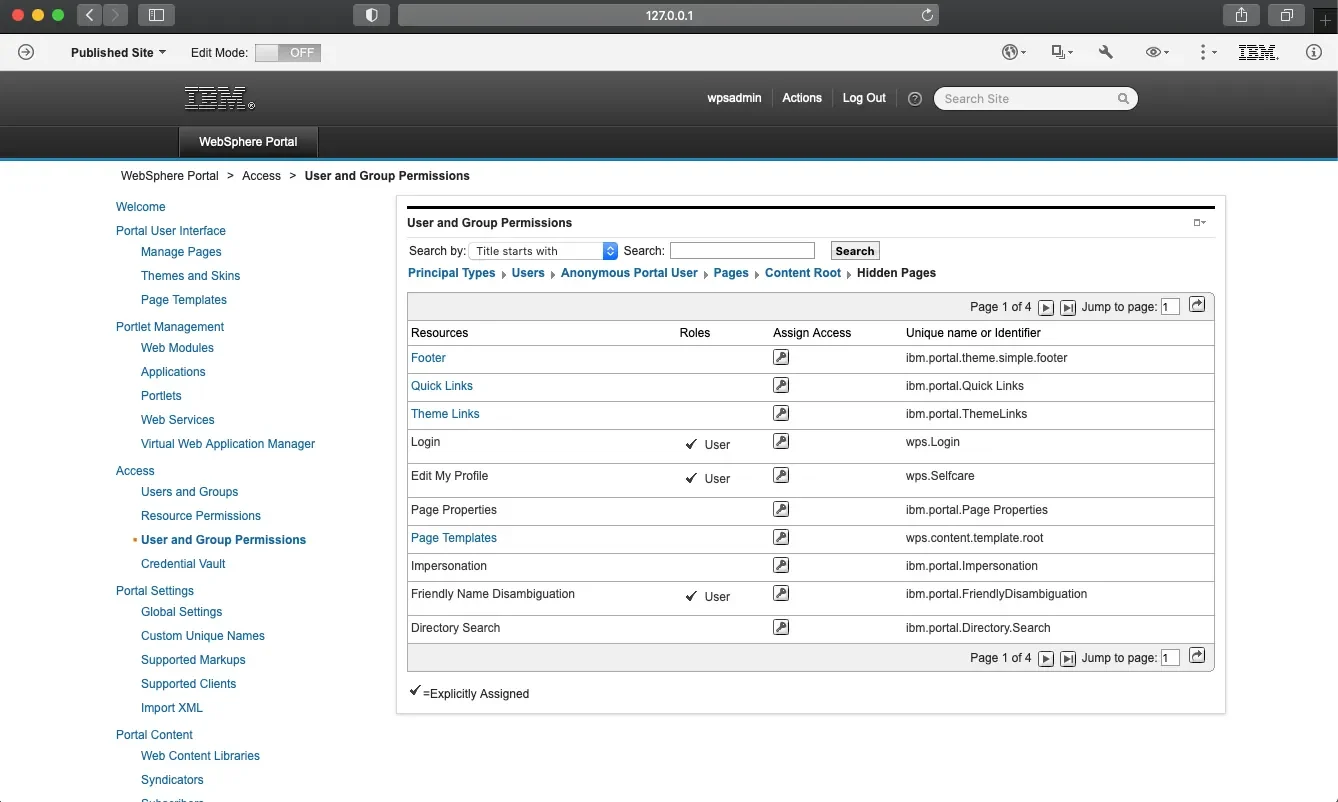
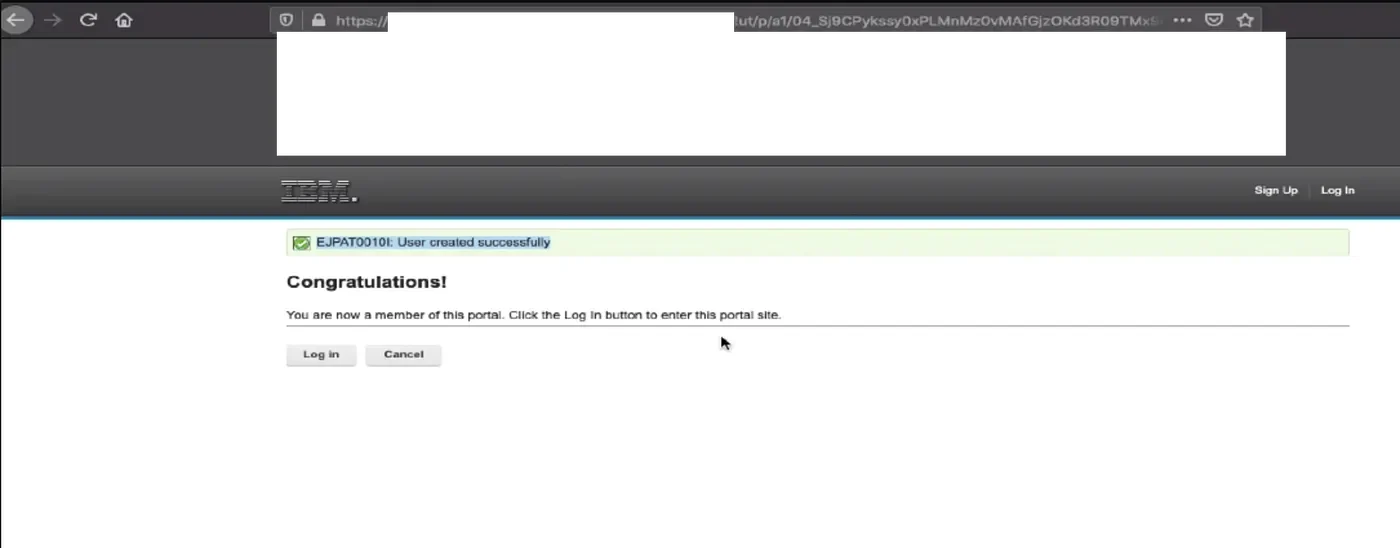
After entering basic information and clicking OK, you may get one of two messages. The first is a Congratulations! message:
The second is an error message:
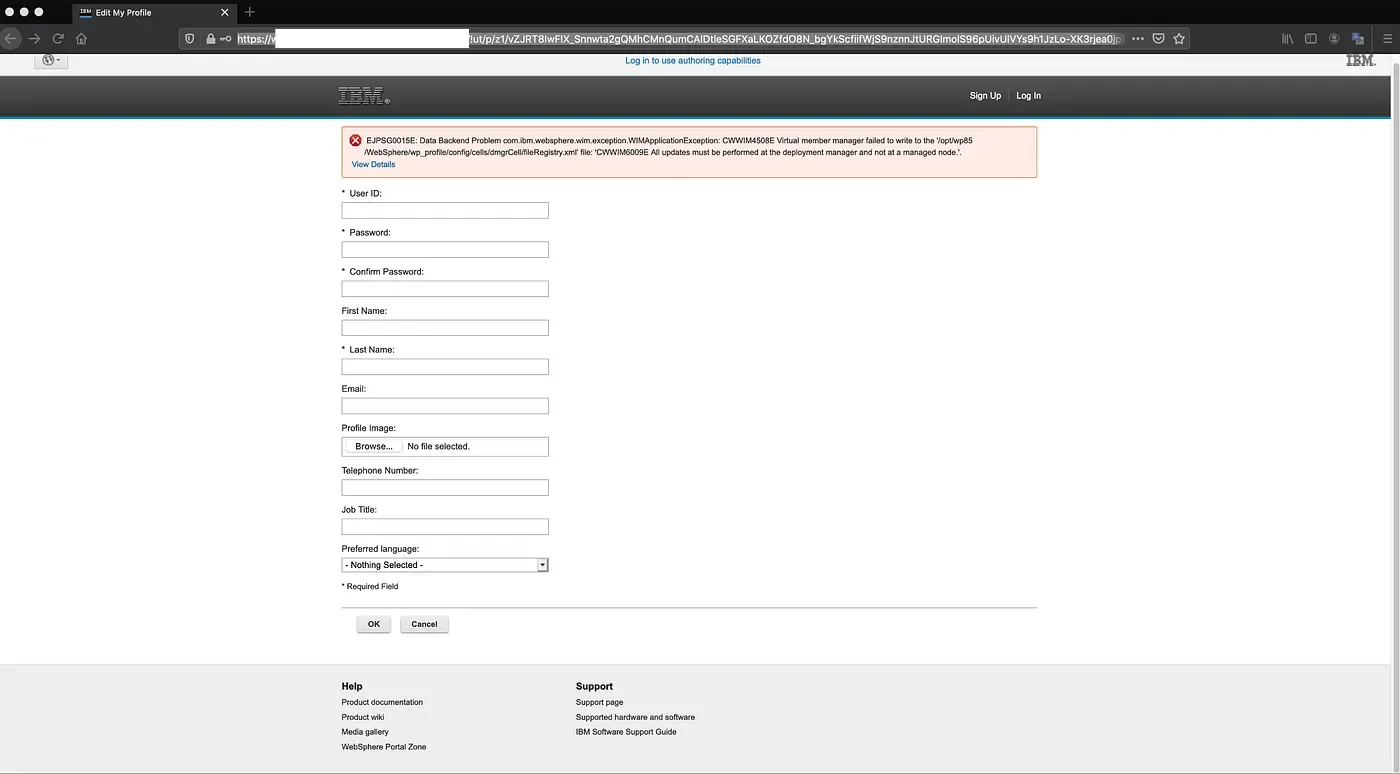
Both messages mean you created a user on the backend. On some websites the login is blocked, or you are redirected to the site's main login page. Keep in mind that the user you create is a backend user that was not registered for the main site's content. I have seen a user of the main site being created, with access to restricted content because of the lack of registration, but normally the user you create is only for administering the site.
Step 4: log in with the new account via the service document
If the login redirects or is blocked, how do you log in with the user you just created? Unauthenticated or anonymous users have access to what is called the service document, a list of links to documents and resources. This is a feature.
https://example.com/wps/contenthandler/!ut/p/digest!KUVNi3mCXU3yrSbamw858g/model/service-document/?locale=en
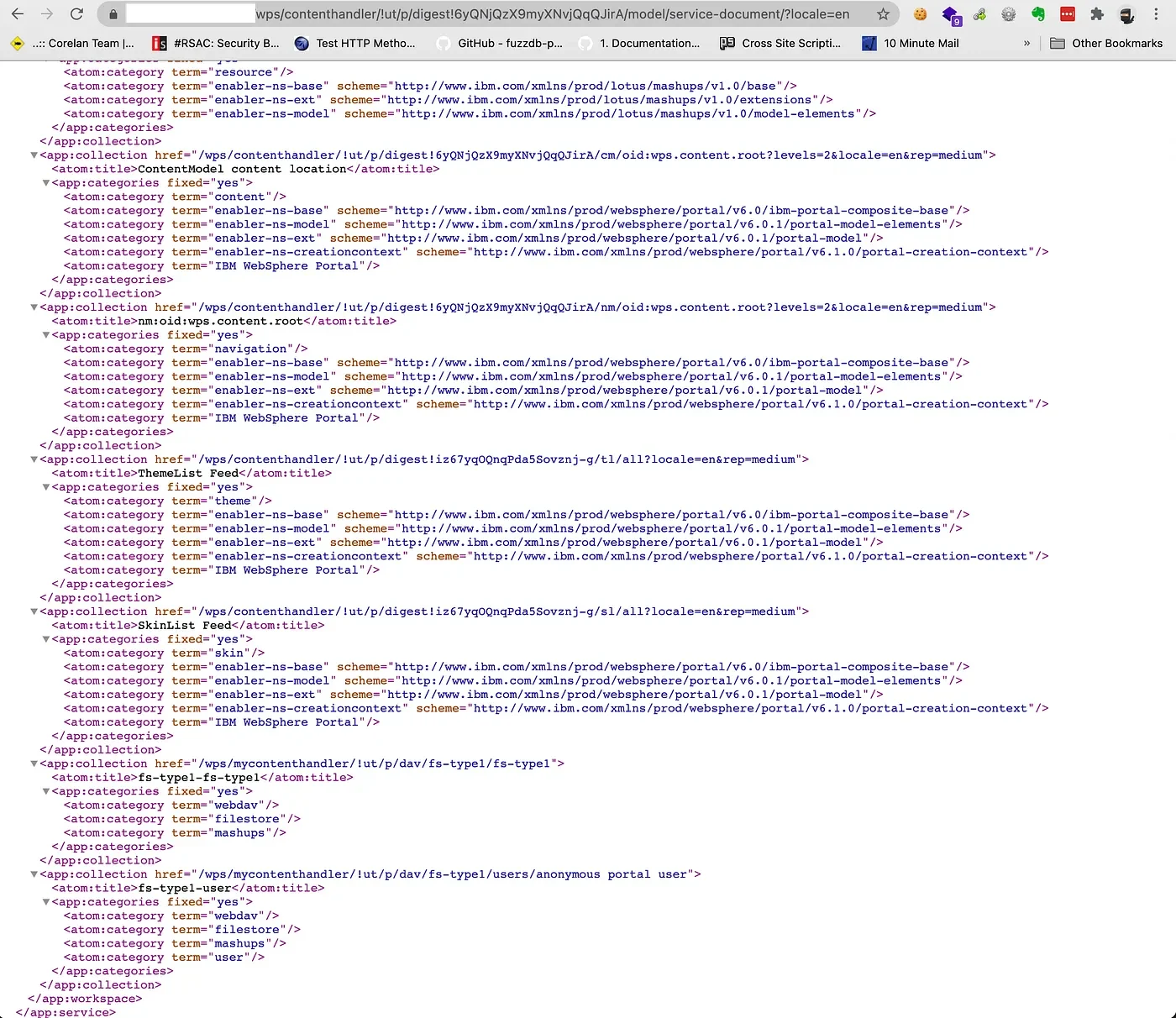
The service document gives you URLs that in some cases require authentication, and the authentication in use is basic authentication. That is where you enter the credentials you created earlier, by going to a URL like:
https://example.com/wps/mycontenthandler/!ut/p/dav/fs-type1/users/anonymous portal user
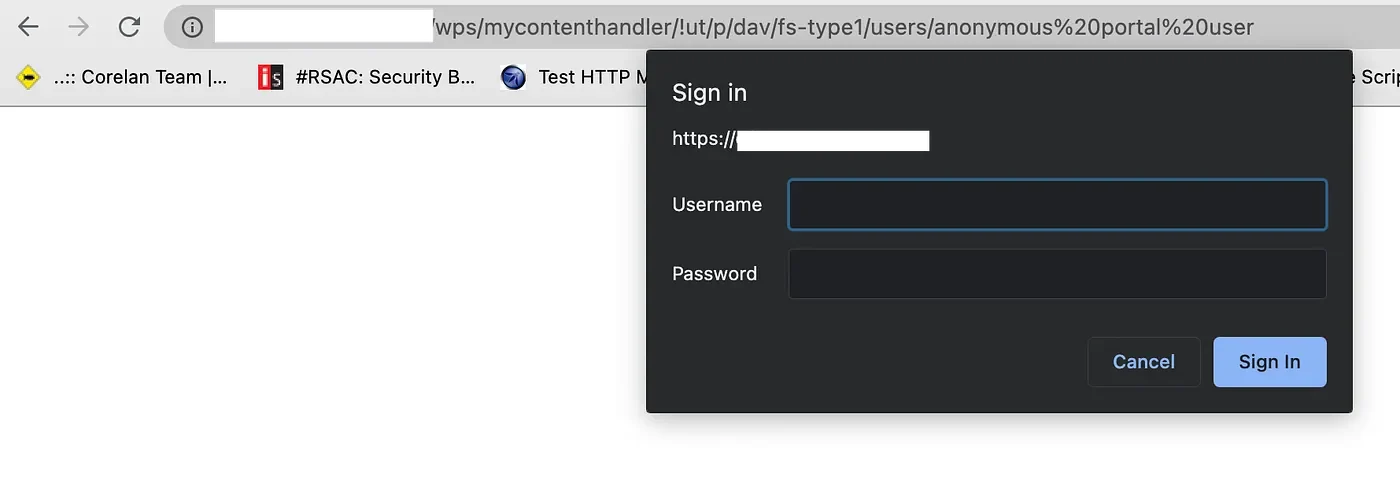
This prompts you for credentials. The same mechanism can be used to brute force administration credentials, which would make you an administrator of the site: issue number three. The default administrator is wpsadmin with password wpsadmin. This is a feature.
You may be redirected and logged in automatically, and in some cases you may see a page with information about anonymous users that is not particularly interesting. Once logged in with your new account, browse to the sign-up page URL below and you are redirected to the administration portion of the site:
https://example.com/wps/portal/!ut/p/z1/[redacted]-vEowNSPrFC_IDc0FABEybE8/dz/d5/L2dBISEvZ0FBIS9nQSEh/dz/d5/[redacted]/#Z7_00000000000000A0BR2B300IO0
There you go: you created a backdoor account. The permissions it has depend on how the site is configured. You may be able to delete content, search for other users, discover content, view the site map, or create content used to deliver XSS attacks. There may be a WAF stopping some attacks, but a WAF will not stop you from creating, editing and gathering data.
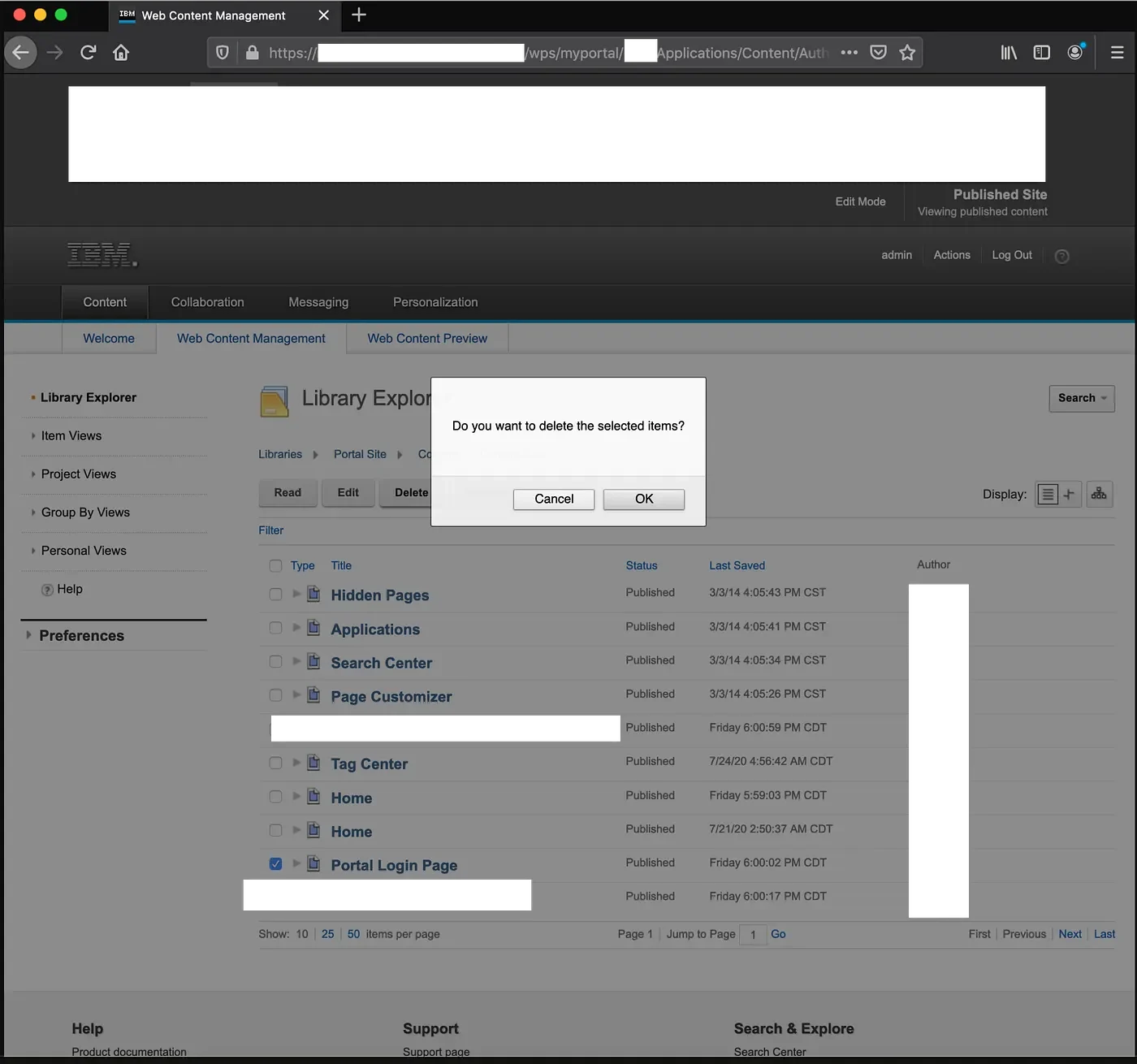
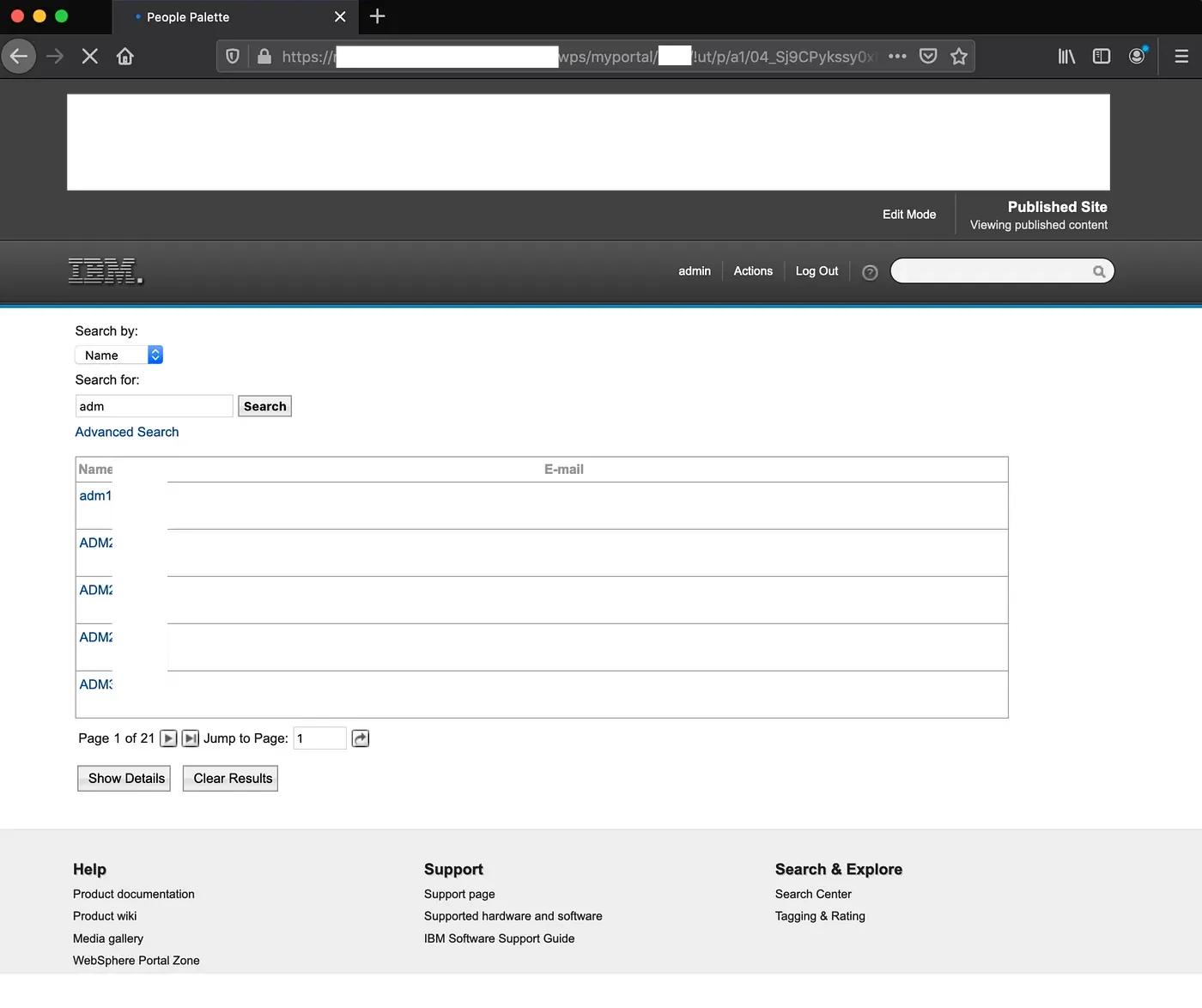
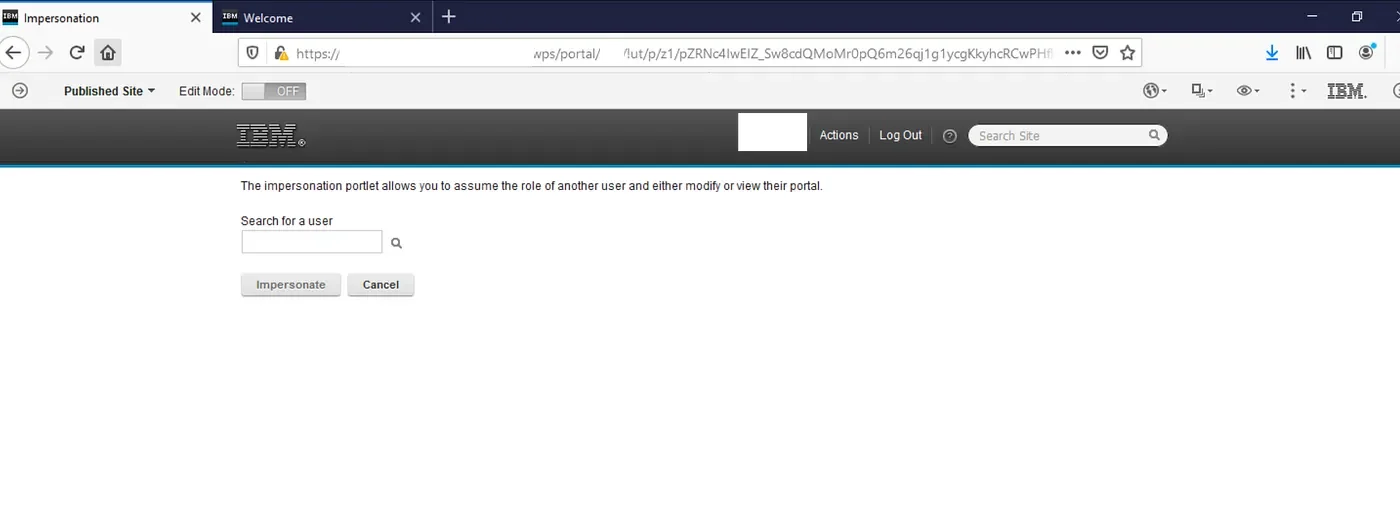
Step 5: reach Web Content Manager administration
Once you have access, you can also reach IBM Web Content Manager, which IBM describes as accelerating the creation, maintenance and delivery of content across intranet, extranet, Internet and portal sites, and which is an administration part of WebSphere. The tools below are common ones that can aid in clearing your tracks or deleting all content on the site. What you can actually do varies with permissions.
Managing workflows with the workflow checker tool:
https://example.com/wps/wcm/myconnect/?MOD=workflowenablement&alllibraries=true&workflow=&fix=true
Clearing version history:
https://example.com/wps/wcm/myconnect?MOD=ClearVersions&day=date&month=month&year=year&keep=number_of_entries&restrictOn=item_type&library=library_name&fix=true&preserve_dates=true
The export cache settings task:
https://example.com/wps/wcm/myconnect?MOD=ExportCacheSettings&processLibraries=false
History Cropper:
https://example.com/wps/wcm/myconnect?MOD=ClearHistory&day=date&month=month&year=year&keep=number_of_entries&restrictOn=item_type&library=library_name&fix=true
Data Module:
https://example.com/wps/wcm/myconnect?MOD=data&processLibraries=false&taskType=export&exportLibrary=&output.dir=%2FIBM%2Fexport&single.export.dir=false
Unlock Library Module:
https://example.com/wps/wcm/myconnect?MOD=UnlockLibrary&library=libraryname
Reset EventLog Module:
https://example.com/wps/wcm/myconnect?MOD=reseteventlog&library=libraryname&remove=true
Large Resource Finder Module:
https://example.com/wps/wcm/myconnect?MOD=FindLargeResources
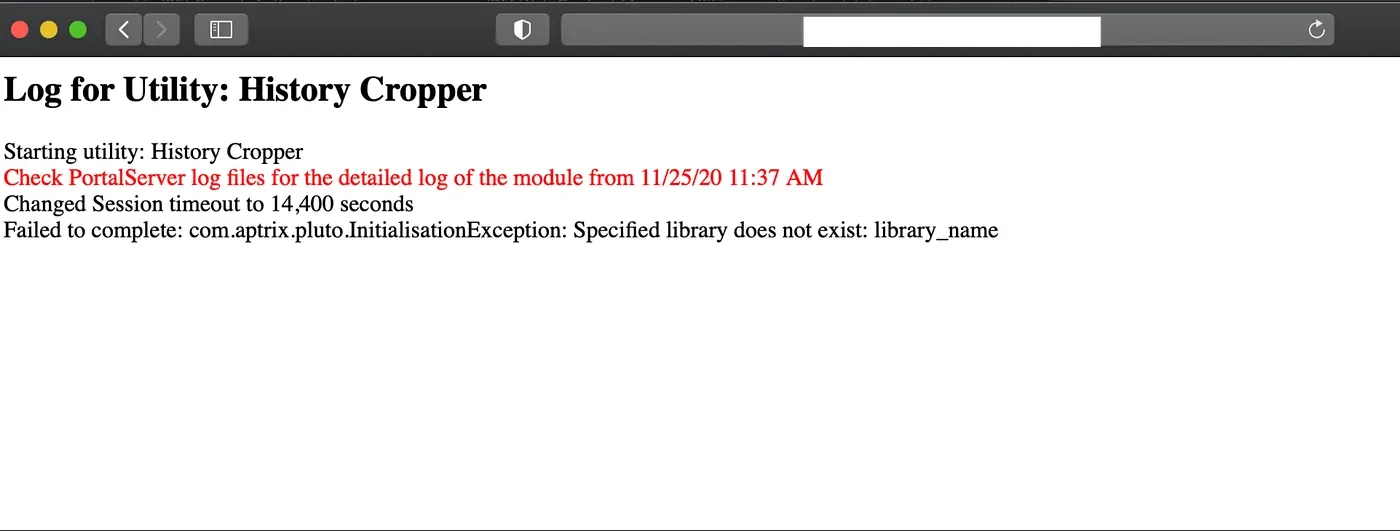
Authenticated users of a website can also access these parts of the site. A user configured on the main site may have excessive permissions on the backend, may be able to elevate their permissions once logged in, or may create their own backdoor account that is not monitored.
Root cause
The design flaw is that anonymous portal users are allowed to create backend users, and that the unauthenticated content handler serves content elements (hidden pages, user lists, permissions, memberships, the service document) that should require authentication. The sign-up page is reachable by default, and the service document, which is also reachable unauthenticated, tells you where to present the credentials you just created. The default administrator credentials, wpsadmin / wpsadmin, are another route to administrative access.
Impact
An unauthenticated attacker can create an account on the backend of a WebSphere Portal site and log in with it, then reach the administration portion of the site. What that account can do depends on the site's configuration: delete content, search for other users, discover content, view the site map, create content used to deliver XSS attacks, and reach Web Content Manager tools that can clear version history, crop history, export data, unlock libraries, reset the event log or find large resources. The account may also be usable to brute force administrator credentials. A WAF may stop some attacks, but it will not stop creating, editing and gathering data.
Fix
I reported this to IBM in the hope of a resolution. Almost a year later, their fix was to put a WAF in front of the sign-up page, without fixing the fact that anonymous users can create accounts. I have been able to bypass similar WAF fixes using other methods that I am keeping to myself for now. So the fix is to fire up your WAF, block the sign-up page, and good luck. The underlying problem, anonymous users being able to create accounts, remains.
Variants to test
- Request the content handler with
uri=ra:oid:collectionon any WebSphere Portal site and look for a page collection in the response. A positive result is a listing of portal content returned without authentication. - Request
uri=nm:oid:wps.content.rootanduri=nm:oid:ibm.portal.HiddenPagesthrough the unauthenticated content handler. A positive result is a document that names hidden pages, users, permissions or memberships. - Take a friendly path from the hidden pages and follow it to the sign-up page, then submit the form. A positive result is either the Congratulations! message or the error message, both of which indicate a backend user was created.
- Fetch the service document at
/wps/contenthandler/!ut/p/digest!.../model/service-document/?locale=enand look for links that require basic authentication. A positive result is a list of authenticated resources you can then reach with the credentials you created. - Try the default
wpsadmin/wpsadmincredentials against the basic authentication prompt. A positive result is administrative access. - After logging in, browse to the sign-up page URL and check whether you are redirected to the administration portion of the site. A positive result is the administration interface.
- Try the Web Content Manager
myconnectmodules listed above with your account.
What happened, in plain words
A security researcher found that many websites built with a piece of software called IBM WebSphere Portal let anyone, without logging in, create an account on the site's backend. The backend is the part of a website that staff use to manage it, not the part visitors normally see. Once that account exists, the researcher could log in with it and reach the administration area, where they could delete content, look up other users, and use tools that clear or export data.
The researcher reported it to IBM. Almost a year later, IBM's fix was to put a web application firewall (WAF) in front of the sign-up page. A WAF is a filter that sits in front of a website and blocks requests that look malicious. That fix blocks the sign-up page but does not change the fact that anonymous users can create accounts. The researcher says they have bypassed similar WAF fixes with other methods, which they are keeping to themselves for now.
This article walks through the whole thing from the beginning, assuming you can use a browser and nothing else. Every request is shown exactly as it appeared, and each one is explained in plain words.
The software involved
WebSphere Portal is enterprise software used to build and manage web portals. A portal is a website that pulls together many pages, applications and pieces of content in one place. WebSphere Portal is used by government, medical and shipping service websites.
The product exposes a set of handlers under /wps/. A handler is a part of a website that responds to a particular kind of request, a bit like a specific counter at a service desk: you go to the counter that deals with your kind of query. There are four relevant ones:
contenthandlerandportalare for unauthenticated access, meaning anyone can use them without logging in.mycontenthandlerandmyportalare for authenticated access, meaning you need to be logged in.
The contenthandler is meant to display or download content elements of the portal. A content element is a piece of the portal, such as a page or a list. You address it with a URI, which is just an address string, made of a directory and an object ID.
The feature at the centre of this write-up is the portal's self-service sign-up. Self-service means the site lets people register themselves rather than an administrator creating accounts for them. On a default install, anonymous portal users are allowed not only to reach the sign-up page but to create backend users. Combined with the unauthenticated content handler, which hands out hidden pages, user lists, permissions and memberships, that sign-up becomes a way to obtain an account on the backend of a site you were never registered for.
Setup
No special tooling was needed. The researcher started from a browser and the page HTML, and the only artefact produced along the way was a Nuclei template to find exposed sign-up pages. Nuclei is a tool that runs a list of checks against a website to spot known issues; a template is one such check. The precondition is simply a WebSphere Portal site whose sign-up page is reachable, which is the default. Nothing in the report depends on a particular version number.
Finding it
Last year, while working on a Synack target, the researcher noticed a website with a long string in its URLs. Synack is a platform where organisations invite researchers to test their systems. A target is the system being tested.
https://example.com/wps/portal/!ut/p/z1/[redacted]-[redacted]!!/dz/d5/L2dBISEvZ0FBIS9nQSEh/
Line by line:
https://example.comis the site being visited./wps/portal/is the portal handler, one of the unauthenticated entry points.!ut/p/z1/04_Sj9...is a long encoded string. The researcher recognised it as serialised state, meaning data that a program has turned into a text string so it can be stored or passed around. To a newcomer it looks like noise, but it is a clue about which software is running./dz/d5/L2dBISEvZ0FBIS9nQSEh/is more of the same encoded state.
After some poking around, the researcher found out the site was an IBM WebSphere Portal. That was all they knew at the time.
The researcher always starts by looking at the HTML, the code that makes up a web page, to see what they are up against. In it they found something interesting:
src="/wps/contenthandler/mac/!ut/p/digest!xbnABNVrRrLQ2pjPx5pxWA/mashup/ra:collection?themeID=ZJ_5Q90G1K0KG7AF0AKJJD75G0004&locale=en&mime-
Line by line:
src=is an HTML attribute that tells the browser where to load something from, usually an image or a script./wps/contenthandler/is the unauthenticated content handler.macis the friendly path of the main site. A friendly path is a readable name for a part of the site, and it can differ from site to site.!ut/p/digest!xbnABNVrRrLQ2pjPx5pxWA/is more encoded state, including a digest, which is a short value derived from data, used here as part of the address.mashup/ra:collectionnames a mashup, a page that combines several pieces of content, and the collection being requested.?themeID=...&locale=en&mime-are parameters. A parameter is a named value passed in the URL after the?, separated by&.themeIDpicks a visual theme,locale=enasks for English, andmime-is cut off in the snippet.&is how an ampersand is written inside HTML.
That is a content handler URL. After reading how it works, the researcher found the URL below downloads the page collection:
https://example.com/wps/contenthandler/mac/?uri=ra:oid:collection
Line by line:
https://example.comis the site./wps/contenthandler/is the unauthenticated handler used to display or download things.?uri=ra:oid:collectionis the parameter that says what to fetch.uriis the address of the content element.rais the directory.oidmeans object ID, the identifier of the thing.collectionis the object being asked for.
The parts of that URL matter for everything that follows. wps is the main URL prefix. contenthandler is the unauthenticated handler used to display or download things. mac is the friendly path of the main site, and it can differ from site to site. The uri parameter consists of a directory, here ra, and an object ID (oid), here collection. Common directories include nm, ac, um and ra.
The packages below define content elements of the portal and its surrounding infrastructure. A package here is a named bundle of content definitions:
- editLayout:
ibm.portal.Content - MainPage:
wps.content.root - editPageProperties:
ibm.portal.Page Properties - assignRoles:
ibm.portal.Resource Permissions - editAppProperties:
ibm.portal.Template and Application Properties - editAppLayout:
ibm.portal.Template and Application Layout - assignAppRoles:
ibm.portal.Application Roles - assignAppMembers:
ibm.portal.Application Membership - showAppPolicyStatus:
ibm.portal.Policy Status - hiddenPages:
ibm.portal.HiddenPages
The list of packages changes per site, but a few are common, notably wps.content.root and ibm.portal.HiddenPages.
Exploitation
Step 1: download portal content with the unauthenticated handler
Using the package list, you construct URLs against the content handler. For example, to download the root content:
https://example.com/wps/contenthanlder/mac/?uri=nm:oid:wps.content.root
Line by line:
https://example.comis the site./wps/contenthanlder/is the content handler. Note the spelling in the report:contenthanlder, with the letters swapped. This is exactly how it appears in the original.?uri=nm:oid:wps.content.rootasks for the content element namedwps.content.rootin thenmdirectory.wps.content.rootis the root of the portal's content, the top of the tree from which everything else hangs.
Through this handler the researcher could download pages that reveal hidden parts of the site, users, permissions and memberships that should not be accessible to unauthenticated users. Downloading a list of users:
Or the access level those users have:
Some parts of the site are restricted, so it is worth remembering which prefixes are authenticated and which are not:
contenthandler = Unauthenticated

mycontenthandler = Authenticated

portal = Unauthenticated

myportal = Authenticated
Line by line:
contenthandler = Unauthenticatedmeans the content handler can be used without logging in.mycontenthandler = Authenticatedmeans themyversion requires a login.portal = Unauthenticatedmeans the portal handler can be used without logging in.myportal = Authenticatedmeans themyversion requires a login.
The pattern is simple: the my prefix marks the logged-in version. The first issue is that the unauthenticated content handler will download parts of the site that divulge information it should not. This is a feature.
Step 2: download the hidden pages
Next, download the hidden pages, which expose URLs that lead to the backend:
https://examples/wps/contenthandler/?uri=nm:oid:ibm.portal.HiddenPages
Line by line:
https://examplesis the site. The report writes it without.comhere, exactly as shown./wps/contenthandler/is the unauthenticated handler.?uri=nm:oid:ibm.portal.HiddenPagesasks for the content elementibm.portal.HiddenPagesin thenmdirectory. Hidden pages are pages that are not linked in the normal navigation but still exist and can be reached if you know their address.
Once ibm.portal.HiddenPages is downloaded, you can find paths such as the friendly path:
https://examples.com/wps/portal/client/welcome/!ut/p/z1/[redacted]-AAjgb6BbmhigBypoQ7/dz/d5/L2dBISEvZ0FBIS9nQSEh/?uri=nm:oid:Z6_00000000000000A0BR2B300GG2
Line by line:
https://examples.comis the site./wps/portal/is the unauthenticated portal handler.client/welcome/is a readable path, the friendly path of a page.!ut/p/z1/04_Sj9...is encoded state, as before./dz/d5/L2dBISEvZ0FBIS9nQSEh/is more encoded state.?uri=nm:oid:Z6_00000000000000A0BR2B300GG2asks for a specific content element by its object ID, a long identifier starting withZ6_.
That URL redirects you to the friendly path. A redirect is when the server answers a request by telling the browser to go to a different address. If you can reach the friendly path, you can reach the sign-up page. This is a feature.
Step 3: create a backend user through sign-up
Now you can sign up a user. On a default install of WebSphere Portal, the site allows anonymous portal users not only to reach the sign-up page but to create backend users. That is issue number two.
After entering basic information and clicking OK, you may get one of two messages. The first is a Congratulations! message:
The second is an error message:
Both messages mean you created a user on the backend. On some websites the login is blocked, or you are redirected to the site's main login page. Keep in mind that the user you create is a backend user that was not registered for the main site's content. The researcher has seen a user of the main site being created, with access to restricted content because of the lack of registration, but normally the user you create is only for administering the site.
Step 4: log in with the new account via the service document
If the login redirects or is blocked, how do you log in with the user you just created? Unauthenticated or anonymous users have access to what is called the service document, a list of links to documents and resources. This is a feature.
https://example.com/wps/contenthandler/!ut/p/digest!KUVNi3mCXU3yrSbamw858g/model/service-document/?locale=en
Line by line:
https://example.comis the site.!ut/p/digest!KUVNi3mCXU3yrSbamw858g/is encoded state including a digest.model/service-document/asks for the service document, the list of links.?locale=enasks for the English version.
The service document gives you URLs that in some cases require authentication, and the authentication in use is basic authentication. Basic authentication is a simple login method where the browser shows a small pop-up asking for a username and password, and sends them with each request. That is where you enter the credentials you created earlier, by going to a URL like:
https://example.com/wps/mycontenthandler/!ut/p/dav/fs-type1/users/anonymous portal user
Line by line:
https://example.comis the site./wps/mycontenthandler/is the authenticated handler, themyversion.!ut/p/dav/is encoded state.davrefers to WebDAV, a set of rules for reading and writing files over the web.fs-type1/users/anonymous portal useris a path to a user area. The report shows it with a space inanonymous portal user, exactly as written.
This prompts you for credentials. The same mechanism can be used to brute force administration credentials, which would make you an administrator of the site: issue number three. Brute forcing means trying many username and password combinations until one works. The default administrator is wpsadmin with password wpsadmin. This is a feature.
You may be redirected and logged in automatically, and in some cases you may see a page with information about anonymous users that is not particularly interesting. Once logged in with your new account, browse to the sign-up page URL below and you are redirected to the administration portion of the site:
https://example.com/wps/portal/!ut/p/z1/[redacted]-vEowNSPrFC_IDc0FABEybE8/dz/d5/L2dBISEvZ0FBIS9nQSEh/dz/d5/[redacted]/#Z7_00000000000000A0BR2B300IO0
Line by line:
https://example.comis the site./dz/d5/[redacted]/is a long stretch of encoded state that carries the page and user context.#Z7_00000000000000A0BR2B300IO0is a fragment, the part after#. A fragment is handled by the browser and points at a specific element on the page.
There you go: you created a backdoor account. A backdoor account is an account that gives access to a system without going through the normal, intended route. The permissions it has depend on how the site is configured. You may be able to delete content, search for other users, discover content, view the site map, or create content used to deliver XSS attacks. XSS, cross-site scripting, is when an attacker gets their own code to run in another person's browser through a website. There may be a WAF stopping some attacks, but a WAF will not stop you from creating, editing and gathering data.
Step 5: reach Web Content Manager administration
Once you have access, you can also reach IBM Web Content Manager, which IBM describes as accelerating the creation, maintenance and delivery of content across intranet, extranet, Internet and portal sites, and which is an administration part of WebSphere. An intranet is a private network inside an organisation; an extranet is a private network shared with outside partners. The tools below are common ones that can aid in clearing your tracks or deleting all content on the site. What you can actually do varies with permissions.
Managing workflows with the workflow checker tool:
https://example.com/wps/wcm/myconnect/?MOD=workflowenablement&alllibraries=true&workflow=&fix=true
Line by line:
https://example.comis the site./wps/wcm/myconnect/is the Web Content Manager administration endpoint.wcmstands for Web Content Manager.?MOD=workflowenablementselects the workflow checker tool. A workflow is a defined sequence of steps content goes through, such as draft, review and publish.&alllibraries=trueapplies the action to all libraries. A library is a container of content.&workflow=leaves the workflow name empty.&fix=truetells the tool to apply fixes rather than just report.
Clearing version history:
https://example.com/wps/wcm/myconnect?MOD=ClearVersions&day=date&month=month&year=year&keep=number_of_entries&restrictOn=item_type&library=library_name&fix=true&preserve_dates=true
Line by line:
MOD=ClearVersionsselects the tool that clears version history. Version history is the record of every past change to a piece of content.day=date&month=month&year=yearare placeholders for a date.keep=number_of_entriesis a placeholder for how many entries to keep.restrictOn=item_typeis a placeholder for which type of item to act on.library=library_nameis a placeholder for the library name.fix=trueapplies the change.preserve_dates=truekeeps the original dates.
The export cache settings task:
https://example.com/wps/wcm/myconnect?MOD=ExportCacheSettings&processLibraries=false
Line by line:
MOD=ExportCacheSettingsselects the tool that exports cache settings. A cache is a store of prepared data kept to speed things up.processLibraries=falsemeans do not process the libraries.
History Cropper:
https://example.com/wps/wcm/myconnect?MOD=ClearHistory&day=date&month=month&year=year&keep=number_of_entries&restrictOn=item_type&library=library_name&fix=true
Line by line:
MOD=ClearHistoryselects the History Cropper tool, which trims history.- The date, keep, restrict and library parameters are placeholders, as in the previous tool.
fix=trueapplies the change.
Data Module:
https://example.com/wps/wcm/myconnect?MOD=data&processLibraries=false&taskType=export&exportLibrary=&output.dir=%2FIBM%2Fexport&single.export.dir=false
Line by line:
MOD=dataselects the data module.taskType=exportasks for an export.exportLibrary=leaves the library name empty.output.dir=%2FIBM%2Fexportsets the output folder.%2Fis the encoded form of a slash, so this reads/IBM/export.single.export.dir=falsemeans do not use a single export folder.
Unlock Library Module:
https://example.com/wps/wcm/myconnect?MOD=UnlockLibrary&library=libraryname
Line by line:
MOD=UnlockLibraryselects the tool that unlocks a library, for example one left locked by a crashed process.library=librarynameis a placeholder for the library name.
Reset EventLog Module:
https://example.com/wps/wcm/myconnect?MOD=reseteventlog&library=libraryname&remove=true
Line by line:
MOD=reseteventlogselects the tool that resets the event log, the record of what happened on the system.remove=trueremoves the entries.
Large Resource Finder Module:
https://example.com/wps/wcm/myconnect?MOD=FindLargeResources
Line by line:
MOD=FindLargeResourcesselects the tool that finds large resources, useful for spotting what takes up space.
Authenticated users of a website can also access these parts of the site. A user configured on the main site may have excessive permissions on the backend, may be able to elevate their permissions once logged in, or may create their own backdoor account that is not monitored.
Root cause
The design flaw is that anonymous portal users are allowed to create backend users, and that the unauthenticated content handler serves content elements (hidden pages, user lists, permissions, memberships, the service document) that should require authentication. The sign-up page is reachable by default, and the service document, which is also reachable unauthenticated, tells you where to present the credentials you just created. The default administrator credentials, wpsadmin / wpsadmin, are another route to administrative access.
Impact
An unauthenticated attacker can create an account on the backend of a WebSphere Portal site and log in with it, then reach the administration portion of the site. What that account can do depends on the site's configuration: delete content, search for other users, discover content, view the site map, create content used to deliver XSS attacks, and reach Web Content Manager tools that can clear version history, crop history, export data, unlock libraries, reset the event log or find large resources. The account may also be usable to brute force administrator credentials. A WAF may stop some attacks, but it will not stop creating, editing and gathering data.
Fix
The researcher reported this to IBM in the hope of a resolution. Almost a year later, their fix was to put a WAF in front of the sign-up page, without fixing the fact that anonymous users can create accounts. The researcher has been able to bypass similar WAF fixes using other methods that they are keeping to themselves for now. So the fix is to fire up your WAF, block the sign-up page, and good luck. The underlying problem, anonymous users being able to create accounts, remains.
Variants to test
- Request the content handler with
uri=ra:oid:collectionon any WebSphere Portal site and look for a page collection in the response. A positive result is a listing of portal content returned without authentication. - Request
uri=nm:oid:wps.content.rootanduri=nm:oid:ibm.portal.HiddenPagesthrough the unauthenticated content handler. A positive result is a document that names hidden pages, users, permissions or memberships. - Take a friendly path from the hidden pages and follow it to the sign-up page, then submit the form. A positive result is either the Congratulations! message or the error message, both of which indicate a backend user was created.
- Fetch the service document at
/wps/contenthandler/!ut/p/digest!.../model/service-document/?locale=enand look for links that require basic authentication. A positive result is a list of authenticated resources you can then reach with the credentials you created. - Try the default
wpsadmin/wpsadmincredentials against the basic authentication prompt. A positive result is administrative access. - After logging in, browse to the sign-up page URL and check whether you are redirected to the administration portion of the site. A positive result is the administration interface.
- Try the Web Content Manager
myconnectmodules listed above with your account.
Glossary
- Anonymous user: someone using a site without logging in.
- Authenticated: logged in, with an identity the site recognises.
- Backdoor account: an account that gives access to a system without going through the normal, intended route.
- Basic authentication: a simple login method where the browser shows a pop-up asking for a username and password and sends them with each request.
- Brute force: trying many username and password combinations until one works.
- Cache: a store of prepared data kept to speed things up.
- Content element: a piece of a portal, such as a page or a list.
- Content handler: the part of WebSphere Portal that displays or downloads content elements.
- Credentials: a username and password, or similar proof of identity.
- Cross-site scripting (XSS): when an attacker gets their own code to run in another person's browser through a website.
- Digest: a short value derived from data, used here as part of an address.
- Directory (in a URI): the first part of the address, such as
nm,ac,umorra, that groups content elements. - Encoded state: data that a program has turned into a text string so it can be stored or passed around, often looking like random characters.
- Extranet: a private network shared with outside partners.
- Fragment: the part of a URL after
#, handled by the browser and pointing at a specific element on the page. - Friendly path: a readable name for a part of a site, such as
macorclient/welcome. - Handler: a part of a website that responds to a particular kind of request.
- Hidden pages: pages that are not linked in the normal navigation but still exist and can be reached if you know their address.
- HTML: the code that makes up a web page.
- Intranet: a private network inside an organisation.
- Library: a container of content in Web Content Manager.
- Nuclei: a tool that runs a list of checks against a website to spot known issues.
- Object ID (oid): the identifier of a content element.
- Package: a named bundle of content definitions.
- Parameter: a named value passed in a URL after the
?, separated by&. - Portal: a website that pulls together many pages, applications and pieces of content in one place.
- Redirect: when the server answers a request by telling the browser to go to a different address.
- Self-service sign-up: a site feature that lets people register themselves rather than an administrator creating accounts for them.
- Service document: a list of links to documents and resources that WebSphere Portal exposes.
- Synack: a platform where organisations invite researchers to test their systems.
- Target: the system being tested.
- URI: an address string identifying a resource.
- Version history: the record of every past change to a piece of content.
- WAF (web application firewall): a filter that sits in front of a website and blocks requests that look malicious.
- Web Content Manager (WCM): an administration part of WebSphere for creating, maintaining and delivering content.
- WebDAV: a set of rules for reading and writing files over the web.
- WebSphere Portal: enterprise software used to build and manage web portals.
- Workflow: a defined sequence of steps content goes through, such as draft, review and publish.

