ZDI-21-1053: Bypassing Windows Lock Screen
A flaw in the Windows lock screen's password reset flow allowed an attacker with physical access to spawn background windows and eventually execute arbitrary commands with elevated privileges. The attacker could bypass the lock screen and run code as an authenticated user.
 Published on halove23.blogspot.com
In April 2021, I discovered a security flaw in Windows Recovery Environment Agent which allowed an unauthenticated attacker to gain elevated access to a windows machine in a locked state.
The full write-up lives on its author's site
It belongs to its author, so we link to it rather than copy it. The other two tabs are our own rewrites, checked against it.
Context
In April 2021 the researcher found a security flaw in the Windows Recovery Environment Agent that allowed an unauthenticated attacker to gain elevated access to a Windows machine in a locked state. The write-up is titled ZDI-21-1053 and describes a lock screen bypass that ends in command execution from a USB device.
The research builds on Jonas's findings about bypassing the lock screen through the Ease of Access feature. Looking at CVE-2020-1398, the earlier bug existed in the sticky keys pop-up: clicking a link in that pop-up spawned an instance of Settings in the background, and from there the lock screen could simply be bypassed. Microsoft patched that issue by removing the link, which no longer appears when the pop-up is spawned in a lock screen environment.
Setup
The bug and its descendants need one condition: on a Windows 10 machine, at least one user must have a Microsoft account linked to their local account. Otherwise the bug is not exploitable.
The tools used are the lock screen's password and PIN reset flow, Narrator, and a USB device for the final payload. Narrator is central because the spawned windows are invisible on the lock screen; the researcher navigates them by ear, listening to what Narrator announces.
Finding it
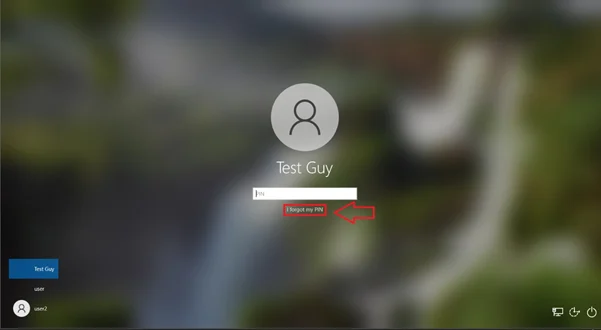
Windows lets a user reset their password or PIN if they have access to their Microsoft account. Clicking "I forgot my PIN" on the lock screen redirects to a page like the one below.
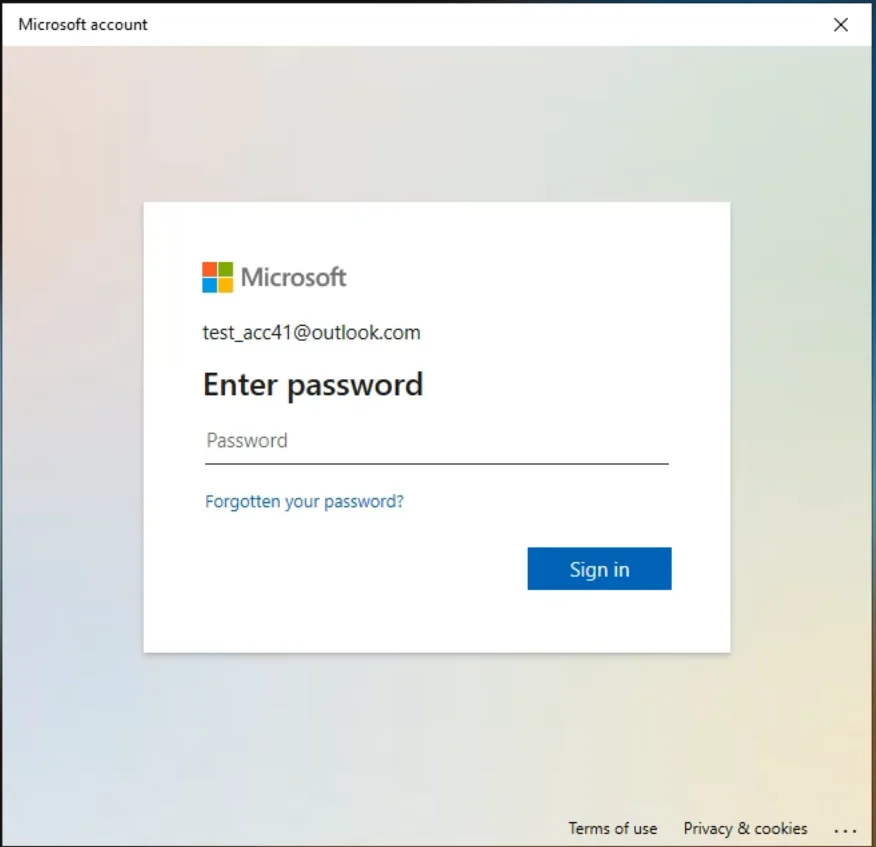
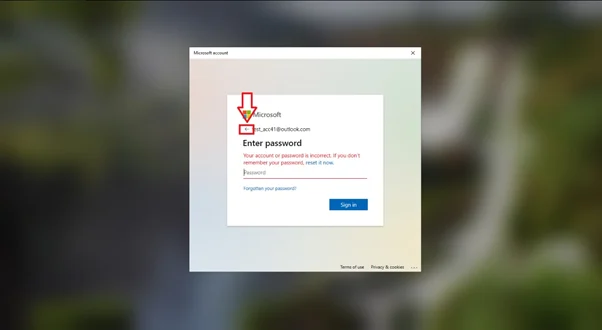
Typing a wrong password produced a strange behaviour: a small arrow appeared next to the email address. The researcher was unsure whether this was a bug or a feature, and notes that apparently it is a feature after the patch.
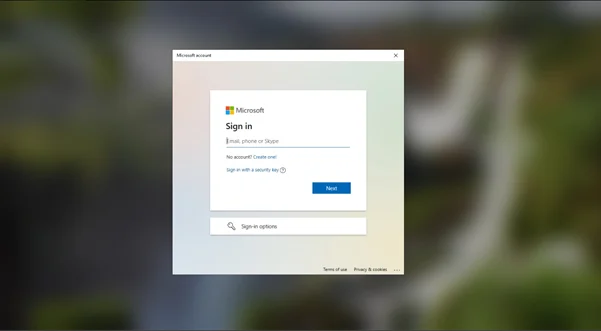
Clicking the arrow leads to another page where it is possible to log in with another email address or even create a new account.
Creating a new account and logging in with it fails, because the account does not belong to the one whose password is being reset. But a small button on that page attracted the researcher's attention.
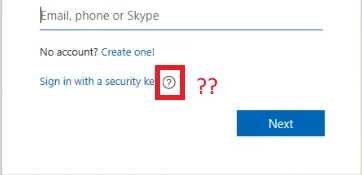
Clicking that button opens another pop-up dialogue containing a link.
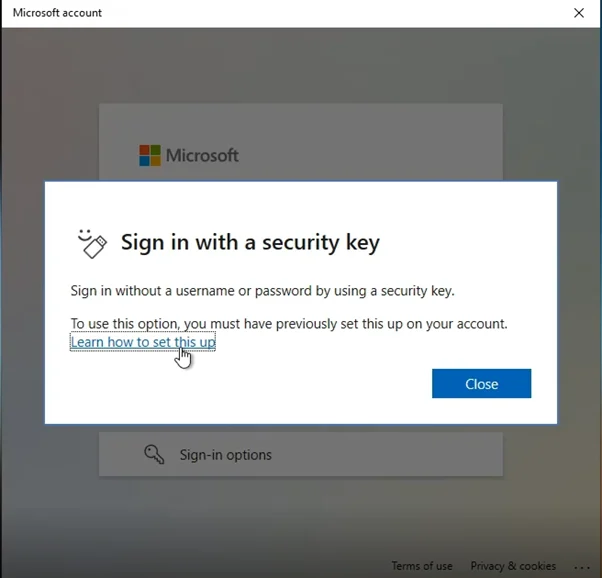
A link on the lock screen is unusual. Clicking it did absolutely nothing visible, but the researcher suspected something had been spawned in the background, as Jonas had described using Narrator to navigate background apps during his lock screen bypass. Enabling Narrator produced interesting results.
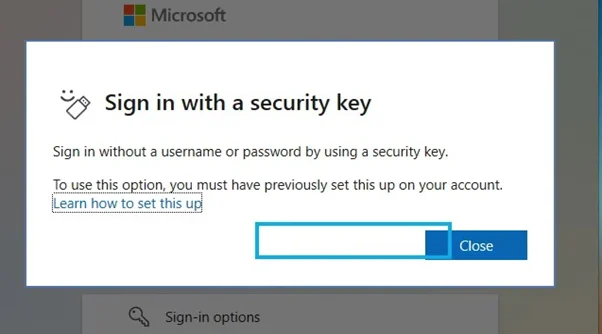
With Narrator enabled, clicking the button makes Narrator say "how do you want to open this", and its focus sits on something other than the Microsoft account window. An "Open With" window had been spawned in the background. A typical "Open With" window looks like this.
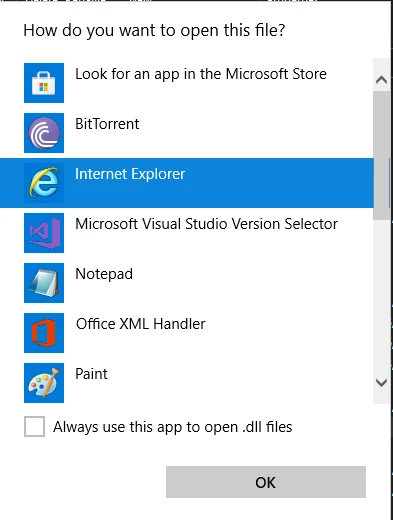
This one has only two options: MS Edge and Internet Explorer. The researcher proceeds with MS Edge because it is selected by default, and notes that you may need to hold Caps Lock while using the arrow keys to navigate.
Exploitation
Step 1: Spawn the Open With window and keep Narrator focus
After tests, selecting OK loses Narrator's focus, and the background window can no longer be controlled. Repeating the steps above restores Narrator's focus, but this time on the MS Edge browser. From here privileges must be elevated, and the only way the researcher can think of to execute arbitrary commands is to spawn a Settings instance.
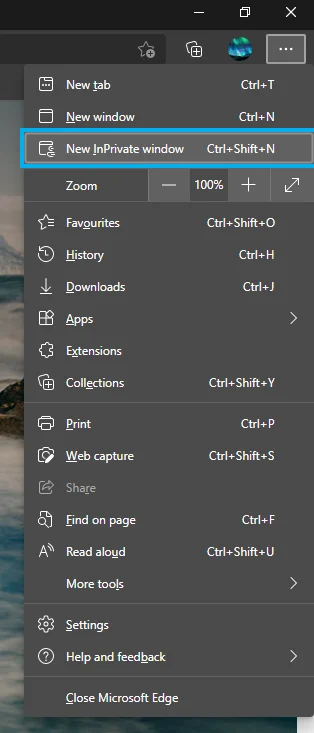
Step 2: Spawn an InPrivate window and reach Settings
A new InPrivate window is spawned. None of this is visible: everything happens invisibly, and you must use your ear to hear what Narrator says and navigate with it.
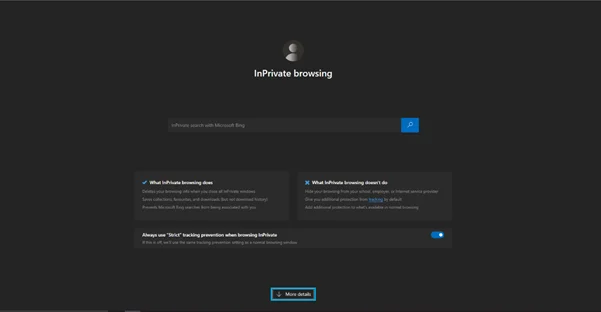
You might then need to go to "More details".
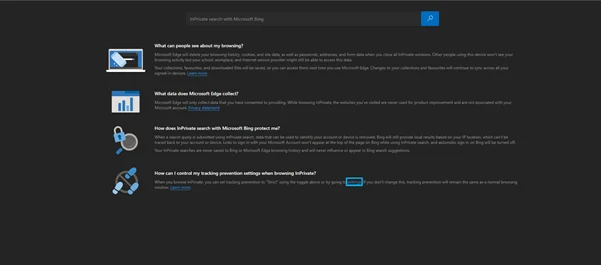
Press Enter and navigate to Settings.
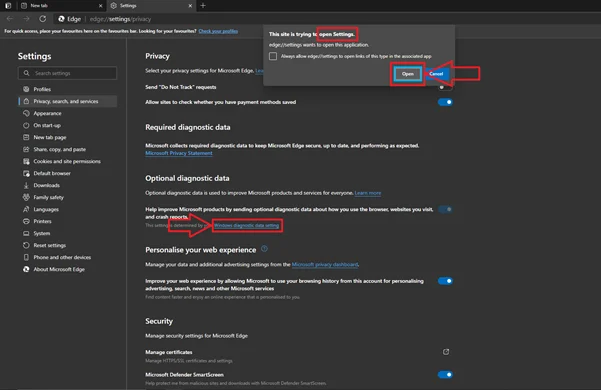
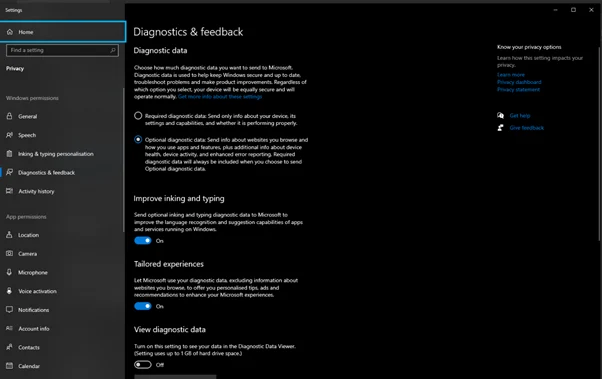
This redirects to another page. Keep navigating until you reach "Windows Diagnostic data setting", then use Narrator to open it and press Enter again.
Step 3: Walk Settings to the Autoplay handler
In Settings, navigate to "Home" and press Enter.
Then navigate to "Devices".
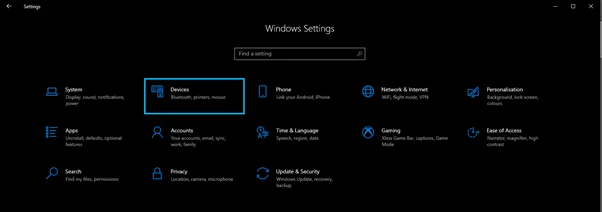
Navigate to Autoplay, then Choose Autoplay Defaults, then "Open folder to view files (File explorer)".
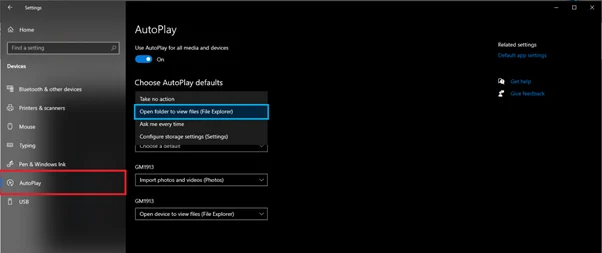
Step 4: Plug in the USB and execute
At this point a USB device must be plugged into the machine. As soon as it is plugged in, Narrator's focus lands on File Explorer, and anything on the USB can be executed.
To verify the findings, the researcher wrote a simple batch script:
mkdir c:\poc
whoami /all >  c:\poc\whoami.log
The first line creates a directory at c:\poc. The second writes the full token and privilege listing of the current context to c:\poc\whoami.log. After execution the result is a success.
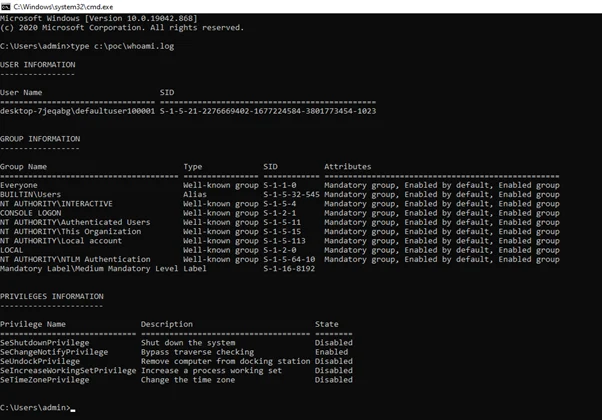
Elevating privileges from there is easy, because the context is marked as "NT AUTHORITY\Authenticated Users" and the majority of elevation-of-privilege techniques are reachable from those privileges.
A video proof of concept is available at https://youtu.be/9rXXfWN0h6A.
Root cause
The chain starts with a link inside a pop-up dialogue in the lock screen's Microsoft account password/PIN reset flow. Clicking it spawns an "Open With" window in the background, which the lock screen does not prevent. Narrator, which the lock screen allows to be enabled, can then be used to drive that invisible window: it launches MS Edge, and from the browser an InPrivate window and a Settings instance can be reached. Settings exposes the Autoplay default handler, where the attacker chooses to open File Explorer for removable drives, so plugging in a USB device hands execution of attacker-chosen files to the locked session.
The earlier fix for CVE-2020-1398 removed the link from the sticky keys pop-up; this attack uses a separate path to a background window. The write-up does not describe the underlying code change or the exact component that spawns the window, so the precise defect is not stated.
Impact
An unauthenticated attacker with physical access to a locked Windows 10 machine can gain elevated access to it, provided at least one user on the machine has a Microsoft account linked to their local account. The proof of concept runs commands as "NT AUTHORITY\Authenticated Users", from which the researcher considers most privilege-escalation techniques reachable. The attack requires a USB device to be plugged in at the final stage.
Fix
The write-up does not describe the patch for this issue. The only fix it documents is the earlier one for CVE-2020-1398, where Microsoft removed the link so that it no longer appears when the pop-up is spawned in a lock screen environment. The researcher also notes that the small arrow next to the email address, which looked like a bug, is apparently a feature after the patch.
Variants to test
- Other lock screen surfaces that spawn a window in the background: enable Narrator, activate each control on the lock screen, and listen for announcements such as "how do you want to open this". A positive result is Narrator focus landing on a window other than the one on screen.
- Other file-type or protocol handlers reachable from an "Open With" dialogue on the lock screen. A positive result is a handler that launches a browser or Settings instance while the session is locked.
- Other Settings pages that register an autoplay or default-handler action for removable media. A positive result is File Explorer opening on the USB contents with Narrator focus, allowing execution of files from the device.
- Other password or PIN reset flows that offer an alternative sign-in or account-creation path. A positive result is a control that opens a further dialogue containing a link, as the small button did here.
- Machines with a Microsoft account linked to a local account, which is the precondition for this whole family of bugs; test the same steps on builds before and after the patch to see which paths remain.
What happened, in plain words
In April 2021, a security researcher found a flaw in Windows 10 that let someone with physical access to a locked computer get in and run their own programs. The attack does not need a password or PIN. It works by using features that are supposed to help people with disabilities, plus a USB stick. The researcher published the details as ZDI-21-1053.
The research builds on earlier work by another researcher, Jonas, who showed that the lock screen could be bypassed through the Ease of Access button. That earlier bug, tracked as CVE-2020-1398, was in the sticky keys pop-up: clicking a link in that pop-up opened the Settings app in the background, and from there the lock screen could be bypassed. Microsoft fixed that by removing the link, so it no longer appears when the pop-up is opened from the lock screen.
The new attack uses a different path to open a window in the background. It relies on the password and PIN reset flow that appears on the lock screen when a Microsoft account is linked to the local user account. By enabling Narrator (the built-in screen reader), the attacker can navigate windows that are invisible on the lock screen, open a browser, reach Settings, change the Autoplay default so that plugging in a USB drive opens File Explorer, and then run a program from the USB drive. The program runs with the privileges of the locked session, which the researcher describes as enough to elevate further.
This article explains every step in plain language, assuming you know how to use a computer and a browser but nothing about security.
Background: what is a lock screen bypass?
A lock screen is the screen you see when you start Windows or lock it: it asks for a password or PIN before letting you use the computer. A lock screen bypass is a way to get past that screen without knowing the password. It is a serious problem because anyone who can physically touch the computer, for example in an office or a cafe, could use it.
The researcher found that the lock screen's own password reset feature could be abused to open other programs in the background. Those programs are not visible on the lock screen, but they are running. The trick is to control them without seeing them, using Narrator.
The condition: a linked Microsoft account
The bug and its descendants need one condition: on a Windows 10 machine, at least one user must have a Microsoft account linked to their local account. Otherwise the bug is not exploitable. A local account is the username and password stored only on that computer. A Microsoft account is an email-based account managed by Microsoft (like an Outlook.com address) that can be linked to the local account so that settings and files sync. The bug and its descendants need at least one user with a Microsoft account linked to their local account; otherwise the bug is not exploitable.
The tools: Narrator and a USB device
The tools used are all built into Windows: the lock screen's password and PIN reset flow, Narrator, and a USB device for the final payload. Narrator is a screen reader: a program that speaks aloud what is on the screen, intended for blind and low-vision users. It can be turned on from the lock screen through the Ease of Access button. Because the windows spawned by the attack are invisible on the lock screen, the researcher navigates them by ear, listening to what Narrator announces. A USB device is a small flash drive you plug into a port; it can hold files, including programs.
Finding it
Windows lets a user reset their password or PIN if they have access to their Microsoft account. On the lock screen, clicking "I forgot my PIN" redirects to a page like the one below.
The first image shows the lock screen with the password/PIN entry and the "I forgot my PIN" link. The second shows the page you reach after clicking it: a Microsoft account sign-in page, asking for the email address and password of the linked Microsoft account. This is a normal feature: if you forget your PIN, you can prove who you are with your Microsoft account and set a new PIN.
Typing a wrong password produced a strange behaviour: a small arrow appeared next to the email address. The researcher was unsure whether this was a bug or a feature, and notes that apparently it is a feature after the patch.
The image shows the sign-in page after a wrong password, with a small arrow next to the email address. In plain terms, the page is offering a way to switch to a different account. That is unusual on a lock screen, because the lock screen is supposed to only allow the account that is already logged in.
Clicking the arrow leads to another page where it is possible to log in with another email address or even create a new account.
The image shows that page: it offers a field to enter a different email address and a link to create a new account. The researcher tried creating a new account and logging in with it, but it fails, because the account does not belong to the one whose password is being reset. In other words, the account you sign in with must be the one whose password is being reset. So this path does not directly reset the password.
But a small button on that page attracted the researcher's attention.
The image shows the page with a small button (an icon) that is not obviously part of the normal flow. The researcher clicked it out of curiosity.
Clicking that button opens another pop-up dialogue containing a link.
The image shows the pop-up dialogue with a link inside it. A link on the lock screen is unusual: the lock screen is meant to be a dead end, showing only the login box and a few accessibility options. A link that opens something else is a potential way out.
Clicking the link did absolutely nothing visible. But the researcher suspected something had been spawned in the background, as Jonas had described using Narrator to navigate background apps during his lock screen bypass. Enabling Narrator produced interesting results.
The image shows Narrator enabled on the lock screen. With Narrator on, clicking the button makes Narrator say "how do you want to open this", and its focus sits on something other than the Microsoft account window. Focus is which window or control currently receives keyboard input; Narrator announces the focused item. An "Open With" window had been spawned in the background. A typical "Open With" window looks like this.
The image shows a standard "Open With" dialog: a small window that asks which program should open a file or link. This one has only two options: MS Edge and Internet Explorer. The researcher proceeds with MS Edge because it is selected by default, and notes that you may need to hold Caps Lock while using the arrow keys to navigate. (Caps Lock may be needed because Narrator uses some key combinations; the report does not explain further.)
Exploitation
Step 1: Spawn the Open With window and keep Narrator focus
After tests, selecting OK loses Narrator's focus, and the background window can no longer be controlled. Repeating the steps above restores Narrator's focus, but this time on the MS Edge browser. From here privileges must be elevated, and the only way the researcher can think of to execute arbitrary commands is to spawn a Settings instance. "Elevated" means with higher rights than a normal user; "arbitrary commands" means any program the attacker chooses. Settings is the Windows configuration app.
Step 2: Spawn an InPrivate window and reach Settings
A new InPrivate window is spawned. InPrivate is a private browsing window in Edge: it does not keep history or cookies. None of this is visible: everything happens invisibly, and you must use your ear to hear what Narrator says and navigate with it.
The image shows the Edge browser with an InPrivate window, as announced by Narrator. You might then need to go to "More details".
The image shows a page with a "More details" link, which expands information. Press Enter and navigate to Settings.
The image shows the navigation towards Settings. This redirects to another page. Keep navigating until you reach "Windows Diagnostic data setting", then use Narrator to open it and press Enter again.
The image shows the "Windows Diagnostic data setting" page. Diagnostic data is the telemetry Windows sends to Microsoft; the page lets you choose how much is sent. The researcher uses it as a stepping stone on the way through Settings.
Step 3: Walk Settings to the Autoplay handler
In Settings, navigate to "Home" and press Enter.
The image shows the Settings home page. Then navigate to "Devices".
The image shows the Devices section of Settings, which lists printers, Bluetooth devices, and similar. Navigate to Autoplay, then Choose Autoplay Defaults, then "Open folder to view files (File explorer)".
The image shows the Autoplay settings. Autoplay is the Windows feature that decides what to do when you plug in a removable drive or insert a disc: for example, open the files in File Explorer, or play a video. By setting the default to "Open folder to view files", the attacker arranges for File Explorer to be reached when a USB drive is plugged in.
Step 4: Plug in the USB and execute
At this point a USB device must be plugged into the machine. As soon as it is plugged in, Narrator's focus lands on File Explorer, and anything on the USB can be executed. File Explorer is the program that shows files and folders. Because it is now focused, the attacker can use Narrator to select a file on the USB drive and run it.
To verify the findings, the researcher wrote a simple batch script:
mkdir c:\poc
whoami /all >  c:\poc\whoami.log
A batch script is a text file with commands that Windows runs one after another. The first line, mkdir c:\poc, creates a folder named poc on the C: drive. The second line, whoami /all > c:\poc\whoami.log, runs the whoami command with the /all option, which lists the current user and all the privileges it has, and redirects the output (the > symbol) into a file called whoami.log inside c:\poc. In plain terms, the script proves that the attacker can create files and run commands, and records what rights the commands had. After execution the result is a success.
The image shows the result after execution, which the researcher observes as a success. Elevating privileges from there is easy, because the context is marked as "NT AUTHORITY\Authenticated Users" and the majority of elevation-of-privilege techniques are reachable from those privileges. "NT AUTHORITY\Authenticated Users" is a Windows group that includes any user who has logged on; it is not an administrator, but many known tricks can turn such access into full administrator rights. The report does not list those tricks.
A video proof of concept is available at https://youtu.be/9rXXfWN0h6A.
Root cause
The chain starts with a link inside a pop-up dialogue in the lock screen's Microsoft account password/PIN reset flow. Clicking it spawns an "Open With" window in the background, which the lock screen does not prevent. Narrator, which the lock screen allows to be enabled, can then be used to drive that invisible window: it launches MS Edge, and from the browser an InPrivate window and a Settings instance can be reached. Settings exposes the Autoplay default handler, which is set to open File Explorer for removable drives, so plugging in a USB device hands execution of attacker-chosen files to the locked session.
The earlier fix for CVE-2020-1398 removed the link from the sticky keys pop-up; this attack uses a separate path to a background window. The write-up does not describe the underlying code change or the exact component that spawns the window, so the precise defect is not stated.
Impact
An unauthenticated attacker with physical access to a locked Windows 10 machine can gain elevated access to it, provided at least one user on the machine has a Microsoft account linked to their local account. "Unauthenticated" means without logging in. The proof of concept runs commands as "NT AUTHORITY\Authenticated Users", from which the researcher considers most privilege-escalation techniques reachable. The attack requires a USB device to be plugged in at the final stage.
Fix
The only fix it documents is the earlier one for CVE-2020-1398, where Microsoft removed the link so that it no longer appears when the pop-up is spawned in a lock screen environment. The researcher also notes that the small arrow next to the email address, which looked like a bug, is apparently a feature after the patch.
Variants to test
- Other lock screen surfaces that spawn a window in the background: enable Narrator, activate each control on the lock screen, and listen for announcements such as "how do you want to open this". A positive result is Narrator focus landing on a window other than the one on screen.
- Other file-type or protocol handlers reachable from an "Open With" dialogue on the lock screen. A positive result is a handler that launches a browser or Settings instance while the session is locked.
- Other Settings pages that register an autoplay or default-handler action for removable media. A positive result is File Explorer opening on the USB contents with Narrator focus, allowing execution of files from the device.
- Other password or PIN reset flows that offer an alternative sign-in or account-creation path. A positive result is a control that opens a further dialogue containing a link, as the small button did here.
- Machines with a Microsoft account linked to a local account, which is the precondition for this whole family of bugs; test the same steps on builds before and after the patch to see which paths remain.
Glossary
- Lock screen: the screen that asks for a password or PIN before letting you use Windows.
- Lock screen bypass: a way to get past the lock screen without knowing the password.
- Ease of Access: a Windows menu of accessibility features, available from the lock screen.
- Narrator: a built-in Windows screen reader that speaks aloud what is on the screen.
- Focus: which window or control currently receives keyboard input; Narrator announces it.
- Microsoft account: an email-based account managed by Microsoft, which can be linked to a local Windows account.
- Local account: a username and password stored only on that computer.
- PIN: a short numeric password used to sign in to Windows.
- Sticky keys: a Windows accessibility feature that lets you press keyboard shortcuts one key at a time; its pop-up was the subject of CVE-2020-1398.
- CVE: a public identifier for a known security vulnerability.
- Settings: the Windows configuration app.
- InPrivate window: a private browsing window in Edge that does not keep history or cookies.
- Autoplay: the Windows feature that decides what to do when a removable drive or disc is inserted.
- File Explorer: the Windows program that shows files and folders.
- USB device: a small flash drive you plug into a port; it can hold files and programs.
- Batch script: a text file with commands that Windows runs one after another.
mkdir: a command that creates a folder.whoami: a command that shows the current user and its privileges;/alllists all of them.- Redirection (
>): sending the output of a command into a file instead of the screen. - Privilege escalation: turning limited access into higher access, such as administrator rights.
- NT AUTHORITY\Authenticated Users: a Windows group that includes any user who has logged on; not administrators, but many known tricks can escalate from it.
- Unauthenticated: without logging in.
- Proof of concept (PoC): a demonstration that the attack works, often a video or script.
- ZDI: Zero Day Initiative, a programme that publishes vulnerability reports; ZDI-21-1053 is the identifier of this report.

