Staff members with no permission can access to the files, uploaded by the administrator

- Triaged in 6 days
- Fixed in 8 months
- Paid in 8 months
- Disclosed after 8 months
Staff members with no permission can access to the files, uploaded by the administrator
Test #1
If the member has access only to the section Products, Inventory, & Collections
- Go to the Products -> Product Name -> Description
- Click the button -> Add Image
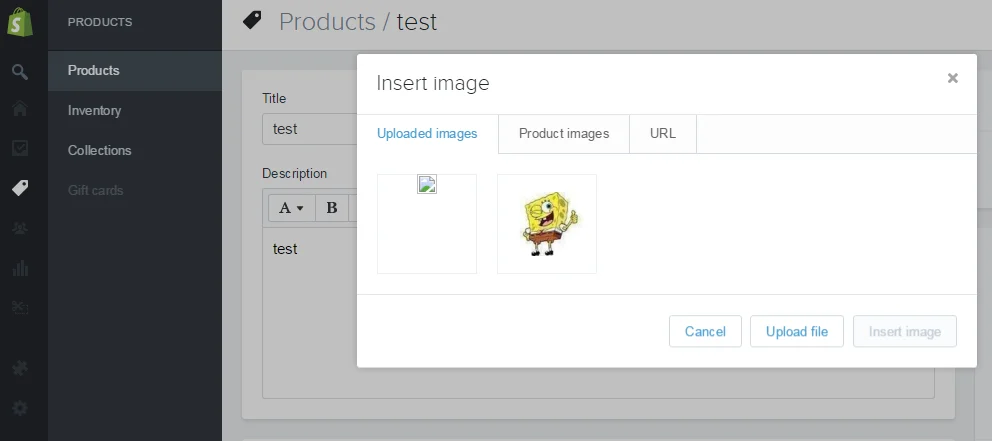
- In the section Uploaded images are all files uploded by the admin, so we can simply add them or download (screenshot attached)
- Uploded images are in the section Settings -> Files (but we don't have access there)
Test #2
If the member has NO access to the ALL sections
- So we can not go to the page Products but....
- Lets go here https://*.myshopify.com/admin/rte/assets
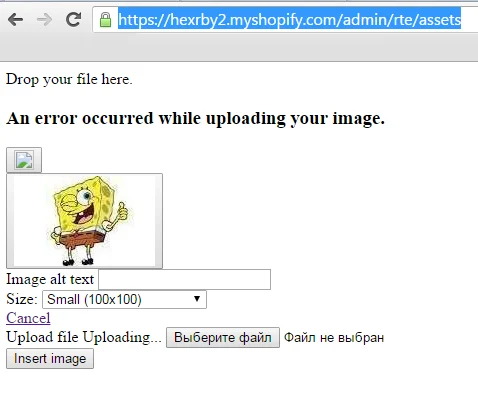
- And we will see all files uploaded by admin (screenshot attached)
- On this page we can simply find links for admin files
Attachments
What the report shows
The target is the Shopify admin, and the feature under test is file and image handling for staff accounts. The researcher reports that staff members without the relevant permission can still reach files uploaded by the administrator. The report describes two tests, one for a member with limited access and one for a member with no section access at all.
Test #1: member with access only to Products, Inventory and Collections
- Go to the Products section, open a product and its Description.
- Click the button to add an image.
- In the upload section, all files uploaded by the admin are listed, so they can be added or downloaded.
- Those same images live under Settings, Files, a section the member cannot access.
The screenshot shows the image picker opened from the product description, with the administrator's uploaded files visible to the restricted member.
Test #2: member with no access to any section
- The Products page is not reachable for this member.
- The researcher goes directly to the following URL:
https://*.myshopify.com/admin/rte/assets
- All files uploaded by the admin are shown there.
- The page exposes links to the admin's files.
The second screenshot shows the assets page returning the administrator's uploaded files to a staff member with no section permissions.
It does not give a severity rating, a CVSS score or a description of the fix.
Root cause
The report does not state the cause. A plausible explanation is that the file listing used by the rich text editor and the product image picker does not check the staff member's permission on the Files section. The member cannot access Settings, Files, yet the same files appear in the editor's upload section and on the assets page.
Impact
A staff member with limited or no permissions can see files uploaded by the administrator, and in Test #1 can add or download them.
How this kind of bug works
This is a broken function level authorisation problem, sometimes called horizontal or vertical privilege escalation depending on the accounts involved. An application has a permission model, here section level access for staff accounts, and most screens honour it. Shared components such as rich text editors, media pickers and file browsers are often built once and reused across many screens, and their backing endpoints are written to serve any authenticated admin user.
The defence is server side authorisation on every endpoint that returns or changes data, checked against the same permission model the UI uses, rather than relying on hidden menu entries. Object level checks matter too: listing endpoints should filter results by what the caller is allowed to see, and direct file links should require an authorised request rather than being guessable or public.
How to test for it
- Map the permission model first. Create two accounts, a privileged one and a restricted one, and note which sections the restricted account can see.
- As the privileged account, upload a distinctive file, for example one with a unique name and content.
- As the restricted account, browse the UI normally and confirm the file is not visible in the sections it cannot access.
- Then exercise shared components: open editors, image pickers and attachment dialogs from screens the restricted account can reach, and look for the privileged file in their listings.
- Try direct navigation to admin paths that the UI hides, including asset, media and file browser routes, and observe whether they render data or redirect.
- Capture the underlying requests and replay them with the restricted account's session, checking whether the response contains the privileged file's name, metadata or a working download link.
A positive result is the restricted account receiving the privileged file's name or contents, or a link that downloads it. Common false positives are cached responses from the privileged session, files that are intentionally shared across the whole store, and endpoints that return an empty list but still render the page shell. Confirm with a fresh session and a file that only the privileged account uploaded.
How it is fixed
Apply the same authorisation check used by the Files section to every endpoint that lists or serves uploaded files, including those used by editors and pickers. Filter listings by the caller's permissions, require authorisation on direct file downloads, and add regression tests that call these endpoints with a low privilege account and assert an empty or forbidden response.
Hunting notes
Shared components are where this bug class hides: rich text editors, media libraries, template asset browsers, import and export helpers, and anything that references files by identifier. Recon signals include endpoints under admin paths that return lists of objects, parameters carrying file identifiers, and features that appear in several sections of the product. When you find one, compare behaviour between a privileged and a restricted account, and show impact by demonstrating that a file uploaded only by the privileged account is retrievable by the restricted one, with the request and response captured.
What happened, in plain words
Shopify is an online platform that lets a business run its shop: products, orders, customers, settings and so on. A shop owner can invite other people, called staff members, to help run the shop. Each staff member is given permissions, meaning a list of which sections of the admin area they are allowed to open. For example, one person might be allowed to work on products but not on settings.
The researcher found that a staff member without access to the Files section could still see files uploaded by the administrator. A staff member who was not allowed to open the Files section could still see and download files that the administrator had uploaded. The report describes two tests: one with a staff member who had limited access, and one with a staff member who had no access to any section at all.
It does not give a severity rating or a CVSS score, and it does not describe how the problem was fixed.
Test #1: a member with access only to Products, Inventory and Collections
This staff member could open the Products section but not Settings. The steps were:
- Go to Products, open a product and its Description.
- Click the button to add an image.
- In the upload section, all files uploaded by the admin are listed, so they can be added or downloaded.
- Those same images live under Settings, Files, a section the member cannot access.
The screenshot shows the image picker opened from the product description, with the administrator's uploaded files visible to the restricted member. This matters because the member never opened the Files section: the files appeared inside a different feature, the product description editor, which the member was allowed to use.
Test #2: a member with no access to any section
This staff member could not open Products at all, so the first route was closed. Instead:
- The Products page is not reachable for this member.
- The researcher goes directly to the following URL:
https://*.myshopify.com/admin/rte/assets
- All files uploaded by the admin are shown there.
- The page exposes links to the admin's files.
The second screenshot shows the assets page returning the administrator's uploaded files to a staff member with no section permissions. The URL is worth reading slowly. https://*.myshopify.com is the address of a shop, where the * stands for the shop's own name. /admin/ is the management area, the part of the site staff use after logging in. /rte/assets is a page belonging to the rich text editor, the tool that lets people write formatted text and insert images. The member typed this address into the browser instead of clicking a menu entry, and the page answered with the administrator's files. That is the heart of the bug: the page was reachable directly and returned the administrator's files.
In general, how this kind of bug works
This is a broken function level authorisation problem. Authorisation is the decision about whether a logged-in user is allowed to do a particular thing. Authentication is the earlier question of who the user is; authorisation comes after it. Here the staff member was properly logged in, so authentication worked, but the authorisation check on one page was missing.
A useful comparison is a hotel. Your key card opens your room and the shared areas. The hotel may also have a staff-only storage room, and the door to it should have a lock that checks your card. If the door has no lock at all, it does not matter that the corridor sign does not mention the room: anyone who walks down the corridor can open it. Hiding the sign is not the same as locking the door.
Shared components are where this problem often hides. A rich text editor, an image picker or a file browser is built once and reused in many screens. Its backing page may be written to serve any logged-in staff member, without checking the permission model. The interface hides the menu entry, but the page behind it still answers.
The defence is a permission check on the server, on every page that returns or changes data, using the same permission model the interface uses. Listing pages should filter their results by what the caller is allowed to see, and direct links to files should require an authorised request rather than being guessable or public.
In general, how to test for it
- Map the permission model first. Create two accounts, a privileged one and a restricted one, and note which sections the restricted account can see.
- As the privileged account, upload a distinctive file, for example one with a unique name and content.
- As the restricted account, browse the interface normally and confirm the file is not visible in the sections it cannot access.
- Then exercise shared components: open editors, image pickers and attachment dialogs from screens the restricted account can reach, and look for the privileged file in their listings.
- Try direct navigation to admin paths that the interface hides, including asset, media and file browser routes, and observe whether they render data or redirect.
- Capture the underlying requests and replay them with the restricted account's session, checking whether the response contains the privileged file's name, metadata or a working download link.
A request is simply the message your browser sends to a server asking for a page or an action, and the response is the server's reply. A session is the server's memory of who you are after you log in, usually carried by a cookie, a small piece of data the browser stores and sends back with each request. Replaying a request means sending the same message again, perhaps with a different account's cookie, to see whether the server treats it differently.
A positive result is the restricted account receiving the privileged file's name or contents, or a link that downloads it. Common false positives are cached responses from the privileged session, files that are intentionally shared across the whole store, and pages that return an empty list but still render the page shell. Confirm with a fresh session and a file that only the privileged account uploaded.
In general, how it is fixed
Apply the same authorisation check used by the Files section to every page that lists or serves uploaded files, including those used by editors and pickers. Filter listings by the caller's permissions, require authorisation on direct file downloads, and add regression tests that call these pages with a low privilege account and assert an empty or forbidden response. A regression test is an automated check that runs again after future changes, so the same hole cannot quietly reopen.
Glossary
- Admin: the management area of a shop where staff configure products, orders and settings.
- Administrator: the account with the widest permissions, in this report the person who uploaded the files.
- Authentication: proving who you are, usually by logging in.
- Authorisation: deciding whether an identified user is allowed to do a particular action.
- Broken function level authorisation: a flaw where a specific page or action lacks the permission check it should have.
- Bounty: a payment made by a company to a researcher who reports a valid security issue.
- Cache: a stored copy of a response, reused to save time, which can make old data appear in a new session.
- Cookie: a small piece of data the browser stores and sends with requests, often used to carry a session.
- CVSS: a standard scoring system for the severity of a security issue.
- Endpoint: a specific address on a server that accepts requests and returns data or performs an action.
- False positive: a finding that looks like a bug but is not one.
- Files section: the part of the Shopify admin where uploaded files are managed, under Settings.
- Permission: a rule saying which sections or actions a staff account may use.
- Privilege escalation: reaching data or actions reserved for a more privileged account.
- Regression test: an automated check that runs after future changes to catch a returning bug.
- Request: the message a browser sends to a server asking for a page or an action.
- Response: the server's reply to a request.
- Rich text editor (RTE): the tool for writing formatted text and inserting images;
/admin/rte/assetsbelongs to it. - Session: the server's record of who you are after logging in, usually tied to a cookie.
- Severity: a rating of how serious an issue is.
- Staff member: an additional account invited to help run a shop, with its own permissions.