Business Logic Error Methodology (easy way) + PoC-s
Disabled buttons and input fields on a website could be re-enabled by editing the HTML in the browser's inspector, allowing access to paid features. The author demonstrated two cases where changing the disabled attribute or removing a CSS class made the controls usable, and confirmed one feature actually worked.
 Published on medium.com
I have found this type of bug once 3 years ago, and I was amazed by its existence. And then I found it again a few days ago.
The full write-up lives on its author's site
It belongs to its author, so we link to it rather than copy it. The other two tabs are our own rewrites, checked against it.
Context
This write-up is about a class of business logic flaw that lives entirely in the browser: paid features that the site hides behind disabled buttons or disabled input fields, where the disabling is done only in the HTML. If the code behind the button is still reachable once you re-enable it in the inspector, you can exercise functionality you were never meant to reach, without ever having to reverse-engineer the API, its custom headers or its parameters.
The author first found this type of bug three years before writing, and found it again a few days before publishing. The target in the write-up is described only generically as a website with free and paid plans; the report does not name the product, the program or the affected endpoint.
Setup
The only tooling described is the browser's built-in inspector, in Firefox or Chrome. No accounts, roles, versions or special preconditions are listed. The one precondition that matters is conceptual: the feature you are trying to reach must have working code behind the disabled control, so that re-enabling the control in the DOM is enough to trigger it.
Finding it
The starting point is mapping the application. The author's shortcut for business logic is to look for the business itself: every business needs a way to make money, so the easy sites to look at are those that offer free and paid plans. The more paid plans there are, the more there is to test, and the pricier the affected plan, the greater the severity.
Some sites limit paid features by hiding them. Others show them but disable the links or buttons that reach them. The long way around is to work out which requests those features are associated with, which the author describes as really difficult and slow: figuring out APIs is harder still when there are custom headers, and harder again when those headers have values that are hard or impossible to guess. Even after reaching the right request you still have to work out the parameters and their values; content-type is quick to figure out manually, but the rest can be tedious even with automation.
If the disabled button has code behind it, all of that work is avoided by editing the HTML directly.
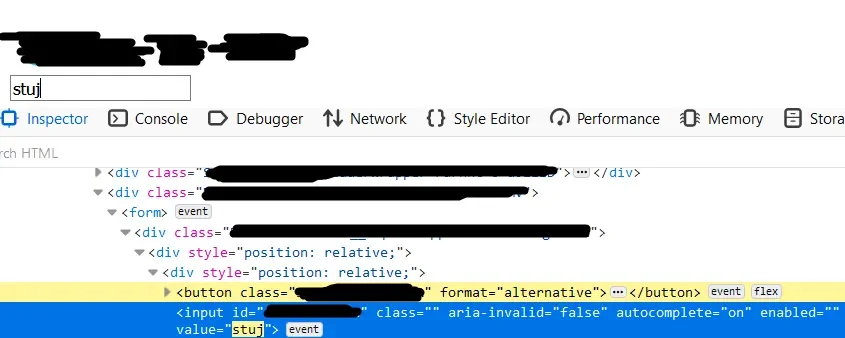
The inspector is right there: right-click and you will see it. Once open, probe the disabled buttons for soft spots. They are usually easy to spot: look for Disabled, or disabled=true and similar, and change it accordingly, for example Disabled to Enabled, or remove disabled from the HTML. If that appears not to work, you may need to delete the contents of other parameters that may also carry disabled functionality. Sometimes additional protection is implemented through styles; simply deleting the style value can sometimes enable the button. The button's design will change in the process, but as long as you can click it, that does not really matter.
Exploitation
The author gives two proofs of concept.
Step 1: the simple case, changing disabled to enabled
The first PoC is simple because it only required changing disabled to enabled.
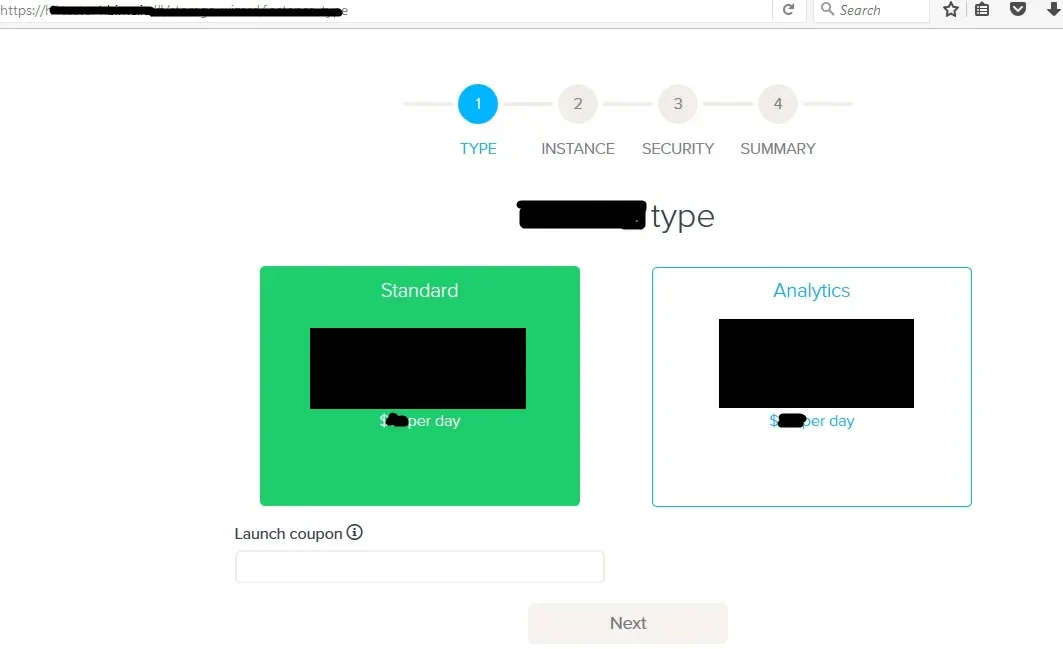
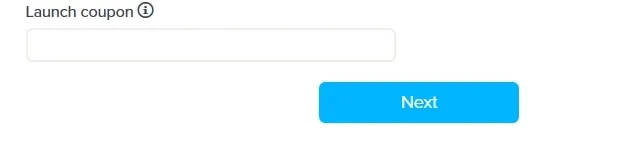
In this state the Next button is disabled because there is no valid coupon.
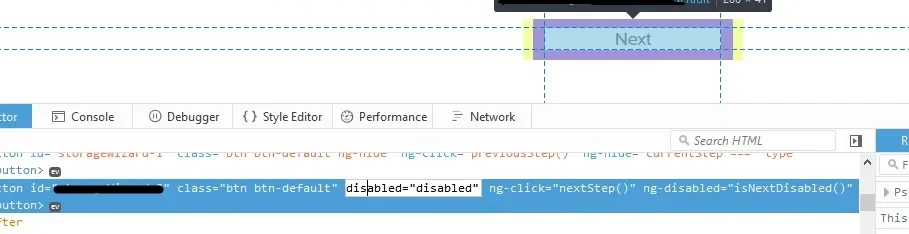
Here there are two areas to enable.
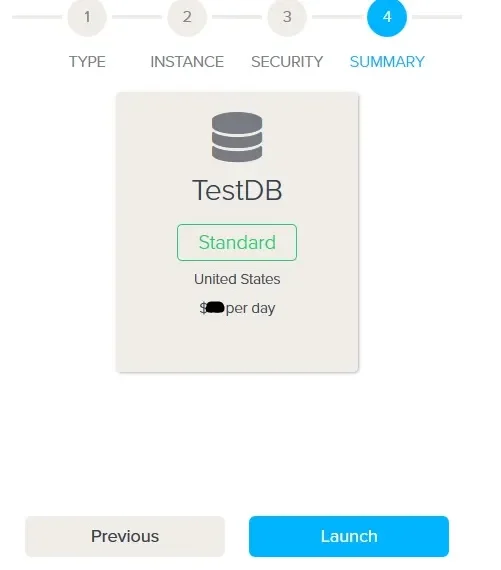
With both enabled, the question is whether this is it, so the author checks.
The next question is whether the result is real or a false positive.
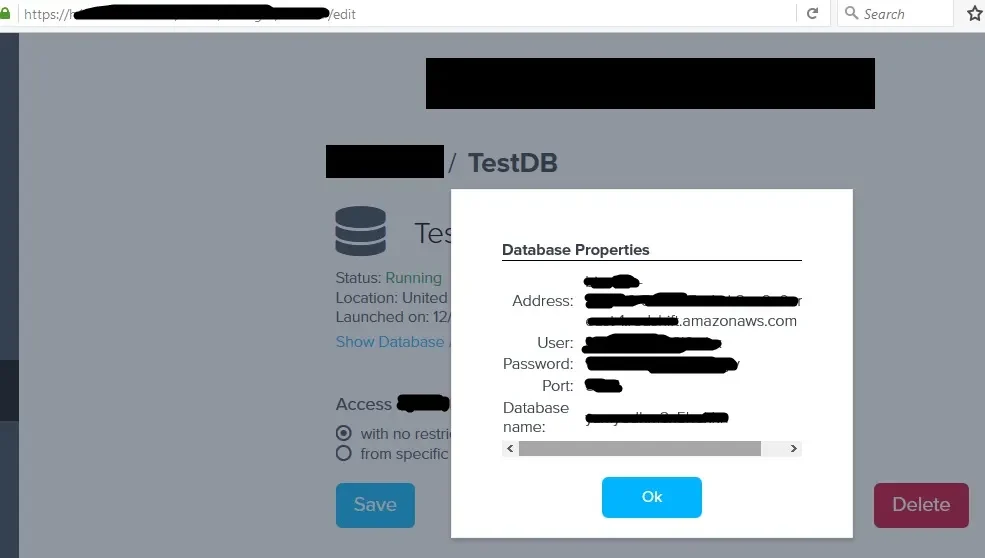
The author concludes it is real, and notes having attempted to connect to it, which worked.
Step 2: the case that needs more than the disabled attribute
The second PoC is a bit more complex because it required something more than changing disabled to enabled in order to access it.
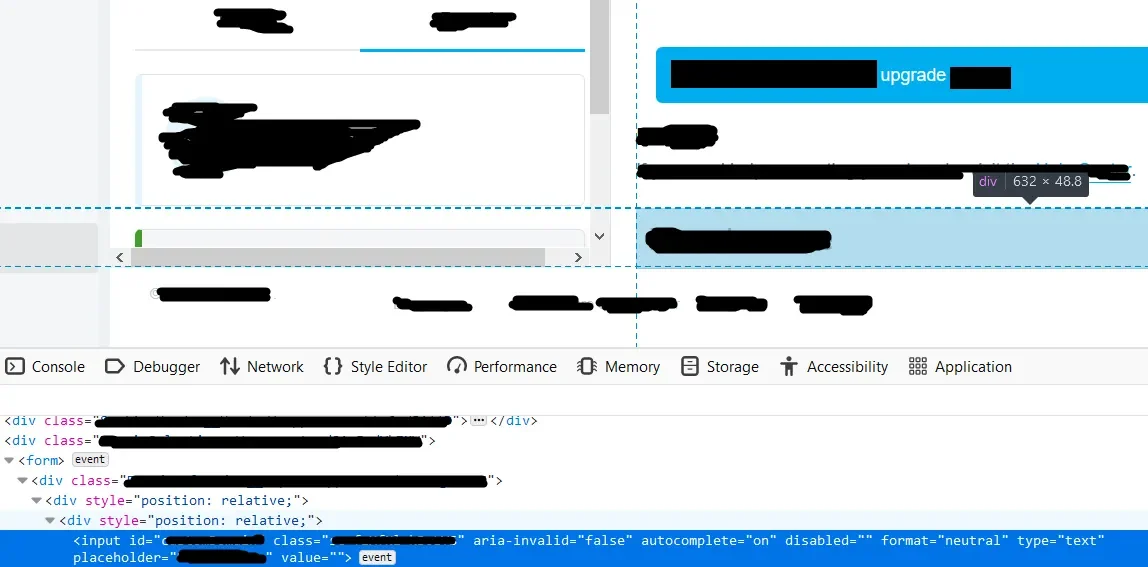
The input field is disabled unless you upgrade.
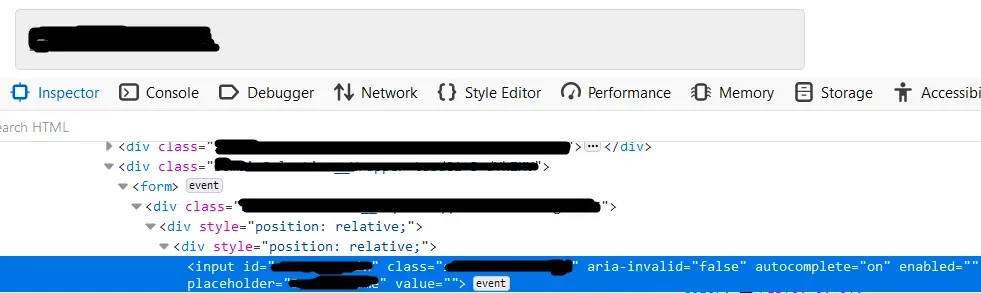
After replacing disabled with enabled there is still nothing, which looks like the end of the road.
It is not: removing the class value, in the area selected in the screenshot, enabled editing of the field, while affecting its design.
Step 3: verify before you report
Some buttons, once enabled, give the impression of a successful bypass. Clicking a button such as "Add Paid Features" that was once disabled, when enabled and clicked, will display a list of clickable paid features. Before getting excited, attempt to use those paid features to the maximum. If the paid feature is, for example, "Add the custom logo from the dropdown list" and you manage to add the custom logo to your page, log in with a separate browser or session to that website and go to the page where the custom logo should be displayed. If the custom logo is not displayed there, it was a false positive. Better to be disappointed and move on than to spend time writing a bug report and eagerly waiting for a response, only to be doubly crushed by n/a or Informative (and if you are lucky, you may be asked to self-close).
Root cause
The report does not describe the server-side code. What it implies is that the paid feature is gated in the interface only: the control is rendered disabled, or styled so that it cannot be used, while the code behind it remains reachable. Because the gate is a client-side attribute or class rather than a server-side authorisation check, editing the DOM removes the gate. The author's warning about false positives shows the limit of this reasoning: an enabled button that only reveals a list of paid features, without the feature actually working, is not a bypass at all.
Impact
An attacker who can re-enable a control with working code behind it can reach paid functionality without paying, under the conditions the author describes: the site offers free and paid plans, the paid feature is exposed but disabled in the HTML, and the code behind the control still runs. The author ties severity to the plan: the pricier the affected plan, the greater the severity.
Fix
The implication of the root cause is that the paid feature must be authorised on the server for every request it triggers, so that re-enabling a control in the DOM does not grant access.
Variants to test
- Disabled buttons on checkout or coupon flows. Look for
Disabledordisabled=truein the inspector, change it to enabled or remove the attribute, and click. The author checks whether the enabled flow is real or a false positive. - Controls with more than one disabled area. The first PoC needed two areas enabled; check every related control in the same form, not just the obvious button.
- Input fields disabled behind an upgrade prompt. Replace
disabledwithenabled; if nothing happens, look for a class value on the field and remove it. A positive result is being able to edit the field. - Style-based protection. Where the control is blocked by a style rather than the
disabledattribute, delete the style value. A positive result is a clickable control, even if its design changes. - Paid feature lists. Enable the button that reveals paid features and then actually use one, for example adding a custom logo. Verify in a separate browser or session that the change persisted. A positive result is the custom logo being displayed in the other session; if it is not, it is a false positive.
- Old bugs on main domains. Do not assume a retired bug is truly retired, and do not assume that a plain
wwwhost is immune to such a silly bug.
What happened, in plain words
Imagine a shop where the expensive items sit behind a glass door. The door has a big "closed" sign on it, but the door itself is not locked. Anyone who flips the sign to "open" can walk in. That is the kind of bug described here: a website offers free and paid plans, and it keeps the paid features out of reach by drawing them as disabled buttons or disabled text fields. The disabling is only a label in the page that your browser draws. The code that actually does the paid thing is still sitting there, ready to run. If you change the label in your browser, the button becomes clickable and the paid feature works.
This matters because the usual, hard way to reach a paid feature is to work out the hidden requests the website sends and replay them yourself. That takes a lot of time. Editing the page in your browser skips all of it.
The author first came across this kind of bug three years before writing the article, and found it again a few days before publishing. The site is only described in general terms as a website with free and paid plans. The article does not name the product, the company or the specific page involved.
The ideas you need first
Before the steps, a few words that come up constantly. Each one is explained from zero.
- HTML is the language a web page is written in. It is a list of instructions like "here is a button", "here is a text box", "this button is disabled". Your browser reads it and draws the page you see.
- The DOM (Document Object Model) is the browser's live copy of that HTML. When the page is loaded, the browser turns the HTML into this live structure, and that is what it draws and what it lets you change. If you change the DOM, the picture on your screen changes immediately. The file on the website's server does not change at all; only your own copy in your browser does.
- The inspector (also called developer tools) is a panel built into Firefox and Chrome that shows you the DOM of the page you are looking at. You can open it, find a button, and edit its HTML right there. It is a normal, built-in feature, not a hacking tool.
- An attribute is a small setting written inside an HTML tag. For a button,
disabledis an attribute: it tells the browser "draw this button greyed out and do not let anyone click it". - A class is a name attached to an element that a stylesheet uses to decide how it looks. A class can also be used to switch behaviour on and off, for example making a field read-only.
- CSS is the language that describes how things look: colours, sizes, whether something is greyed out. Some protection is done with CSS rather than with the
disabledattribute. - An API is the set of hidden requests a website's own pages use to talk to its server. When you click "save", your browser sends a request to the server and the server replies. An API is that conversation, seen from the outside. Working out an API by hand means guessing the address of the request, any special headers it needs, and the names and values of its parameters.
- A header is a small piece of extra information attached to a request, like a note on an envelope. Some sites require custom headers with values that are hard or impossible to guess, which makes replaying requests by hand much harder.
- A parameter is a named value sent with a request, for example
colour=red. You have to know both the name and the value for the request to be accepted. - Content-type is a header that says what format the request body is in. The author notes it is quick to figure out by hand, unlike the rest.
- Business logic means the rules of how a site is supposed to work: who can buy what, in which order, for how much. A business logic flaw is when those rules can be bent without breaking any technical lock. Nothing crashes; the site simply lets you do something it did not intend.
- A proof of concept (PoC) is a small demonstration that a bug is real: the shortest set of steps that shows the problem.
- A false positive is a result that looks like a bug but is not. The button becomes clickable, but the paid feature does not actually happen on the server.
- Severity is how serious a bug is judged to be. Here it is tied to money: the pricier the plan you can reach for free, the more serious the bug.
Setting up
The only tool the article uses is the inspector that is already in Firefox or Chrome. There is nothing to install, no account to create, no special version of anything. The one condition that has to be true is about the website, not about you: the feature you are trying to reach must have working code behind the disabled control. If the code is there, flipping the control in the DOM is enough to trigger it. If the code is not there, flipping the control does nothing useful.
Finding it
Map the site first
The starting point is to get a picture of the website: what pages exist, what you can do on them, and where money is involved. The author calls this mapping the application. It is like walking around a building you have never been in before and noting where the doors are.
The shortcut for business logic is to look for the business itself. Every business needs a way to make money, so the easy sites to look at are the ones that offer free and paid plans. Two things follow from that:
- The more paid plans a site has, the more there is to test.
- The pricier the plan you can reach without paying, the greater the severity of the bug.
Two ways sites hide paid features
Some sites limit paid features by hiding them completely: the button or link is simply not on the page. Others show the feature but disable the link or button that reaches it. The second kind is where this technique applies.
The long way around is to work out which requests those features are associated with, then send those requests yourself. The author describes this as really difficult and slow. Working out an API is harder still when the site requires custom headers, and harder again when those headers carry values that are hard or impossible to guess. Even after you find the right request, you still have to work out its parameters and their values. Content-type is quick to figure out by hand, but the rest can be tedious even with automation.
If the disabled button has code behind it, all of that work is avoided by editing the HTML directly. That is the whole trick.
Open the inspector and look for soft spots
The inspector is right there in the browser: right-click on the page and you will see it in the menu. Once it is open, you can inspect the disabled buttons and look for soft spots, meaning places where the disabling is only a label and not a real lock.
They are usually easy to spot. Look in the HTML for Disabled, or disabled=true and similar, and change it accordingly: for example, change Disabled to Enabled, or remove disabled from the HTML entirely.
If that appears not to work, you may need to delete the contents of other parameters that may also carry disabled functionality. In plain terms: the button might be blocked in more than one place at once, so you clear each of them.
Sometimes the extra protection is done through styles. In that case, simply deleting the style value can sometimes enable the button. The button's design will change in the process, but as long as you can click it, that does not really matter.
Exploitation
The author gives two proofs of concept, plus a warning about checking your result before you report it.
Step 1: the simple case, changing disabled to enabled
The first PoC is simple because it only required changing disabled to enabled.
In this state the Next button is disabled because there is no valid coupon. A coupon is a code that gives you a discount or unlocks a step; without a valid one, the site greys out the button that would take you forward. The screenshot shows that greyed-out state.
Here there are two areas to enable. This is the first lesson of the PoC: do not stop at the obvious button. The same form can have more than one control that is disabled, and each one has to be changed.
With both areas enabled, the question is whether this is it, so the author checks. In other words: the page now looks right, but does clicking actually move the flow forward?
The next question is whether the result is real or a false positive. A page can look like it accepted your change while the server quietly ignored it. This screenshot is the author checking that distinction.
The author concludes it is real, and notes having attempted to connect to it, which worked.
Step 2: the case that needs more than the disabled attribute
The second PoC is a bit more complex because it required something more than changing disabled to enabled in order to access it.
The input field is disabled unless you upgrade. An input field is a box you can type into. Here the site lets you see the box but not type in it, and the reason given is that typing is a paid feature.
After replacing disabled with enabled there is still nothing, which looks like the end of the road. This is the moment where a beginner would give up. The attribute change alone was not enough.
It is not the end. Removing the class value, in the area selected in the screenshot, enabled editing of the field, while affecting its design. So the field was blocked in two ways at once: by the disabled attribute and by a class. Removing the class let the field be edited, at the cost of its appearance changing. The lesson: when one change does not work, look for a second mechanism on the same element.
Step 3: verify before you report
Some buttons, once enabled, give the impression of a successful bypass. Clicking a button such as "Add Paid Features" that was once disabled, when enabled and clicked, will display a list of clickable paid features. That list looks like success, so verify the feature actually works before reporting.
Before getting excited, attempt to use those paid features to the maximum. If the paid feature is, for example, "Add the custom logo from the dropdown list" and you manage to add the custom logo to your page, then log in with a separate browser or session to that website and go to the page where the custom logo should be displayed. If the custom logo is not displayed there, it was a false positive.
Why a separate browser or session? Because your own browser is the one you edited. A fresh session asks the server for the page from scratch, with none of your edits. If the change is really saved on the server, the fresh session sees it. If it was only a trick played on your own screen, the fresh session sees nothing.
Better to be disappointed and move on than to spend time writing a bug report and eagerly waiting for a response, only to be doubly crushed by n/a or Informative. Those are the labels a bug bounty platform uses when it decides a report is not a valid security issue. If you are lucky, you may be asked to self-close the report, which means withdrawing it yourself.
Why the bug exists
The article does not describe the server-side code. What it implies is that the paid feature is gated in the interface only: the control is drawn as disabled, or styled so that it cannot be used, while the code behind it remains reachable. Because the gate is a setting in your browser's copy of the page rather than a check on the server, editing the page removes the gate.
The author's warning about false positives shows the limit of this reasoning. An enabled button that only reveals a list of paid features, without the feature actually working, is not a bypass at all. The test is not whether the button looks clickable; it is whether the paid thing really happened on the server.
What an attacker could do
Someone who can re-enable a control that has working code behind it can reach paid functionality without paying. The conditions the author describes are: the site offers free and paid plans, the paid feature is exposed but disabled in the HTML, and the code behind the control still runs. The author ties severity to the plan: the pricier the affected plan, the greater the severity. The article does not give a concrete affected feature, a bounty amount or a severity rating.
How to fix it
The article does not say what was changed on the site. The implication of the cause is that the paid feature must be authorised on the server for every request it triggers, so that re-enabling a control in the browser does not grant access. In everyday terms: the shop should check at the till whether you paid, not rely on the sign on the door.
Things to try
- Disabled buttons on checkout or coupon flows. Look for
Disabledordisabled=truein the inspector, change it to enabled or remove the attribute, and click. The author checks whether the enabled flow is real or a false positive. - Controls with more than one disabled area. The first PoC needed two areas enabled; check every related control in the same form, not just the obvious button.
- Input fields disabled behind an upgrade prompt. Replace
disabledwithenabled; if nothing happens, look for a class value on the field and remove it. A positive result is being able to edit the field. - Style-based protection. Where the control is blocked by a style rather than the
disabledattribute, delete the style value. A positive result is a clickable control, even if its design changes. - Paid feature lists. Enable the button that reveals paid features and then actually use one, for example adding a custom logo. Verify in a separate browser or session that the change persisted. A positive result is the custom logo being displayed in the other session; if it is not, it is a false positive.
- Old bugs on main domains. Do not assume a retired bug is truly retired, and do not assume that a plain
wwwhost is immune to such a silly bug.
Glossary
- API: the set of hidden requests a website's pages use to talk to its server; working it out by hand means guessing addresses, headers and parameters.
- Attribute: a setting written inside an HTML tag, such as
disabledon a button. - Business logic: the rules of how a site is meant to work, such as who can buy what and for how much.
- Business logic flaw: a bug where those rules can be bent without breaking any technical lock.
- Class: a name attached to an element that a stylesheet uses to control its look, and sometimes its behaviour.
- Content-type: a header that says what format a request body is in.
- Coupon: a code that gives a discount or unlocks a step in a flow.
- CSS: the language that describes how a page looks.
- DOM: the browser's live copy of a page's HTML, which you can edit in the inspector.
- False positive: a result that looks like a bug but is not, because nothing actually changed on the server.
- Header: a small piece of extra information attached to a request, like a note on an envelope.
- HTML: the language a web page is written in, describing elements such as buttons and text boxes.
- Informative: a bug bounty platform label meaning a report is not treated as a valid security issue.
- Input field: a box on a page that you can type into.
- Inspector: the built-in panel in Firefox and Chrome that shows and lets you edit the page's DOM.
- n/a: a bug bounty platform label meaning a report is not applicable, that is, not a valid issue.
- Parameter: a named value sent with a request, such as
colour=red. - Proof of concept (PoC): a short demonstration that a bug is real.
- Self-close: withdrawing your own bug report.
- Severity: how serious a bug is judged to be; here it is tied to the price of the plan you can reach for free.
- Session: a logged-in visit to a site; a separate browser or session is a fresh one with none of your edits.