How I Got RCE Through a Simple Collaboration Invitation in a Desktop Application
A desktop cloud storage application synchronised files from a pending collaboration invitation before the recipient accepted it, allowing an attacker to place a malicious batch file on the victim's computer. If the victim opened the file, commands would run under their local user account.

Rce
The full write-up lives on its author's site
It belongs to its author, so we link to it rather than copy it. The other two tabs are our own rewrites, checked against it.
Context
The target was a cloud storage platform with a desktop client, described in the write-up as similar to Google Drive. Users can upload files and folders, share files with other users, add collaborators, download files, and synchronise their cloud files with the desktop application. The desktop application automatically syncs files between the cloud and the local computer.
The feature under test was collaboration: when a user adds another account as a collaborator, the second user receives an invitation. The normal expectation is that shared files become available only after the invitation is accepted. The researcher tested what happens when it is not.
Setup
The write-up describes two accounts: an attacker account that creates and shares the folder, and a victim account identified by its email address, which is added as a collaborator. No tooling, client version or platform build is named. The only technical artefacts given are the upload request to the application's API and the batch file used as the payload. The researcher explicitly did not accept the invitation from the victim account, because the point was to observe whether the desktop application would synchronise the folder anyway.
Finding it
While testing the collaboration functionality, the researcher noticed that the desktop application began synchronising shared content even though the invitation was still pending. The shared files appeared on the victim's machine without any acceptance step. That observation reframed the feature: if a shared folder is synchronised before consent, then whatever the attacker puts in that folder is delivered to the victim's local filesystem. The immediate question the researcher asked was what happens if the shared folder contains an executable or a script.
Exploitation
Step 1: create a folder and upload a batch file
From the attacker account, the researcher created a new folder and uploaded a simple Windows batch file named:
accounts.bat
The proof-of-concept content was a harmless command:
@echo offcmd /k
The file was uploaded through the application's API:
POST /api/2.0/files/content
------[redacted]-Disposition: form-data; name="attributes"{"name":"accounts.bat","parent":{"id":"410001760472"},"content_modified_at":"2026-08-18T16:03:59Z"}------[redacted]-Disposition: form-data; name="file"; filename="accounts.bat"Content-Type: application/octet-stream@echo offcmd /k------[redacted]--
The multipart body carries two parts. The attributes part is JSON describing the file: its name, the parent folder id it is created in, and a content_modified_at timestamp. The file part carries the bytes of accounts.bat with Content-Type: application/octet-stream. At this point the researcher had an attacker-controlled file stored in the attacker's own account, which on its own is unremarkable.
Step 2: invite the victim and do not accept
The victim's email address was added as a collaborator on the folder, and the victim received the collaboration invitation. The researcher did not accept the invitation from the victim account. The purpose was to see whether the desktop application would synchronise the folder regardless, and it did.

Step 3: confirm delivery to the victim's machine
The victim account still had a pending collaboration invitation, with no explicit acceptance. The desktop application nevertheless synchronised the shared folder, and after synchronisation the malicious file appeared on the victim's local computer:
accounts.bat
The attacker's file had crossed from the attacker's cloud storage to the victim's local filesystem without the victim accepting the collaboration. The chain at this stage is:
Attacker | | Upload malicious file vAttacker's folder | | Send collaboration invitation vVictim | | Does NOT accept invitation vDesktop Application | | Automatic synchronization vaccounts.bat appears on victim's PC
Step 4: execution when the victim opens the file
The remaining step is the victim opening the delivered file. If the victim opens it, Windows executes the commands inside the batch file. For the proof of concept the command was again:
@echo offcmd /k
Opening the file opens a command prompt, which demonstrates that the attacker-controlled file can execute commands under the victim's local user context.

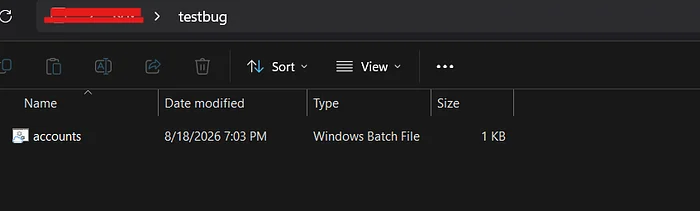
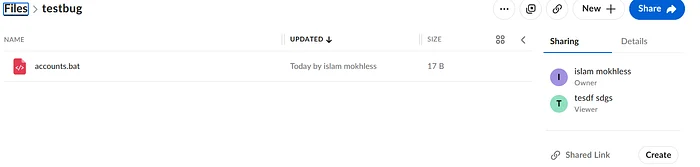
The researcher is explicit about the boundary here: the application itself does not need to execute the .bat file automatically. The security issue is that the attacker can deliver the file to the victim's computer without the victim accepting the collaboration. The final step depends on the victim opening it.
Root cause
The problem is in how the application handles collaboration status. An invitation can be in different states:
PendingAcceptedRejected
A pending invitation should not give the desktop application permission to synchronise the shared content. In this case it did: the application effectively treated
Invitation Sent
as
Collaboration Accepted
That is an authorisation problem, and it is what makes the whole chain possible. The expected behaviour is that synchronisation starts only after the victim accepts:
Invitation Sent ↓ Pending ↓No synchronization ↓Victim accepts ↓Synchronization starts
The observed behaviour was:
Invitation Sent ↓ Pending ↓Synchronization starts ↓Files appear on victim
The victim's acceptance was not required. The write-up does not describe any server-side or client-side check that was bypassed, so the exact location of the missing check is not stated.
Impact
At first look, the objection is that the victim still has to open the file, and the researcher concedes that this is true. The argument is that the important security boundary has already been crossed: attacker-controlled content was placed on the victim's computer through a trusted desktop application without the victim accepting the collaboration. That makes the synchronisation feature a potential file-delivery mechanism.

The researcher lists what an attacker can potentially do:
- Deliver attacker-controlled files to another user's computer.
- Use the desktop synchronisation system as a file-delivery mechanism.
- Deliver scripts or other potentially executable files.
- Execute commands if the victim opens the malicious file.
- Potentially perform further actions depending on the privileges of the victim's account.

Social engineering is called out as the practical route: a convincing file name placed inside a directory the victim already trusts. For the proof of concept the researcher used a harmless cmd /k command and did not perform any destructive actions. The write-up also notes that, after all of this, someone had already reported the same issue 4 days earlier.


Fix
The write-up does not say what the vendor changed, or whether anything was changed. What it does state is the expected behaviour: a pending invitation must not authorise synchronisation of the shared content, and synchronisation should begin only after the victim accepts. In practice, a pending invitation must not authorise synchronisation of the shared content, and synchronisation should begin only after the victim accepts.
Variants to test
- Other invitation states. Check whether a rejected invitation, or one revoked after acceptance, also leaves the folder in the sync set. A positive result is content continuing to sync after the state is no longer
Accepted. - Other sharing paths. Test group shares, link shares and shares to a team or organisation rather than a single email address, and see whether any of them sync before an explicit acceptance. A positive result is a file appearing locally with no acceptance recorded.
- Other file types. The report only demonstrates a
.batfile. Try script and shortcut types the client or operating system may treat as executable, and check whether the client warns, blocks or marks the file in any way on arrival. - Timing of the sync. Remove the collaborator or delete the file immediately after sending the invitation and observe whether the client still pulls the content. A positive result is delivery of content that was no longer shared at sync time.
- Client-side trust of synced paths. Check whether files delivered this way inherit any trust from the sync directory. A positive result is a delivered file that runs without the usual download warnings.
References
The write-up cites one external reference: ZDI-25-773, Google Drive File Sharing Mark-of-the-Web Bypass Vulnerability, from the Zero Day Initiative.
What happened, in plain words
A security researcher was testing a desktop application that works like Google Drive: you keep files in the cloud, and a small program on your computer keeps a copy of them in sync. While testing the sharing feature, the researcher found that you could put a file onto a stranger's computer simply by sharing a folder with them, even if that person never clicked "accept" on the sharing invitation. The file the researcher chose was a Windows batch file, a type of file that runs commands when opened. So the chain was: share a folder, the victim's computer quietly downloads what is inside it, the victim opens the file, and commands run on the victim's machine. That last part still needs the victim to open the file, but the file has already been placed on their computer by a program they trust.
This article walks through the same steps the researcher took, in the same order, and explains every technical idea from scratch as it comes up.
The application and the feature being tested
The target is a cloud storage platform. "Cloud storage" means your files live on a company's servers on the internet, and you reach them through a browser or through a desktop application. The write-up describes the product as similar to Google Drive.
Users can:
- Upload files and folders
- Share files with other users
- Add collaborators
- Download files
- Synchronise their cloud files with the desktop application
Two of those need explaining.
A collaborator is another person you give access to a file or folder. Instead of sending them a copy, you tell the service "this person may see and use this folder too". The service then sends that person an invitation, a message saying someone wants to share something with you, with buttons to accept or reject.
Synchronisation (or "sync") is the automatic copying back and forth between the cloud and your computer. The desktop application watches the folders you have in the cloud and keeps a matching copy in a local folder on your disk. If something changes in the cloud, it appears on your computer shortly afterwards, and the other way round. The write-up states that the desktop application automatically syncs files between the cloud and the local computer.
At first this looks like a normal cloud storage application. But while testing the collaboration functionality, the researcher noticed something interesting.
The first finding
When a user adds another account as a collaborator, the second user receives an invitation. Normally you would expect the shared files to become available only after the user accepts the invitation. That is the whole point of an invitation: it asks for permission before anything happens.
So the researcher started testing what happens if the invitation is not accepted.
This is a standard habit in security testing: take a rule the product seems to follow ("nothing is shared until you accept") and deliberately break the expected order of events. Here the order was inverted on purpose. Instead of accept then receive, the researcher tried receive without accepting, to see whether the software actually enforced its own rule.
And this is where things became interesting. Even without accepting the invitation, the desktop application started synchronising the shared content. That meant the collaboration invitation itself was enough to make the files appear on the victim's machine.
This immediately raised a question: what happens if the shared folder contains an executable or a script?
An executable is a file the operating system can run as a program. A script is a text file containing commands that another program (an interpreter) reads and carries out. Both are dangerous to receive from a stranger, because running them does things on your computer. If a stranger can place such a file in a folder your computer syncs automatically, the question of whether it can end up running is worth asking.
Creating the malicious file
The researcher created a new folder from the attacker account. Then they uploaded a simple Windows batch file:
accounts.bat
A batch file is a plain text file on Windows whose name ends in .bat. When you open it, Windows hands its lines to the command interpreter, a program called cmd.exe, which runs them one after another, exactly as if you had typed them into a command prompt. It is one of the simplest ways to make Windows execute a series of commands.
For the proof of concept, the researcher used a harmless command:
@echo offcmd /k
Line by line, in plain words:
@echo offtells the command interpreter not to print each command before running it. The@at the start also suppresses the printing of this line itself. The result is a quieter window.cmd /kstarts a new command prompt and keeps it open (/kmeans run what follows, then stay open). In this proof of concept nothing follows, so the effect is simply that a command prompt window appears.
The researcher chose a harmless command on purpose. The goal was to show that commands can run, not to damage anything. A real attacker would put something else there.
The file was uploaded using the application's API:
POST /api/2.0/files/content
An API (Application Programming Interface) is the set of addresses and rules a program uses to talk to a service, as opposed to the pages a human clicks in a browser. When you use the web interface of a cloud drive and press "upload", your browser is really sending a request to an API address behind the scenes. Anyone who knows the address and has a valid login can send the same request directly, without the web page. That is what the researcher did here.
POST is the HTTP method used to send data to a server to create something. The path /api/2.0/files/content is the address that accepts file uploads. The 2.0 is part of the address as written in the report; it is not a claim about anything else.
The upload itself was sent as a multipart form body:
------[redacted]-Disposition: form-data; name="attributes"{"name":"accounts.bat","parent":{"id":"410001760472"},"content_modified_at":"2026-08-18T16:03:59Z"}------[redacted]-Disposition: form-data; name="file"; filename="accounts.bat"Content-Type: application/octet-stream@echo offcmd /k------[redacted]--
This looks like a wall of text, but it is a standard format called multipart/form-data. It is how a browser sends a form that includes a file. The body is split into parts, and each part is separated by a boundary, a line of random-looking characters that is guaranteed not to appear inside the data. Here the boundary is [redacted]. The final boundary ends with two extra dashes, which marks the end of the body.
Part by part:
- The first part is named
attributes. Its content is JSON, a text format for structured data built from names and values in curly braces. It says the file'snameisaccounts.bat, that itsparentis a folder withid410001760472(the folder the researcher created), and gives acontent_modified_attimestamp of2026-08-18T16:03:59Z. TheZat the end of the timestamp means UTC, the world reference time zone. - The second part is named
file, withfilename="accounts.bat".Content-Type: application/octet-streammeans "raw bytes, no particular format". The bytes that follow are the content of the batch file:@echo offandcmd /k.
At this point the researcher had an attacker-controlled file stored in their own account. Nothing special yet: anyone can upload a file to their own storage. The interesting part is what happens when that file is shared.
Sending the invitation
Next, the researcher added the victim's email address as a collaborator on the folder. The victim received the collaboration invitation.
The researcher did not accept the invitation from the victim account. This was deliberate. The whole test was to see whether the desktop application would synchronise the folder anyway, without the victim ever agreeing.
And it did.
The victim never accepted the invitation
This was the most important part of the vulnerability.
The victim account still had a pending collaboration invitation. There was no explicit acceptance. However, the desktop application started synchronising the shared folder. After synchronisation, the malicious file appeared on the victim's local computer:
accounts.bat
So the attacker's file had crossed from the attacker's cloud storage to the victim's local filesystem without the victim accepting the collaboration.
A local filesystem simply means the files and folders stored on the victim's own computer, as opposed to the cloud. Crossing that line matters because files on your own computer are treated as yours: they sit in your folders, they can be opened by your programs, and they are not filtered by the website you were using.
This gave the following attack chain:
Attacker | | Upload malicious file vAttacker's folder | | Send collaboration invitation vVictim | | Does NOT accept invitation vDesktop Application | | Automatic synchronization vaccounts.bat appears on victim's PC
Read the diagram from top to bottom. The attacker uploads a malicious file into a folder. The attacker sends a collaboration invitation for that folder to the victim. The victim does not accept. The desktop application synchronises the folder anyway. The batch file appears on the victim's PC. Each arrow is one step that the software allowed; the step that should have stopped the chain, the missing acceptance, did not.
From file delivery to RCE
Now there was one more step. The file was an accounts.bat file.
If the victim opens it, Windows executes the commands inside the batch file. For the proof of concept, the command was simply:
@echo offcmd /k
As before: @echo off keeps the window quiet, and cmd /k opens a command prompt and leaves it open. When the victim opens the file, a command prompt is opened. This demonstrates that the attacker-controlled file can execute commands under the victim's local user context.
"Under the victim's local user context" means the commands run with the same permissions the victim has when they use their own computer. The commands run with the same permissions the victim has when they use their own computer.
RCE stands for Remote Code Execution. It means an attacker, working from somewhere else over the internet, gets their own code to run on someone else's machine.
The important thing here is that the application itself does not need to automatically execute the .bat file. The security issue is that the attacker can deliver the file to the victim's computer without the victim accepting the collaboration. The final step depends on the victim opening the file.
That distinction is worth holding on to. The vulnerability is the delivery, not an automatic execution. The researcher is careful not to overclaim: the application does not run the file by itself.
Why this is dangerous
At first look, someone might say:
"The victim still has to open the file."
That is true. But the important security boundary has already been crossed. The attacker was able to place attacker-controlled content on the victim's computer through a trusted desktop application without the victim accepting the collaboration.
A security boundary is a line the software is supposed to enforce: only you can put files on your computer, only people you approve can share with you, and so on. Once content from a stranger is sitting in a folder on your disk, the boundary has been crossed even if nothing has run yet. What remains is a human decision, not a technical one.
This makes the synchronisation feature a potential file-delivery mechanism. An attacker could potentially use this for social engineering, which means manipulating people rather than machines: giving the file a convincing name and placing it inside a directory that the victim already trusts, so that opening it feels routine.
The complete attack
The complete attack can be summarised as:
1. Attacker creates a folder ↓2. Attacker uploads malicious .bat ↓3. Attacker adds victim as collaborator ↓4. Victim does NOT accept the invitation ↓5. Desktop application synchronizes the folder ↓6. Malicious file appears on victim ↓7. Victim opens the file ↓8. Commands execute with victim
Steps 1 to 3 are ordinary use of the product. Step 4 is the victim doing nothing, which is the normal state of an invitation nobody has answered. Step 5 is where the software misbehaves: it syncs a folder whose invitation is still unanswered. Step 6 is the consequence on the victim's disk. Steps 7 and 8 are the part that needs the victim's action.
Root cause
The main problem appears to be the way the application handles collaboration status. A collaboration invitation can have different states:
PendingAcceptedRejected
These are the three states named in the write-up: pending (sent, not yet answered), accepted (the person agreed) and rejected (the person declined).
A pending invitation should not give the desktop application permission to synchronise the shared content. However, in this case, the desktop application synchronised the content while the invitation was still pending. The application effectively treated:
Invitation Sent
as:
Collaboration Accepted
This is an authorisation problem. Authorisation is the part of security that decides what an identified user is allowed to do. Authentication is proving who you are; authorisation is what you may then access. Here the question is not who the victim is, but whether the victim has agreed to receive this folder. The software answered yes when the true answer was "not yet".
What should happen?
The expected behaviour should be:
Invitation Sent ↓ Pending ↓No synchronization ↓Victim accepts ↓Synchronization starts
Instead, the actual behaviour was:
Invitation Sent ↓ Pending ↓Synchronization starts ↓Files appear on victim
The victim's acceptance was not required. In the first diagram, the pending state blocks synchronisation until the victim accepts. In the second, synchronisation starts while the invitation is still pending, and the files land on the victim's machine.
What can an attacker do?
The vulnerability can potentially allow an attacker to:
- Deliver attacker-controlled files to another user's computer.
- Use the desktop synchronisation system as a file-delivery mechanism.
- Deliver scripts or other potentially executable files.
- Execute commands if the victim opens the malicious file.
- Potentially perform further actions depending on the privileges of the victim's account.
"Privileges" are the permissions an account has. An ordinary user can change their own files; an administrator can change system settings and install software. The higher the victim's privileges, the more the commands could do, which is why the list says "depending on the privileges of the victim's account".
For the proof of concept, the researcher used a harmless cmd /k command and did not perform any destructive actions.
And after all that, the researcher found out someone had already reported the same issue 4 days before. The write-up closes on that note: at least it confirmed the researcher was looking in the right place.
Glossary
- API: the set of addresses and rules a program uses to talk to a service directly, without a human clicking through a web page.
- Attack chain: a series of steps that, taken together, achieve an attack; each step depends on the previous one.
- Attacker account: the account controlled by the person performing the test, used here to create and share the folder.
- Authentication: proving who you are, for example by logging in.
- Authorisation: deciding what an identified user is allowed to access or do.
- Batch file (
.bat): a plain text file on Windows containing commands that the command interpreter runs when the file is opened. - Boundary (multipart): a line of characters that separates the parts of a multipart form body and marks its end.
- Cloud storage: a service that keeps your files on internet servers rather than only on your own computer.
- Collaborator: another user you give access to a file or folder.
- Command interpreter (
cmd.exe): the Windows program that reads and runs commands, either typed at a prompt or stored in a batch file. - Command prompt: the window where you type commands for Windows to run.
- Content-Type: a label on a piece of data saying what format it is, such as
application/octet-streamfor raw bytes. - Desktop application: a program installed on your computer, as opposed to a website you open in a browser.
- Executable: a file the operating system can run as a program.
- Invitation: the message a service sends when someone wants to share a file or folder with you, which you can accept or reject.
- JSON: a text format for structured data, built from names and values in curly braces.
- Local filesystem: the files and folders stored on your own computer.
- Local user context: the permissions of the person logged in on the computer where code runs.
- Multipart/form-data: the standard format for sending a form that includes a file, split into parts separated by a boundary.
- Pending: the state of an invitation that has been sent but not yet answered.
- POST: the HTTP method used to send data to a server in order to create something.
- Privileges: the permissions an account has, such as whether it can change system settings.
- Proof of concept (PoC): a minimal, safe demonstration that a vulnerability is real.
- RCE (Remote Code Execution): getting your own code to run on someone else's computer over a network.
- Script: a text file of commands that another program reads and carries out.
- Security boundary: a line the software is supposed to enforce, such as "only approved people can put files on your computer".
- Social engineering: manipulating people, rather than machines, into doing something unsafe.
- Synchronisation (sync): automatic copying of files between the cloud and your computer so both sides match.
- UTC: the world reference time zone; a
Zat the end of a timestamp means UTC. - Victim account: the account used to represent the person being attacked, identified here by its email address.

