One Parameter, One Request: How I Bypassed Access Controls and Unlocked a Restricted AI Feature
A worker account could access an AI feature restricted to administrators by replaying the administrator's API request with the worker's token. The backend did not enforce role-based authorization, so the worker could enable and use the feature.

Bug Bounty
The full write-up lives on its author's site
It belongs to its author, so we link to it rather than copy it. The other two tabs are our own rewrites, checked against it.
Context
The target was a web application that offered an AI-powered assistant feature. The application used several permission levels, with administrators and workers as the two roles described in the report. When an administrator logged in, the AI feature was visible and usable directly from the dashboard. When a worker logged in, the same functionality was completely absent from the interface.
The researcher's question was whether that absence reflected a real backend authorisation check or whether the application was only hiding the feature from lower-privileged users while leaving the underlying API reachable.
Setup
The only tool named in the report is Burp Suite, used both to monitor the administrator's traffic and to replay requests in Burp Repeater. Two accounts were used: an administrator account and a worker account. The researcher kept the organisation identifier and the feature parameters unchanged between the two sessions, replacing only the authentication token.
Finding it
While logged in as an administrator, the researcher interacted with the AI feature and monitored the traffic in Burp Suite. This revealed the API endpoint responsible for enabling and accessing the feature. The request carried several parameters that controlled it.
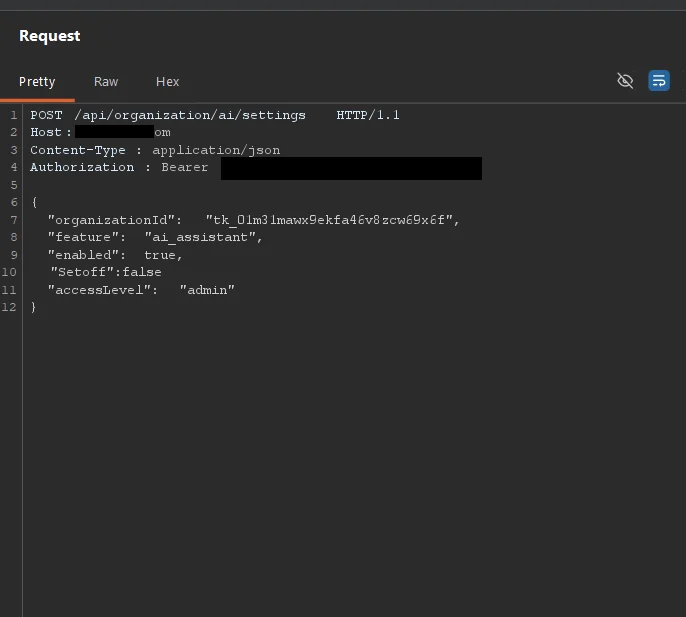
The screenshot shows the administrator's request to that endpoint, captured while the feature was being used from the admin dashboard.
Switching to the worker account, the AI feature was missing from the dashboard, as expected under normal role-based access control. However, the worker session could still interact with other organisation settings and API functionality. That gap prompted the test: what happens if the administrator's request is sent with the worker's session instead?
Exploitation
Step 1: capture the administrator request
With the administrator session active, the researcher recorded the request that enables and accesses the AI feature. The report shows the administrator request only as the screenshot above; the raw text of that original request is not reproduced in the write-up.
Step 2: replay it with the worker token
The administrator's request was copied into Burp Repeater and the administrator's authentication token was replaced with the worker's token. The organisation identifier and the feature parameters were left untouched. The modified request is shown as follows:
POST /api/organization/ai/settings HTTP/1.1Host: target.comContent-Type: application/jsonAuthorization: Bearer WORKER_TOKEN
{ "organizationId": "ORG_123", "feature": "ai_assistant", "enabled": true, "accessLevel": "admin"}
The request targets the organisation-level AI settings endpoint. The Authorization header now carries the worker's bearer token, while the JSON body keeps the administrator's values: the organisation identifier ORG_123, the feature name ai_assistant, the feature switched on with enabled: true, and accessLevel set to admin.
Step 3: observe the response
The request was forwarded and the server accepted it rather than rejecting it on the basis of the worker's permissions. After refreshing the application, the worker account could access the AI functionality. The feature that had been hidden from the worker's dashboard was reachable through the backend API.
Root cause
The application appeared to rely on frontend restrictions to control access to the AI feature. The backend did not properly enforce the required role-based authorisation before processing the request. Hiding the feature in the UI therefore did nothing to protect the endpoint: a worker could perform an administrator-only operation simply by replaying an API request with their own token.
Impact
A worker account, which should not have had the feature at all, could enable and use an administrator-restricted AI capability by replaying an API request. The report frames this as a Broken Access Control issue: the restriction existed only in the interface, and the server accepted the operation from a lower-privileged session. The researcher does not describe any further consequences beyond gaining access to the AI feature itself.
Fix
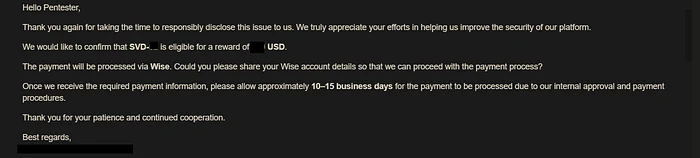
The report does not describe a specific code change. The stated requirement is that the backend properly enforce the required role-based authorisation before processing the request, so that a worker cannot perform an administrator-only operation by replaying an API request. The team's response is shown in the screenshot below.
Variants to test
- Replay admin requests with a lower-privileged token. Capture requests made by an administrator to feature or settings endpoints, swap in a worker or basic user token, and keep the body unchanged. A positive result is a success response and the change taking effect for the low-privileged account.
- Look for features hidden only in the UI. Enumerate endpoints for functionality that disappears when you log in with a lesser role, then call them directly. A positive result is any response that returns data or performs an action the UI would not offer you.
- Change the role-bearing body fields. Where a request carries fields such as
accessLevelorenabled, set them to administrator values from a low-privileged session. A positive result is the server honouring the elevated value instead of rejecting the request. - Cross-organisation identifiers. Keep your own token but substitute another organisation's identifier in the body. A positive result is the server acting on the other organisation's settings rather than returning an authorisation error.
- Compare responses across roles. Send the identical request with each role's token and diff the status codes and bodies. A positive result is a low-privileged token receiving the same success response as the administrator.
What happened, in plain words
A security researcher was testing a website that had an AI assistant built into it. The website had two kinds of user accounts: administrators, who are the people in charge, and workers, who are ordinary staff. When you logged in as an administrator, you could see and use the AI assistant right there on the dashboard, which is the main screen you land on after logging in. When you logged in as a worker, the AI assistant was nowhere to be seen.
Most people would stop there and think, "fine, workers are not allowed to use it". But the researcher asked a sharper question: is the AI assistant actually blocked on the server, or is the website just hiding the button from workers while the machinery behind it is still running and still reachable? Those are very different things. Hiding a door does not lock it.
To find out, the researcher watched the network traffic while using the AI assistant as an administrator. That revealed the exact request the browser sends to the server to switch the feature on and use it. Then the researcher logged in as a worker, took that same request, swapped the administrator's identity token for the worker's token, and sent it. The server accepted it. The worker could now use a feature that was supposed to be for administrators only.
This kind of mistake is called Broken Access Control. The word "access control" means the rules about who is allowed to do what. "Broken" means those rules were not actually enforced where it counts, on the server. The report shows the team's response as a screenshot.
The application and its roles
The application had different permission levels, including administrators and workers. A permission level, or role, is a label attached to your account that decides what you are allowed to see and do. Think of a hotel: guests can enter their own room, cleaners can enter many rooms, and the manager can enter every room and also change the locks. Same building, different keys.
When logged in as an administrator, the researcher could see and interact with an AI-powered feature directly from the dashboard. An AI-powered feature here means some assistant built into the product that you can talk to or operate from the page. The dashboard is the first screen you see after logging in, the control panel.
When the researcher switched to a worker account, that functionality was completely hidden from the UI. UI stands for user interface: everything you actually see and click on the screen. So as a worker, there was no button, no menu item, nothing to click.
At first this looked like normal role-based access control. Role-based access control simply means the application shows and allows different things depending on your role. That is a normal and healthy design. But the researcher wanted to know whether the restriction was actually implemented on the backend, or whether the application was simply hiding the functionality from lower-privileged users.
The backend is the part of the website that runs on the company's servers: it stores data, checks passwords, and decides what to send back. The frontend is the part that runs in your browser: the pages, buttons and colours. A useful comparison is a restaurant. The frontend is the menu and the dining room. The backend is the kitchen. If the menu does not list a dish, that does not prove the kitchen refuses to cook it. Someone who knows the kitchen's order system could still order it directly.
Finding the backend endpoint
The researcher started by monitoring the administrator's network traffic using Burp Suite. Burp Suite is a tool that sits between your browser and the website and lets you read, pause and edit every message that passes between them. Normally your browser talks to the server and you see none of it; Burp Suite is like a glass wall in that conversation, or a postal worker who lets you read every letter before it is delivered.
After interacting with the AI feature, the researcher identified the API endpoint responsible for enabling and accessing its functionality. An API is the set of addresses and rules a website's own pages use to talk to its server. You can think of it as the service counter at the back of a shop: the shop floor (the frontend) is what customers see, but staff walk to the counter and ask for things by name. An endpoint is one specific address at that counter, one particular request you can make, for example "switch the AI assistant on for this organisation".
The request contained several parameters controlling the feature. A parameter is a named value you send along with a request, like a field on a paper form: name, address, quantity. Each parameter tells the server one detail about what you want.
The screenshot shows the administrator's request to that endpoint. In other words, this is the exact message the administrator's browser sent when the AI feature was switched on and used. The report does not reproduce the raw text of this original request; it shows it only as this screenshot.
Next, the researcher logged in using the worker account. As expected, the AI feature was missing from the dashboard. However, the application still allowed the worker to interact with other organisation settings and API functionality. This matters: it shows the worker's session was alive and could still send requests to the server. The worker was not locked out of the building, only kept away from one room.
That gave the researcher an idea: what would happen if the same API request were sent using the worker's session? This is the core of the test. If the server checks the worker's role and refuses, the application is safe. If the server just does what it is told, the restriction was only cosmetic.
Modifying the request
The researcher copied the administrator's request into Burp Repeater and replaced the administrator's authentication token with the worker's token. Burp Repeater is a part of Burp Suite that lets you take one captured request, edit it, and send it again and again to see what comes back. It is like being able to re-post the same letter with a different signature.
An authentication token is a long string of characters that proves who you are. After you log in, the server gives your browser this token, and your browser attaches it to every later request so the server knows which account is asking. It works like a wristband at an event: you show your ticket once at the entrance, get the wristband, and after that the staff just glance at the wristband. If you swap your wristband for someone else's, the staff will treat you as that person. That is exactly what the researcher did here, in reverse: they kept the administrator's request but put the worker's wristband on it.
The researcher kept the organisation identifier and feature parameters unchanged. The organisation identifier is a value that says which company or team the settings belong to, so the request still pointed at the same organisation. The feature parameters are the values describing what to do with the AI feature.
The modified request is shown as follows:
POST /api/organization/ai/settings HTTP/1.1Host: target.comContent-Type: application/jsonAuthorization: Bearer WORKER_TOKEN
Line by line, in plain words:
POST /api/organization/ai/settings HTTP/1.1is the first line of the request.POSTis the type of action: it means "send data and change something on the server", as opposed to just asking to view a page./api/organization/ai/settingsis the endpoint, the address at the service counter: the organisation's AI settings.HTTP/1.1is simply the version of the language being spoken between browser and server.Host: target.comtells the server which website the request is for. One server can host many websites, so the request names the one it wants.target.comis a placeholder for the real site's address.Content-Type: application/jsonannounces the format of the data being sent. JSON is a simple text format for structured data, made of names and values in curly brackets, a bit like a very tidy form. Telling the server the format means it knows how to read the body.Authorization: Bearer WORKER_TOKENis the line that carries the identity.Authorizationis the header, meaning an extra labelled line attached to the request.Bearermeans "the thing that follows is the token that proves who I am".WORKER_TOKENis where the worker's token would go; in the report it is written as a placeholder rather than a real value.
Then the body of the request, the actual data being sent:
{ "organizationId": "ORG_123", "feature": "ai_assistant", "enabled": true, "accessLevel": "admin"}
Line by line, in plain words:
"organizationId": "ORG_123"says which organisation these settings belong to.ORG_123is a placeholder identifier for that organisation."feature": "ai_assistant"names the feature being configured, here the AI assistant."enabled": trueswitches the feature on.trueis a yes/no value meaning yes."accessLevel": "admin"states the access level for the feature, hereadmin. This is the interesting part: the worker is sending a request that claims the access level should be administrator.
The request targets the organisation-level AI settings endpoint. The Authorization header now carries the worker's bearer token, while the JSON body keeps the administrator's values: the organisation identifier ORG_123, the feature name ai_assistant, the feature switched on with enabled: true, and accessLevel set to admin.
Why do it this way? Because the only thing that should decide whether the action is allowed is who is asking. By changing only the identity and leaving everything else identical, the researcher isolates one question: does the server look at the worker's token and refuse, or does it ignore the role and process the request anyway? If the request had been changed in other ways too, a success could have had innocent explanations. Keeping everything else the same makes the test clean.
The result
The request was forwarded and the server accepted it instead of rejecting it based on the worker's permissions. In other words, the server did not say "you are not allowed". It said yes.
After refreshing the application, the researcher was able to access the AI functionality using the worker account. Refreshing means reloading the page so the browser fetches the current state from the server again; the change made by the request now showed up in the interface.
The functionality that was hidden from the worker's dashboard was still accessible through its backend API. This confirmed that hiding the feature in the frontend was not enough to enforce authorization. Authorization is the decision about what a logged-in user is allowed to do, as opposed to authentication, which is only about proving who they are. The worker was properly authenticated, the server knew exactly who was asking, and it still let them through.
What was the actual issue?
The application appeared to rely on frontend restrictions to control access to the AI feature. That means the only thing stopping a worker was that the button was not drawn on their screen. However, the backend did not properly enforce the required role-based authorization before processing the request. The server received a request, looked at the token to see who was asking, and then carried out the action without checking whether that person's role permitted it.
A worker should not be able to perform an administrator-only operation simply by replaying an API request. Replaying means taking a request that was captured once and sending it again, possibly with small edits. The comparison here is a form at an office: if the clerk only checks that you are wearing a visitor badge, and never checks whether visitors are allowed to sign that particular form, then any visitor can sign it. The badge proves who you are; it does not prove you are allowed.
Team Response:
The screenshot shows the team's response, captioned Bounty. The report does not describe the response in words.
Conclusion
This was a good reminder that the absence of a feature in the UI does not mean its backend functionality is protected. If you cannot see a button, that tells you something about the page you were given, not about what the server will do when asked directly. The researcher thanks the reader and says new articles are coming soon.
Variants to test
These are the same ideas the technical write-up lists, explained for someone starting out. Each one follows the same pattern: capture a request, change one thing, send it, and see whether the server should have said no but said yes instead.
- Replay admin requests with a lower-privileged token. Capture requests made by an administrator to feature or settings endpoints, swap in a worker or basic user token, and keep the body unchanged. A positive result is a success response and the change taking effect for the low-privileged account. In plain terms: take the manager's letter, sign it with the cleaner's name, and see whether the office still acts on it.
- Look for features hidden only in the UI. Enumerate endpoints for functionality that disappears when you log in with a lesser role, then call them directly. Enumerating means making a list of the addresses the application uses, for example by watching traffic while using the app as an administrator. A positive result is any response that returns data or performs an action the UI would not offer you.
- Change the role-bearing body fields. Where a request carries fields such as
accessLevelorenabled, set them to administrator values from a low-privileged session. A positive result is the server honouring the elevated value instead of rejecting the request. In other words, the form asks you to tick your own permission level, and the clerk believes the form rather than checking your badge. - Cross-organisation identifiers. Keep your own token but substitute another organisation's identifier in the body. A positive result is the server acting on the other organisation's settings rather than returning an authorisation error. This is like renting locker 12 but writing 13 on the form and finding that the staff open locker 13 for you.
- Compare responses across roles. Send the identical request with each role's token and diff the status codes and bodies. A status code is the short number the server sends back to say how it went, such as success or forbidden; diffing means comparing two texts side by side to spot the differences. A positive result is a low-privileged token receiving the same success response as the administrator.
Glossary
- Access control: the rules that decide who is allowed to see and do what in an application.
- Administrator: a user role with the highest level of permission, able to manage settings and features.
- AI-powered feature: a built-in assistant or tool in the product that uses artificial intelligence, here the
ai_assistantfeature. - API: the set of addresses and rules a website's pages use to talk to its server, like a service counter behind the shop floor.
- Authentication: proving who you are, usually by logging in and receiving a token.
- Authentication token: a string of characters issued after login that your browser sends with each request to prove which account is asking, like a wristband at an event.
- Authorization: the decision about what a logged-in user is allowed to do, separate from proving who they are.
- Backend: the part of the application running on the company's servers that stores data and processes requests.
- Bearer: a word in the
Authorizationheader meaning the value that follows is the token proving your identity. - Broken Access Control (BAC): a vulnerability where the application fails to enforce who is allowed to do what, so a lower-privileged user can perform a higher-privileged action.
- Burp Repeater: a part of Burp Suite that lets you take a captured request, edit it, and resend it to observe the response.
- Burp Suite: a tool that sits between your browser and a website so you can read, pause and edit the traffic between them.
- Content-Type: a header that tells the server the format of the data being sent, such as JSON.
- Dashboard: the main control-panel screen shown after logging in.
- Diff: to compare two texts side by side to spot the differences.
- Endpoint: one specific address in an API that you can send a request to, such as the AI settings endpoint.
- Enumerate: to make a list of things, for example the endpoints an application uses.
- Frontend: the part of the application that runs in your browser, the pages and buttons you see.
- Header: an extra labelled line attached to a request or response, carrying information such as the host or the authorization token.
- Host: the header that names which website a request is for.
- HTTP/1.1: the version of the language used between browser and server.
- JSON: a simple text format for structured data, made of names and values in curly brackets.
- Organisation identifier: a value that says which company or team a setting belongs to, here
ORG_123. - Parameter: a named value sent with a request that tells the server one detail about what you want.
- Permission level: a label on an account that decides what it may see and do; also called a role.
- POST: the type of request that sends data and changes something on the server.
- Replay: to send a previously captured request again, possibly with small edits.
- Request: a message your browser sends to a server asking it to do something or return something.
- Response: the message the server sends back, including a status code and usually some data.
- Role-based access control: a design where the application shows and allows different things depending on the user's role.
- Status code: the short number in a response saying how the request went, such as success or forbidden.
- UI (user interface): everything you see and click on the screen.
- Worker: an ordinary staff user role with lower permissions than an administrator.