*sshole: OpenSSH Password Authentication Bypass (CVE-2026–123158)
In a deliberately vulnerable SSH lab setup, the password check could be tricked into accepting a login without the correct password. An attacker could then log in as root and read a protected file.
 Published on medium.com
Hackviser
The full write-up lives on its author's site
It belongs to its author, so we link to it rather than copy it. The other two tabs are our own rewrites, checked against it.
Context
This is a write-up of a Hackviser lab challenge titled *sshole: OpenSSH Password Authentication Bypass (CVE-2026-123158). The goal of the lab was to bypass SSH password authentication, obtain root access on the target server, and read the /secret.txt file. The login showed an Alpine Linux welcome message, and the vulnerable check involves musl's crypt().
Normally SSH checks a password before allowing a login, and Linux keeps password hashes in /etc/shadow. An asterisk (*) in the password field of that file normally means password login is disabled for that account. The lab simulates a vulnerable setup in which that convention breaks down.
Setup
The researcher worked from the Hackviser terminal and connected to the target over SSH as root. No credentials, versions or additional tooling are given beyond the terminal and the SSH client. The precondition for the attack is the vulnerable password check described below, combined with a root account whose stored password field is *.
Finding it
The researcher starts from how the vulnerable setup behaves rather than from a scan. In this setup, the musl crypt() function returns * when a password is too long to process. Because the root account also has * stored in its password field, the password check can incorrectly treat the two values as a match. That is the authentication bypass: the comparison succeeds not because the supplied password is correct, but because both sides of the comparison collapse to the same placeholder value.
Exploitation
Step 1: Connect to the target server
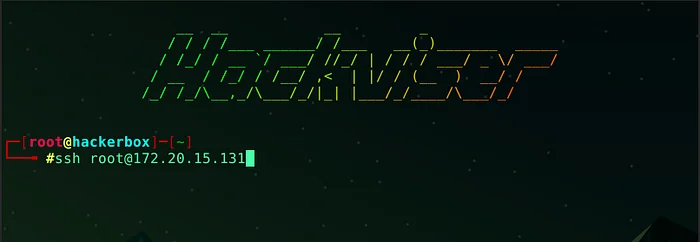
The researcher opened the Hackviser terminal and connected to the target using SSH:
ssh [redacted]
Step 2: Bypass SSH authentication
SSH first asked for confirmation of the host key, so the researcher typed yes. On the first attempt a wrong password was entered, and the server rejected it. On the second attempt within the same connection, the researcher entered 300 A characters. The vulnerable password check accepted the login and the Alpine Linux welcome message was displayed.
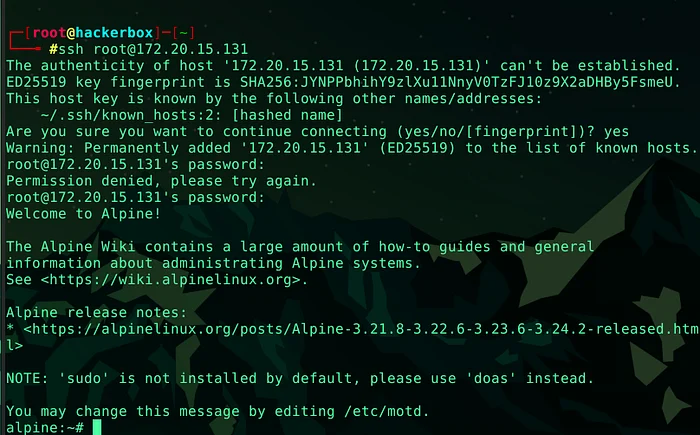
Two details matter here. The long password is supplied on a second attempt inside the same connection, after a normal rejection, and it consists of 300 A characters, which is long enough for musl crypt() to fail and return *.
Step 3: Verify root access
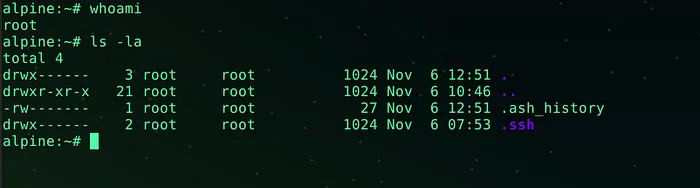
After logging in, the researcher checked the current user with whoami. The result was root. The files in the current directory were also listed:
whoami,ls -la
Step 4: Find and read the secret
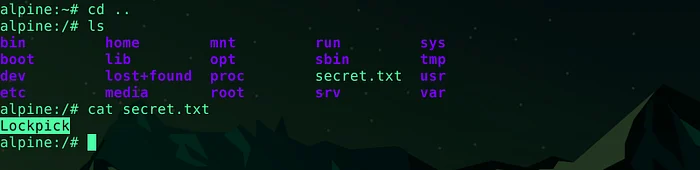
The researcher moved up to the filesystem root, listed the files, and found secret.txt. Then the content was read:
cd ..
ls
cat secret.txt
Root cause
The mistake is in the password check. Linux stores password hashes in /etc/shadow, and an asterisk in the password field normally means password login is disabled. In this vulnerable setup, musl crypt() returns * when a password is too long to process. Because the root account also has * stored, the check can incorrectly treat the two values as a match, and the login is accepted.
The existing defence, the * convention that disables password login, is exactly what the bug turns into a valid comparison value. The report does not describe any additional control that would have stopped the bypass.
Impact
In the lab, supplying a sufficiently long password logged in as root without knowing the password. In the lab this gave root access and allowed reading /secret.txt. The bypass depends on the vulnerable password check and on the account's stored password field being *; the report does not describe other conditions.
Fix
Variants to test
- Try a long password on other SSH services running on musl-based systems, such as Alpine Linux, where the account's password field is
*. A positive result is a successful login as that account after the long password is accepted. - Try the long password on the second attempt within the same connection, after a normal rejection, as in the report. A positive result is that the first attempt is rejected and the second is accepted.
- Try different lengths above the
crypt()limit to find the threshold at which the check starts to fail. A positive result is a login with a password long enough to makecrypt()return*. - Try the same approach against other accounts whose password field is
*, not onlyroot. A positive result is a login as any such account.
What happened, in plain words
A security researcher took part in a practice lab called Hackviser. The lab was built around a bug in how the password is checked during SSH login. The bug has the identifier CVE-2026-123158. The goal was to get into the target server as the most powerful user, root, without knowing the password, and then read a file called /secret.txt.
The trick was simple: the researcher typed a very long password made of 300 letter As. The server accepted it. That should never happen. The reason it worked is a mistake in how the password is checked, which I explain below.
This article walks through the same steps the researcher took, in the same order, and explains every idea from scratch. You only need to know how to use a computer and a browser.
Background: what SSH is and why passwords matter
SSH (Secure Shell) is a way to control another computer remotely, as if you were sitting in front of it, but through a network connection. When you connect, the remote computer asks for proof that you are allowed in. The usual proof is a password.
On Linux systems, passwords are not stored as plain text. They are stored as scrambled values called hashes in a file named /etc/shadow. A hash is a one-way transformation: you can turn a password into a hash easily, but you cannot turn the hash back into the password. When you log in, the system hashes what you typed and compares it with the stored hash. If they match, you are in.
There is a special convention: if the password field in /etc/shadow contains a single asterisk (*), it means password login is disabled for that account. Nobody can log in with a password, because no password will ever produce * as its hash. The asterisk is a placeholder that says "no password login here".
The target server runs Alpine Linux. Alpine uses a different C library from most Linux distributions: it uses musl instead of glibc. A C library is a collection of standard functions that programs use; one of those functions is crypt(), which turns a password into a hash. In this lab, the version of crypt() in musl has a flaw: when the password is too long to process, it does not return a proper hash. It returns *.
Now put the two facts together. The root account has * stored in its password field, meaning password login should be disabled. The vulnerable crypt() also returns * when given a very long password. So the password check compares * with *, sees a match, and lets you in. That is an authentication bypass: you get past the login check without knowing the real password.
Step 1: Connect to the target server
The researcher opened the Hackviser terminal, which is a text window where you type commands, and connected to the target with SSH:
ssh [redacted]
This command means: use the SSH program to connect to the machine at address [redacted], and try to log in as the user root. The root user is the administrator account on Linux; it can do anything on the system. The address is an IP address, which is like a postal address for a computer on a network.
Step 2: Bypass SSH authentication
When you connect to a new SSH server for the first time, it shows you a fingerprint, a short code that identifies the server, and asks you to confirm that you trust it. This protects you from connecting to an impostor. The researcher typed yes to accept.
Then the server asked for the password. The researcher deliberately typed a wrong password first. The server rejected it, as it should. This is important: it shows the normal check is working for ordinary wrong passwords.
On the second attempt, within the same connection, the researcher typed 300 A characters. The server accepted the login and displayed the Alpine Linux welcome message.
Why did this work? The long password is longer than crypt() can handle. Instead of producing a hash, crypt() returned *. The stored password field for root is also *. The comparison therefore matched, and the login succeeded. The password was not correct; the check itself was broken.
Two details matter. First, the long password was tried on a second attempt inside the same connection, after a normal rejection. Second, it was exactly 300 A characters, long enough to trigger the failure in crypt().
Step 3: Verify root access
After logging in, the researcher checked which user the session belonged to:
whoami,ls -la
This line is a bit unusual: it puts two commands on one line, separated by a comma. In a normal shell you would run them one at a time. The first command, whoami, prints the name of the current user. The second, ls -la, lists the files in the current directory, including hidden ones, with details such as permissions and sizes. A directory is a folder.
The output of whoami was root. That confirms the login gave the highest level of access. The directory listing showed the files in the current directory.
Step 4: Find and read the secret
The researcher then moved up to the filesystem root, listed the files there, and found secret.txt. The commands were:
cd ..
ls
cat secret.txt
Line by line:
cd ..changes the current directory to the parent directory...means "one level up". From the home directory, this goes to/, the root of the filesystem, which is the top-level folder that contains everything else.lslists the files in the current directory, which is now/.cat secret.txtprints the contents of the file namedsecret.txtto the screen.catis short for concatenate, but in practice it is used to show a file.
The file contained the answer to the lab: Lockpick.
Why this is a serious bug
The mistake is in the password check. Linux stores password hashes in /etc/shadow, and an asterisk in the password field normally means password login is disabled. In this vulnerable setup, musl crypt() returns * when a password is too long to process. Because the root account also has * stored, the check can incorrectly treat the two values as a match, and the login is accepted.
The existing defence, the * convention that disables password login, is exactly what the bug turns into a valid comparison value. The report does not describe any additional control that would have stopped the bypass.
In the lab, supplying a sufficiently long password logged in as root without knowing the password. In the lab this gave root access and allowed reading /secret.txt. The bypass depends on the vulnerable password check and on the account's stored password field being *; the report does not describe other conditions.
How to fix it
Variants to test
- Try a long password on other SSH services running on musl-based systems, such as Alpine Linux, where the account's password field is
*. A positive result is a successful login as that account after the long password is accepted. - Try the long password on the second attempt within the same connection, after a normal rejection, as in the report. A positive result is that the first attempt is rejected and the second is accepted.
- Try different lengths above the
crypt()limit to find the threshold at which the check starts to fail. A positive result is a login with a password long enough to makecrypt()return*. - Try the same approach against other accounts whose password field is
*, not onlyroot. A positive result is a login as any such account.
Glossary
- SSH (Secure Shell): a protocol and program for logging in to and controlling a remote computer over a network, with encryption.
- OpenSSH: the most common implementation of SSH, used on Linux and other systems.
- CVE: Common Vulnerabilities and Exposures, a public catalogue that gives each known security bug a unique identifier, such as CVE-2026-123158.
- root: the administrator account on Linux, which has permission to do anything on the system.
- Password hash: a scrambled value produced from a password by a one-way function, stored instead of the password itself.
/etc/shadow: the file on Linux that stores password hashes and related account information.- Asterisk (
*) in the password field: a placeholder meaning password login is disabled for that account. - musl: a C library used by Alpine Linux and some other systems, providing standard functions including
crypt(). - C library: a collection of standard functions that programs use, such as reading input, managing memory, or hashing passwords.
crypt(): a function that turns a password into a hash.- Authentication bypass: a flaw that lets someone get past a login check without knowing the correct credentials.
- Alpine Linux: a small Linux distribution that uses musl as its C library.
- IP address: a numeric address that identifies a computer on a network, like
[redacted]. - Host key: a fingerprint that an SSH server presents to prove its identity when you connect.
- Terminal: a text window where you type commands and see their output.
- Directory: a folder in a filesystem.
whoami: a command that prints the name of the current user.ls: a command that lists files in a directory;-lashows hidden files and details.cd: a command that changes the current directory;..means the parent directory.cat: a command that prints the contents of a file to the screen./secret.txt: the file the lab asked the researcher to read; it contained the answerLockpick.

