Stored XSS in backup scanning plan name
A backup scanning plan name was not properly sanitised, allowing an attacker to store a script that executes when the plan is edited. This could let an attacker run arbitrary JavaScript in the context of the victim's session.

- Paid in 41 hours
- Disclosed after 10 months
Dear Acronis Security Team,
##Summary:
There is a possibility of storing an XSS on the https://mc-beta-cloud.acronis.com/ui/ console.
##Steps To Reproduce:
- Login to the console with the given account
- Go to "Backup Scanning" under "PLANS"
- Click on "Create Plan"
- Specify the location of the "Backups to scan" (in my case I selected my PC where the agent is installed)
- Name the plan with this payload "/><svg/onload=prompt(document.domain)>
- The XSS will fire up many times showing a self XSS alert
- Keep pressing "OK" till the alert goes away
- Click on "Create" to create the plan then click on the edit icon then click on "Save Changes"
- The Self XSS alert may re-pop up several times, just keep pressing the "OK" button
- Reload the pages by re-visiting https://mc-beta-cloud.acronis.com/ui/ or going between the tabs
- Click again on "Backup Scanning" under "PLANS"
- Select the plan create with the payload "/><svg/onload=prompt(document.domain)>
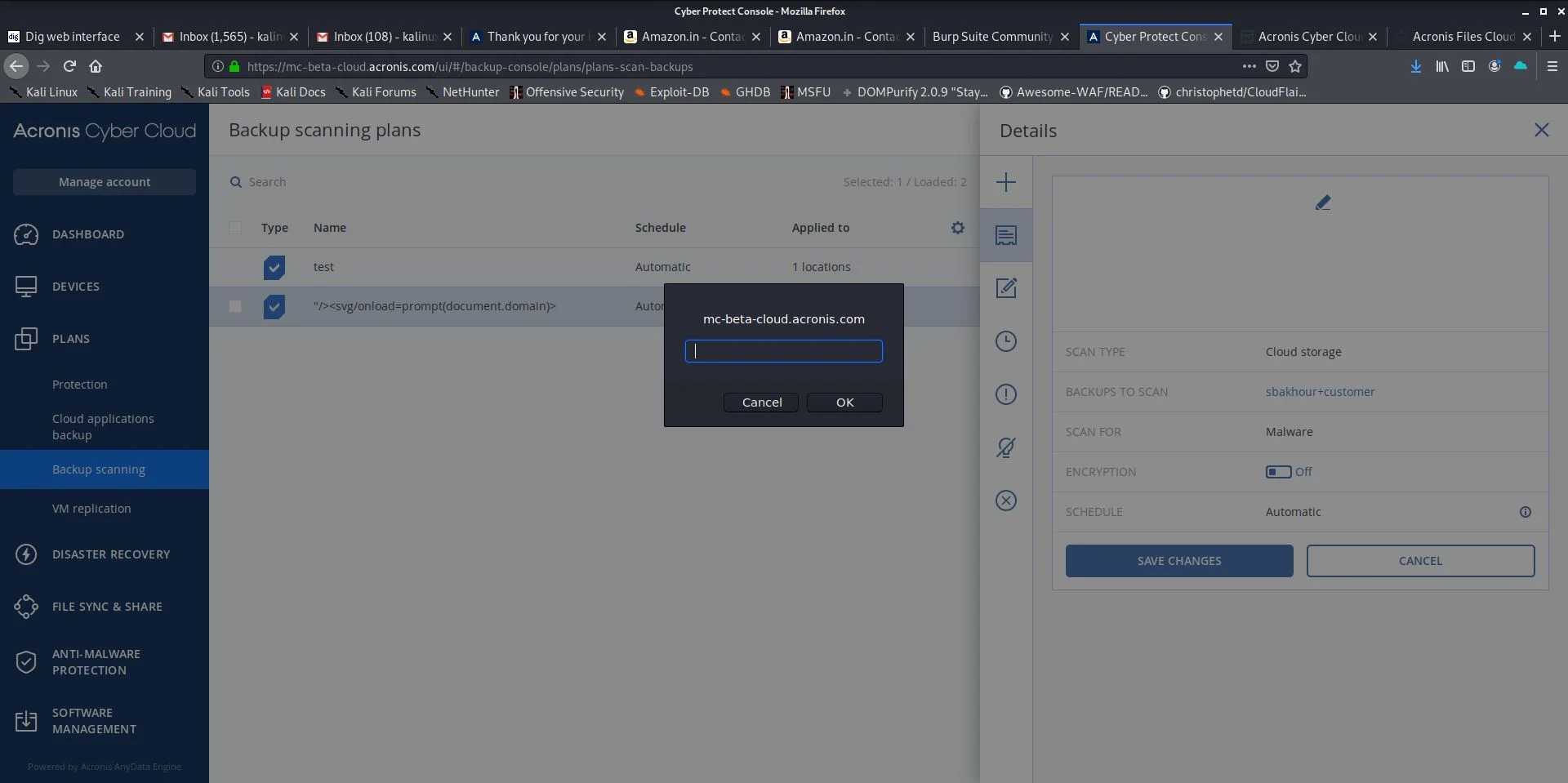
- Try to Edit it and the stored XSS will fire up.
##Supporting Material/References:
Please refer to the attached screenshot & video for reference.
##Browser Tested:
Mozilla Firefox 68.9.0esr (64-bit)
##Operating System Tested:
Windows 10 Professional 64-bit Kali Linux 2020 32-bit
Impact
An XSS attack allows an attacker to execute arbitrary JavaScript in the context of the attacked website and the attacked user. This can be abused to steal session cookies, perform requests in the name of the victim or for phishing attacks.
Attachments
Context
The target is the Acronis beta cloud console, reached at https://mc-beta-cloud.acronis.com/ui/. The feature involved is Backup Scanning, found under the PLANS section of the console. A scanning plan defines which backups are scanned; the researcher's plan pointed at a PC with the agent installed. The plan has a user-supplied name, and that name is what the report is about.
The weakness is stored cross-site scripting: a plan name containing markup is saved and later rendered in a context where it executes.
Setup
The researcher logged in to the console with an account provided for the test. The browser used was Mozilla Firefox 68.9.0esr (64-bit). The operating systems used were Windows 10 Professional 64-bit and Kali Linux 2020 32-bit. No special tooling is described; the work was done through the console UI.
Finding it
The plan name field accepts a value that is later rendered as HTML rather than as text. The payload chosen was:
"/><svg/onload=prompt(document.domain)>
The leading "/> closes an attribute and a tag, and the <svg/onload=...> element runs JavaScript when it loads. Using prompt(document.domain) makes the execution visible without doing anything harmful.
Exploitation
Step 1: log in
Log in to the console with the given account.
Step 2: open Backup Scanning
Go to "Backup Scanning" under "PLANS".
Step 3: start a new plan
Click on "Create Plan".
Step 4: choose what to scan
Specify the location of the "Backups to scan". In the researcher's case this was the PC where the agent is installed.
Step 5: set the malicious name
Name the plan with the payload:
"/><svg/onload=prompt(document.domain)>
Step 6: observe the first execution
The XSS fires many times, showing a self XSS alert. This is the payload executing in the researcher's own session while the plan is being edited.
Step 7: dismiss the alerts
Keep pressing "OK" until the alert goes away.
Step 8: save the plan and re-save it
Click on "Create" to create the plan, then click on the edit icon, then click on "Save Changes".
Step 9: dismiss any further alerts
The self XSS alert may re-pop up several times; keep pressing the "OK" button.
Step 10: reload
Reload the pages by re-visiting https://mc-beta-cloud.acronis.com/ui/ or by going between the tabs.
Step 11: return to Backup Scanning
Click again on "Backup Scanning" under "PLANS".
Step 12: select the stored plan
Select the plan created with the payload:
"/><svg/onload=prompt(document.domain)>
Step 13: edit it
Try to edit the plan, and the stored XSS fires. This is the point that matters: the payload was saved earlier and now executes on a fresh visit, not only while it was being typed.
The report includes a screenshot and a video as supporting material.
Root cause
The plan name is stored and later rendered into the page without being treated as text, so the "/> in the name breaks out of the surrounding attribute and the <svg onload> handler runs. The report does not describe the server-side or client-side code responsible, so the exact rendering path is not stated. The repeated alerts during creation and editing suggest the name is rendered in more than one place in the plan UI.
Impact
As the report puts it, an XSS attack allows an attacker to execute arbitrary JavaScript in the context of the attacked website and the attacked user. This can be abused to steal session cookies, perform requests in the name of the victim, or for phishing attacks. The stored nature means the payload persists in the plan and runs again when the plan is edited after a reload. The report does not describe any cross-user delivery step beyond the stored plan itself.
Fix
The appropriate fix is to render the plan name as text rather than HTML, and to encode it on output wherever it is displayed, so that characters such as ", < and > cannot break out of the surrounding markup.
Variants to test
- Other name fields in the same console, such as names for other plan types or saved objects. A positive result is the payload executing after a reload, not only while typing.
- Different breakout contexts: if the name lands inside an attribute, try closing it with
"/>; if it lands in a script block or text node, adapt the payload accordingly. A positive result is execution in the page origin. - Other elements with load handlers, such as
<img onerror=...>, where<svg onload=...>is filtered. A positive result is the same alert firing on a fresh page load. - The edit and save path: create a plan with a benign name, then change it to a payload and save. A positive result is execution on the next view of the plan.
Hunting notes
This kind of bug hides in user-controlled names and labels that are echoed back into rich UI: plan names, object names, descriptions and titles that appear in lists, edit forms and detail views. The signal during testing is a name that is reflected in more than one place in the interface, which is what the repeated alerts during creation and editing suggest here. The researcher demonstrated impact by showing the payload executing after a reload and after navigating back to the plan, which separates stored XSS from a self-XSS that only fires while the value is being entered.
What happened, in plain words
Acronis runs a cloud service where people back up their computers and manage those backups from a web page. One of the features in that web page is called Backup Scanning: you create a "plan" that says which backups should be scanned, and you give that plan a name. The name is just a label you type into a box.
The researcher found that the console did not treat that name as plain text. It treated it as part of the web page's own instructions (its HTML), so a name that contained special characters could make the browser run JavaScript code. JavaScript is the programming language that web pages use to do things in your browser. When someone else's JavaScript runs inside a page you are logged in to, that is called cross-site scripting, or XSS.
Because the name is saved and shown again later, the malicious name stays there. That makes it stored XSS: the code is not just run once while you type it, it runs again every time the plan is displayed or edited. The researcher saved the plan, reloaded the page, came back to the plan and edited it, and the stored XSS fired.
The target and the feature
The target is the Acronis beta cloud console, reached at https://mc-beta-cloud.acronis.com/ui/. "Beta" means a version of the product that is still being tested before general release, so it is a sensible place to look for bugs.
A console here is a web application: a website you log in to in order to manage things. The feature involved is Backup Scanning, found under the PLANS section of the console. A scanning plan defines which backups are scanned; the researcher's plan pointed at a PC with the agent installed. An agent is a small program installed on a computer that talks to the cloud service on its behalf, in this case so that the cloud knows about the backups on that machine.
The plan has a user-supplied name, and that name is what the report is about. A user-supplied value is simply something a person types into the application, as opposed to something the application generates itself.
The weakness is stored cross-site scripting: a plan name containing markup is saved and later rendered in a context where it executes. Markup means text that is written in a tag language such as HTML, where angle brackets like < and > have special meaning. Rendered means turned into what you see on screen: the browser reads the markup and draws the page. If a name is rendered as markup instead of as text, the browser cannot tell the difference between the name and the page's own instructions, and it obeys the name.
A useful comparison: imagine a form where you write your name on a label, and a clerk sticks the label on a parcel. If you write "FRAGILE" the parcel says FRAGILE. But if the clerk also obeys anything written on the label as an instruction, and you write "open this parcel and take what is inside", the clerk will do that too. The bug is that the console obeyed the label instead of just printing it.
Setup
The researcher logged in to the console with an account provided for the test. Using an account set up for testing is normal practice: you have permission to poke at the application, and you do not touch real customers' data.
The browser used was Mozilla Firefox 68.9.0esr (64-bit). The operating systems used were Windows 10 Professional 64-bit and Kali Linux 2020 32-bit. Kali Linux is a Linux distribution that ships with security tools preinstalled; here it is simply one of the two systems the researcher worked from. No special tooling is described; the work was done through the console UI. That is worth noting for a beginner: this bug was found by clicking around a normal web interface, not by running an automated scanner.
Finding it
The plan name field accepts a value that is later rendered as HTML rather than as text. In other words, whatever you type into the name box is later pasted into the page's markup, and the browser treats it as instructions.
The payload chosen was:
"/><svg/onload=prompt(document.domain)>
A payload is the piece of input crafted to trigger the bug. Let us take it apart character by character, because each part has a job:
"is a double quote. In HTML, attribute values are often wrapped in quotes, for examplename="my plan". A quote inside the value can end the attribute early./>closes the tag that the name was sitting inside. The/says "this tag ends here" and the>says "the tag is finished".<svgstarts a new HTML element. SVG is a format for drawing graphics, and browsers support it inside HTML pages. The researcher picked it because it is a convenient element for this trick./onload=prompt(document.domain)is an attribute on that element.onloadmeans "when this element finishes loading, do the following". The following isprompt(document.domain).prompt(...)is a built-in browser function that shows a small pop-up box asking for input.document.domainis a built-in value that holds the domain name of the current page. So the pop-up will display the domain, which proves the code ran in the context of the Acronis page.>closes the<svgtag.
So the whole payload means: "end the attribute and the tag I am inside, then add an SVG element that, as soon as it loads, shows a pop-up with this page's domain name." Using prompt(document.domain) makes the execution visible without doing anything harmful. A real attacker would put something more dangerous in the same place, such as code that sends the victim's session to a server they control.
Exploitation
The steps below are the researcher's reproduction steps, in order. Each one is followed by why it was done.
Step 1: log in
Log in to the console with the given account.
You need a session before you can reach the plans. A session is the state of being logged in: after you sign in, the server gives your browser a cookie, a small piece of data the browser sends back with every request so the server knows who you are. Cookies are the reason XSS matters so much: if an attacker's JavaScript runs in your page, it can read or act with your session.
Step 2: open Backup Scanning
Go to "Backup Scanning" under "PLANS".
This is the feature that holds the plan list and the plan creation form, so it is where the name field lives.
Step 3: start a new plan
Click on "Create Plan".
Creating a plan is the only way to supply a name, so the form has to be opened.
Step 4: choose what to scan
Specify the location of the "Backups to scan". In the researcher's case this was the PC where the agent is installed.
A plan needs a target. Picking the machine with the agent installed gives the plan something real to scan, so the rest of the flow behaves normally.
Step 5: set the malicious name
Name the plan with the payload:
"/><svg/onload=prompt(document.domain)>
This is the input under test. The name box is where a normal user would type something like "Weekly scan"; the researcher typed markup instead, to see whether the console would treat it as text or as instructions.
Step 6: observe the first execution
The XSS fires many times, showing a self XSS alert. This is the payload executing in the researcher's own session while the plan is being edited.
Self XSS means the code runs in the session of the person who typed it. On its own that is not a serious bug, because you can only attack yourself. It is a signal, though: it shows the name is being rendered as markup. The fact that it fires many times suggests the name is rendered in more than one place on the page.
Step 7: dismiss the alerts
Keep pressing "OK" until the alert goes away.
Each pop-up blocks the page until it is dismissed, so they have to be cleared to carry on with the flow.
Step 8: save the plan and re-save it
Click on "Create" to create the plan, then click on the edit icon, then click on "Save Changes".
This is the important part. Clicking "Create" sends the name to the server, where it is stored. Opening the edit form and saving again exercises the path a real user would take when they change a plan later.
Step 9: dismiss any further alerts
The self XSS alert may re-pop up several times; keep pressing the "OK" button.
Again, the pop-ups block the page, so they have to be cleared to carry on.
Step 10: reload
Reload the pages by re-visiting https://mc-beta-cloud.acronis.com/ui/ or by going between the tabs.
Reloading fetches the page fresh from the server, so a payload that runs afterwards comes from stored data.
Step 11: return to Backup Scanning
Click again on "Backup Scanning" under "PLANS".
This navigates back to the list of plans, which is where a stored name would be displayed to anyone who visits.
Step 12: select the stored plan
Select the plan created with the payload:
"/><svg/onload=prompt(document.domain)>
Selecting the plan is the step before editing it, where the stored payload fires.
Step 13: edit it
Try to edit the plan, and the stored XSS fires. This is the point that matters: the payload was saved earlier and now executes on a fresh visit, not only while it was being typed.
That distinction is the whole finding. A value that only misbehaves while you type it is a nuisance. A value that is saved and executes again when the plan is edited is a stored vulnerability.
The report includes a screenshot and a video as supporting material.
The video is attached as supporting material for the reproduction.
The screenshot is attached as supporting material alongside the video.
Root cause
The plan name is stored and later rendered into the page without being treated as text, so the "/> in the name breaks out of the surrounding attribute and the <svg onload> handler runs. In plain terms: the application took a value a user controls and glued it into its own HTML without escaping it. Escaping means converting characters that have special meaning in markup, such as <, > and ", into harmless equivalents so the browser prints them instead of obeying them. Without escaping, the browser has no way to know which parts of the page came from the application and which came from a user.
The report does not describe the server-side or client-side code responsible, so the exact rendering path is not stated. The repeated alerts during creation and editing suggest the name is rendered in more than one place in the plan UI.
Impact
As the report puts it, an XSS attack allows an attacker to execute arbitrary JavaScript in the context of the attacked website and the attacked user. Arbitrary JavaScript means any code the attacker likes, not just a pop-up. In the context of means it runs as if it were part of the Acronis page, with the same access the page has: it can read what the page can read and send requests where the page can send requests.
This can be abused to steal session cookies, perform requests in the name of the victim, or for phishing attacks. Each of those deserves a plain explanation:
- Stealing session cookies: the cookie is the proof that you are logged in. If code running in the page can read it and send it elsewhere, the attacker can use it to act as you.
- Performing requests in the name of the victim: the attacker's code runs inside your logged-in browser, so any request it makes carries your session automatically. The server sees a request from a logged-in user and has no reason to refuse it.
- Phishing: the attacker's code can change what the page shows, for example by drawing a fake login box on top of the real console, so you type your password into something that sends it to the attacker.
The stored nature means the payload persists in the plan and runs again when the plan is edited after a reload. The report does not describe any cross-user delivery step beyond the stored plan itself.
Fix
The appropriate fix is to render the plan name as text rather than HTML, and to encode it on output wherever it is displayed, so that characters such as ", < and > cannot break out of the surrounding markup. Encoding on output means doing the conversion at the moment the value is placed into the page, which is the safest place because it covers every way the value can arrive. The everyday comparison is the parcel label again: the clerk should print whatever is written on the label, never follow it as an instruction.
Variants to test
Once you understand one stored XSS in a name field, the same idea applies in many places. These are follow-ups worth trying:
- Other name fields in the same console, such as names for other plan types or saved objects. A positive result is the payload executing after a reload, not only while typing.
- Different breakout contexts: if the name lands inside an attribute, try closing it with
"/>; if it lands in a script block or text node, adapt the payload accordingly. A positive result is execution in the page origin. The origin is the combination of scheme, host and port that the browser uses to decide what a page is allowed to touch; code running in the Acronis origin can reach Acronis data. - Other elements with load handlers, such as
<img onerror=...>, where<svg onload=...>is filtered. A positive result is the same alert firing on a fresh page load. Filtered means the application blocks or strips certain input; attackers try alternative elements that do the same job. - The edit and save path: create a plan with a benign name, then change it to a payload and save. A positive result is execution on the next view of the plan.
Hunting notes
This kind of bug hides in user-controlled names and labels that are echoed back into rich UI: plan names, object names, descriptions and titles that appear in lists, edit forms and detail views. Echoed back means the application shows your input to you again later, which is exactly where the browser has to decide whether to print it or obey it.
The signal during testing is a name that is reflected in more than one place in the interface, which is what the repeated alerts during creation and editing suggest here. If you see your pop-up appear several times on one screen, note where each one comes from; each location is a separate rendering path that may need its own fix.
The researcher demonstrated impact by showing the payload executing after a reload and after navigating back to the plan, which separates stored XSS from a self-XSS that only fires while the value is being entered. That is the habit worth copying: always reload and come back before you call it stored.
Glossary
- Agent: a small program installed on a computer that communicates with a cloud service on that computer's behalf.
- Attribute: a setting written inside an HTML tag, such as
name="value". - Backup Scanning: the Acronis console feature that scans backups according to a plan.
- Beta: a version of a product released for testing before general availability.
- Bounty: a payment made by a company to a researcher who reports a valid security bug.
- Browser: the program you use to view web pages, such as Firefox.
- Console: here, the web application where a customer manages their Acronis backups.
- Cookie: a small piece of data a website stores in your browser and receives back with each request, commonly used to remember that you are logged in.
- Cross-site scripting (XSS): a bug where an attacker's JavaScript runs inside a page belonging to another site, in the browser of a victim.
- CVSS: a standard scoring system for the severity of a vulnerability.
- Domain: the name of a website, such as the part shown by
document.domain. - Element: a single piece of HTML markup, such as an
<svg>or an<img>. - Encoding (output encoding): converting special characters into harmless equivalents at the moment a value is placed into a page, so they are printed rather than obeyed.
- Escaping: see encoding; making characters that have special meaning in markup safe to display.
- Filtering: blocking or stripping certain input, for example removing
<svg>from a name. - HTML: the tag language used to describe the structure of a web page.
- JavaScript: the programming language that web pages run in the browser.
- Markup: text written in a tag language such as HTML, where characters like
<and>have special meaning. - Origin: the combination of scheme, host and port that defines which page is allowed to access which data.
- Payload: the crafted input used to trigger a vulnerability.
- Phishing: tricking a person into handing over credentials or other sensitive data, often with a fake page or form.
- Plan: in this product, a saved configuration that says which backups to scan.
prompt: a built-in browser function that shows a pop-up box asking for input; here used to make code execution visible.- Rendered: turned into what appears on screen by the browser reading the markup.
- Self XSS: XSS that only runs in the session of the person who entered the payload.
- Session: the state of being logged in, usually maintained with a cookie.
- Severity: a rating of how serious a vulnerability is, here medium.
- Stored XSS: XSS where the payload is saved by the application and executes later, for anyone who views the affected page.
- SVG: a format for drawing graphics, supported inside HTML pages.
- Tag: a piece of HTML syntax enclosed in angle brackets, such as
<svg>. - User-supplied: typed in by a person rather than generated by the application.
- Vulnerability: a weakness in software that can be used to cause harm.
onload: an HTML attribute meaning "when this element finishes loading, run the following code".onerror: an HTML attribute meaning "when this element fails to load, run the following code".