Staff member with no permission can delete POS staff from account settings
A staff member without permissions could delete Shopify POS staff accounts from the account settings page. This allowed unauthorised removal of POS staff, which could disrupt store operations.

- Triaged in 46 hours
- Fixed in 7 days
- Paid in 4 days
- Disclosed after 5 months
Hello Team
#Description Shopify POS also has staff settings only for POS purposes where an admin can add POS Shopify staff along with fname,lname, email address, and generated pin. Reference - https://help.shopify.com/en/manual/sell-in-person/pos-classic/setup/staff-settings After creation, Shopify POS staff displays in /admin/settings/account, and Vulnerability arises when staff members with no permission can delete Shopify POS staff from account settings.
#Step To Reproduce
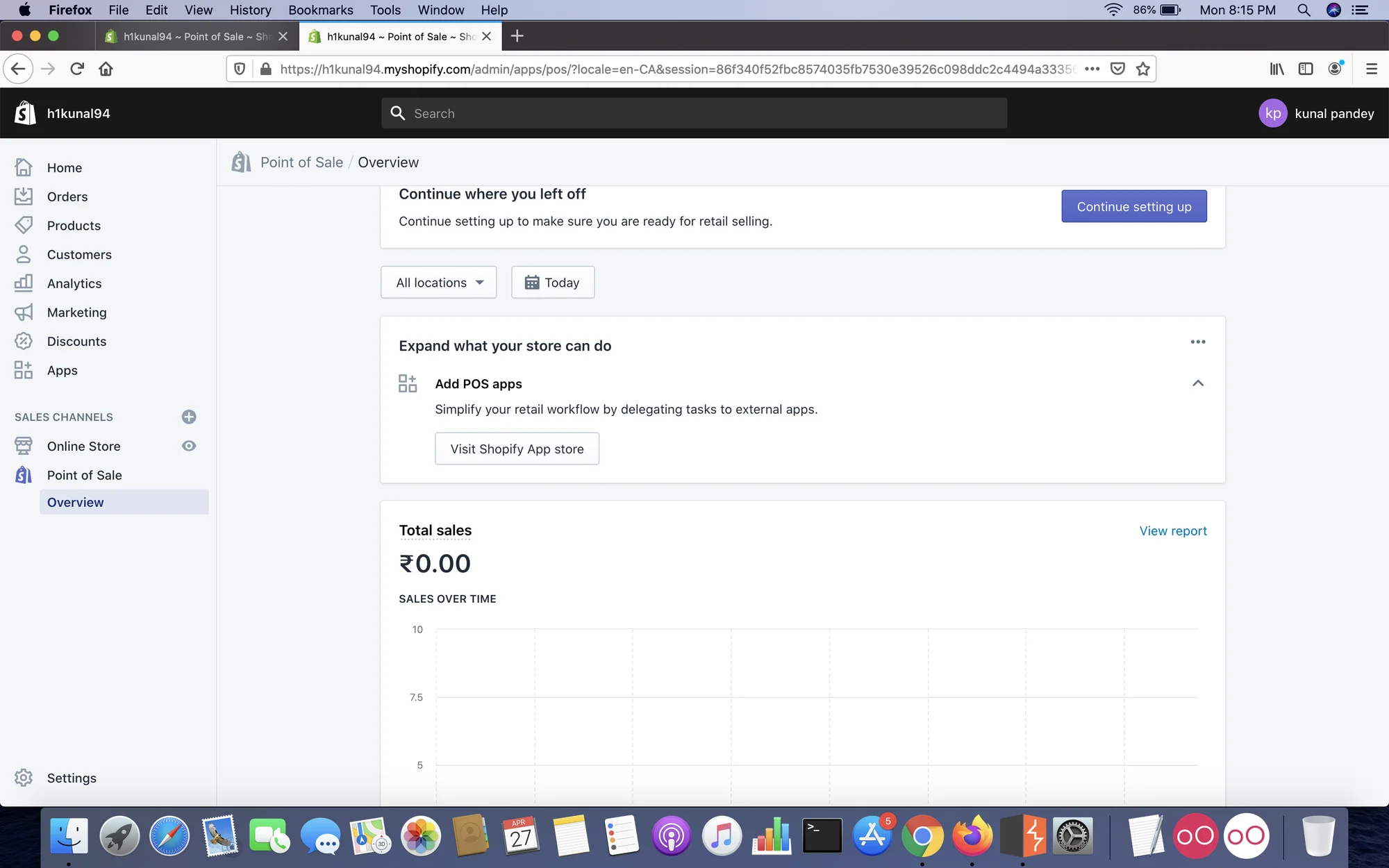
- Go to the Shopify POS app from the admin session.
-
Currently, I've Shopify Plus Partner Sandbox/Monthly, so in a sandbox environment, staff POS staff settings are not enabled, however, we can modify response and enable the POS staff member feature on the sandbox environment to test.
-
Intercept Shopify POS app area from burp suite and notice the GRAPHQL response
Request
POST /graphql-proxy/admin HTTP/1.1
Host: pos-channel.shopifycloud.com
{"operationName":"Overview","variables":{},"query":"query Overview {\n shop {\n currencyCode\n ianaTimezone\n countryCode\n features {\n retailPackage\n __typename\n }\n staffPermissionsBetaFlag: beta(name: \"pos_web_admin_staff_user_permissions\")\n accountSetupQuestionsAnswers {\n answer\n handle\n __typename\n }\n plan {\n trial\n __typename\n }\n accountOwner {\n email\n __typename\n }\n __typename\n }\n locations(first: 50) {\n edges {\n node {\n name\n id\n addressVerified\n hasActiveInventory\n __typename\n }\n __typename\n }\n __typename\n }\n products(first: 1) {\n edges {\n node {\n id\n __typename\n }\n __typename\n }\n __typename\n }\n}\n"}
Response
{"data":{"shop":{"currencyCode":"INR","ianaTimezone":"America\/New_York","countryCode":"IN","features":{"retailPackage":true,"__typename":"ShopFeatures"},"staffPermissionsBetaFlag":false,"accountSetupQuestionsAnswers":[{"answer":"No locations yet","handle":"number_locations","__typename":"AccountSetupQuestionsAnswer"},{"answer":"1","handle":"offline_brick_and_mortar","__typename":"AccountSetupQuestionsAnswer"},{"answer":"1","handle":"offline_markets_fairs","__typename":"AccountSetupQuestionsAnswer"},{"answer":"1","handle":"offline_temp_shops","__typename":"AccountSetupQuestionsAnswer"}],"plan":{"trial":false,"__typename":"ShopPlan"},"accountOwner":{"email":"[email protected]","__typename":"StaffMember"},"__typename":"Shop"},"locations":{"edges":[{"node":{"name":"khudirampally, bagdogra","id":"gid:\/\/shopify\/Location\/35202859030","addressVerified":false,"hasActiveInventory":true,"__typename":"Location"},"__typename":"LocationEdge"},{"node":{"name":"test","id":"gid:\/\/shopify\/Location\/35202891798","addressVerified":true,"hasActiveInventory":true,"__typename":"Location"},"__typename":"LocationEdge"}],"__typename":"LocationConnection"},"products":{"edges":[{"node":{"id":"gid:\/\/shopify\/Product\/4351723438102","__typename":"Product"},"__typename":"ProductEdge"}],"__typename":"ProductConnection"}},"extensions":{"cost":{"requestedQueryCost":60,"actualQueryCost":12,"throttleStatus":{"maximumAvailable":600000.0,"currentlyAvailable":599988,"restoreRate":30000.0}}}}
- In the response, we have
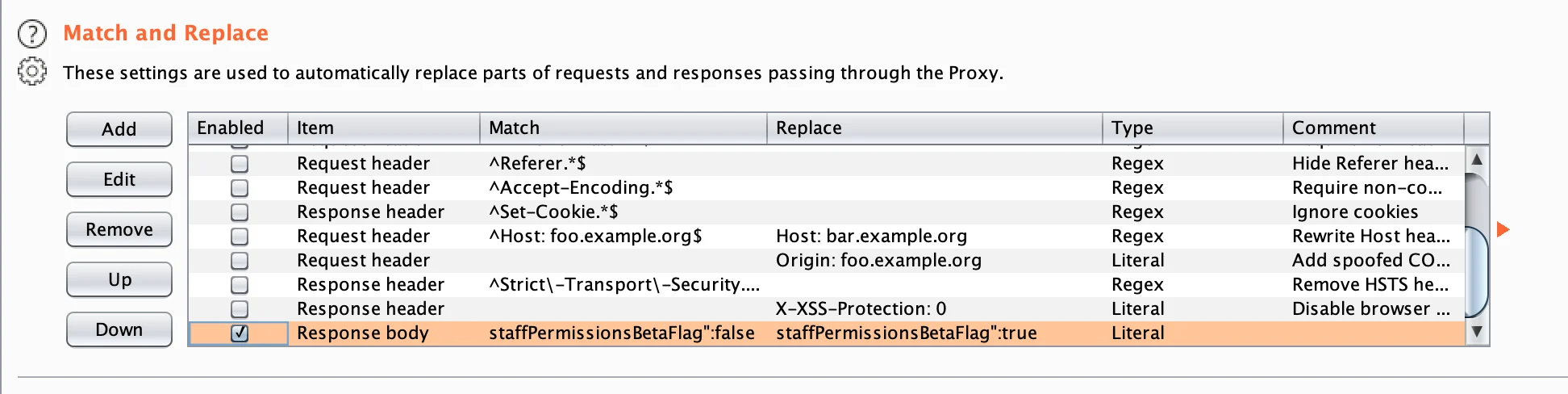
"staffPermissionsBetaFlag":false, use Burp Match and Replace rule on response body and set the value from"staffPermissionsBetaFlag":falseto"staffPermissionsBetaFlag":true.
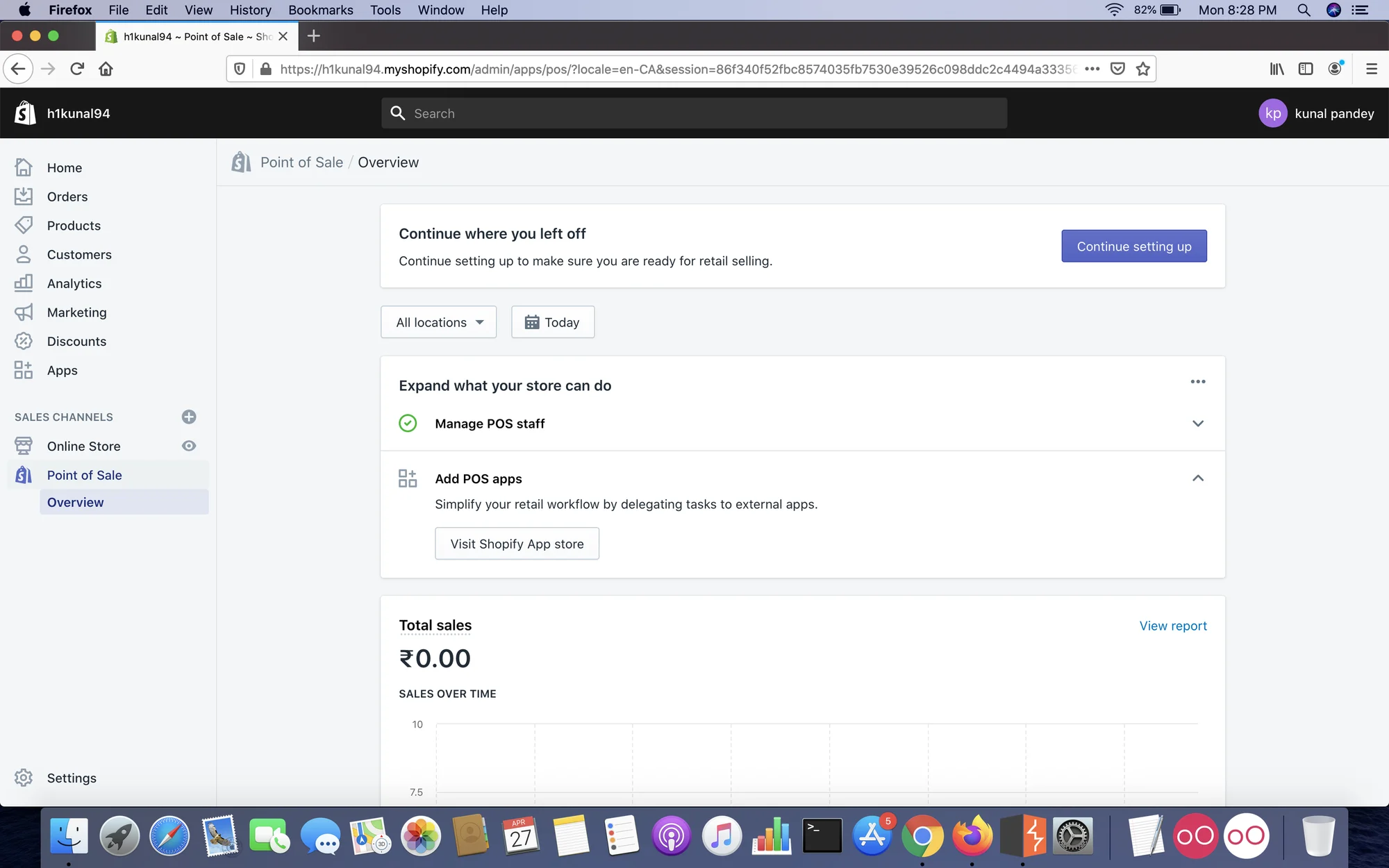
- Again refresh the page and we have access to Shopify POS Staff manage area.
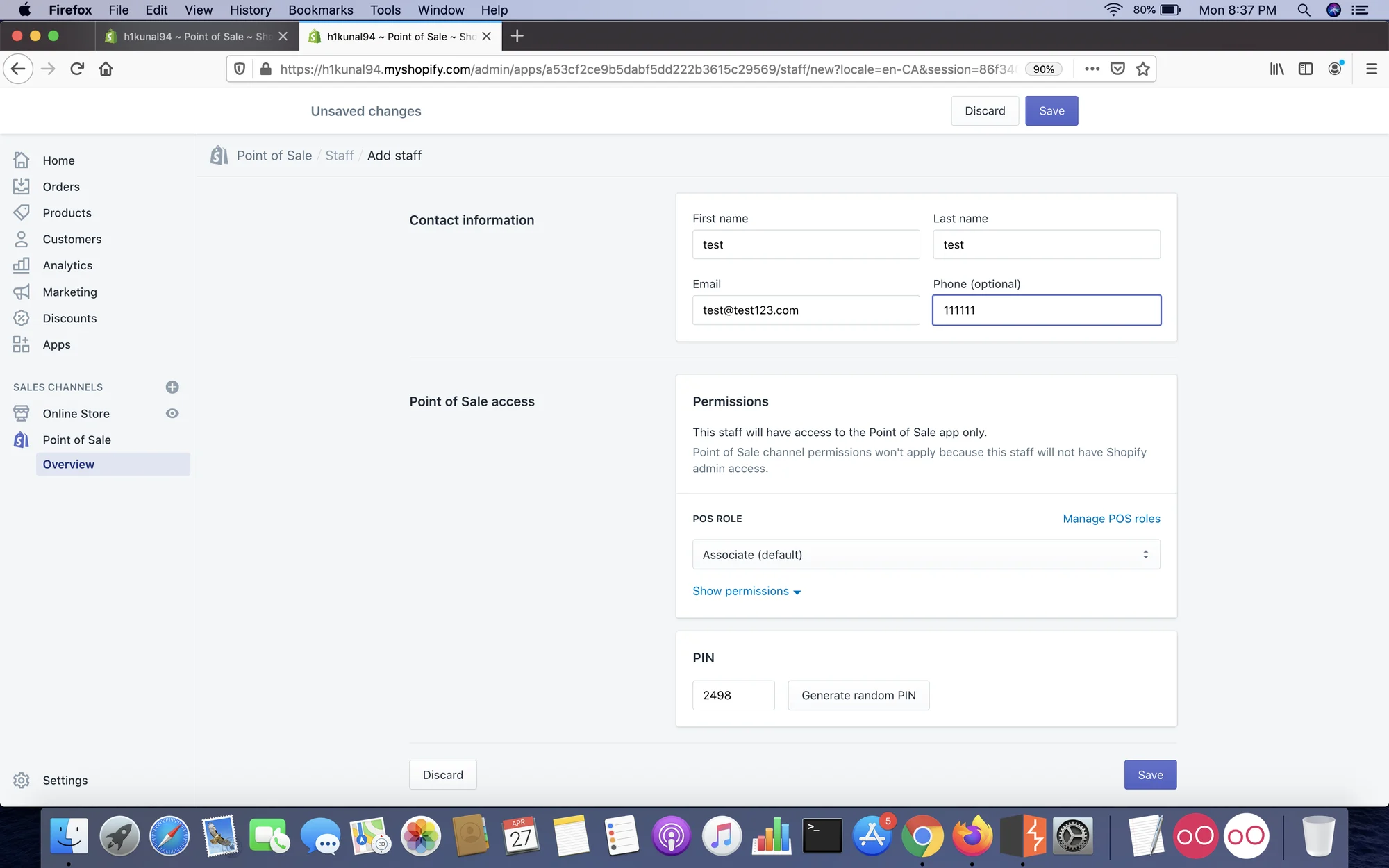
- Navigate to "Manage POS staff" and add POS staff
- Save it and when you go to
/admin/settings/accountand we can see Shopify POS staff down below:
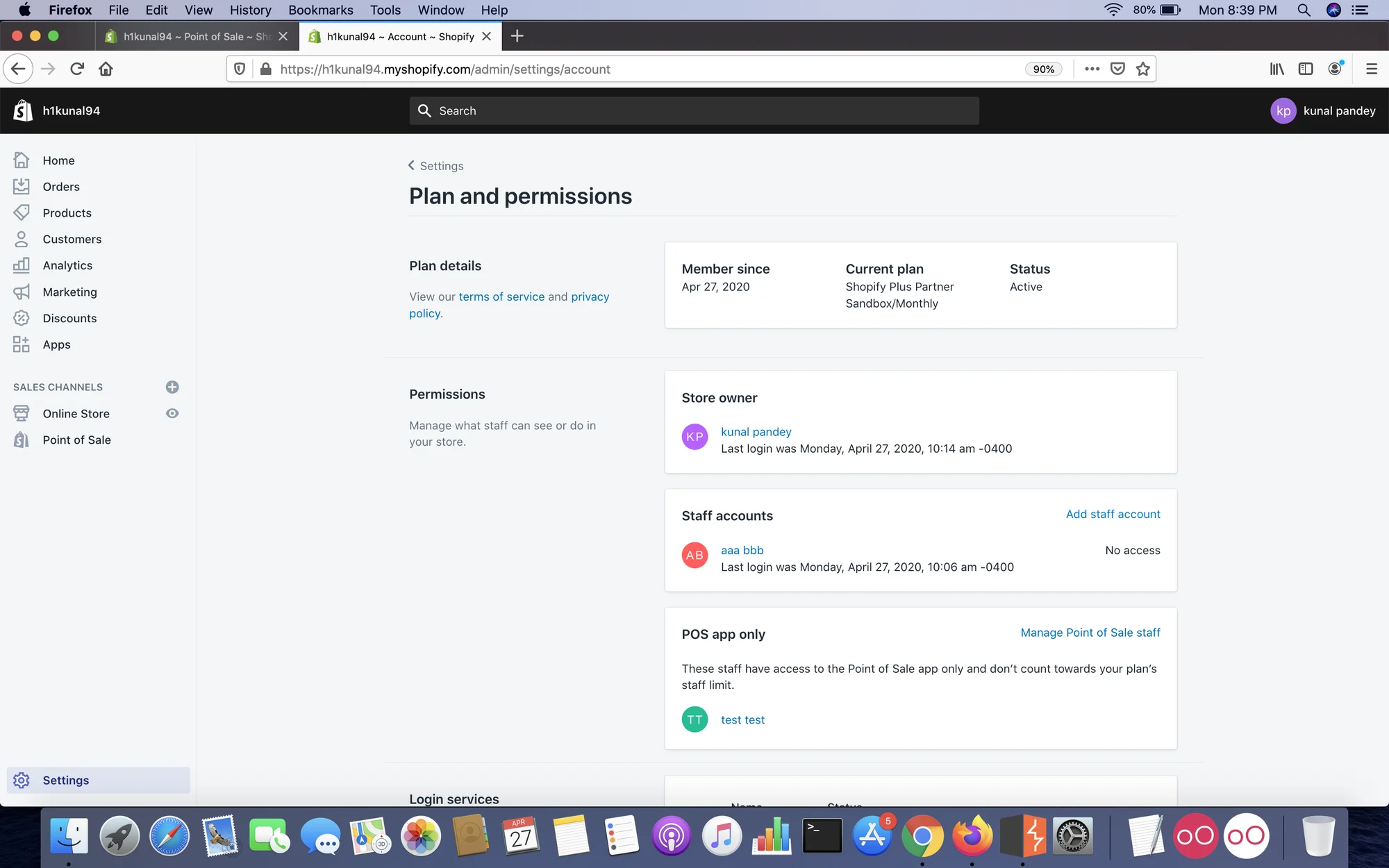
- Next, Logged in as staff member with no permission, and navigate to
/admin/settings/account, down below staff member can also see POS staff account, open POS staff account area, and click on delete, and the account will be deleted successfully.
- I have set the severity as low since I don't know about the level of POS staff's impact on the Shopify store.
Thanks Kunal
Impact
- User with no permission at all can delete "Shopify POS staff" completely.
Context
Shopify POS has its own staff settings, separate from the main admin staff list. An admin can add a POS staff member with a first name, last name, email address and a generated PIN. The report links to Shopify's help documentation for POS staff settings as the reference for how the feature normally behaves.
Once created, a Shopify POS staff member also appears under /admin/settings/account. The bug is that a staff member with no permissions at all can delete a Shopify POS staff member from that account settings page.
Setup
The researcher worked from an admin session on a Shopify Plus Partner Sandbox (monthly). In that sandbox environment the POS staff settings were not enabled. The researcher's workaround was to modify the GraphQL response so the POS staff member feature appeared enabled on the sandbox, which allowed the feature to be tested.
Burp Suite was used to intercept the Shopify POS app traffic and to apply a Match and Replace rule on the response body.
Finding it
While looking at the Shopify POS app, the researcher intercepted the GraphQL call the app makes and read the response. The response contains a feature flag field, staffPermissionsBetaFlag, returned as false. Flipping that flag in the response made the POS staff management area reachable. Because the value is delivered to the client and the client acts on it, flipping it in the response turns the feature on for the session, even on an environment where the feature is not enabled.
With the flag set to true, the POS staff management area became reachable, a POS staff member could be created, and that member then showed up in /admin/settings/account. The second half of the finding is that a staff member with no permissions could see that POS staff account in the same page and delete it.
Exploitation
Step 1: Open the Shopify POS app
From the admin session, go to the Shopify POS app.
Step 2: Intercept the GraphQL request
Intercept the Shopify POS app area in Burp Suite and look at the GraphQL response. The request is:
POST /graphql-proxy/admin HTTP/1.1
Host: pos-channel.shopifycloud.com
with the body:
{"operationName":"Overview","variables":{},"query":"query Overview {\n shop {\n currencyCode\n ianaTimezone\n countryCode\n features {\n retailPackage\n __typename\n }\n staffPermissionsBetaFlag: beta(name: \"pos_web_admin_staff_user_permissions\")\n accountSetupQuestionsAnswers {\n answer\n handle\n __typename\n }\n plan {\n trial\n __typename\n }\n accountOwner {\n email\n __typename\n }\n __typename\n }\n locations(first: 50) {\n edges {\n node {\n name\n id\n addressVerified\n hasActiveInventory\n __typename\n }\n __typename\n }\n __typename\n }\n products(first: 1) {\n edges {\n node {\n id\n __typename\n }\n __typename\n }\n __typename\n }\n}\n"}
The query aliases the beta feature check as staffPermissionsBetaFlag, resolved through beta(name: "pos_web_admin_staff_user_permissions"). It also pulls shop metadata, locations, a single product and the account owner's email.
The response:
{"data":{"shop":{"currencyCode":"INR","ianaTimezone":"America\/New_York","countryCode":"IN","features":{"retailPackage":true,"__typename":"ShopFeatures"},"staffPermissionsBetaFlag":false,"accountSetupQuestionsAnswers":[{"answer":"No locations yet","handle":"number_locations","__typename":"AccountSetupQuestionsAnswer"},{"answer":"1","handle":"offline_brick_and_mortar","__typename":"AccountSetupQuestionsAnswer"},{"answer":"1","handle":"offline_markets_fairs","__typename":"AccountSetupQuestionsAnswer"},{"answer":"1","handle":"offline_temp_shops","__typename":"AccountSetupQuestionsAnswer"}],"plan":{"trial":false,"__typename":"ShopPlan"},"accountOwner":{"email":"[redacted]","__typename":"StaffMember"},"__typename":"Shop"},"locations":{"edges":[{"node":{"name":"khudirampally, bagdogra","id":"gid:\/\/shopify\/Location\/35202859030","addressVerified":false,"hasActiveInventory":true,"__typename":"Location"},"__typename":"LocationEdge"},{"node":{"name":"test","id":"gid:\/\/shopify\/Location\/35202891798","addressVerified":true,"hasActiveInventory":true,"__typename":"Location"},"__typename":"LocationEdge"}],"__typename":"LocationConnection"},"products":{"edges":[{"node":{"id":"gid:\/\/shopify\/Product\/4351723438102","__typename":"Product"},"__typename":"ProductEdge"}],"__typename":"ProductConnection"}},"extensions":{"cost":{"requestedQueryCost":60,"actualQueryCost":12,"throttleStatus":{"maximumAvailable":600000.0,"currentlyAvailable":599988,"restoreRate":30000.0}}}}
The relevant field is "staffPermissionsBetaFlag":false.
Step 3: Flip the flag with a Match and Replace rule
In Burp, add a Match and Replace rule on the response body that changes "staffPermissionsBetaFlag":false to "staffPermissionsBetaFlag":true.
Step 4: Reload and reach the POS staff area
Refresh the page. The Shopify POS Staff manage area is now accessible.
Step 5: Add a POS staff member
Navigate to "Manage POS staff" and add a POS staff member.
Step 6: Confirm the POS staff member appears in account settings
Save the staff member, then go to /admin/settings/account. The Shopify POS staff member is listed further down the page.
Step 7: Delete the POS staff member as an unprivileged staff member
Log in as a staff member with no permissions and navigate to /admin/settings/account. The staff member can also see the POS staff account further down the page. Open the POS staff account area, click delete, and the account is deleted successfully.
Root cause
The report does not describe the server-side code. What it shows is that the POS staff management area is gated by a client-side feature flag returned in the GraphQL response, and that the delete action on a POS staff account is not restricted to users who hold the relevant permission. The report does not describe the server-side code; it shows only that an unprivileged staff member could see and delete the POS staff account. The exact mechanism is not stated in the report.
Impact
A user with no permissions at all can delete a Shopify POS staff member completely. The researcher set the severity to low because the level of impact of a POS staff member on the Shopify store was not known to them.
Fix
The obvious fix is to enforce the POS staff permission on the server for the delete action, so that a staff member without the relevant permission cannot delete a POS staff account regardless of what the UI shows.
Variants to test
- Other POS staff actions: try editing a POS staff member's name, email or PIN as an unprivileged staff member. A positive result is that the change is accepted and persisted.
- Other feature flags in GraphQL responses: look for beta or feature fields returned to the client and flip them, then check whether the newly exposed area performs its actions without a server-side permission check.
- Other account settings actions: as an unprivileged staff member, attempt actions on other objects listed under
/admin/settings/account. A positive result is any state change that the user's permissions should not allow. - Direct requests without the UI: replay the delete request as an unprivileged staff member without going through the modified page. A positive result is that the server deletes the POS staff member even though the client never showed the option.
Hunting notes
This kind of bug tends to sit where a feature is rolled out behind a client-side flag and where a newer object type, here POS staff, is added to an existing settings page. The signal during recon is a GraphQL response that carries feature or beta fields alongside the data the page renders; if the client trusts those fields to decide what to show, the server side is worth testing separately. The researcher showed impact by creating a POS staff member, confirming it appeared in /admin/settings/account, then logging in as a staff member with no permissions and deleting it, with a screen recording of the deletion.
What happened, in plain words
Shopify is a platform that lets people run online shops. One part of it, Shopify POS, is the software a shop uses at a physical counter (a till or point of sale). Shopify POS has its own list of staff members, separate from the main admin staff list. An admin can add a POS staff member by giving a first name, last name, email address and a generated PIN (a short numeric code the person types at the till). The report points to Shopify's help documentation for POS staff settings as the reference for how this feature normally behaves.
Once a POS staff member is created, that person also appears on a page called /admin/settings/account, which is the account settings page of the shop admin. The problem the researcher found is that a staff member with no permissions at all can delete a POS staff member from that page. "No permissions" means the account is allowed to log in but is not trusted to change anything; deleting another staff member is exactly the kind of action such an account should not be able to perform.
To get to the feature on a test shop where it was switched off, the researcher changed a value in the data the browser receives, so the page believed the feature was enabled. That is the first half of the story. The second half is that the delete action itself was not protected, so an unprivileged staff member could carry it out.
Background you need first
A few ideas come up again and again below, so here they are from zero.
The admin session. When you log in to a website, the site gives your browser a small piece of data (often called a cookie or a session token) that it sends back with every request. That is how the site knows which logged-in user is asking. "Admin session" simply means the browser is logged in as the shop administrator.
An API and a request. A web page is built from data the browser fetches from the server. Those fetches are requests to an API: a defined address the browser calls to ask for data or to ask the server to do something. Think of a restaurant: the menu is the API, your order is the request, and the plate that comes back is the response.
GraphQL. GraphQL is a way of asking an API for data where the request spells out exactly which fields you want, and the answer comes back in the same shape. A GraphQL request is usually sent as a POST with a JSON body containing a query string. JSON is just a text format for structured data, made of names and values in curly braces.
A feature flag. A feature flag is a switch stored as a value (often true or false) that tells the software whether a feature is turned on. Companies use them to roll a feature out gradually. If the browser receives the flag and decides what to show based on it, then whoever controls the response controls what the page shows.
Burp Suite and intercepting. Burp Suite is a tool that sits between your browser and the server. When "intercepting", it pauses each request or response so you can read it, and optionally change it before it continues. A Match and Replace rule is a Burp feature that automatically swaps one piece of text for another every time it appears, so you do not have to edit by hand on every reload.
Privilege escalation. A privilege is a permission to do something. Privilege escalation means getting to do something your account was not supposed to be allowed to do. Here it is the quiet kind: the low-permission user is not given extra powers in general, but one specific action (deleting a POS staff member) is left open to them.
Severity. Reports are rated by how much harm the bug can cause. The researcher marked this one low, because they did not know how much a POS staff member matters to a Shopify store.
Setup
The researcher worked from an admin session on a Shopify Plus Partner Sandbox (monthly). A sandbox is a disposable test shop, not a real business. In that sandbox the POS staff settings were not enabled, so the feature could not be used as normal. The workaround was to modify the GraphQL response so the POS staff member feature appeared enabled on the sandbox, which allowed the feature to be tested.
Burp Suite was used to intercept the Shopify POS app traffic and to apply a Match and Replace rule on the response body. The reason for intercepting is simple: you cannot change what you cannot see, and the browser only shows you the finished page, not the data it received to build it.
Finding it
While looking at the Shopify POS app, the researcher intercepted the GraphQL call the app makes and read the response. The response contains a feature flag field, staffPermissionsBetaFlag, returned as false. Flipping that flag in the response made the POS staff management area reachable. Because the value is delivered to the client and the client acts on it, flipping it in the response turns the feature on for the session, even on an environment where the feature is not enabled.
With the flag set to true, the POS staff management area became reachable, a POS staff member could be created, and that member then showed up in /admin/settings/account. The second half of the finding is that a staff member with no permissions could see that POS staff account in the same page and delete it.
Exploitation
Step 1: Open the Shopify POS app
From the admin session, go to the Shopify POS app. This is the normal starting point: you want to watch the app do its ordinary job before changing anything.
Step 2: Intercept the GraphQL request
Intercept the Shopify POS app area in Burp Suite and look at the GraphQL response. The request is:
POST /graphql-proxy/admin HTTP/1.1
Host: pos-channel.shopifycloud.com
Line by line:
POST /graphql-proxy/admin HTTP/1.1says this is a POST request (a request that sends data, as opposed to a plain page fetch) to the path/graphql-proxy/admin, using version 1.1 of the HTTP protocol. The word "proxy" in the path hints that the request is passed on to another service behind the scenes.Host: pos-channel.shopifycloud.comnames the server the request is addressed to. This is the POS channel's own host, which is why the POS app's data comes from here rather than from the main admin host.
The body of the request is:
{"operationName":"Overview","variables":{},"query":"query Overview {\n shop {\n currencyCode\n ianaTimezone\n countryCode\n features {\n retailPackage\n __typename\n }\n staffPermissionsBetaFlag: beta(name: \"pos_web_admin_staff_user_permissions\")\n accountSetupQuestionsAnswers {\n answer\n handle\n __typename\n }\n plan {\n trial\n __typename\n }\n accountOwner {\n email\n __typename\n }\n __typename\n }\n locations(first: 50) {\n edges {\n node {\n name\n id\n addressVerified\n hasActiveInventory\n __typename\n }\n __typename\n }\n __typename\n }\n products(first: 1) {\n edges {\n node {\n id\n __typename\n }\n __typename\n }\n __typename\n }\n}\n"}
What each part means:
operationNameisOverview, the name of this particular query, so both sides can refer to it by name.variablesis empty, meaning this query takes no inputs.queryholds the actual GraphQL text. The\nsequences are newlines encoded inside a JSON string, so the query is easier to read if you imagine it laid out over several lines.- The query asks for a
shopobject withcurrencyCode,ianaTimezoneandcountryCode: basic shop settings. - Inside
shopit asks forfeatures { retailPackage }, a feature flag for the retail package. - The important line is
staffPermissionsBetaFlag: beta(name: "pos_web_admin_staff_user_permissions"). This asks a beta (pre-release) feature check namedpos_web_admin_staff_user_permissionsand stores the answer under the labelstaffPermissionsBetaFlag. The label is the researcher's chosen name; the thing being checked is the POS web admin staff user permissions feature. accountSetupQuestionsAnswersreturns the answers given during account setup, each with ananswerand ahandle(the question's identifier).plan { trial }says whether the shop is on a trial.accountOwner { email }returns the email address of the account owner.locations(first: 50)asks for up to 50 shop locations, each withname,id,addressVerifiedandhasActiveInventory.products(first: 1)asks for one product, just itsid.__typenameappears throughout; it is a GraphQL built-in that returns the type name of each object, which helps the client know what it received.
The response:
Reading it in plain words:
- Everything sits under
data, which is where GraphQL puts the answers. shopreturns the currency (INR), the timezone (America/New_York) and the country (IN), plusretailPackage: true.staffPermissionsBetaFlagcomes back asfalse. This is the switch that decides whether the POS staff management area is shown.accountSetupQuestionsAnswerslists the setup answers, for examplenumber_locationsansweredNo locations yet, and counts of offline shop types.planshowstrial: false, so the shop is not on a trial.accountOwnergives the owner's email, which is personal data and is redacted here.locationslists two locations with their names and IDs. The IDs are long strings startinggid://shopify/Location/, a global identifier format.productslists one product with its ID.extensions.costis bookkeeping from the server about how expensive the query was: how much was requested, how much was actually used, and how much capacity remains before the client is throttled (slowed down).
The relevant field is "staffPermissionsBetaFlag":false.
Step 3: Flip the flag with a Match and Replace rule
In Burp, add a Match and Replace rule on the response body that changes "staffPermissionsBetaFlag":false to "staffPermissionsBetaFlag":true.
The reason for doing this is to test the feature on a shop where it is switched off. The rule is automatic, so every time the app fetches this data, the answer arrives saying the feature is on. Note what this tells you: the browser is the one deciding whether to show the POS staff area, based on a value it was handed.
Step 4: Reload and reach the POS staff area
Refresh the page. The Shopify POS Staff manage area is now accessible. The reload matters because the page has to fetch the data again; only then does the modified response take effect.
Step 5: Add a POS staff member
Navigate to "Manage POS staff" and add a POS staff member. This creates a real object to test against, so the later steps have something to look at and something to delete.
Step 6: Confirm the POS staff member appears in account settings
Save the staff member, then go to /admin/settings/account. The Shopify POS staff member is listed further down the page. This confirms the POS staff member is listed on the account settings page.
Step 7: Delete the POS staff member as an unprivileged staff member
Log in as a staff member with no permissions and navigate to /admin/settings/account. The staff member can also see the POS staff account further down the page. Open the POS staff account area, click delete, and the account is deleted successfully.
This is the actual vulnerability. The unprivileged user could see the POS staff account, open it and delete it successfully. The screen recording shows the deletion happening from that low-permission account.
Root cause
The report does not describe the server-side code. What it shows is that the POS staff management area is gated by a client-side feature flag returned in the GraphQL response, and that the delete action on a POS staff account is not restricted to users who hold the relevant permission. The report does not describe the server-side code; it shows only that an unprivileged staff member could see and delete the POS staff account. The exact mechanism is not stated in the report.
A useful comparison: a hotel key card that opens the front door is fine, but the same card should not open other guests' rooms. Here the card opened a room it should not have.
Impact
A user with no permissions at all can delete a Shopify POS staff member completely. The researcher set the severity to low because the level of impact of a POS staff member on the Shopify store was not known to them.
Fix
The obvious fix is to enforce the POS staff permission on the server for the delete action, so that a staff member without the relevant permission cannot delete a POS staff account regardless of what the UI shows. In everyday terms: do not rely on the door being hidden; check the key at the door.
Variants to test
- Other POS staff actions: try editing a POS staff member's name, email or PIN as an unprivileged staff member. A positive result is that the change is accepted and persisted.
- Other feature flags in GraphQL responses: look for beta or feature fields returned to the client and flip them, then check whether the newly exposed area performs its actions without a server-side permission check.
- Other account settings actions: as an unprivileged staff member, attempt actions on other objects listed under
/admin/settings/account. A positive result is any state change that the user's permissions should not allow. - Direct requests without the UI: replay the delete request as an unprivileged staff member without going through the modified page. A positive result is that the server deletes the POS staff member even though the client never showed the option.
Hunting notes
This kind of bug tends to sit where a feature is rolled out behind a client-side flag and where a newer object type, here POS staff, is added to an existing settings page. The signal during recon is a GraphQL response that carries feature or beta fields alongside the data the page renders; if the client trusts those fields to decide what to show, the server side is worth testing separately. The researcher showed impact by creating a POS staff member, confirming it appeared in /admin/settings/account, then logging in as a staff member with no permissions and deleting it, with a screen recording of the deletion.
Glossary
- Admin session: a browser that is logged in as the shop administrator, identified on each request by a cookie or token.
- API: a defined way for one piece of software to ask another for data or actions, like a menu you order from.
- Burp Suite: a tool that sits between browser and server so you can read and change requests and responses.
- Client: the browser and the page running in it, as opposed to the server.
- Cookie: a small piece of data a site stores in your browser so it can recognise you on later requests.
- Feature flag: a stored on/off value that controls whether a feature is shown or active.
- GraphQL: a query language for APIs where the request lists exactly the fields wanted and the response mirrors that shape.
- HTTP: the protocol browsers and servers use to exchange requests and responses.
- Intercept: to pause a request or response in a proxy tool so it can be inspected or altered.
- JSON: a text format for structured data using names and values in braces.
- Match and Replace rule: a proxy setting that automatically swaps one piece of text for another in every matching request or response.
- Permission: the right of an account to perform a particular action.
- PIN: a short numeric code used to identify a staff member at a point-of-sale till.
- POST request: an HTTP request that sends data to the server, used here to carry the GraphQL query.
- Privilege escalation: doing something your account was not supposed to be allowed to do.
- Proxy: an intermediary that forwards traffic between two parties and can observe or modify it.
- Request: the message a browser sends to a server asking for data or an action.
- Response: the message a server sends back, containing the requested data or the result of an action.
- Sandbox: a disposable test environment that is not a real customer shop.
- Severity: a rating of how much harm a bug can cause.
- Shopify POS: Shopify's point-of-sale software used at a physical counter.
- Staff member: a user account inside a shop, which may have limited permissions.
- Throttling: deliberately slowing or limiting requests once a client has used up its allowance.
- Token: a piece of data proving who you are or granting access, sent with requests.
- Vulnerability: a weakness in software that lets someone do something they should not be able to do.