Unauthenticated File upload Vulnerability on Synology Sub-domain
 Published on blog.securelayer7.net
In this post, you will learn about how I could find the unauthenticated file upload vulnerability in Synology and, according to Synology’s highest amount for website security bounty.
The full write-up lives on its author's site
It belongs to its author, so we link to it rather than copy it. The other two tabs are our own rewrites, checked against it.
Context
Synology runs a public web presence across a number of sub-domains. One of those sub-domains hosted a web application that, when requested directly, answered with a 403 Forbidden error. The report does not describe what the application is meant to do beyond that; the only feature that matters here is a file upload page sitting under an /upload/ directory, which was reachable without authentication and accepted files without restriction.
The vulnerable host is given in the report only as a redacted sub-domain of synology.com:
**********.synology.com
Setup
The work was done from Kali Linux, using DIRB, the directory brute-forcing tool that ships with the distribution. No accounts, roles or credentials were used at any point: the whole path from discovery to command execution was unauthenticated. The researcher notes that the sub-domain was found by chance while enumerating a Synology hardware device, during which a DNS scan turned up the sub-domain. The hardware bug found in that same effort is mentioned as a separate finding to be released later and is not part of this report.
Finding it
Requesting the application URL returned a 403 Forbidden. Rather than treating that as the end of the story, the researcher read it as a sign that the URL held something worth protecting, which is why the company had put an extra layer in front of it and would not serve the page content.
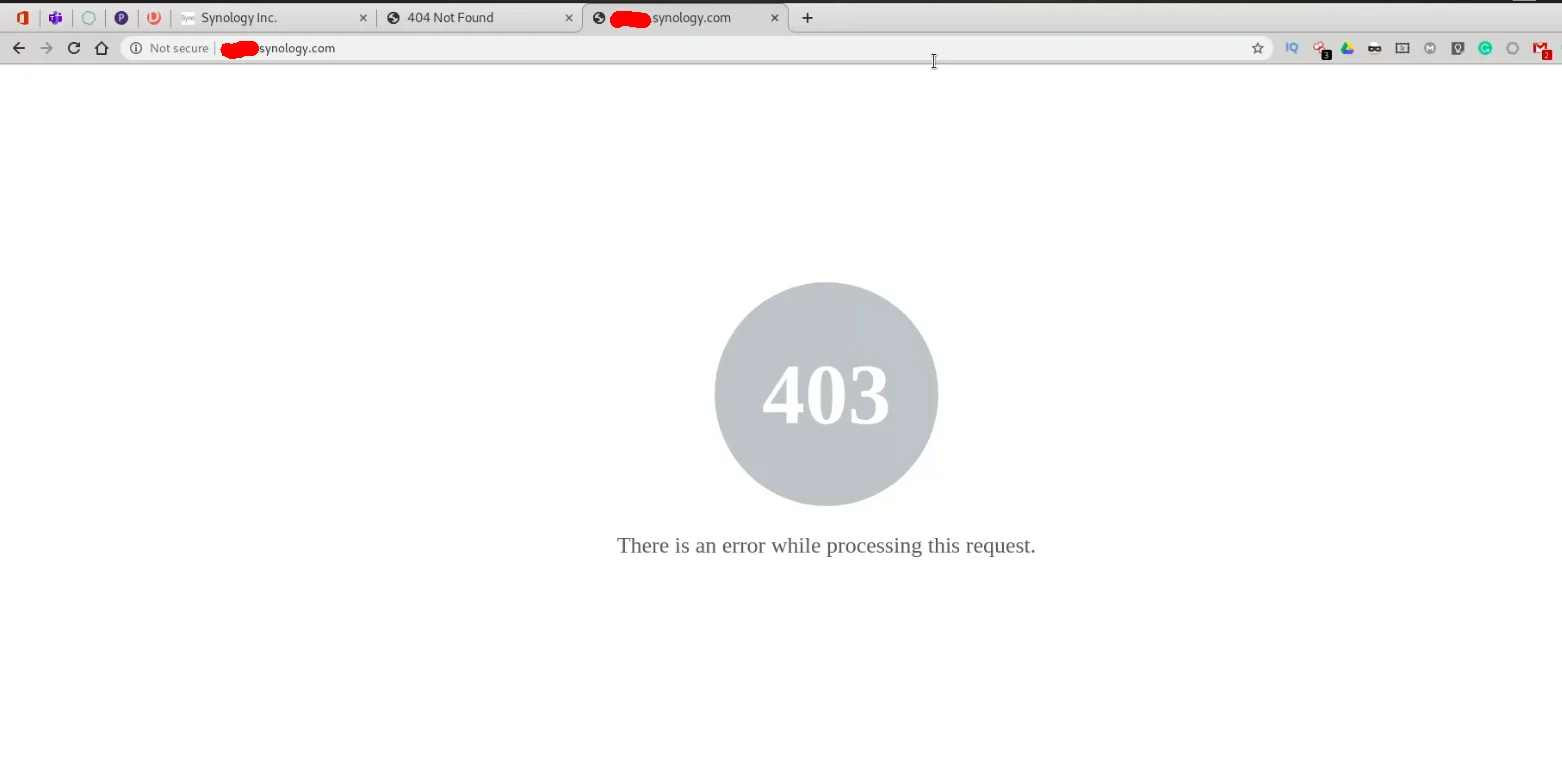
The image shows the 403 Forbidden response on the application URL.
A DIRB run against the host then turned up an /upload/ folder. The interesting part was the status codes: DIRB reported 200 OK on these resources, meaning they were reachable despite the 403 on the application root. Visiting the upload endpoint confirmed it: an unauthenticated page with a file upload feature.
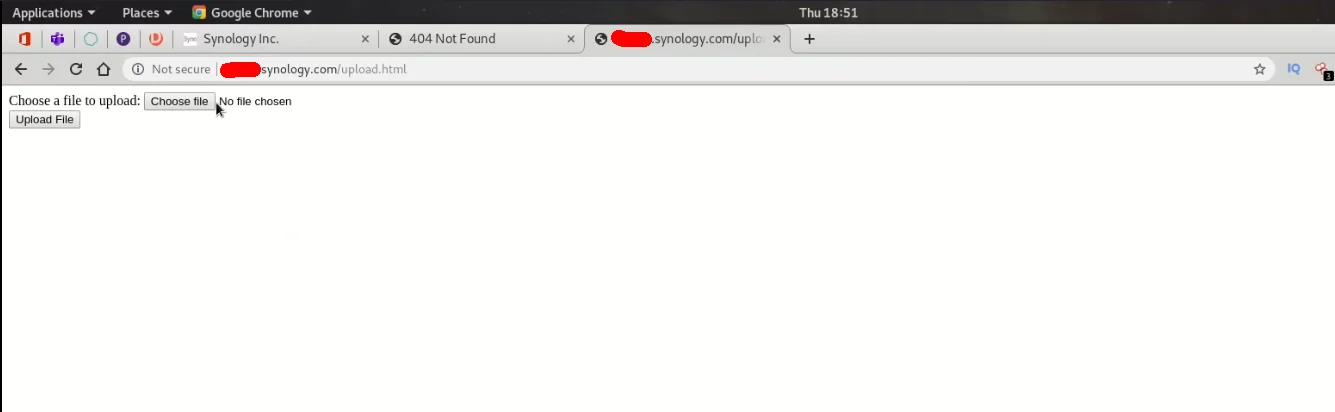
The screenshot shows the upload endpoint answering 200 OK on the target sub-domain.
Exploitation
Step 1: confirm the upload has no restrictions
The upload form accepted files with no restriction on type. The researcher's plan was straightforward: upload a malicious PHP shell and take over the controls of the server.

The image shows the unauthenticated upload form accepting a PHP shell with no file restriction applied.
Step 2: upload the shell
The shell was uploaded to the targeted server and landed in the /upload/ directory under the same name as the uploaded file.

The screenshot confirms the PHP webshell is present on the target server.
Step 3: run commands through the shell
With the shell in place, the next step was executing commands on the target system. The first command lists files and directories:
Run for proof of concept, it listed back-up files, which the researcher highlights as critical information.
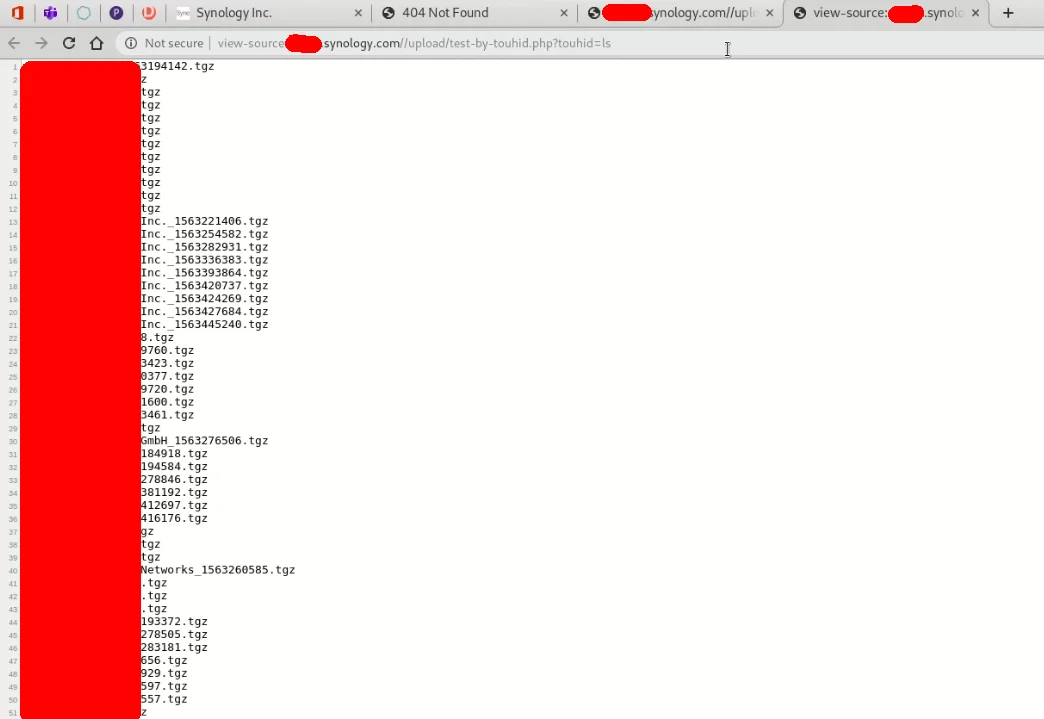
The image shows the ls output with the back-up files and directories listed on the compromised server.
Step 4: check network reach
The second command was ifconfig:
ifconfig
Its output showed that the server had a connection to an internal machine.
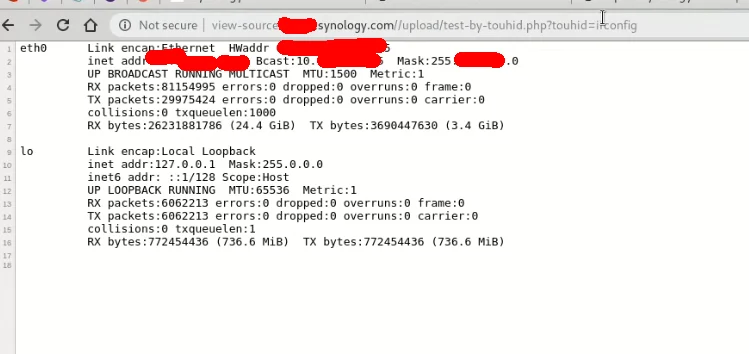
The screenshot shows the ifconfig output revealing the internal network connection.
The researcher stopped at this point, wrote up the report and submitted it to the Synology security team.
Root cause
The upload endpoint under /upload/ was reachable without authentication and performed no validation on the uploaded file, so a PHP file placed there was stored and could be executed. The 403 on the application root did not stop the researcher: DIRB returned 200 OK on the upload resources, which were reachable without authentication. Why the upload directory was left open, and whether any server-side check on file type or execution existed, is not described in the report.
Impact
An unauthenticated attacker could upload arbitrary files, including a PHP webshell, and execute commands on the server. From there the researcher listed back-up files and found a route to an internal machine. The report does not go further than that: no data was exfiltrated and no lateral movement is described. The bounty was $2000 USD, which the researcher notes is Synology's highest amount for a website security bounty.
Fix
The report does not state what Synology changed. What the finding calls for is authentication and authorisation on the upload endpoint, validation of uploaded file types, and storage of uploads outside the web root or in a location where they cannot be executed.
Variants to test
- 403 on the root, 200 underneath. Run DIRB or a similar tool against hosts that return 403 at the top level and look for paths answering 200 OK. A positive result is a directory such as
/upload/that serves content despite the front-door block. - Upload forms without authentication. Visit any discovered upload endpoint without a session and try submitting a file. A positive result is a 200 response and the file appearing at a predictable path.
- Extension handling. Where an upload is accepted, try a server-side script extension matching the stack (PHP here) and then request the stored file. A positive result is the script executing rather than being served as text.
- Post-upload reach. If a shell executes, run
lsandifconfigas in this report to see what files and network routes are exposed. A positive result is sensitive files or an internal address reachable from the host.
Timeline
| Event | Date |
|---|---|
| Initial report | Thu, Jul 18, 2019, 7:45 PM |
| Initial response | Fri, Jul 19, 2019, 7:38 AM |
| Asked for update | Aug 26, 2019, 1:42 PM |
| Second response | Aug 26, 2019, 3:29 PM |
| Bounty awarded ($2000) | Wed, Sep 4, 2019, 2:18 PM |
What happened, in plain words
Synology is a company that makes network storage devices and the software that runs on them, and it also runs a number of public websites under its own domain name. A domain name is the part of a web address after the www, for example synology.com; a sub-domain is a name placed in front of it, such as blog.synology.com, and it can point at a completely separate website or application.
One of those sub-domains hosted a small web application. When the researcher opened it in a browser, the server answered with an error page saying 403 Forbidden. That is the standard way a web server says: I understood your request, but you are not allowed to see this. Instead of walking away, the researcher treated the 403 as a hint that something valuable was hidden behind it, and went looking for other pages on the same host. A tool called DIRB found a folder called /upload/ that answered normally, and that folder contained a page where anyone, with no login at all, could upload a file. The page did not check what kind of file was being uploaded, so the researcher uploaded a small program written in PHP (a programming language commonly used on web servers) and then used it to run commands on the server, list its files and look at its network connections. The report was submitted to Synology, and the researcher received a bounty of $2000 USD, which the report describes as Synology's highest amount for a website security bounty.
That is the whole story in one paragraph. The rest of this article walks through it step by step, explaining each idea from scratch.
Background ideas you need first
Before the steps make sense, here are a few everyday concepts.
A web server and a web application. A web server is a program on a computer that waits for requests from browsers and sends back pages. A web application is the software behind those pages that does actual work, such as showing a form or storing a file. Think of the web server as a receptionist and the web application as the office behind the desk.
HTTP status codes. Every time your browser asks for a page, the server replies with a three-digit number describing what happened. 200 OK means "here is the page you asked for". 403 Forbidden means "I know what you want, but you may not have it". 404 Not Found means "there is nothing at that address". These numbers are the server's way of talking back to the browser, and they matter a lot when you are exploring a site.
Authentication. Authentication is simply proving who you are, usually by logging in with a username and password. A page that requires authentication asks you to log in first. A page that is unauthenticated can be opened by anyone who knows the address, with no login at all. That is the key word in this whole report.
A webshell. A webshell is a small program uploaded to a web server that lets the person who uploaded it run commands on that server through the browser. It is called a "shell" because it gives you a command prompt, the same kind of text interface a system administrator uses, except reached over the web.
A bounty. A bug bounty is a reward a company pays to someone who reports a security problem in its systems responsibly, instead of exploiting it or selling it. The amount usually depends on how serious the problem is.
Context: what was exposed
The report describes a public web presence spread across a number of Synology sub-domains. One of those sub-domains hosted a web application that, when requested directly, answered with a 403 Forbidden error. The report does not describe what the application is meant to do beyond that. The only feature that matters here is a file upload page sitting under an /upload/ directory, which was reachable without authentication and accepted files without restriction.
The vulnerable host is given in the report only as a redacted sub-domain of synology.com:
**********.synology.com
This is a web address with the specific sub-domain name hidden. The ********** stands in for the part the researcher did not publish, so that the exact target is not revealed. The .synology.com part tells you it belongs to Synology's domain. If you typed a full address like this into a browser, the browser would look up which computer on the internet that name points to, connect to it, and ask for the default page.
Setup: the tools and the starting point
The work was done from Kali Linux, a Linux distribution that comes with many security tools pre-installed, using one of them called DIRB. DIRB is a directory brute-forcing tool: it takes a long list of common folder and file names and asks the server for each one in turn, then reports which ones exist. Think of it as trying every door handle in a long corridor to see which doors open, rather than guessing one at a time.
No accounts, roles or credentials were used at any point: the whole path from discovery to command execution was unauthenticated. That is worth pausing on. The researcher never logged in, never had a password, and never had a user account on the target. Everything described below was done as an anonymous visitor.
The researcher notes that the sub-domain was found by chance while enumerating a Synology hardware device, during which a DNS scan turned up the sub-domain. A DNS scan means asking the internet's name system, which translates names like synology.com into the numeric addresses computers actually use, for every name it knows under a domain. It is like asking a phone directory for every extension belonging to one company. The hardware bug found in that same effort is mentioned as a separate finding to be released later and is not part of this report.
Finding it: the 403 that was not the end
Requesting the application URL returned a 403 Forbidden. Rather than treating that as the end of the story, the researcher read it as a sign that the URL held something worth protecting, which is why the company had put an extra layer in front of it and would not serve the page content.
This is the first lesson of the report, and it is a mindset rather than a technique. A 403 is not a wall; it is a sign saying "there is something behind this wall". The researcher's reasoning was: if the company bothered to block this address, there is probably something interesting at it. So the next move was not to give up but to look around the same host for other addresses that were not blocked.
The image shows the 403 Forbidden response on the application URL.
A DIRB run against the host then turned up an /upload/ folder. The interesting part was the status codes: DIRB reported 200 OK on these resources, meaning they were reachable despite the 403 on the application root. Visiting the upload endpoint confirmed it: an unauthenticated page with a file upload feature.
In plain terms: the front door was locked, but a side door labelled /upload/ answered normally and let anyone upload a file.
The screenshot shows the upload endpoint answering 200 OK on the target sub-domain.
Exploitation
Step 1: confirm the upload has no restrictions
The upload form accepted files with no restriction on type. The researcher's plan was straightforward: upload a malicious PHP shell and take over the controls of the server.
A normal upload form, such as the one you use to change a profile picture, usually checks the file: it might only accept images, or only files under a certain size. This form did neither. It took whatever was sent. That matters because a web server that runs PHP will happily execute a .php file that someone requests, rather than just showing its contents as text. So if you can place a PHP file on the server, you can make the server run your code.
The image shows the unauthenticated upload form accepting a PHP shell with no file restriction applied.
Step 2: upload the shell
The shell was uploaded to the targeted server and landed in the /upload/ directory under the same name as the uploaded file.
That last detail is important for the next step: the file kept its original name, so the researcher knew exactly what address to visit to reach it. If the server had renamed the file to something random, finding it again would have been harder.
The screenshot confirms the PHP webshell is present on the target server.
Step 3: run commands through the shell
With the shell in place, the next step was executing commands on the target system. The first command lists files and directories:
Line by line: ls is the standard command on Linux and similar systems that stands for "list". Typed on its own, with no extra options, it prints the names of the files and folders in the current directory. The researcher ran it through the webshell, so the output came back in the browser. It listed back-up files, which the researcher highlights as critical information, because back-up files often contain copies of data that is not meant to be public.
The image shows the ls output with the back-up files and directories listed on the compromised server.
Step 4: check network reach
The second command was ifconfig:
ifconfig
Line by line: ifconfig stands for "interface configuration". It prints the network settings of the machine it runs on: the addresses the machine has, and the networks it can reach. The researcher ran it to see where the compromised server could connect. Its output showed that the server had a connection to an internal machine, meaning the web server was not isolated but could reach other computers on a private network behind it. That is significant because a public web server is usually the outermost layer, and anything it can reach internally may be far more sensitive.
The screenshot shows the ifconfig output revealing the internal network connection.
The researcher stopped at this point, wrote up the report and submitted it to the Synology security team. Stopping is part of responsible disclosure: once you have enough evidence to show the problem is real, you report it rather than pushing further into systems you do not own.
Root cause
The upload endpoint under /upload/ was reachable without authentication and performed no validation on the uploaded file, so a PHP file placed there was stored and could be executed. The 403 on the application root did not prevent DIRB from finding the upload resources, which answered 200 OK. Why the upload directory was left open, and whether any server-side check on file type or execution existed, is not described in the report.
In everyday terms: the building had a locked front door, but the loading bay around the back was open, unattended, and accepted any parcel anyone dropped off, including one that would later unpack itself and start giving orders.
Impact
An unauthenticated attacker could upload arbitrary files, including a PHP webshell, and execute commands on the server. From there the researcher listed back-up files and found a route to an internal machine. The report does not go further than that: no data was exfiltrated and no lateral movement is described. The bounty was $2000 USD, which the researcher notes is Synology's highest amount for a website security bounty.
Fix
The report does not state what Synology changed. What the finding calls for is authentication and authorisation on the upload endpoint, validation of uploaded file types, and storage of uploads outside the web root or in a location where they cannot be executed. In plain words: ask people to log in before they upload, check what they are uploading, and store uploaded files somewhere the server will never run them as programs.
Variants to test
If you want to look for the same kind of problem on systems you are allowed to test, these are variations worth trying.
- 403 on the root, 200 underneath. Run DIRB or a similar tool against hosts that return 403 at the top level and look for paths answering 200 OK. A positive result is a directory such as
/upload/that serves content despite the front-door block. - Upload forms without authentication. Visit any discovered upload endpoint without a session and try submitting a file. A positive result is a 200 response and the file appearing at a predictable path.
- Extension handling. Where an upload is accepted, try a server-side script extension matching the stack (PHP here) and then request the stored file. A positive result is the script executing rather than being served as text.
- Post-upload reach. If a shell executes, run
lsandifconfigas in this report to see what files and network routes are exposed. A positive result is sensitive files or an internal address reachable from the host.
Timeline
| Event | Date |
|---|---|
| Initial report | Thu, Jul 18, 2019, 7:45 PM |
| Initial response | Fri, Jul 19, 2019, 7:38 AM |
| Asked for update | Aug 26, 2019, 1:42 PM |
| Second response | Aug 26, 2019, 3:29 PM |
| Bounty awarded ($2000) | Wed, Sep 4, 2019, 2:18 PM |
The timeline is worth reading as a beginner, because it shows that a bounty is not instant. The report went in on 18 July, the first reply came the next morning, there was a gap of over a month before an update was requested, and the reward was paid in early September, about seven weeks after the initial report.
Glossary
- Authentication: proving who you are, usually by logging in with a username and password.
- Authorisation: deciding what a proven user is allowed to do, as opposed to who they are.
- Bounty: a reward a company pays for a responsibly reported security problem.
- Browser: the program you use to visit websites, such as Chrome or Firefox.
- Command: a short instruction typed into a text interface that tells a computer to do something.
- Credentials: the details used to log in, such as a username and password.
- Critical information: data whose exposure would cause serious harm, such as back-up files.
- DIRB: a tool that tries a long list of common folder and file names against a web server and reports which ones exist.
- Directory: a folder on a computer or web server; in a web address it appears as a path segment such as
/upload/. - DNS scan: asking the internet's name system for many names under a domain, to discover which sub-domains exist.
- Domain name: the part of a web address after
www, such assynology.com. - Exfiltration: secretly copying data out of a system.
- 403 Forbidden: an HTTP status code meaning the server understood the request but refuses to serve it.
- 200 OK: an HTTP status code meaning the request succeeded and the content is being returned.
- HTTP: the language browsers and web servers use to exchange requests and responses.
- ifconfig: a command that prints a machine's network settings and addresses.
- Internal machine: a computer on a private network that is not directly reachable from the public internet.
- Kali Linux: a Linux distribution that ships with many security testing tools.
- Lateral movement: moving from one compromised machine to other machines on the same network.
- ls: a command that lists the files and folders in the current directory.
- PHP: a programming language commonly used to build web applications; a
.phpfile is executed by the web server when requested. - Proof of concept: a minimal demonstration that a vulnerability is real, without going further than needed.
- Root cause: the underlying reason a vulnerability exists, as opposed to its visible symptom.
- Server: a computer or program that provides content or services to other computers over a network.
- Sub-domain: a name placed in front of a domain, such as
blog.synology.com, which can host a separate application. - Unauthenticated: reachable without logging in.
- Unrestricted file upload: a vulnerability where a server accepts uploaded files without checking their type or contents.
- Validation: checking that input, such as an uploaded file, meets expected rules before accepting it.
- Web application: software behind a website that does work such as showing forms or storing files.
- Web root: the folder on a server from which public web content is served.
- Web server: the program that answers browser requests and sends back pages.
- Webshell: a small program uploaded to a server that lets someone run commands on it through the browser.