How I abused the file upload function to get a high severity vulnerability in Bug Bounty
The file upload function used a blacklist that could be bypassed with a mixed-case PHP extension, but the server did not execute PHP files. The application also failed to strip EXIF metadata, including GPS location, from uploaded images, leading to an information disclosure.
 Published on infosecwriteups.com
Hello everyone, one of the most interesting functions is file uploading, vulnerabilities in file uploads usually lead you to critical or high-severity, so let’s start with this scenario that i faced while bug bunting
The full write-up lives on its author's site
It belongs to its author, so we link to it rather than copy it. The other two tabs are our own rewrites, checked against it.
Context
The target was a teaching platform hosted on the subdomain edu.target.com of a bug bounty program's domain (the author uses target.com as a stand-in name). The platform serves different user types, students and teachers, and is aimed at helping students learn tech-related topics such as software engineering and robotics. The feature under examination is the image upload function. The author's interest in it is straightforward: file upload handlers are a common route to critical or high-severity findings.
Setup
The write-up does not describe account creation, roles used for testing, or any specific software versions on the target. The tools mentioned are Burp Suite (its scanner is used later against the filename parameter) and ExifTool, run from a Kali shell.
Finding it
The author started by uploading an ordinary image to see how the handler behaves. The first observation was behavioural rather than payload-related: when a request fails validation, the server closes the connection and does not respond at all. That quirk becomes the signal used throughout the rest of the test, since a silent connection means rejection and a normal response means acceptance.
With that baseline established, the next step was to probe the extension handling.
Exploitation
Step 1: Confirm the server rejects PHP
A PHP script was submitted through the upload form.
The server did not respond. Combined with the earlier observation, the author concluded the request had failed validation, and that a closed connection with no response is how this application signals a rejected upload.
Step 2: Determine blacklist versus whitelist
The reasoning is simple: upload a file with a random extension. If it is accepted, the application is using a blacklist (it blocks known-bad extensions and lets everything else through). If it is rejected, the application is using a whitelist of permitted extensions. The test file was image.omar.
The file was uploaded successfully, so the validation is a blacklist.
Step 3: Bypass the blacklist with case variation
Since only specific extensions are blocked, the author tried a case variation of the blocked one:
rce.pHp
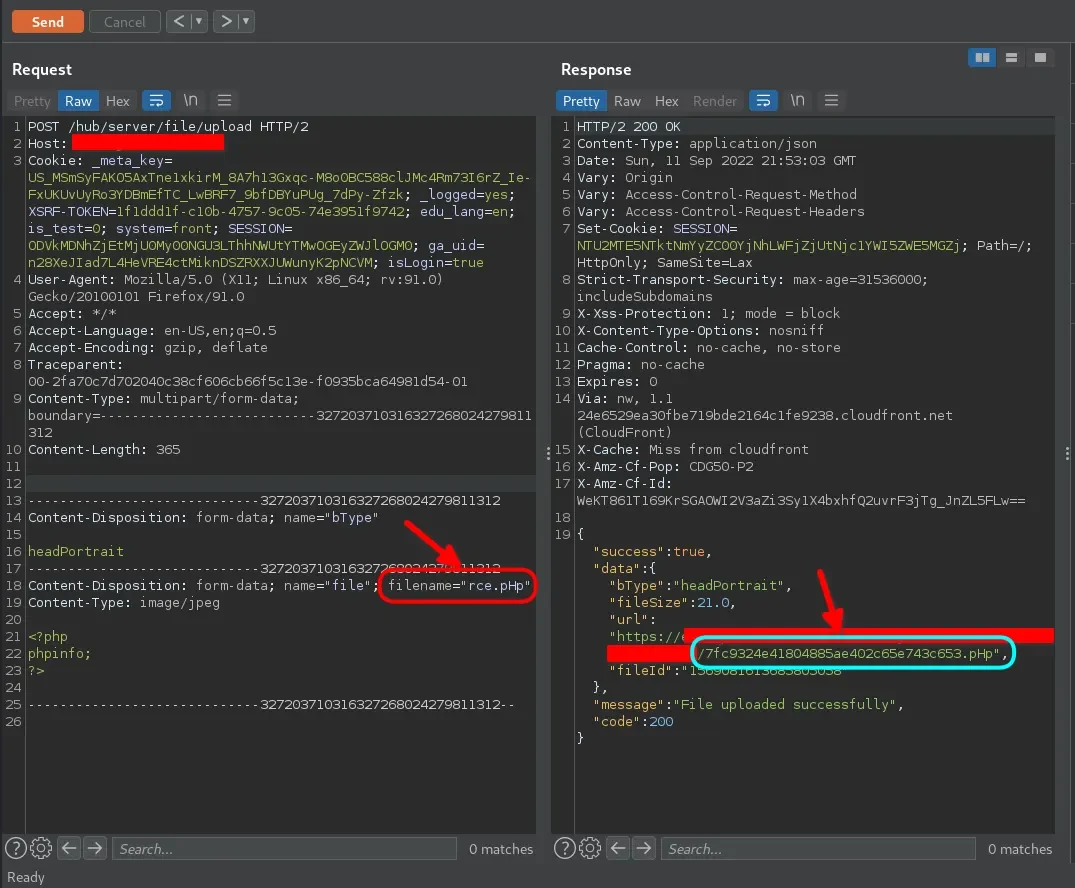
It uploaded successfully. It uploaded successfully, suggesting the blacklist did not block the case-varied extension. At this point the author expected a $5000 bounty within days.
Step 4: Request the uploaded script
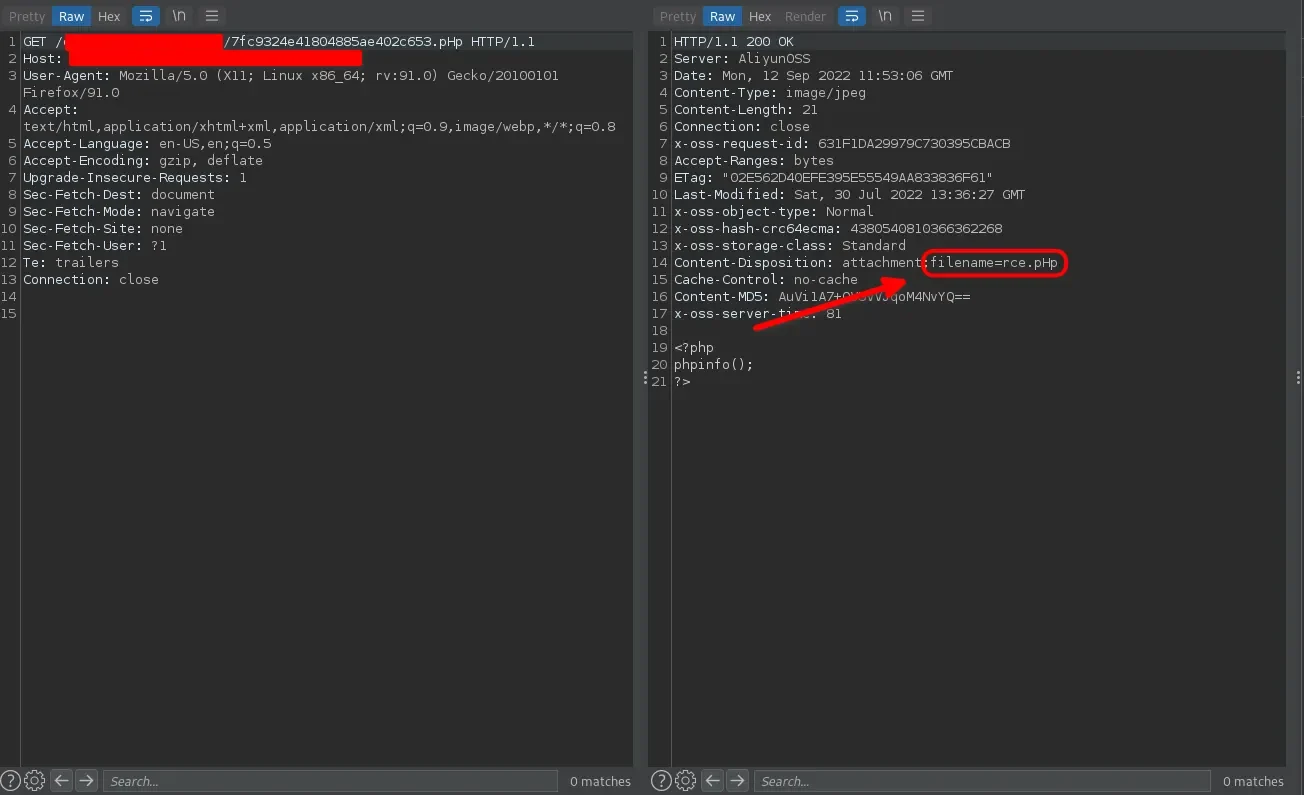
The uploaded file was then requested in order to run a phpinfo() call.
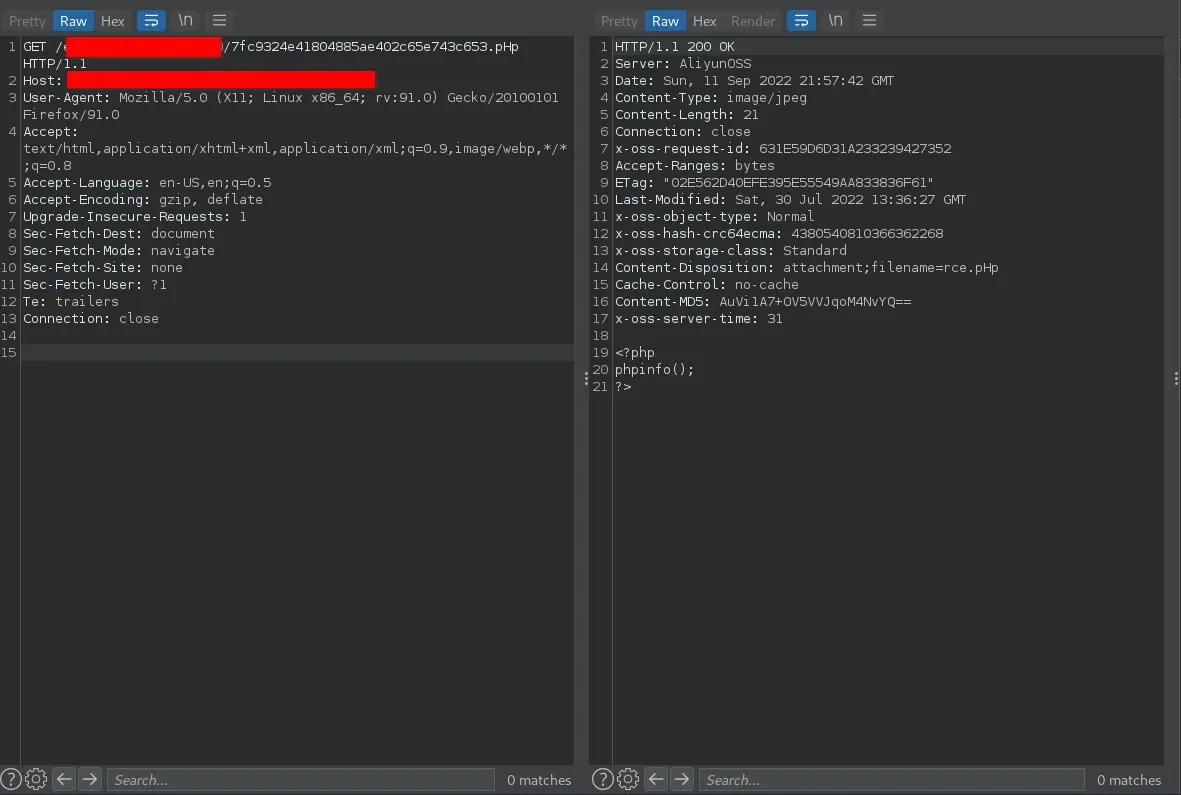
The script did not execute. The author's interpretation is that the blacklist bypass worked, but the developers had followed a secure design that prevents execution in the upload directory. One common way to do that is a directive in the .htaccess file of the upload directory:
php_flag engine off
The author adds a note explaining that .htaccess files are distributed configuration files that allow server configuration changes on a per-directory basis, and that this is what was expected to be present in the image upload directory.
Step 5: Reason about rewriting the configuration
Two scenarios were considered for defeating the php_flag engine off protection. For illustration, the author assumes the uploaded image ends up at:
https://target-domain.com/edu/sub-dir-1/sub-dir-2/sub-dir-3/our-image-here
Scenario 1.1: the developers may have placed their .htaccess in sub-dir-1/, which would cover that directory and all subdirectories, including the one where the PHP script lands. The proposed exploit is to upload a different .htaccess into sub-dir-1/sub-dir-2/sub-dir-3/.htaccess containing:
php_flag engine on
That would re-enable PHP execution for sub-dir-3/.
Scenario 1.2: if the developers had already placed .htaccess directly in sub-dir-1/sub-dir-2/sub-dir-3/, the idea was to overwrite it by uploading a file named .htaccess with the same php_flag engine on configuration.
The overwrite idea fails, because the file name is rewritten on upload. A submitted .htaccess becomes something like /sub-dir-1/sub-dir-2/sub-dir-3/32-random-characters.htaccess, which has no effect on server configuration.
Step 6: Path traversal on the filename
The second scenario targets the directory restriction itself: use path traversal in the filename parameter to escape the directory covered by the restrictive .htaccess, so the file lands somewhere not governed by php_flag engine off, for example:
https://target-domain.com/edu/edu/32-random-chars.pHp
The reasoning is that the developers take the extension from the filename and place it in the endpoint, so a weak regular expression that grabs whatever follows the dot could be abused by adding a dot and then a traversal payload to move the script to another directory.
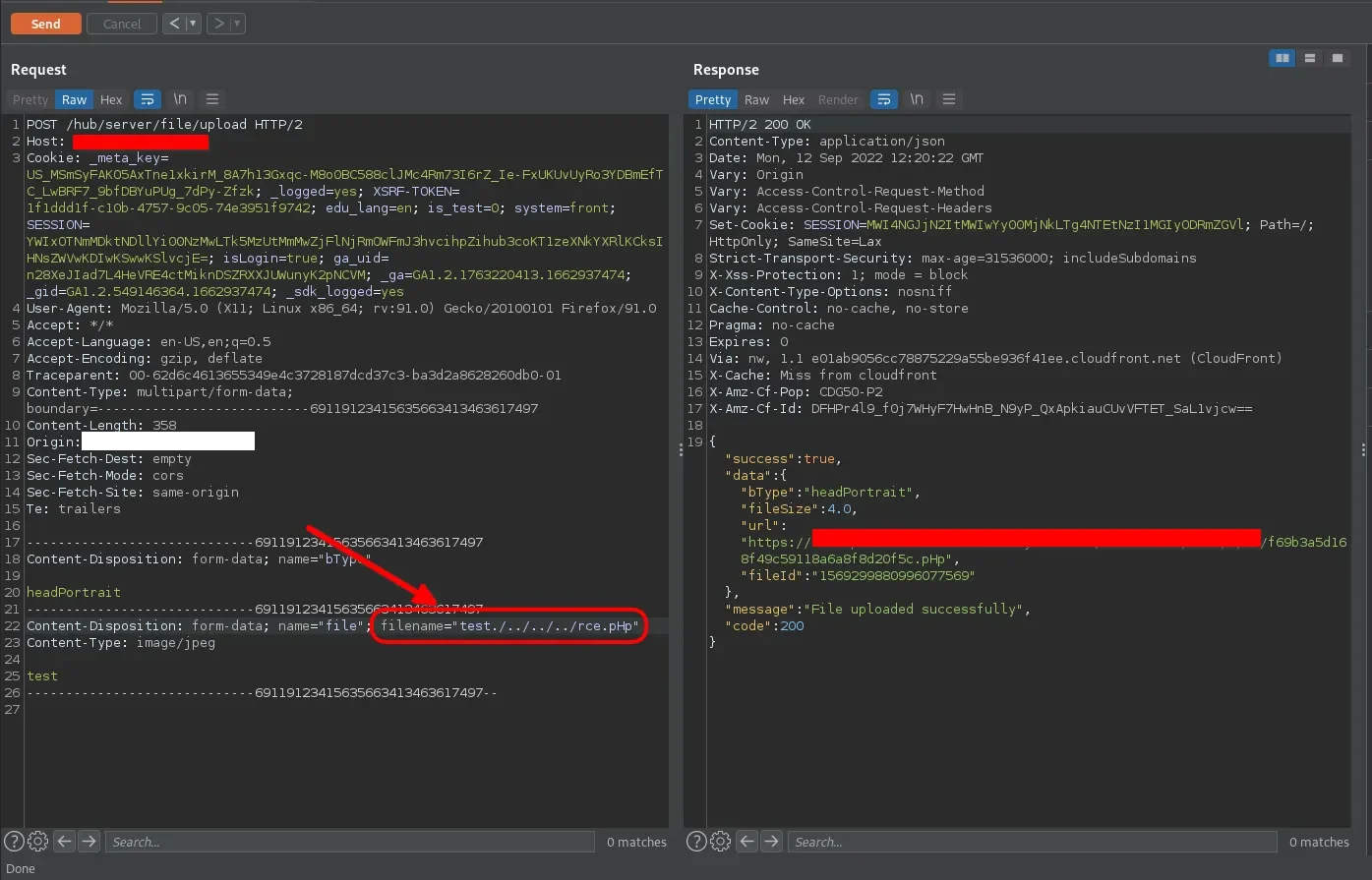
This did not work. The author's conclusion is that the regular expression validation, if one is used at all rather than a built-in function such as PHP's pathinfo(), is implemented correctly.
Step 7: Test the filename parameter for SQL injection
Uploaded images have to be associated with their user, which means the filename is stored in a database. The author notes that the developers save the filename parameter somewhere.
The filename parameter was then tested for SQL injection using the Burp Suite scanner.

Nothing was found.
Step 8: Try known image library exploits
Another possibility is that the upload function uses a library to process the image, and that library may be vulnerable. The author tested exploits for common libraries, specifically ImageMagick through ImageTragick, listing CVE-2016-3714, CVE-2016-3718, CVE-2016-3715, CVE-2016-3716 and CVE-2016-3717, with the exploits available at https://imagetragick.com/. These did not work either. Having failed to reach a critical finding, the author moved on to trying for a high-severity one.
Step 9: Stored XSS through an SVG, first attempt
An SVG image containing an XSS payload was uploaded.
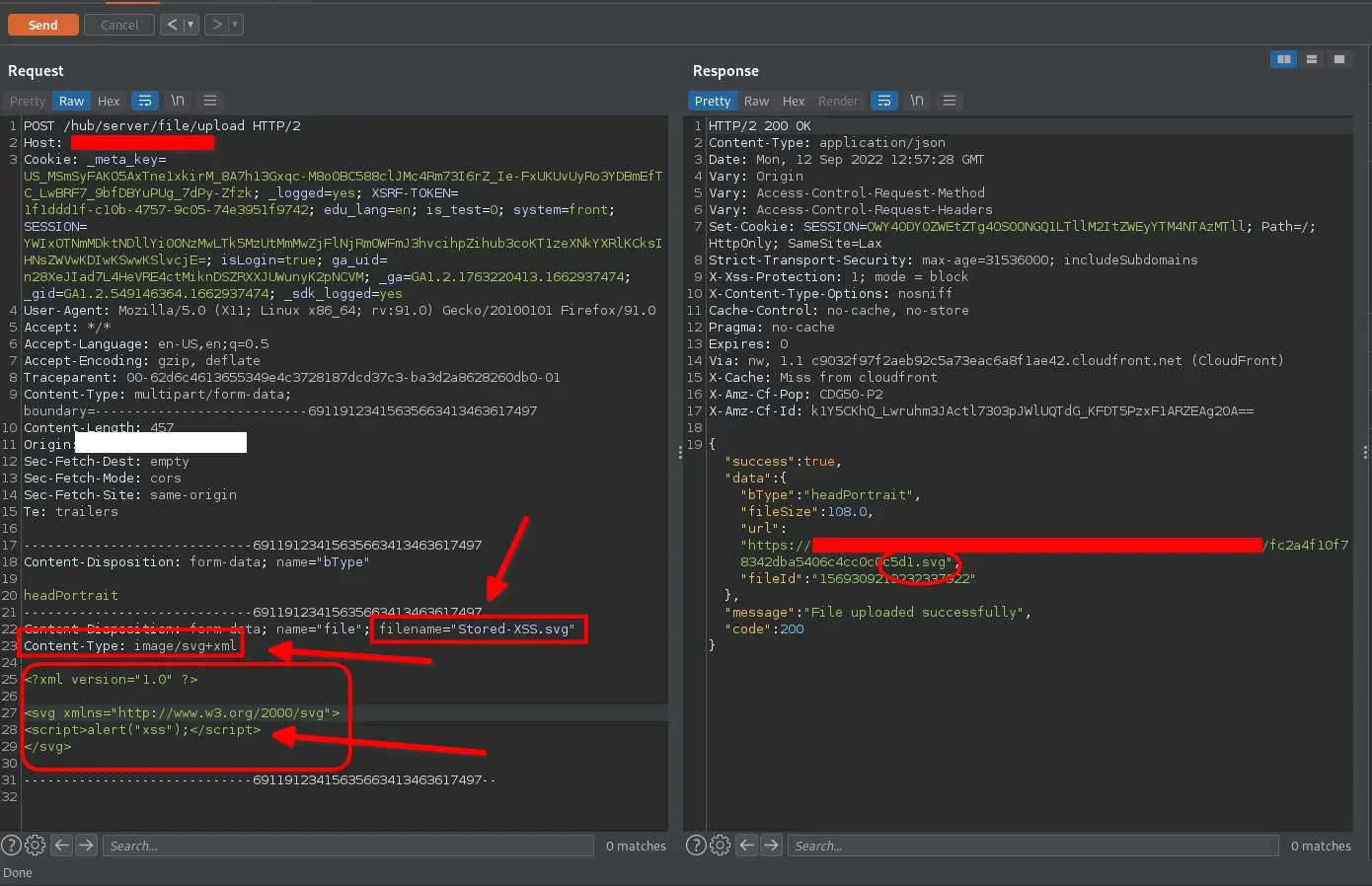
The payload was then requested.
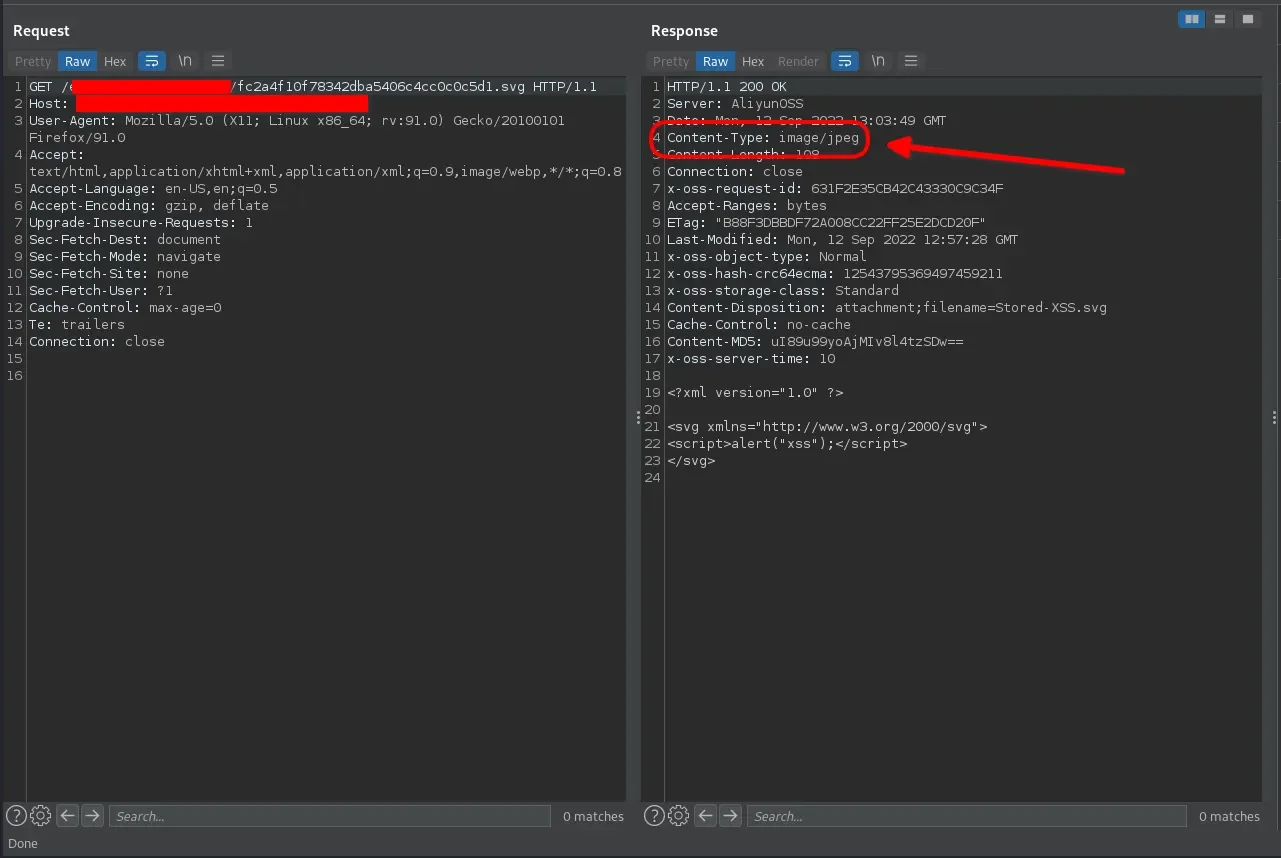
The application's response forces Content-Type: image/jpeg, so the SVG is not rendered as markup and XSS cannot be achieved this way.
Step 10: Stored XSS through the filename, second attempt
The second attempt targets a page at:
https://edu.target.com/teacher/profile-id
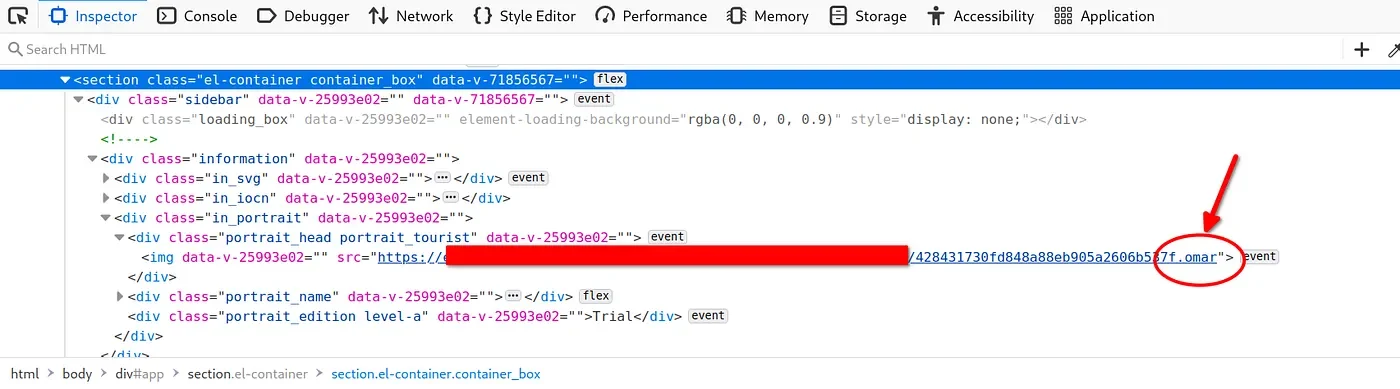
Because the server side puts the extension into the image name, the extension in the filename parameter looked like the best place to inject an XSS payload:
XSS.omar" onmouseover=alert(1)

The application applies HTML entity encoding to the payload, so the double quote cannot be escaped and the attribute cannot be broken out of.
Step 11: Application-level denial of service
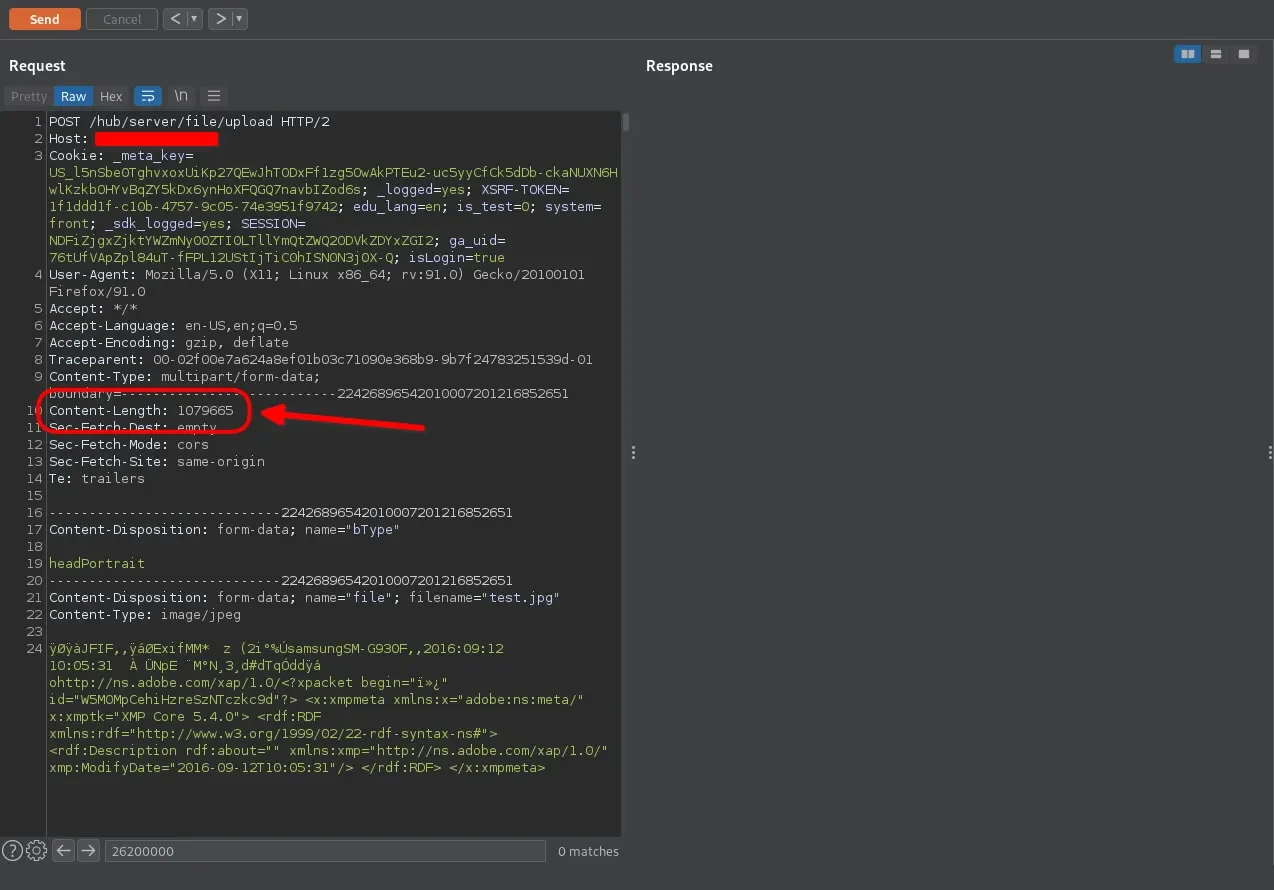
The application validates image size on the client side and allows only images under 1 MB. To test whether the same limit exists on the server, a large image, more than 1 MB, was uploaded. The connection closed and the server did not respond, which means a server-side size validation exists and blocks this type of attack.
Step 12: Metadata disclosure
The author noticed that the uploaded payload was not changed, meaning the metadata inside an image survives the upload. An image containing GPS location data was used, taken from the exif-samples repository at https://github.com/ianare/exif-samples/blob/master/jpg/tests/67-0_length_string.jpg. After uploading it to the web application, it was downloaded again to check whether the geolocation data had been stripped. The check uses ExifTool:
┌──(omar㉿kali)-[~/Downloads]
└─$ exiftool /Downloads/exif-test.jpg
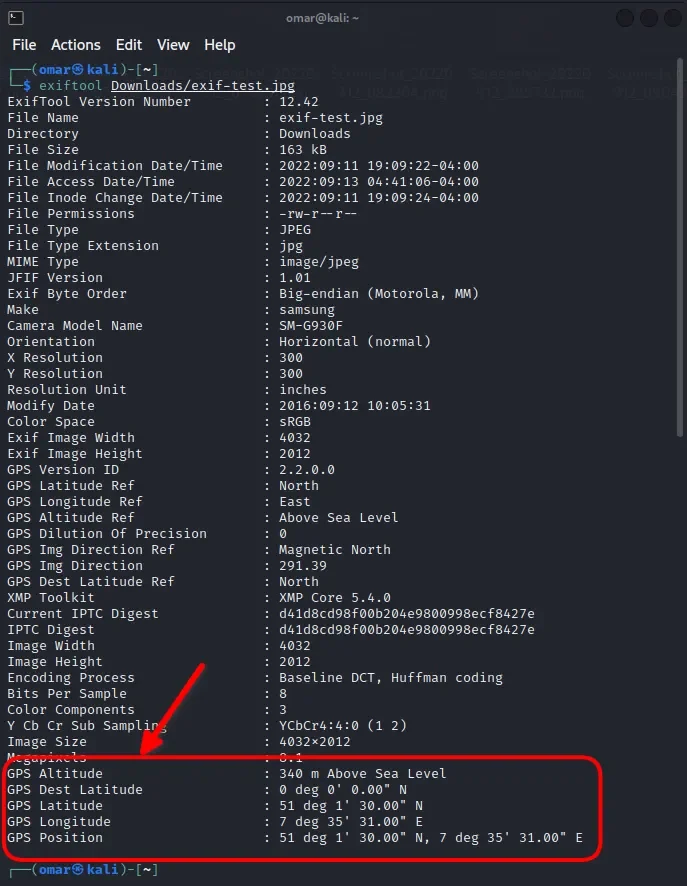
The web application does not strip the geolocation data from the image. This was the finding that was reported and accepted.
Root cause
The upload handler validates extensions with a blacklist rather than a whitelist, and rce.pHp was accepted. Execution in the upload directory is nevertheless prevented, which the author suspected was done with a php_flag engine off directive in .htaccess, and the filename rewriting defeats attempts to overwrite or relocate that configuration. The filename parameter is saved somewhere but was not found injectable, and the application encodes HTML entities in the reflected filename, which blocks the attribute-injection XSS.
The accepted issue is different: the application stores uploaded images without stripping embedded metadata, so EXIF fields such as GPS coordinates are preserved when the image is downloaded again.
Impact
An uploaded image can carry the uploader's GPS location, and that data remains in the file when it is downloaded again. The security team accepted the report as P2 because most users of the educational platform are underage students, and this kind of information disclosure violates their privacy. The report does not describe any further exploitation of the metadata, and the RCE, SQL injection and XSS attempts did not succeed.
Fix
The report suggests two steps:
- Download the latest version of ImageMagick.
- Use the
stripImage()method to strip metadata from images:
<?php
$imageFilePath = 'uploaded image';
$img = new imagick();
$img->readImage($imageFilePath);
$img->stripImage();
$img->writeImage($imageFilePath);
$img->destroy();
?>
Variants to test
- Case-varied blocked extensions. Submit
shell.pHp,shell.PHP,shell.pHp5and similar. A normal response instead of a closed connection means the blacklist is case-sensitive or incomplete. - Random extension probe. Upload a file with an extension the application has no reason to know, such as
image.omar. Acceptance indicates blacklist validation; rejection indicates a whitelist. .htaccessoverwrite. Upload a file named.htaccesscontainingphp_flag engine on. If the stored name is not rewritten and the file lands in the upload directory, PHP execution may be re-enabled.- Path traversal in the filename. Add a dot followed by traversal sequences in the filename to move the stored file outside the directory covered by the restrictive configuration. A stored path outside the upload directory is the positive result.
- Filename in the database. Point the Burp scanner, or manual boolean and time-based payloads, at the filename parameter. Any differential response indicates SQL injection.
- Image library exploits. Submit ImageTragick payloads for CVE-2016-3714, CVE-2016-3718, CVE-2016-3715, CVE-2016-3716 and CVE-2016-3717. Command execution or an unexpected file write indicates a vulnerable ImageMagick.
- SVG with script. Upload an SVG containing an XSS payload and request it directly. If the response
Content-Typeisimage/svg+xmlrather than forced to an image type, the payload may execute. - Filename attribute injection. Use a filename such as
XSS.omar" onmouseover=alert(1)where the name is reflected. An unencoded double quote that breaks out of the attribute is the positive result. - Server-side size limit. Upload an image larger than the client-side limit. A closed connection or an error indicates server-side validation; a successful upload indicates the limit is client-side only.
- Metadata retention. Upload an image with known EXIF GPS data, download it again and run
exiftoolon it. Surviving GPS tags confirm the disclosure.
What happened, in plain words
A security researcher was testing a website that belongs to a bug bounty program. A bug bounty program is an arrangement where a company invites people to look for security weaknesses in its systems and pays them for reporting what they find, instead of punishing them. The website in question is a teaching platform, a place where students and teachers come together to learn topics such as software engineering and robotics.
The researcher focused on one feature: the image upload function. That is the button on a website that lets you pick a picture from your computer and send it to the server so it can be shown on your profile or in your content. Upload functions are a favourite target for security testers, because when they are built badly they can lead to very serious problems, the kind that let an attacker run their own code on the server or read data they should not see.
The researcher tried many things. He tried to upload a program written in a language called PHP, which is a language that web servers can run. He tried to sneak that program past the filter that decides which file types are allowed. He tried to change the server's configuration. He tried to break into the database that stores the file names. He tried known attacks against image-processing software. He tried to inject a script that would run in another user's browser. He tried to crash the server with a huge file. Most of these did not work.
What did work was quieter and more human. The platform was not removing the hidden information that cameras and phones write into every photo, information such as the GPS coordinates of where the picture was taken. So when a user uploaded a photo, anyone who later downloaded that photo could read where it had been taken. The security team accepted this as a P2 finding, which is a severity rating on the platform's scale, because most of the platform's users are underage students and revealing their location violates their privacy.
This article walks through every step in the order the researcher took them, explaining each idea from scratch. You only need to know how to use a browser and a computer to follow along.
The target and the feature
The researcher uses target.com as a stand-in name for the real company, so that the write-up does not reveal the actual domain. The interesting part is a subdomain, edu.target.com. A subdomain is a section of a larger domain: if target.com is the main building, edu.target.com is a wing of it, often run by a different team or serving a different purpose. Here the edu wing is the teaching platform.
The platform has different kinds of users, students and teachers, and its purpose is to help students learn tech-related subjects. The feature under examination is the image upload function.
The image above is the one the researcher placed at the start of the write-up, right after saying that file upload vulnerabilities usually lead to critical or high-severity findings.
Why start here? Because an upload function is a place where the server accepts a file from a stranger and then does something with it: stores it, processes it, shows it to other people. Every one of those steps is a chance for something to go wrong. If the server runs the file, an attacker can run code. If the server stores the file's name in a database without care, an attacker can tamper with the database. If the server shows the file to other users without cleaning it, an attacker can attack those users. That is why upload features are worth a close look.
Setting up
The write-up does not describe how the researcher created an account, which roles he used for testing, or which software versions the target was running. The tools he mentions are Burp Suite, a program that sits between your browser and a website so you can see and change every request you send, and ExifTool, a command-line program that reads the hidden information inside image files. ExifTool was run from a Kali shell. Kali is a Linux distribution that comes with many security tools pre-installed, and a shell is the text window where you type commands.
Finding it
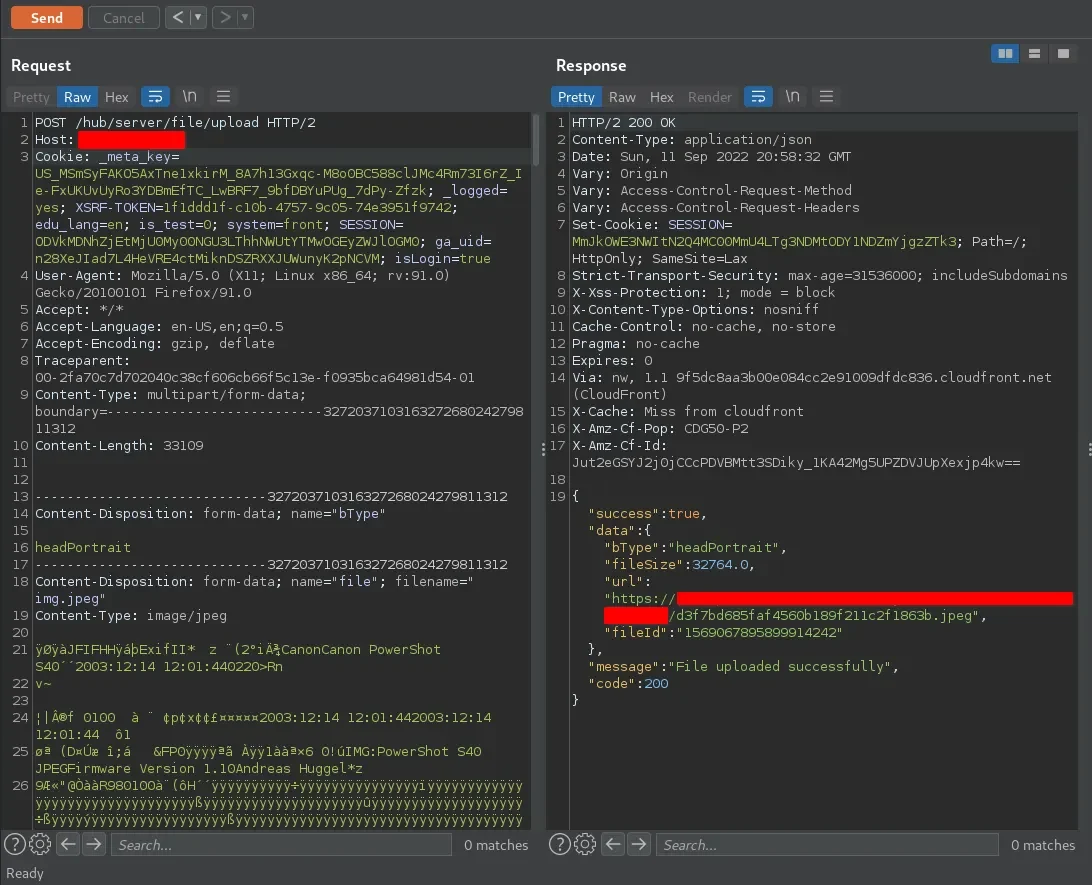
The researcher started by uploading an ordinary image, just to see how the function behaves. This is a good habit: before you try anything clever, watch the normal case. You want to know what a successful upload looks like, so that later you can tell success from failure.
The image above shows the upload function as the researcher first encountered it, while he was uploading an image to analyse how it works.
The first useful observation was not about any payload. It was about behaviour. When a request fails the application's validation, the server closes the connection and does not respond at all. Validation here means the checks the application performs on what you send, to decide whether to accept it. Most websites answer a rejected request with an error message. This one simply goes silent. That quirk becomes the signal used for the rest of the test: a silent connection means rejection, a normal response means acceptance. Think of it like a shop where the assistant says nothing when they refuse you and hands you a receipt when they accept you. Once you know that, silence is information.
With that baseline established, the next step was to probe how the application handles file extensions.
Exploitation
Step 1: Confirm the server rejects PHP
An extension is the part of a file name after the last dot. In holiday.jpg, the extension is jpg. It tells the computer what kind of file it is and, on a web server, it can decide what the server does with the file. A file ending in .php is a PHP script, a small program the server can run. If an attacker can upload a PHP script and then get the server to run it, the attacker can often take control of the server. That is called remote code execution, or RCE.
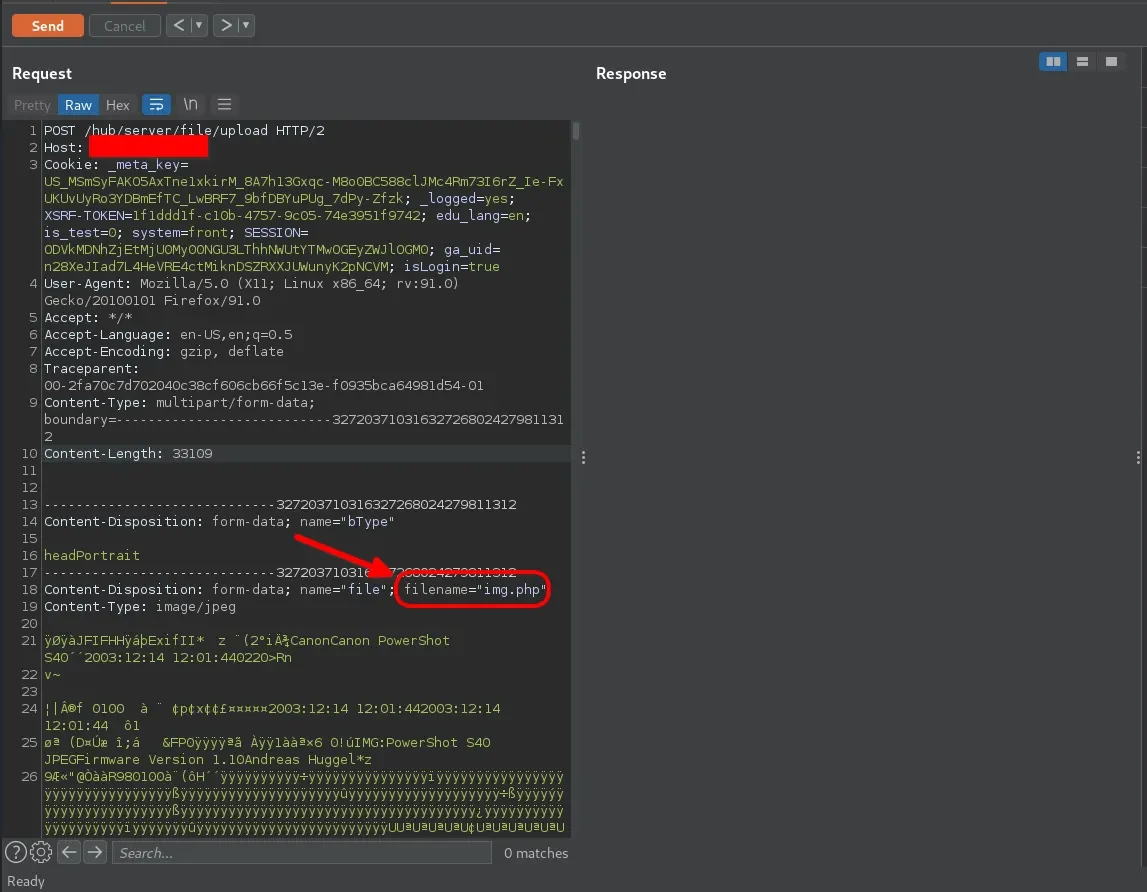
So the researcher submitted a PHP script through the upload form.
The image above shows the attempt to upload a PHP script.
The server did not respond. Combined with the earlier observation, the researcher concluded the request had failed validation, and that a closed connection with no response is how this application signals a rejected upload. In other words, the application knew that .php was dangerous and refused it. That is good news for the platform, but it also tells the researcher that there is a filter in place, and filters can sometimes be bypassed.
Step 2: Determine blacklist versus whitelist
There are two common ways to build an extension filter.
A whitelist says: only these extensions are allowed, everything else is refused. A whitelist is like a guest list at a party: if your name is not on it, you do not come in.
A blacklist says: these extensions are forbidden, everything else is allowed. A blacklist is like a list of banned customers at a shop: if you are not on the list, you are welcome, even if nobody has ever heard of you.
Whitelists are safer, because the person building the site has to think of every allowed type in advance, and anything new is refused by default. Blacklists are riskier, because the person building the site has to think of every dangerous type in advance, and anything they forgot is allowed by default.
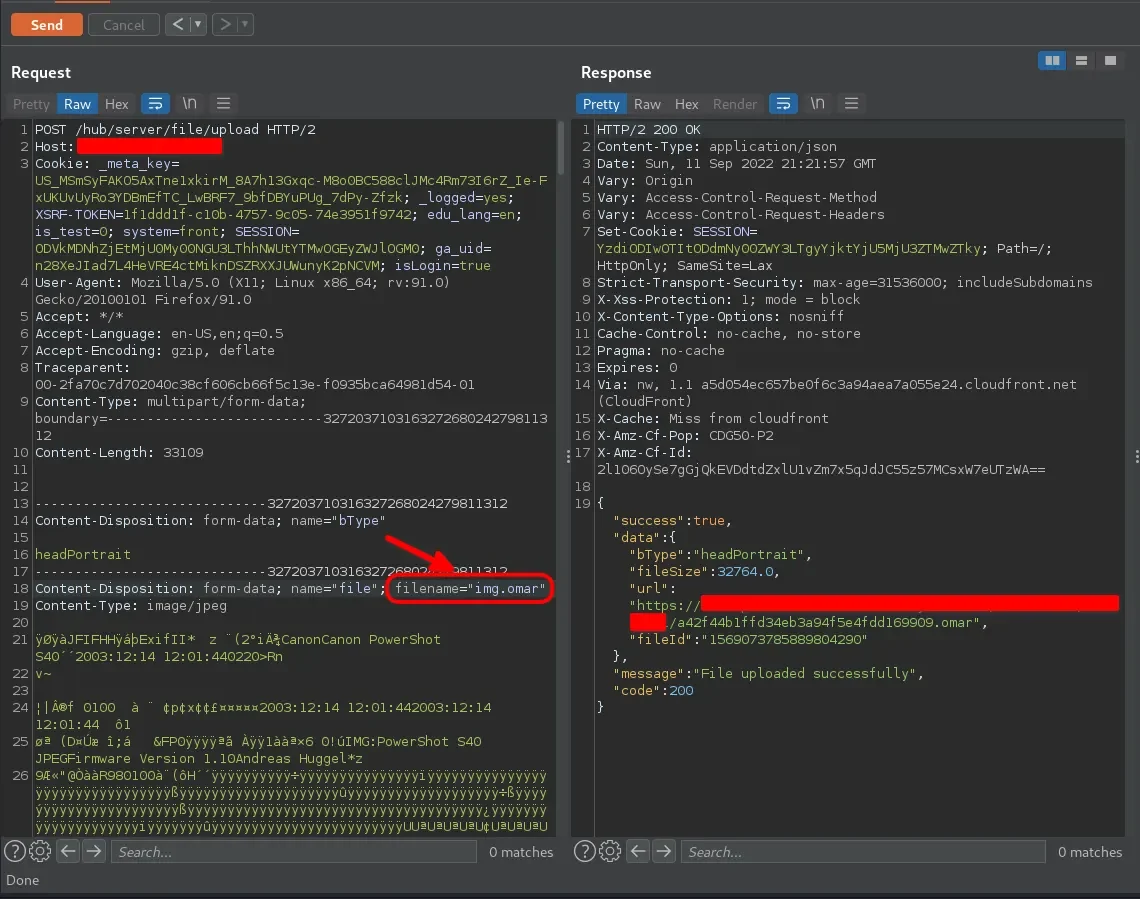
The researcher's test is simple: upload a file with a random extension that no one would ever put on a whitelist. If it is accepted, the application must be using a blacklist, because a whitelist would have refused it. If it is rejected, the application is using a whitelist of permitted extensions. The test file was image.omar, using the researcher's own name as the random extension.
The image above shows the attempt to upload image.omar.
The file was uploaded successfully. So the validation is a blacklist. The application blocks specific known-bad extensions and lets everything else through. That means the researcher's job is now to find an extension that the blacklist forgot.
Step 3: Bypass the blacklist with case variation
Since only specific extensions are blocked, the researcher tried a case variation of the blocked one:
rce.pHp
This is a file name whose extension is pHp. To a human, pHp and php are obviously the same thing. To a computer, they are different strings of characters, because uppercase and lowercase letters have different values. A check written as "does the extension equal php?" will say no to pHp. A check written as "does the extension equal php, ignoring case?" will say yes. The researcher is testing which kind of check the application uses.
The image above shows the result of uploading rce.pHp.
It uploaded successfully, suggesting the blacklist did not block the case-varied extension. At this point the researcher expected a $5000 bounty within days. That is the dream of every bug hunter: a simple bypass that leads straight to code execution on the server.
Step 4: Request the uploaded script
The uploaded file was then requested in order to run a phpinfo() call. phpinfo() is a standard PHP function that prints a page full of information about the PHP installation: its version, its settings, the modules loaded. It is a harmless function, but if you can make a server run it, you have proved that you can make the server run your code, which is the important part.
The image above shows the attempt to request the uploaded script.
The script did not execute. The researcher's interpretation is that the blacklist bypass worked, but the developers had followed a secure design that prevents execution in the upload directory. A directory is a folder on the server. The idea is: let users put files in this folder, but never let the server run anything from it. Even if a PHP file lands there, the server treats it as a plain file and hands it back without running it.
One common way to do that is a directive in the .htaccess file of the upload directory:
php_flag engine off
Let us go through this line. .htaccess is a configuration file that lives in a folder on an Apache web server. Apache is one of the most common web server programs. The file's name starts with a dot, which on Linux and similar systems means it is hidden from a normal directory listing. The file contains instructions that apply to that folder and everything inside it. php_flag is the instruction that turns a PHP feature on or off. engine is the PHP engine itself, the part that runs PHP code. off means disabled. So the whole line says: in this folder and below, do not run PHP. The researcher adds a note explaining that .htaccess files are distributed configuration files that allow server configuration changes on a per-directory basis, and that this is what he expected to be present in the image upload directory.
So the researcher now has a puzzle. He can upload a PHP file, but the server will not run it. Can he change the configuration so that it will?
Step 5: Reason about rewriting the configuration
Two scenarios were considered for defeating the php_flag engine off protection. For illustration, the researcher assumes the uploaded image ends up at:
https://target-domain.com/edu/sub-dir-1/sub-dir-2/sub-dir-3/our-image-here
This is a URL, the address you type in a browser to reach a page or a file. Reading it from left to right: https:// is the protocol, the set of rules for talking to the server. target-domain.com is the server. /edu/ is the first folder. /sub-dir-1/, /sub-dir-2/ and /sub-dir-3/ are nested folders inside it, like rooms inside rooms. our-image-here is the file itself. The point of the example is that the file sits several folders deep, and configuration files apply to a folder and everything below it.
Scenario 1.1: the developers may have placed their .htaccess in sub-dir-1/, which would cover that directory and all subdirectories, including the one where the PHP script lands. The proposed exploit is to upload a different .htaccess into sub-dir-1/sub-dir-2/sub-dir-3/.htaccess containing:
php_flag engine on
This is the same instruction as before, with on instead of off. The idea is that a configuration file in a deeper folder overrides the one above it, the way a local rule in a small office can override a general company policy. If the researcher can put his own .htaccess in the deepest folder, he can re-enable PHP execution for sub-dir-3/.
Scenario 1.2: if the developers had already placed .htaccess directly in sub-dir-1/sub-dir-2/sub-dir-3/, the idea was to overwrite it by uploading a file named .htaccess with the same php_flag engine on configuration. Overwriting means replacing the existing file with your own version. If the server lets you write a file with the same name in the same folder, your version wins.
The overwrite idea fails, because the file name is rewritten on upload. A submitted .htaccess becomes something like /sub-dir-1/sub-dir-2/sub-dir-3/32-random-characters.htaccess, which has no effect on server configuration. The server takes the name you gave and replaces it with a random string, probably to avoid two users overwriting each other's files. That is a sensible feature for a photo gallery, and it also defeats the .htaccess trick, because a configuration file only works if it is called exactly .htaccess.
Step 6: Path traversal on the filename
The second scenario targets the directory restriction itself. Instead of changing the configuration, can the researcher move his file out of the folder that the configuration covers? The technique is called path traversal. In a file path, ../ means "go up one folder". If a program takes a file name from the user and uses it without cleaning it, a user can write ../ to climb out of the intended folder, the way someone could write "go up one floor" on a delivery label and have the parcel left in the wrong office.
The researcher's reasoning is that the developers take the extension from the filename and place it in the endpoint, so a weak regular expression that grabs whatever follows the dot could be abused by adding a dot and then a traversal payload to move the script to another directory. A regular expression is a pattern used to match text, a kind of search rule. If the rule is written loosely, it may match more than intended. The example of where the file might end up is:
https://target-domain.com/edu/edu/32-random-chars.pHp
Notice the doubled edu/edu/ and the random characters: the idea is that the file has been pushed into a different folder, outside the reach of the restrictive configuration.
The image above shows the attempt at this path traversal technique.
This did not work. The researcher's conclusion is that the regular expression validation, if one is used at all rather than a built-in function such as PHP's pathinfo(), is implemented correctly. pathinfo() is a standard PHP function that takes a file path apart into its components, such as the directory, the file name and the extension. It is the safe way to do this job, because it handles edge cases properly. The researcher is saying: either they used a well-written pattern, or they used the built-in function, and either way the trick failed.
Step 7: Test the filename parameter for SQL injection
Uploaded images have to be associated with their user. Otherwise the platform would not know whose profile picture is whose. How does a website remember that? It uses a database, an organised store of information that the application can look things up in. When you upload a photo, the application writes a row into a table saying: this file belongs to this user, and here is its name.
The researcher notes that the developers save the filename parameter somewhere. A parameter is a named piece of data sent with a request. When you fill in a form and press submit, your browser sends the values you typed as parameters. If the application takes a parameter and puts it into a database query without cleaning it, an attacker can send specially crafted text that changes the meaning of the query. That is SQL injection, where SQL is the language used to talk to most databases. It is like a form where you write your name, and someone writes "and also delete all the other names" in the same box, and the clerk reads it as an instruction.
The image above shows where the developers save the filename parameter.
The filename parameter was then tested for SQL injection using the Burp Suite scanner. Burp Suite is the tool mentioned earlier that sits between your browser and the website. Its scanner automatically sends many test inputs to a parameter and watches the responses for signs that the input changed the database's behaviour.
The image above shows the Burp Suite scanner being used against the filename parameter.
Nothing was found. The filename parameter did not appear to be injectable.
Step 8: Try known image library exploits
Another possibility is that the upload function uses a library to process the image, and that library may be vulnerable. A library is a bundle of code written by someone else that a developer includes in their project instead of writing everything from scratch. Image processing is complicated, so most sites use a library for it. If the library has a known bug, every site using it inherits the bug.
The researcher tested exploits for common libraries, specifically ImageMagick through ImageTragick. ImageMagick is a widely used image processing library. ImageTragick is the nickname given to a group of vulnerabilities found in it in 2016. The researcher lists CVE-2016-3714, CVE-2016-3718, CVE-2016-3715, CVE-2016-3716 and CVE-2016-3717. A CVE is a public identifier for a known vulnerability, like a case number for a security bug, so that everyone can refer to the same issue. The exploits are available at https://imagetragick.com/.
These did not work either. Having failed to reach a critical finding, the researcher moved on to trying for a high-severity one. Severity is a rough measure of how bad a vulnerability is. Critical usually means an attacker can take over the server. High means serious but not total. The researcher is adjusting his ambition: if he cannot get the biggest prize, he will look for the next one down.
Step 9: Stored XSS through an SVG, first attempt
XSS stands for cross-site scripting. It is a vulnerability where an attacker gets their own script to run in another user's browser, in the context of the victim website. The script can then do things on the victim's behalf: read their data, act as them, redirect them. Stored XSS means the malicious script is saved on the server, for example in a profile field or an uploaded file, and runs whenever another user views it. It is like leaving a booby-trapped letter in a shared mailbox: everyone who opens it gets the trap.
An SVG is a type of image file that is actually written in a markup language similar to HTML, the language web pages are made of. Because SVG can contain markup, it can also contain scripts. That makes it a tempting vehicle for XSS: upload an SVG that contains a script, and if the site serves it back as a web page, the script runs.
An SVG image containing an XSS payload was uploaded.
The image above shows the attempt to upload an SVG containing an XSS payload.
The payload was then requested, meaning the researcher opened the uploaded file's URL in a browser to see what happened.
The image above shows the request for the SVG XSS payload.
The application's response forces Content-Type: image/jpeg, so the SVG is not rendered as markup and XSS cannot be achieved this way. Content-Type is a header, a piece of information the server sends along with a file to say what kind of file it is. A header is like a label on a parcel. If the label says image/jpeg, the browser treats the file as a JPEG photo, a flat picture format that cannot contain scripts. Even though the file's contents are SVG markup, the browser believes the label and does not run anything. The server is effectively relabelling every upload as a plain photo, which is a simple and effective defence.
Step 10: Stored XSS through the filename, second attempt
The second attempt targets a page at:
https://edu.target.com/teacher/profile-id
This is the teacher profile page. The researcher is looking at a page where the uploaded image and its name are displayed, because that is where a stored XSS would fire.
The image above shows the teacher profile page.
Because the server side puts the extension into the image name, the extension in the filename parameter looked like the best place to inject an XSS payload. The idea is that the page builds some HTML around the file name, and if the file name contains characters that break out of that HTML, the attacker can add their own markup and script. The payload was:
XSS.omar" onmouseover=alert(1)
Let us read it piece by piece. XSS.omar is the harmless part, the file name itself. Then comes a double quote ". In HTML, attributes are written inside double quotes, for example src="picture.jpg". A double quote in the wrong place closes the attribute early. Then onmouseover=alert(1) is an event handler, a piece of script that runs when the user moves the mouse over the element. alert(1) is a JavaScript function that pops up a box with the number 1 in it. It is the classic harmless proof that you can run script. The whole payload is trying to turn the file name into an attribute that runs script when the mouse passes over it.
The image above shows the attempt to inject the payload through the filename.
The application applies HTML entity encoding to the payload, so the double quote cannot be escaped and the attribute cannot be broken out of. HTML entity encoding means replacing special characters with safe codes. A double quote becomes ", which the browser displays as a quote but does not treat as the end of an attribute. It is like writing a quotation mark on a form as the word "quote" so that nobody mistakes it for punctuation. The payload is shown to the user as text, but it cannot do anything.
Step 11: Application-level denial of service
A denial of service, or DoS, is an attack that aims to make a service unavailable, usually by overwhelming it with work. Application-level means the attack targets the application itself rather than the network underneath it.
The application validates image size on the client side and allows only images under 1 MB. Client side means the check happens in your browser, before anything is sent. It is convenient, because it gives you an instant error message, but it is not a security control, because the browser belongs to the attacker. Anyone can bypass a client-side check by using a tool that sends the request directly, skipping the browser's check entirely. Server side means the check happens on the server, after the file arrives. That is the one that matters.
To test whether the same limit exists on the server, a large image, more than 1 MB, was uploaded. The connection closed and the server did not respond, which means a server-side size validation exists and blocks this type of attack.
The image above shows the attempt to upload an oversized image.
So the size limit is enforced on both sides. The client-side check is a convenience, and the server-side check is the real defence.
Step 12: Metadata disclosure
The researcher noticed that the uploaded payload was not changed, meaning the metadata inside an image survives the upload. Metadata is data about data: information stored inside a file that describes the file itself. In a photo, metadata can include the camera model, the date and time, the settings used, and, if the device has GPS, the coordinates of where the photo was taken. This is often called EXIF data, after the standard that defines it. Many phones write GPS coordinates into every photo by default, which means a photo you share can quietly reveal where you were standing.
An image containing GPS location data was used, taken from the exif-samples repository at https://github.com/ianare/exif-samples/blob/master/jpg/tests/67-0_length_string.jpg. A repository is a place where files are stored and shared, in this case a collection of sample images with known metadata, useful for testing.
After uploading it to the web application, the researcher downloaded it again to check whether the geolocation data had been stripped. Stripping means removing the metadata from the file. The check uses ExifTool:
┌──(omar㉿kali)-[~/Downloads]
└─$ exiftool /Downloads/exif-test.jpg
Let us read this. The first two lines are the shell prompt, the text the terminal shows to tell you it is ready for a command. omar is the username, kali is the machine name, and ~/Downloads is the current folder, where ~ means the user's home directory. The $ marks the start of what you type. exiftool is the program being run. /Downloads/exif-test.jpg is the file to inspect, given by its full path. The command says: read this image and print its metadata.
The image above shows the output of ExifTool on the downloaded image.
The web application does not strip the geolocation data from the image. The coordinates that were in the file when it was uploaded are still there when it is downloaded. This was the finding that was reported and accepted.
Root cause
The upload handler validates extensions with a blacklist rather than a whitelist, and rce.pHp was accepted. Execution in the upload directory is nevertheless prevented, which the author suspected was done with a php_flag engine off directive in .htaccess, and the filename rewriting defeats attempts to overwrite or relocate that configuration. The filename parameter is saved somewhere but was not found injectable, and the application encodes HTML entities in the reflected filename, which blocks the attribute-injection XSS.
The accepted issue is different: the application stores uploaded images without stripping embedded metadata, so EXIF fields such as GPS coordinates are preserved when the image is downloaded again.
Impact
An uploaded image can carry the uploader's GPS location, and that data remains in the file when it is downloaded again. The security team accepted the report as P2 because most users of the educational platform are underage students, and this kind of information disclosure violates their privacy. The report does not describe any further exploitation of the metadata, and the RCE, SQL injection and XSS attempts did not succeed.
Fix
The report suggests two steps:
- Download the latest version of ImageMagick.
- Use the
stripImage()method to strip metadata from images:
<?php
$imageFilePath = 'uploaded image';
$img = new imagick();
$img->readImage($imageFilePath);
$img->stripImage();
$img->writeImage($imageFilePath);
$img->destroy();
?>
Line by line: <?php opens a PHP block, telling the server that what follows is code. $imageFilePath = 'uploaded image'; stores the path of the uploaded file in a variable, a named box that holds a value. $img = new imagick(); creates a new image object, a bundle of image-handling abilities provided by the ImageMagick library. $img->readImage($imageFilePath); loads the uploaded file into that object. $img->stripImage(); removes the metadata from the image. $img->writeImage($imageFilePath); saves the cleaned image back to the same path. $img->destroy(); frees the memory the object was using. ?> closes the PHP block.
Variants to test
- Case-varied blocked extensions. Submit
shell.pHp,shell.PHP,shell.pHp5and similar. A normal response instead of a closed connection means the blacklist is case-sensitive or incomplete. - Random extension probe. Upload a file with an extension the application has no reason to know, such as
image.omar. Acceptance indicates blacklist validation; rejection indicates a whitelist. .htaccessoverwrite. Upload a file named.htaccesscontainingphp_flag engine on. If the stored name is not rewritten and the file lands in the upload directory, PHP execution may be re-enabled.- Path traversal in the filename. Add a dot followed by traversal sequences in the filename to move the stored file outside the directory covered by the restrictive configuration. A stored path outside the upload directory is the positive result.
- Filename in the database. Point the Burp scanner, or manual boolean and time-based payloads, at the filename parameter. Any differential response indicates SQL injection.
- Image library exploits. Submit ImageTragick payloads for CVE-2016-3714, CVE-2016-3718, CVE-2016-3715, CVE-2016-3716 and CVE-2016-3717. Command execution or an unexpected file write indicates a vulnerable ImageMagick.
- SVG with script. Upload an SVG containing an XSS payload and request it directly. If the response
Content-Typeisimage/svg+xmlrather than forced to an image type, the payload may execute. - Filename attribute injection. Use a filename such as
XSS.omar" onmouseover=alert(1)where the name is reflected. An unencoded double quote that breaks out of the attribute is the positive result. - Server-side size limit. Upload an image larger than the client-side limit. A closed connection or an error indicates server-side validation; a successful upload indicates the limit is client-side only.
- Metadata retention. Upload an image with known EXIF GPS data, download it again and run
exiftoolon it. Surviving GPS tags confirm the disclosure.
Glossary
- Bug bounty program: an arrangement where a company invites people to look for security weaknesses in its systems and pays them for reporting what they find.
- Subdomain: a section of a larger domain, such as
edu.target.cominsidetarget.com. - Upload function: the feature that lets a user send a file from their computer to a server.
- PHP: a programming language commonly used to build web applications and run code on web servers.
- Extension: the part of a file name after the last dot, such as
jpginholiday.jpg, which tells the computer what kind of file it is. - Validation: the checks an application performs on what you send, to decide whether to accept it.
- Remote code execution (RCE): a vulnerability that lets an attacker run their own code on a server.
- Whitelist: a list of things that are allowed, with everything else refused.
- Blacklist: a list of things that are forbidden, with everything else allowed.
- Case-sensitive: treating uppercase and lowercase letters as different characters.
phpinfo(): a standard PHP function that prints information about the PHP installation.- Directory: a folder on a server or computer.
.htaccess: a configuration file on an Apache web server that applies instructions to a folder and everything inside it.- Apache: one of the most common web server programs.
php_flag engine off: an instruction that disables PHP execution in a folder and its subfolders.- URL: the address you type in a browser to reach a page or a file.
- Path traversal: a technique that uses
../in a file path to climb out of the intended folder. - Regular expression: a pattern used to match text, a kind of search rule.
pathinfo(): a standard PHP function that safely takes a file path apart into its components.- Database: an organised store of information that an application can look things up in.
- Parameter: a named piece of data sent with a request, such as a form field value.
- SQL injection: a vulnerability where crafted input changes the meaning of a database query.
- SQL: the language used to talk to most databases.
- Burp Suite: a tool that sits between your browser and a website so you can see and change every request you send.
- Library: a bundle of code written by someone else that a developer includes in their project.
- ImageMagick: a widely used image processing library.
- ImageTragick: the nickname for a group of vulnerabilities found in ImageMagick in 2016.
- CVE: a public identifier for a known vulnerability, like a case number for a security bug.
- Severity: a rough measure of how bad a vulnerability is, from low to critical.
- XSS (cross-site scripting): a vulnerability where an attacker gets their own script to run in another user's browser.
- Stored XSS: XSS where the malicious script is saved on the server and runs whenever another user views it.
- SVG: an image format written in a markup language similar to HTML, which can contain scripts.
- Payload: the piece of input an attacker sends to try to trigger a vulnerability.
Content-Type: a header the server sends to say what kind of file it is returning.- Header: a piece of information sent along with a request or response, like a label on a parcel.
- HTML: the language web pages are made of.
- Attribute: a property written inside an HTML tag, usually in double quotes, such as
src="picture.jpg". - Event handler: a piece of script that runs when something happens, such as the mouse moving over an element.
alert(1): a JavaScript function that pops up a box with the number 1 in it, used as a harmless proof that script can run.- HTML entity encoding: replacing special characters with safe codes, such as
"for a double quote. - Denial of service (DoS): an attack that aims to make a service unavailable.
- Client side: a check or action that happens in your browser, before anything is sent to the server.
- Server side: a check or action that happens on the server, after the request arrives.
- Metadata: data about data, information stored inside a file that describes the file itself.
- EXIF: the standard that defines the metadata stored in photos, including GPS coordinates.
- Stripping: removing metadata from a file.
- ExifTool: a command-line program that reads the hidden information inside image files.
- Kali: a Linux distribution that comes with many security tools pre-installed.
- Shell: the text window where you type commands.
- Repository: a place where files are stored and shared.
- Variable: a named box in a program that holds a value.
- Object: a bundle of data and abilities provided by a library or language.
- P2: a severity rating on the platform's scale, used by the security team when they accepted this report.