Prologue
The Touch ID authentication in the Evernote and Dropbox iOS apps could be bypassed by an attacker with physical access to a jailbroken device. Using Frida and Objection, the attacker could change the authentication result from false to true and gain access to the app's dashboard.
 Published on medium.com
This blog will walk you through the technique that I used to bypass Touch ID authentication feature implemented on the Login Page in Evernote and Dropbox IOS apps.
The full write-up lives on its author's site
It belongs to its author, so we link to it rather than copy it. The other two tabs are our own rewrites, checked against it.
Context
This write-up describes a technique for bypassing the Touch ID authentication that Evernote and Dropbox implement on the login screen of their iOS apps. Both apps let a user protect the app with a passcode and, once that passcode is set, with Touch ID. When the app is reopened, the user is expected to authenticate with a fingerprint before the app content is shown.
The researcher tested the bypass against both apps on a jailbroken iPhone 6S running iOS 13.3.1, using Frida and Objection to hook the biometric check at runtime. The same technique worked on both apps.
Setup
The tools used were:
- iPhone 6S with iOS 13.3.1
- Checkra1n executable for semi-tethered jailbreaking
- Frida on the PC and frida server on the device
- Objection on the PC
The PC used was a Mac. The checkra1n dmg is available from https://checkra.in/#release. The jailbreak is run until the device reboots, after which a checkra1n IPA is presented through which Cydia and other custom apps can be installed.
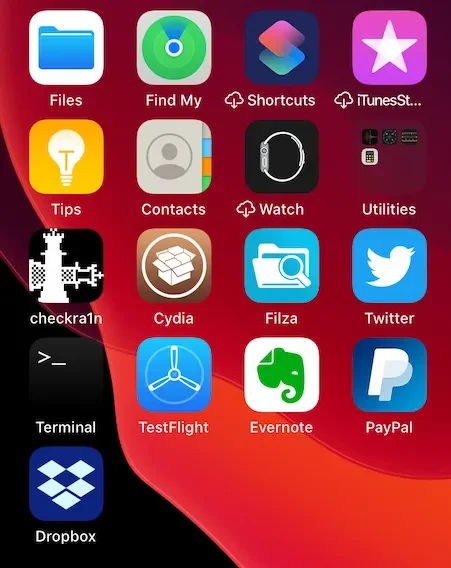
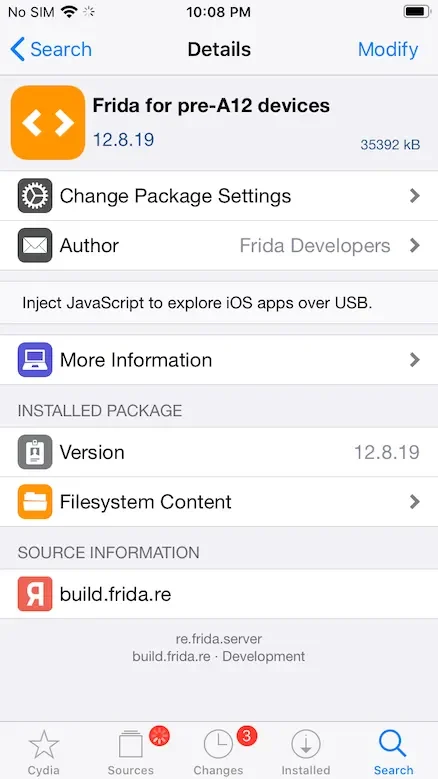
Once the device is jailbroken, frida server is installed through Cydia, the store used to download apps on a jailbroken device.
Frida and Objection are then installed on the PC. Objection is installed from https://github.com/sensepost/objection/wiki; Frida is installed automatically with it, and Python 3 needs to be present.
Before the attack, Evernote and Dropbox are installed from the App Store, and Frida and Objection are checked to be working on the PC.
Enabling Touch ID in Evernote
- Go to your profile
- Go to settings
- Click on passcode Lock
- Click
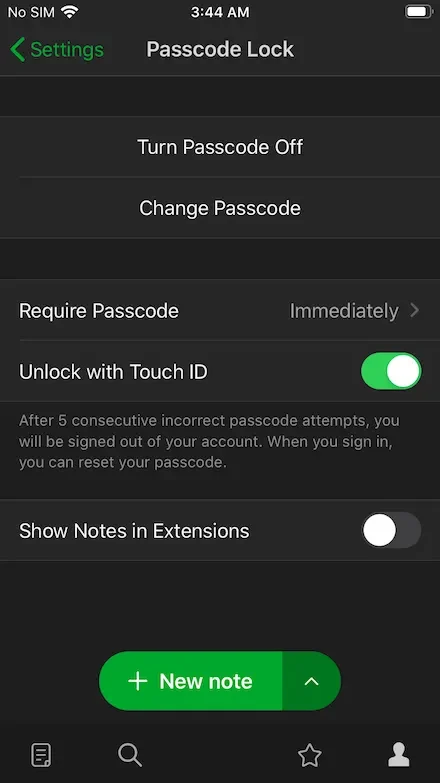
Turn Passcode On - Set up the passcode; once it is done, Touch ID is automatically enabled.
Enabling Touch ID in Dropbox
- Go to your profile
- Click on the settings logo on the top left corner
- Click
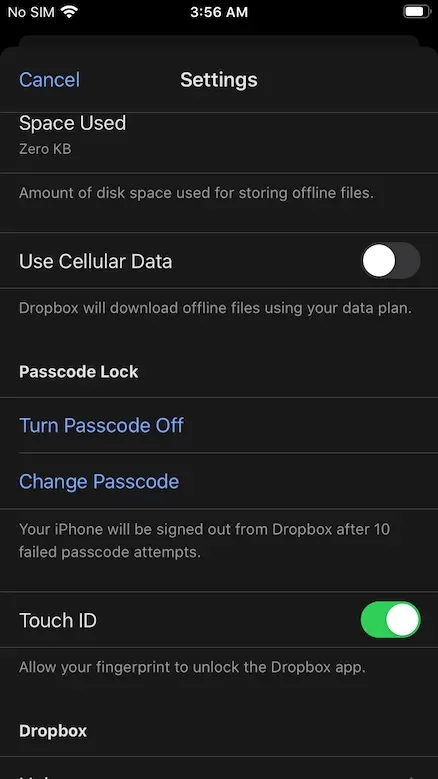
Turn Passcode On - Set up the passcode; once it is done, slide the Touch ID button.
Finding it
After configuring Touch ID for both apps, the researcher closed and reopened them. If a banner such as Touch ID for "Evernote" or Touch ID for "Dropbox" appears, the feature is active and the test can proceed.
The reasoning behind the bypass is as follows. When a user places a fingerprint for Touch ID authentication, a class LAContext is invoked in the application code, which in turn calls the evaluatePolicy method. Inside that method, the fingerprint data, in the form of a mathematical expression, is checked against the fingerprint data stored in the Secure Enclave of the device. Depending on the success or failure of the authentication, a reply block is invoked that includes a boolean indicating whether it succeeded. A successful authentication returns a boolean true; a failure returns a boolean false.
The bypass targets that boolean check. Objection's ios ui biometrics_bypass command makes Objection interact with frida server on the device; frida server changes the false value to true at runtime, reports back to Objection, and access is granted. The researcher points to the Objection wiki page on the iOS biometrics bypass for the full description of the command.
Exploitation
The technique is identical for Dropbox and Evernote, so the steps are the same for both; the write-up adds separate proof-of-concept images for each app.
Step 1: Connect the device
Connect the iPhone to the PC.
Step 2: Identify the running app names
The apps need to be identified by the names under which they run on the phone.
Step 3: List processes with Frida
Run the following on the PC terminal:
frida-ps -U
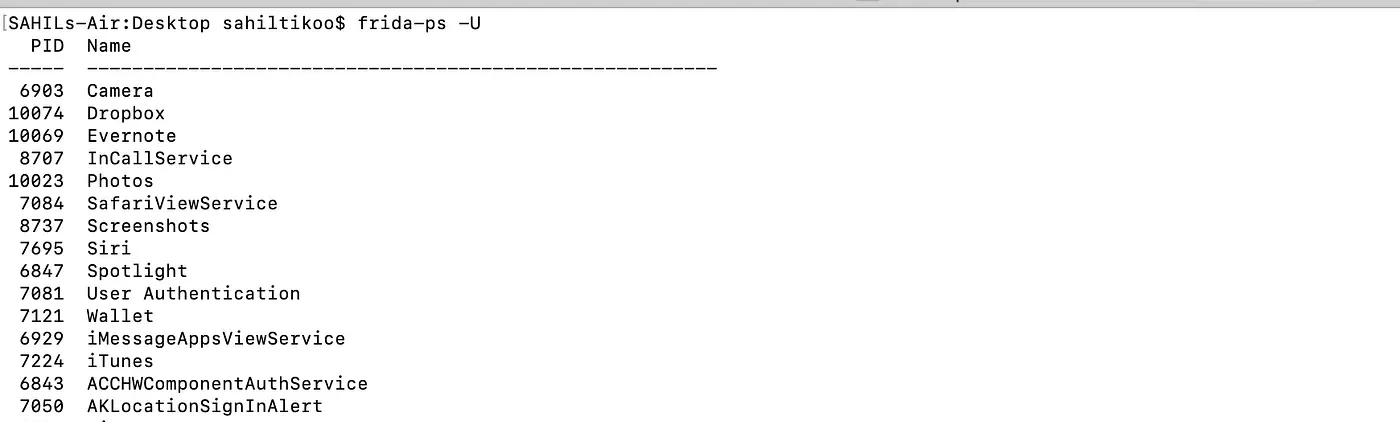
The apps are usually running under their own names, "Evernote" and "Dropbox", as shown in the output.
Step 4: Open Evernote
Open the Evernote app on the device.
Step 5: Attach Objection to Evernote
Run Objection against the app by name:
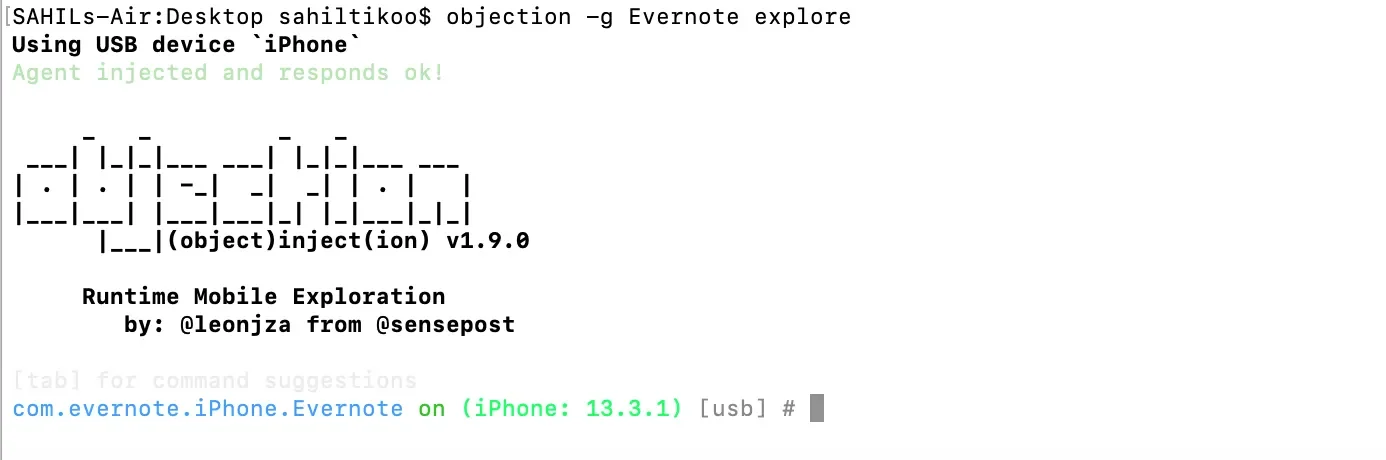
objection -g Evernote explore
Step 6: Run the biometrics bypass
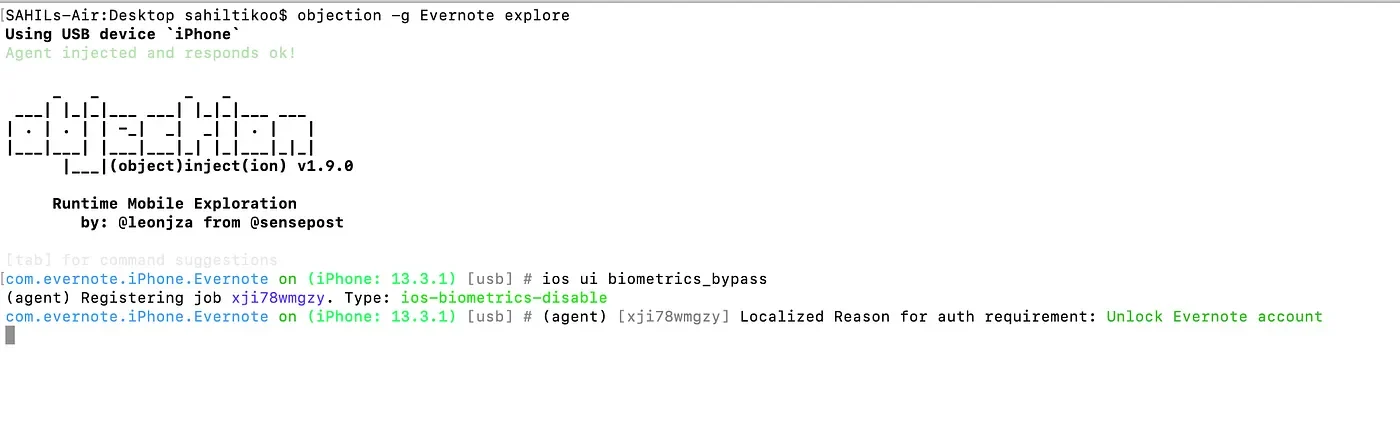
Use the ios ui biometrics_bypass command. Alongside it, a localized reason can be observed in the output, identified by the agent (frida server). Sometimes frida server or the agent is not able to identify the Touch ID pop-up when the app is opened, and the localized reason message does not appear in Objection. In that case, lock the phone without closing the app and unlock it again quickly to observe that the code was hooked properly.
Step 7: Make wrong fingerprint attempts
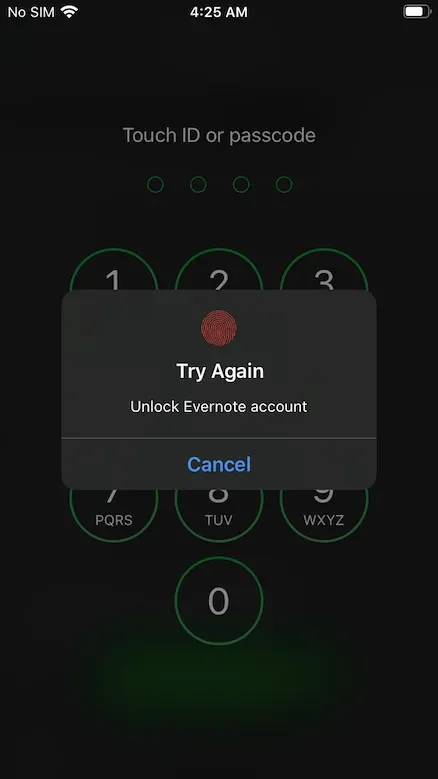
Wrong fingerprint attempts are made on the Touch ID prompt. It can sometimes take three attempts to bypass. Objection must be running in the terminal and the device must be connected with a USB cable while the attempts are made.
Step 8: Observe the bypass on Evernote
During the third wrong attempt, the results appear on both the Objection terminal and the app GUI.
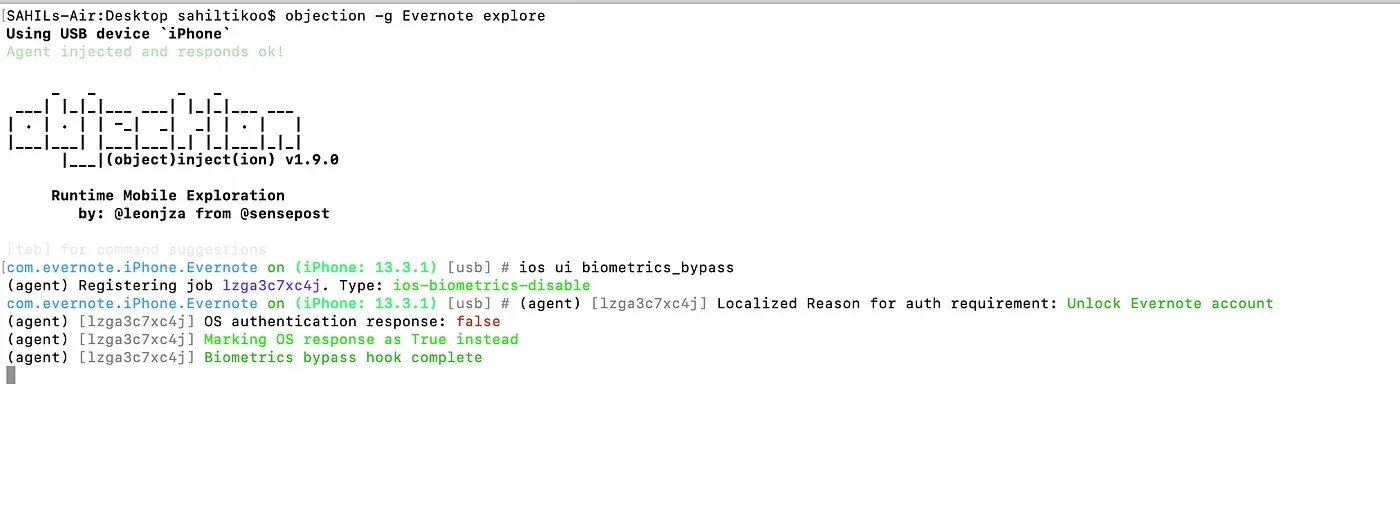
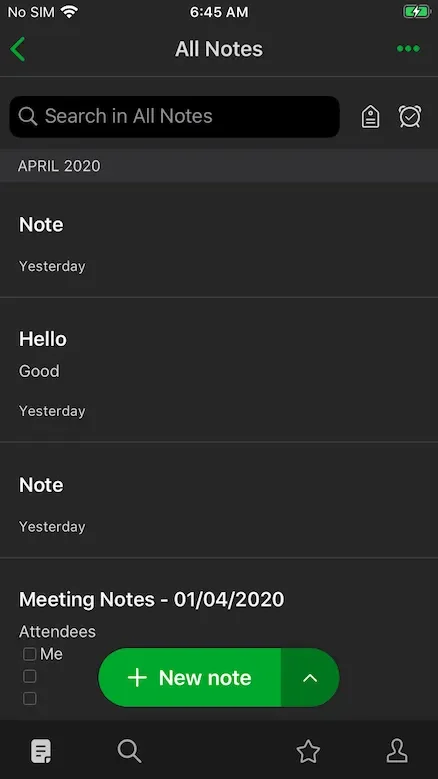
The Evernote dashboard is then accessible, having bypassed the fingerprint authentication mechanism.
Step 9: Repeat for Dropbox
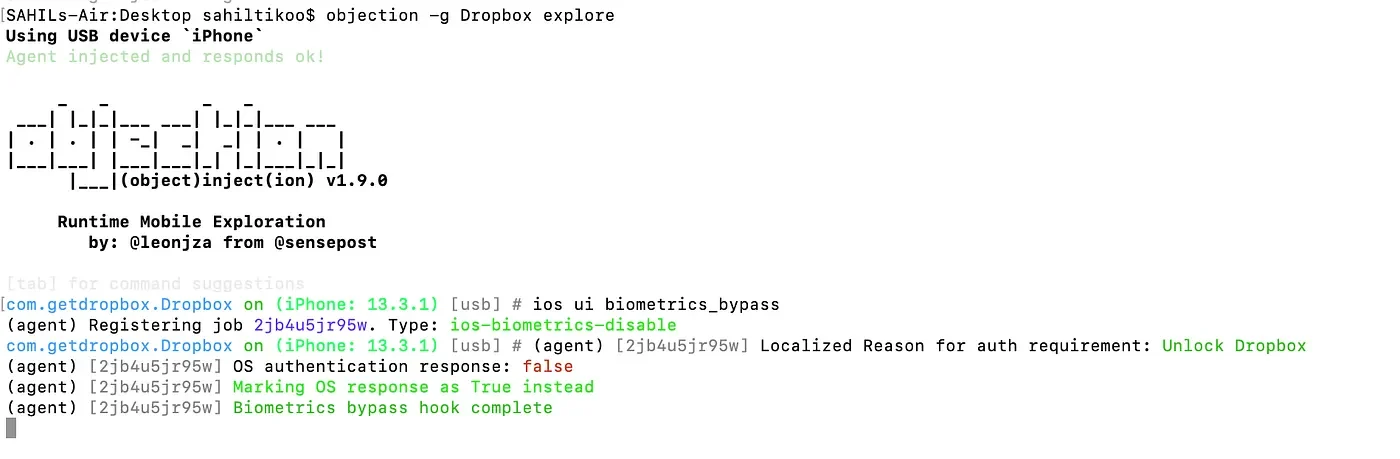
For Dropbox, follow the same steps from step 5 to step 9. During the third wrong attempt in the Dropbox case as well, the same results are observed on both the Objection terminal and the app GUI.
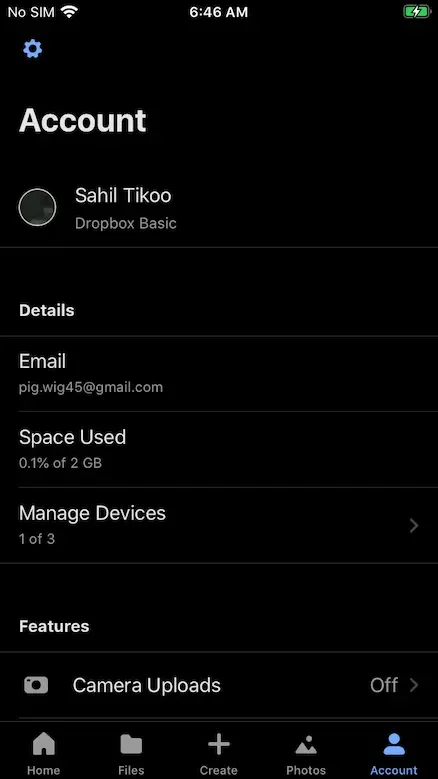
The Dropbox dashboard is also accessible after bypassing the fingerprint authentication mechanism.
Root cause
The app's decision to grant access rests on a boolean returned by the reply block of evaluatePolicy. Because that value is produced in the app, an attacker with a jailbroken device and instrumentation tooling can hook the method and force the false value to true, so the app treats a failed fingerprint check as a success. The Secure Enclave still holds the fingerprint data and the comparison still happens there, but the boolean the app acts on is changed at runtime by frida server. The report does not describe any additional server-side check that would have caught the bypass.
Impact
On a jailbroken device, an attacker who can attach Frida and Objection to the running app can reach the Evernote and Dropbox dashboards without a valid fingerprint, defeating the Touch ID lock that the user enabled. The bypass requires a jailbroken phone, a USB connection to a PC running the tooling, and, in the researcher's experience, sometimes up to three wrong fingerprint attempts before the bypass shows up. The report does not state which app versions were affected or whether the vendors were contacted.
Fix
- Other iOS apps that gate content behind Touch ID or Face ID: attach Objection with
objection -g <app name> exploreand runios ui biometrics_bypass. A positive result is the app's dashboard or protected content appearing after wrong biometric attempts while the hook is active. - Apps that use
LAContextdirectly rather than through a shared library: check whether the localized reason appears in the Objection output when the prompt is shown, locking and unlocking the device without closing the app if it does not. A positive result is the reason string being logged and the bypass then succeeding. - Apps that combine a passcode with biometrics: test whether the passcode prompt can be reached or skipped once the biometric boolean is forced to true. A positive result is access without entering either factor.
- Apps that re-prompt after backgrounding: background and foreground the app while the hook is running. A positive result is the re-prompt being satisfied without a valid fingerprint.
- Apps that perform a server-side session check after unlock: observe whether the bypassed client still loads protected data. A positive result is data being returned to a session that never passed biometric authentication, which would indicate the server also trusts the client's claim.
What happened, in plain words
Evernote and Dropbox are two popular apps for taking notes and storing files. Both of them let you put a lock on the app on your phone, so that if someone picks up your phone they cannot just open the app and read your notes or files. The lock works in two layers: first you set a numeric passcode, and once that is done the app also offers to unlock with your fingerprint, a feature Apple calls Touch ID.
The idea is simple: when you come back to the app, it asks for your fingerprint before it shows anything. If the fingerprint is not recognised, the app should stay locked.
This write-up shows a technique that makes both apps open without a valid fingerprint. The trick does not break the fingerprint sensor, and it does not guess your passcode. Instead, it changes, while the app is running, the single yes/no answer that the app receives after checking your fingerprint. The app is told "yes, the fingerprint was fine" even though it was not, and it unlocks.
To do this, the phone has to be jailbroken (modified so that it can run software Apple does not allow), and a computer has to be connected to it by cable running two tools called Frida and Objection. The same method worked on both apps.
A quick word on the vocabulary that will come up again and again, because none of it is obvious if you are new:
- An app is a program on your phone. Evernote and Dropbox are apps.
- Authentication means proving who you are. A password, a passcode or a fingerprint are all ways of authenticating.
- A jailbreak removes the restrictions Apple puts on an iPhone, so that software from outside the official App Store can run. It is the phone equivalent of rooting an Android device.
- Runtime means "while the program is running". Changing something at runtime means changing it in the live, running app rather than editing the app's files on disk.
- Hooking means intercepting a function inside a running program so that your own code runs instead of, or around, the original. Think of it as putting your hand between a light switch and the bulb: the switch is still flipped, but you decide what the bulb does.
- A boolean is a value that can only be true or false, yes or no. A lot of security decisions come down to one boolean.
The tools used
The researcher lists four things:
- iPhone 6S with iOS 13.3.1
- Checkra1n executable for semi-tethered jailbreaking
- Frida on the PC and frida server on the device
- Objection on the PC
What each of these is, in plain terms:
- iPhone 6S with iOS 13.3.1: the physical phone and the version of Apple's operating system running on it. The exact model and version matter because jailbreaks and hooking tools are tied to specific versions.
- Checkra1n: a jailbreak tool. A jailbreak is what lets you install and run software that Apple would normally block. "Semi-tethered" means that after a reboot the jailbreak may need to be re-applied with the help of a computer, rather than surviving on its own.
- Frida: a tool that lets you look inside a running app and change what it does. It has two halves: a small program that runs on the phone (the frida server) and a program on your computer that talks to it. The half on the phone is the one that actually reaches into the app.
- Objection: a friendlier front end built on top of Frida. Instead of writing hooking code yourself, you type short commands and Objection does the work. It is aimed at people testing mobile apps.
The computer used was a Mac. The checkra1n installer (a .dmg file, which is how Mac software is packaged) is available from https://checkra.in/#release. The jailbreak is run until the device reboots, after which a checkra1n IPA is presented through which Cydia and other custom apps can be installed.
An IPA is the file format iPhone apps are packaged in, the iPhone equivalent of an .exe on Windows. Cydia is an app store for jailbroken phones: once the phone is jailbroken, Cydia is how you install tools that are not in Apple's App Store.
The image shows the jailbroken iPhone 6S running iOS 13.3.1, the state the phone needs to be in before any of the rest is possible.
Once the device is jailbroken, frida server is installed through Cydia, the store used to download apps on a jailbroken device.
This image shows frida server present on the iPhone. Without this half of Frida on the phone, the computer has nothing to talk to and no way to reach into the app.
Frida and Objection are then installed on the PC. Objection is installed from https://github.com/sensepost/objection/wiki; Frida is installed automatically with it, and Python 3 needs to be present.
Python 3 is a programming language, and here it is simply a prerequisite: Objection is written in Python, so Python has to be installed on the computer for Objection to run. You do not need to write any Python yourself.
Before the attack, Evernote and Dropbox are installed from the App Store, and Frida and Objection are checked to be working on the PC. Checking the tools first is worth doing: if Frida or Objection is broken, every later step will fail for a reason that has nothing to do with the apps, and you will waste time looking in the wrong place.
Enabling Touch ID in Evernote
- Go to your profile
- Go to settings
- Click on passcode Lock
- Click
Turn Passcode On - Set up the passcode; once it is done, Touch ID is automatically enabled.
This is the app's own settings screen, with Touch ID switched on. The point of doing this first is that you cannot test a lock that is not turned on. The passcode is the first layer; Touch ID is offered once the passcode exists.
Enabling Touch ID in Dropbox
- Go to your profile
- Click on the settings logo on the top left corner
- Click
Turn Passcode On - Set up the passcode; once it is done, slide the Touch ID button.
Same idea in Dropbox, with a slightly different route through the menus. The screenshot confirms the lock is active before the test begins.
Finding it
After configuring Touch ID for both apps, the researcher closed and reopened them. If a banner such as Touch ID for "Evernote" or Touch ID for "Dropbox" appears, the feature is active and the test can proceed.
That banner is the phone's standard fingerprint prompt. Seeing it tells you two things: the app really is asking the operating system to check a fingerprint, and the check is happening at the moment you open the app, which is exactly the moment the technique later interferes with.
The reasoning behind the bypass is as follows. When a user places a fingerprint for Touch ID authentication, a class LAContext is invoked in the application code, which in turn calls the evaluatePolicy method. Inside that method, the fingerprint data, in the form of a mathematical expression, is checked against the fingerprint data stored in the Secure Enclave of the device. Depending on the success or failure of the authentication, a reply block is invoked that includes a boolean indicating whether it succeeded. A successful authentication returns a boolean true; a failure returns a boolean false.
This paragraph is dense, so let us unpack it piece by piece.
- A class is a building block in a program: a named bundle of code and data.
LAContextis the name of the Apple-provided class that apps use when they want to ask for a fingerprint or face check. "Local Authentication" is what theLAstands for. - A method is a named action that a class can perform.
evaluatePolicyis the action that actually carries out the check. - The Secure Enclave is a separate, hardened chip inside the iPhone. Your fingerprint data never leaves it in raw form; the comparison between the fingerprint you place and the stored one happens inside that chip. This is a good design, and it is not what the bypass attacks.
- A reply block is a piece of code that runs when the check finishes. Think of it as a callback: you ask for something, and you leave a note saying "when you are done, run this". The note here receives one value, a boolean: true if the fingerprint matched, false if it did not.
- The boolean is the whole story. The app's decision to unlock or stay locked is based on that single true/false value.
The bypass targets that boolean check. Objection's ios ui biometrics_bypass command makes Objection interact with frida server on the device; frida server changes the false value to true at runtime, reports back to Objection, and access is granted. The researcher points to the Objection wiki page on the iOS biometrics bypass for the full description of the command.
In everyday terms: the Secure Enclave is like a bank vault that correctly checks your ID and then hands a sealed note to the app saying "yes" or "no". The bypass does not open the vault and does not forge your ID. It intercepts the note on its way to the app and rewrites "no" as "yes". The vault did its job perfectly; the app simply believed the note.
Exploitation
The technique is identical for Dropbox and Evernote, so the steps are the same for both; the write-up adds separate proof-of-concept images for each app. A proof of concept (often shortened to PoC) is evidence that a technique really works, usually a screenshot or recording of the result.
Step 1: Connect the device
Connect the iPhone to the PC.
The cable is not incidental. Frida's server on the phone and the tools on the computer need a channel to talk to each other, and the USB cable is that channel. If the cable is unplugged mid-test, the hook stops working.
Step 2: Identify the running app names
The apps need to be identified by the names under which they run on the phone.
This matters because Objection attaches to a running app by name. If you give it the wrong name, it will either fail or attach to something else. The name you need is the internal process name, which is usually but not always the same as the name on your home screen.
Step 3: List processes with Frida
Run the following on the PC terminal:
frida-ps -U
Line by line:
frida-psis a Frida utility whose job is to list running programs ("ps" is short for process status, a long-standing name for this kind of listing).-Utells it to look at the device connected over USB rather than at the computer itself.
So the whole command means: "show me every program currently running on the phone plugged into this computer". The output is a list of process names, and you scan it for the app you want.
The apps are usually running under their own names, "Evernote" and "Dropbox", as shown in the output. The screenshot of the terminal output is what confirms the exact names to use in the next step.
Step 4: Open Evernote
Open the Evernote app on the device.
This is deliberate: the app has to be running for Objection to attach to it. You cannot hook a program that is not executing. Opening the app also brings up the fingerprint prompt, which is the thing being bypassed.
Step 5: Attach Objection to Evernote
Run Objection against the app by name:
objection -g Evernote explore
Line by line:
objectionstarts the Objection tool.-g Evernotetells it which running program to attach to;-gis short for gadget, the piece of Frida that gets injected into the target app.exploreopens Objection's interactive prompt, a command line where you type further commands and see their output.
After this command, you are inside a session attached to Evernote. Anything you type next is aimed at that app.
Step 6: Run the biometrics bypass
Use the ios ui biometrics_bypass command. Alongside it, a localized reason can be observed in the output, identified by the agent (frida server). Sometimes frida server or the agent is not able to identify the Touch ID pop-up when the app is opened, and the localized reason message does not appear in Objection. In that case, lock the phone without closing the app and unlock it again quickly to observe that the code was hooked properly.
A few terms here:
- The agent is the piece of Frida running inside the app on the phone. It is the thing doing the actual hooking.
- A localized reason is the short message an app shows next to a fingerprint prompt, such as "unlock Evernote". Apps supply this text so the prompt can explain itself. When Objection can see that text, it is proof that the agent has found the right piece of code and is watching it.
- The command name itself reads as: iOS, user interface, biometrics bypass. Biometrics means body-based identification, here a fingerprint.
The screenshot shows the bypass command being run and the localized reason appearing in the Objection output. That message is the signal that the hook is in place. If it does not appear, the workaround is to lock and unlock the phone without closing the app, which makes the app ask for the fingerprint again and gives the agent another chance to catch it.
Step 7: Make wrong fingerprint attempts
Wrong fingerprint attempts are made on the Touch ID prompt. It can sometimes take three attempts to bypass. Objection must be running in the terminal and the device must be connected with a USB cable while the attempts are made.
This is the part that surprises people. You are not trying to guess the right fingerprint; you are deliberately failing. Each failed attempt makes the app run through its check again, and each run is another opportunity for the hook to take effect. In the researcher's experience it sometimes took until the third wrong attempt before the bypass showed up. Keeping Objection running and the cable connected throughout is what keeps the hook alive between attempts.
The screenshot shows the wrong fingerprint attempts on the Evernote prompt.
Step 8: Observe the bypass on Evernote
During the third wrong attempt, the results appear on both the Objection terminal and the app GUI.
GUI stands for graphical user interface: the part of the app you actually see and touch, as opposed to the terminal output. Watching both at once is the point, because the terminal shows the hook firing and the app shows the consequence.
The screenshot captures that moment: the Objection terminal on one side and the app on the other, at the third wrong attempt.
The Evernote dashboard is then accessible, having bypassed the fingerprint authentication mechanism.
This is the result that matters: the Evernote dashboard, the app's normal content, visible without a valid fingerprint.
Step 9: Repeat for Dropbox
For Dropbox, follow the same steps from step 5 to step 9. During the third wrong attempt in the Dropbox case as well, the same results are observed on both the Objection terminal and the app GUI.
The same terminal-and-app view, this time for Dropbox.
The Dropbox dashboard is also accessible after bypassing the fingerprint authentication mechanism.
And the Dropbox dashboard, reached the same way. Two different apps, one technique: that is the finding.
Root cause
The app's decision to grant access rests on a boolean returned by the reply block of evaluatePolicy. Because that value is produced in the app's own process, an attacker with a jailbroken device and instrumentation tooling can hook the method and force the value to true, so the app treats a failed or absent fingerprint check as a success. The Secure Enclave still holds the fingerprint data and the comparison still happens there, but the result that the app acts on is decided in user space and can be altered at runtime. The report does not describe any additional server-side check that would have caught the bypass.
Two more terms from that paragraph:
- User space is the ordinary part of memory where apps run, as opposed to the protected kernel and hardware. Code in user space can be modified by a tool like Frida; the Secure Enclave cannot.
- Server-side means on the company's computers rather than on your phone. A server-side check would be the company's own systems asking "is this person really authenticated?" before handing over data. The report does not describe such a check here.
Impact
On a jailbroken device, an attacker who can attach Frida and Objection to the running app can reach the Evernote and Dropbox dashboards without a valid fingerprint, defeating the Touch ID lock that the user enabled. The bypass requires a jailbroken phone, a USB connection to a PC running the tooling, and, in the researcher's experience, sometimes up to three wrong fingerprint attempts before the bypass shows up.
It is worth being clear about how much this does and does not mean. It needs the phone in hand, already unlocked and already jailbroken, plus a computer and a cable. What it does show is that someone with your jailbroken phone, a laptop and the tooling does not need your fingerprint to reach the app dashboard.
Fix
Each one describes what to do and what a positive result looks like.
- Other iOS apps that gate content behind Touch ID or Face ID: attach Objection with
objection -g <app name> exploreand runios ui biometrics_bypass. A positive result is the app's dashboard or protected content appearing after wrong biometric attempts while the hook is active. - Apps that use
LAContextdirectly rather than through a shared library: check whether the localized reason appears in the Objection output when the prompt is shown, locking and unlocking the device without closing the app if it does not. A positive result is the reason string being logged and the bypass then succeeding. - Apps that combine a passcode with biometrics: test whether the passcode prompt can be reached or skipped once the biometric boolean is forced to true. A positive result is access without entering either factor.
- Apps that re-prompt after backgrounding: background and foreground the app while the hook is running. A positive result is the re-prompt being satisfied without a valid fingerprint.
- Apps that perform a server-side session check after unlock: observe whether the bypassed client still loads protected data. A positive result is data being returned to a session that never passed biometric authentication, which would indicate the server also trusts the client's claim.
A session here means the state of being logged in: the app holds something, often a token, that tells the server "this is the same person who logged in earlier". A token is a string of characters that acts like a temporary key, proving you already authenticated so you do not have to do it again on every request. If a server hands over data to a session that never passed the fingerprint check, the server is trusting the app's word, and the same weakness exists on the other side of the connection.
Glossary
- Agent: the part of Frida that runs inside the target app on the phone and performs the hooking.
- App: a program installed on a phone, such as Evernote or Dropbox.
- Authentication: the process of proving who you are, by passcode, password, fingerprint or another factor.
- Biometrics: identification based on physical characteristics, such as a fingerprint or a face.
- Boolean: a value that is either true or false.
- Checkra1n: a jailbreak tool used to remove Apple's restrictions on an iPhone.
- Class: a named building block in a program that bundles code and data, such as
LAContext. - Cydia: an app store for jailbroken iPhones, used to install tools that Apple's App Store does not offer.
- Dashboard: the main screen of an app, showing its normal content once you are inside.
- DM: direct message, a private message on a social network.
- Frida: a tool for inspecting and changing a running program, made of a server on the phone and a client on the computer.
- GUI: graphical user interface, the visible part of an app you interact with.
- Hook: code that intercepts a function in a running program so that other code runs instead of, or around, the original.
- IPA: the file format iPhone apps are packaged in.
- Jailbreak: removing Apple's software restrictions on an iPhone so that unofficial software can run.
- Jailbroken: an iPhone on which a jailbreak has been applied.
- LAContext: the Apple class apps use to request a fingerprint or face check.
- Localized reason: the short message shown next to a fingerprint prompt, supplied by the app.
- Method: a named action a class can perform, such as
evaluatePolicy. - Objection: a command-line tool built on Frida that makes common mobile app tests easy to run.
- Process: a program that is currently running.
- Proof of concept (PoC): evidence, usually a screenshot or recording, that a technique actually works.
- Python 3: a programming language; here only a prerequisite for running Objection.
- Reply block: a piece of code that runs when an asynchronous operation finishes, receiving its result.
- Runtime: the period during which a program is running; changing something at runtime means changing the live program.
- Secure Enclave: a separate hardened chip in the iPhone that stores fingerprint data and performs the comparison.
- Semi-tethered: a jailbreak that may need a computer to be re-applied after the phone reboots.
- Server-side: happening on the company's computers rather than on the user's phone.
- Session: the state of being logged in, usually represented by a token the app sends with requests.
- Token: a string that acts as a temporary key, proving a previous login without repeating it.
- Touch ID: Apple's fingerprint authentication feature.
- User space: the ordinary memory area where apps run, as opposed to the protected kernel and hardware.
- Vendor: the company that makes the app.