XSS at hubspot and in email areas
The author found that HubSpot's signature editor allowed uploading an SVG file containing a script, which executed when the file was viewed directly, and that a chat module's email field could be abused to inject an image with an error handler that executed on the admin side. An attacker could run script in the context of the affected pages or admin chat view.

For those asking me what this Tweet and this Tweet is about — then I will be explaining it here in details as much as possible.
The full write-up lives on its author's site
It belongs to its author, so we link to it rather than copy it. The other two tabs are our own rewrites, checked against it.
Context
This write-up covers two separate cross-site scripting issues found in HubSpot's web application, plus a third technique that the author says he discovered himself and that applies to live support chat modules in general. The first issue lives in the signature editor of the HubSpot app at https://app.hubspot.com: the signature field accepts an image upload, and the uploaded file is served back from the server. The second issue is a variant of the same upload path, where the file name itself carries the payload. The third is an XSS that fires through the email field of a support chat widget, on the administrator's side rather than the sender's.
The author notes that the HubSpot programme on Bugcrowd only rewards points and hall of fame rather than money. The chat-module technique was not rewarded by HubSpot at all; a private freelancing website paid a $450 bounty for it.
Setup
The author lists the following as what you want to have for the first XSS:
- Kali Linux
- KNOXSS
- an SVG file that contains an XSS
- a basic understanding of how email rendering is displayed to users, admins and client side in email, ticket support systems and on the web page
You also need an account on http://hubspot.com to test on. The Kali Linux part is optional: the author says you can skip it if you are not interested.
If you do not already have an SVG containing an XSS, the author provides one. Create a file named SVG.svg, paste the following code inside it and save it:
<svg version="1.1" baseProfile="full" xmlns="http://www.w3.org/2000/svg"> <polygon id="triangle" points="0,0 0,50 50,0" fill="#009900" stroke="#004400"/> <script type="text/javascript"> alert('XSS!'); </script></svg>
This is a normal SVG document with a polygon and an inline script that calls alert('XSS!'). The author calls it very basic stuff and notes that you now have an SVG that contains an XSS.
Finding it
The author starts at https://app.hubspot.com and goes to edit his signature. The signature editor presents an input field.
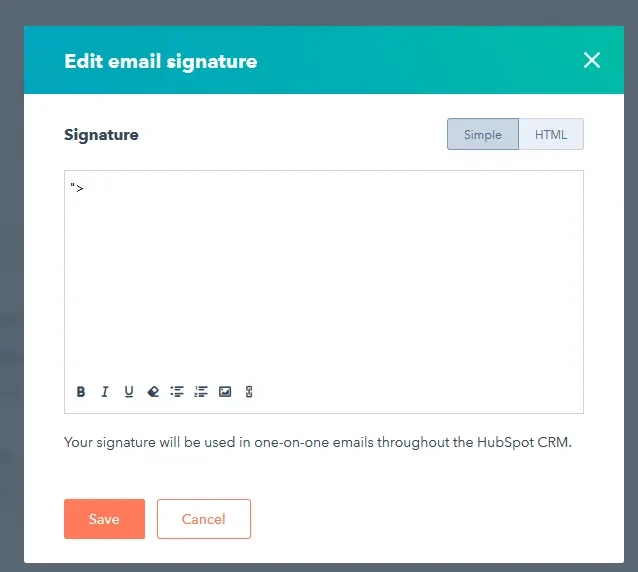
The screenshot shows the signature editing screen where the testing begins.
His first attempt was a set of generic payloads against that input field:
"><svg/onload=alert(1)><img>/><svg/onload=alert(1)>"></\/\</script><script>alert(1)</script>"><script>alert("xss");</script><div onmouseover="alert('XSS');">Hello :) ^ [My favorite one - works like 80% of the time for me].</style><script>a=eval;b=alert;a(b(/XSS/.source));</script>That's all for now that I'll share.Enjoy the payloads too. ;)
None of them worked in this case, on this website. The author singles out the onmouseover variant as his favourite, working roughly 80% of the time for him elsewhere.
What he did notice was an image icon in the editor. Clicking it showed that his SVG was visible and could be uploaded. That upload path, rather than the text field, turned out to be the interesting one.
Exploitation
Step 1: upload the SVG through the signature image icon
He clicked the image icon, selected his SVG and uploaded it. The SVG was uploaded directly to the server and was not filtered at all. He then went to the direct link where the uploaded image SVG was stored, and the XSS fired.
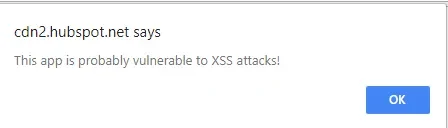
The image is captioned as an SVG XSS.
The author notes that some readers may stop here, but he wanted to go a step further for a bigger impact.
Step 2: put the payload in the file name (Kali Linux)
This part requires Kali Linux, which the author booted. He created a file with this name:
"><svg onload=alert(1)>.svg
He put his XSS inside the file and saved it, then uploaded it to the server. The file name did not change at all at the location it was uploaded to, but the XSS did not fire.
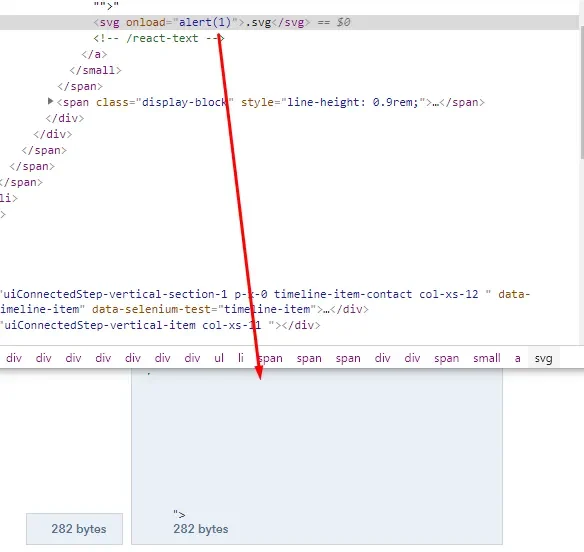
Step 3: switch the handler to onmouseover
He changed the file name to:
"><svg onmouseover=alert(1)>.svg
He then hovered over it and the payload executed.
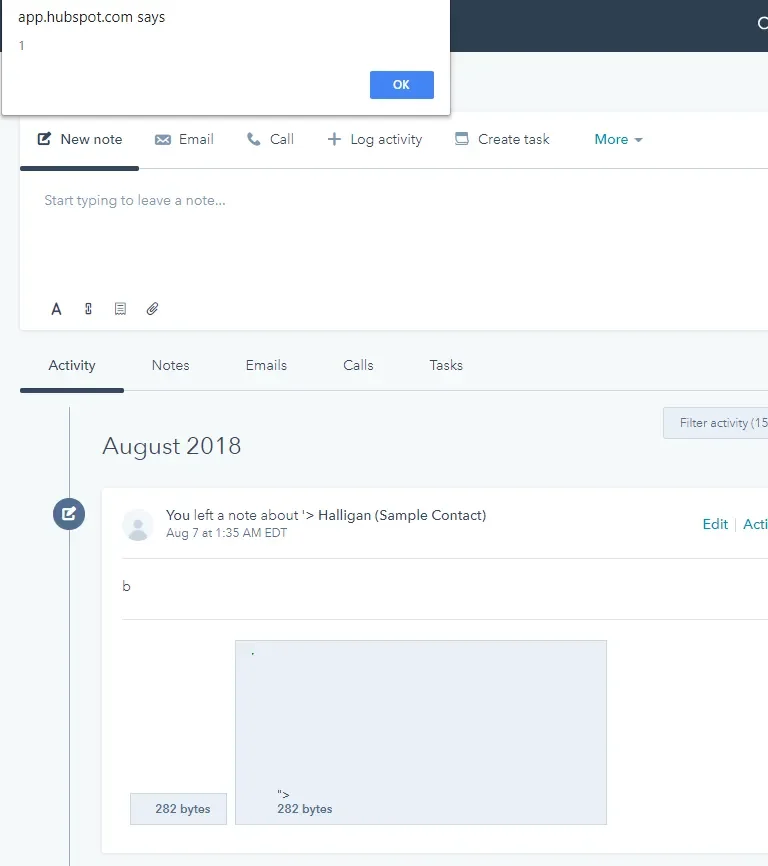
The image is captioned as successfully getting the confirmation alert.
Step 4: visit the file link directly
Visiting the file link itself also produced the confirmation alert.
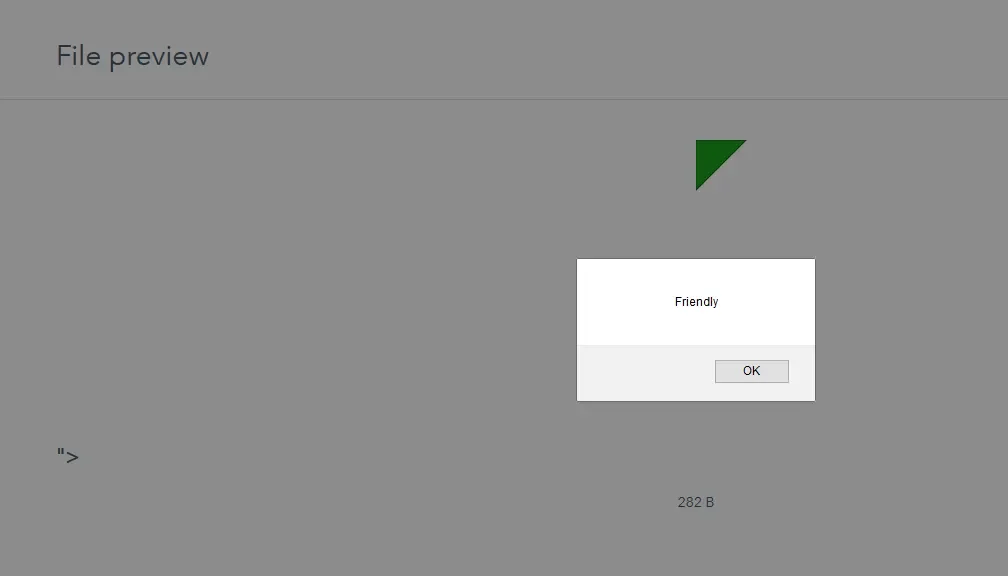
The image is captioned as the confirmation alert, 'Friendly'.
The SVG is displayed as well, so right-clicking and choosing "Open image in new tab" takes you to the SVG, which contains the XSS. The author credits KNOXSS for providing insight, a powerful payload and a bypass, and summarises this part as two XSS in one page. The reward from HubSpot for this was points.
Step 5: XSS through a chat module's email field
The author says he discovered this method himself and that it works about 70% of the time across the websites he tested in the preceding 24 to 72 hours, on various chatting module systems like the one shown.
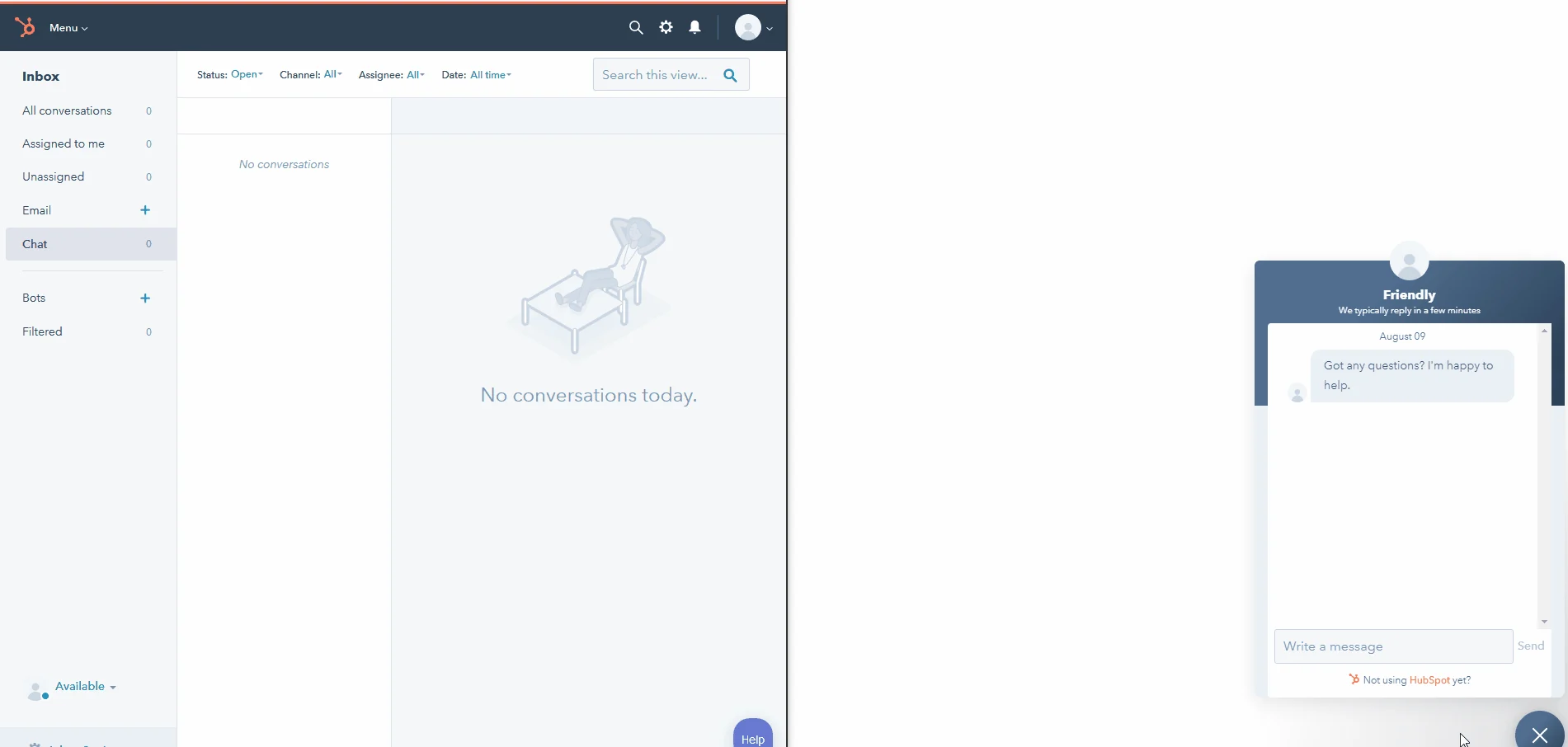
The image is captioned as the XSS, with the black box covering the website he was chatting on.
He tried sending the payload itself without going to the email area, and got no XSS. The payload that works is placed in the email field:
[redacted]<--`<img/src=` onerror=alert("Friendly-XSS")> --!> or<--`<img/src=` onerror=alert("Friendly-XSS")> --!>
The author's explanation of the behaviour is that once you input a payload like this in the email field, sending another payload similar to it will automatically register on the admin's side, which then executes it. On your own side it will appear not to register, which is fine: you need to send the same payload again for it to execute. The proof of concept is the screenshot above.
HubSpot did not reward this one. A private freelancing website did, with a $450 bounty. The author does not name that site, describing it only as a freelancing website, and points out that there are many sites offering freelancers bounties for their free time if you search around.
Root cause
For the signature image upload, the report says the SVG was uploaded directly to the server and was not filtered at all, and the XSS fired at the direct link. For the file-name variant, the file name did not change at the upload location, and the author does not describe the exact markup. The onload variant did not fire while onmouseover did; the report does not explain why.
For the chat module, the author says the payload registers on the admin's side and executes there after sending the same payload again. The report does not explain the mechanism beyond that.
Impact
In the HubSpot signature editor, opening the direct link of the uploaded SVG, or hovering over the crafted file entry, executes the script. The author frames the file-name variant as a step beyond the plain SVG upload for bigger impact, but does not describe a delivery scenario in detail. For the chat module technique, the script executes on the administrator's side after the same payload is sent again. The author hedges the reliability of the chat technique at around 70% across the sites he tried, and the HubSpot-specific results are limited to what is shown above.
Fix
Based on the behaviour shown, the upload endpoint should reject or sanitise SVG files, or serve user-uploaded content from a separate origin with a content type that prevents script execution, and uploaded file names should be encoded wherever they are reflected into a page. Chat and support modules should encode the email field on output on the administrator's side, and should not rely on the sender's view to indicate whether a value was accepted.
Variants to test
- Upload an SVG with an inline
<script>through any image upload field in a profile or signature editor, then open the direct file link. A positive result is the script executing from the file's own URL. - Upload a file whose name contains an attribute-breaking sequence such as
"><svg onmouseover=alert(1)>.svgand hover over the resulting entry in the interface. A positive result is the handler firing on hover. - Repeat the same with
onloadinstead ofonmouseoverto see whether the element is actually loaded as an image in that context. - In live chat or support widgets, place an
imgwith an emptysrcand anonerrorhandler into the email field, submit, then submit the same value again, and check the administrator or agent view. A positive result is the handler firing on the receiving side while the sender's view shows nothing. - Try the same email-field payload in ticket systems and other modules that render a visitor's email address to staff, since the author reports the technique working across several chat module systems.
What happened, in plain words
A security researcher found three ways to make a website run code that he wrote, rather than code the website's owners wrote. This kind of trick is called cross-site scripting, usually shortened to XSS. The idea is simple: a website takes something a visitor typed or uploaded, and later shows it back to someone else without cleaning it up first. If the thing that was typed is not just text but a small instruction, the browser of the person viewing it will follow that instruction as if the website itself had asked for it.
A useful everyday comparison: imagine a noticeboard where anyone can pin a note. If the person in charge of the board copies every note word for word onto official letterhead and mails it out, then anyone who writes "pay the bearer 100 pounds" on a note has effectively written an official letter. The board did not mean to send that instruction, but it did, because it never checked what was written before passing it on.
Two of the three issues were in HubSpot's web application, specifically in the part where you edit your email signature. The third was in the little chat box that many websites put in a corner so visitors can talk to support staff. The HubSpot bug bounty programme on Bugcrowd only rewards points and a place in the hall of fame, not money. The chat technique was not rewarded by HubSpot at all; a private freelancing website paid a $450 bounty for it.
A bug bounty programme, by the way, is a scheme where a company invites outsiders to look for security mistakes and pays or thanks them for reporting what they find, instead of punishing them. Bugcrowd is one of the platforms that runs such programmes.
What you need before you start
The author lists the following as what you want to have for the first XSS:
- Kali Linux
- KNOXSS
- an SVG file that contains an XSS
- a basic understanding of how email rendering is displayed to users, admins and client side in email, ticket support systems and on the web page
Let us unpack those four items, because three of them are jargon.
Kali Linux is a free operating system, a variant of Linux, that comes with a large collection of security testing tools preinstalled. Think of it as a toolbox computer rather than a normal desktop. The author says the Kali Linux part is optional: you can skip it if you are not interested.
KNOXSS is a tool that helps find and craft XSS payloads. A payload, in this context, is simply the piece of text you feed to a website hoping it will be treated as an instruction rather than as plain text. The author credits KNOXSS later for providing insight, a powerful payload and a bypass.
SVG stands for Scalable Vector Graphics. It is a picture format, like PNG or JPEG, except that an SVG file is really a small text document describing shapes. Because it is text, and because browsers are generous about what an SVG may contain, an SVG can also carry a script, which is a short program. That is why an SVG is useful here: it looks like an image to the upload form, but it can carry an instruction.
Email rendering means how an email, or an email address, is turned into something visible on a screen. Different systems (a mail client, a helpdesk ticket, a web page) each take the raw text and lay it out. If one of those systems lays it out carelessly, an instruction hidden in the text can come to life.
You also need an account on http://hubspot.com to test on, because the signature editor is only reachable once you are logged in.
If you do not already have an SVG containing an XSS, the author provides one. Create a file named SVG.svg, paste the following code inside it and save it:
<svg version="1.1" baseProfile="full" xmlns="http://www.w3.org/2000/svg"> <polygon id="triangle" points="0,0 0,50 50,0" fill="#009900" stroke="#004400"/> <script type="text/javascript"> alert('XSS!'); </script></svg>
Line by line, in plain words:
<svg version="1.1" baseProfile="full" xmlns="http://www.w3.org/2000/svg">opens the picture and tells the browser which flavour of SVG it is. Thexmlnspart is a standard label that says "this is an SVG document".<polygon id="triangle" points="0,0 0,50 50,0" fill="#009900" stroke="#004400"/>draws a green triangle. This is the harmless part that makes the file look like a real picture.<script type="text/javascript">starts a script block. Everything until the closing tag is treated as a program.alert('XSS!');is the program.alertis a built-in browser function that pops up a small box with a message. Seeing that box appear is the standard proof that your code ran.</script></svg>closes the script and the picture.
The author calls this very basic stuff and notes that you now have an SVG that contains an XSS.
Finding it
The author starts at https://app.hubspot.com and goes to edit his signature. A signature, in an email or helpdesk product, is the block of text and images automatically added to the bottom of your messages: your name, job title, company logo and so on. The signature editor presents an input field, meaning a box on the page where you type.
The screenshot shows the signature editing screen where the testing begins.
His first attempt was a set of generic payloads against that input field:
"><svg/onload=alert(1)><img>/><svg/onload=alert(1)>"></\/\</script><script>alert(1)</script>"><script>alert("xss");</script><div onmouseover="alert('XSS');">Hello :) ^ [My favorite one - works like 80% of the time for me].</style><script>a=eval;b=alert;a(b(/XSS/.source));</script>That's all for now that I'll share.Enjoy the payloads too. ;)
This is a grab bag of tried-and-tested tricks, all pasted into one block. Going through the pieces:
">is an attempt to close whatever quotation mark and tag the page has wrapped around your input, so that what follows is no longer treated as text but as new page structure.<svg/onload=alert(1)>creates an SVG element with anonloadhandler. A handler is an instruction that runs when something happens;onloadmeans "when this element finishes loading". So the alert fires as soon as the element appears.<img/>is an image tag with no source, included as a variation.</script><script>alert(1)</script>tries to close an existing script block and open a new one.<div onmouseover="alert('XSS');">Hello :)creates a visible box saying Hello, with anonmouseoverhandler: the alert fires when the mouse pointer moves over it. The author singles this one out as his favourite, working roughly 80% of the time for him elsewhere.</style><script>a=eval;b=alert;a(b(/XSS/.source));</script>is a more obfuscated version that stores the browser'sevalandalertfunctions in short variables and then calls one with the other, so the word "alert" does not appear literally in the obvious place.
None of them worked in this case, on this website. That is normal: each website builds its pages slightly differently, and a payload that works on one may be neutralised on another.
What he did notice was an image icon in the editor. Clicking it showed that his SVG was visible and could be uploaded. That upload path, rather than the text field, turned out to be the interesting one. The lesson for a beginner: when the obvious input refuses your payloads, look at every other way the page lets you put something in, including file uploads.
Exploitation
Step 1: upload the SVG through the signature image icon
He clicked the image icon, selected his SVG and uploaded it. The SVG was uploaded directly to the server and was not filtered at all. "Not filtered" means the server did not inspect the file and did not strip the script out of it; it simply stored the file as given. He then went to the direct link where the uploaded image SVG was stored, and the XSS fired.
The image is captioned as an SVG XSS.
Why does opening the direct link matter? Because that link serves the file back to the browser as the file's own content. The browser sees an SVG, sees the script inside it, and runs it. The alert box is the proof: the browser executed code that came from a file the researcher uploaded, not from HubSpot.
The author notes that some readers may stop here, but he wanted to go a step further for a bigger impact.
Step 2: put the payload in the file name (Kali Linux)
This part requires Kali Linux, which the author booted. He created a file with this name:
"><svg onload=alert(1)>.svg
Read that name carefully, because the trick is entirely in the name. It starts with ">, the same attribute-breaking sequence as before. Then comes <svg onload=alert(1)>, an SVG element that runs the alert when it loads. Finally .svg keeps the file looking like a picture to the upload form. The idea is that if the website later prints the file name on a page without cleaning it, the browser will read the name as page structure and run the handler.
He put his XSS inside the file and saved it, then uploaded it to the server. The file name did not change at all at the location it was uploaded to, but the XSS did not fire.
So the name survived intact, which is promising, but onload did not trigger. A plausible reason, and the author does not spell it out, is that in the place where the name is shown, the element is not actually loaded as an image, so the "finished loading" event never happens.
Step 3: switch the handler to onmouseover
He changed the file name to:
"><svg onmouseover=alert(1)>.svg
The only change is the handler: onload became onmouseover. That handler fires on a mouse hover instead of on loading, so it does not depend on the element ever being loaded as an image. He then hovered over it and the payload executed.
The image is captioned as successfully getting the confirmation alert.
This is a good illustration of a general habit: when one handler does not fire, try another that depends on a different event. The element was clearly being rendered on the page; it just was not being loaded.
Step 4: visit the file link directly
Visiting the file link itself also produced the confirmation alert.
The image is captioned as the confirmation alert, 'Friendly'.
The SVG is displayed as well, so right-clicking and choosing "Open image in new tab" takes you to the SVG, which contains the XSS. The author credits KNOXSS for providing insight, a powerful payload and a bypass, and summarises this part as two XSS in one page: one through the file's own content, and one through the file name as it appears in the interface. The reward from HubSpot for this was points.
Step 5: XSS through a chat module's email field
The author says he discovered this method himself and that it works about 70% of the time across the websites he tested in the preceding 24 to 72 hours, on various chatting module systems like the one shown. A chat module here means the small support widget embedded in a website, where a visitor types a message and often an email address so an agent can reply.
The image is captioned as the XSS, with the black box covering the website he was chatting on.
He tried sending the payload itself without going to the email area, and got no XSS. In other words, the message box was handled safely, but the email field was not. The payload that works is placed in the email field:
[redacted]<--`<img/src=` onerror=alert("Friendly-XSS")> --!> or<--`<img/src=` onerror=alert("Friendly-XSS")> --!>
Breaking it down:
The author's explanation of the behaviour is that once you input a payload like this in the email field, sending another payload similar to it will automatically register on the admin's side, which then executes it. On your own side it will appear not to register, which is fine: you need to send the same payload again for it to execute. The proof of concept is the screenshot above.
Why does the double send matter? The author says the payload registers on the admin's side and executes there after sending the same payload again. The report does not explain the mechanism beyond that. For a beginner, the practical point is that the sender's view is not a reliable indicator of what the recipient will see.
HubSpot did not reward this one. A private freelancing website did, with a $450 bounty. The author does not name that site, describing it only as a freelancing website, and points out that there are many sites offering freelancers bounties for their free time if you search around.
Why it works
For the signature image upload, the report says the SVG was uploaded directly to the server and was not filtered at all, and the XSS fired at the direct link. Sanitising means cleaning the content so that any instructions in it are defused before it is shown to anyone.
For the file-name variant, the file name did not change at the upload location, and the author does not describe the exact markup. The author does not describe the exact markup, so the precise context is not stated. The onload variant did not fire while onmouseover did; the report does not explain why.
For the chat module, the author says the payload registers on the admin's side and executes there after sending the same payload again.
What an attacker could do with it
In the HubSpot signature editor, opening the direct link of the uploaded SVG, or hovering over the crafted file entry, executes the script. "In the context of the application" means the script runs as if it belonged to HubSpot, with the same access the logged-in user has in that tab. The author frames the file-name variant as a step beyond the plain SVG upload for bigger impact, but does not describe a delivery scenario in detail.
For the chat module technique, the script executes on the administrator's side after the same payload is sent again. The author hedges the reliability of the chat technique at around 70% across the sites he tried, and the HubSpot-specific results are limited to what is shown above.
How to fix it
Based on the behaviour shown, the upload endpoint should reject or sanitise SVG files, or serve user-uploaded content from a separate origin with a content type that prevents script execution. An origin is the combination of scheme, host and port that a browser uses to decide what belongs together, for example https://app.hubspot.com; content served from a different origin cannot reach into the main application. Uploaded file names should be encoded wherever they are reflected into a page. Chat and support modules should encode the email field on output on the administrator's side, and should not rely on the sender's view to indicate whether a value was accepted.
Things to try yourself
- Upload an SVG with an inline
<script>through any image upload field in a profile or signature editor, then open the direct file link. A positive result is the script executing from the file's own URL. - Upload a file whose name contains an attribute-breaking sequence such as
"><svg onmouseover=alert(1)>.svgand hover over the resulting entry in the interface. A positive result is the handler firing on hover. - Repeat the same with
onloadinstead ofonmouseoverto see whether the element is actually loaded as an image in that context. - In live chat or support widgets, place an
imgwith an emptysrcand anonerrorhandler into the email field, submit, then submit the same value again, and check the administrator or agent view. A positive result is the handler firing on the receiving side while the sender's view shows nothing. - Try the same email-field payload in ticket systems and other modules that render a visitor's email address to staff, since the author reports the technique working across several chat module systems.
Glossary
- XSS (cross-site scripting): a security mistake where a website shows back something a visitor supplied without cleaning it, so the browser runs it as code.
- Payload: the piece of text or file you feed to a website hoping it will be treated as an instruction rather than plain text.
- Bug bounty programme: a scheme where a company invites outsiders to find and report security mistakes, usually in exchange for money, points or recognition.
- Bugcrowd: a platform that runs bug bounty programmes for companies.
- Hall of fame: a public list of researchers who have reported valid issues, used as recognition instead of or alongside payment.
- Bounty: the reward paid for a valid report.
- Kali Linux: a free Linux-based operating system that ships with many security testing tools.
- KNOXSS: a tool that helps find and craft XSS payloads.
- SVG (Scalable Vector Graphics): a picture format stored as text that describes shapes, and which can also carry a script.
- Script: a short program that a browser can run.
- alert: a built-in browser function that pops up a small box with a message, commonly used as proof that code ran.
- Handler: an instruction attached to an element that runs when a particular event happens, such as loading or hovering.
- onload: a handler that runs when an element finishes loading.
- onmouseover: a handler that runs when the mouse pointer moves over an element.
- onerror: a handler that runs when something fails, for example when an image cannot be loaded.
- Input field: a box on a web page where you type or paste a value.
- Signature: the block of text and images automatically added to the bottom of your emails, such as your name and company logo.
- Email rendering: the process of turning raw email text or an address into something visible on a screen.
- Attribute: a setting written inside a page element, such as the address of an image or the handler to run.
- Sanitise: to clean content so that any instructions inside it are defused before it is shown to anyone.
- Filter: a check that inspects input and removes or blocks parts it does not like.
- Reflect: to take a value supplied by a visitor and print it straight back into a page.
- Encode: to convert characters with special meaning, such as
<and>, into harmless stand-ins so they display as text instead of being acted on. - Origin: the combination of scheme, host and port that a browser uses to decide which content belongs together, for example
https://app.hubspot.com. - Content type: the label a server attaches to a file telling the browser what kind of thing it is, such as an image or a web page.
- Chat module: the small support widget embedded in a website where a visitor types a message and often an email address for a reply.
- Administrator side: the view seen by the staff member or agent receiving the message, as opposed to the visitor's own view.
- Proof of concept (POC): a demonstration, often a screenshot or short recording, showing that the issue really works.
- Direct link: the web address that serves an uploaded file back on its own, outside the page that uploaded it.