Bypassing biometric authentication using voip in Whatsapp
WhatsApp's biometric lock could be bypassed because the auto-lock timer was reset when a call ended, allowing an attacker to make a call and reject it to access the app without authentication.

In Android, WhatsApp “Screen Lock” feature allows the user to lock the app using available device biometric credentials (Fingerprint, Face ID, PIN, and Pattern).
The full write-up lives on its author's site
It belongs to its author, so we link to it rather than copy it. The other two tabs are our own rewrites, checked against it.
Context
WhatsApp for Android ships a "Screen Lock" feature that lets a user lock the app behind the device's biometric credentials: fingerprint, Face ID, PIN or pattern. Alongside it there is an "Auto Lock" setting that locks the app automatically after a user-specified period of inactivity. If the user picks one minute, the app is expected to be locked once a minute has passed without use.
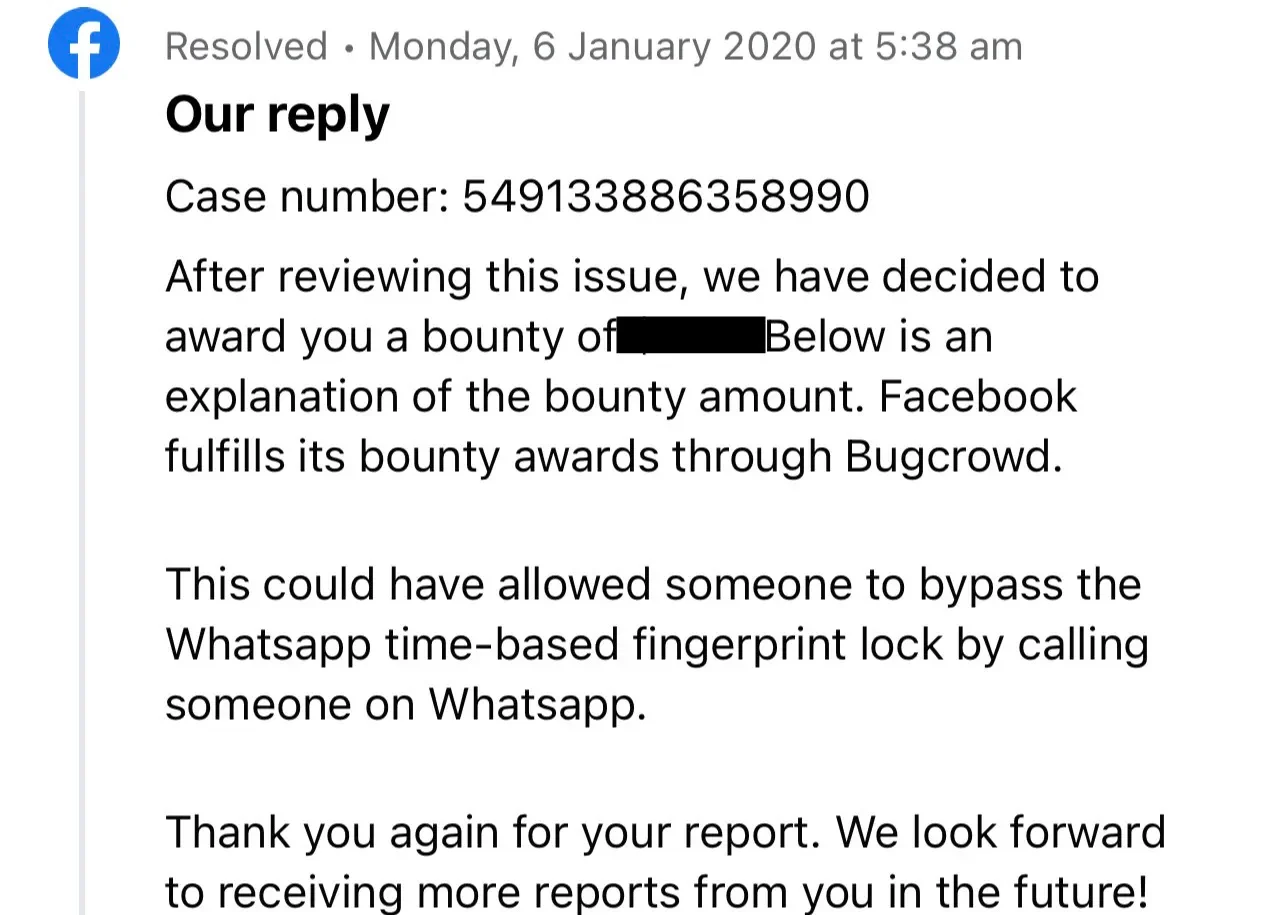
The behaviour under examination is what happens to that timer when a WhatsApp call arrives. The report was published with Meta's permission under its responsible disclosure policy, and the issue was fixed by the time of publication.
Setup
No special tooling, accounts or versions are described. The precondition is simply a WhatsApp for Android installation where Screen Lock is enabled and an Auto Lock duration has been chosen. The researcher's reproduction uses a one-minute duration, and notes that any duration works.
Finding it
The observation is straightforward: if the user receives a WhatsApp call after the auto-lock interval has already elapsed, the app fails to lock. The lock screen that should have appeared when the app was reopened does not appear, so the app opens fully unlocked.
That is wrong because the auto-lock contract is that the app locks after the configured period of inactivity regardless of which screen the user left it on. A call arriving should not reset that clock in a way that grants access.
Exploitation
The bypass needs physical access to the device: the attacker makes a call to it, rejects the incoming call and opens WhatsApp.
- Enable biometric lock and set the auto lock duration to one minute, or any other value.
- Close the app.
- Wait one minute or longer, then place a WhatsApp call to that device.
- Reject the incoming call and open WhatsApp.
The app opens without asking for the biometric credential, giving full access: reading chats, sending messages, and so on.
Root cause
The report explains the mechanism with a sample of how auto-lock is typically implemented:
The pause handler saves the app closed time whenever the activity is not in the excluded list. The pause callback fires for the call screen too, so the app closed time is saved when the call ends.
Impact
Anyone with brief physical access to a device whose owner has enabled Screen Lock can read chats and send messages without knowing the biometric credential or PIN, provided they can arrange for a WhatsApp call to arrive (or receive one) and reject it before opening the app. The report frames this as a complete bypass of the biometric lock. No severity score or bounty amount is given.
Fix
The report states that onActivityPaused() and onActivityResumed() are called whenever any activity of the app is paused or resumed. The suggested fix is therefore to check the activity class name and not save the app closed time when the activity is CallActivity.class, so that the call screen does not reset the inactivity clock. The report states the vulnerability is now fixed; it does not show the shipped patch.
Variants to test
- Other transient activities that pause the main task: share sheets, permission dialogs, media pickers, in-app browsers. A positive result is the app reopening without the lock prompt after the configured interval has elapsed.
- Other entry points that start an activity from outside the app: notification actions, quick reply, widgets, deep links. A positive result is the same reset of the inactivity timer.
- Different auto-lock durations, including the shortest available. A positive result is the bypass working at every duration, not just one minute.
- Apps that use the same
Application-level lifecycle callback pattern for session timeouts or re-authentication. A positive result is a session that should have expired being extended by an unrelated activity. - Configuration changes such as rotation, which also trigger pause and resume. A positive result is the timer being reset without the user leaving the app.
What happened, in plain words
WhatsApp on Android has a feature called Screen Lock. It lets you put a lock on the app itself, separate from the lock on your phone. To open WhatsApp you then have to prove who you are using whatever the phone already knows about you: your fingerprint, your face (Face ID), your PIN, or the pattern you draw on the screen. These are called biometric credentials (or just credentials), and the idea is that even if you hand your unlocked phone to someone, they still cannot read your chats.
There is a second setting that goes with it, called Auto Lock. Instead of locking WhatsApp the moment you leave it, Auto Lock waits for a period of time that you choose. If you pick one minute, WhatsApp is supposed to lock itself once a minute has passed without you using it. The point is convenience: you can switch to another app for a few seconds and come back without having to unlock WhatsApp again, but if you leave it alone for longer, the lock comes back.
This report is about a hole in that timer. If a WhatsApp call arrives after the auto-lock period has already passed, the app does not lock. When you then open WhatsApp, it opens fully, with no fingerprint, no PIN, nothing. Anyone holding the phone can read chats and send messages.
To make that happen, the attacker needs two things: the phone in their hand, and someone who can call it. The attacker rejects the incoming call and opens WhatsApp. The lock screen that should have appeared does not appear.

The report was published with Meta's permission under its responsible disclosure policy. That is an agreement between security researchers and companies: the researcher tells the company about a problem privately, the company gets time to fix it, and then the researcher may write about it publicly. The report says the vulnerability was fixed by the time it was published.
The pieces you need to understand first
Before the steps make sense, a few everyday ideas.
An app is made of screens. In Android, each screen you see (the chat list, a chat, the settings page, the incoming call screen) is a separate building block called an Activity. When you move from one screen to another, Android tells the app: this activity is now visible (it has resumed), and that activity is no longer visible (it has paused). Think of it like rooms in a house: when you walk out of the kitchen into the hall, the kitchen light goes off and the hall light comes on, and the house knows about both events.
Apps can listen to those events. Android lets an app register something called an Activity Lifecycle Callback. That is just a set of instructions the app hands to Android, saying: every time any screen of mine is shown or hidden, run this code. The app registers it once, in a central place called the Application class, which is the object that represents the whole app rather than one screen. This is how WhatsApp can lock itself no matter which screen you left it on: chat, home, settings, it does not matter, because the callback fires for all of them.
There is a clock that keeps counting while the phone sleeps. Android offers SystemClock.elapsedRealtime(), which returns how long the device has been running since it was last booted, in milliseconds. Unlike the time on your watch, it keeps counting even while the phone is asleep, and it is not affected by the user changing the time zone or the clock. It is the right tool for measuring "how long has it been since X".
The auto-lock idea in one sentence. When the user leaves the app, write down the current value of that clock. When the user comes back, look at the clock again, subtract the saved value, and if the result is bigger than the duration the user chose, show the lock. That is the whole design.
Setting up the test
The report does not describe any special tools, accounts or app versions. The only precondition is a WhatsApp for Android installation where Screen Lock is switched on and an Auto Lock duration has been chosen. The researcher used one minute and notes that any duration works.
Finding it
The observation is simple. If the user receives a WhatsApp call after the auto-lock interval has already elapsed, the app fails to lock. The lock screen that should have appeared when the app was reopened does not appear, so the app opens fully unlocked.
Why is that wrong? Because the promise of auto-lock is that the app locks after the configured period of inactivity, regardless of which screen the user left it on. A call arriving should not reset that clock in a way that hands out access.
Doing the bypass
The bypass needs physical access to the device: the attacker makes a call to it, rejects the incoming call and opens WhatsApp.
- Enable biometric lock and set the auto lock duration to one minute, or any other value.
- Close the app.
- Wait one minute or longer, then place a WhatsApp call to that device.
- Reject the incoming call and open WhatsApp.
The app opens without asking for the biometric credential, giving full access: reading chats, sending messages, and so on.
Step 1 sets up the condition being tested. Step 2 starts the inactivity clock, because leaving the app is what the app is supposed to notice. Step 3 makes sure the clock has run past the limit, so the lock should be due. Step 4 is the trick: the call screen comes and goes, and that coming and going is what confuses the timer.
Why it happens
The report explains the mechanism with a sample of how auto-lock is typically implemented. The report shows this as sample auto-lock implementation code.
public class App extends Application {  public void onCreate() {    super.onCreate();    registerActivityLifecycleCallbacks(activityLifecycleCallbacks);  }  ActivityLifecycleCallbacks activityLifecycleCallbacks = new ActivityLifecycleCallbacks() {    public void onActivityResumed(Activity activity) {       if(!excludedActivityList.contains(activity)) &&            SystemClock.elapsedRealtime() - getAppClosedTime() >=                 USER_SPECIFIED_DURATION) {           lockTheApp();        }    }    public void onActivityPaused(Activity activity) {      saveAppClosedTime(SystemClock.elapsedRealtime());    }  };}```

Line by line, in plain words:

- `public class App extends Application` declares the app-wide class, the one object that stands for the whole application rather than a single screen.
- `public void onCreate()` is the setup method that runs once when the app starts.
- `super.onCreate()` runs the standard setup that Android expects first.
- `registerActivityLifecycleCallbacks(activityLifecycleCallbacks)` hands Android the set of instructions below, so that every screen's show and hide events are reported to this code.
- `ActivityLifecycleCallbacks activityLifecycleCallbacks = new ActivityLifecycleCallbacks() {` starts the definition of those instructions.
- `public void onActivityResumed(Activity activity)` is the instruction that runs whenever any screen becomes visible. The `activity` parameter is the screen in question.
- `if(!excludedActivityList.contains(activity)) &&` is a guard: skip the check if this screen is on a list of screens that should not trigger locking. The `&&` means the next condition must also be true.
- `SystemClock.elapsedRealtime() - getAppClosedTime() >= USER_SPECIFIED_DURATION` is the actual test: current device up time minus the saved time when the app was last left, compared with the duration the user chose. If the gap is at least that duration, the condition is true.
- `lockTheApp();` shows the lock screen.
- `public void onActivityPaused(Activity activity)` is the instruction that runs whenever any screen stops being visible.
- `saveAppClosedTime(SystemClock.elapsedRealtime());` writes down the current device up time as "the moment the app was closed".

So the design is: pause means "remember now", resume means "how long has it been, and is it long enough?".

WhatsApp implements the "any screen inactivity listener" by registering an Activity Lifecycle Callback in the `Application` class, so the app auto-locks after the timeout even if the user minimised it from any activity such as chat, home or settings.

The code flow for the bypass is:

1. When the call is received, `CallActivity.class` is started. That is the incoming call screen, another activity like any other.
2. After the call ends, `CallActivity.class` is closed and `onActivityPaused()` is called. That method stores the current device up time, `SystemClock.elapsedTime()`, as the app closed time.
3. When the app is reopened, `onActivityResumed()` is called. It calculates the difference between the current device up time and the stored app closed time, and locks the app only if that difference is greater than the user-specified duration.

The lock fails because the app closed time is saved when the call ends, not when the user actually left the app. By the time the user reopens WhatsApp, the difference is smaller than the user-specified duration, so the lock condition is not met.

A comparison helps. Imagine a shop that locks its door one minute after the last customer leaves, and the caretaker writes down the departure time on a board. You leave at noon. At 12:05 a delivery arrives, the caretaker serves it, and on the way out writes 12:05 on the board instead of noon. The owner comes back at 12:06, reads the board, sees only one minute has passed, and leaves the door open. The delivery did not extend the shop's opening hours on purpose; it simply overwrote the note.

The relevant pause handler is:

```java
public void onActivityPaused(Activity activity) {    if(!excludedActivityList.contains(activity)) {                     saveAppClosedTime(SystemClock.elapsedRealtime());    }}```

- `public void onActivityPaused(Activity activity)` runs every time any screen of the app stops being visible.
- `if(!excludedActivityList.contains(activity)) {` checks whether this screen is on the list of screens that should be ignored. The `!` means "not": the body runs only when the screen is *not* on the list.
- `saveAppClosedTime(SystemClock.elapsedRealtime());` overwrites the saved departure time with the current device up time.

The pause handler saves the app closed time whenever the screen is not on the excluded list. The pause callback fires for the call screen too, so the app closed time is saved when the call ends.

## What an attacker gets

Anyone with brief physical access to a device whose owner has enabled Screen Lock can read chats and send messages without knowing the biometric credential or PIN, provided they can arrange for a WhatsApp call to arrive (or receive one) and reject it before opening the app. The report frames this as a complete bypass of the biometric lock. No severity score or bounty amount is given.

## The fix

The report states that `onActivityPaused()` and `onActivityResumed()` are called whenever any activity of the app is paused or resumed. The suggested fix is therefore to check the activity class name and not save the app closed time when the activity is `CallActivity.class`, so that the call screen does not reset the inactivity clock. The report states the vulnerability is now fixed; it does not show the shipped patch.

{{media:1}}

## Other places to look

- Other transient activities that pause the main task: share sheets, permission dialogs, media pickers, in-app browsers. A positive result is the app reopening without the lock prompt after the configured interval has elapsed.
- Other entry points that start an activity from outside the app: notification actions, quick reply, widgets, deep links. A positive result is the same reset of the inactivity timer.
- Different auto-lock durations, including the shortest available. A positive result is the bypass working at every duration, not just one minute.
- Apps that use the same `Application`-level lifecycle callback pattern for session timeouts or re-authentication. A positive result is a session that should have expired being extended by an unrelated activity.
- Configuration changes such as rotation, which also trigger pause and resume. A positive result is the timer being reset without the user leaving the app.

## Glossary

- **Activity**: a single screen in an Android app, such as the chat list, a chat, or the incoming call screen.
- **Activity Lifecycle Callback**: a set of instructions an app gives Android so that it is told whenever any of its screens becomes visible or stops being visible.
- **Application class**: the object in an Android app that represents the whole app rather than one screen; setup code that applies everywhere is often placed here.
- **Auto Lock**: the WhatsApp setting that locks the app automatically after a chosen period of inactivity.
- **Biometric credentials**: the proof of identity the phone already holds, such as a fingerprint, face, PIN or pattern.
- **Bypass**: getting past a security check without satisfying it, for example opening a locked app without the fingerprint.
- **CallActivity**: the Android activity that shows the incoming call screen.
- **Device up time**: how long the device has been running since it was last booted, measured by `SystemClock.elapsedRealtime()`; it keeps counting while the phone sleeps and ignores clock changes.
- **Excluded activity list**: a list of screens that the auto-lock code deliberately ignores when deciding whether to lock.
- **Inactivity timer**: the countdown that starts when the user leaves the app and decides when the lock should appear.
- **onActivityPaused**: the callback that runs when a screen stops being visible; in this design it saves the departure time.
- **onActivityResumed**: the callback that runs when a screen becomes visible; in this design it checks how long the app has been away and locks if needed.
- **Responsible disclosure policy**: an arrangement where a researcher reports a flaw privately, the company fixes it, and publication follows with permission.
- **Screen Lock**: the WhatsApp feature that requires the device's biometric credential before the app opens.
- **Session timeout**: a rule that ends a logged-in state after a period of inactivity, so that an unattended device does not stay open.
- **SystemClock.elapsedRealtime()**: the Android function that returns device up time in milliseconds.
- **Timestamp**: a recorded moment in time, here the saved value of the device up time when the app was last left.
- **Vulnerability**: a weakness in software that lets someone do something the design did not intend, such as opening a locked app.