Local Privilege Escalation using System Clean-up functionality
The System Clean-up feature of Acronis True Image 2021 follows directory junctions created by a low-privileged user, allowing deletion of files in protected system folders. An attacker could delete arbitrary files or entire folders that they normally lack permission to modify, leading to privilege escalation.

- Triaged in 4 days
- Fixed in 7 months
- Paid in 11 days
- Disclosed after 3.9 years
Summary
Acronis True Image 2021 contains a System Clean-up functionality which allows the user to wipe Recycle Bin, Temp folder, recent usage history including passwords and other information. The software has protections against symlink attack but it is vulnerable to Directory junction attack and it is possible for an attacker to delete all the files and subfolders of a folder using this vulnerability even if he does not have the permission to do so resulting in Privilege Escalation.
Steps To Reproduce
I will demonstrate the vulnerability with two examples. In 1st example, I will show how to delete all the contents (files and subfolders) of a folder at once and in 2nd example I will show how to delete just one specific file from a folder using some Python code (flock.py) I wrote which is attached to the report.
Example No.1: In this example, I will try to delete all the files inside C:\Windows\System32\drivers\etc which contain network mapping and port information for Windows. Normal user does not have permission to delete these files.
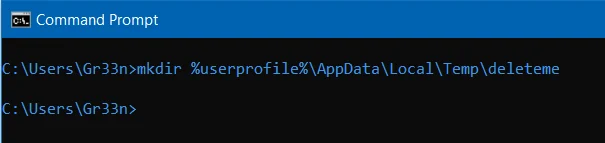
[ 1 ] - Create an empty folder inside %userprofile%\AppData\Local\Temp folder. Normal user has full access to this folder. I created a folder named 'deleteme' on my system. %userprofile% is a Windows environment variable for the user folder which is 'C:\Users\Gr33n' in my case.
mkdir %userprofile%\AppData\Local\Temp\deleteme
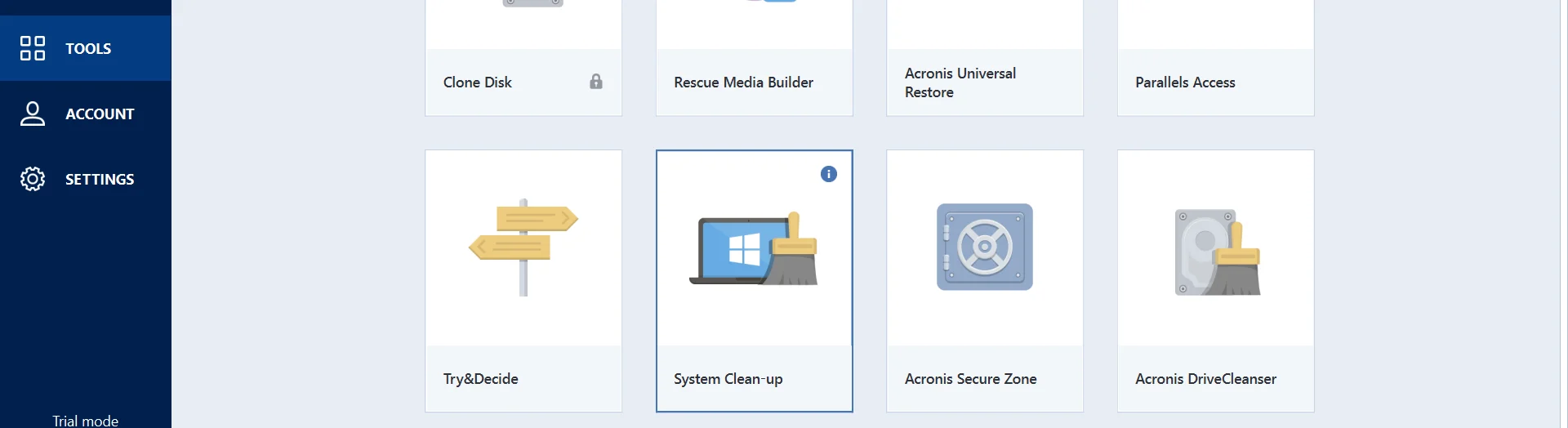
[ 2 ] - Open System Clean-up tool.
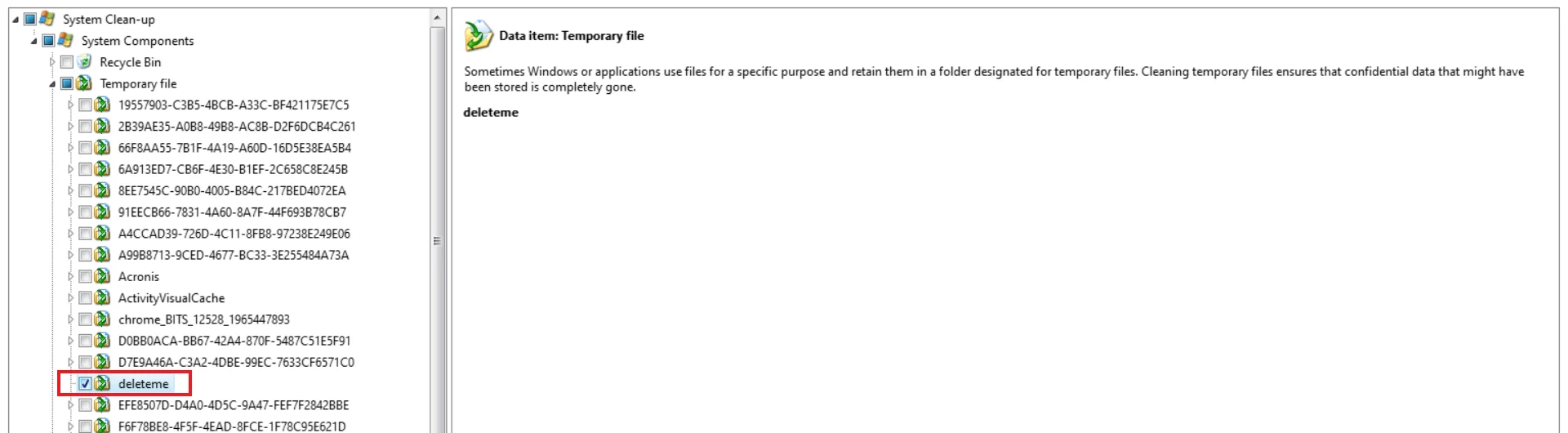
[ 3 ] - Select the deleteme folder under Temporary file. It is not mandatory to only select the newly created folder in Step [ 1 ]. Selecting the whole Temporary file or System Clean-up option will also work.
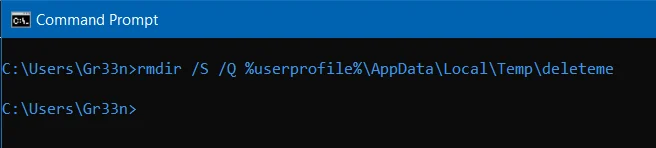
[ 4 ] - Delete the deleteme folder as it a prerequisite for creating Directory junction.
rmdir /S /Q %userprofile%\AppData\Local\Temp\deleteme
[ 5 ] - Create a Directory junction from %userprofile%\AppData\Local\Temp\deleteme to C:\Windows\System32\drivers\etc folder.
mklink /J %userprofile%\AppData\Local\Temp\deleteme C:\Windows\System32\drivers\etc

[ 6 ] - Click on the Clean-up option in the System Clean-up window.

TrueImageTools.exe tool will attempt to delete the deleteme folder and all the contents inside it but because of the Directory junction, the operations will be performed on C:\Windows\System32\drivers\etc folder.
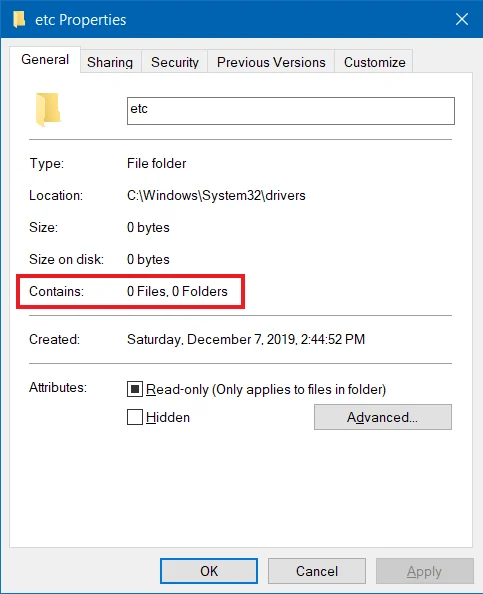
Example No.2 In this example, I will try to delete the hosts file inside C:\Windows\System32\drivers\etc which contains the mappings of IP addresses to host names for Windows. Normal user does not have permission to delete these files.
[ 1 ] - Create an empty folder inside %userprofile%\AppData\Local\Temp folder. Normal user has full access to this folder. I created a folder named 'deleteme' on my system. %userprofile% is a Windows environment variable for the user folder which is 'C:\Users\Gr33n' in my case.
mkdir %userprofile%\AppData\Local\Temp\deleteme
[ 2 ] - In the deleteme folder, create a file with the name of the the file you want to delete from the target folder. hosts file in this case.
echo|set /p="" > %userprofile%\AppData\Local\Temp\deleteme\hosts

[ 3 ] - Open System Clean-up tool.
[ 4 ] - Select the hosts file under Temporary file. It is not mandatory to only select the newly created file in Step [ 2 ]. Selecting the whole Temporary file or System Clean-up option will also work.
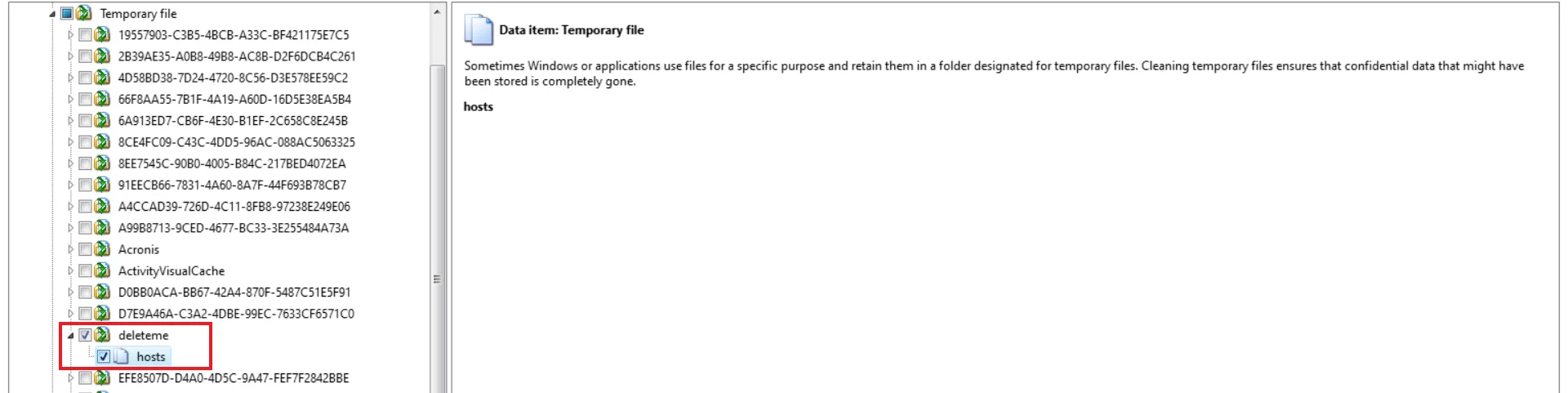
[ 5 ] - Delete the deleteme folder as it a prerequisite for creating Directory junction.
rmdir /S /Q %userprofile%\AppData\Local\Temp\deleteme
[ 6 ] - Create a Directory junction from %userprofile%\AppData\Local\Temp\deleteme to C:\Windows\System32\drivers\etc folder.
mklink /J %userprofile%\AppData\Local\Temp\deleteme C:\Windows\System32\drivers\etc
[ 7 ] - Run the Python program with the file to be deleted as an argument. hosts file in this example.
python flock.py C:\Windows\System32\drivers\etc\hosts

The python program will open a handle to all files except the target file and keep it open until user input is given which will prevent them from getting deleted.
[ 8 ] - Click on the Clean-up option in the System Clean-up window.
[ 9 ] - The System Clean-up window will show a prompt asking what to do since it cannot delete other files in the folder as they are opened by the python program. Click on Ignore All.
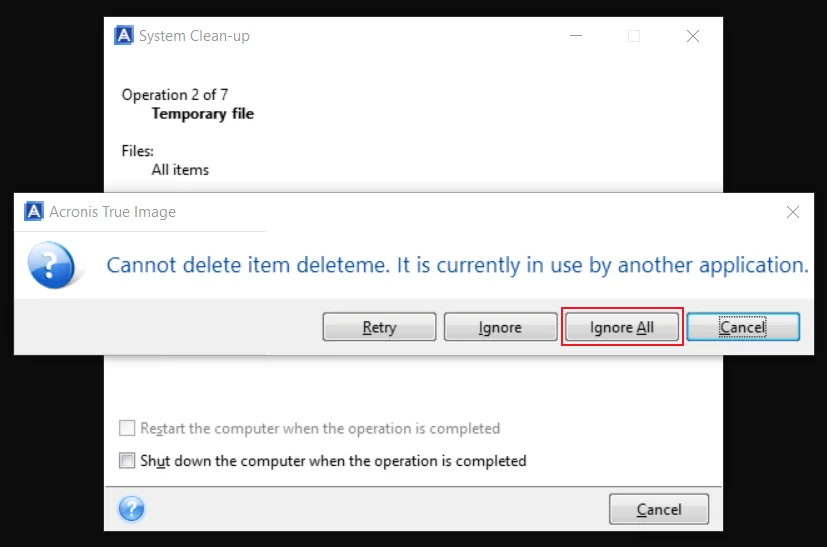
TrueImageTools.exe will attempt to delete the deleteme folder and all the contents inside it but because of the Directory junction, the operations will be performed on C:\Windows\System32\drivers\etc folder and since all files except the hosts file is opened by the python program, TrueImageTools.exe tool will fail to delete those opened files and only delete the hosts file.
hosts file does not exist in C:\Windows\System32\drivers\etc folder anymore.

Recommendations
Detect Directory junction and stop the deletion process.
Impact
Attacker can delete all the files and subfolders from a folder or just a specific file or folder of his choice even when he does not have the permissions to do so.
Context
Acronis True Image 2021 (now sold as Acronis Cyber Protect Home Office) ships a System Clean-up feature. It lets a user wipe the Recycle Bin, the Temp folder, and recent usage history, including passwords and other information. The clean-up work is carried out by a helper binary, TrueImageTools.exe.
The report describes a local privilege escalation: the clean-up logic follows a directory junction placed inside the user's Temp folder, so the privileged helper deletes files in a location the normal user cannot touch. The product already had protections against symlink attacks, but those protections did not cover junctions.
Setup
The attack is entirely local. The preconditions are:
- Acronis True Image 2021 installed, with the System Clean-up feature available.
- A normal, unprivileged user account. The report uses the profile
C:\Users\Gr33n;%userprofile%is the Windows environment variable for that folder. - The user's own
%userprofile%\AppData\Local\Tempfolder, to which a normal user has full access. - A target folder whose contents the normal user is not permitted to delete. The report uses
C:\Windows\System32\drivers\etc, which holds network mapping and port information for Windows. - For the second example, a Python program called
flock.py, written by the researcher and attached to the report. Its role is described below.
Finding it
The product has protections against symlink attacks but is vulnerable to a directory junction attack.
Exploitation
The report gives two examples. The first deletes every file and subfolder of a target folder at once. The second deletes one specific file from the target folder, using flock.py to keep the other files busy so the helper skips them.
Example 1, step 1: create a folder in Temp
Create an empty folder inside %userprofile%\AppData\Local\Temp. A normal user has full access to this folder. The researcher named it deleteme.
mkdir %userprofile%\AppData\Local\Temp\deleteme
Example 1, step 2: open System Clean-up
Launch the System Clean-up tool from the product.
Example 1, step 3: select the folder
Select the deleteme folder under Temporary file. Selecting only the newly created folder is not mandatory: selecting the whole Temporary file option, or the whole System Clean-up option, also works.
Example 1, step 4: remove the folder
Delete the deleteme folder, because it must not exist before the junction is created.
rmdir /S /Q %userprofile%\AppData\Local\Temp\deleteme
Example 1, step 5: create the junction
Create a directory junction from the Temp path to the protected folder.
mklink /J %userprofile%\AppData\Local\Temp\deleteme C:\Windows\System32\drivers\etc
Example 1, step 6: run the clean-up
Click Clean-up in the System Clean-up window.
TrueImageTools.exe attempts to delete the deleteme folder and everything inside it. Because of the directory junction, the operations are performed on C:\Windows\System32\drivers\etc instead.
Example 2, step 1: create a folder in Temp
Same starting point as the first example: an empty folder named deleteme inside the user's Temp folder.
mkdir %userprofile%\AppData\Local\Temp\deleteme
Example 2, step 2: plant a file with the target's name
Inside deleteme, create a file whose name matches the file to be deleted from the target folder, here the hosts file.
echo|set /p="" > %userprofile%\AppData\Local\Temp\deleteme\hosts
Example 2, step 3: open System Clean-up
Launch the System Clean-up tool.
Example 2, step 4: select the file
Select the hosts file under Temporary file. As in the first example, selecting the whole Temporary file or System Clean-up option also works.
Example 2, step 5: remove the folder
Delete the deleteme folder, again because it must not exist before the junction is created.
rmdir /S /Q %userprofile%\AppData\Local\Temp\deleteme
Example 2, step 6: create the junction
Create the same junction to the protected folder.
mklink /J %userprofile%\AppData\Local\Temp\deleteme C:\Windows\System32\drivers\etc
Example 2, step 7: run flock.py
Run the Python program with the file to be deleted as its argument, here the hosts file.
python flock.py C:\Windows\System32\drivers\etc\hosts
The program opens a handle to every file except the target file and keeps those handles open until the user provides input. That prevents the other files from being deleted.
Example 2, step 8: run the clean-up
Example 2, step 9: ignore the errors
The System Clean-up window shows a prompt asking what to do, because it cannot delete the other files in the folder: they are held open by the Python program. Click Ignore All.
TrueImageTools.exe attempts to delete the deleteme folder and its contents. Through the junction, the operations land on C:\Windows\System32\drivers\etc. Because every file except hosts is held open by the Python program, the helper fails on those files and deletes only the hosts file. The hosts file no longer exists in C:\Windows\System32\drivers\etc.
Root cause
The product has protections against symlink attacks but is vulnerable to a directory junction attack, allowing deletion of files the user cannot delete.
Impact
An attacker can delete all files and subfolders of a folder, or one specific file or folder of their choice, even when they do not have permission to do so. In the demonstrated case the target is C:\Windows\System32\drivers\etc, which holds Windows network mapping and port information; the second example removes the hosts file from it.
Fix
The report's recommendation is to detect directory junctions and stop the deletion process when one is encountered.
Variants to test
Hunting notes
What happened, in plain words
Acronis True Image 2021 (now sold as Acronis Cyber Protect Home Office) is a backup and disk-management program for Windows. Among its tools is a System Clean-up feature. You point it at things you want wiped, such as the Recycle Bin, the Temp folder, or your recent usage history (which can include saved passwords and other information), and it deletes them for you.
The actual deleting is done by a helper program called TrueImageTools.exe.
The researcher found that this helper can be tricked. If you put a special kind of shortcut, called a directory junction, inside your own Temp folder, the helper follows the shortcut and deletes files at the shortcut's destination instead. Because of the junction, the files disappear even though your own account had no permission to remove them. That is a local privilege escalation: a normal user gets an action performed with the rights of a more powerful account, on the same machine.
The product already defended against a related trick called a symlink attack, but that defence did not cover junctions. That gap is the bug.
The pieces you need to understand first
Before the steps make sense, here are the ideas they rely on, explained from scratch.
- Privileges. Every Windows account has a set of permissions. A normal user can change files in their own profile but not system files. An administrator, or a program running as one, can change almost anything. When a program runs "with higher privileges", it can do things you cannot do yourself.
- A helper program (service or binary). Many desktop programs split themselves in two: a window you interact with, and a background program that does the privileged work. You click a button; the background program does the dangerous part. If the background program can be fooled into acting on the wrong path, your click becomes a way to borrow its power.
- Environment variable. A named value Windows keeps for you.
%userprofile%is the variable that stands for your own user folder. On the researcher's machine that folder wasC:\Users\Gr33n; on yours it will be different, but%userprofile%always points at it. - The Temp folder. A scratch area where programs put temporary files. Yours lives at
%userprofile%\AppData\Local\Temp, and you have full permission to create, change and delete things there. That full control is exactly what the attack needs. - A directory junction. Think of it as a signpost inside one folder that says "the real folder is over there". When a program opens the signpost's path, Windows quietly redirects it to the destination. It looks like an ordinary folder, but everything done inside it happens at the destination. A symlink is a close cousin: another kind of signpost. Windows and security products often treat the two differently, and that difference matters here.
- Why a junction is dangerous in a privileged program. If a powerful program is told to delete
...\Temp\deletemeanddeletemeis a junction pointing at a system folder, the program may follow the signpost and delete the system folder's contents, using its own high privileges. The user never had permission to do that; the program did, and it was pointed at the wrong place. - Reparse point. The general Windows name for these signposts (junctions, symlinks, mount points). The report's fix suggestion is essentially: notice when a reparse point is in the path and stop.
- A handle. When a program opens a file, Windows gives it a handle, a kind of claim ticket. While a handle is open, the file is often locked and cannot be deleted. The second example uses this deliberately: it holds handles on the files it wants to keep, so only the one file it wants gone can be deleted.
- Local privilege escalation (LPE). "Local" means the attacker is already on the machine as a normal user; they are not coming in over the network. "Privilege escalation" means they end up causing actions that require higher rights. The impact here is deletion of protected files, not code execution.
The setup
The attack is entirely local. You need:
- Acronis True Image 2021 installed, with the System Clean-up feature available.
- A normal, unprivileged Windows account. The report uses the profile
C:\Users\Gr33n;%userprofile%is the variable for that folder. - Your own
%userprofile%\AppData\Local\Tempfolder, which you fully control. - A target folder whose contents you are not allowed to delete. The report uses
C:\Windows\System32\drivers\etc, which holds network mapping and port information for Windows. - For the second example, a Python program called
flock.py, written by the researcher and attached to the report. Its job is explained when it is used.
How the researcher found it
The product has protections against symlink attacks but is vulnerable to a directory junction attack, allowing deletion of files the user cannot delete.
Example 1: delete everything in a protected folder
This example deletes every file and subfolder of C:\Windows\System32\drivers\etc at once. A normal user has no permission to delete those files.
Step 1: create a folder in Temp
Create an empty folder inside %userprofile%\AppData\Local\Temp. You have full access there. The researcher named it deleteme.
mkdir %userprofile%\AppData\Local\Temp\deleteme
Line by line: mkdir means "make directory", i.e. create a folder. The argument is the full path where the folder should appear: your Temp folder, then a folder called deleteme. This is the folder the clean-up tool will later be told to delete. It has to live somewhere you control, because you need to be able to replace it with a junction later.
Step 2: open System Clean-up
Launch the System Clean-up tool from the product. This is the feature that will do the deleting, through its privileged helper.
Step 3: select the folder
Select the deleteme folder under Temporary file. Selecting only the newly created folder is not mandatory: selecting the whole Temporary file option, or the whole System Clean-up option, also works. The point of this step is to make the tool remember that it should delete that path when you press the button.
Step 4: remove the folder
Delete the deleteme folder, because it must not exist before the junction is created.
rmdir /S /Q %userprofile%\AppData\Local\Temp\deleteme
Line by line: rmdir means "remove directory". /S tells it to remove the folder and everything inside it. /Q means "quiet": do not ask for confirmation. The path is the same deleteme folder from step 1. Why remove it? Because a junction is created at a path that must not already be occupied by a real folder. You are clearing the space so the signpost can stand there instead.
Step 5: create the junction
Create a directory junction from the Temp path to the protected folder.
mklink /J %userprofile%\AppData\Local\Temp\deleteme C:\Windows\System32\drivers\etc
Line by line: mklink is the Windows command that creates links. /J says the link should be a directory junction. The first path is where the signpost goes: the same deleteme location the clean-up tool was told to delete. The second path is where the signpost points: the protected system folder. From now on, anything that opens ...\Temp\deleteme is silently redirected to C:\Windows\System32\drivers\etc.
Step 6: run the clean-up
Click Clean-up in the System Clean-up window.
TrueImageTools.exe attempts to delete the deleteme folder and everything inside it. Because of the directory junction, the operations are performed on C:\Windows\System32\drivers\etc instead. Because of the directory junction, the operations are performed on C:\Windows\System32\drivers\etc instead, and files the normal user could never delete are removed.
Example 2: delete one specific file from a protected folder
This example deletes just one file, the hosts file, from C:\Windows\System32\drivers\etc. The hosts file maps IP addresses to host names for Windows, and a normal user has no permission to delete it. The trick is to make the helper fail on every other file in the folder, so only the chosen one is removed.
Step 1: create a folder in Temp
Same starting point as the first example: an empty folder named deleteme inside your Temp folder.
mkdir %userprofile%\AppData\Local\Temp\deleteme
Line by line: as before, mkdir creates the folder at the given path. You need it so you can plant a file inside it and later replace it with a junction.
Step 2: plant a file with the target's name
Inside deleteme, create a file whose name matches the file you want deleted from the target folder, here the hosts file.
echo|set /p="" > %userprofile%\AppData\Local\Temp\deleteme\hosts
Line by line: echo normally prints text. | pipes its output into the next command. set /p="" reads a line of input and, with an empty prompt, effectively produces nothing. The > redirects that nothing into a new file at the given path, creating an empty file called hosts. Why? Because the clean-up tool is told to delete a file named hosts; you need a real file with that name to select in the tool. It is empty and harmless; it is only there to be selected.
Step 3: open System Clean-up
Launch the System Clean-up tool.
Step 4: select the file
Select the hosts file under Temporary file. As in the first example, selecting the whole Temporary file or System Clean-up option also works.
Step 5: remove the folder
Delete the deleteme folder, again because it must not exist before the junction is created.
rmdir /S /Q %userprofile%\AppData\Local\Temp\deleteme
Line by line: rmdir removes the folder, /S includes its contents (the empty hosts file), /Q skips confirmation. The tool has already recorded that it should delete a file named hosts at this location; removing the real folder frees the path for the junction.
Step 6: create the junction
Create the same junction to the protected folder.
mklink /J %userprofile%\AppData\Local\Temp\deleteme C:\Windows\System32\drivers\etc
Line by line: mklink /J creates a directory junction. The first path is the signpost location, the second is the protected folder it points to. Now the path the tool will delete through leads to the system folder.
Step 7: run flock.py
Run the Python program with the file to be deleted as its argument, here the hosts file.
python flock.py C:\Windows\System32\drivers\etc\hosts
Line by line: python runs the Python interpreter. flock.py is the researcher's program. The argument is the path of the file you want gone. The program opens a handle to every file in that folder except the target file and keeps those handles open until you provide input. A handle is a claim ticket; while it is open, Windows will not let the file be deleted. So every file except hosts is now protected from deletion, and hosts is left free.
Step 8: run the clean-up
Step 9: ignore the errors
The System Clean-up window shows a prompt asking what to do, because it cannot delete the other files in the folder: they are held open by the Python program. Click Ignore All. This tells the tool to skip the files it cannot delete and carry on.
TrueImageTools.exe attempts to delete the deleteme folder and its contents. Through the junction, the operations land on C:\Windows\System32\drivers\etc. Because every file except hosts is held open by the Python program, the helper fails on those files and deletes only the hosts file. The hosts file no longer exists in C:\Windows\System32\drivers\etc.
Why it works (root cause)
The product has protections against symlink attacks but is vulnerable to a directory junction attack.
What an attacker gains
An attacker can delete all files and subfolders of a folder, or one specific file or folder of their choice, even when they do not have permission to do so. In the demonstrated case the target is C:\Windows\System32\drivers\etc, which holds Windows network mapping and port information; the second example removes the hosts file from it.
The fix
The report's recommendation is to detect directory junctions and stop the deletion process when one is encountered.
Other things worth testing
Where to look for this kind of bug
Glossary
- Privilege: the right to perform an action on a computer, such as deleting a system file. Higher privileges mean more allowed actions.
- Privilege escalation: causing an action to happen with more rights than your own account has.
- Local privilege escalation (LPE): privilege escalation where the attacker is already sitting at the machine as a normal user, not coming in over a network.
- Helper program / binary: a background program that does privileged work on behalf of a window you interact with.
- System Clean-up: the Acronis True Image feature that wipes the Recycle Bin, Temp folder and recent usage history.
- TrueImageTools.exe: the helper program that performs the clean-up deletions with higher privileges.
- Environment variable: a named value Windows keeps, such as
%userprofile%, which stands for your user folder. - Temp folder: a scratch folder for temporary files, at
%userprofile%\AppData\Local\Temp, which you fully control. - Directory junction: a Windows signpost inside one folder that redirects to another folder; a kind of reparse point.
- Symlink: another kind of Windows signpost, similar to a junction but treated differently by Windows and security products.
- Reparse point: the general name for Windows signposts such as junctions, symlinks and mount points.
- Symlink attack: tricking a privileged program into following a symlink to a location the attacker should not be able to affect.
- Handle: a claim ticket Windows gives a program when it opens a file; while it is open, the file is usually locked against deletion.
mkdir: command that creates a folder.rmdir: command that removes a folder;/Sincludes its contents,/Qskips confirmation.mklink /J: command that creates a directory junction.hostsfile: a Windows file that maps IP addresses to host names.flock.py: the researcher's Python program that holds handles on every file except the target, so only the target can be deleted.- Root cause: the underlying reason a bug exists, as opposed to its visible symptoms.
- Impact: what an attacker can actually do because of the bug.