Local Privilege Escalation via Backup delete
Acronis AntiRansomware Protection did not monitor rename operations on the folder containing backup files, allowing an attacker to rename the folder, create a symlink to a system file, and cause the backup software to delete that file with elevated privileges.

- Triaged in 21 hours
- Fixed in 7 months
- Paid in 4 days
- Disclosed after 3.9 years
Summary
Acronis True Image 2021 is famous for its seamless Backup and Restore feature which lets users backup any data to any place of their choice and restore it back in case of accidental loss. I found a serious bug/bypass in Acronis AntiRansomware Service when it comes to accessing backup files which when combined with symlink attack can let an attacker modify AntiRansomware protected backup files and delete any file on the system without permissions leading to Privilege Escalation.
Issue
Acronis True Image saves information about backups in .tib files. The .tib file itself as well as the folder it is in is monitored by Acronis AntiRansomware Protection to block any kind of modification unless an exclusion is created. The issue is that it monitors all modification operations on the file and folder except Rename operation on the folder containing the .tib file.
Steps To Reproduce
We need to have a backup first to be able to delete it. The Preparation part contains the steps to create a backup and Exploitation part contains the steps to exploit the vulnerability. If you already have a backup, skip Preparation part.
Preparation:
[ 1 ] - Create a file in a folder which is to be backed up. I chose to create a file named poc.exe in data_acronis folder on my Desktop.
mkdir %userprofile%\Desktop\data_acronis & echo PoC > %userprofile%\Desktop\data_acronis\poc.exe

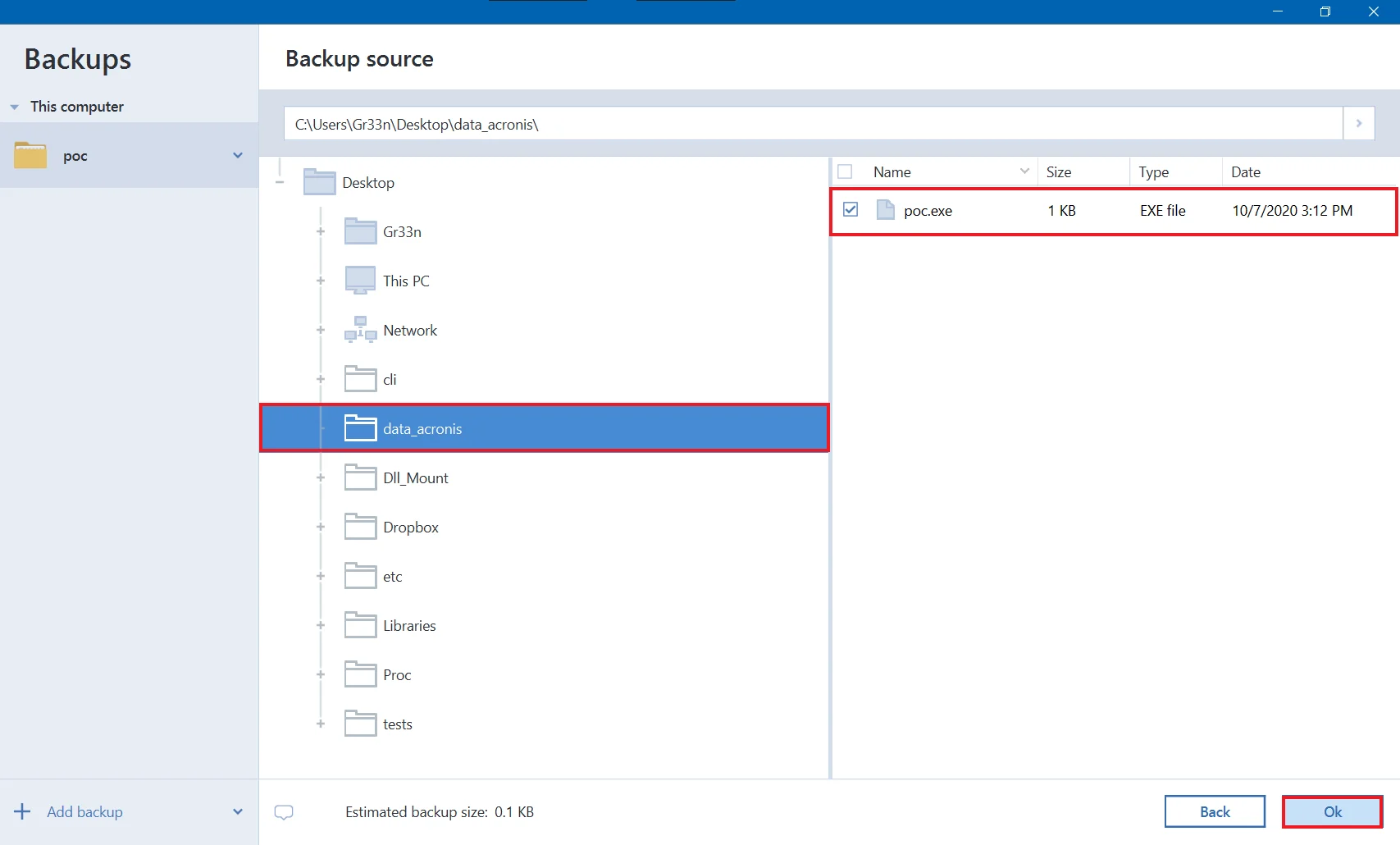
[ 2 ] - In Backup tab of Acronis True Image, click on Change source then click on Files and folders and select poc.exe file from data_acronis folder.
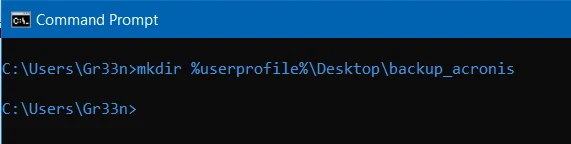
[ 3 ] - Create a folder to save the backup .tib files in. I chose to create a folder named backup_acronis on my Desktop.
mkdir %userprofile%\Desktop\backup_acronis
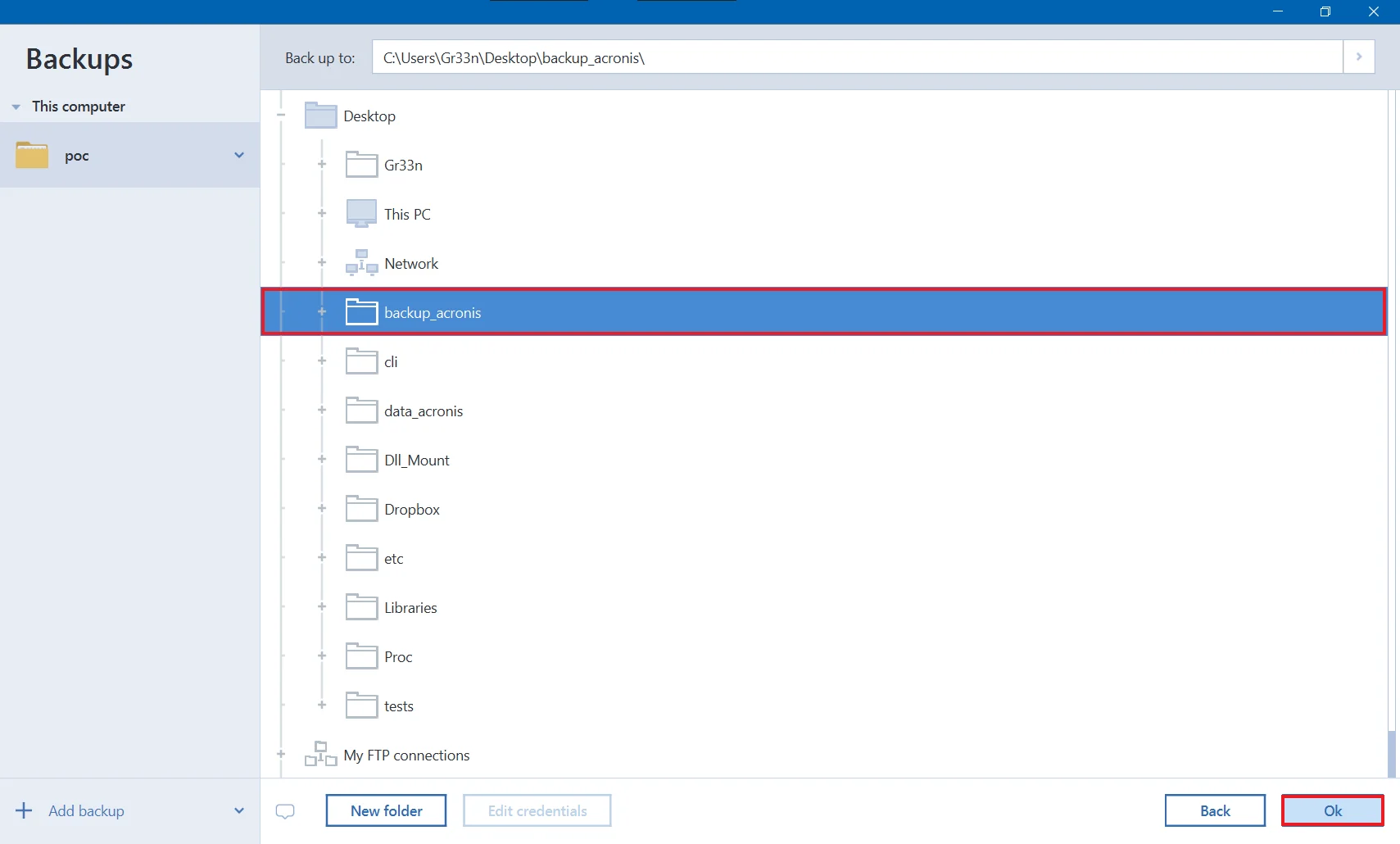
[ 4 ] - Click on Select destination, then click on Browse and select the backup_acronis folder.
[ 5 ] - Click on Back up now.
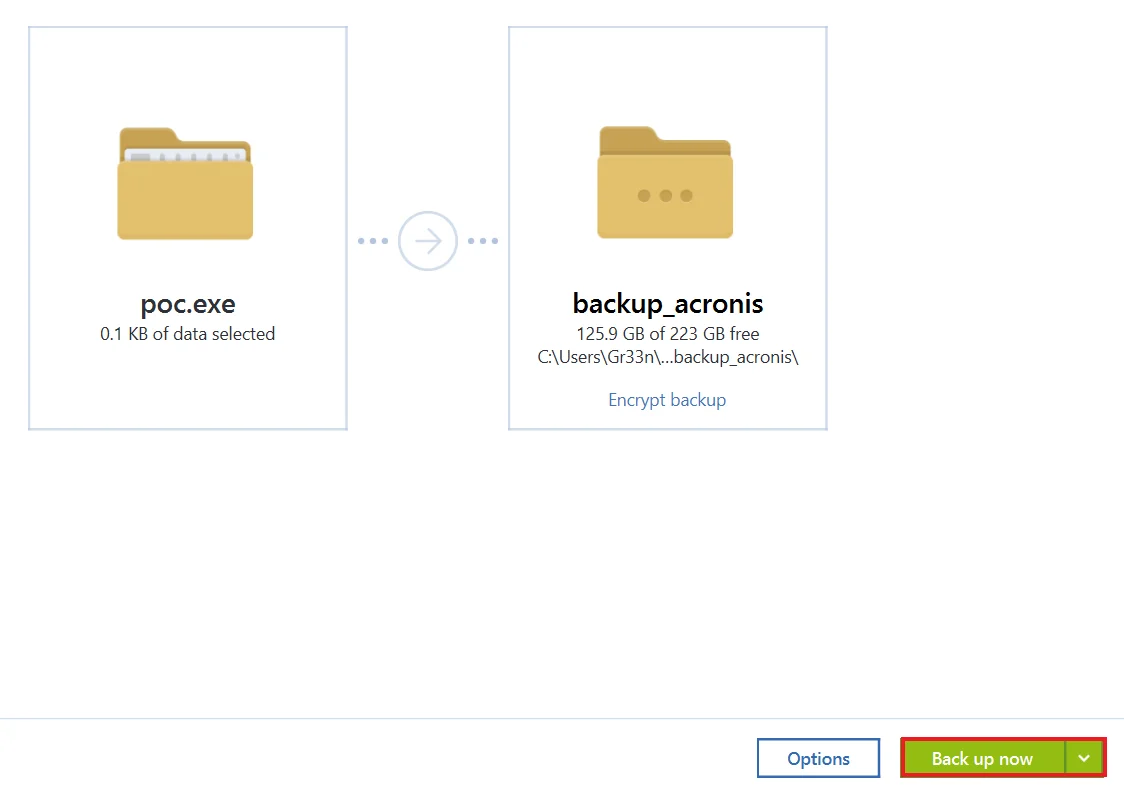
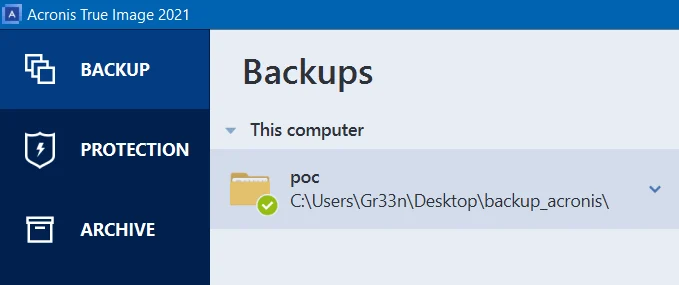
poc.exe file from data_acronis folder will be backed up by Acronis True Image and the .tib files will be saved in backup_folder folder.
Exploitation:
The name pattern for the .tib files is [backup_name]_[backup_scheme]_b1_s1_v1.tib so after the backup, a file named poc_full_b1_s1_v1.tib will be created in backup_acronis folder.
Normally, the backup .tib files and folder are protected by Acronis AntiRansomware Protection from any kind of modification.
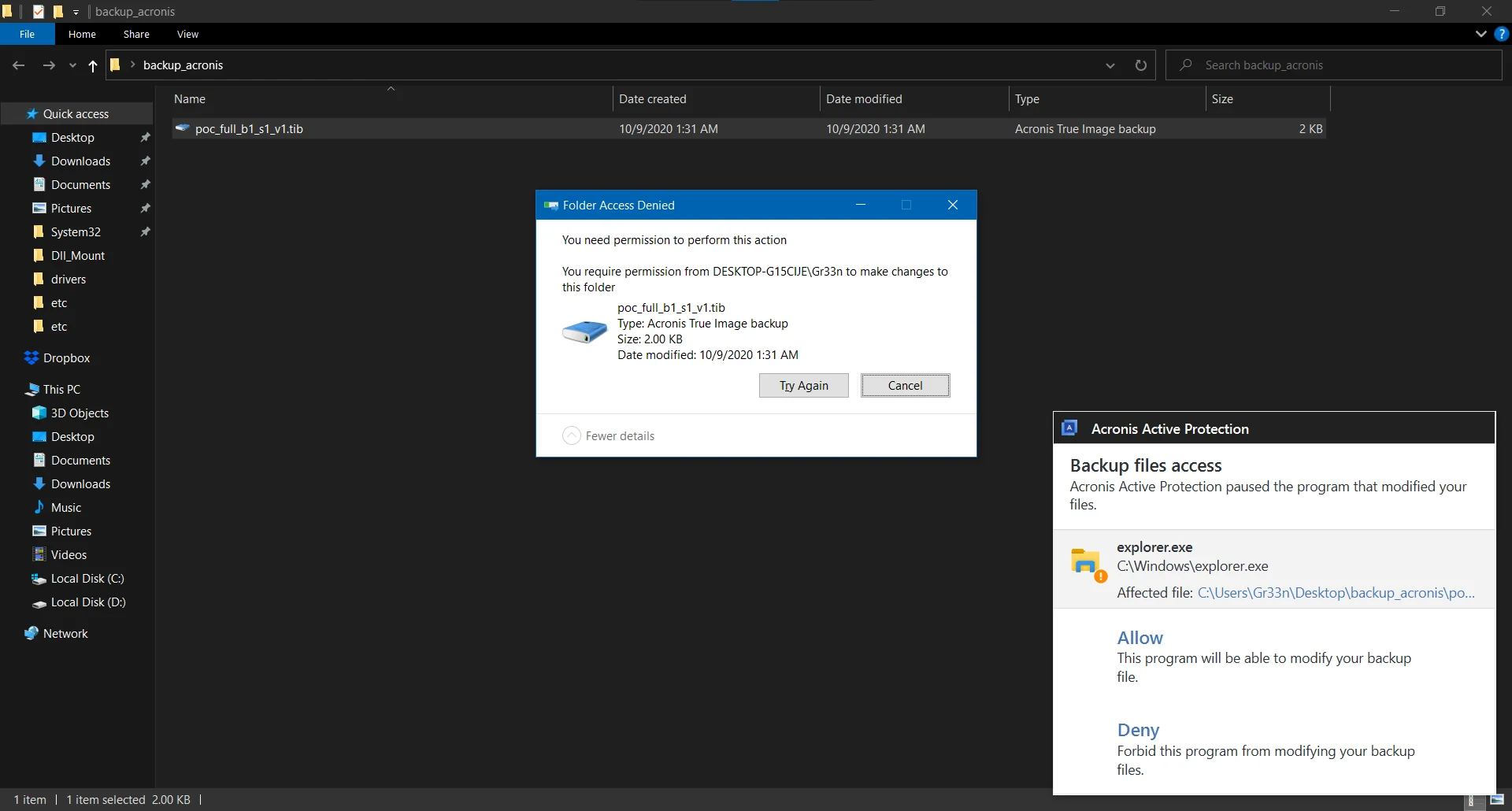
But the issue is that it does not monitor and block Rename operation on the folder where the .tib files are stored which is %userprofile%\Desktop\backup_acronis in this case.
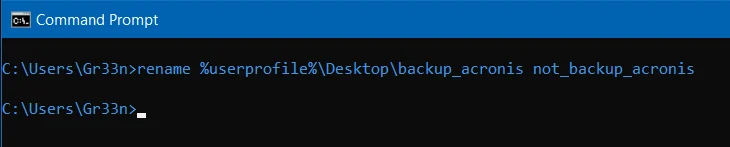
[ 1 ] - Rename backup_acronis to any other name.
rename %userprofile%\Desktop\backup_acronis not_backup_acronis
[ 2 ] - Create a symlink from %userprofile%\Desktop\acronis_backup\poc_full_b1_s1_v1.tib file to the target file which is to be deleted. I will try to delete C:\Windows\System32\drivers\pci.sys file.
I've used CreateSymlink tool from symboliclink-testing-tools in this example.
CreateSymlink %userprofile%\Desktop\backup_acronis\poc_full_b1_s1_v1.tib C:\Windows\System32\drivers\pci.sys

[ 3 ] - Go to Backup tab, right click on the backup and click on Delete, then click on Delete entirely option.
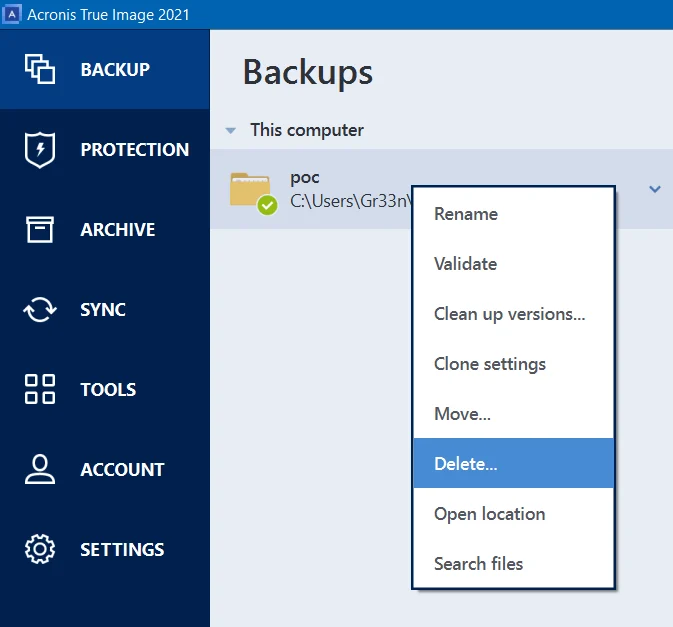
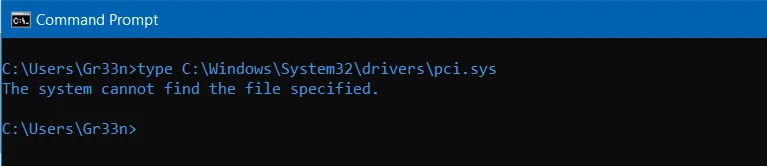
Acronis True Image will try to delete the poc_full_b1_s1_v1.tib file from %userprofile%\Desktop\backup_acronis folder but because of the symlink the operation will be performed on C:\Windows\System32\drivers\pci.sys resulting in its deletion.
Tested on
Windows 10 Home, Version 2004 (OS Build 19041.450) Acronis True Image 2021, Build 32010
Regards, Saurabh Patil ( @z3ron3 )
Impact
If we rename the folder which contains the .tib file and create new folder of same name, we are able to write into the new folder without AntiRansomware protection blocking the write and Acronis True Image will assume its the same folder and read content from it which totally breaks the aim of Actve AntiRansomware protection as anyone is able to change contents of the .tib file.
Being able to change contents of AntiRansomware protected backup files without permission is a big issue in itself for True Image so I think this issue should be considered with greater severity. Privileged delete was just an application of the issue .
Context
Acronis True Image 2021 is a backup and restore product: users choose a source (files, folders or whole disks), choose a destination, and the application writes the backup into .tib files. The report focuses on the interaction between that backup workflow and Acronis AntiRansomware Protection, which monitors the .tib files and the folder that contains them and blocks modification unless an exclusion has been created.
The claim is that the protection covers modification operations on the file and on its folder but not the Rename operation on the folder holding the .tib file. Combined with a symbolic link, that gap lets an attacker modify AntiRansomware-protected backup files and delete arbitrary files on the system without the required permissions, which the researcher classifies as privilege escalation.
Setup
The researcher tested on:
- Windows 10 Home, Version 2004 (OS Build 19041.450)
- Acronis True Image 2021, Build 32010
A backup must exist before it can be deleted, so the report splits the work into a Preparation part that creates one and an Exploitation part that abuses it. If a backup already exists, Preparation can be skipped. The symlink step uses the CreateSymlink tool from Google Project Zero's symboliclink-testing-tools.
Finding it
The starting observation is about coverage, not about a malformed input. AntiRansomware Protection watches every modification operation on the .tib file and on the folder containing it, and blocks them unless an exclusion exists. Renaming the folder itself, however, is not monitored and not blocked. The folder holding the .tib file can be renamed without being blocked.
Exploitation
Preparation 1: create the data to back up
A file named poc.exe is created inside a folder called data_acronis on the Desktop.
mkdir %userprofile%\Desktop\data_acronis & echo PoC > %userprofile%\Desktop\data_acronis\poc.exe
Preparation 2: select the backup source
In the Backup tab of Acronis True Image, click Change source, then Files and folders, and select the poc.exe file from the data_acronis folder.
Preparation 3: create the destination folder
A folder named backup_acronis is created on the Desktop to hold the .tib files.
mkdir %userprofile%\Desktop\backup_acronis
Preparation 4: select the destination
Click Select destination, then Browse, and select the backup_acronis folder.
Preparation 5: run the backup
Click Back up now. The poc.exe file from data_acronis is backed up and the .tib files are written into the destination folder.
The naming pattern for the .tib files is [backup_name]_[backup_scheme]_b1_s1_v1.tib, so after this backup a file named poc_full_b1_s1_v1.tib exists in the backup_acronis folder. Normally the .tib files and their folder are protected by AntiRansomware Protection against any kind of modification.
Step 1: rename the protected folder
The folder holding the .tib files, %userprofile%\Desktop\backup_acronis, is renamed. This is the operation the protection does not monitor.
rename %userprofile%\Desktop\backup_acronis not_backup_acronis
Step 2: plant a symlink in a folder with the original name
A symlink is created at %userprofile%\Desktop\acronis_backup\poc_full_b1_s1_v1.tib, pointing at the file to be deleted. The target chosen here is C:\Windows\System32\drivers\pci.sys.
CreateSymlink %userprofile%\Desktop\backup_acronis\poc_full_b1_s1_v1.tib C:\Windows\System32\drivers\pci.sys
Step 3: delete the backup from the application
In the Backup tab, right click the backup, click Delete, then choose Delete entirely.
Acronis True Image tries to delete poc_full_b1_s1_v1.tib from %userprofile%\Desktop\backup_acronis. Because that path is now a symlink, the operation is performed on C:\Windows\System32\drivers\pci.sys, and that file is deleted.
Root cause
The protection is implemented as monitoring of modification operations on the .tib file and on the folder that contains it, with an exclusion mechanism to allow legitimate changes. Rename of the containing folder is not among the monitored operations, so the protected folder can be moved aside and a new folder with the same name created in its place.
Two properties combine to turn this into arbitrary deletion. Because of the symlink, the delete operation is performed on the target file.
Impact
Renaming the folder that contains the .tib file and creating a new folder with the same name allows writes into the new folder without AntiRansomware protection blocking them, and Acronis True Image assumes it is the same folder and reads content from it. That alone lets an attacker change the contents of AntiRansomware-protected backup files without permission, which the researcher argues is a serious issue for True Image and should be considered with greater severity. The privileged delete is described as just one application of the issue: with the symlink in place, deleting the backup through the application deletes an arbitrary file on the system without the permissions that would normally be required.
Fix
The report does not state what was changed.
Variants to test
- Rename the protected folder and create a new one with the same name, then write to the
.tibfile directly. A positive result is that the write succeeds without an AntiRansomware block and the application reads the modified backup. - Point the symlink at other privileged paths and trigger the delete from the application. A positive result is deletion of the target file.
Hunting notes
This kind of bug hides where a security control enumerates operations on files and folders but omits one, and where the application later resolves a resource by path rather than by a handle it controls.
Disclosure
Reported on HackerOne in the Acronis program by z3ron3, severity medium, bounty 250.00 USD, disclosed on 2024-08-27.
What happened, in plain words
Acronis True Image 2021 is a program that makes copies of your files so you can get them back if something goes wrong. Those copies are stored in files with the ending .tib. The program also ships with a feature called Acronis AntiRansomware Protection. Ransomware is malicious software that locks or scrambles your files and demands money to unlock them, so this feature is meant to stand guard over your backup files and stop anything from changing or deleting them.
The researcher found that the guard has a blind spot. It watches almost everything that happens to the backup file and to the folder the backup sits in, but it does not watch one specific action: renaming that folder. Renaming a folder is like putting a new label on a box without touching what is inside. If you can rename the folder, you can move the real backup out of the way and put something else in its place under the old name.
That alone would be bad enough, because it means someone could change the contents of a protected backup. The researcher showed the same trick can delete a system file without the permission that would normally be needed. That last part is why the report calls it privilege escalation: doing something that should require higher rights than the attacker has.
The product and the feature
Acronis True Image 2021 is a backup and restore product. You pick a source (some files, some folders, or a whole disk), you pick a destination, and the program writes the backup into .tib files. Restoring means reading those files back and putting your data where it was.
The report is about how that backup workflow interacts with Acronis AntiRansomware Protection. That protection keeps an eye on the .tib files and on the folder that contains them, and blocks changes to them unless the user has created an exclusion, which is a rule saying "this particular place is allowed to change".
The claim in the report is narrow and specific: the protection covers modification operations on the file and on its folder, but not the Rename operation on the folder that holds the .tib file. When you combine that gap with a symbolic link (explained below), an attacker can modify AntiRansomware-protected backup files and delete arbitrary files on the system without the permissions that would normally be required. The researcher classifies this as privilege escalation.
Where it was tested
The researcher tested on:
- Windows 10 Home, Version 2004 (OS Build 19041.450)
- Acronis True Image 2021, Build 32010
A backup has to exist before it can be deleted, so the report splits the work into two parts. The Preparation part creates a backup. The Exploitation part abuses it. If you already have a backup, you can skip Preparation entirely.
The symlink step uses a small helper program called CreateSymlink, which comes from Google Project Zero's symboliclink-testing-tools.
Finding it
The starting observation is about coverage, not about a malformed input or a strange file. AntiRansomware Protection watches every modification operation on the .tib file and on the folder containing it, and blocks them unless an exclusion exists. Renaming the folder itself, however, is not monitored and not blocked. The folder holding the .tib file can be renamed without being blocked.
Think of it like a security guard who checks everyone who walks into a room, but does not notice when the room's door sign is taken down and put on a different door. The guard is still doing the job as written; the job just does not cover the sign.
Exploitation
Preparation 1: create the data to back up
A file named poc.exe is created inside a folder called data_acronis on the Desktop.
mkdir %userprofile%\Desktop\data_acronis & echo PoC > %userprofile%\Desktop\data_acronis\poc.exe
Line by line:
mkdirmeans "make directory", that is, create a folder.%userprofile%is a Windows shorthand that stands for the current user's home folder, so%userprofile%\Desktop\data_acronisis a folder calleddata_acronissitting on the Desktop.&runs the next command after the first one finishes.echo PoC >writes the textPoCinto a file. The>symbol means "send the output into this file instead of the screen".- The file it writes into is
%userprofile%\Desktop\data_acronis\poc.exe, so the result is a small file with the contentsPoCand the namepoc.exe.
Why this step: the whole demonstration needs something to back up. A tiny file is enough, because the point is not the data but what happens to the backup afterwards.
Preparation 2: select the backup source
In the Backup tab of Acronis True Image, click Change source, then Files and folders, and select the poc.exe file from the data_acronis folder.
Why this step: the source is what the program will copy. Choosing a single file keeps the backup small and easy to follow.
Preparation 3: create the destination folder
A folder named backup_acronis is created on the Desktop to hold the .tib files.
mkdir %userprofile%\Desktop\backup_acronis
Line by line:
mkdircreates a folder.%userprofile%\Desktop\backup_acronisis the full address of the new folder: a folder calledbackup_acronison the Desktop.
Why this step: the backup has to be written somewhere. This folder is the one the protection will later be watching, and the one the attack will rename.
Preparation 4: select the destination
Click Select destination, then Browse, and select the backup_acronis folder.
Why this step: this tells the program where to put the .tib files. The attack depends on knowing that location.
Preparation 5: run the backup
Click Back up now. The poc.exe file from data_acronis is backed up and the .tib files are written into the destination folder.
The naming pattern for the .tib files is [backup_name]_[backup_scheme]_b1_s1_v1.tib, so after this backup a file named poc_full_b1_s1_v1.tib exists in the backup_acronis folder. Normally the .tib files and their folder are protected by AntiRansomware Protection against any kind of modification.
Step 1: rename the protected folder
The folder holding the .tib files, %userprofile%\Desktop\backup_acronis, is renamed. This is the operation the protection does not monitor.
rename %userprofile%\Desktop\backup_acronis not_backup_acronis
Line by line:
renamechanges the name of a file or folder.- The first path,
%userprofile%\Desktop\backup_acronis, is the folder being renamed. - The second name,
not_backup_acronis, is the new name it gets.
Why this step: the protection does not block this rename, so the real backup folder is moved aside.
Step 2: plant a symlink in a folder with the original name
A symlink is created at %userprofile%\Desktop\acronis_backup\poc_full_b1_s1_v1.tib, pointing at the file to be deleted. The target chosen here is C:\Windows\System32\drivers\pci.sys.
A symlink (symbolic link) is a kind of shortcut stored on disk. When a program opens the shortcut, the operating system quietly redirects it to whatever the shortcut points at. The program does not have to know; it just asks for the shortcut's path and gets the target's contents or, in this case, the target's file.
CreateSymlink %userprofile%\Desktop\backup_acronis\poc_full_b1_s1_v1.tib C:\Windows\System32\drivers\pci.sys
Line by line:
CreateSymlinkis the helper tool from the symboliclink-testing-tools package.- The first path is where the shortcut is created: inside a folder called
backup_acronison the Desktop, with the same name the backup file had,poc_full_b1_s1_v1.tib. - The second path is what the shortcut points at:
C:\Windows\System32\drivers\pci.sys, a system driver file.
Why this step: the program will later try to delete the backup by its old path. Because that path is now a shortcut, the delete will land on the driver file instead. The attacker never needs permission to touch the driver directly; the backup program does the touching on their behalf.
Step 3: delete the backup from the application
In the Backup tab, right click the backup, click Delete, then choose Delete entirely.
Why this step: this is the ordinary, legitimate feature of the product. The user is asking the program to remove a backup, and the program is expected to do exactly that.
Acronis True Image tries to delete poc_full_b1_s1_v1.tib from %userprofile%\Desktop\backup_acronis. Because that path is now a symlink, the operation is performed on C:\Windows\System32\drivers\pci.sys, and that file is deleted.
Root cause
The protection is built as monitoring of modification operations on the .tib file and on the folder that contains it, with an exclusion mechanism to allow legitimate changes. Rename of the containing folder is not among the monitored operations, so the protected folder can be moved aside and a new folder with the same name created in its place. The researcher describes this as breaking the aim of Active AntiRansomware protection, because anyone can change the contents of the .tib file.
Two properties combine to turn this into arbitrary deletion. Because of the symlink, the delete operation is performed on the target file.
Impact
Renaming the folder that contains the .tib file and creating a new folder with the same name allows writes into the new folder without AntiRansomware protection blocking them. Acronis True Image assumes it is the same folder and reads content from it. That alone lets an attacker change the contents of AntiRansomware-protected backup files without permission, which the researcher argues is a serious issue for True Image and should be considered with greater severity. The privileged delete is described as just one application of the issue: with the symlink in place, deleting the backup through the application deletes an arbitrary file on the system without the permissions that would normally be required.
Fix
The report does not state what was changed.
Variants to test
- Rename the protected folder and create a new one with the same name, then write to the
.tibfile directly. A positive result is that the write succeeds without an AntiRansomware block and the application reads the modified backup. - Point the symlink at other privileged paths and trigger the delete from the application. A positive result is deletion of the target file.
Hunting notes
This kind of bug hides where a security control lists the operations it watches on files and folders but leaves one out, and where the application later finds a resource by path rather than by a handle it controls.
Disclosure
Reported on HackerOne in the Acronis program by z3ron3, severity medium, bounty 250.00 USD, disclosed on 2024-08-27.
Glossary
- Backup: a copy of data kept so it can be restored if the original is lost or damaged.
- Restore: putting data back from a backup to where it came from.
.tibfile: the file format Acronis True Image uses to store a backup.- Ransomware: malicious software that locks or scrambles files and demands payment to unlock them.
- AntiRansomware Protection: a feature that watches files and folders and blocks changes to them, to stop ransomware from altering data.
- Exclusion: a rule that says a particular file or folder is allowed to change, so the protection does not block it.
- Modification operation: any action that changes a file or folder, such as writing to it, deleting it or renaming it.
- Rename: changing the name of a file or folder without changing its contents.
- Path: the full address of a file or folder on disk, such as
C:\Windows\System32\drivers\pci.sys. - Symlink (symbolic link): a shortcut stored on disk that points at another file or folder; opening the shortcut acts on the target.
- Privilege escalation: doing something that should require higher rights than the attacker actually has.
- Arbitrary file deletion: deleting any file the attacker chooses, not just the one the program intended to touch.
- Root cause: the underlying reason a bug exists, as opposed to its visible symptom.
- Recon: the early stage of security testing where you look around and gather information about a target.
- HackerOne: a platform where security researchers report bugs to companies and companies can pay bounties.
- Bounty: a reward paid to a researcher for a valid security report.
- Severity: a rating of how serious a bug is, here medium.
- Disclosure: making a security report public, usually after the company has had time to fix it.
- Build: a specific compiled version of a program, identified by a number.
- OS Build: the specific version number of a Windows installation.
- Project Zero: a security research team at Google.
- symboliclink-testing-tools: a public toolkit from Project Zero for experimenting with symbolic links on Windows.
- CreateSymlink: the tool from that toolkit used here to create a symbolic link.
- Driver: a low-level file that lets the operating system talk to hardware or core system functions.
%userprofile%: a Windows shorthand for the current user's home folder.mkdir: a command that creates a folder.echo: a command that prints text; with>it writes that text into a file.rename: a command that changes the name of a file or folder.&: in a Windows command line, runs the next command after the previous one finishes.>: redirects output into a file instead of showing it on screen.