Bypassing iCloud Web Access Restriction
The iCloud web access restriction could be bypassed by intercepting and modifying the response from the validate endpoint, changing a boolean flag from false to true. This allowed access to iCloud data such as Mail, Photos, Drive, Notes, Reminders, Numbers, and Keynote even when web access was disabled on the device.
 Published on ltsirkov.medium.com
Today, I am going to share a short story about discovering a vulnerability in www.icloud.com that allowed me to bypass a security restriction using simple response manipulation.
The full write-up lives on its author's site
It belongs to its author, so we link to it rather than copy it. The other two tabs are our own rewrites, checked against it.
Context
The target is www.icloud.com, Apple's web interface to iCloud data. Apple exposes a privacy and security setting called Access iCloud Data on the Web (also described as "Manage Web Access To Your Icloud Data"). When it is turned off on a trusted device, iCloud data is meant to be reachable only from that device and not through a browser.
Apple's support page at https://support.apple.com/en-mt/102630 describes the intent of the setting as follows:
For additional security and to give you more control over your personal data, you can choose to turn off web access to your iCloud data so that your data is available only on your trusted devices.
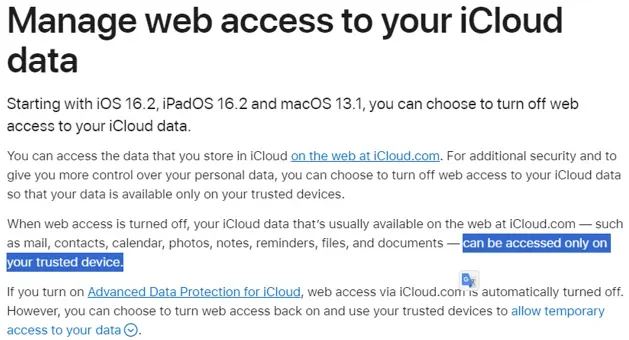
The researcher found that this restriction could be bypassed with simple response manipulation, and that the bypass was not limited to the front end: data behind the restriction could actually be viewed and downloaded.
Setup
The prerequisites listed in the report are:
- "IOS 16.2, IpadOS 16.2, MacOS 13.1" with Access iCloud Data on the Web turned off.
- A browser.
- Burp Suite (or a similar tool) to intercept and modify responses.
- The victim's credentials.
- Access to the victim's iPhone if 2FA is enabled.
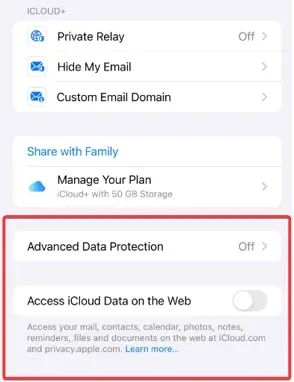
The researcher's own device was an iPhone 14 Pro Max, where the feature was first noticed.
Finding it
While browsing on the iPhone, the researcher noticed the Access iCloud Data on the Web feature. The expectation set by the feature is that, once disabled, access to iCloud data through a browser is restricted. Testing that expectation showed that it was possible to bypass the restriction and reach iCloud data through icloud.com even when web access was disabled on a trusted device.
Exploitation
The report notes that the vulnerability has been fixed. The reproduction steps are as follows.
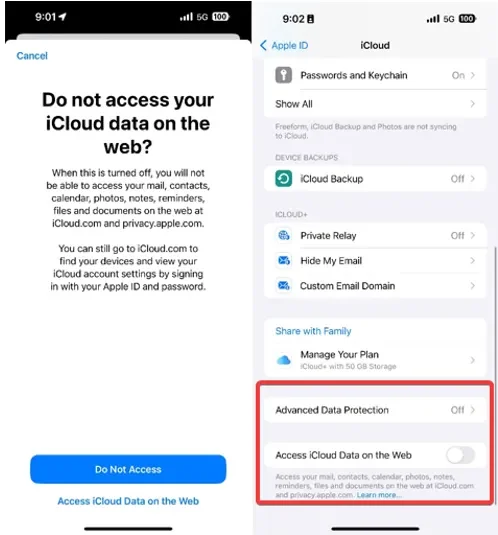
Step 1: Disable web access
On the iPhone, go to Settings -> iCloud and turn off the setting Access iCloud Data on the Web.
Step 2: Open iCloud in a browser
Open a web browser and go to iCloud.com.
Step 3: Log in
Log in to the account.
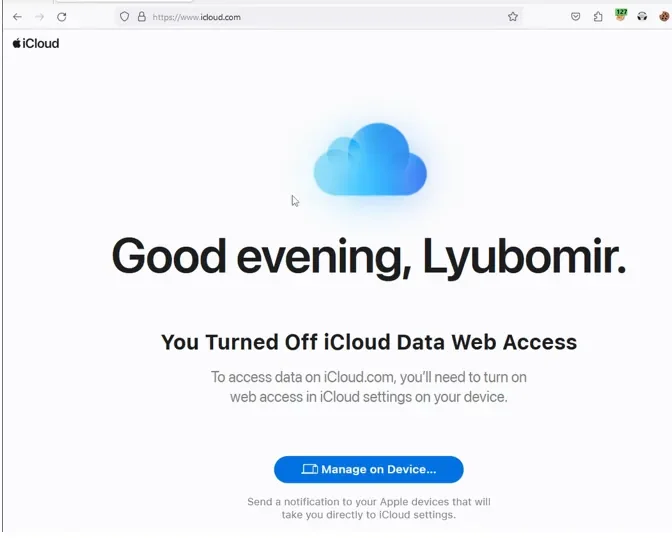
Step 4: Observe the restriction page
You are prompted with the restriction page:
At this stage no endpoints such as the following are reachable:
- Icloud.com/mail
- Icloud.com/notes
- Icloud.com/iclouddrive
Attempting to reach them simply redirects back to the same Restriction page.
Step 5: Intercept and modify the validate response
Refresh the page and intercept the response of the request:
setup.icloud.com/ws/1/validate
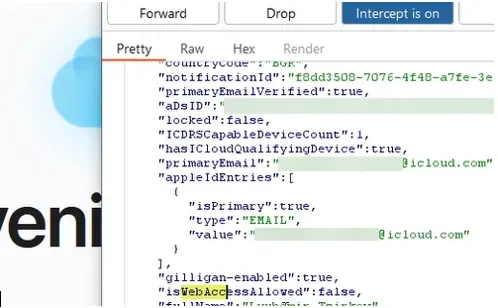
In that response, change isWebAccessAllowed from false to true.
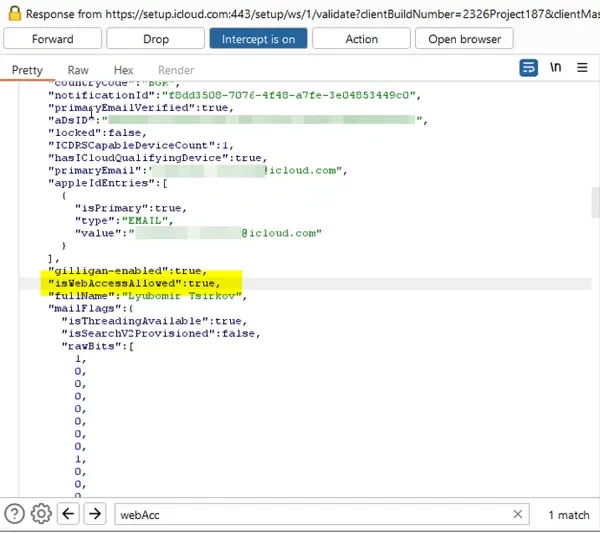
Or simply:
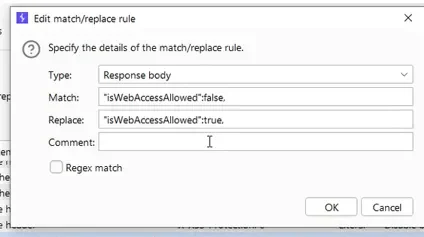
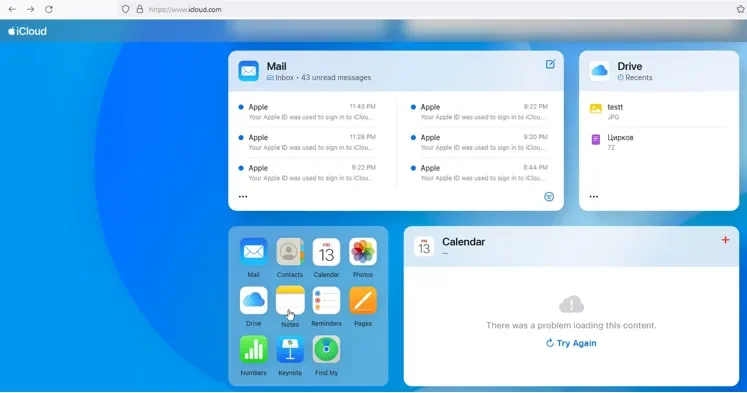
After the response is modified, access to iCloud data on the web is granted for the following:
- Photos
- Drive
- Notes
- Reminders
- Numbers
- Keynote
- Apps that had access control implemented and were not accessible: Calendar, Contacts
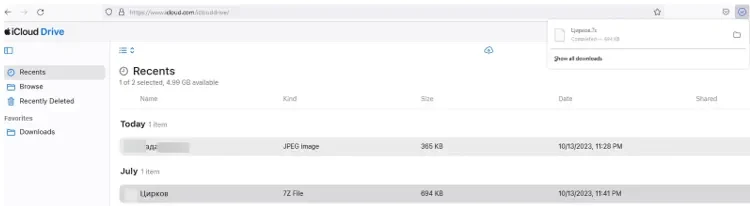
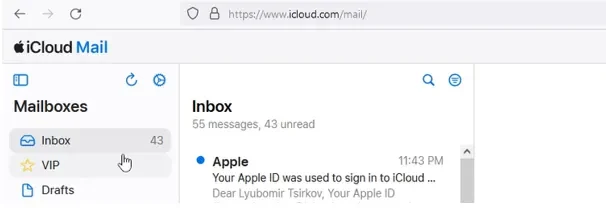
Access allowed the researcher to view and download files from Mail, Photos, Drive, Notes, Reminders, Numbers, and Keynote, which shows that this was not just a front-end bypass.
Root cause
The isWebAccessAllowed field in the setup.icloud.com/ws/1/validate response controls whether web access is shown as permitted. Flipping that single boolean from false to true in the intercepted response was enough to unlock the web apps, and the data behind them remained reachable, and the data behind them remained reachable.. Calendar and Contacts had access control implemented and stayed inaccessible. The report does not describe the server-side implementation, so the exact reason the other services trusted the client's view is not stated.
Impact
If an attacker obtains the victim's credentials, they can access iCloud data via www.icloud.com even though web access was restricted through Manage Web Access To Your Icloud Data on the device. Changing a single value in the response grants access to all of the apps listed above.
The report notes that in many cases stolen iCloud credentials are not enough because 2FA is required, and that Apple lowered the severity for this reason.
Fix
The report states that the vulnerability has been fixed, and the researcher noticed the issue was fixed on 12/11/23. It does not describe what was changed.
Variants to test
- Look for boolean flags in JSON responses that gate a feature (for example
isWebAccessAllowed,enabled,allowed) and flip them in an intercepted response. A positive result is that the UI unlocks and the underlying data can actually be read or downloaded, not just displayed. - After flipping a client-side flag, request the backing endpoints directly rather than through the UI. A positive result is that the server returns data it should have refused, which distinguishes a real authorisation gap from a cosmetic front-end change.
- Compare services that share a restriction: in this report Calendar and Contacts enforced access control while the other apps did not. Testing each service separately shows which ones rely on the client-side flag.
- Test the same restriction on other platforms and versions listed in the prerequisites (iOS 16.2, iPadOS 16.2, macOS 13.1) to see whether behaviour differs between them.
What happened, in plain words
Apple lets you switch off web access to your iCloud data. The idea is simple: if the switch is off, nobody can log in to icloud.com and read your mail, photos or files, even with your password. The researcher found that this switch could be defeated by changing one word in a message that the website receives from Apple's servers. Change false to true, and the website behaves as if the switch were on, and the data behind it becomes readable and downloadable.
That is the whole story in one sentence. The rest of this article explains, from zero, what each piece of that sentence means, why each step was taken, and what the researcher saw at each point.

The product and the feature
iCloud is Apple's online storage service. Your iPhone backs up photos, mail, notes, contacts and documents to it. You can also reach the same data from a normal web browser by going to icloud.com and logging in. That web version is the target here: www.icloud.com.
Apple gives you a privacy setting called Access iCloud Data on the Web. A second name for the same idea appears in the report as Manage Web Access To Your Icloud Data. When the setting is on, you can log in to icloud.com from a browser and see your data. When you turn it off on a device you trust, such as your own iPhone, the promise is that your data can only be reached from that device and not through a browser at all.
Apple's own support page at https://support.apple.com/en-mt/102630 states the intent like this:
For additional security and to give you more control over your personal data, you can choose to turn off web access to your iCloud data so that your data is available only on your trusted devices.
A useful everyday comparison: think of a bank that lets you choose "card payments only in person, never online". You tick that box, and you expect the bank's systems to refuse every online payment from then on. If the only thing that changed was a label on the website saying "online payments disabled", while the payment system behind it still accepted them, the box would be decoration rather than a control. That is the kind of gap this report is about.
The researcher first noticed the feature while browsing on an iPhone 14 Pro Max.
What the researcher set out to test
The setting makes a promise. The researcher's question was whether the promise holds: with web access turned off on a trusted device, can a browser still reach iCloud data? The finding was that it can, through icloud.com, and that the bypass is not merely cosmetic. Data behind the restriction could actually be viewed and downloaded.
What you need to follow along
The report lists these prerequisites:
- "IOS 16.2, IpadOS 16.2, MacOS 13.1" with Access iCloud Data on the Web turned off.
- A browser.
- Burp Suite (or a similar tool) to intercept and modify responses.
- The victim's credentials.
- Access to the victim's iPhone if 2FA is enabled.
Two of these need explaining for a newcomer.
Burp Suite is a program that sits between your browser and a website, like a postal worker who opens every letter in both directions before passing it on. Normally your browser talks directly to the server. With Burp in the middle, every request your browser sends and every response the server sends passes through Burp first, and you can read them, pause them, and edit them before they continue. That ability to pause and edit is the heart of this report.
2FA means two-factor authentication: a second proof of identity beyond the password, usually a six-digit code shown on your phone. If 2FA is on, a password alone is not enough to log in, so an attacker would also need the victim's phone. The report lists access to the victim's iPhone as a prerequisite for that reason.
Credentials simply means the login details: the username and password.
Step by step: reproducing it
The report notes that the vulnerability has been fixed, so these steps describe what was possible at the time, not something you can repeat today.
Step 1: Turn the setting off
On the iPhone, go to Settings -> iCloud and turn off the setting Access iCloud Data on the Web.
Why this step: the whole test depends on the restriction being active. If the switch were on, there would be nothing to bypass, and logging in to icloud.com would work normally. Turning it off creates the condition the researcher wants to defeat.
Step 2: Open iCloud in a browser
Open a web browser and go to iCloud.com.
Why this step: the claim under test is specifically about the web. The iPhone app is not the question. The browser is where the restriction is supposed to bite.
Step 3: Log in
Log in to the account.
Why this step: the restriction is not about anonymous visitors. It is about a legitimate account holder being kept out of the web interface. Logging in puts the browser in exactly the position the setting is meant to control.
Step 4: See the restriction page
You are prompted with the restriction page:
At this stage, none of these addresses are reachable:
- Icloud.com/mail
- Icloud.com/notes
- Icloud.com/iclouddrive
If you try, you are simply redirected back to the same Restriction page.
A word on those addresses. Each one is a URL, the address you type in the address bar. icloud.com/mail is the mail app, icloud.com/notes is Notes, and icloud.com/iclouddrive is Drive, Apple's file storage. A redirect is the server's way of saying "not here, go there instead": your browser asks for the mail page, and the server answers by sending it back to the restriction page. That is the visible behaviour of a working restriction.
This step matters because it establishes the baseline. Before any tampering, the researcher confirms that the restriction really is in force. Without that, a later success could be explained by the setting never having applied in the first place.
Step 5: Intercept the validate response and change one value
This is the interesting part. Refresh the page and intercept the response of the request:
setup.icloud.com/ws/1/validate
In that response, change isWebAccessAllowed from false to true.
Or simply:
Let us unpack this slowly, because it is the core of the whole report.
When you load a web page, your browser does not just receive one document. It sends a series of requests to servers and receives responses back. Many of those requests are not for pages you see but for data the page needs in order to decide what to show. Such a request to a server that returns data rather than a finished page is often called an API call. A useful comparison: a restaurant menu is the page, and the kitchen is the API. You ask the kitchen a question ("is this dish available?") and it answers with a fact, not with a plate.
The request in the code block above goes to setup.icloud.com, a server that handles account setup and settings, at the path /ws/1/validate. The name suggests its job: validate, that is, check the state of the account and report it back. The response to that request contains a field called isWebAccessAllowed, which is a boolean: a value that can only be false or true. In this case it says false, meaning web access is not allowed.
The browser reads that false and shows the restriction page. The page you see is the browser's reaction to the answer it was given.
Now the tampering. Because Burp sits between the browser and the server, the researcher can pause the response on its way back and edit it before the browser ever sees it. Changing false to true means the browser is now told that web access is allowed. The browser has no way to know the answer was altered in transit. It simply does what it is told.
This is why the technique is called response manipulation: the attacker does not break the server, guess a password or find a hidden page. They change the server's answer while it is in flight. The everyday comparison is intercepting a letter that says "entry refused" and rewriting it to "entry granted" before handing it to the doorman. If the doorman only reads the letter, he lets you in.
A proxy is the general name for the middleman position Burp occupies. The browser is configured to send its traffic through Burp, Burp forwards it to Apple, and Burp forwards the answers back, giving the researcher a chance to look and edit at each stage.
What happened next
After the response is modified, access to iCloud data on the web is granted for the following:
- Photos
- Drive
- Notes
- Reminders
- Numbers
- Keynote
- Apps that had access control implemented and were not accessible: Calendar, Contacts
Access allowed the researcher to view and download files from Mail, Photos, Drive, Notes, Reminders, Numbers, and Keynote, which shows that this was not just a front-end bypass.
Two ideas in that paragraph deserve a plain explanation.
Front end means the part of a website that runs in your browser: the buttons, the pages, the messages. Back end means the servers behind it that hold the actual data. A front-end bypass would be a trick that only changes what you see, for example hiding the restriction message so the page looks normal, while the server still refuses to hand over any data. That kind of bug is embarrassing but harmless, because nothing real is exposed.
This report is not that. The researcher could view and download actual files from Mail, Photos, Drive, Notes, Reminders, Numbers and Keynote. The data came from the servers. The data came from the servers, so the bypass was not limited to the front end.
Access control means the server's own check of whether you are allowed to do something. Calendar and Contacts did have access control implemented, and they stayed inaccessible even after the response was edited. That contrast is important: it shows the restriction was enforced properly for some services and not for the others. The report does not describe how the servers were built, so the exact reason the other services trusted the browser's view is not stated.
Why this matters
If an attacker obtains the victim's credentials, they can access iCloud data via www.icloud.com even though web access was restricted through Manage Web Access To Your Icloud Data on the device. Changing a single value in the response grants access to all of the apps listed above.
The report also notes that in many cases stolen iCloud credentials are not enough, because 2FA is required, and that Apple lowered the severity for this reason. In plain terms: the bug is real, but reaching it requires the victim's password and, when 2FA is on, their phone as well. That combination is harder to obtain, which is why Apple lowered the severity.
The fix
The report states that the vulnerability has been fixed, and the researcher noticed the issue was fixed on 12/11/23. It does not describe what was changed.
Timeline
- Reported on: 10/12/23
- Additional information requested by Apple: 10/13/23
- Additional information provided: 10/13/23
- I've noticed issue was fixed on: 12/11/23
- Final decision: 12/21/23

What a beginner can take away
- A setting that only changes a message sent to the browser is not a security control. The server must check the rule itself, every time, for every piece of data it hands out.
- When you test a restriction, first confirm it works (step 4), then try to defeat it (step 5). The baseline is what makes the result meaningful.
- A boolean field in a response, such as
isWebAccessAllowed, is a natural thing to try flipping. If flipping it unlocks only the look of the page, it is cosmetic. If real data becomes readable and downloadable, it is a genuine authorisation gap. - Test each service separately. Here Calendar and Contacts held the line while the others did not, and that difference is the most useful clue in the whole report.
Glossary
- API: a way for one program to ask another for data or an action, usually over the web, and get a structured answer back rather than a finished page.
- Access control: a server's own check of whether a given user is allowed to reach a given piece of data or action.
- Back end: the servers and systems behind a website that store and serve the real data.
- Boolean: a value that can only be
trueorfalse. - Burp Suite: a tool that sits between a browser and a server so you can read, pause and edit the requests and responses passing through.
- Credentials: the login details for an account, typically a username and password.
- Front end: the part of a website that runs in your browser, such as pages, buttons and messages.
- Front-end bypass: a trick that changes only what the browser shows, without the server actually giving up protected data.
- iCloud: Apple's online service for storing and syncing photos, mail, notes, contacts, files and more.
- Intercept: to pause a request or response in transit so you can inspect or change it before it continues.
- Proxy: a middleman program that traffic passes through on its way between your browser and a server.
- Redirect: a server's instruction to your browser to go to a different address instead of the one requested.
- Request: a message your browser sends to a server asking for a page or data.
- Response: the message a server sends back to the browser.
- Response manipulation: editing a server's response while it is in transit, so the browser acts on altered information.
- 2FA (two-factor authentication): a second proof of identity beyond the password, usually a code from a phone.
- URL: the address of a page or resource on the web, such as
icloud.com/mail. - Validate: to check and report the state of something, here the account's settings.